Navigating the System
Basic Commands
In this, we’ll learn about:
- Windows
- GUI (Graphical User Interface)
- CLI (Command Line Interface)
- Linux
- Command
- Shell
The CLI interpreter on Linux is called a shell, and the language that we’ll use to interact with this shell is called Bash.
List Directories in a GUI
- On Windows, filesystems are assigned to drive letters, which look like C:, or D:, or X:.
- The parent/root directory of C: would be written **C:*, and the root directory of X: would be written **X:*.
- Subdirectories are separated by ****.
Windows List Directories in CLI
-
To list contents of C drive
-
To get help for specific command
- In case of,
lscommand,
- To get more detailed help
- In case of,
-
To see hidden files in a directory
Linux: List Directories
-
To list the contents of root directory
- /bin: essential binaries for program
- /etc: system configuration file
- /home: Where user files and configs live
- /proc: Contain information of currently running processes
- /usr: Meant for user installed software
- /var: Stores system logs and anything that constantly changing
-
lscommand has very useful flags too. -
To see available flags for
ls -
manshows the manual pages. -
To see hidden files, and long listing
-
You can hide a file by prepending a
.in the start of the filename.
Flags
Similar to Windows command parameters, a flag is a way to specify additional options for a command.
Windows: Changing Directories in a GUI
Absolute path
An absolute path is one that starts from the main directory.
Relative path
A Relative path is the path from your current directory.
Windows: Changing Directories in the CLI
-
To know where you are in the folder
-
To change the directory you’re in
-
To go one level up
-
Get to the $HOME directory
Windows: Making Directories in the & CLI
-
To make a new directory
-
To make a directory with spaces in its name
Linux: Making Directories in Bash
-
To make a directory with spaces in its name
Windows: Command History
-
To see the history of previous commands
-
To reverse-search through history, shortcut is
<ctrl+r> -
To clean PowerShell palette
Windows: Copying Files & Directories
-
To copy a file
-
To copy multiple file at once, Wildcard is used
-
-
To copy a directory and its content
Wildcard
A character that’s used to help select files based on a certain pattern.
Linux: Copying Files & Directories
-
To copy a directory
File and Text Manipulation
Windows: Display File Contents
-
To view the file contents
-
To view the file contents, one page at a time
-
To see only part of the file contents
-
To see only part of the file contents from the tail
Linux: Display File Contents
-
To see file’s contents, interactively
-
morehas been abandoned in favor of more usefullesscommand on Linux. -
To see only part of a file’s contents,
headis used, which by default only shows first 10 lines -
To see only part of file’s contents,
tailis used, which by default only shows last 10 lines
Windows: Modifying Text Files
-
To modify file’s contents from a CLI
Windows PowerShell
-
PowerShell is a powerful and complex command line language.
-
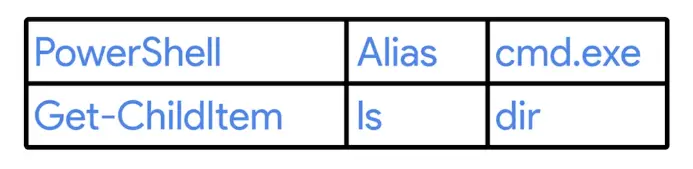
To list directories, the real PowerShell command is can be found by:
so, to list directories
-
Some old but not powerful as PowerShell, cmd.exe commands are
Windows: Searching within Files
-
In GUI, Indexing Options applications are used.
-
In command-line, search is done as:
-
To search in multiple files at once
Windows: Searching within Directories
-
-Filterparameter is used withlsso search for particular files in a directory.- The
-Filterparameter will filter the results for file names that match a pattern.
- The asterisk means match anything, and the .exe is the file extension for executable files in Windows.
- The
Linux: Searching within Files
-
To search in files
-
To search through multiple files at once
Windows: Input, Output, and the Pipeline
-
The echo is an alias for PowerShell command
Write-Output. -
Every Windows process and every PowerShell command can take input and can produce output. To do this, we use something called I/O streams or input output streams.
-
I/O streams are
- stdin
- stdout
- stderr
-
The symbol > is something we call a Redirector operator that let us change where we want our stdout to go.
-
The symbol » is used to not create a new file, just append the
stdout -
|Pipe operator is used to redirect the stdout of one command to stdin of another command. -
To put new stdout to a new file.
-
If we don’t want to see error in CLI, to get them in a file
- All the output streams are numbered, 1 is for stdout and 2 for stderr
-
If we don’t care about error messages and don’t want to save them in a file, we can redirect them to a null variable (a black hole for stderr)
Linux: Input, Output, and the Pipeline
-
On Linux, stdin operator can be used via symbol <.
- Here we are using < operator for file input instead of keyboard input.
-
To redirect error message to a file
-
To filter out error message completely without saving
Windows and Linux Advanced Navigation
- For more advance navigation, regex is used.
Regular expression (Regex)
Used to help you do advance pattern-based selections.