This course is freely available on YouTube, thanks to Professor Messer. Please support Professor Messer directly by buying his official Network+ Notes.
This course is offered by Kevin Wallace. It is currently drafted on Udemy, no enrollment possible. But you can enroll in any of the newer Kevin Wallace courses over on his website.
Info
I would primarily follow Professor Messer’s Network+ YouTube playlist for notes taking. Please check official CompTIA Network+ page for latest news, exam resources, and exam products.
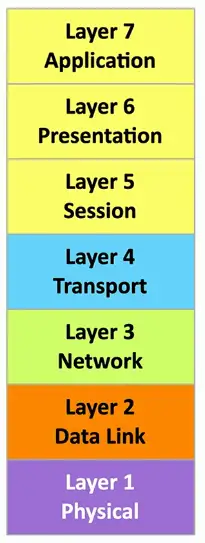
Protocol Data Unit: The name given to data at a specific layer of the OSI Model i.e., Bits, Frames etc.
To remember PDUs of first 4 layers, the mnemonic is [B]acon [F]rying [P]rodues [S]alivation
Layer 1 — Physical Layer
The physics of the network
Signaling, cabling, connectors
This layer isn’t about protocols
Data is referred to as Bits at layer 1
This layer doesn’t process any data, dealing only with physical transmission of signals i.e., Networking Cables, Hubs, Repeaters are layer 1 devices.
“You have a physical layer problem.”
Fix your cabling, punch-downs, etc.
Fun loopback tests, test/replace cables, swap adapter cards
Layer 2 — Data Link Layer
The basic network “language”
The foundation of communication at the data link layer
Decisions are made based on MAC Addresses at layer 2.
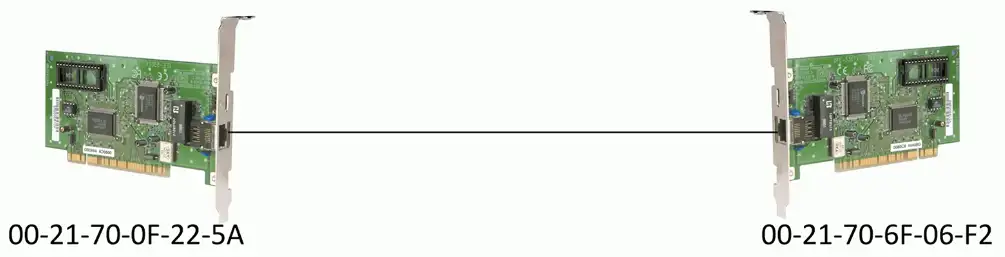
A 48-bit address “burned-in” to a network interface card (NIC) by its manufacturer.
The device at this layer is Ethernet Switch
The data is referred to as Frames
Switches, Bridges, Network adapters (NICs) are layer 2 devices. NICs also operate layer 1.
Data Link Control (DLC) protocols
MAC (Media Access Control) address on Ethernet
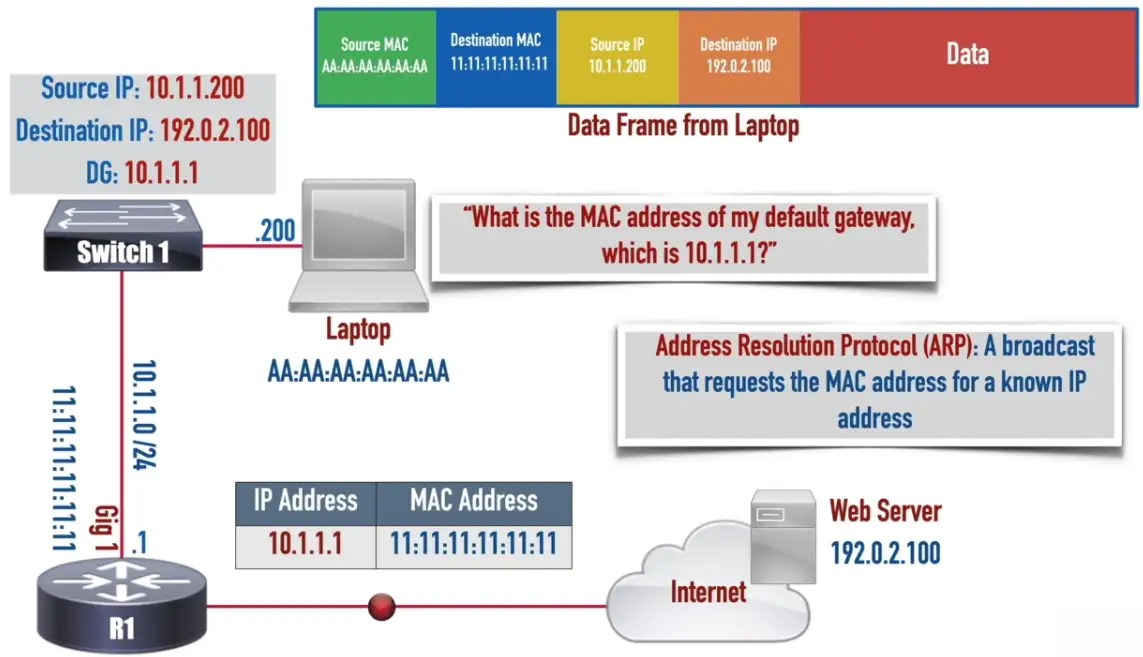
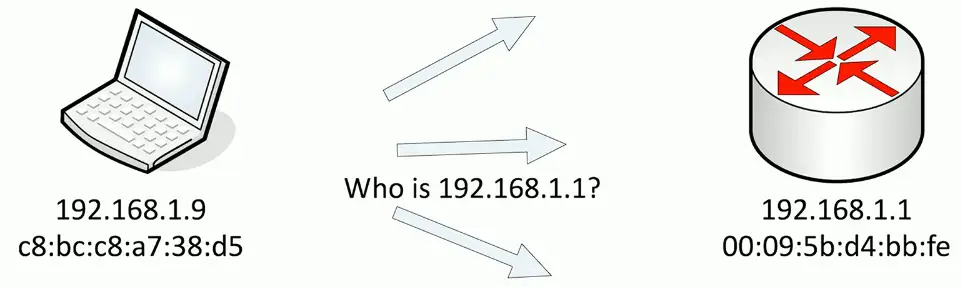
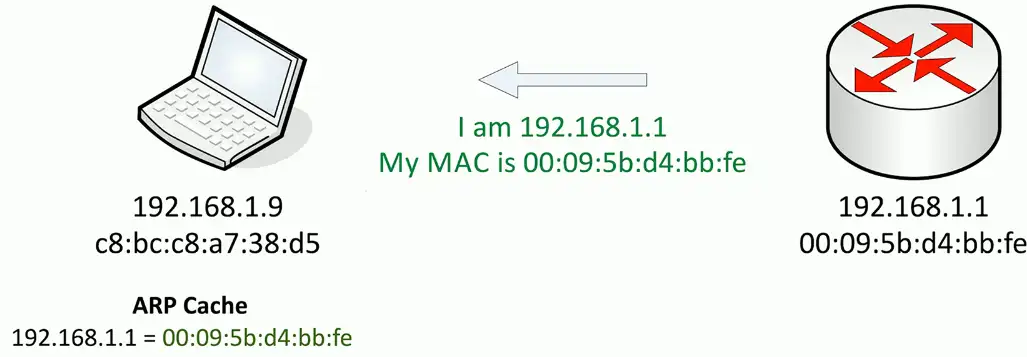
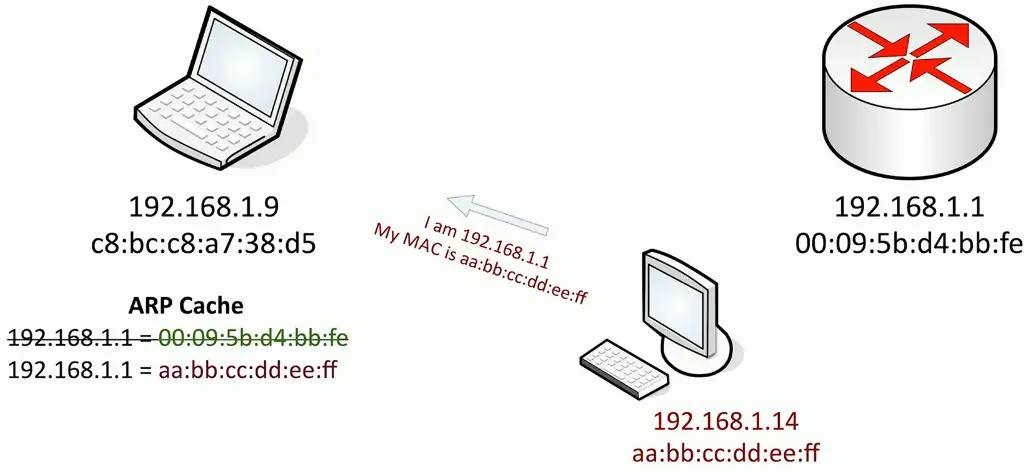
ARP (Address Resolution Protocol) operates at layer 2, which used to resolve IP addresses (layer 3) to MAC addresses (layer 2)
The “switching” layer
Layer 3 — Network Layer
The “routing” layer
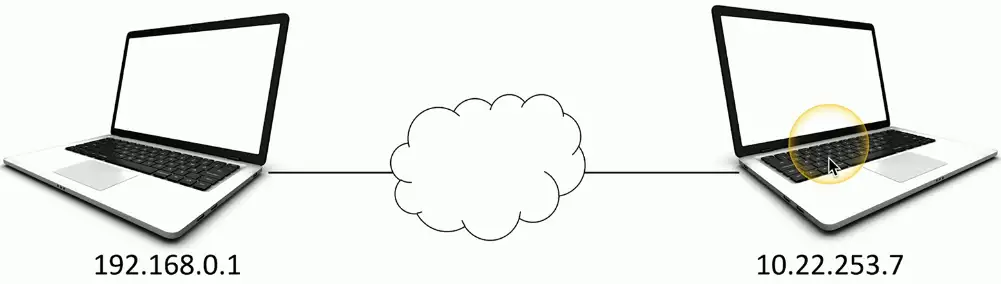
The forwarding decisions based on Internet Protocol (IP) Address
ICMP (Internet Control Message Protocol) operates at layer 3. It doesn’t transfer data, rather used for error reporting and diagnostics (ping and traceroute), and network control messages.
It is encapsulated directly within IP packets and doesn’t use transport layer protocols like TCP or UDP.
The PDU is Packets
Fragments frames to traverse different networks
Layer 4 — Transport Layer
The “post office” layer, it concerns with network connections
Parcels and letters
The PDU at layer 4 is called Segments and Datagram
There are two types of protocols at play at layer 4:
Connection-oriented TCP, Reliable, PDU for TCP is segments
Connectionless UDP, Unreliable, PDU for UDP is datagram
TCP (Transmission Control Protocol) and UDP (User Datagram Protocol)
Layer 5 — Session Layer
Communication management between devices
Start, stop, restart
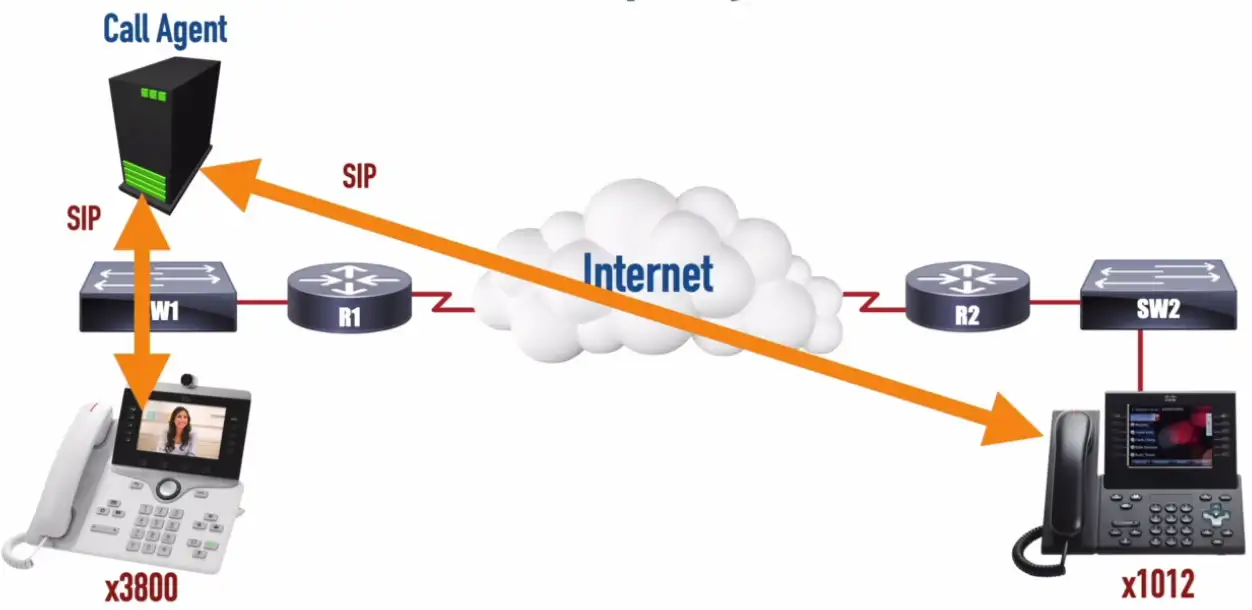
SIP (session initiation protocol) for VoIP
Control protocols, tunneling protocols
Layer 6 — Presentation Layer
The layer we see
Displaying an image or ASCII
Character encoding
Application encryption
Often combined with the Application Layer
Layer 7 — Application Layer
The Protocols that give us network functionality, not the graphics display
HTTP/s, FTP, DNS, POP3, SMTP
It enables direct interaction between the end-user and the network
Frame, MAC address, Extended Unique Identifier (EUI-48, EUI-64), Switch
Layer 1: Physical
Bits, Cables, fiber, and the signal itself, just transmissions, no modification
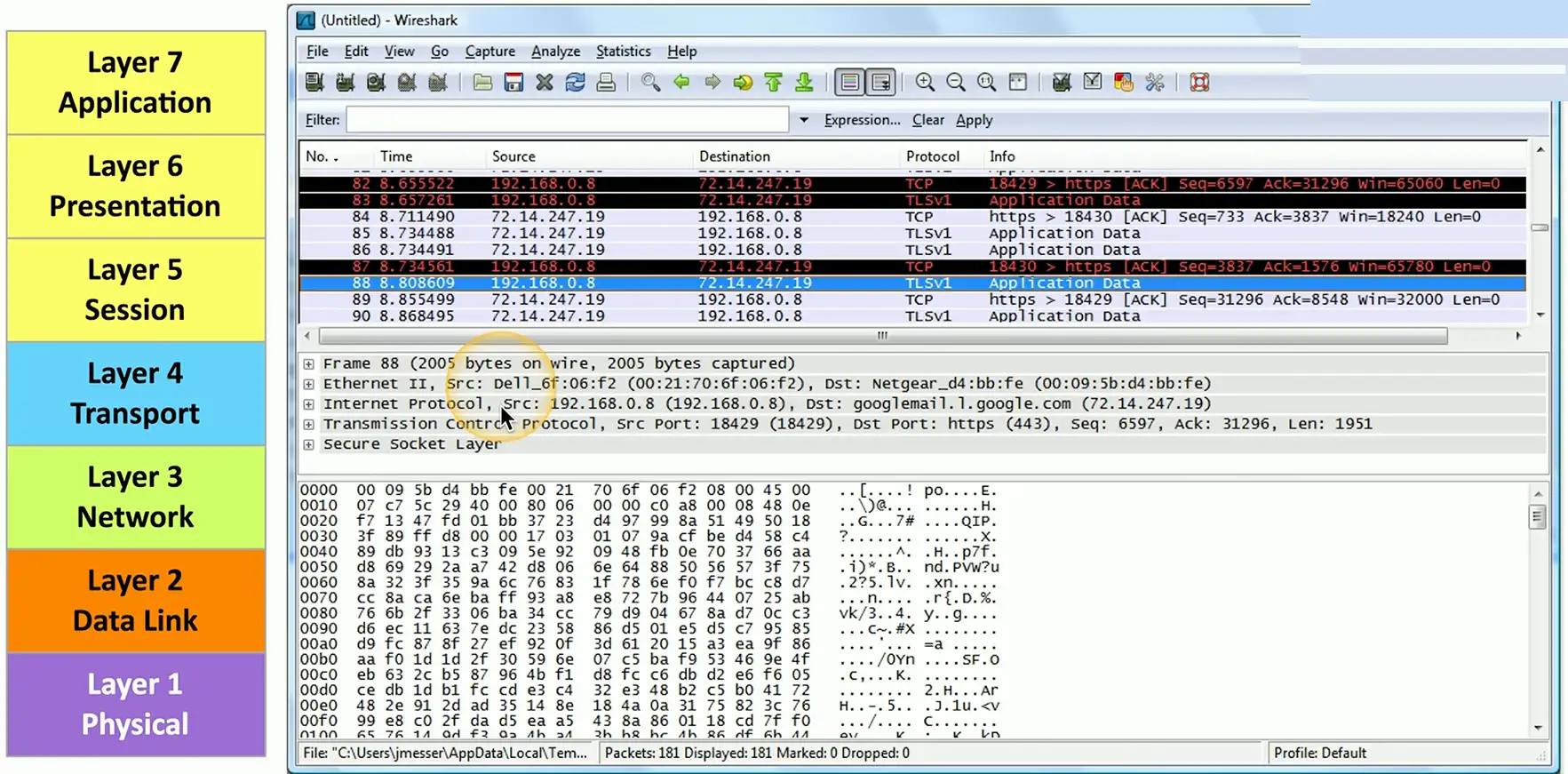
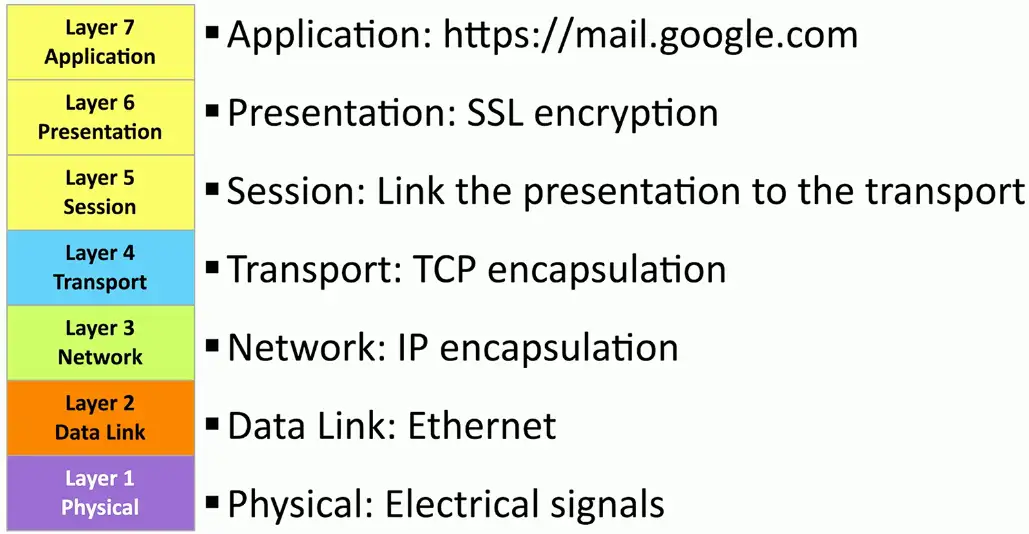
OSI in the real world:
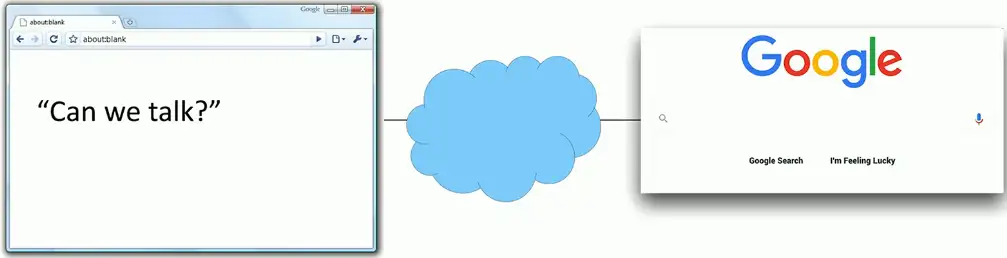
Follow the conversation:
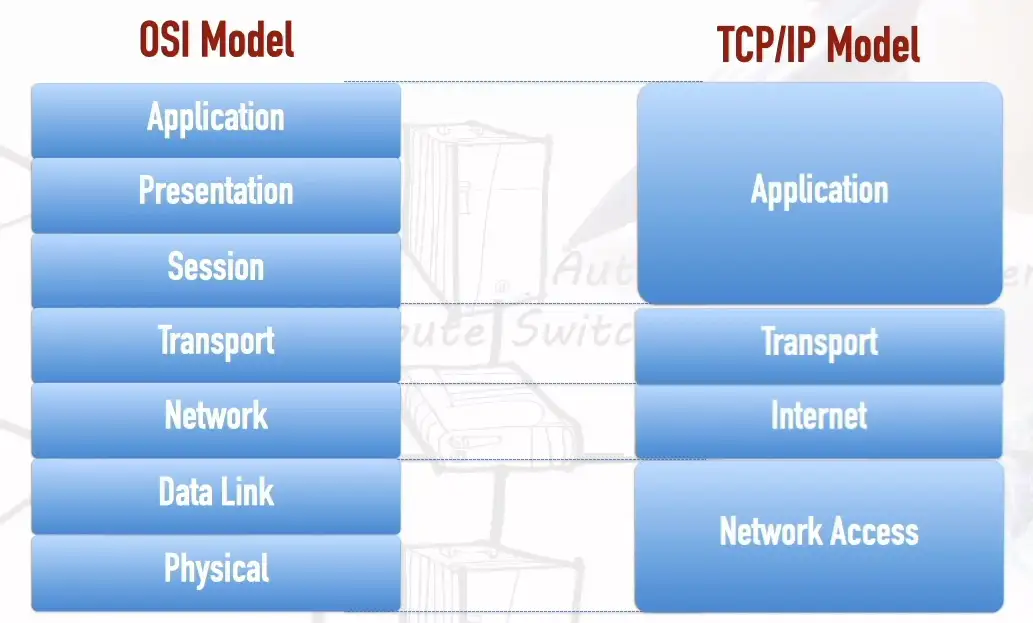
TCP/IP Model
A model version in which Physical and Data Link Layers become Network Access layer.
Some variant of this model, Network Access Layer may be called Network Interface layer or Link Layer.
Network layer becomes Internet layer
Session, Presentation, Applications layers become single Application layer.
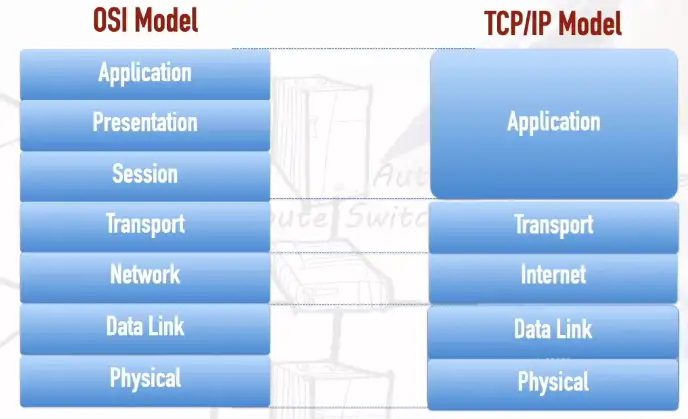
Another variant, in which Physical and Data Link Layers kept intact.
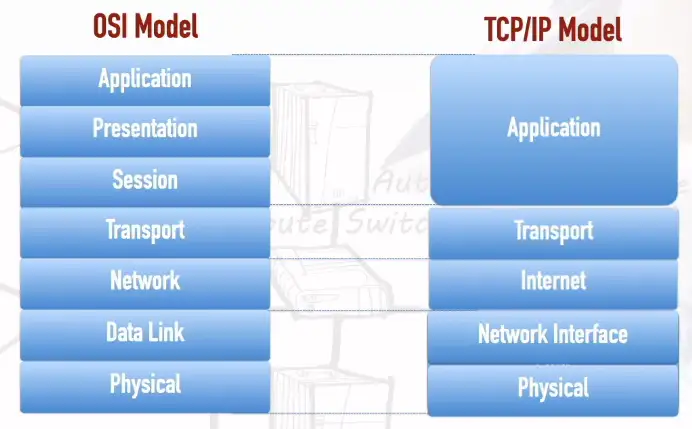
Another variant, may have Data Link as Network Interface Layer:
Network Appliances and Applications
Networking Devices
Many ways to forward traffic
A data center full of equipment
Every device has a purpose
The implementation may change over time
Once installed, it can often be difficult to remove
There are new technologies all the time
Always something to learn
Analog Modems
Public Switched Telephone Network (PSTN)
The worldwide telephone system
The speeds were in bauds and bits per second (bps).
Computer sends 0s and 1s via digital signals to modem
Modem then converts those signals to the analog tones, which can be sent over the PSTN.
The modem at the receiver ends, receives those analog tones, perform modulation/demodulation, and send the signals to the Server.
Modem (Modulator/Demodulator): Modulates binary data into analog signals, and demodulates analog signals into binary data.
Baud: Number of tone changes per second
Bits per Second (bps): Number of 1s and 0s that can be transmitted over the line.
300bps: 300 baud using one channel
2400 bps: 2400 baud using one channel
9600 bps: 2400 baud using four channels
28.8 kbps: 2400 baud using twelve channels
CSMA-CD vs. CSMA-CA
Carrier-Sense Multiple Access with Collision Detection (CSMA/CD)
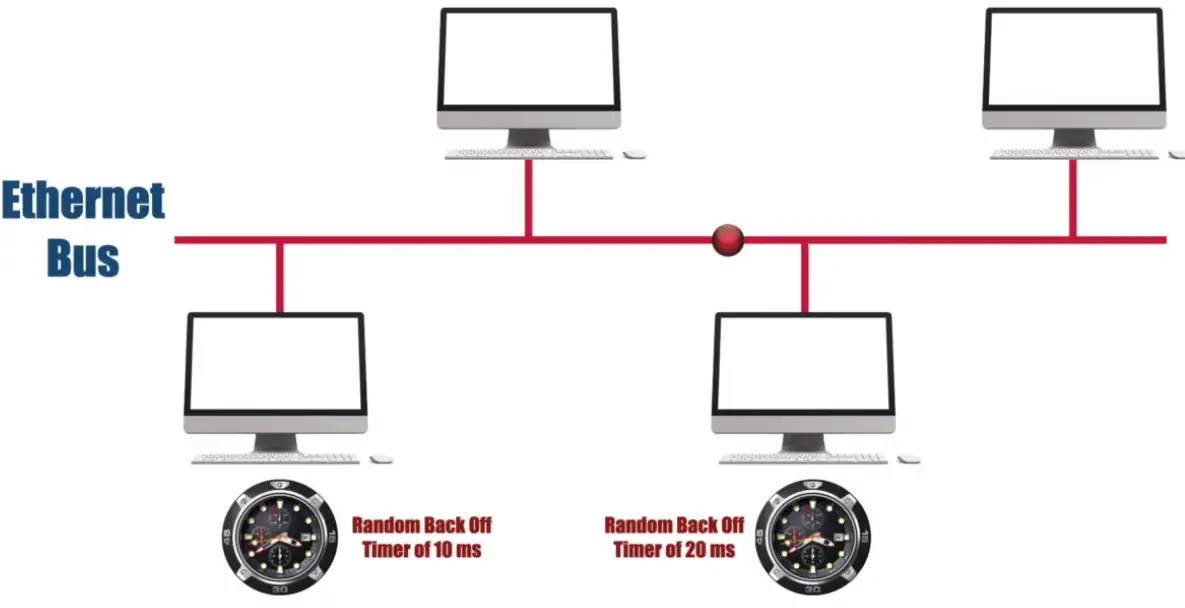
Can only have one packet on the network at a time
Multiple packets can collide and in-turn corrupt the data.
CSMA-CD detects if there are other packets on the line.
If two computers sent the packet at the same time, collision will happen and detected by the CSMA-CD system, then they will set random back off timer, to send their respective packets at hopefully different times without collision.
The collision is detected by the slight spike of the voltage signal.
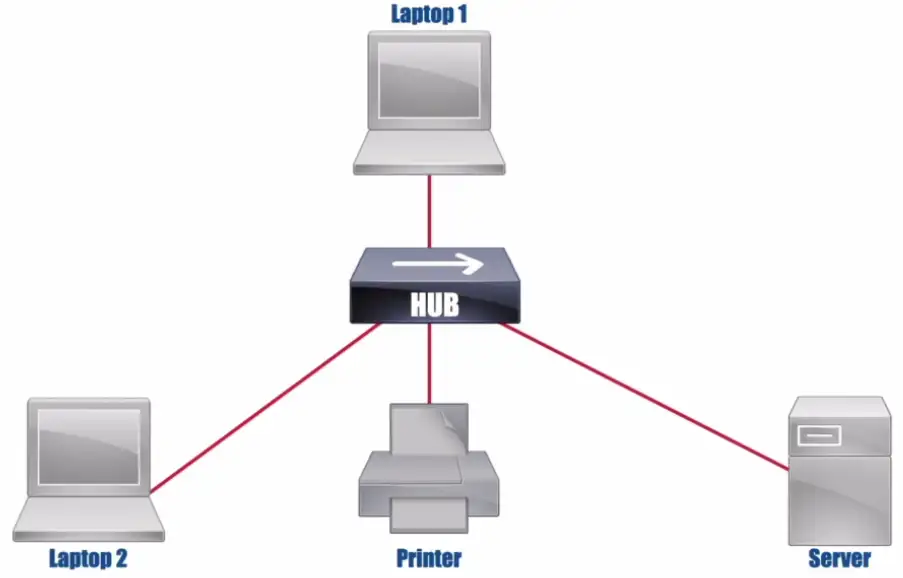
Then Ethernet Hub became popular and CSMA-CD was still effective.
If there was a collision, the hub will send jam signal to everyone on the network.
Carrier-Sense Multiple Access with Collision Avoidance (CSMA/CA)
The more modern approach
Mainly used in Wireless Networks
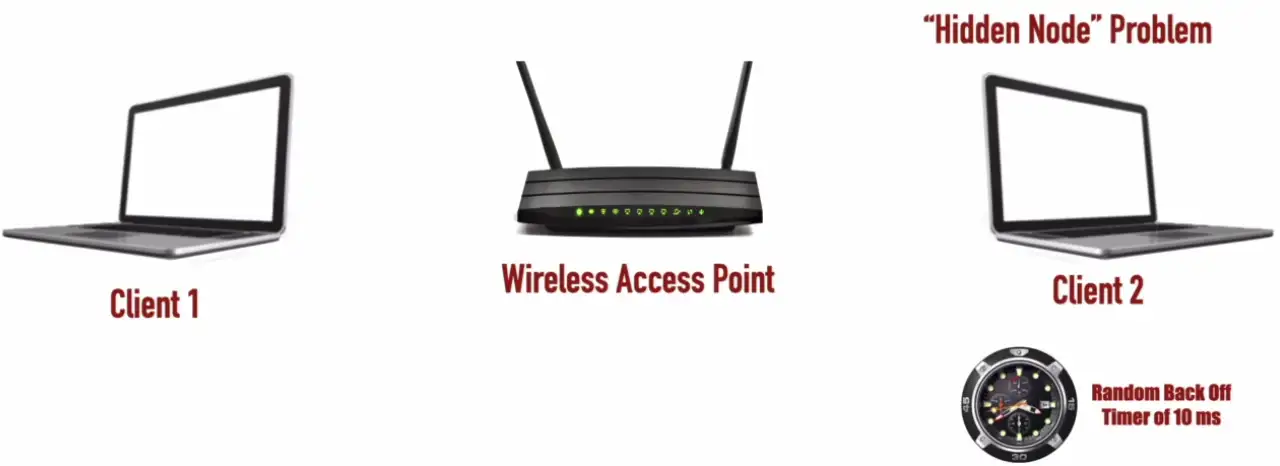
When Client 1 sends the radio signals, Client 2 also hears this transmission, and wait for the transmission to be over, to begin its transfer.
There is Hidden Node Problem, when the Client 2 is far away from the Wireless Access Point. It cannot clearly hear the Client 1 transmission cycle going on, and falsely assumes that there is no transmission happening. The Client 2 then tries to send its signals, and collision happens.
There is no voltage spike for collision detection, for wireless AP.
We need some upper level protocol, that detects the collisions, and re-transmits the collided packets again.
Ethernet Hub
Legacy device
More modern form of Ethernet Bus
Not intelligent, doesn’t know which packets are destined for which device, and send those packets to everyone
It needs to run with CSMA-CD protocol
Switch
Bridging done in hardware
Application-specific integrated circuit (ASIC)
An OSI layer 2 device
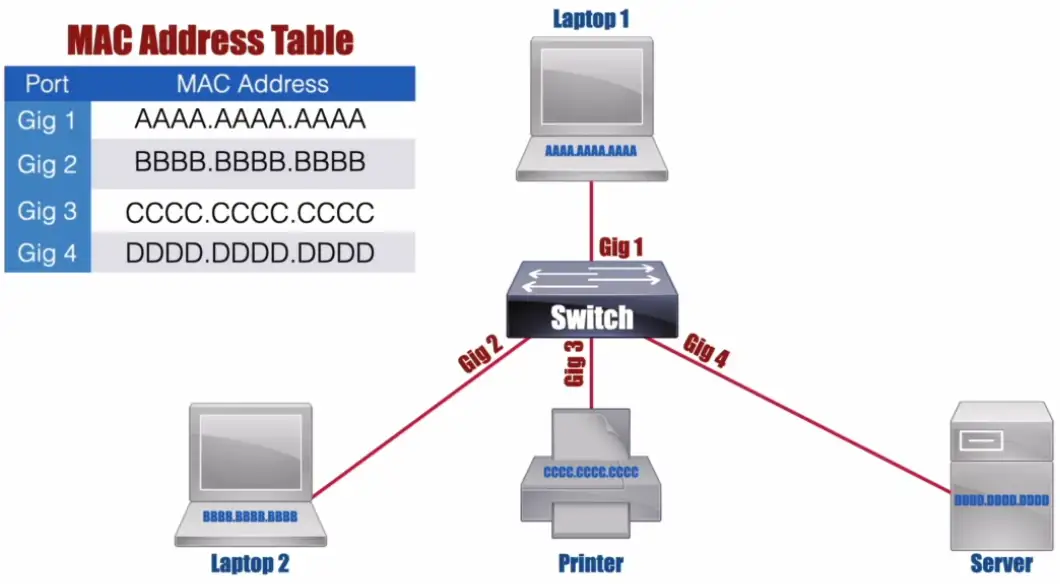
Forwards traffic based on data link address
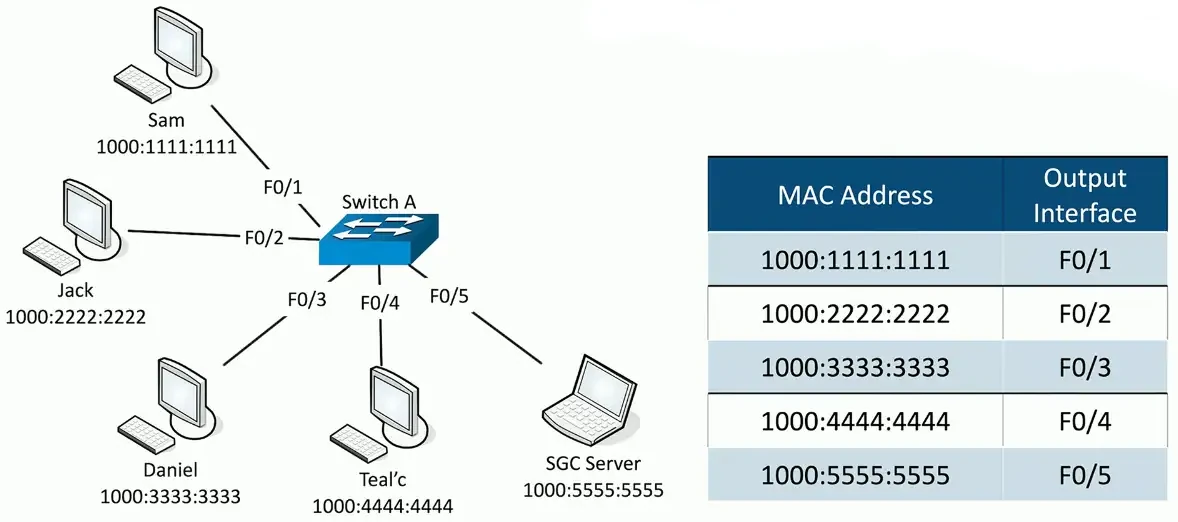
Maintains a MAC addresses table for packet forwarding
If the device isn’t in the table, it sends flood signal
Many ports and features
The core of an enterprise network
May provide Power over Ethernet (PoE)
Multilayer switch
Includes Layer 3 (routing) functionality
Router
Routes traffic between IP subnets
OSI layer 3 device
Routers inside of switches sometimes called “layer 3 switches”
Layer 2 = Switch, layer 3 = Router
Maintains an IP Routing Table
It doesn’t need to know millions of IP routes on the Internet, it just needs to know the Default Route.
Routing Table gets populated:
Maybe router is directly connected to the devices
Statically configured
Dynamic Routing Protocol IS-IS, BGP, RIP, EIGRP
Default Route: A route that is used when a router doesn’t have a more specific routing table entry for the destination network.
Often connects diverse network types
LAN, WAN, copper, fiber
Collision and Broadcast Domains
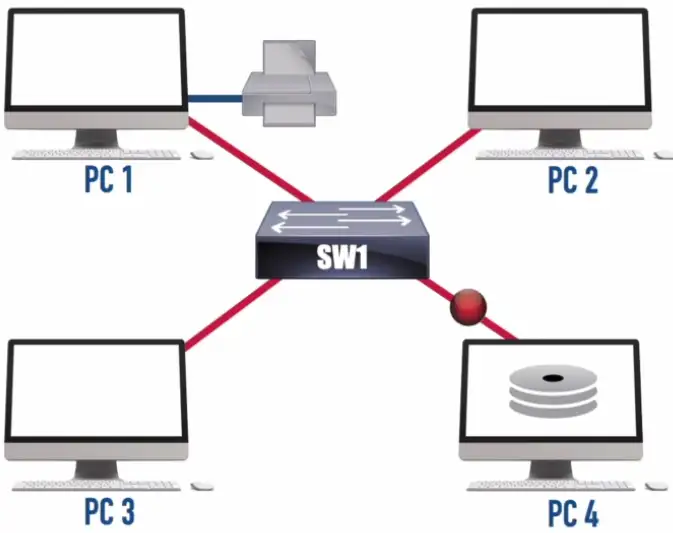
Collision Domain: A network segment on which only one packet is allowed at any one time.
Ethernet Hub
In the 1990s, Ethernet Bus networks were replaced by Ethernet Hubs.
All ports on a hub belong to one collision domain.
No intelligent forwarding decisions, every packet is sent to each connected to the Hub.
It works in the half-duplex mode, one can send or receive at one time.
Half-Duplex: Allows a device on a network segment to either transmit or receive packets at any one time, but no transmit and receive packets simultaneously.
Ethernet Switch
Each port on a switch belongs to its own collision domain.
Run devices in the full Duplex mode.
Full-Duplex: Allows simultaneous transmission and reception of packets on a network segment.
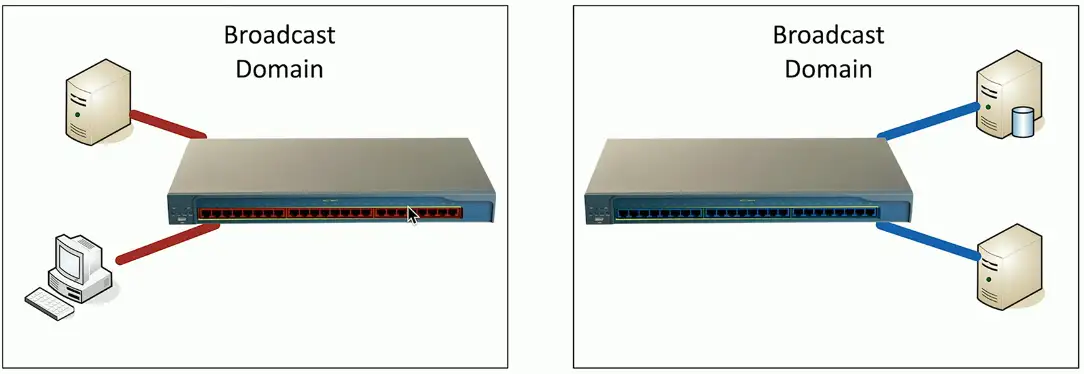
Broadcast Domain: An area of a network throughout which a broadcast can travel (e.g., a subnet or a VLAN)
All ports on a hub belong to one broadcast domain
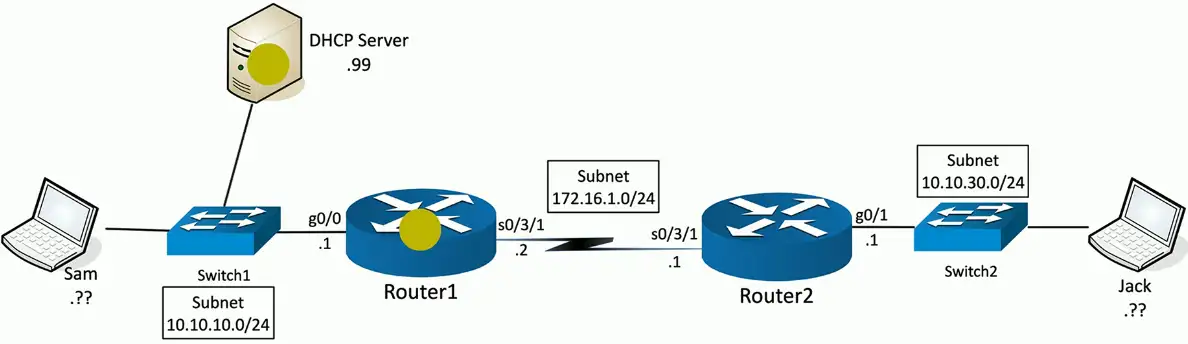
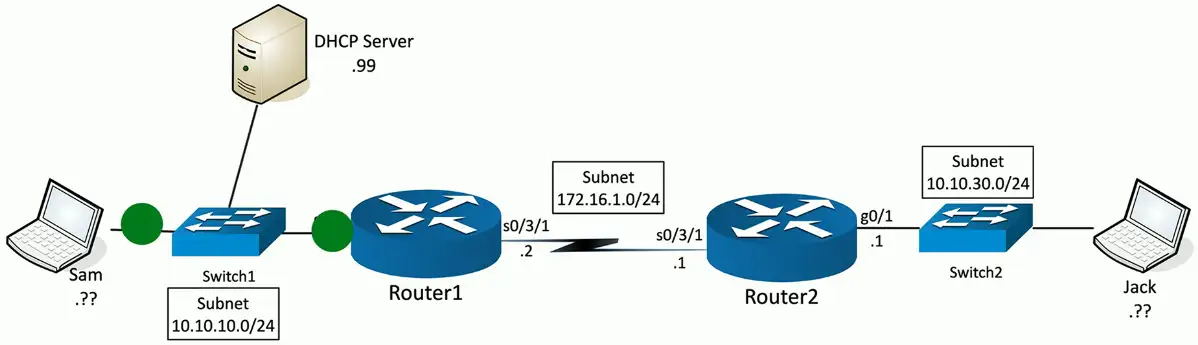
If a device comes online, it sends a broadcast signal to the network to know where is the DHCP server, to get an IP address to reach the Internet or other local devices.
All ports on a switch (by default) belong to one broadcast domain.
If laptop 1 wants to find a DHCP server, switch will flood all the port with the broadcast signal.
Broadcast MAC Address FFFF.FFFF.FFFF
Not very efficient or scalable due to all or nothig approach
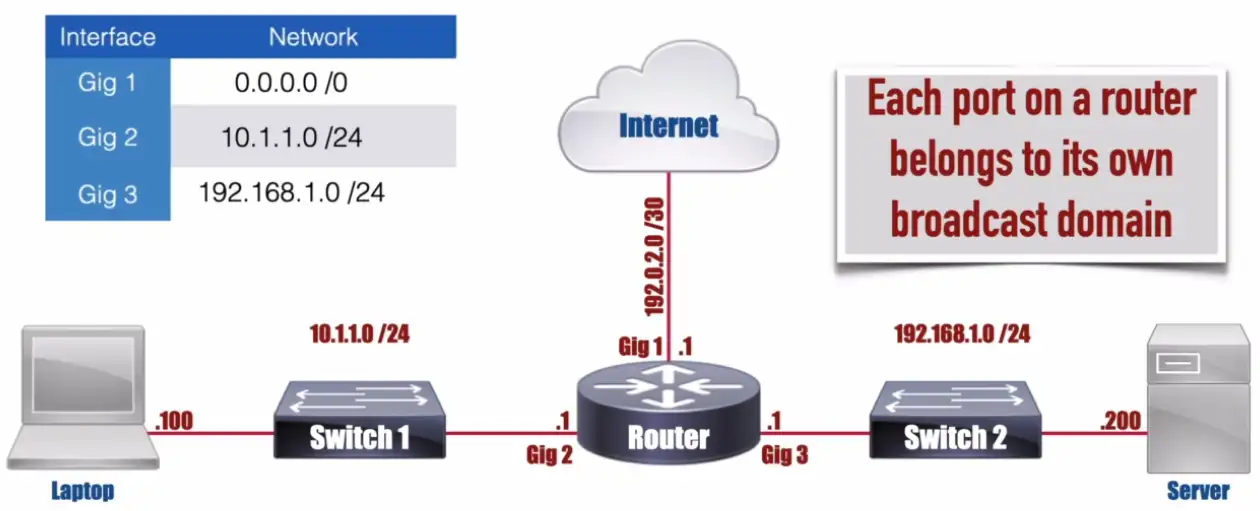
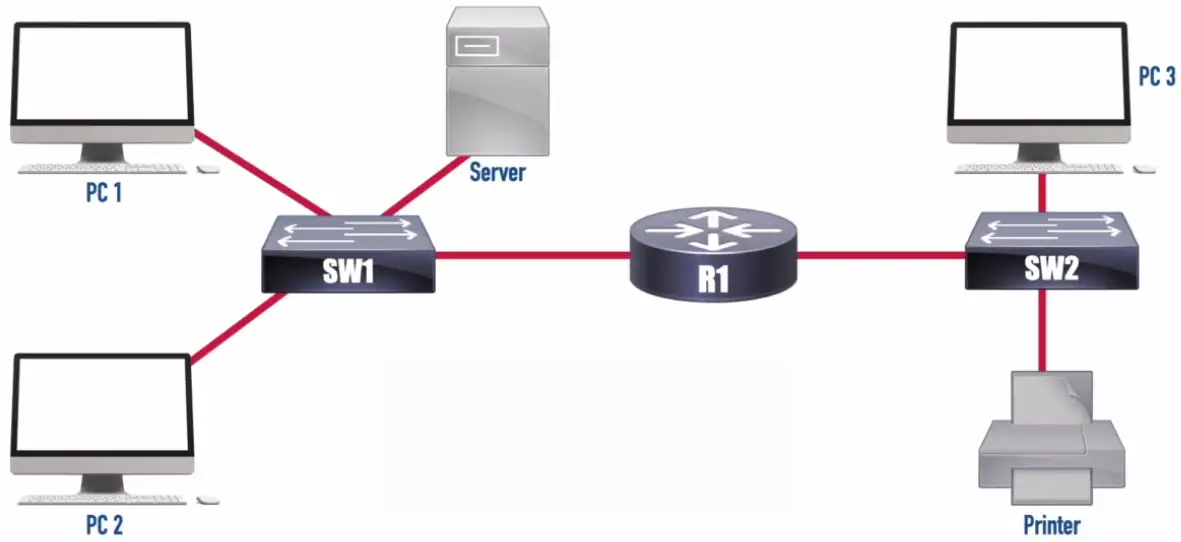
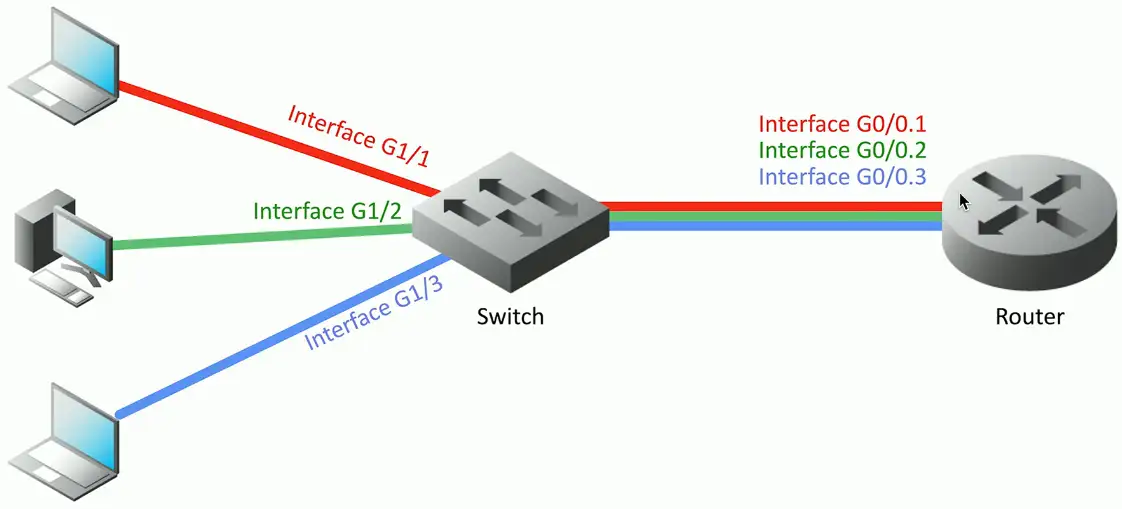
Each port on a router belongs to its own broadcast domain.
A router will interconnect the broadcast domains aka subnets or VLANs.
On a router, each port is connected to a different subnet.
If a device tries to reach a DHCP server, and sends DHCP discover broadcast, router will discard broadcast by default.
In figure, the router has 3 gigabit ports which means it has 3 broadcast domains on the router.
Firewalls
Filter traffic by port number or application
Traditional vs. NGFW
Encrypt traffic
VPN between sites
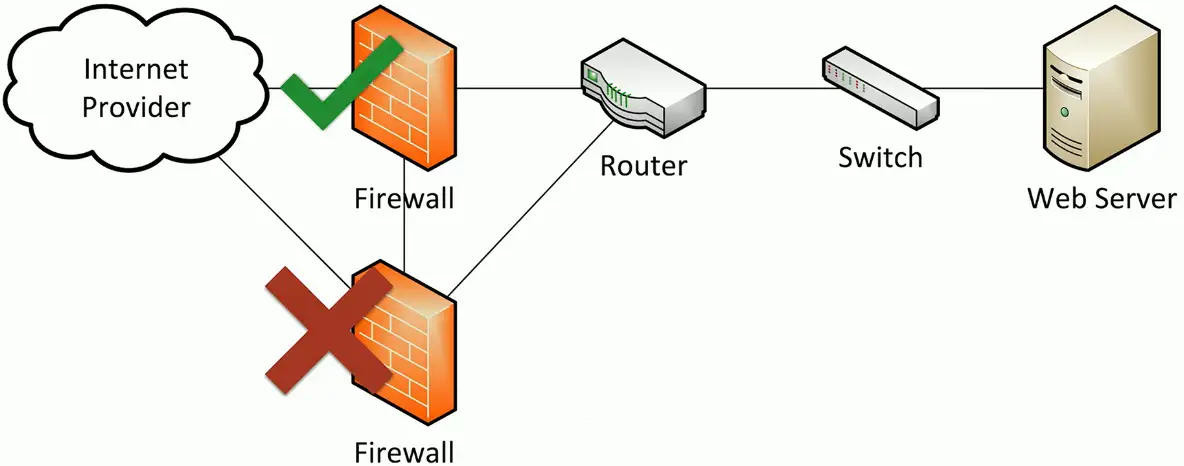
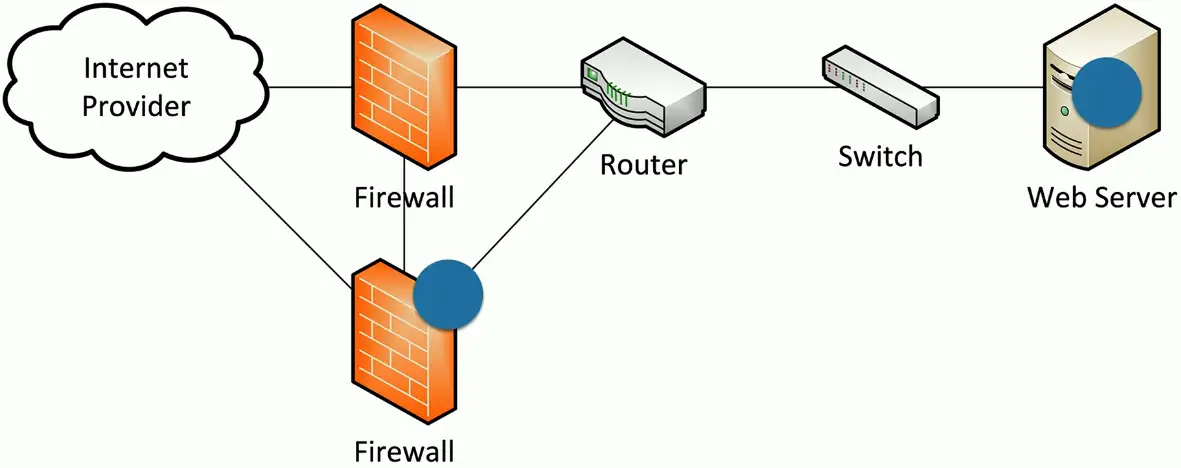
Most firewalls can be layered 3 devices (routers)
Often sits on the ingress/egress of the network
Network Address Translation (NAT)
Dynamic routing
Types of Firewalls
Packet Filter: Only Internal traffic is allowed, and all outside traffic is dropped, even websites won’t load.
Stateful Firewall: Inspects the packets going out or coming in. When outgoing packets have the IPs listed, it wanted to connect, when those Internet IPs respond, firewall allows that traffic to pass, as the request was originated from inside the local network.
Next Generation Firewall (NGFW/Layer 7 Firewall): Performs deep packet inspection (DPI), better able to block threats based on Online Threat databases by matching their signature with known threats signals.
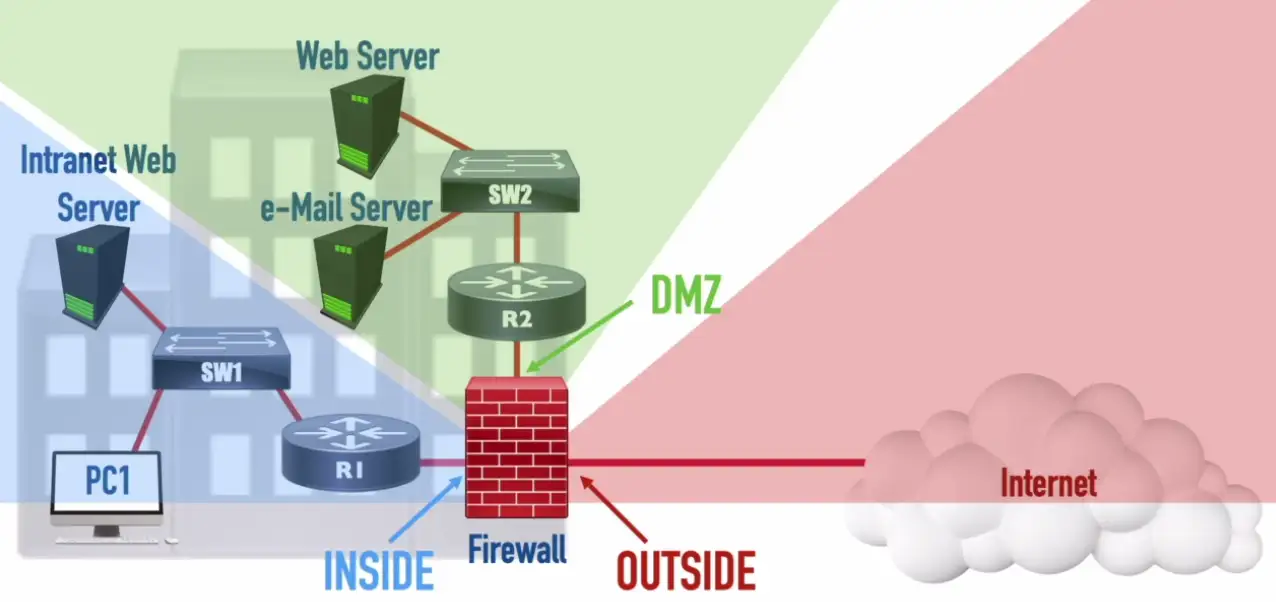
Demilitarized Zone (DMZ)
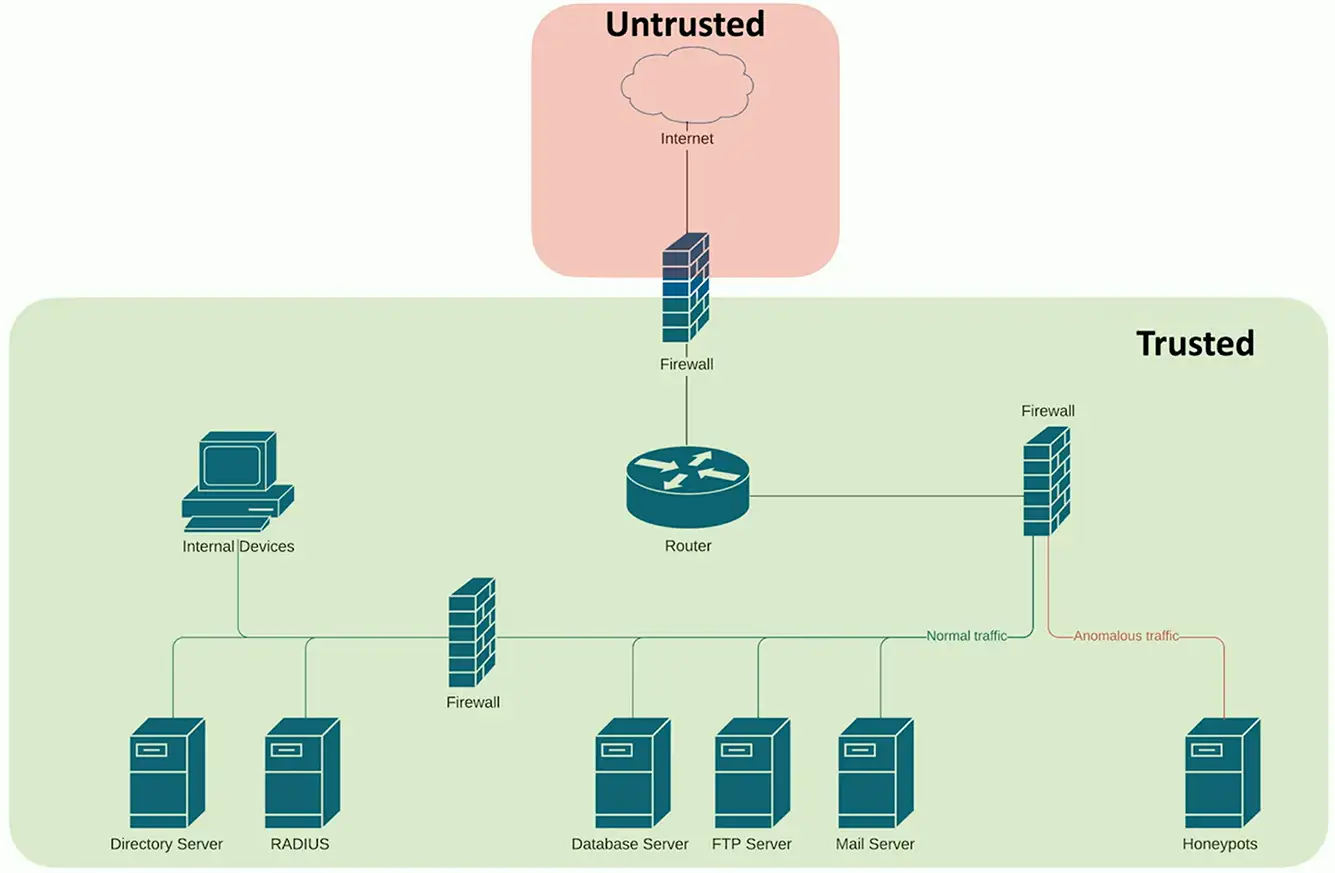
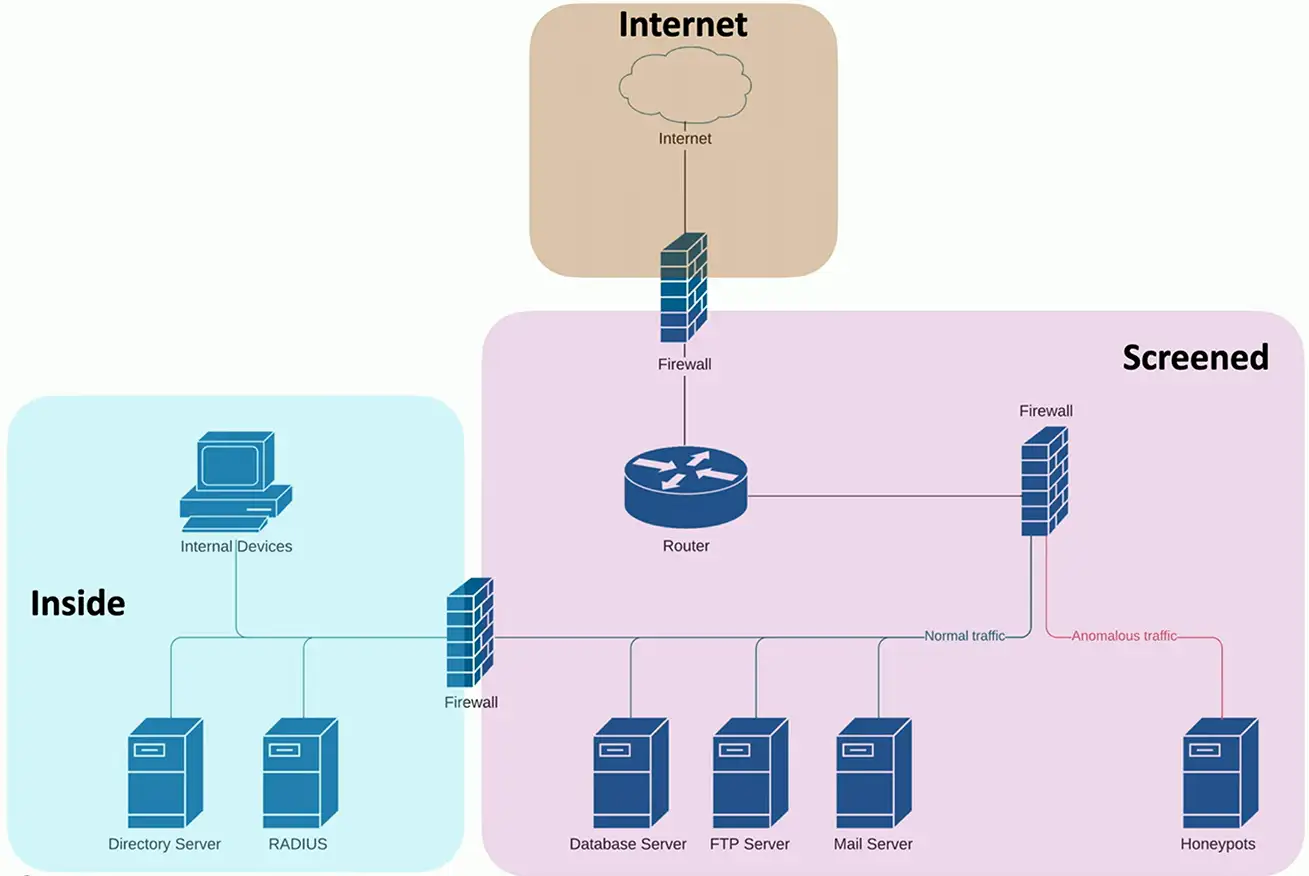
For corporate environment, we want our email server etc., to be accessible from the Internet. We put that email server in the Demilitarized Zone, separate from our internal network. In case, our email server gets compromised, our internal network remains safe and isolated.
IDS and IPS
Intrusion Detection System/Intrusion Prevention System
Watch network traffic
Intrusions
Exploits against operating systems, applications, etc.
Buffer overflows, cross-site scripting, other vulnerabilities
Detection vs. Prevention
Detection — Alarm or alert
Prevention — Stop before it gets into the network
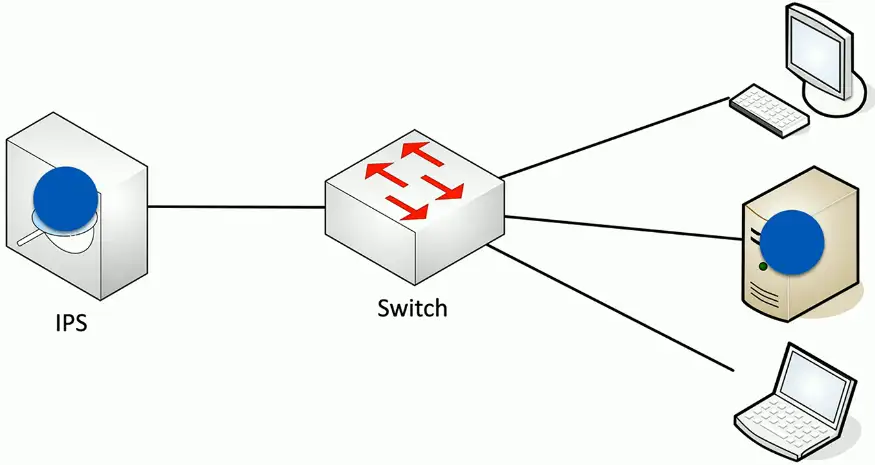
IDS Sensor: Inspects and can react to a copy of received traffic.
IPS Sensor: Inspects and can react to traffic received in-line.
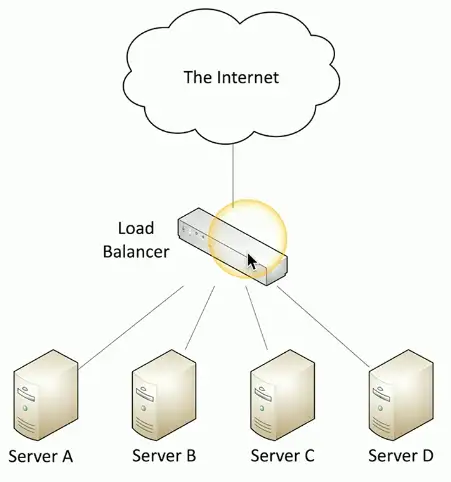
Balancing the load
Distribute the load
Multiple servers with identical content
Invisible to the end-user
Eases the processor/hard drive demand on a single server
Allows individual servers to be removed from the load balancer’s pool of server (e.g., for maintenance)
Allows “elastic” server capacity when used with virtual servers
Could be a dedicated appliance or a router that supports load balancing
Large-scale implementations
Web server farms, database farms
Fault tolerance
Server outages have no effect
Very fast convergence
Load Balancer
Configurable load
Manage across servers
TCP offload
Protocol overhead
SSL offload
Encryption/Decryption
Caching
Fast response
Prioritization
QoS
Content switching
Application-centric balancing
Advanced Filtering Appliances
Next Generation Firewall (NGFW/Layer 7 Firewall): An Application Layer firewall with additional features, such as: Deep-Packet Inspection (DPI), Intrusion Prevention System (IPS), and encrypted traffic inspection.
Content Filter: Could be software (e.g., used by parents) or an appliance (e.g., used by enterprises) used to filter traffic thought to be objectionable.
Unified Threat Management (UTM) Appliance: A dedicated appliance that combines multiple filtering functions, such as: Firewall, IPS, Anti-Malware, VPN, and Content Filter.
Ransomware Attack: Occurs when a system contains malware (software written to be intentionally malicious), and the user is asked to pay a ransom to prevent their data from being publically posted or permanently encrypted.
Proxies
Sits between the user and the external network
Receives the user requests and sends the request on their behalf (the proxy)
Useful for caching, access control, URL filtering, content scanning
Applications may need to know how to use the proxy (explicit)
Some proxies are invisible (transparent)
Clients don’t need to know the proxy server is sitting in the middle, and work in the silence.
NAS vs. SAN
Network Attached Storage (NAS)
Connect to a shared storage device across the network
File-level access
Storage Area Network (SAN)
Looks and feels like a local storage device
Block-level access (modified part of the files can be accessed only)
Very efficient reading and writing
Requires a lot of bandwidth
May use an isolated network and high-speed network technologies
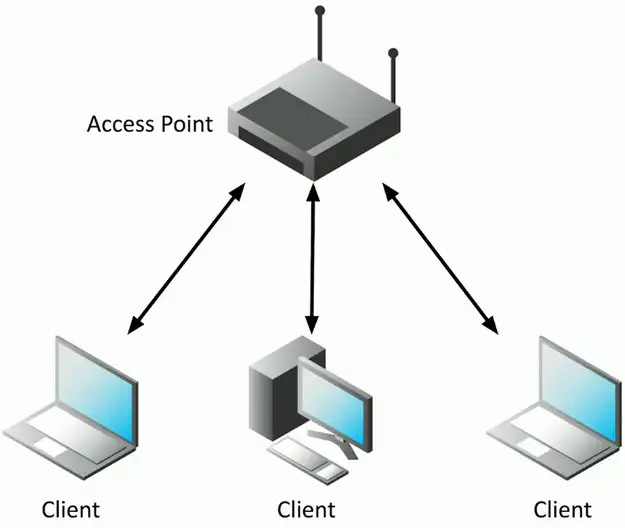
Access Point (AP)
Not a wireless router
A wireless router is a router and an access point in a single device
An access point is a bridge
Extends the wired network onto the wireless network
OSI layer 2 devices
Wireless networks everywhere
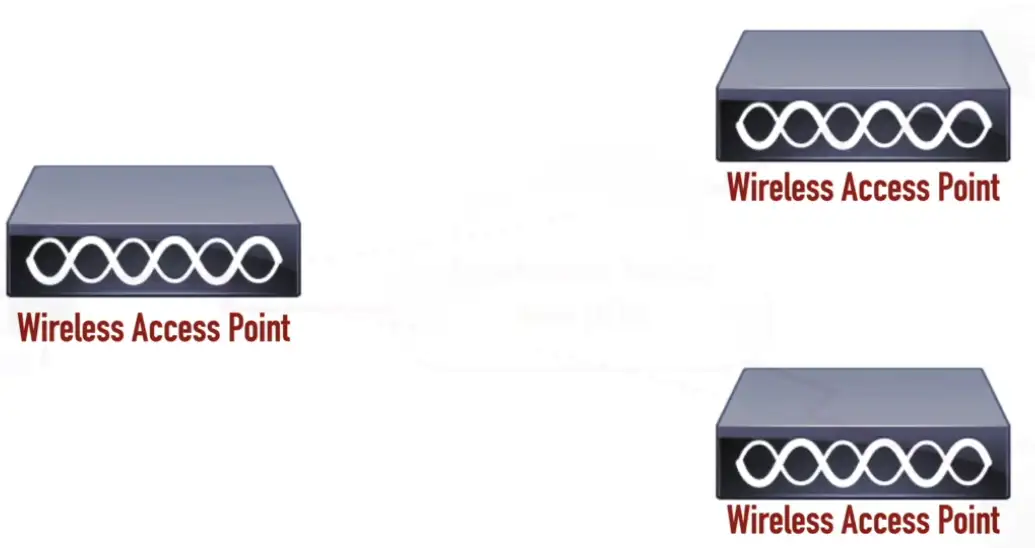
Wireless Access Point: Contains one or more antennas for communicating with wireless devices.
Wireless networking is pervasive
And you probably don’t just have a single access point
Your access points may not even be in the same building
One (or more) at every remote site
Configurations may change at any moment
Access policy, security policies, AP configs
The network should be invisible to your users
Seamless network access, regardless of role
Wireless LAN controllers
Centralized management of access points
A single “pane of glass”
Deploy new access points
Performance and security monitoring
Configure and deploy changes to all sites
Report on access point use
Usually a proprietary system
The wireless controller is paired with the access points
Networking Functions
There’s a lot happening behind the scenes
Many networking functions are part of the infrastructure
Access to important data
From anywhere in the world
Remote access
Secure network communication
Traffic management
Prioritize the important applications
Protocol support
Maintain uptime and availability
Content Delivery Network (CDN)
It takes time to get data from one place to another
Speed up the process
Geographically distributed caching servers
Duplicate the data
Users get the data from a local server
You’re using a CDN right now
Used on many websites
Invisible to the end user
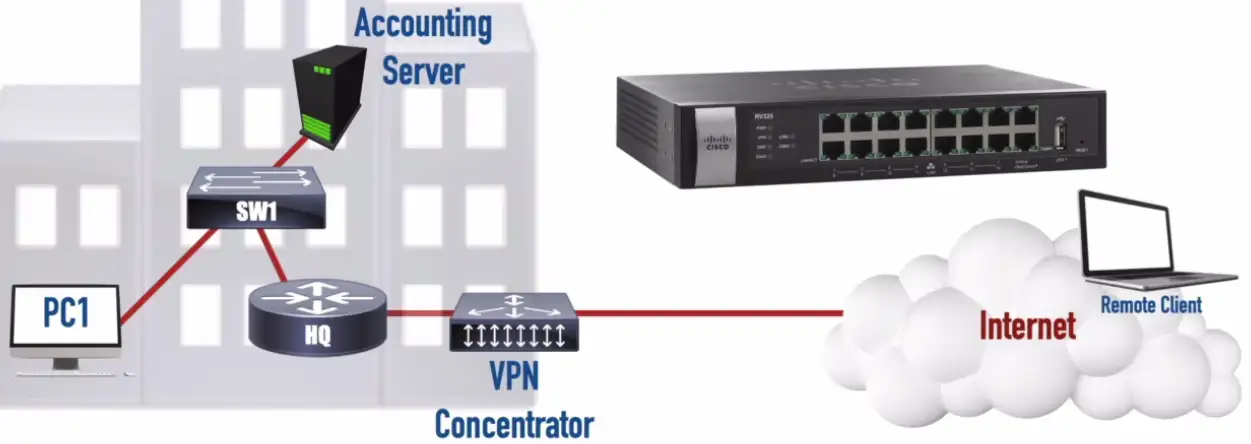
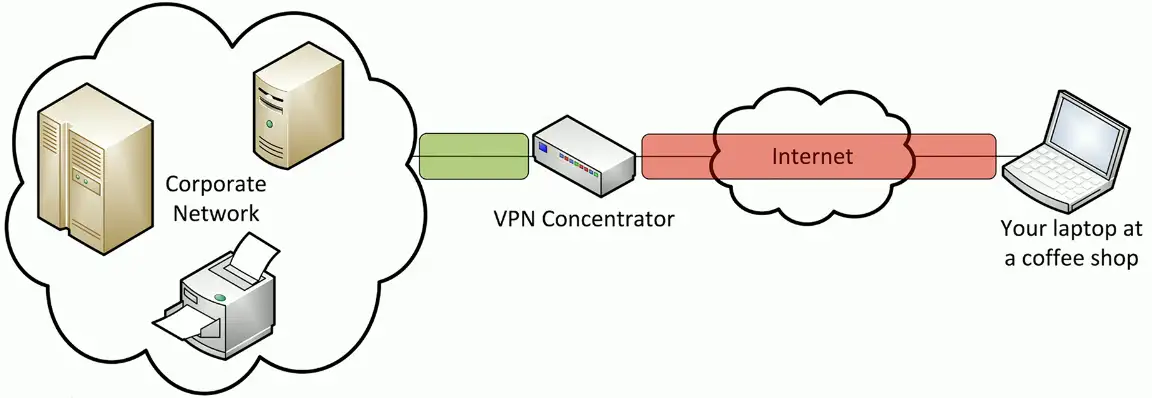
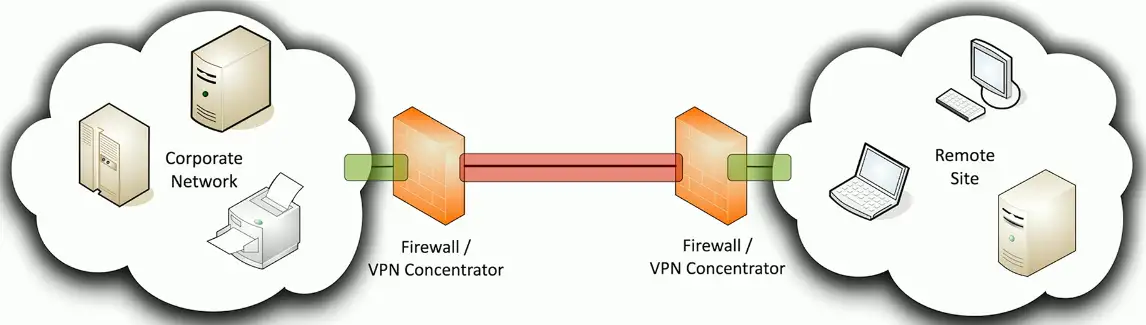
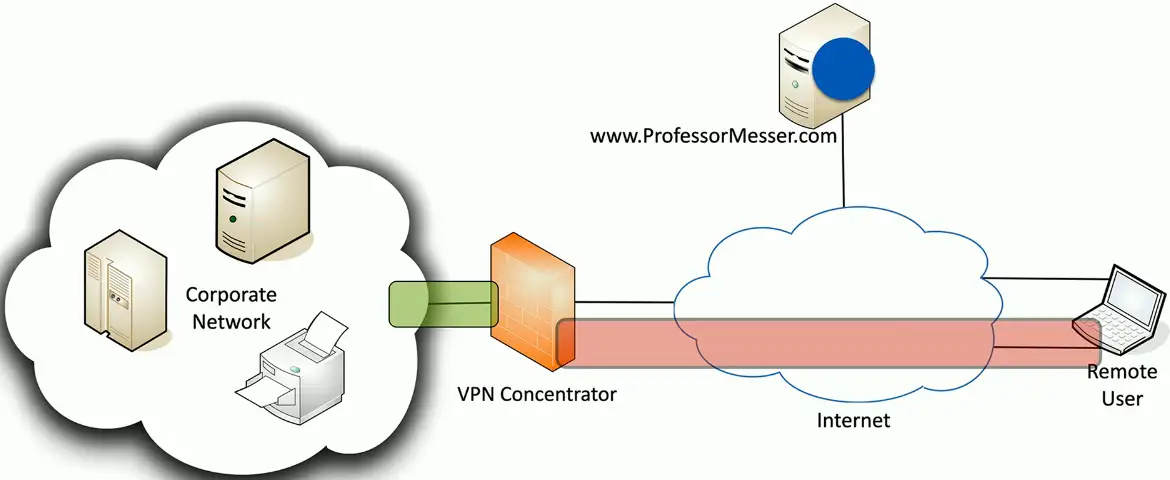
Virtual Private Network (VPN)
Secure private data traversing a public network
Encrypted communication on an insecure medium
Concentrator/head-end
Encryption/decryption access device
Often integrated into a firewall
Many deployment options
Specialized cryptographic hardware
Software-based options available
Often used with client software
Sometimes built into the OS
Virtual Private Network (VPN) Concentrator: A dedicated hardware appliance, that can handle encryption and decryption of VPN traffic as well as it can originate/terminate multiple VPN connections. It reduces the burden on the router.
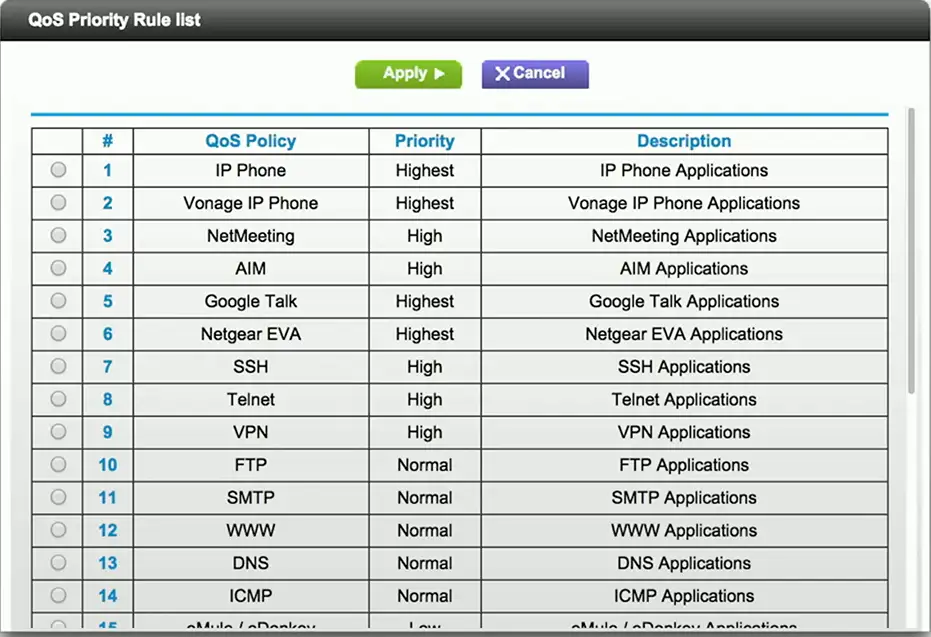
Quality of Service (QoS)
Traffic shaping, packet shaping
Control by bandwidth usage or data rates
Set important applications to have higher priorities than other apps
Manage the QoS
Routers, switches, firewalls, QoS devices
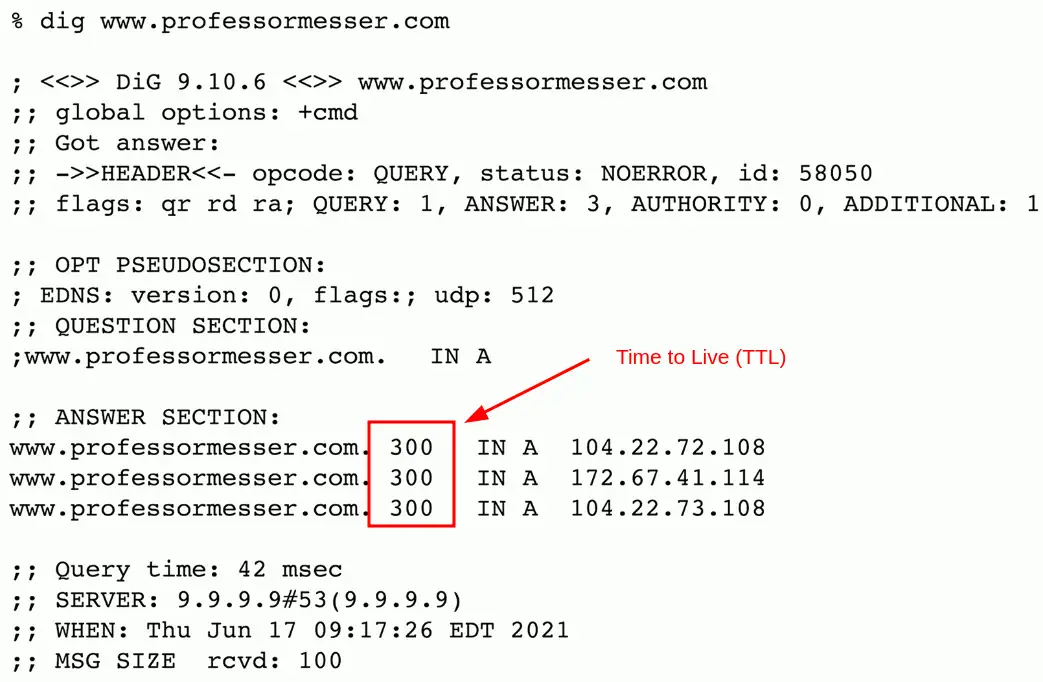
Time to live (TTL)
How long should data be available?
Not all systems or protocols are self-regulating
We sometimes need to tell a system when to stop
Create a timer
Wait until traversing a number of hops, or wait until a certain amount of time elapses
Then stop (or drop)
Many uses
Drop a packet caught in a loop
Clear a cache
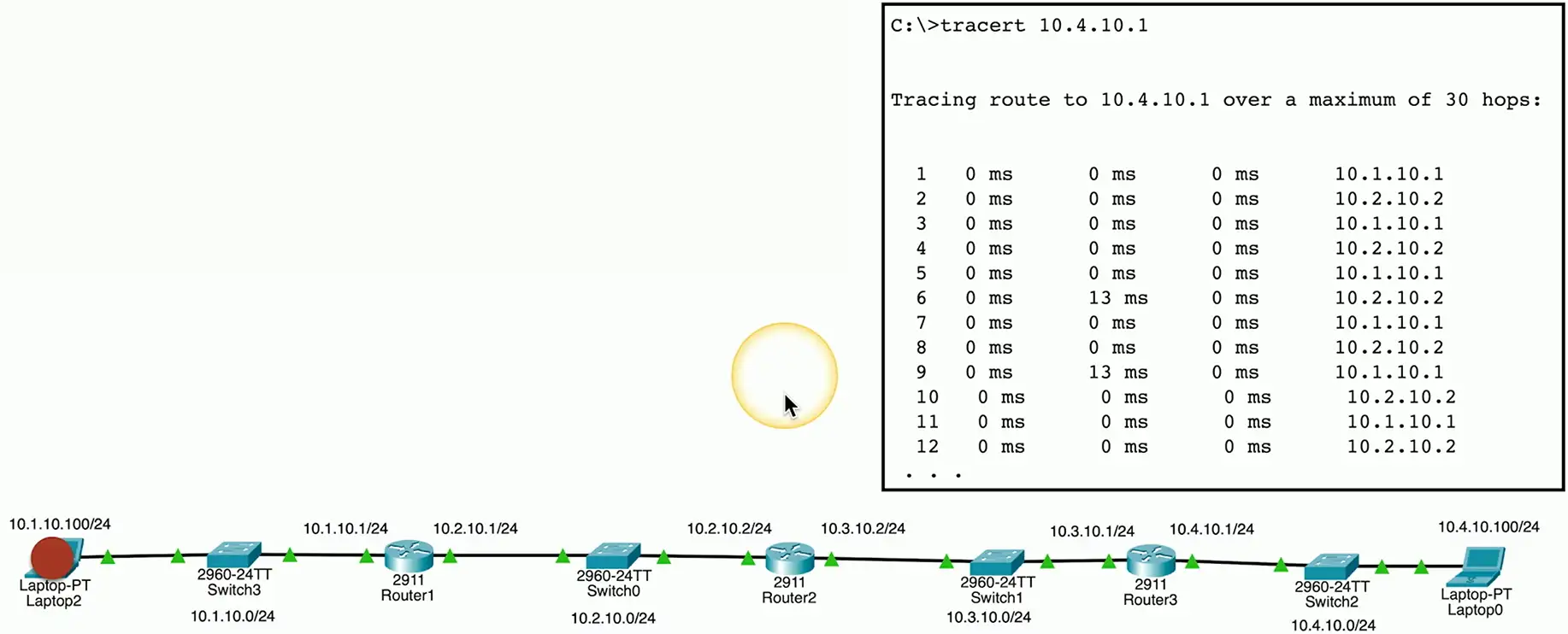
Routing loops
Router A thinks the next hop is to Router B
Router B thinks the next hop is to router A
And repeat
Easy to misconfigure
Especially with static routing
This can’t go on forever
TTL is used to stop the loop
IP (Internet Protocol)
Loops could cause a packet to live forever
Drop the packet after a certain number of hops
Each pass through a router is a hop
Default TTL for macOS/Linux is 64 hops
Default TTL for Windows is 128 hops
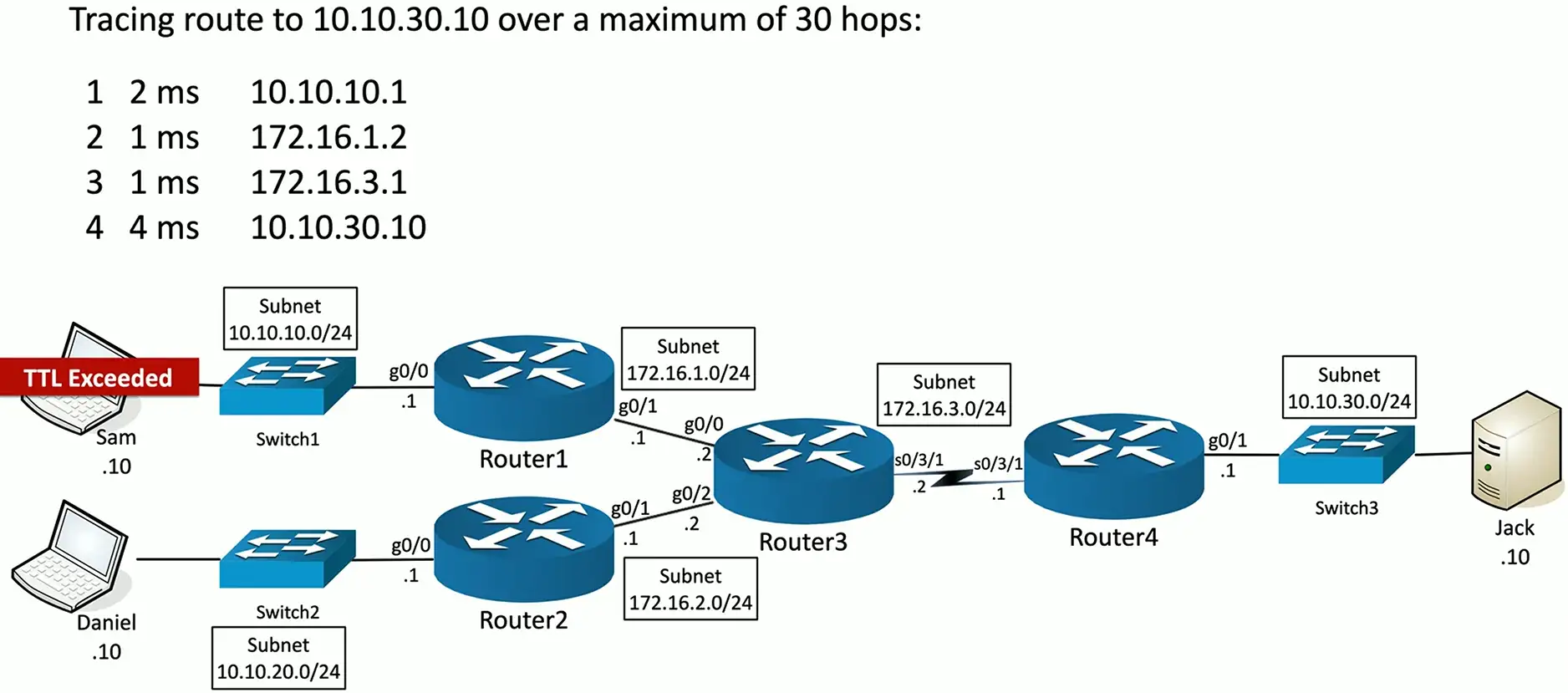
The router decreases TTL by 1
A TTL of zero is dropped by the router
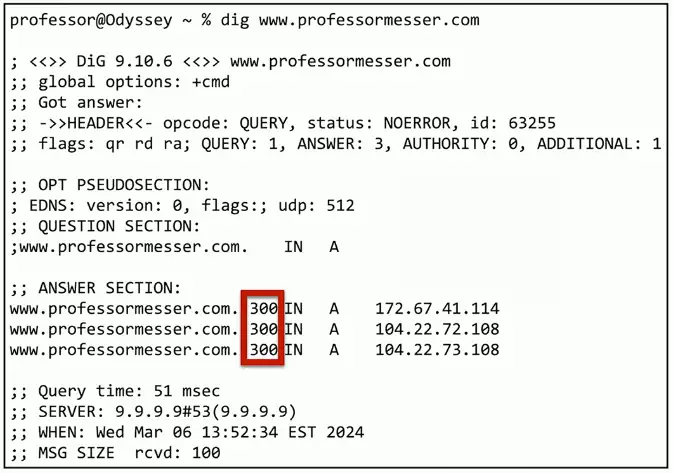
DNS (Domain Name System)
DNS lookups
Resolve an IP address from a fully-qualified domain name
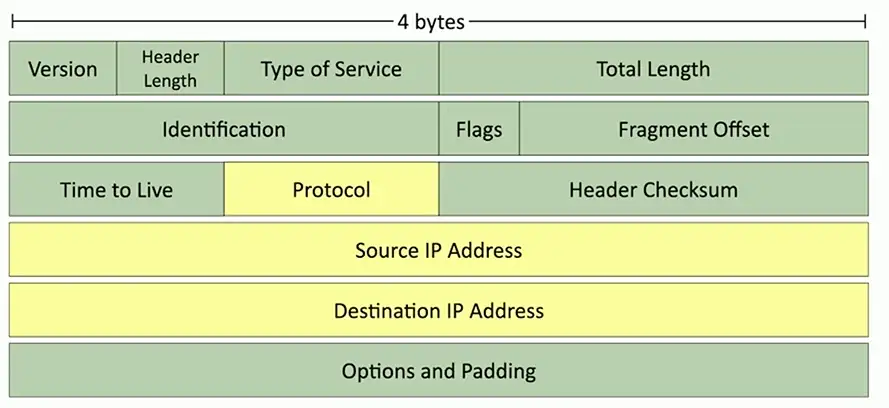
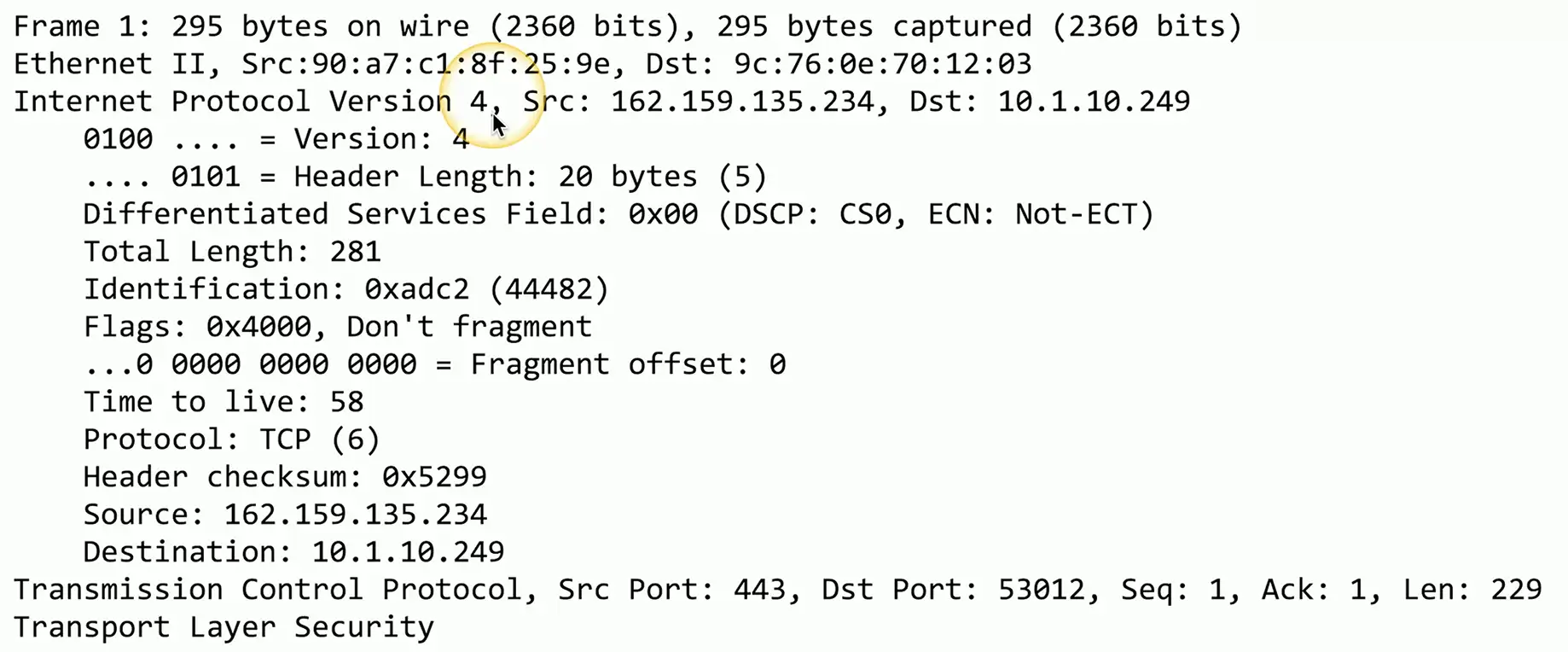
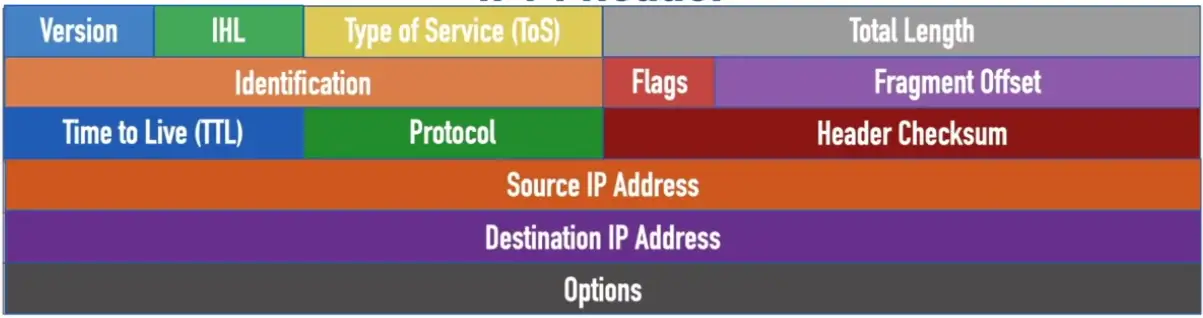
Version: A 4-bit field that indicates that IP version being used and is always set to a value of 4 for IPv4 headers
Internet Header Length (IHL): A 4-bit field that indicates the number of 32-bit words in the header, and can have a value in the range 5–15
Type of Service (ToS): An 8-bit field used to indicate the priority of the packet, and is typically divided into a 6-bit Differentiated Services Code Point (DSCP) field and a 2-bit Explicit Congestion Notification (ECN) field
Total Length: A 16-bit field that specifies the total size of the packet (in bytes)
Identification: 16-bit field used to logically group together multiple fragments making up a datagram
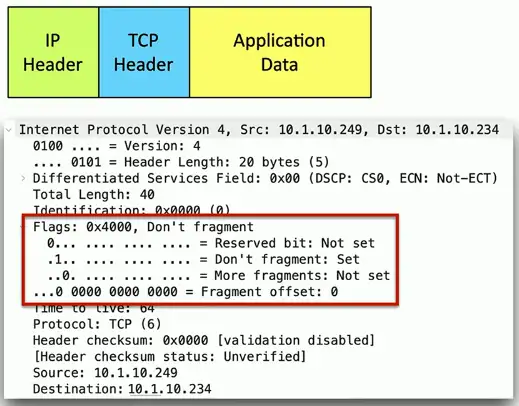
Flags: A 3-bit field used to control packet fragmentation
Fragment Offset: A 13-bit field used to identify where a fragment was originally located in an unfragmented datagram
Time to Live (TTL): An 8-bit field used to prevent routing loops by being decremented by 1 at each router hop until the packet is discarded when the TTL = 0
Protocol: An 8-bit field used to identify the type of data being carried by the packet
Header Checksum: A 16-bit field used to check the header for errors
Source IP Address: A 32-bit address specifying the IPv4 address of the sender
Destination IP Address: A 32-bit address specifying the IPv4 address of the receiver
Options: A rarely-used field that can specify additional IPv4 header options (NOTE: The Options field is populated if the Internet Header Length > 5)
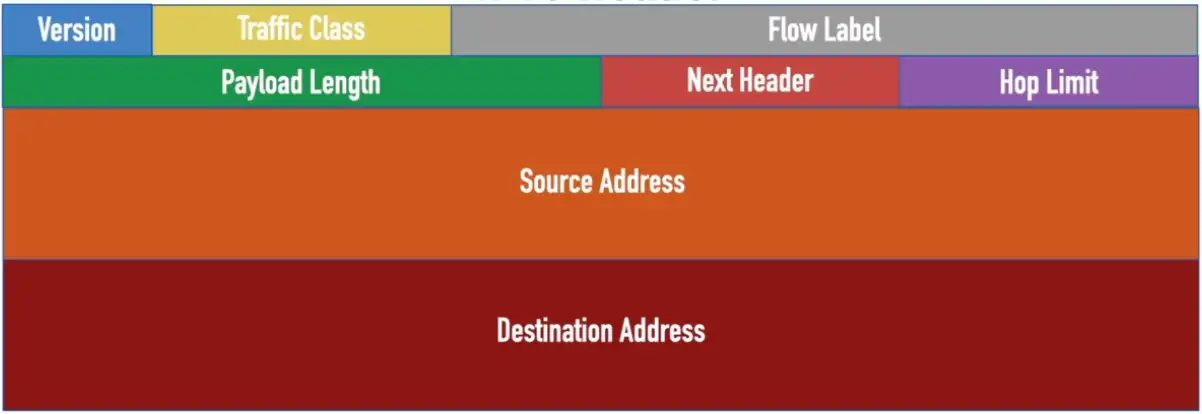
IPv6 Header
Version: A 4-bit field that indicates that IP version being used, and is always set a value of 6 for IPv6 headers
Traffic Class: An 8-bit field used to indicate the priority of the packet, and is typically divided into a 6-bit Differentiated Services Code Point (DSCP) field and a 2-bit Explicit Congestion Notification (ECN) field (performs the same function as an IPv4 ToS byte)
Flow Label: A 20-bit field used to identify a group of packets as belonging to a single stream
Payload Length: 16-bit field used to indicate how many bytes are contained in the payload
Next Header: An 8-bit field used to indicate the next type of header encapsulated in the IPv6 packet (typically a Layer 4 protocol such as TCP or UDP)
Hop Limit: An 8-bit field used to prevent routing loops by being decremented by 1 at each router hop until the packet is discarded when the Hop Limit = 0 (replaces the IPv4 TTL field)
Source Address: A 128-bit field that indicates the IPv6 address of the sender
Destination Address: A 128-bit field that indicates the IPv6 address of the receiver
TCP and UDP
Transported inside of IP
Encapsulated by the IP protocol
Two ways to move data from place to place
Different features for different applications
OSI layer 4
The transport layer
Multiplexing
Use many applications at the same time
TCP and UDP
TCP — Transmission Control Protocol
Connection-oriented
A formal connection setup and close
“Reliable” delivery
Recovery from errors
Can manage out-of-order messages or retransmissions
Flow control
The receiver can manage how much data is sent
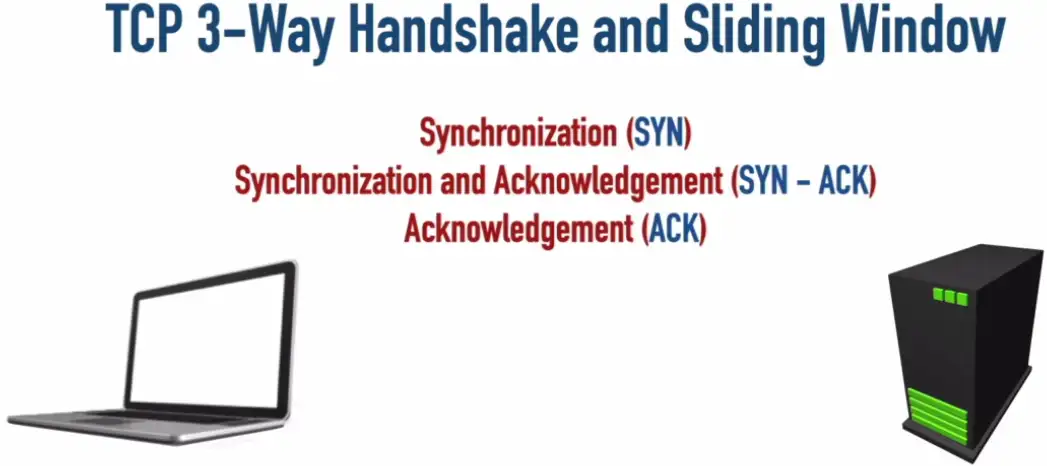
The 3-Way Handshake
A 3-step process that sets up a connection between two devices speaking TCP.
Segment 1 is sent, ACK2 is sent back from server, acknowledging server is ready for segment 2.
The next device will send Segment 2 and Segment 3 at a time, after receiving acknowledgement via ready ACK4, the next time device will send double the segments.
Number of segments sent each time, are called Window Size. It will keep doubling until some segment is dropped, and the server asks for it again, then the device will think it needs to slow down to transfer segments without error, so the window size will be reduced.
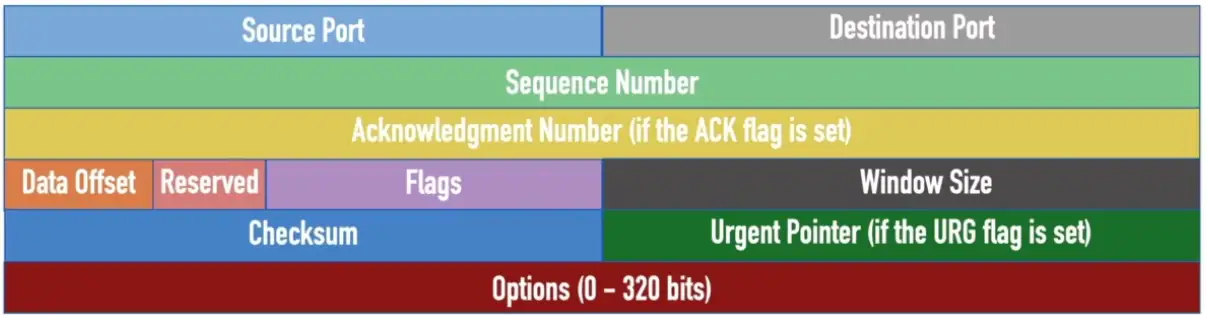
TCP Header
Source Port: A 16-bit field that identifies the sending port
Destination Port: A 16-bit field that identifies the receiving port
Sequence Number: A 32-bit field that specifies the first sequence number if the SYN flag = 1, or the accumulated sequence number if the SYN flag = 0
Acknowledgement Number: A 32-bit field that specifies the next sequence number the sender of an ACK expects (if the ACK flag = 1)
Data Offset: A 4-bit field that specifies the size of the TCP header, with a unit measure of 32-bit words (the minimum value is 5, and the maximum value is 15)
Reserved: A 3-bit field reserved for future use, where each bit is set to a value of 0
Flags: A series of nine 1-bit fields indicating the number of bytes the sender of this segment is willing to receive
Checksum: A 16-bit field used for error-checking both header and payload of the segment
Urgent Pointer: A 16-bit field indicating the last urgent data byte (if the URG flag = 1)
Options: A field whose size is in the range of 0–320 bits and can be used to indicate a variety of additional TCP options
UDP — User Datagram Protocol
Connectionless
No formal open or close to the connection
“Unreliable” delivery
No error recovery
No reordering of data or retransmissions
There is data checksum, to make sure data doesn’t get corrupted in the transmission.
Due to lack of Sequence Number and Acknowledge Number, we don’t know if it’s ever delivered to the destination, that’s why it’s unreliable.
No flow control
Sender determines the amount of data transmitted
UDP Header
Source Port: A 16-bit field that identifies the sending port
Destination Port: A 16-bit field that identifies the receiving port
Length: A 16-bit field that specifies the combined length of the UDP header and data
Checksum: A 16-bit field that can be used to perform error checking of the header and data (optional IPv4 and required for IPv6)
Speedy delivery
The IP delivery truck delivers from one (IP) address to another (IP) address
Every house has an address, every computer has an IP address
Boxes arrive at the house/IP address
Where do the boxes go?
Each box has a room name
Port is written on the outside box
Drop the box into the right room
Lots of Ports
IPv4 sockets
Server IP address, protocol, server application port number
Single destination IP address has multiple paths to two or more endpoints
One-to-one-of-many
Used in IPv4 and IPv6
Configure the same anycast address on different devices
Looks like any other unicast address
Packets sent to an anycast address are delivered to the closest interface
Announce the same route out of multiple data centers, clients use the data center closest to them
Anycast DNS
Broadcast
Send information to everyone at once
One-to-all
One packet, received by everyone
Limited scope
The broadcast domain
Routing updates, ARP requests
Used in IPv4
Not used in IPv6
Uses multicast instead
Transmission Media
Packet Switched vs. Circuit Switched Networks
Integrated Services Digital Network (ISDN): A technology that can carry voice, data, and/or video across digital circuits in the Public Switched Telephone Network (PSTN).
Circuit Switched
Packet Switched
A circuit (or a “call”) is set up before transmitting
A connection is “always-on”
Voice, data, and/or video is sent over the circuit
Voice, data, and/or video is encapsulated in packets and sent through a network
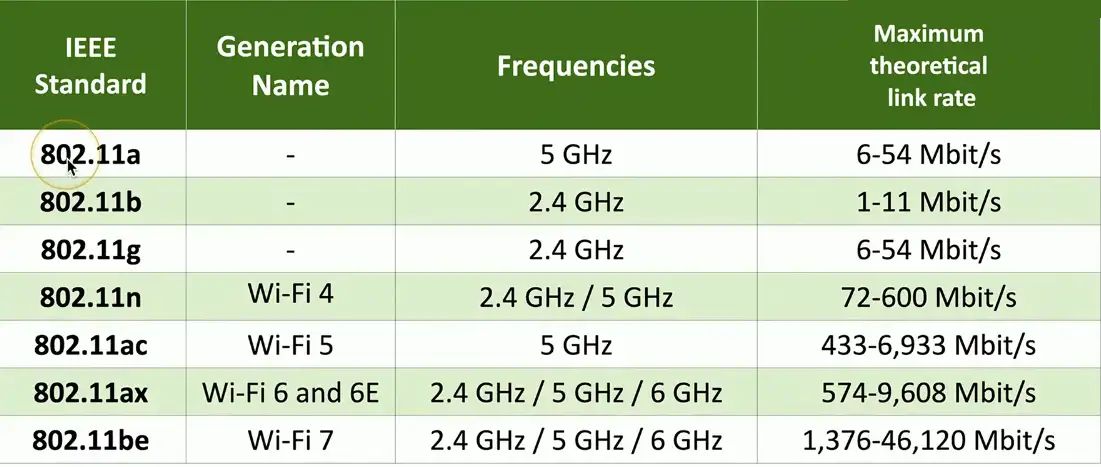
Managed by the IEEE LAN/MAN Standards Committee (IEEE 802)
Institute of Electrical and Electronics Engineers
Many updates over time
Check with IEEE for the latest
The Wi-Fi trademark
Wi-Fi Alliance handles interoperability testing
Modern standards have a more marketable name
For example, 802.11ax is Wi-Fi 6
Cellular Technologies (1G, 2G, 3G)
1G: Delivered analog voice
2G: Introduced digital voice and added support for data using GSM (Global System for Mobile Communication) and CDMA (Code Division Multiple Access)
2.5G: Added packet switching with GPRS (General Packet Radio Service)
2.7G (EDGE): Increased data rates with EDGE (Enhanced Data Rates for GSM Evolution)
3G: Increased data rates using standards including UMTS (Universal Mobile Telecommunications System) and CDMA2000
4G and LTE
4G
Required a cellular network to support at least a 100 Mbps download speed to qualify as 4G
Fourth Generation Long Term Evolution (4G LTE)
A cellular service offered by networks that were somewhat slower that 4G requirements, where LTE implied the network was evolving to higher speeds, and operated in a wide range of speeds: 20 Mbps – 100 Mbps
A “4G” technology
converged standard (GSM and CDMA providers)
Based on GSM and EDGE (Enhanced Data Rated for GSM Evolution)
Standard supports download rates of 150 Mbit/s
LTE Advanced (LTE-A)
Standard supports download rates of 300 Mbit/s
5G
Fifth generation cellular networking
Launched worldwide in 2020
Offers much higher speed, very low latency and comes in two flavors: mmWave (max speed around 5 Gbps) and Sub-6GHz (max speed between 4G and mmWave speeds)
Significant performance improvements
At higher frequencies
Eventually 10 gigabits per second
Slower speeds from 100-900 Mbit/s
Significant IoT impact
Bandwidth becomes less of a constraint
Larger data transfers
Faster monitoring and notification
Additional cloud processing
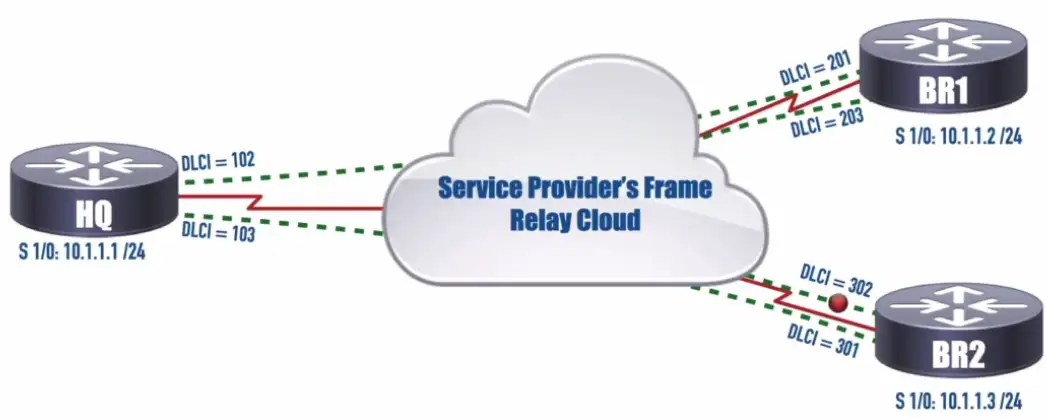
Frame Relay
Popular in the 1990s
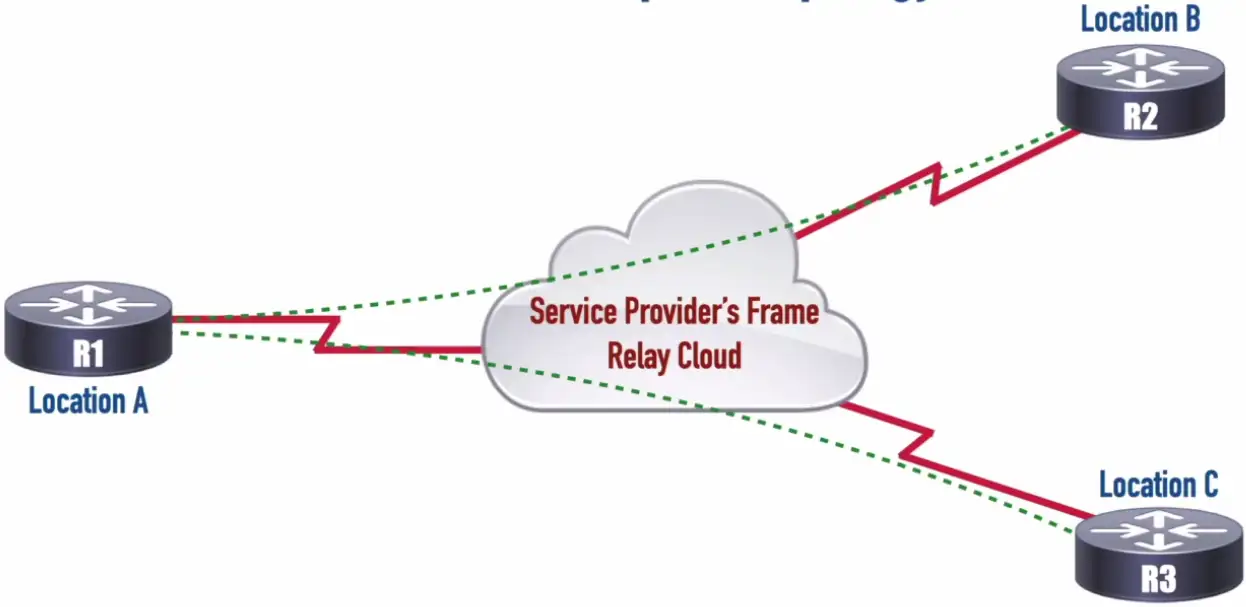
It is a standardized, cos-effective packet-switching protocol used to connect LANs and transmit data across WANs.
Operates at Layer 2
It breaks data into variable sized units called frames and transmits them over shared virtual circuits
Key features
Packet Switching
Efficiency
Bandwidth sharing
Currently, it has been replaced by newer technologies such MPLS, Ethernet over Fiber, and DSL, cable modems.
Data Link Connection identifier (DLCI): identifies a virtual circuit that interconnects two devices on a Frame Relay Network.
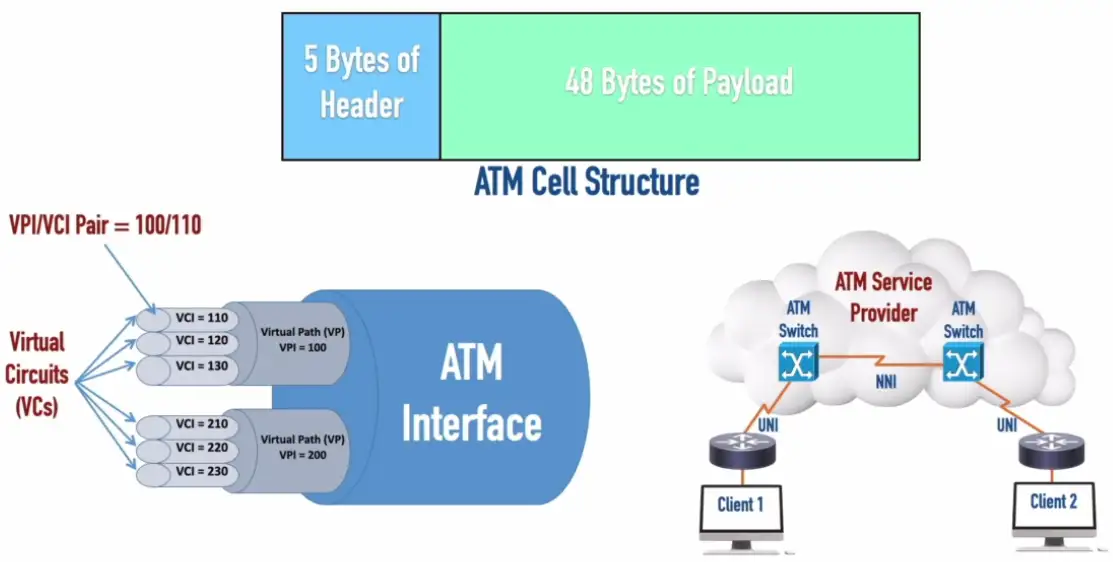
Asynchronous Transfer Mode (ATM)
Somewhat legacy WAN technology
ATM uses cell of a fixed length 53 bytes
VPI (Virtual Path Identifier)/VCI (Virtual Circuit Identifier): Uniquely identifies a virtual connection that ATM uses to transport its cells.
UNI (User to Network Interface): Interconnects a user’s device (e.g., a router) with an ATM network.
NNI (Network to Network Interface) Interconnects ATM networks
Satellite Networking
Very Small Aperture Terminal (VSAT): A WAN technology that uses small satellite dishes connected to a network and supports two-way communication via a satellite.
Communication to a satellite
Non-terrestrial communication
Two way satellite communication
Satellite dish is less than 3 meters in diameter
Data experiences more delay
Sensitive to weather conditions
High cost relative to terrestrial networking
12 Mbps to 100 Mbit/s down, 5 Mbit/s up are common
Remote sites, difficult-to-network sites
Relatively high latency
250 ms up, 250 ms down
Starlink advertises 40 ms and is working on 20 ms
High frequencies — 2 GHz
Line of sight, rain fade
Ethernet Standards
Ethernet
The most popular networking technology in the world
Standard, common, nearly universal
Many types of Ethernet
Speeds, cabling, connectors, equipment
Modern Ethernet uses twisted pair copper or fiber
The standard defines the media
IEEE Ethernet Standards
The IEEE 802.3 committee
Institute of Electrical and Electronics Engineers
All types of standards of Ethernet
Copper and fiber
IEEE Standard
Description
Media
Network Speed
1000BASE-T
Gigabit Ethernet
Copper
1 gigabit per second
10GBASE-T
10 Gigabit Ethernet
Copper
10 gigabits per second
1000BASE-SX
Gigabit Ethernet
Fiber
1 gigabit per second
Deciphering the Standard
Speed signal, and media
All contained in the standard name, i.e., 1000BASE-T
The number is related to the network speed
1000 is commonly 1,000 megabits per second (or one gigabit/sec)
10G would be 10 gigabits per second
BASE (baseband)
Single frequency using the entire medium
Broadband uses many frequencies, sharing the medium
Media type
T is twisted pair copper, F is fiber
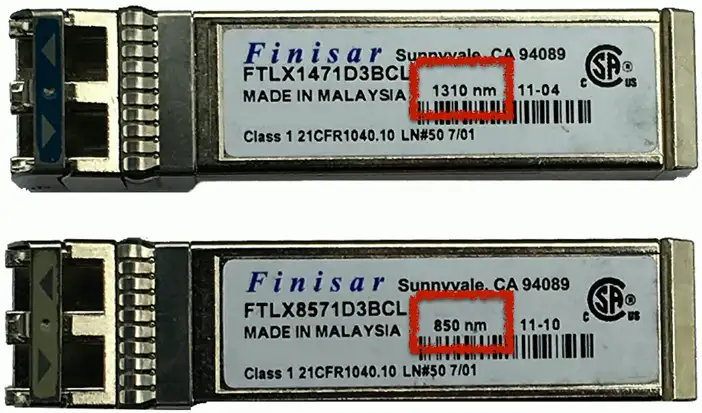
SX would be short wavelength light
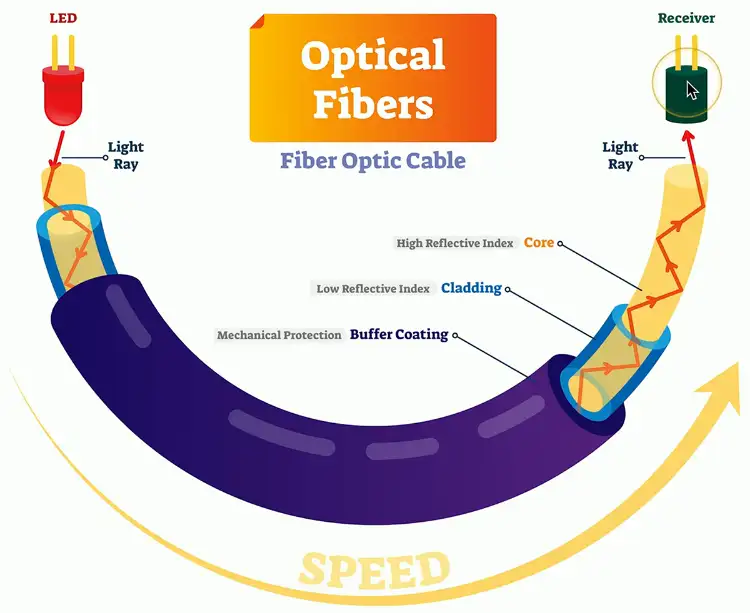
Optical Fiber Cables
Fiber Communication
Transmission by light
The visible spectrum
No RF signal
Very difficult to monitor or tap
Signal slow to degrade
Transmission over long distances
Immune to radio interference
There’s no RF
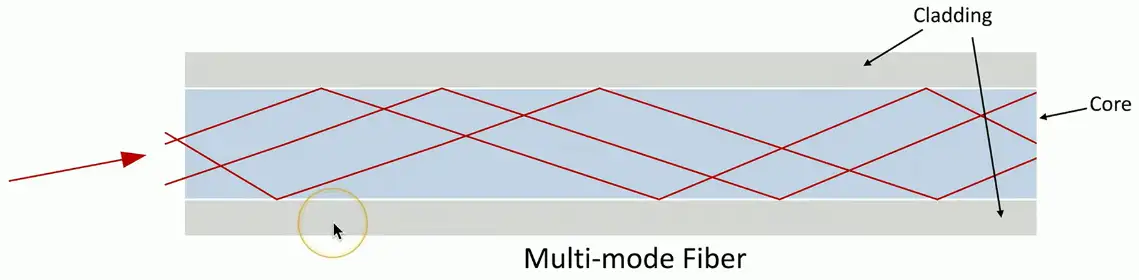
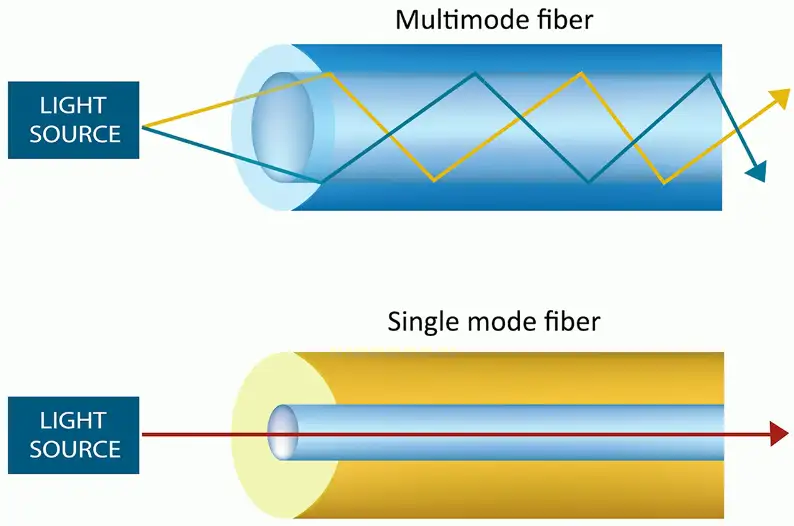
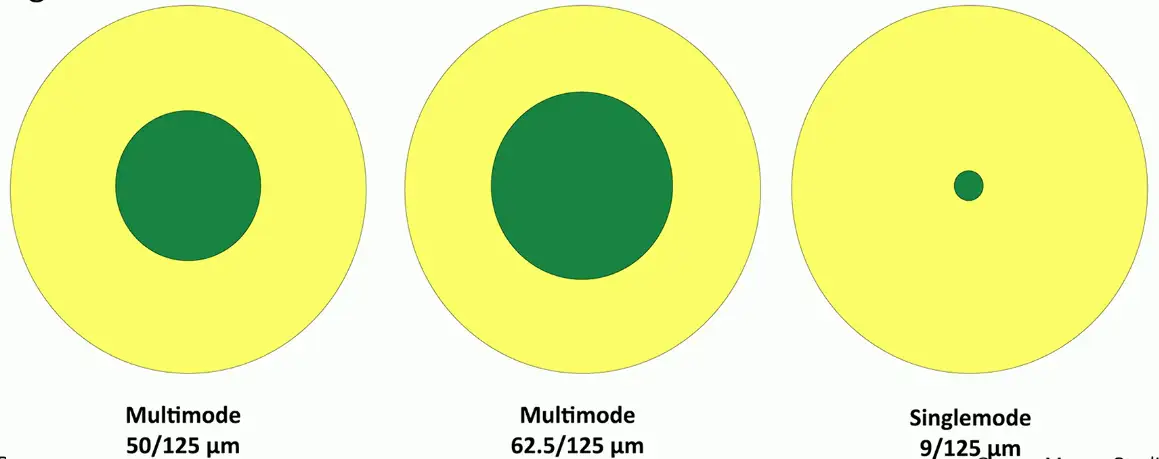
Multimode fiber
Short-range communication
Up to 2 km
Inexpensive light source
i.e., LED
Multimode Delay Distortion: Data corruption resulting from bits using one path of light (i.e., a mode) passing up other bits using a different path of light (i.e., a different mode).
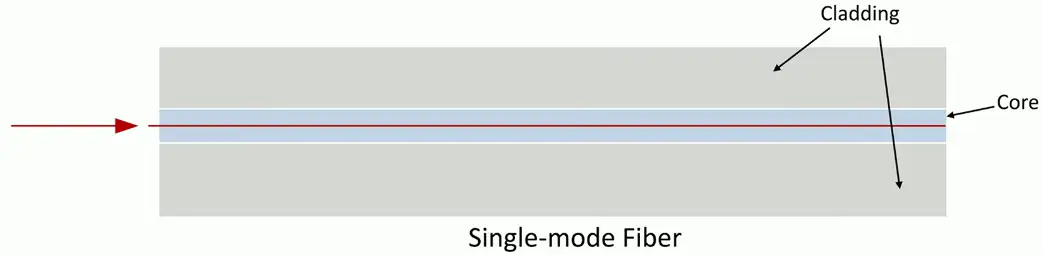
Single-mode Fiber
Long-range communication
Up to 100 km without processing
Expensive light source
Laser beams
Copper Cabling
Hybrid Fiber-Coax (HFC) Distribution Network: A cable company’s infrastructure including both fiber and coax.
Data-Over Cable Service Interface Specification (DOCSIS): A set of standards specifying the use of different frequency ranges in a cable television network.
The importance of cable
Fundamental to network communication
Incredibly important foundation
Usually only get one good opportunity at building your cabling infrastructure
Make it good!
The vast majority of wireless communication uses cables
Everything eventually touches a cable
Electromagnetic Interference (EMI): Occurs when radio waves are picked up by or radiated by a cable carrying another signal, resulting in signal degradation.
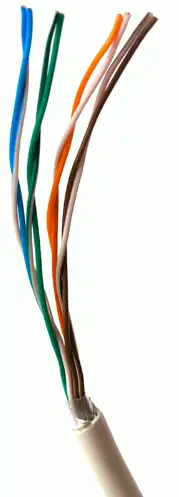
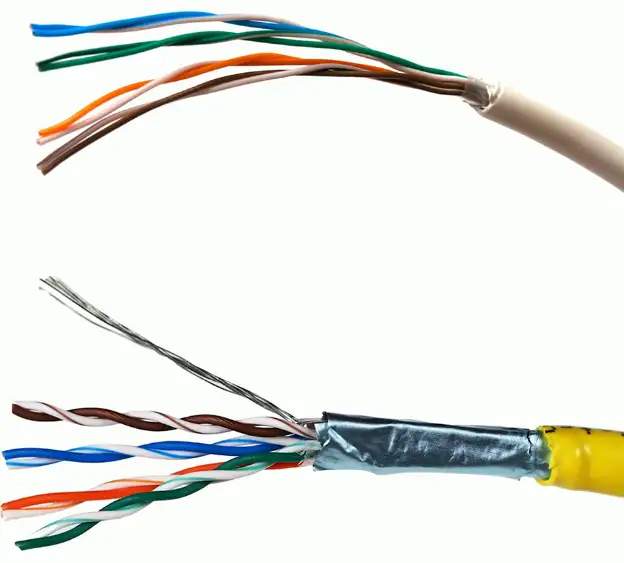
Twisted pair copper cabling
Balanced pair operation
Two wires with equal and opposite signals
Transmit+, Transmit-/Receive+, Receive-
The twist is the secret!
Keep single wire constantly moving away from the interference
The opposite signals are compared on the other end
Pairs in the same cable have different twist rates
Cable Speeds
Cables don’t have a speed
The copper just sits there
Electrical signals are sent over copper cable
The signal encoding determines the data transfer rate
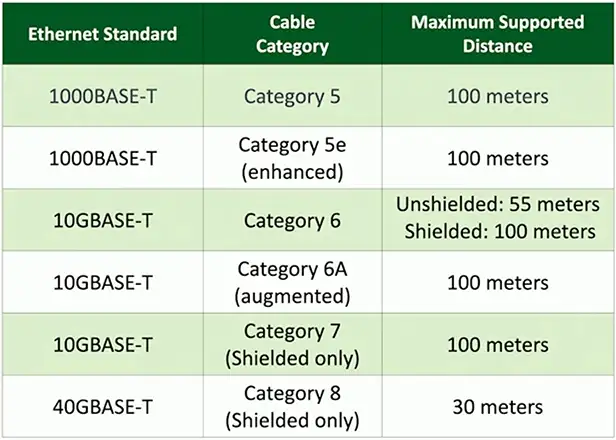
A cable must be manufactured to specific standards
IEEE 802.3 Ethernet standards determine the cable type
Cable standards are described as a “category” of cable
Category 6, Category 7, etc.
Check the IEEE standard to determine the minimum cable category
The minimum cable category for 1000BASE-T is Category 5
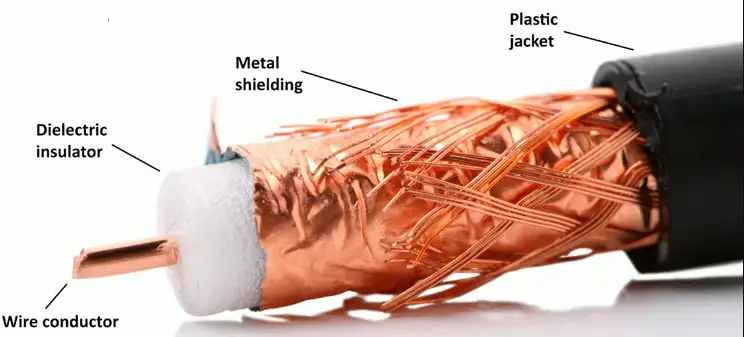
Coaxial Cables
Two or more forms share a common axis
RG-6 used in television/digital cable
And high speed Internet over cable
Measured by impedance
Impedance: A circuit’s opposition to traffic flow (measured in Ohms), which can have resistive, capacitive, and/or inductive components.
Twinaxial Cable
Two inner conductors
Twinax
Most commonly used in Data Centers
40 Gbps or 100 Gbps
7 meters
Common on 10 Gigabit Ethernet SFP+ cables
Full duplex
Five meters
Low cost
Low latency compared to twisted pair
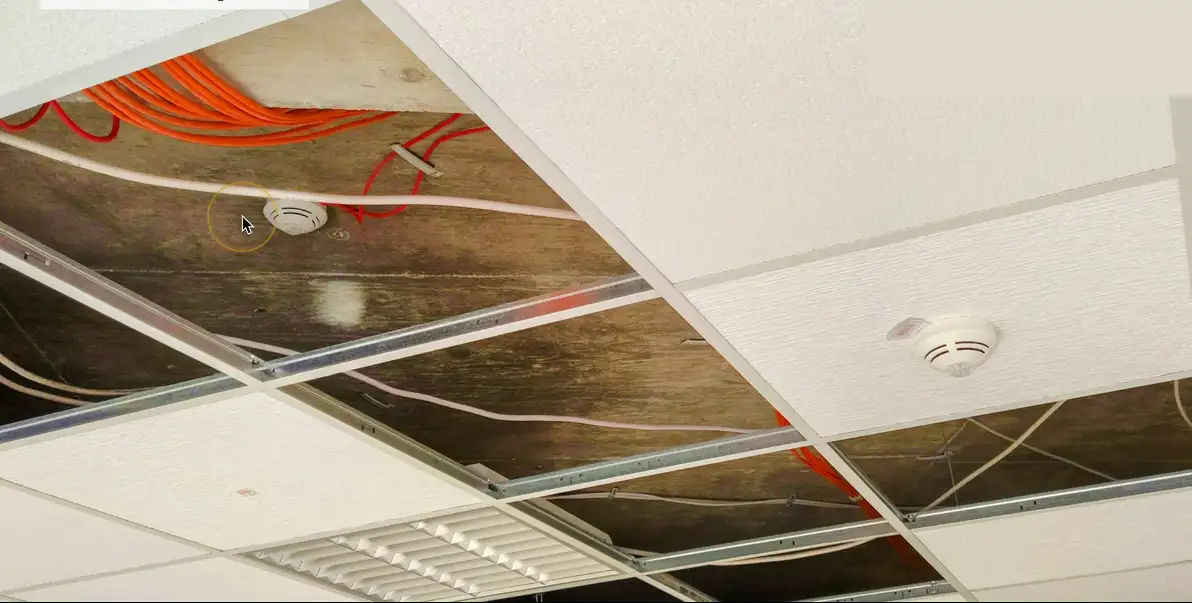
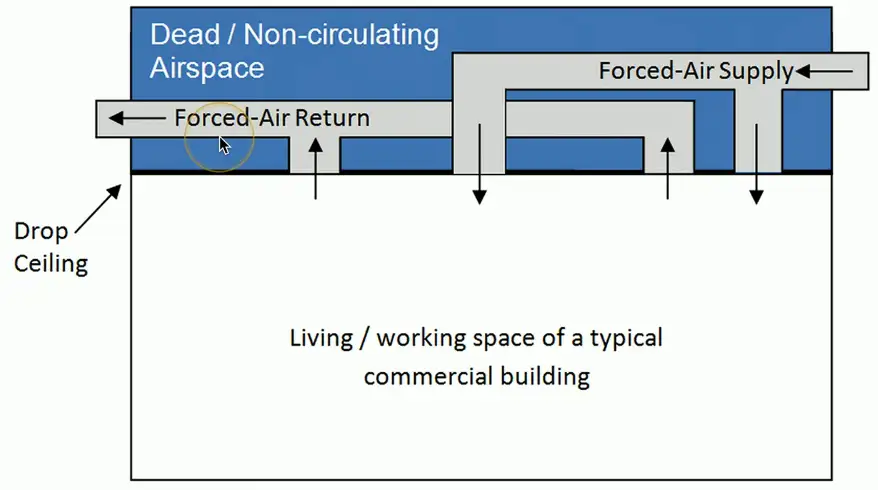
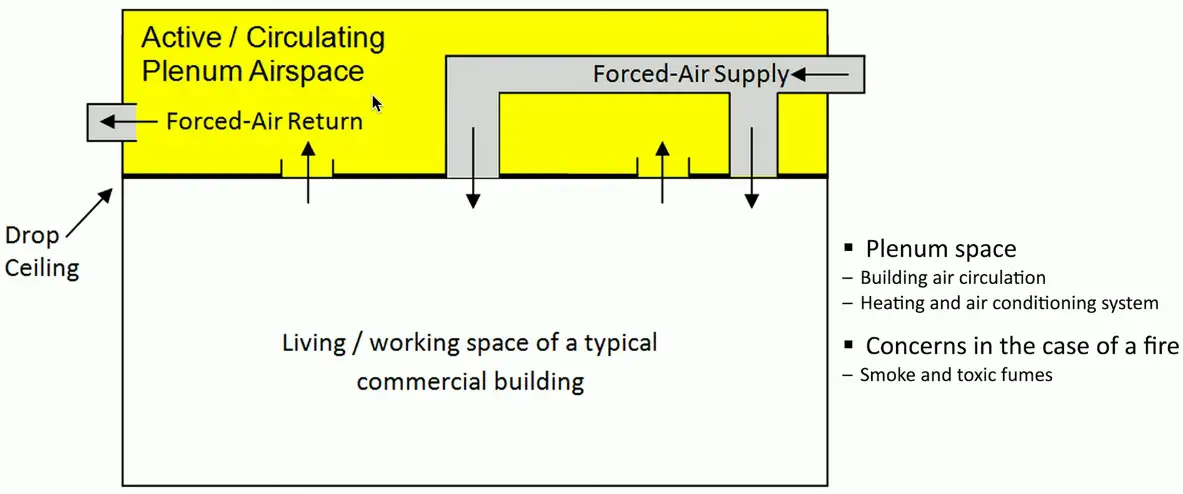
Plenum space
No Plenum
Plenum
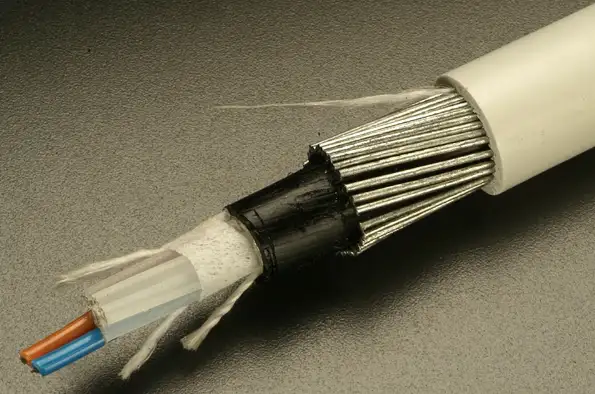
Plenum-rated Cable
Traditional cable jacket
Polyvinyl chloride (PVC)
Fire-rated cable jacket
Fluorinated ethylene polymer (FEP) or low-smoke polyvinyl chloride (PVC)
Plenum-rated cable may not be flexible
May not have the same bend radius
Worst-case planning
Used in plenum and risers
Important concerns for any structure
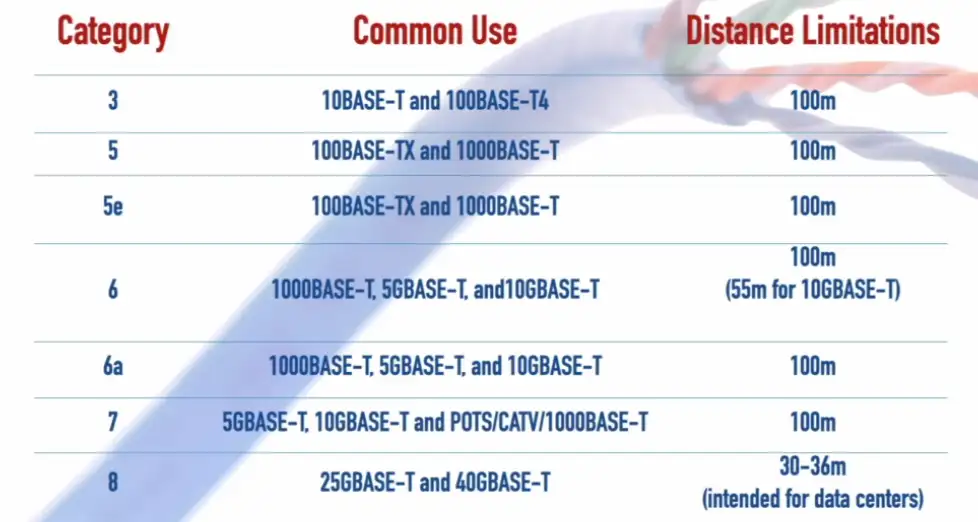
Categories of Twisted Pair Cable
Network Transceivers
Transmitter and receiver
Usually in a single component
Provides a modular interface
Add the transceiver that matches your network
Many types
Ethernet or Fiber Channel
Not compatible with each other
Different media types
Fiber and copper
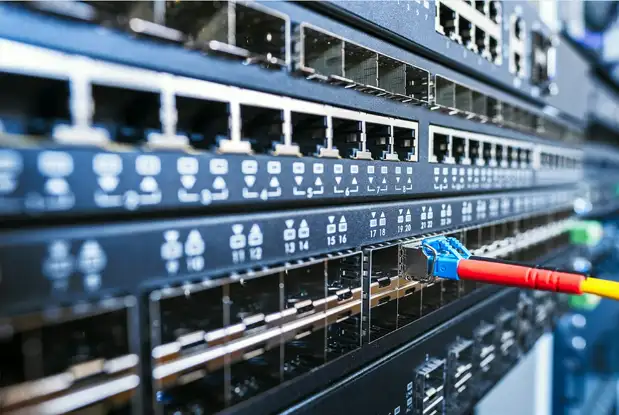
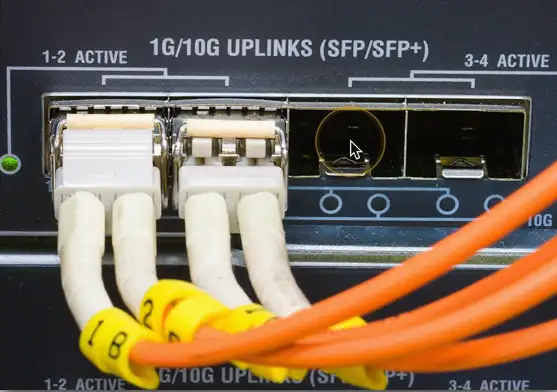
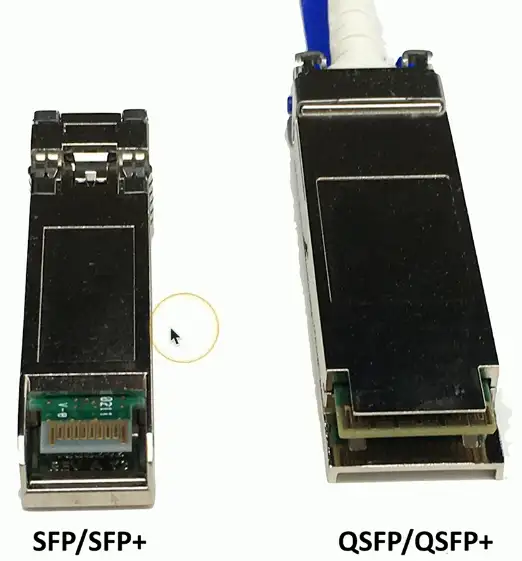
SFP and SFP+
Small Form-factor Pluggable (SFP)
Commonly used to provide 1 Gbit/s fiber
1 Gbit/s RJ45 SFPs also available
Enhanced Small Form-factor Pluggable (SFP+)
Exactly the same physical size as SFPs
Supports data rates up to 16 Gbit/s
Common with 10 Gigabit Ethernet
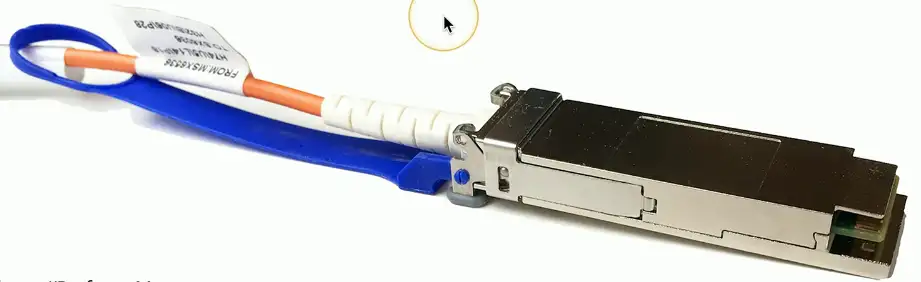
QSFP and QSFP+
Quad Small Form-factor Pluggable (QSFP)
4-channel SFP = Four 1 Gbit/s Channels = 4 Gbit/s
QSFP+ is four-channel SFP+
Four 10 Gbit/sec channels = 40 Gbit/sec
Combine four SFPs into a single transceiver
Cost savings in fiber and equipment
Transceiver Comparison
Fiber Connectors
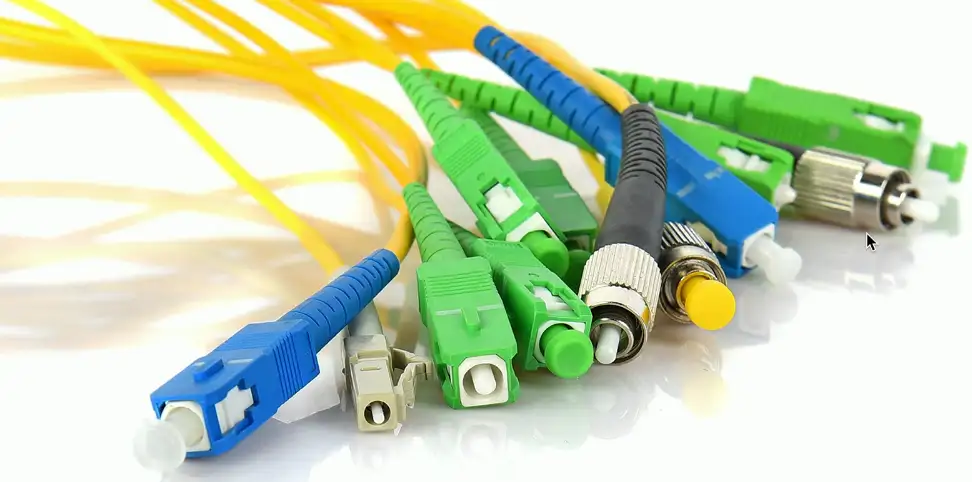
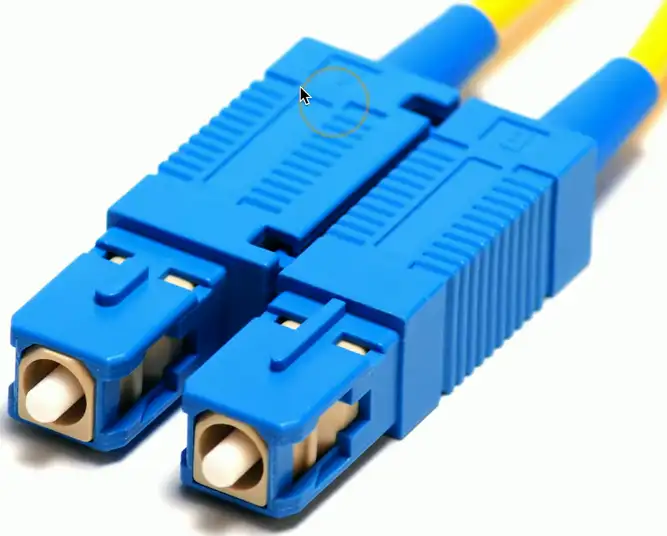
SC — Subscriber Connector
Not actually an abbreviation
We’ve created our own names
Square Connector
Standard Connector
Pushes on to lock
Pull connector to unlock
A popular fiber connector
Common in many data centers
Two SC connectors are combined in one.
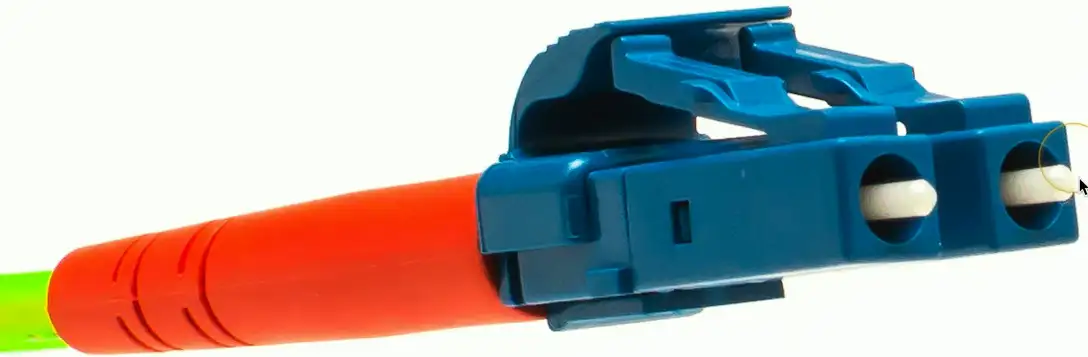
LC — Local Connector
Another popular fiber type
Smaller and more compact connector
Locks in place with a clip
Press to release
Other names
Lucent Connector
Little Connector
Two LC connectors are combined here in pair.
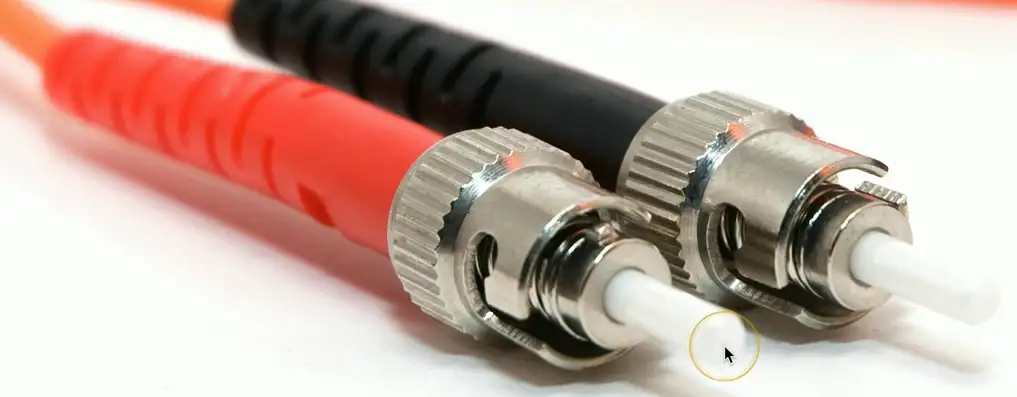
ST — Straight TIP
Bayonet connector
Stick and Twist
Push on and turn
Locks in place
Turn to unlock
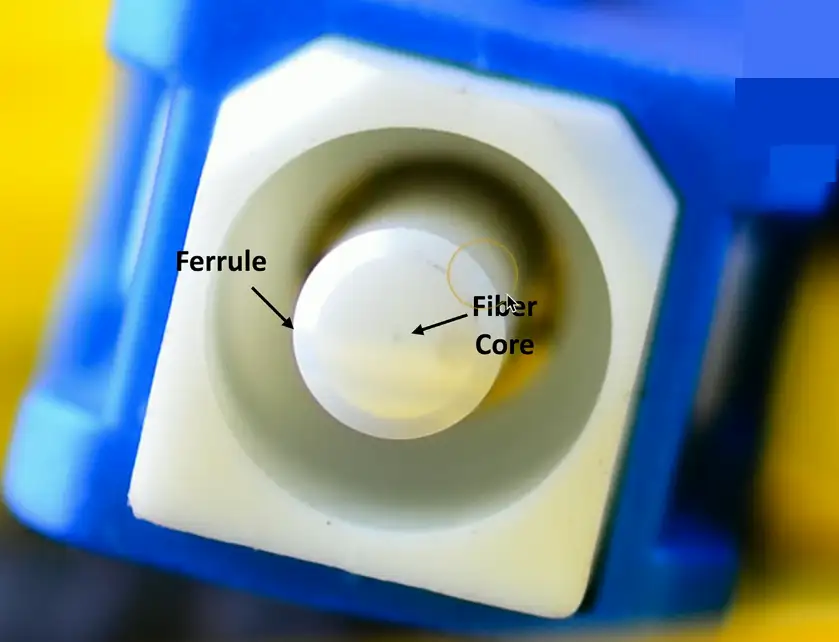
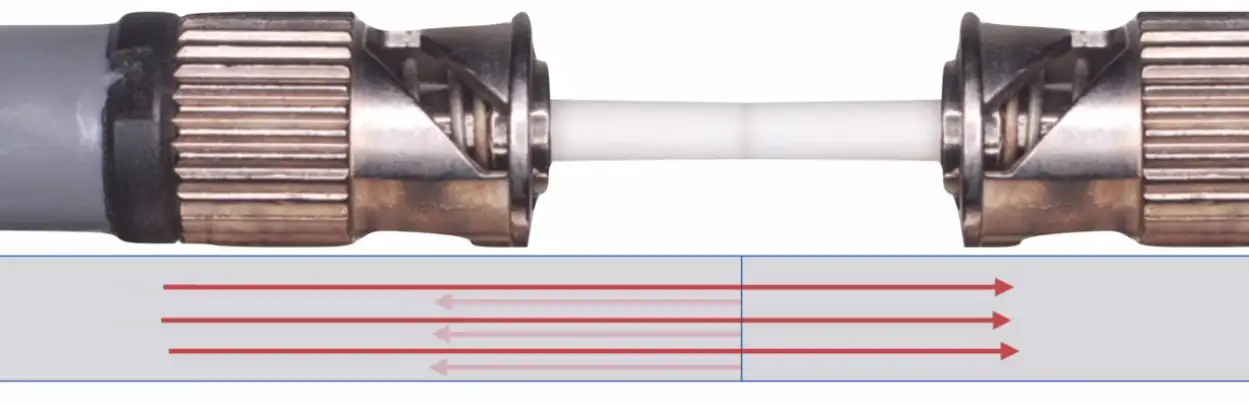
Ultra Physical Contact (UPC)
Refracted light from the contact can damage the transmitting laser inside the fiber.
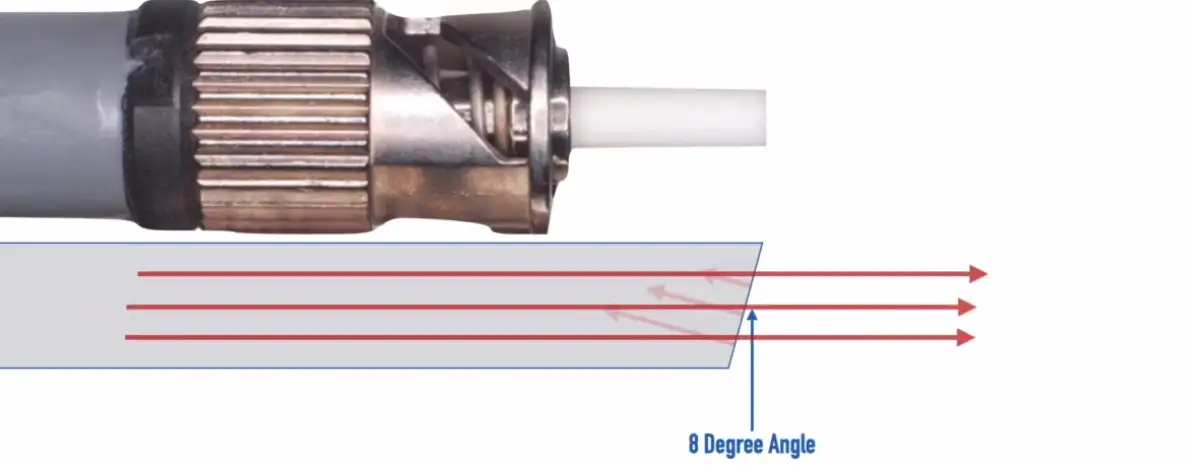
Angled Physical Contact (APC)
Refracted light comes at an angle, and mostly absorbed by the fiber cladding.
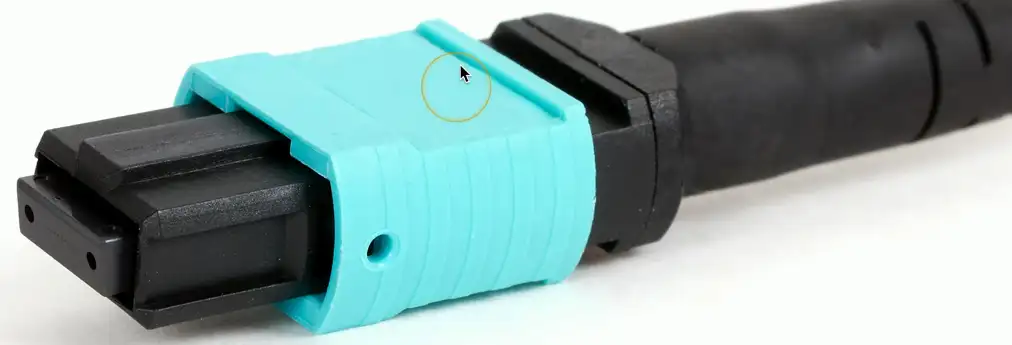
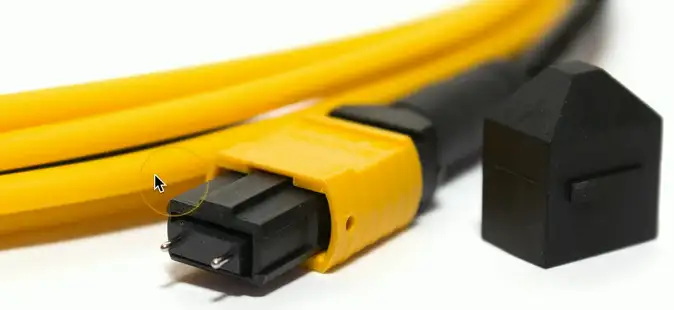
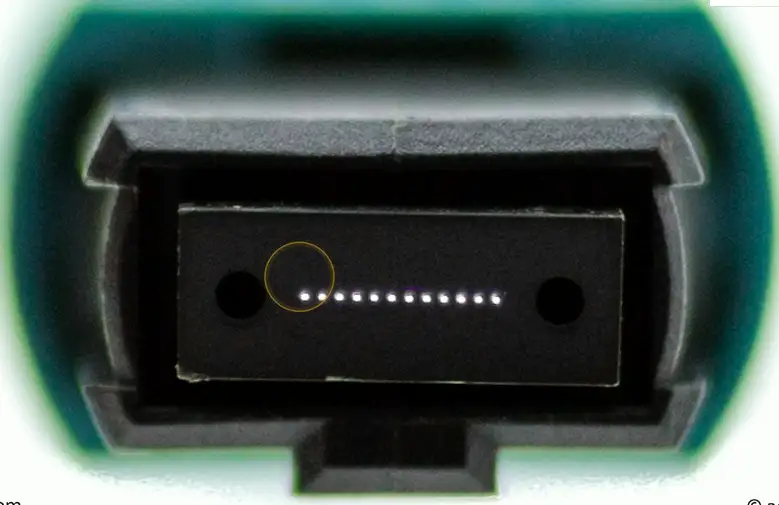
MPO — Multi-fiber Push On
Twelve fibers in a single connector
Save space and manage one cable
Push to lock in place
Pull connector to unlock
May also see the MTP abbreviation
A Corning brand
The MTP MPO connector
Copper Connectors
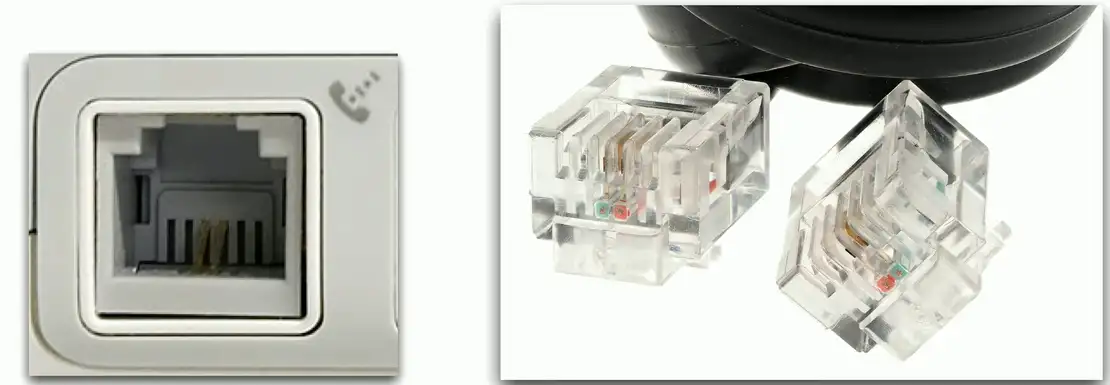
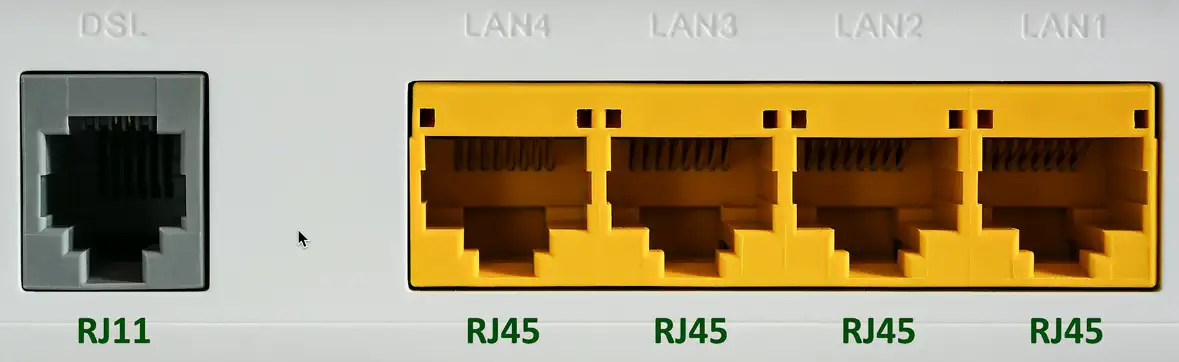
RJ11 Connector
Registered Jack type 11
6 position, 2 conductors (6P2C)
Commonly used on telephones, modems, and fax machines
RJ-14: 6 positions with 4 conductors
Telephone & DSL connection
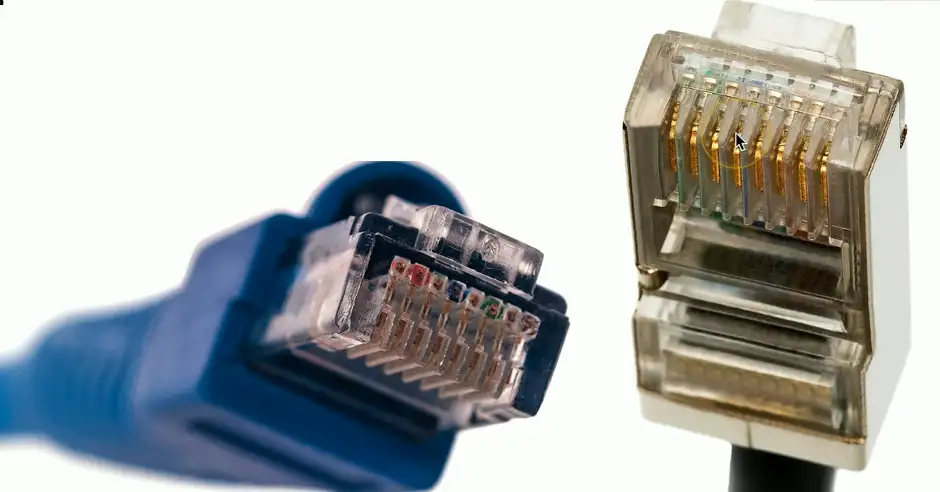
RJ45 Connector
Registered Jack type 45
Commonly used on Ethernet cables
8 positions, 8 conductors (8P8C)
Modular connector
Ethernet
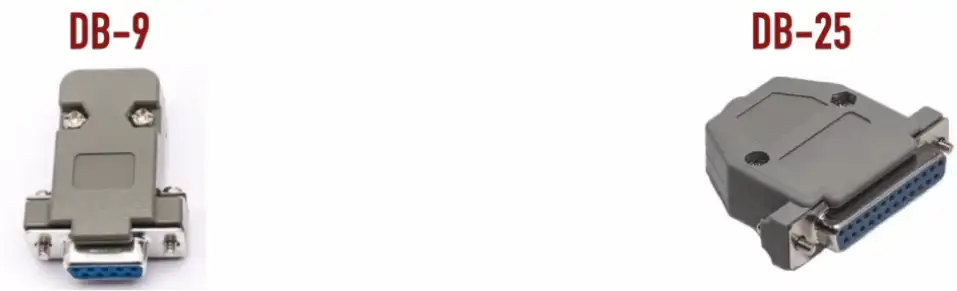
DB-9 and DB-25
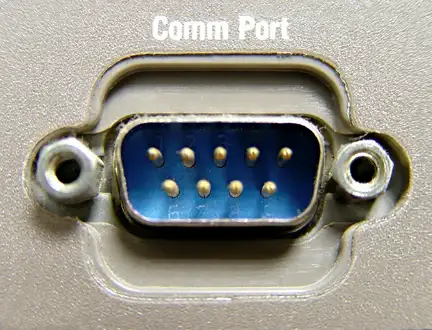
Used with older serial connections (e.g., modem, serial printer, console on Unix host, or mouse)
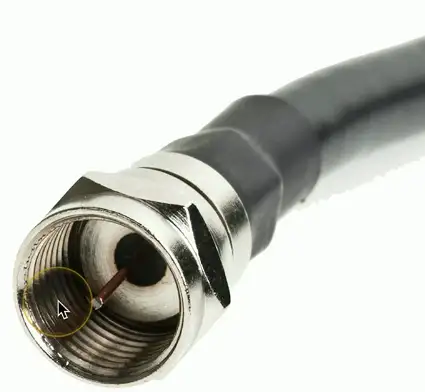
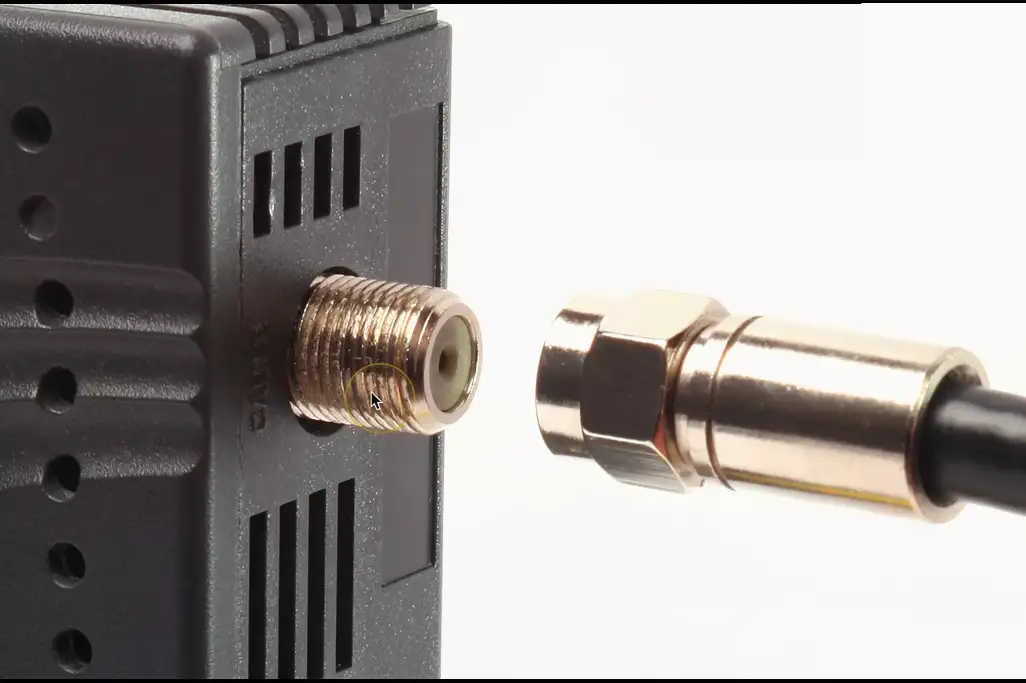
F-connector
Coaxial cable
Standard connector type
Threaded connector
Commonly used with RG-6 and RG-59 coaxial cable
Cable television infrastructure
Cable modem
DOCSIS (Data Over Cable Service Interface Specification)
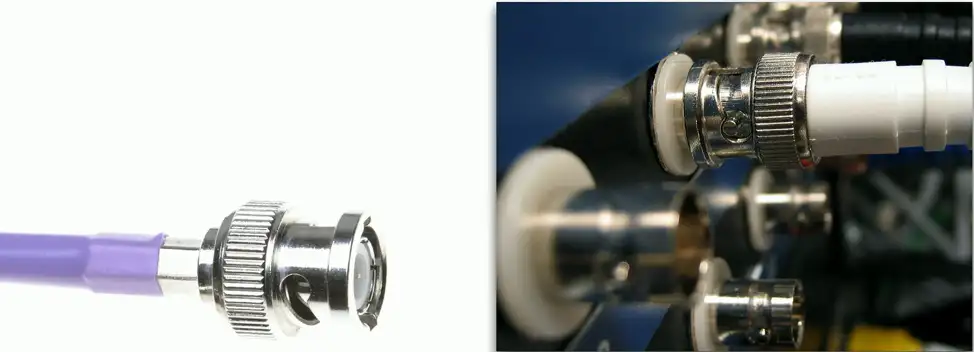
BNC Connector
Bayonet Neil-Concelman
Paul Neil (Bell Labs) and Carl Concelman
Was used with 10BASE-2 networks
Carries radio frequencies for a variety of electronic gear
Usually connects to 50 or 75 Ohm coaxial cable
Another common coaxial cable connector
Common with twinax and DS3 WAN links
Video connections
Secure connections
Twist and lock in place
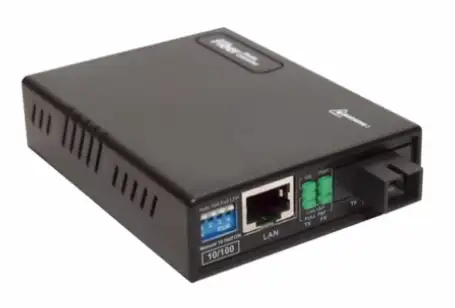
Media Converters
Single-Mode Fiber to Ethernet
Multimode Fiber to Ethernet
Fiber to Coaxial
Single-Mode Fiber to Multimode Fiber
Termination Point
Terminate Copper and Fiber cables:
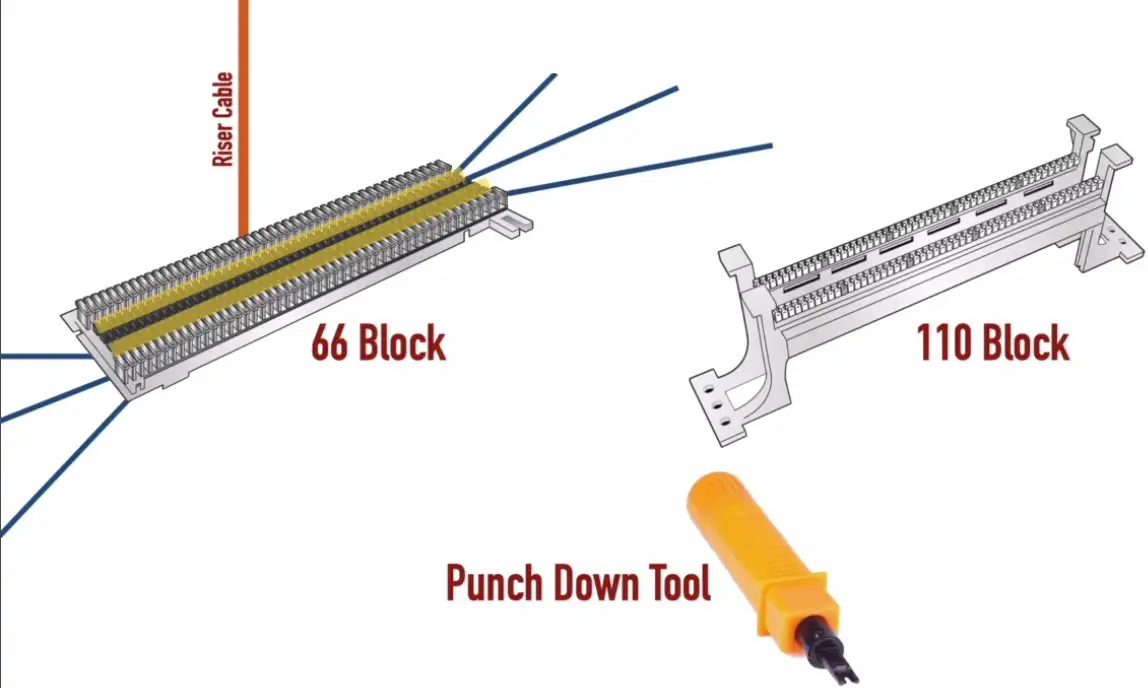
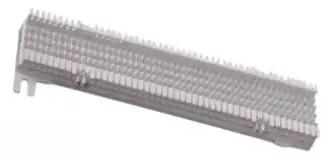
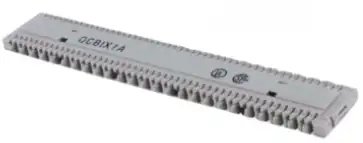
66 Block
More common in PBX (Public Branch Exchange) or older CAT 3 equipment
Susceptible to more cross talk
Not used much nowadays
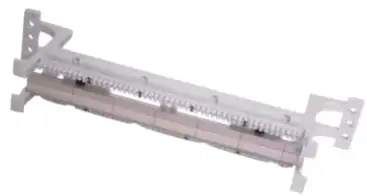
110 Block
For Cat 6 or higher
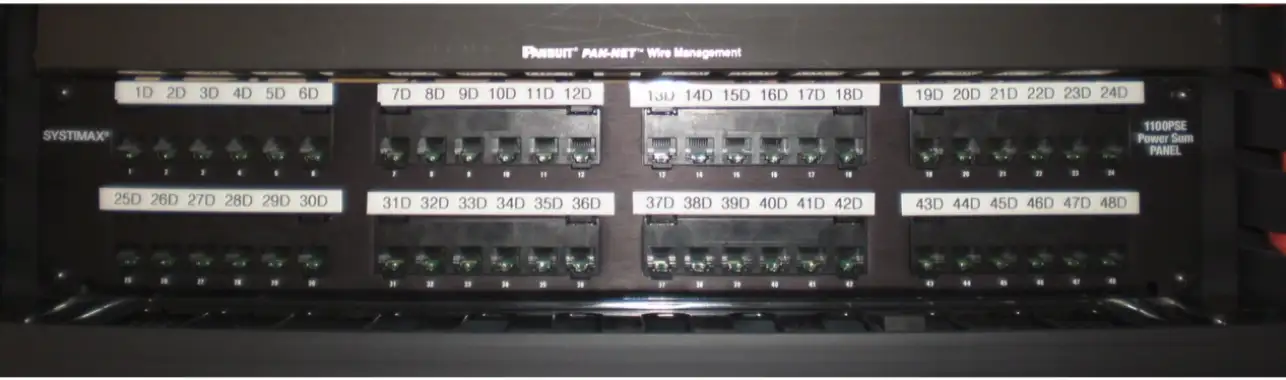
Patchpanel, makes termination of cables a lot easier and cleaner.
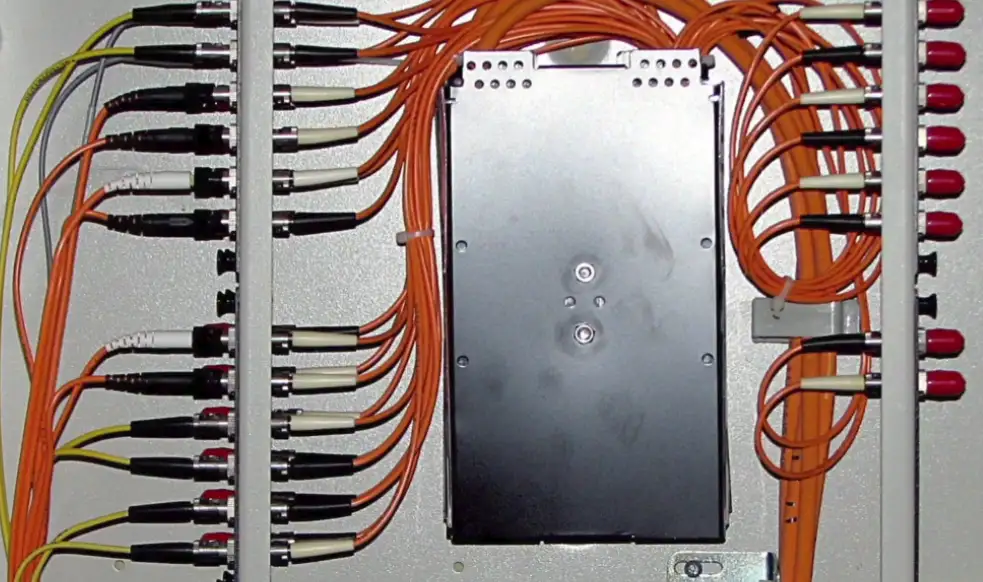
Fiber Distribution Panel
All fibers in the building comes to this panel
See only the connectors sticking out (ST connector in the FIG. below)
Demarcation Point (Demarc) and Smart Jack
Demarcation Point: Where network maintenance responsibility passes from the WAN provider to the customer
**Smart Jack:**A network device (commonly located at a Demarc) that can perform diagnostic tests on the connected circuit.
Cabling Tools
Crimper
Make connection of the cables with the connectors by crimping on it.
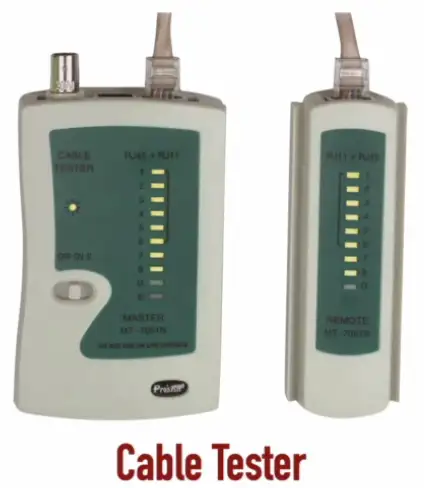
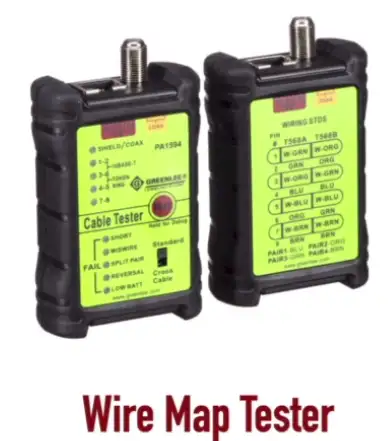
Cable Tester
Tells how things are wired up
Is there crossover or straight through cables etc.
Punch Down Tool
Connect individual cables
Punch down cables on 66/110 Blocks
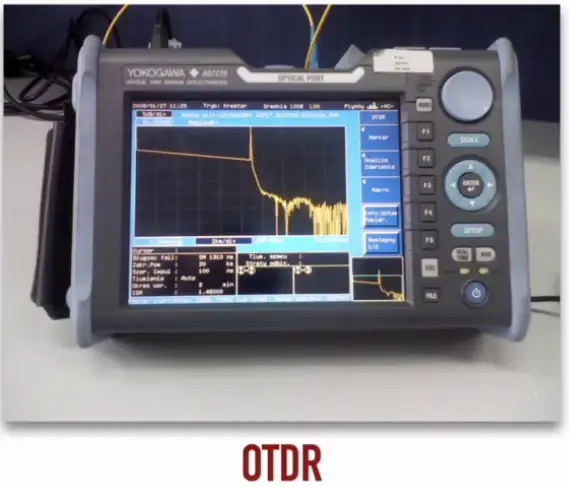
OTDR
Optical Time Domain Reflectometer
How far down, the optic fiber has broken down
Use light and reflections to determine the distance from the broken optic fiber
Expensive
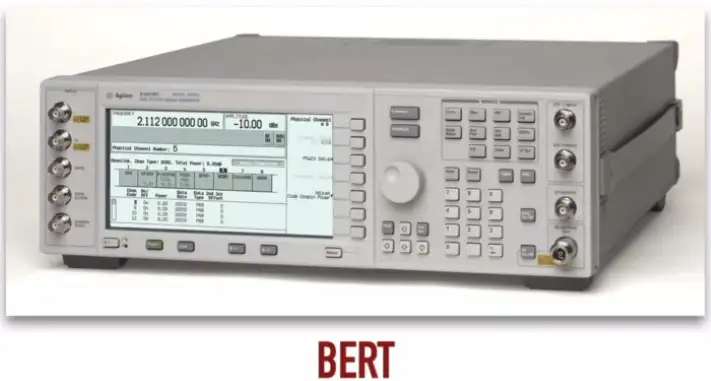
BERT
Bit Error Rate Test
Generate some load on the network
Send out the pattern of 1s and 0s, and matched with the received data
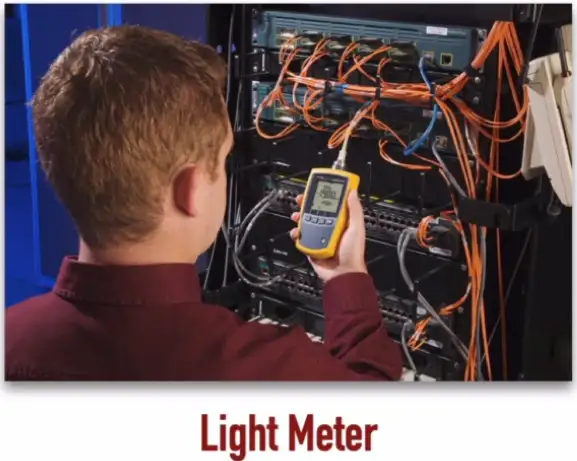
Light Meter
Less expensive compared to BERT
Test if light passing through from one end of the fiber optic cable to the other efficiently
Measure the strength of the light inside the fiber optic cable
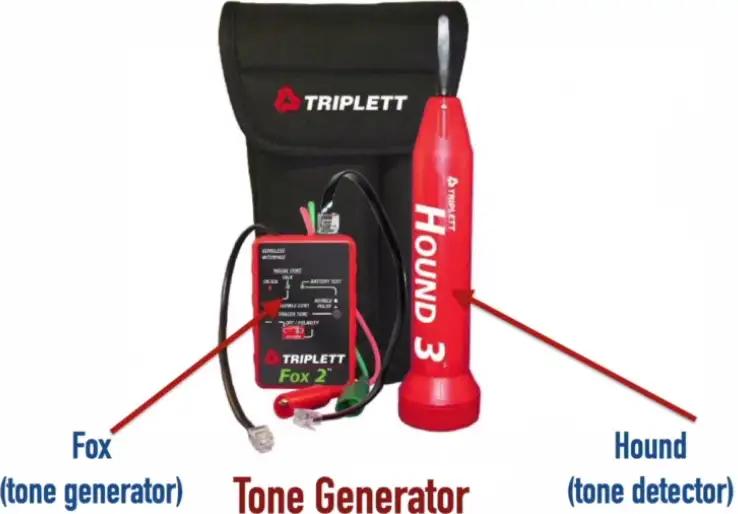
Tone Generator
Used for tracking down specific copper cables
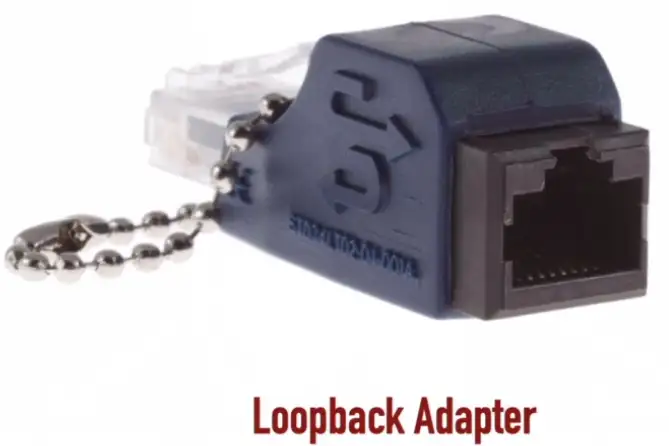
Loopback Adapter
Inexpensive
LED lit up to show we are transmitting and receiving at the same time
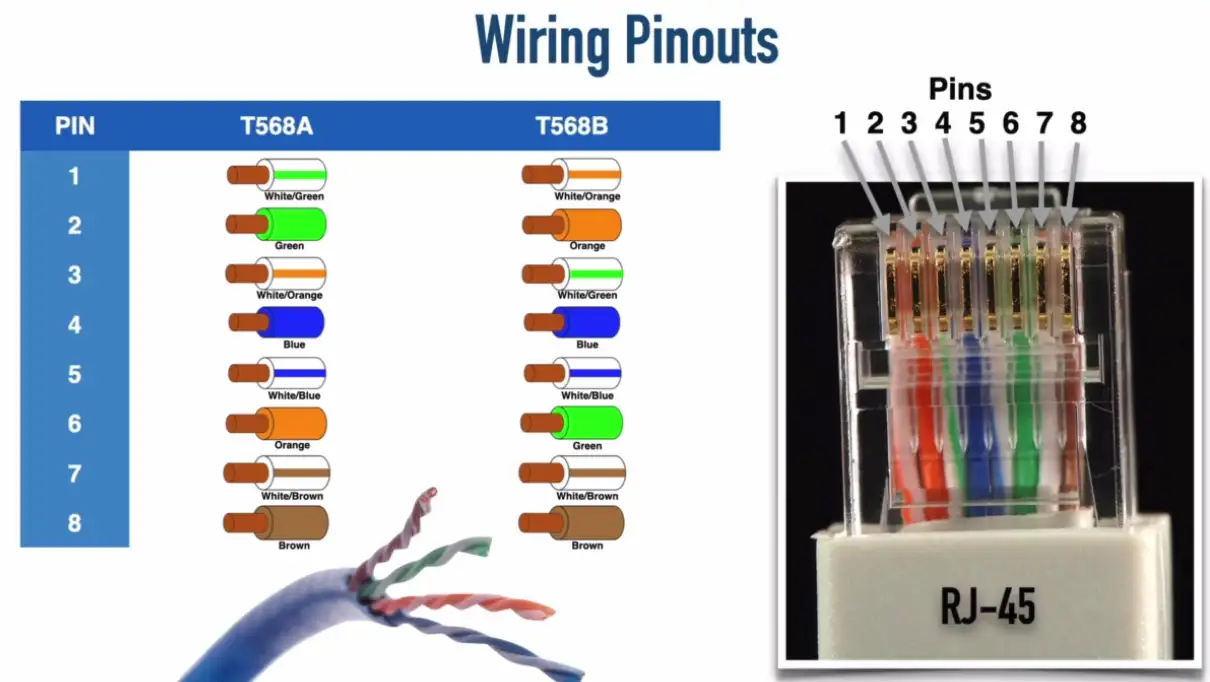
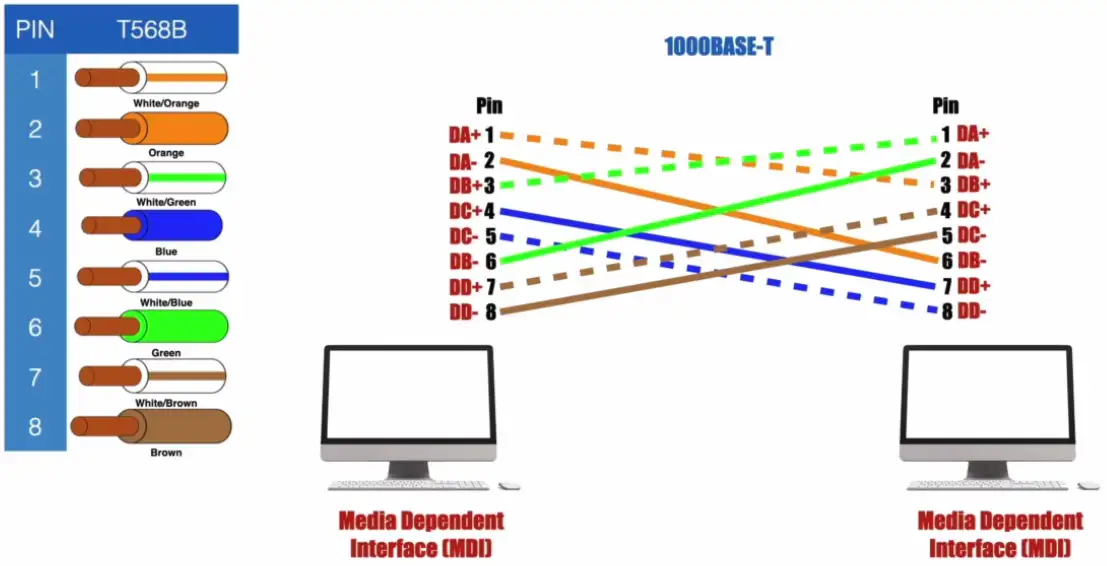
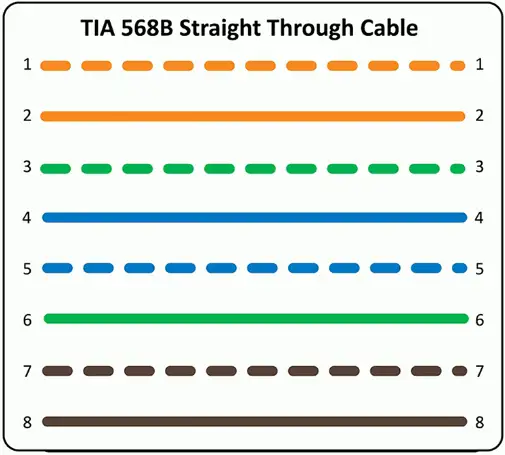
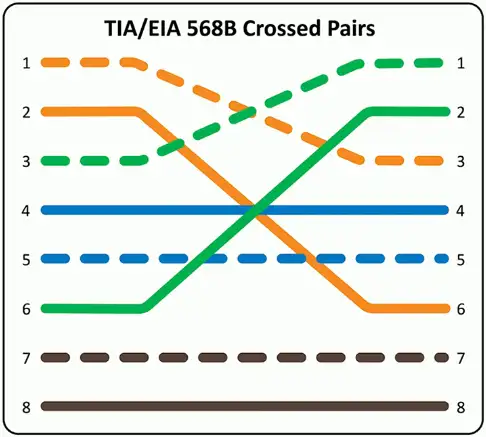
Which color cable will be connected to which color pin inside the RJ45 connector.
Some standard bodies:
American National Standards Institute (ANSI)
Telecommunication Industry Association (TIA)
Straight-Through vs. Crossover Cables
Straight-Through Cable
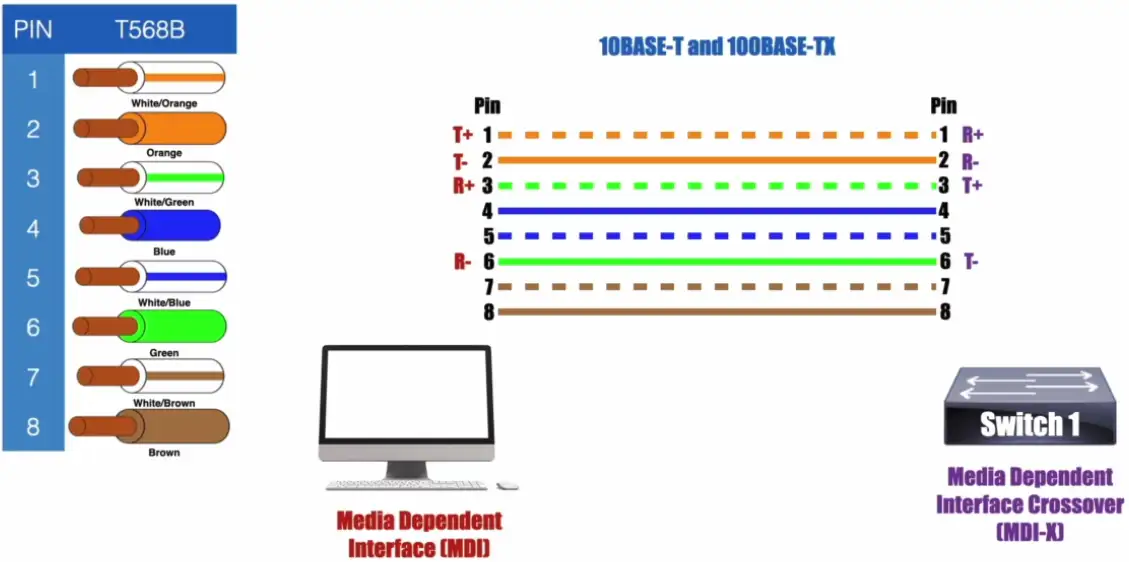
A straight (patch) cable is when both ends of a cable are wired using the same standard.
It connects dissimilar devices, PC to Switch, Switch to Router etc.
The most common type of Ethernet cable that’s used on a LAN
NOTE: Some literature defines MDI and MDI-X as follows:
MDI: Medium-Dependent Interface
MDI-X: Medium-Dependent Interface Crossover
Auto MDI-X
Allows a switch port to dynamically determine which pins to use for transmitting and receiving
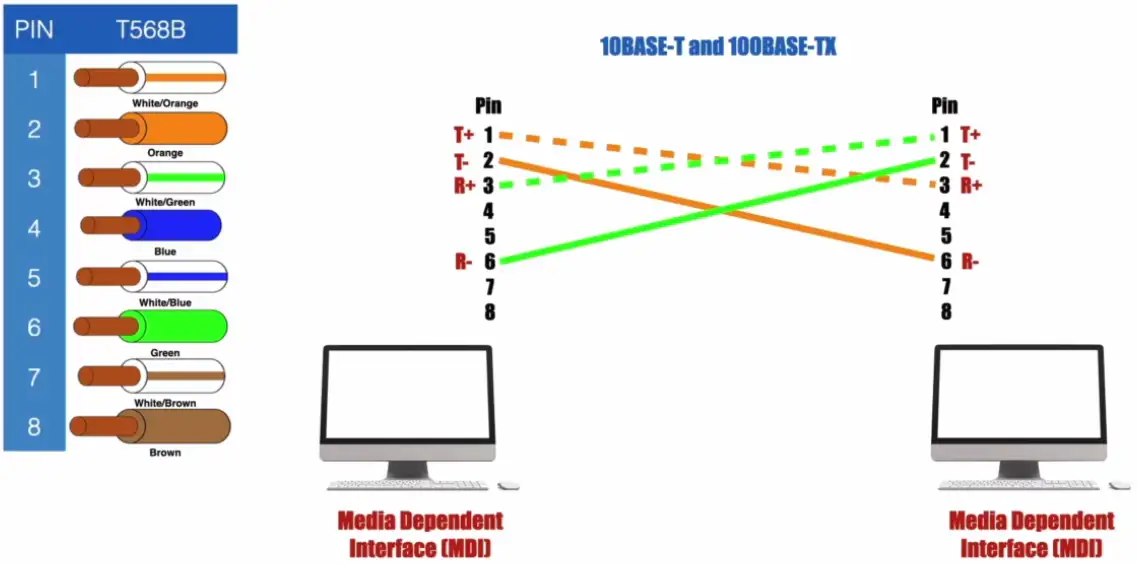
Crossover Cable
A crossover cable is when both ends of a cable are wired using the 2 different standards
Connects two similar, PC to PC, Switch to Switch
Can be used to connect two similar devices without a hub or switch
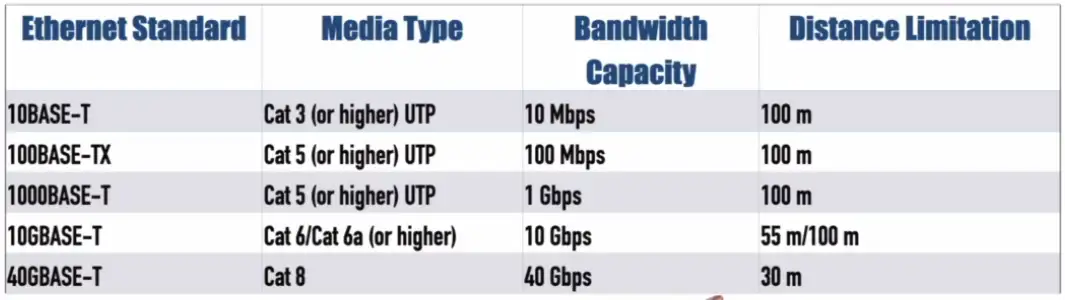
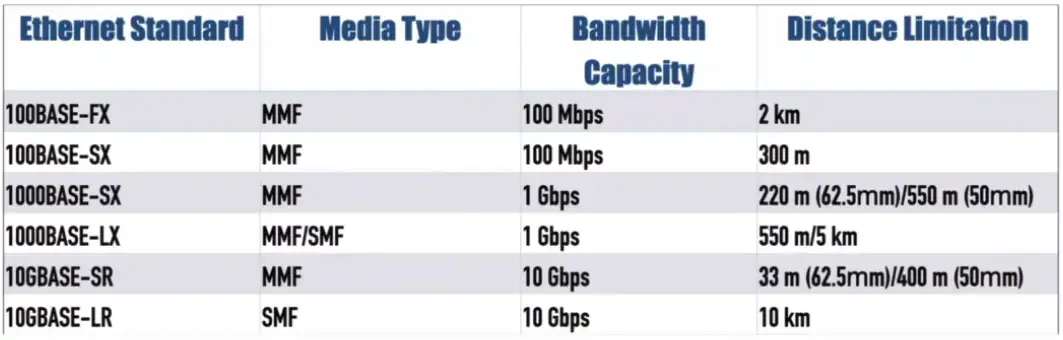
Ethernet Standards
Ethernet Standards for Copper Cabling
NOTE: T — Twisted Pair Cable
Ethernet Standards for Fiber Optic Cabling
NOTE: SX — Shorter Wavelength, SR — Short Range, LR — Long Range, FX — Fiber Optic, LX — Long Wavelength
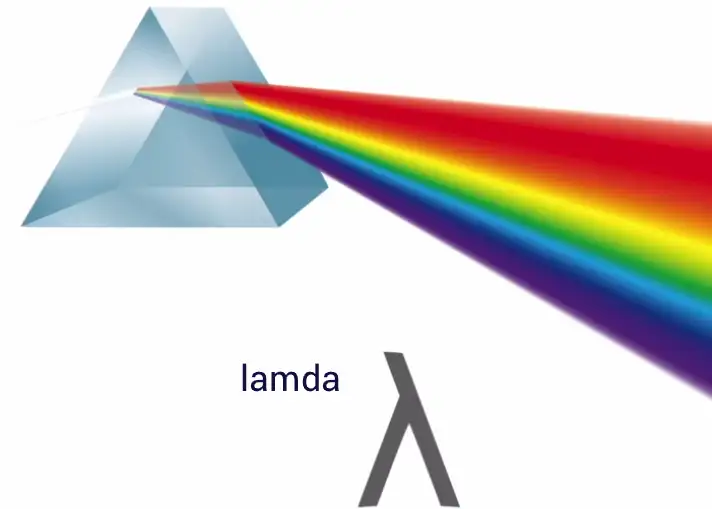
Fiber Multiplexing:
Use different colors of light to transmit different customers’ data through fiber at the same time
Color of light is represented by lambda
Coarse Wavelength Division Multiplexing (CWDM): Typically supports a maximum of 8 channels (although 18 channels are possible over shorter distance). Each channel’s wavelength is separated by 20 nm. Maximum distance is 80 km. Does not support amplifiers.
Dense Wavelength Division Multiplexing: Supports a maximum of 80 channels, with each channel’s wavelength separated by 0.4 nm. Maximum distance is 3000 km. Supports amplifiers.
Bidirectional Wavelength Division Multiplexing (WDM): Allows a single fiber optic strand to simultaneously carry the transmission and reception of multiple channels, by assigning different wavelengths to the transmission and reception components of a single channel. This can reduce fiber costs, at the expense of fewer channels.
Network Topologies
Network Topologies
Useful in planning a new network
Physical layout of a building or campus
Assists in understanding signal flow
Troubleshooting problems
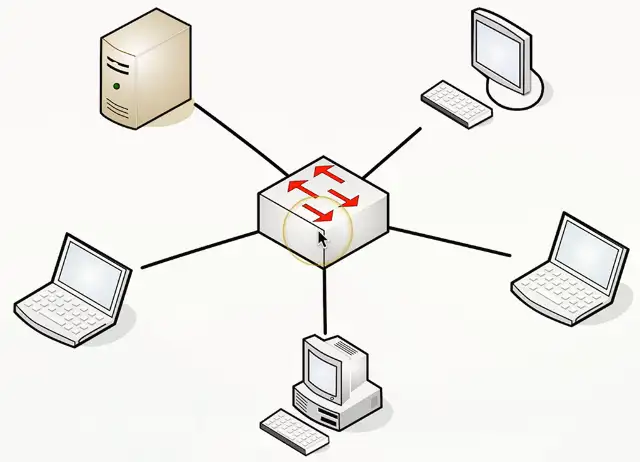
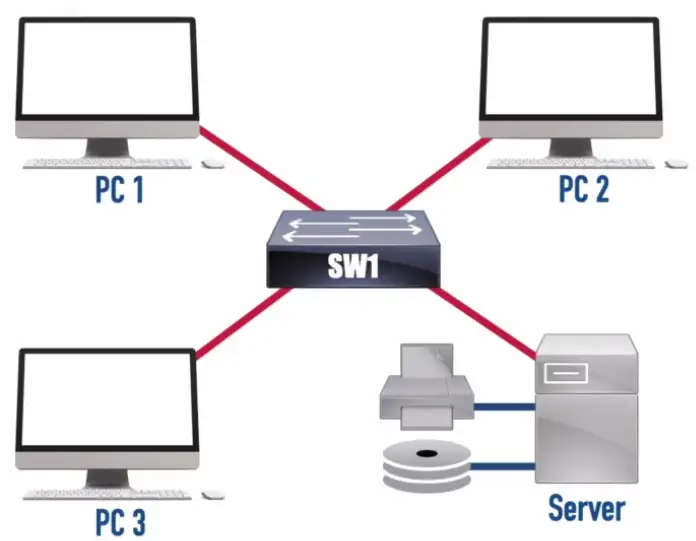
Star/Hub and Spoke Topology
Used in most large and small networks
All devices are connected to a central device
Switched Ethernet networks
The switch is in the middle
If one link fails, other links continue to function
Centralized device is a potential single point of failure
Popular in modern networks
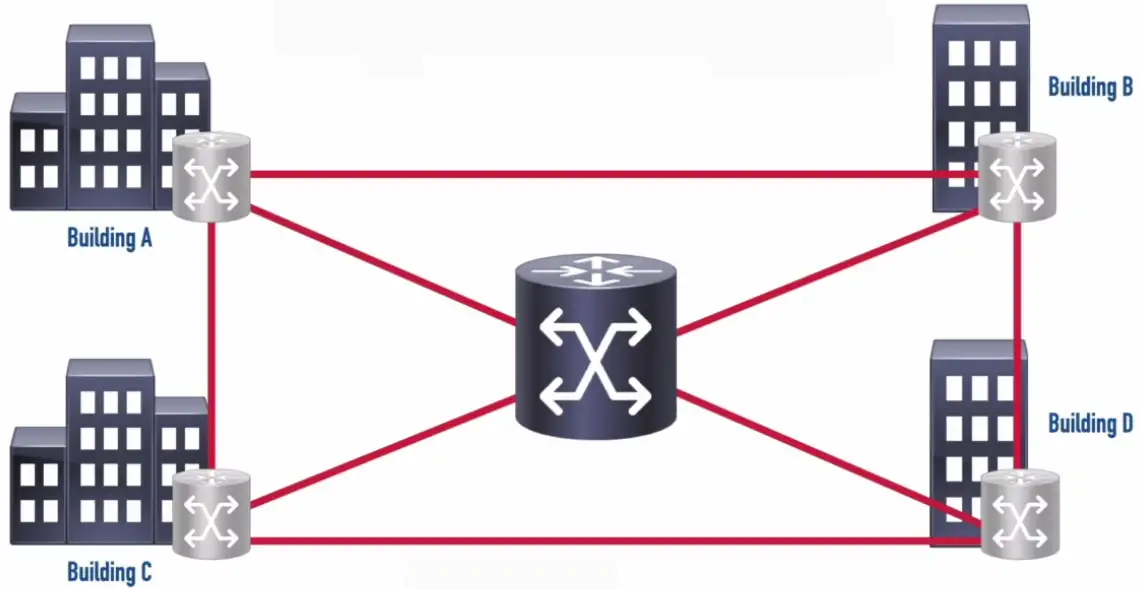
Mesh Topology
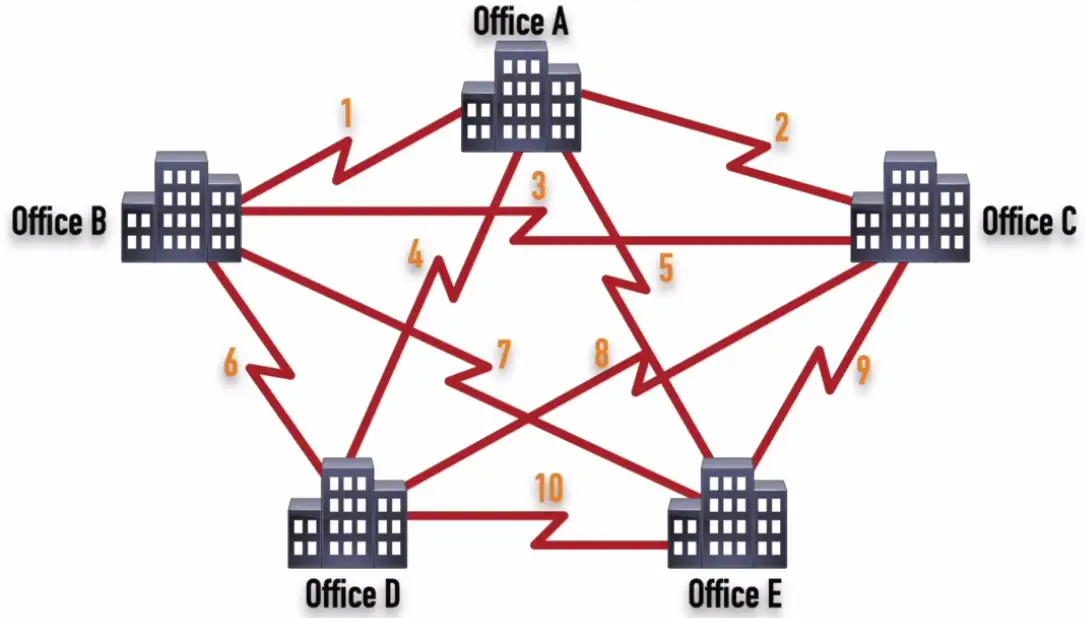
Full Mesh: A topology where each site connects to every other site.
Number of Links (Full Mesh) = n * (n-1)/2
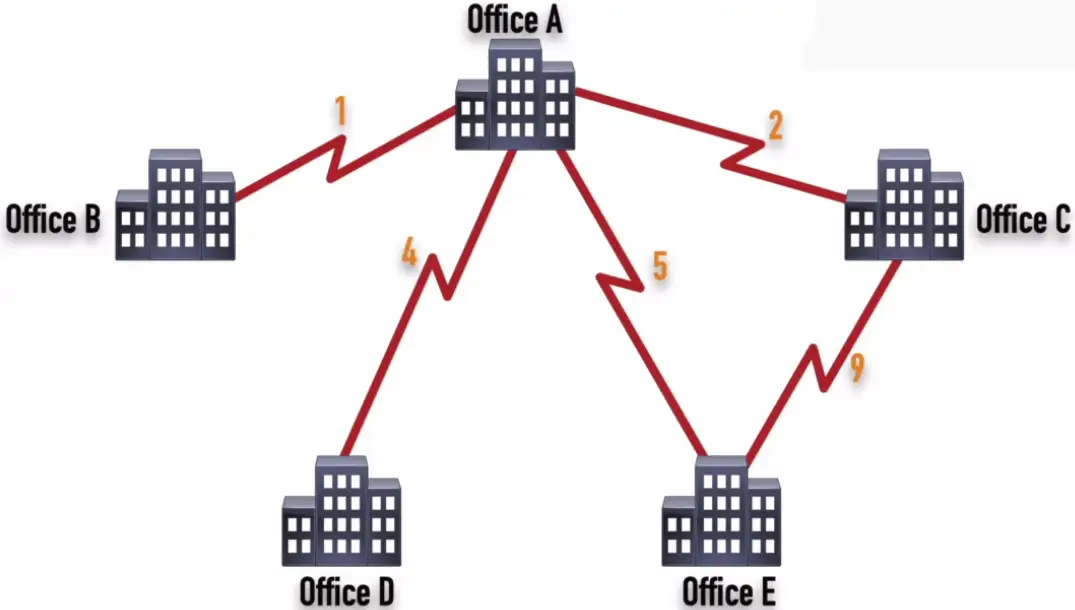
Partial Mesh: A topology where each site connects to at least one other site, but might optionally connect to other sites.
Multiple links to the same place
Fully connected
Partially connected
Redundancy, fault-tolerance, load balancing
Used in wide area networks (WANs)
Fully meshed and partially meshed
Full Mesh
Partial Mesh
Optimal Path
Might be Suboptimal Path
Not Scalable
More Scalable
More Expensive
Less Expensive
Ring Topology
Token Ring: A legacy LAN technology that used a ring topology and had bandwidth options of 4 Mbps or 16 Mbps.
It uses token ring to pass data around in the ring, instead of CSMA/CD for avoiding packet collisions.
Laptop sends the data in the token ring, the next device receives the token, examines it, and determines it’s not for me. The next device in the ring, gets it, and find out the data is for me. Get the data from the token, leaving it empty.
Token is ready to send new data.
Fiber Distributed Data Interface (FDDI): A legacy LAN technology that operated at 100 Mbps and used two counter-rotating rings (to provide fault tolerance) and used fiber optic cabling for its transmission.
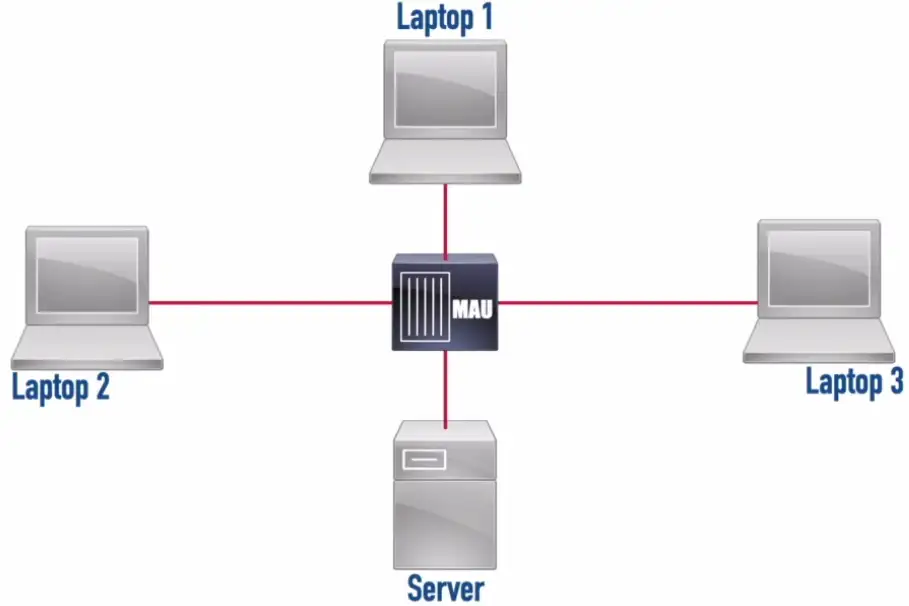
**Media Access Unit (MAU):**A Token Ring network component that allowed devices to physically interconnect using a star topology while logically operating in a ring topology.
Bus Topology
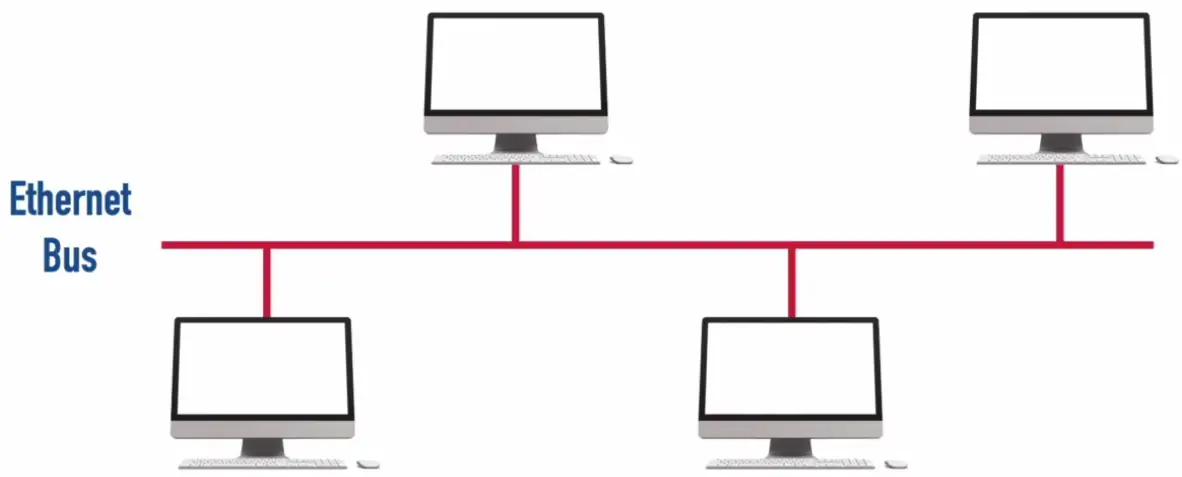
One of the earlier topology, used to run using co-axial cable.
10BASE2 (a.k.a. “thinnet”): An older Ethernet technology using a thin coaxial cable that had a distance limitation of 185m and a bandwidth of 10 Mbps.
10BASE5 (a.k.a. “Thicket”): An older Ethernet technology using a thick coaxial cable that had a distance limitation of 500m and a bandwidth of 10 Mbps.
Uses Ethernet Bus, only packet can be sent at a time.
Collision is avoided with CSMA/CD
The spike in voltage indicates the collision, so the packet should be resent.
Future avoidance of collision is done by setting random back off timer for each device on the Bus.
Physically bus topology has a hub in the center, and make a star topology, but logically it acts a bus topology.
Point-to-point
One-to-one connection
Interconnect two devices only
Typically, uses a layer 2 protocol
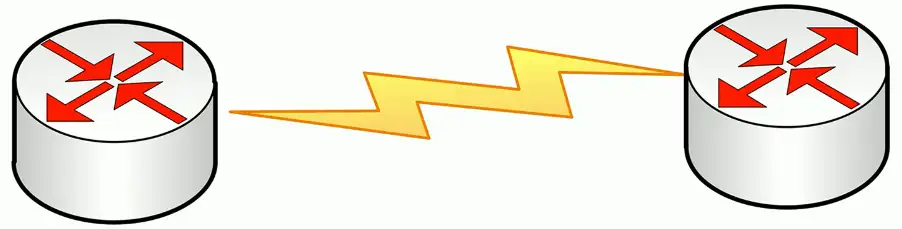
Could be a physical point-to-point connection
Could be a logical point-to-point connection
Point-to-Point Protocol (PPP): A Layer 2 protocol offering a collection of features including support for multiple upper-layer protocols (e.g., IPv4 and IPv6) and bonding multiple physical links into a single logical link.
Older WAN links
Point to point T-1
PPP Features:
Authentication
Compression
Error Detection and Correction
Multiple links
PAP (Password Authentication Protocol): Sends login credentials (typically in clear text) across the network.
CHAP (Challenge Handshake Authentication Protocol): Sends a hash of login credentials across the network.
MLP (Multilink PPP): Bundles multiple physical links into a single logical link, which improves throughput.
Connections between buildings
Point-to-Multipoint Topology
Data Link Connection Identifier (DLCI): Identifies a Permanent Virtual Circuit (PVC) in a Frame Relay network.
Maybe between WAPs
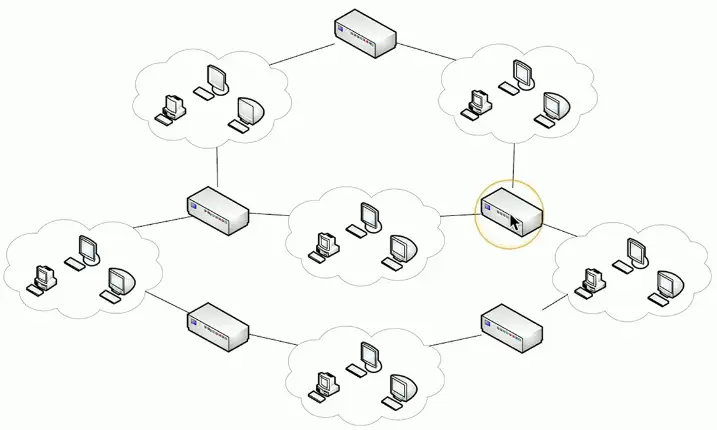
Hybrid Topology
A combination of one or more physical topologies
Most networks are a hybrid
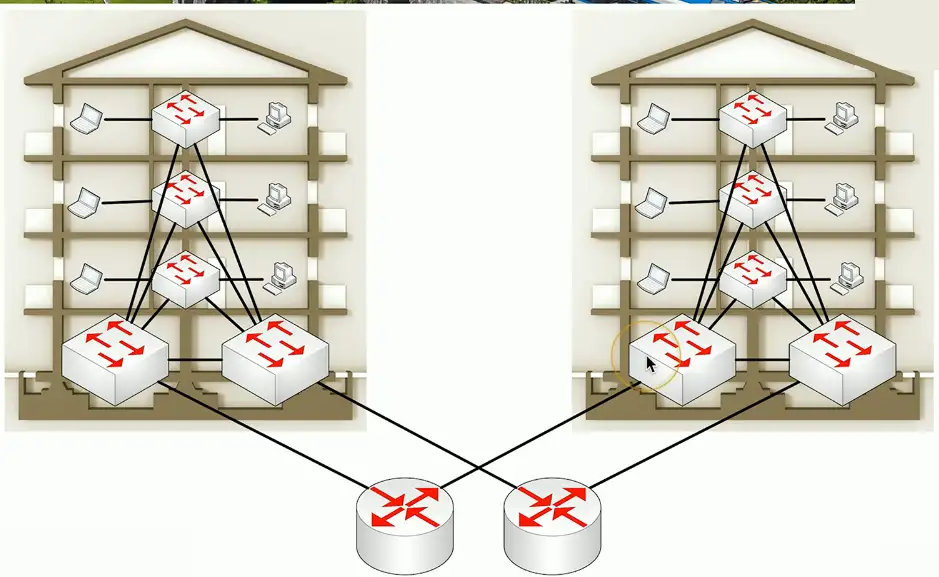
Spine and Leaf Architecture
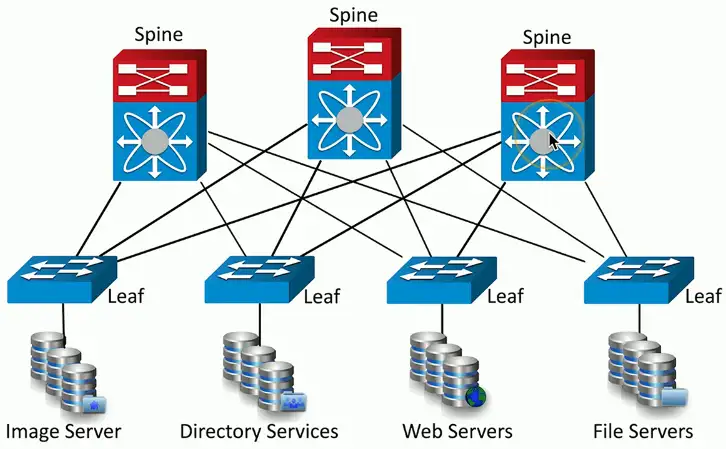
Each leaf switch connects to each spine switch
Each spine switch connects to each leaf switch
Leaf switches don’t connect to each other
Same for spine switches
Top-of-rack switching
Each leaf is on the “top” of a physical network rack
May include a group of physical racks
Advantages
Simple cabling
Redundant
Fast
Disadvantages
Additional switches may be costly
Client-Server Network
Also known as Client-Server Architecture
Clients access a common server
Server shares resources (e.g., file and printer resources with clients)
Peer-to-Peer Network
Also known as Peer-to-Peer Architecture
Clients share resources directly on a local network with other peers (e.g., file and printer resources)
Not as robust as using a network operating system (NOS)
Local Area Network (LAN)
High speed
Centrally Located
Wide Area Network (WAN)
Typically slower speed than LANs
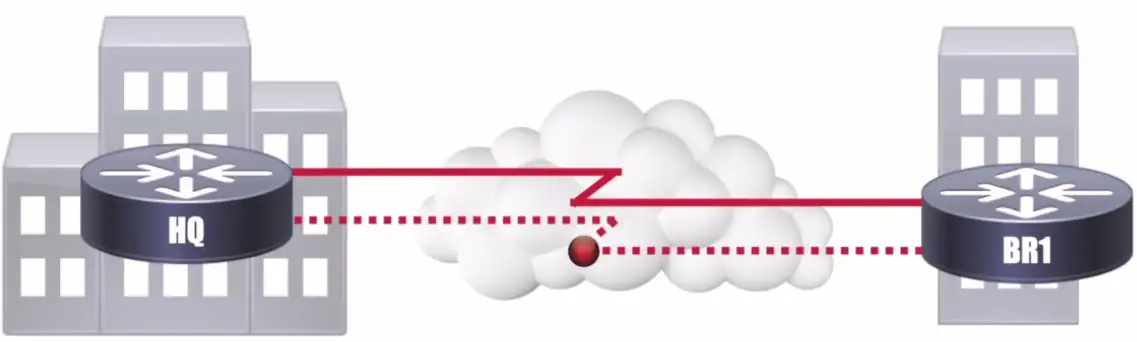
Geographically dispersed sites
Sites connect to service provider
Privacy and security concerns by sending data unprotected over the wire.
Solid line, always online connection
Dotted line, brought online on demand
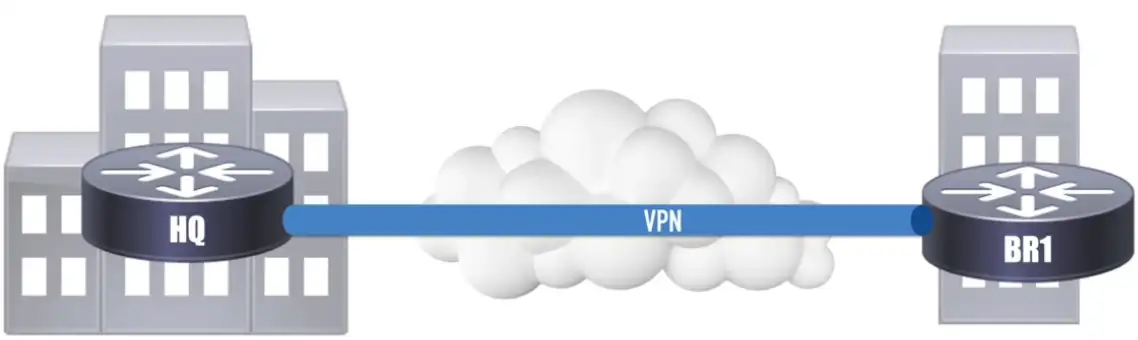
Today’s replacement for WAN circuit, is VPN, which connects two sites via an encrypted tunnel.
Speeds maybe slower than WANs, but are improving
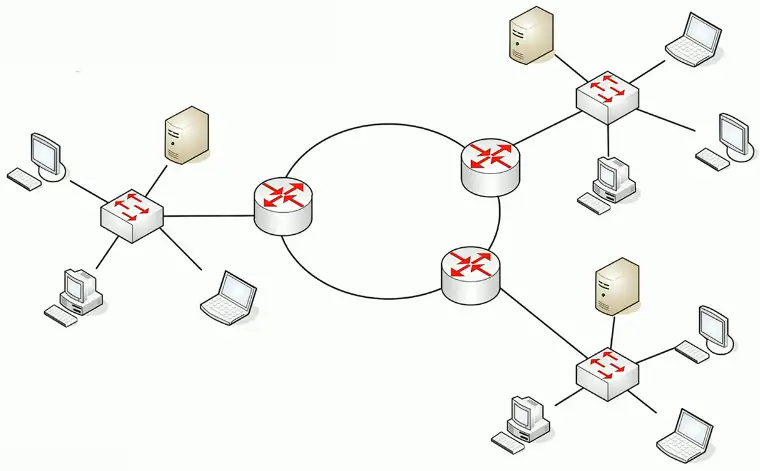
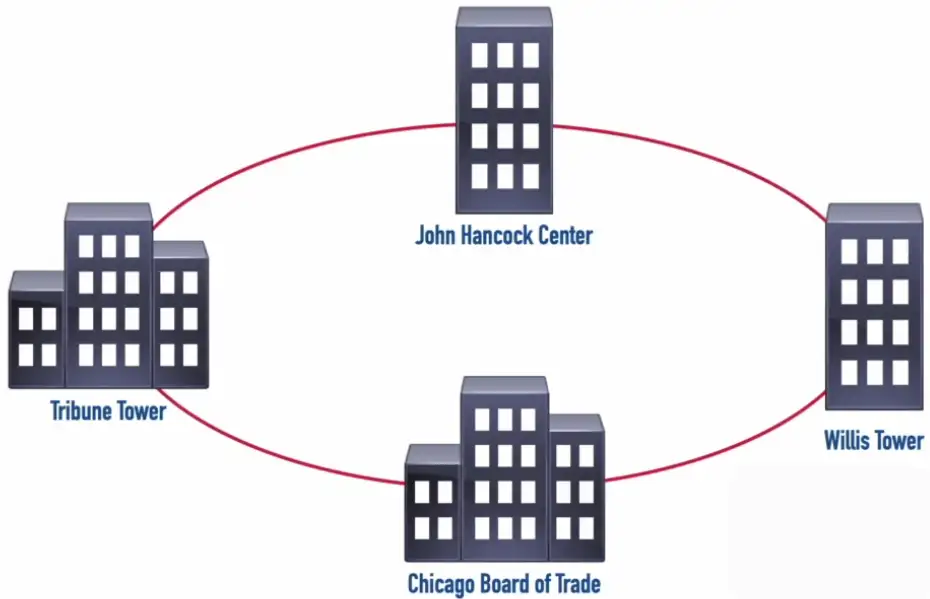
Metropolitan Area Network (MAN)
Limited Availability
Very High Speed
Redundant
Typical Ring Topology
To separate different customers traffic, the ISPs use different wavelength for each customer called Lambda.
If one link fails, we still able to reach other sites connected to MAN due to redundant topology.
Each wavelength is called a Lambda.
Campus Area Network (CAN)
High speed
Interconnects Nearby Buildings
Easy to Add Redundancy
Personal Area Network (PAN)
Interconnects two devices
Limited distance
Limited throughput
E.g., two devices connected via Bluetooth/Zigbee, IR etc.
Wireless LAN (WLAN)
Adds flexibility and mobility for connections
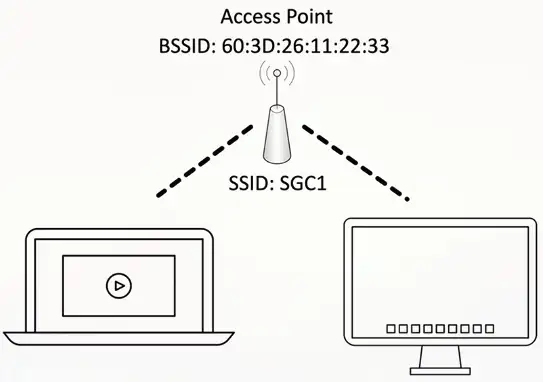
Wireless clients typically communicate with a wireless access point (AP)
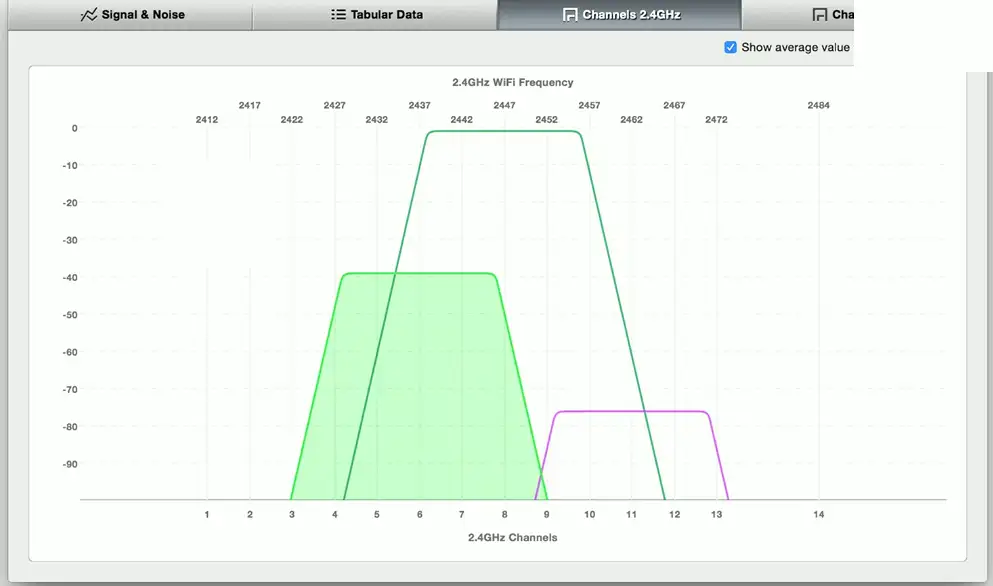
Channels should be selected to minimize interference
Software-Defined WAN (SD-WAN)
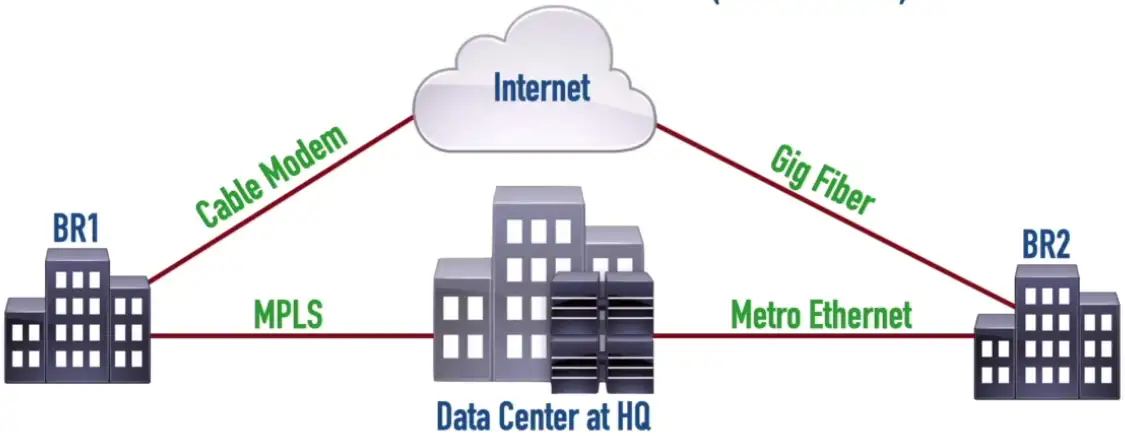
Traditional WAN Connections
Connected remote sites back to a central site over various WAN technologies
Predictable performance and security
Traffic backhauling might be required
Modern SD-WAN Connections
Applications are migrating to the cloud
Provides security, QoS, and forwarding
Traffic backhauling no longer required
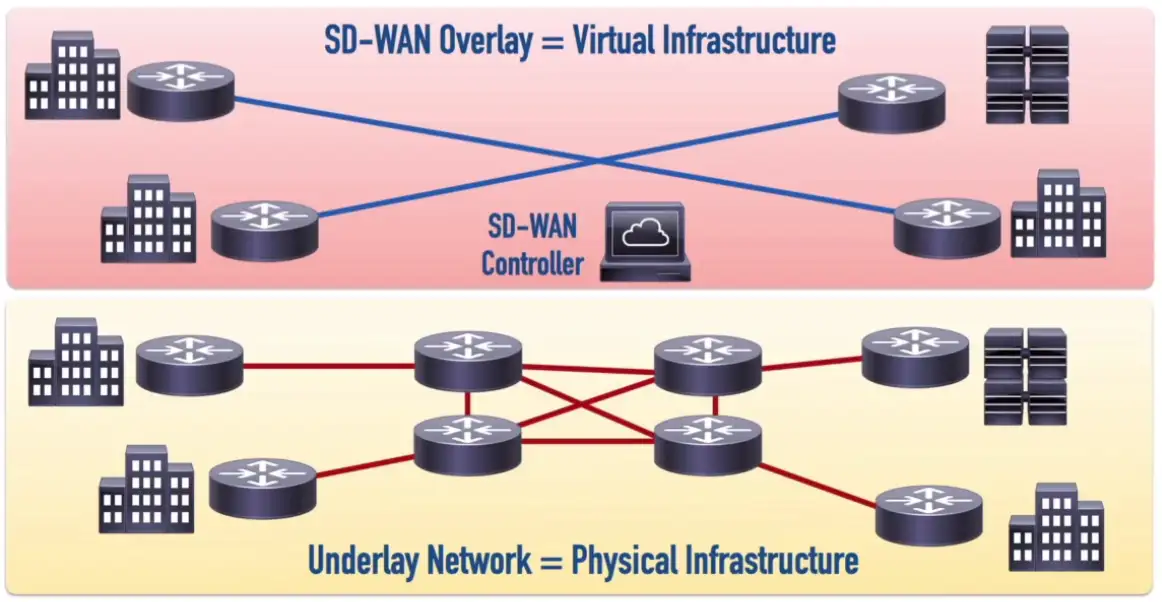
The Control Plane functions are decoupled from the routers and performed by the SD-WAN Controller
Physical WAN connections can use a wide variety of technologies (e.g., 4G and 5G Cellular Data, MPLS, or Cable Modem)
SD-WAN controller can simultaneously send out appropriate configuration commands to routers to provide consistent QoS, security, and predictable performance
Industrial Control Systems (ICS) and SCADA
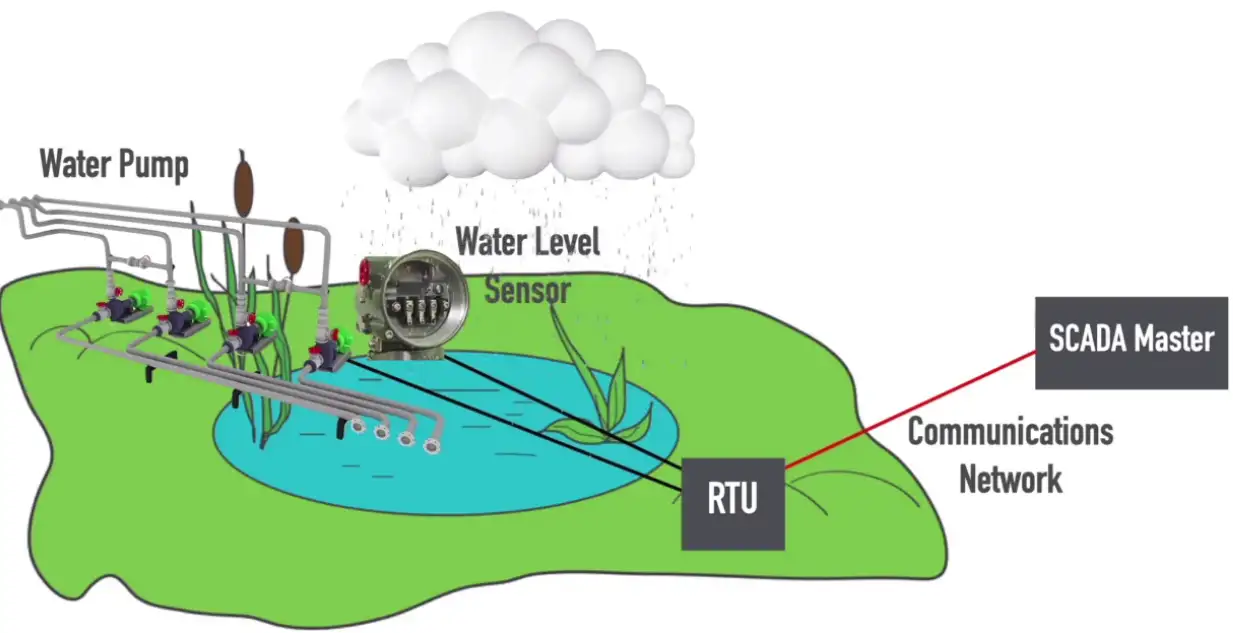
SCADA–Supervisory Control And Data Acquisition
Sensor: A SCADA component that detects a specific characteristic (e.g., temperature, water level, etc.) of a system
Control: A SCADA component that can alter a condition (e.g., temperature, water level, etc.)
Remote Telemetry Unit (RTU): A SCADA component that can receive information from a SCADA sensor and send instructions to a SCADA control.
SCADA Master: A SCADA component that uses a communications network to receive information from one or more RTUs and send instructions to those RTUs.
Network Architectures
Three-tier architecture
Core
The “center” of the network
Web servers, databases, applications
Many people need access to this
Distribution
A midpoint between the core and the users
Communication between access switches
Manage the path to the end users
Access
Where the users connect
End stations, printers
Collapsed Core
A two-tier model
Simplify the three-tier architecture
A good fit for smaller organizations
Combine Core and Distribution layers
Collapse together
Differences over three-tier
Simpler to design and support
Less expensive to implement
Not as resilient
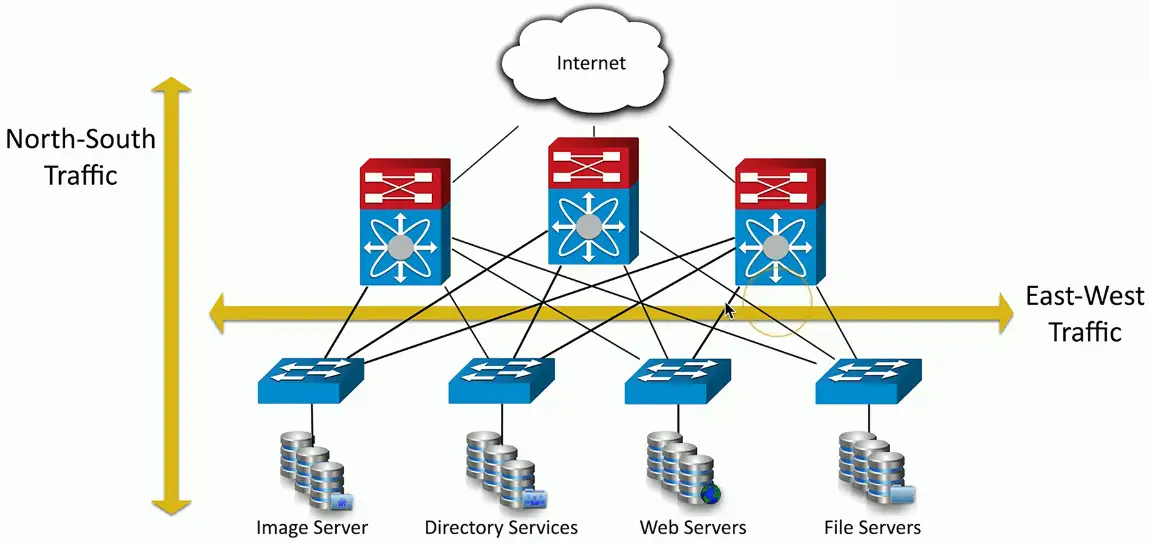
Traffic Flows
Traffic flows within a data center
Important to know where traffic starts and ends
East-west
Traffic between devices in the same data center
Relatively fast response times
North-south traffic
Ingress/egress to an outside device
A different security posture than east-west traffic
IPv4 Addressing
Binary Math
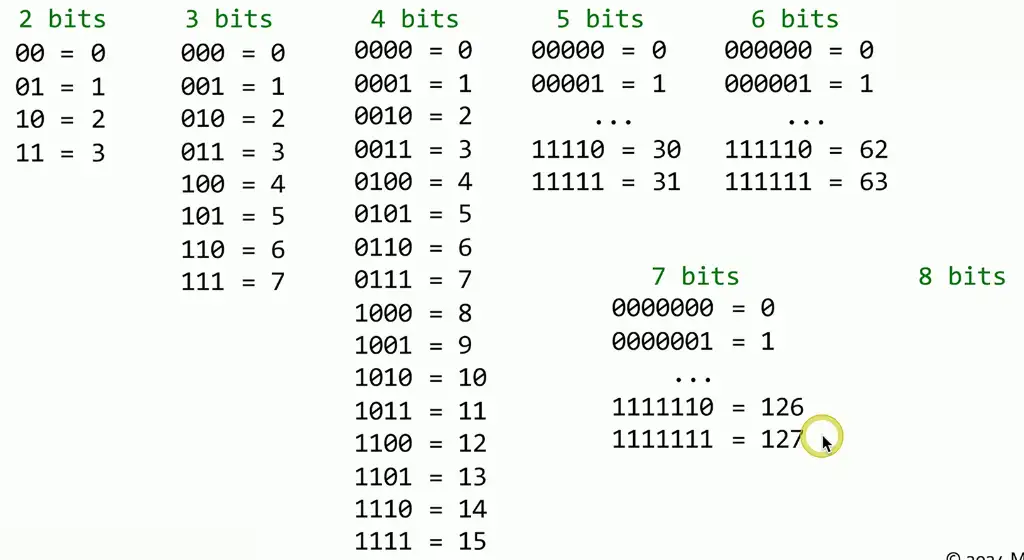
A bit — a zero or a one
One digit. Off or on. Cold or hot. 0 or 1.
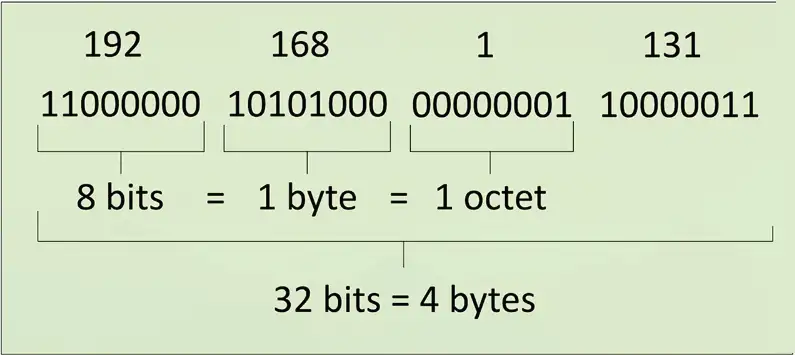
A byte — Eight bits
Often called an “octet” to avoid ambiguity
A binary-to-decimal conversion chart
1024
512
256
128
64
32
16
8
4
2
1
0
0
0
0
0
0
0
0
0
0
0
Binary to Decimal
What is binary 00000010 in decimal?
What is binary 10000010 in decimal?
What is binary 11111111 in decimal?
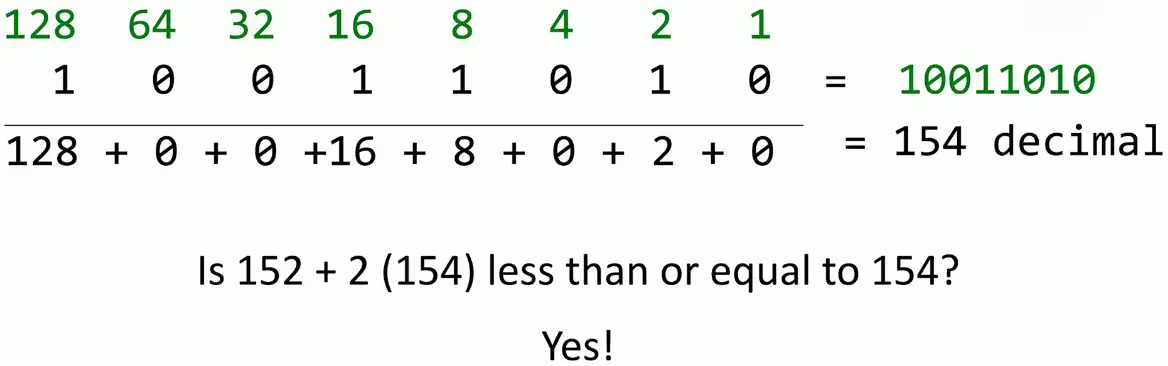
Decimal to Binary Conversion
What is decimal 154 in binary?
More bits, more addresses
More bits, more addresses:
Power of two
Useful for binary calculations and subnetting
212
211
210
29
28
27
26
25
24
23
22
21
20
4,096
2,048
1,024
512
256
128
64
32
16
8
4
2
1
IPv4 Addressing
Networking with IPv4
IP Address, e.g., 192.168.1.165
Every device needs a unique IP address
Subnet mask, e.g., 255.255.255.0
Used by the local device to determine what subnet it’s on
The subnet mask isn’t (usually) transmitted across the network
You will ask for the subnet mask all the time
Default gateway, e.g., 192.168.1.1
The router that allows you to communicate outside your local subnet
The default gateway must be an IP address on the local subnet
Special IPv4 Addresses
Loopback address
An address to yourself
Ranges from 127.0.0.1 through 127.255.255.254
An easy way to self-reference (ping 127.0.0.1)
Reserved addresses
Set aside for future use or testing
240.0.0.1 through 254.255.255.254
All “Class E” addresses
Virtual IP addresses (VIP)
Not associated with a physical network adapter
Virtual machine, internal router address
IPv4 addresses
Internet Protocol version 4
OSI Layer 3 address
Since one byte is 8 bits, the maximum decimal value for each byte is 255
DHCP
IPv4 address configuration used to be a manual process
IP address, subnet mask, gateway, DNS servers, NTP servers, etc.
Dynamic Host Configuration Protocol
Provides automatic address and IP configuration for almost all devices
Automatic Private IP Addressing (APIPA)
A link-local address
Can only communicate to other local devices
No forwarding by routers
IETF has reserved 169.254.0.1 through 169.254.255.254
First and last 256 addresses are reserved
Functional block of 169.254.1.0 through 169.254.1.0
Automatically assigned
Uses ARP to confirm the address isn’t currently in use
The IPv4 address problem
There are far more devices than IPv4 addresses
This Internet thing could be big
The use and registration of IP address ranges is problematic
Unused and non-continuous address blocks
Complete depletion of available addresses
Private IP address ranges
More public IP addresses
More Internet connectivity
Huge private IP address ranges
Properly design and scale large networks
Private IP addresses are not Internet-routable
But can be routed internally
Use NAT for everything else
Defined in RFC 1918
Request for Comment
Public addresses vs. Private addresses
RFC 1918 private IPv4 addresses
IP address
Number of addresses
Classful description
Largest CIDR block (subnet mask)
Host ID size
10.0.0.0–10.255.255.255
16,777,216
single class A
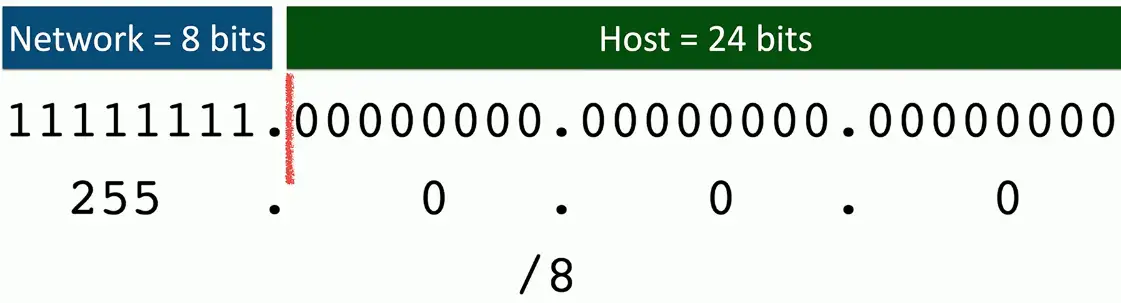
10.0.0.0/8 (255.0.0.0)
24 bits
172.16.0.0–172.31.255.255
1,048,576
16 contiguous class Bs
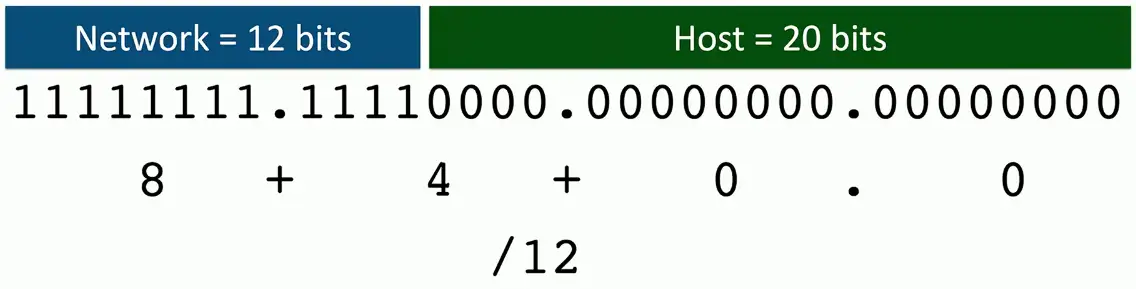
172.16.0.0/12 (255.240.0.0)
20 bits
192.168.0.0–192.168.255.255
65,536
256 contiguous class Cs
192.168.0.0/16 (255.255.0.0)
16 bits
Classful Subnetting
Very specific subnetting architecture
Not used since 1993
But still referenced in casual conversation
Used as a starting point when subnetting
Standard values
Subnet Classes
Class
Leading Bits
Network Bits
Remaining Bits
Number of Networks
Hosts per Network
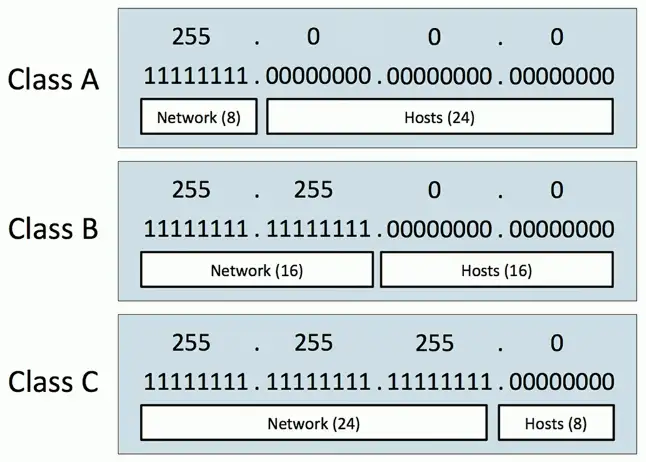
Default Subnet Mask
Class A
0xxx (0-127)
8
24
128
16,777,214
255.0.0.0
Class B
10xx (128-191)
16
16
16,384
65,534
255.255.0.0
Class C
110x (192-223)
24
8
2,097,152
254
255.255.255.0
Class D (multicast)
1110 (224-239)
Not defined
Not defined
Not defined
Not defined
Not defined
Class E (reserved)
1111 (240-255)
Not defined
Not defined
Not defined
Not defined
Not defined
The 127.0.0.0/8 network is reserved as a loopback address.
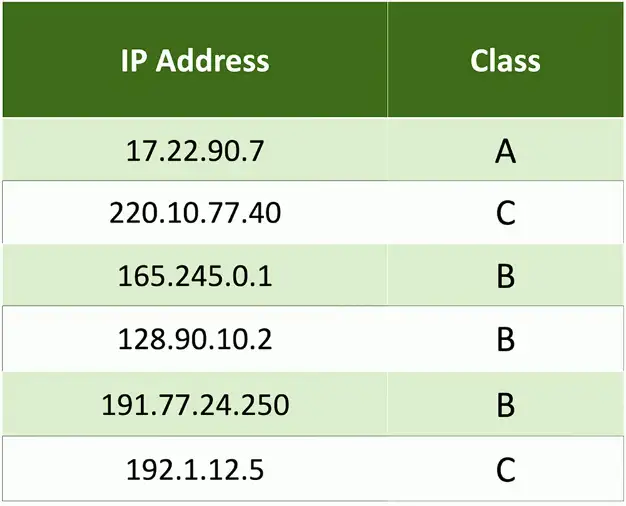
What IP class?
The Construction of a Subnet
Network address
The first IP address of a subnet
Set all host bits to 0 (0 decimal)
First usable host address
One number higher than the network address
Network broadcast address
The last IP address of a subnet
Set all hosts bits to 1 (255 decimal)
Last usable host address
One number lower than the broadcast address
Subnet calculations
IP address: 10.74.222.11
Class A
Subnet mask 255.0.0.0
Network
Host
10.
74.222.11
Network Address (Set all host bits to 0)
10.
0.0.0
First host address (add one)
10.
0.0.1
Broadcast address (Set all host bits to 1)
10.
255.255.255
Last host address (subtract one)
10.
255.255.254
IP address: 172.16.88.200
Class B
Subnet mask 255.255.0.0
Network
Host
172.16.
88.200
Network Address (Set all host bits to 0)
172.16.
0.0
First host address (add one)
172.16.
0.1
Broadcast address (Set all host bits to 1)
172.16.
255.255
Last host address (subtract one from broadcast addr)
172.16.
255.254
IP address: 192.168.4.77
Class C
Subnet mask 255.255.255.0
Network
Host
192.168.4.
77
Network address (Set all host bits to 0)
192.168.4.
0
First host address (add one)
192.168.4.
1
Broadcast address (Set all host bit to 1)
192.168.4.
255
Last host address (subtract one from broadcast addr)
192.168.4.
254
IPv4 Subnet Masks
Classless Subnetting
CIDR (Classless Inter-Domain Routing)
Created around 1993
Removed the restrictions created by classful subnet masks
“Cider” block notation
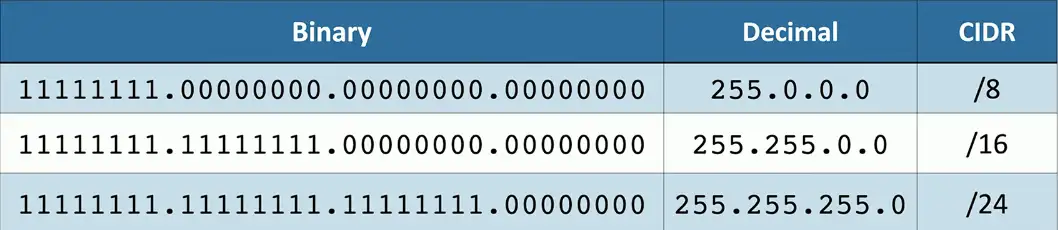
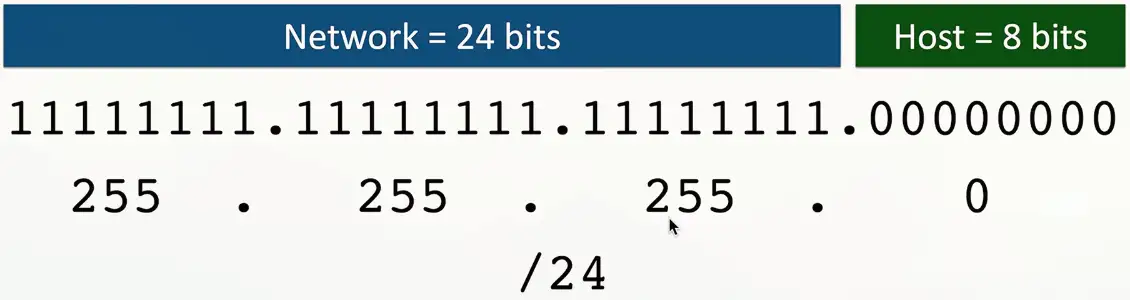
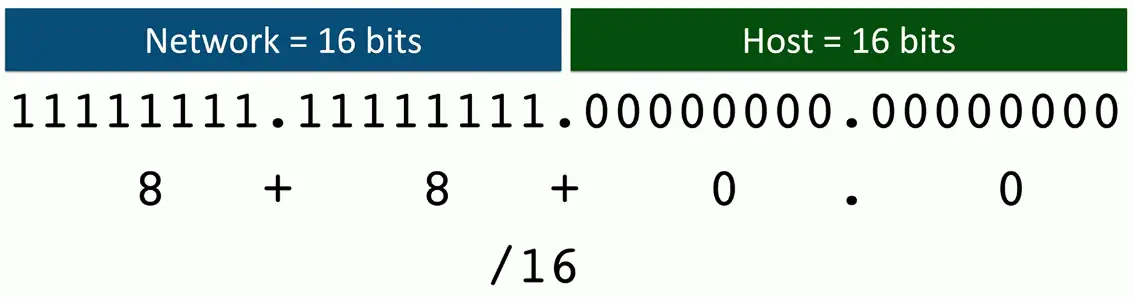
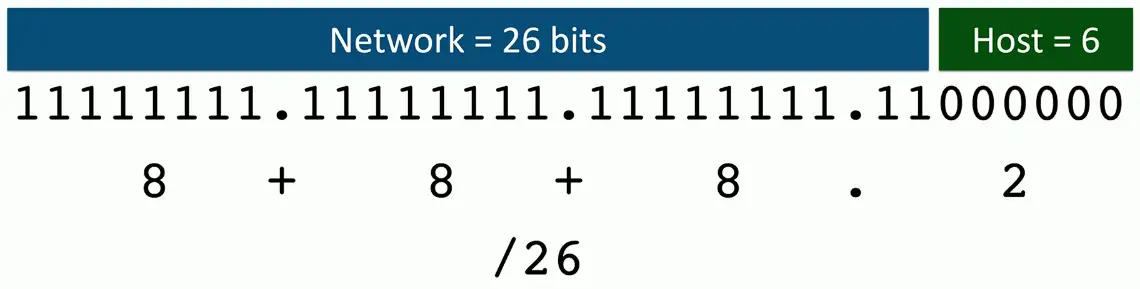
Subnet masks can be expressed as decimal or in CIDR notation
IP address, slash, number of subnet bits; 192.168.1.44/24
You will usually be provided an IP address, subnet mask, default gateway, and DNS servers
Some OSes are expecting decimal masks
Some OSes are expecting CIDR notation masks
The subnet mask
Contiguous series of ones
Ones on the left
Zeros on the right
Binary to CIDR-block notation
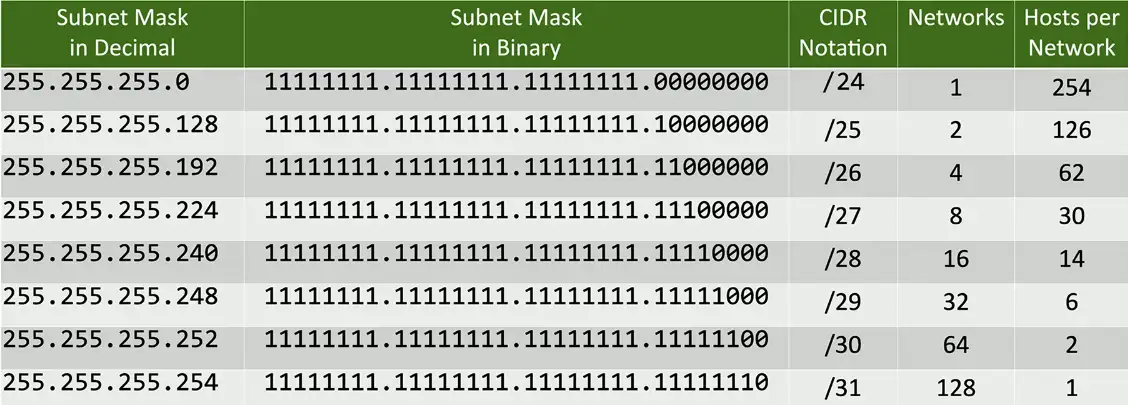
Subnet Masks — Binary to Decimal
Binary
Decimal
00000000
0
10000000
128
11000000
192
11100000
224
11110000
240
11111000
248
11111100
252
11111110
254
11111111
255
Now we can calculate binary to CIDR-block notation:
Each grain of sand on Earth could have 45 quintillion unique IPv6 addresses
IPv6 address compression
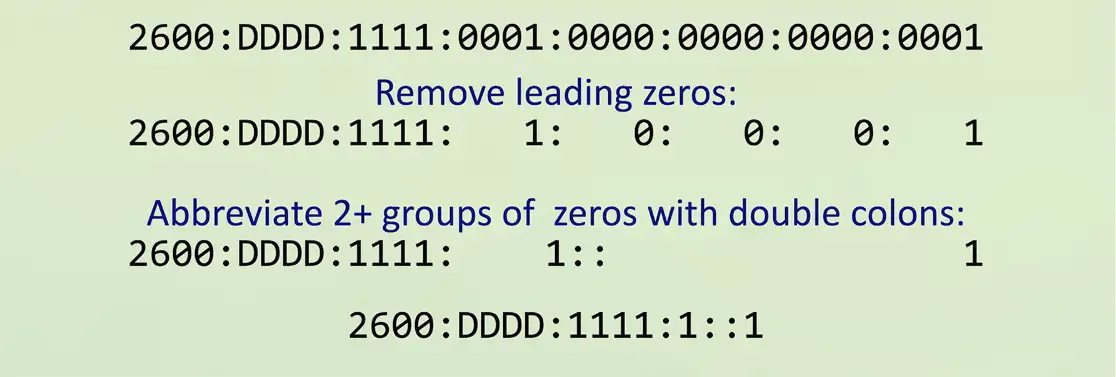
Groups of zeros can be abbreviated with a double colon ::
Only one of these abbreviations allowed per address
Leading zeros are options:
Communicating between IPv4 and IPv6
Not all devices can talk IPv6
Legacy devices, embedded systems, etc.
How can an IPv4 device talk to an IPv6 server?
Can an IPv6 device communicate with a legacy IPv4 server?
Requires an alternate form of communication
Tunnel — Encapsulate one protocol within another
Dual-stack — Have the option to use both IPv4 and IPv6
Translate — Convert between IPv4 and IPv6
These are short-term strategies
Long-term goal should be a complete migration to IPv6
Tunneling IPv6
A migration option
Designed for temporary use
6to4 addressing
Send IPv6 over an existing IPv4 network
Creates an IPv6 address based on the IPv4 address
Requires relay routers
No support for NAT
No longer available as an option on Windows
4in6 tunneling
Tunnel IPv4 traffic on the IPv6 network
Dual-stack routing
Dual-stack IPv4 and IPv6
Run both at the same time
Interfaces will be assigned multiple address type
IPv4
Configured with IPv4 addresses
Maintains an IPv4 routing table
Uses IPv4 dynamic routing protocols
IPv6
Configured with IPv6 addresses
Maintains a separate IPv6 routing table
Uses IPv6 dynamic routing protocols
Translating between IPv4 and IPv6
Network address translation using NAT64
Translate between IPv4 and IPv6
Seamless to the end user
Requires something in the middle to translate
IPv6 is not backwards compatible with IPv4
Use a NAT64-capable router
Works with a DNS64 server
Translate the DNS requests
Routing Technologies
Static Routing
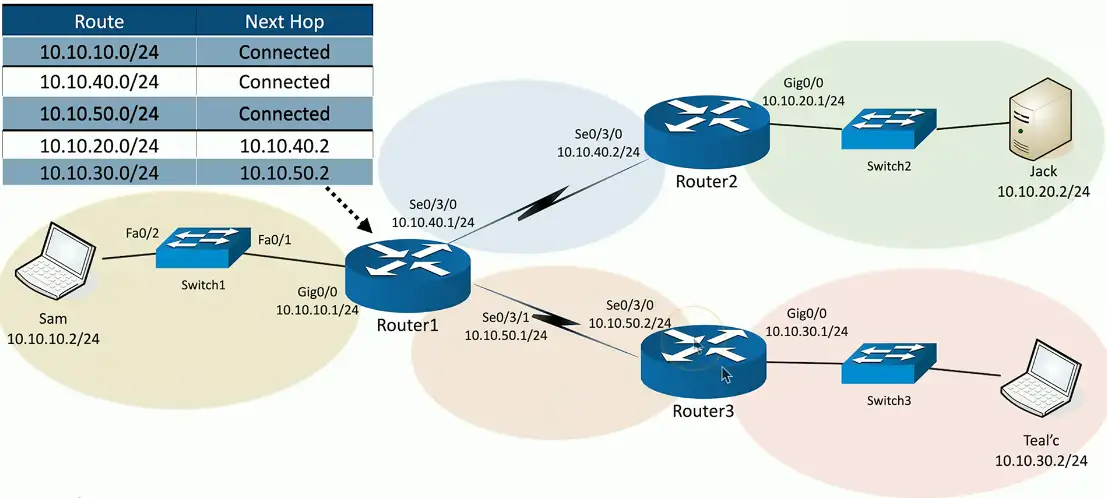
Routing Tables
The router has a relatively simple job
The underlying technology is relatively complex
Identify the destination IP address
It’s in the packet
If the destination IP address is on a locally connected subnet
Forward the packet to the local device
If the destination IP address is on a remote subnet
Forward to the next-hop router/gateway
This “map” of forwarding locations is the routing table
Routing the packets:
Static Routing
Administratively define the routes
You are in control
Advantages
Easy to configure and manage on smaller networks
No overhead from routing protocols (CPU, memory, bandwidth)
Easy to configure on stub networks (only one way out)
More secure — no routing protocols to analyze
Disadvantages
Difficult to administer on larger networks
No automatic method to prevent routing loops
If there’s network change, you have to manually update the routes
No automatic rerouting if an outage occurs
Dynamic Routing
Routers send routes to other routers
Routing tables are update in (almost) real-time
Advantages
No manual route calculations or management
New routes are populated automatically
Very scalable
Disadvantages
Some router overhead required (CPU, memory, bandwidth)
Requires some initial configuration to work properly
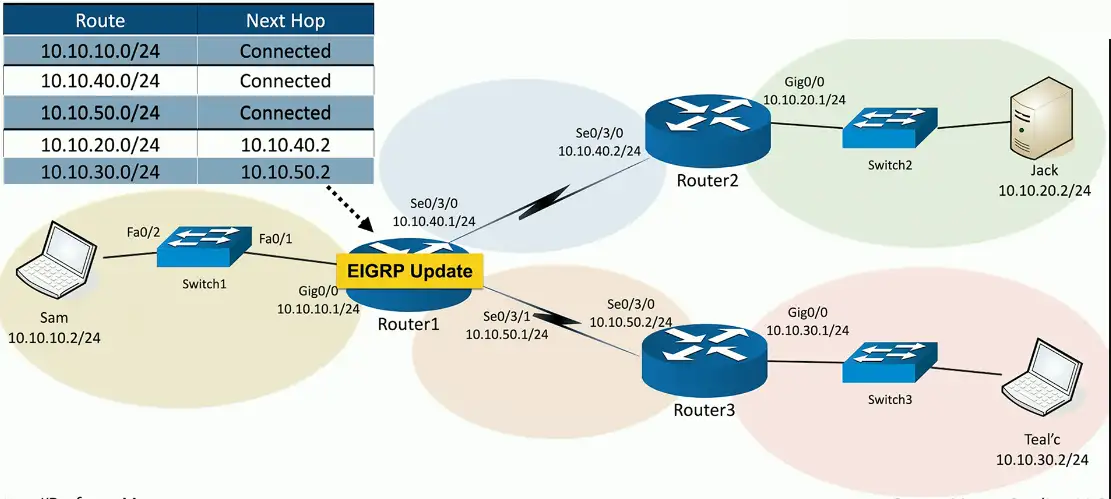
EIGRP Update
Enhanced Interior Gateway Routing Protocol
EIGRP is used to exchange routing information between routers
CISCO controlled proprietary protocol
Not widely adopted except on Cisco and partners devices
OSPF
Open Shortest Path First
It is a link-state routing protocol used to calculate the best path for data transmission within an IP network
Fully open standard
Vendor neutral
Dynamic Routing Protocols
Listen for subnet information from other routers
Sent from router to router
Provide subnet information to other routers
Tell other routers what you know
Determine the best path based on this information
Every routing protocol has its own way of doing this
When network changes occur, update the available routes
Different convergence process for every dynamic routing protocol
Which routing protocol to use?
What exactly is a route?
Is it based on the state of the link?
Is it based on how far away it is?
How does the protocol determine the best path?
Some formula is applied to the criteria to create a metric
Rank the routes from best to worst
Recover after a change to the network
Convergence time can vary widely between routing protocols
Standard or proprietary protocol?
OSPF and BGP are standards, some functions of EIGRP are Cisco proprietary
Enhanced Interior Gateway Routing Protocol
EIGRP
Partly proprietary to Cisco
Commonly used on internal Cisco-routed networks
Relatively easy to enable and use
Cleanly manage topology changes
Speed of convergence is always a concern
Loop free operation
Minimize bandwidth use
Efficient discovery of neighbor routers
OSPF
Open Shortest Path First
A common interior gateway protocol
Used within a single autonomous system (AS)
A well-established standard
Available on routers from many manufacturers
Link-state protocol
Routing is based on the connectivity between routers
Each link has a “cost”
Throughput, reliability, round-trip time
Low cost and fastest path wins, identical costs are load balanced
BGP (Border Gateway Protocol)
Exterior gateway protocol
Connect different autonomous system (AS)
The “three-napkins protocol”
Sketched out to solve an immediate problem
Turned into one of the most popular
A popular standard
Used around the world for Internet routing
Routing Technologies
Building a routing table
Routers are digital direction sign
How to I get to Google? Go that way.
Every IP device has a routing table
Workstations, servers, routers, etc.
The list of directions is the routing table
The most specific route “wins”
Sometimes there’s a tie
Duplicate destinations in the table
Which do you choose
There are ways to break the tie
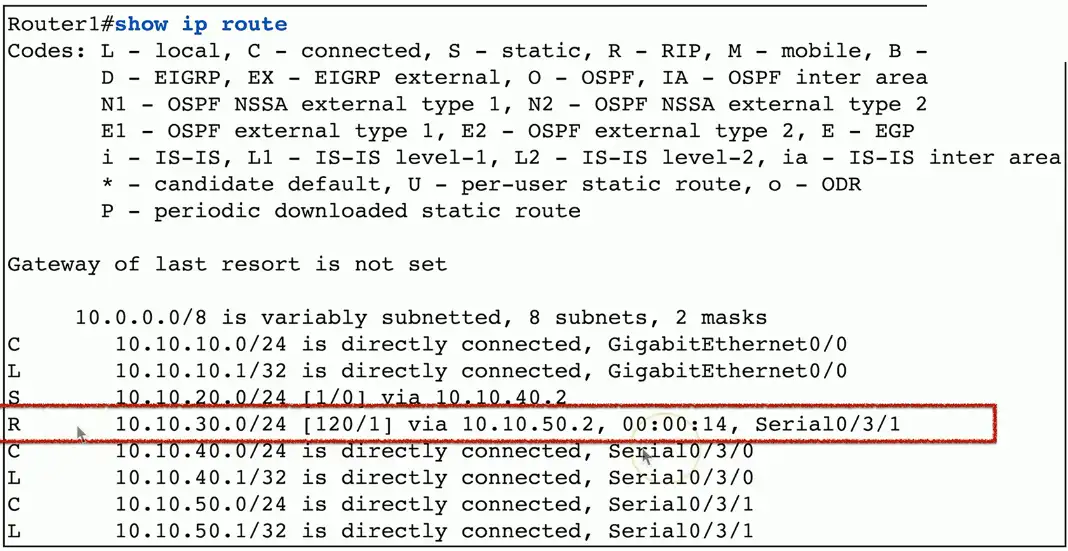
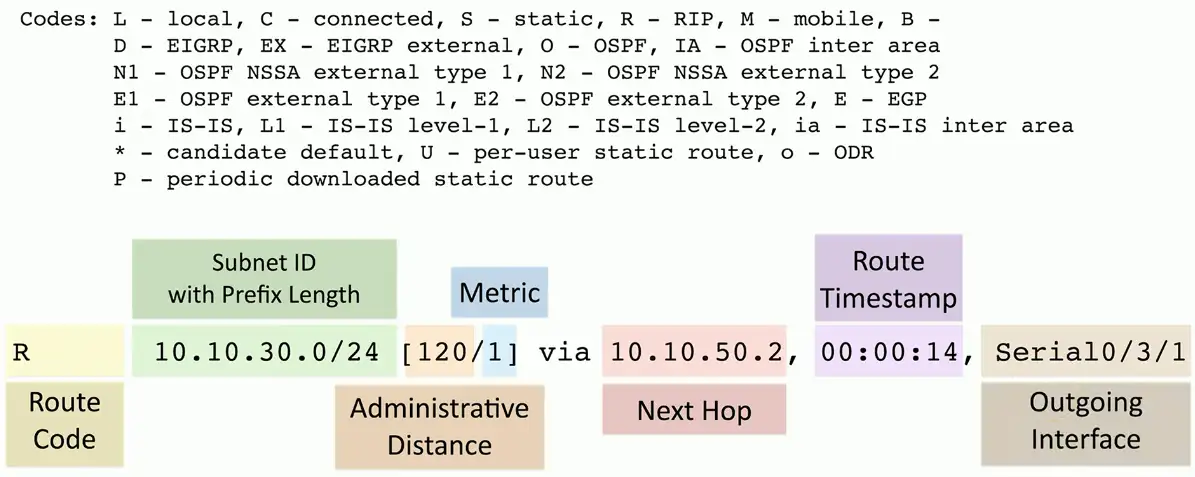
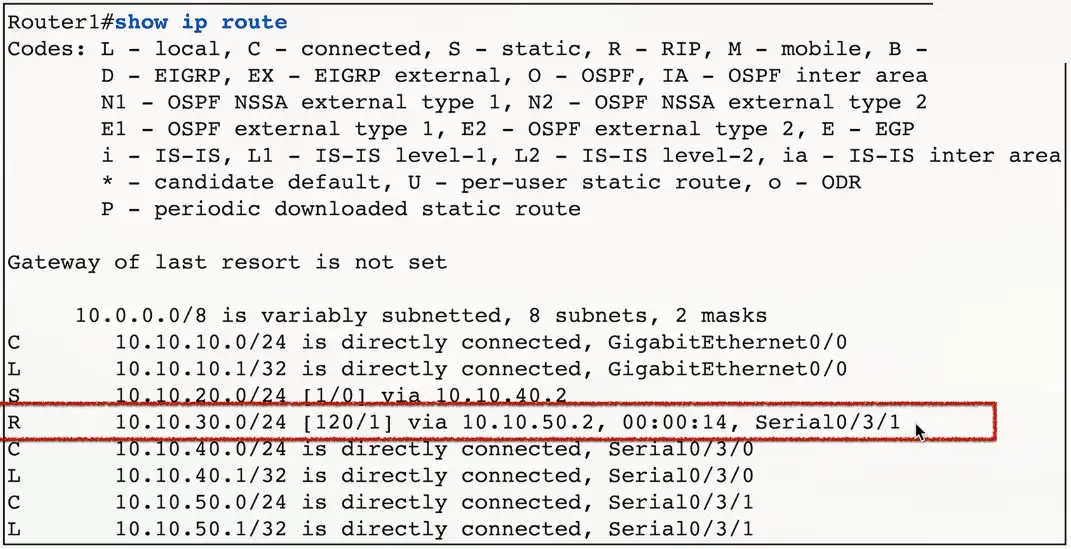
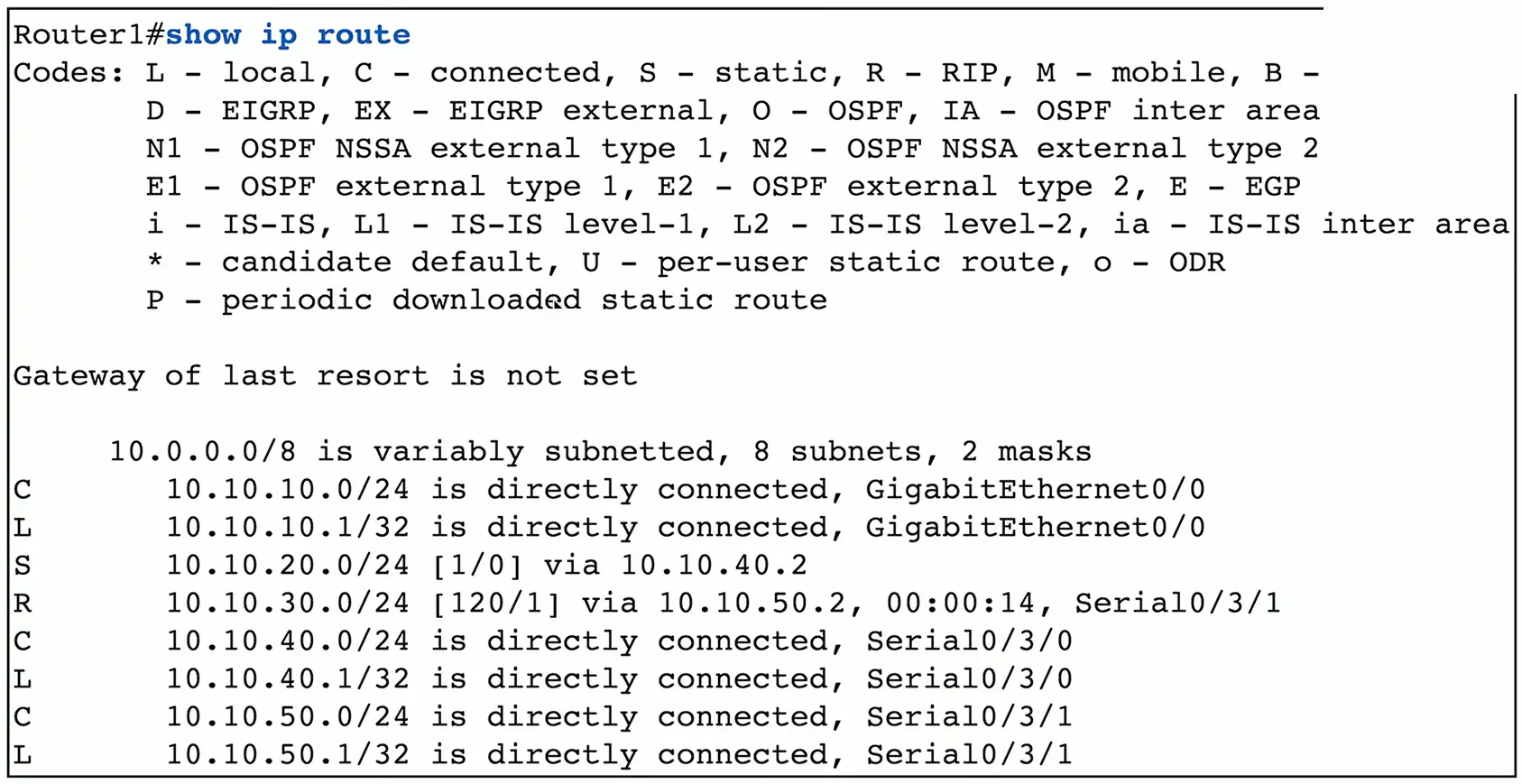
Routing table with RIPv2
Prefix Lengths
Most specific route “wins”
A combination of the subnet ID and prefix length
Routes are more specific as the prefix increases
Router forwards traffic to the most specific destination
Pick the best route to a server with the address of 192.168.1.6
192.168.0.0/16
192.168.1.0/24 (2nd best route with narrow host range than /16)
192.168.1.6/32 (Best route, individual IP)
Administrative Distances
What if you have two routing protocols, and both know about a route to a subnet?
Two routing protocols, two completely different metric calculations
You can’t compare metrics across routing protocols
Which do you trust the most?
Administrative distances
Used by the router to determine which routing protocol has priority
Source
Administrative Distance
Local
0
Static route
1
EIGRP
90
OSPF
110
RIPv1 and RIPv2
120
DHCP default route
254
Unknown
255
Routing Metrics
Each routing protocol has its own way of calculating the best route
BGP, OSPF, EIGRP
Metric values are assigned by the routing protocol
BGP metrics are not useful to OSPF or EIGRP
Use metrics to choose between redundant links
Choose the lowest metric, i.e., 1 is better than 2
Routing table with RIPv2:
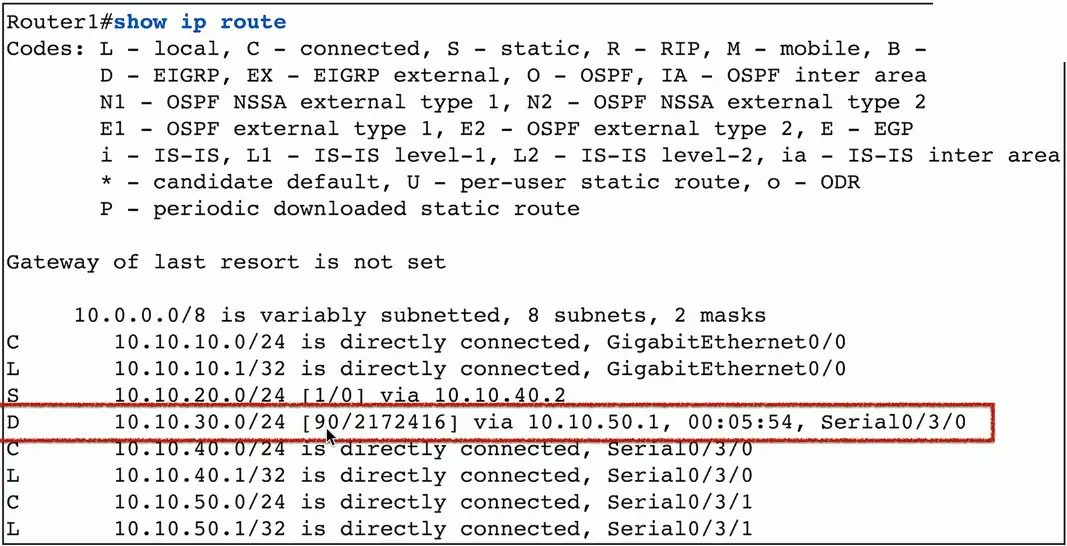
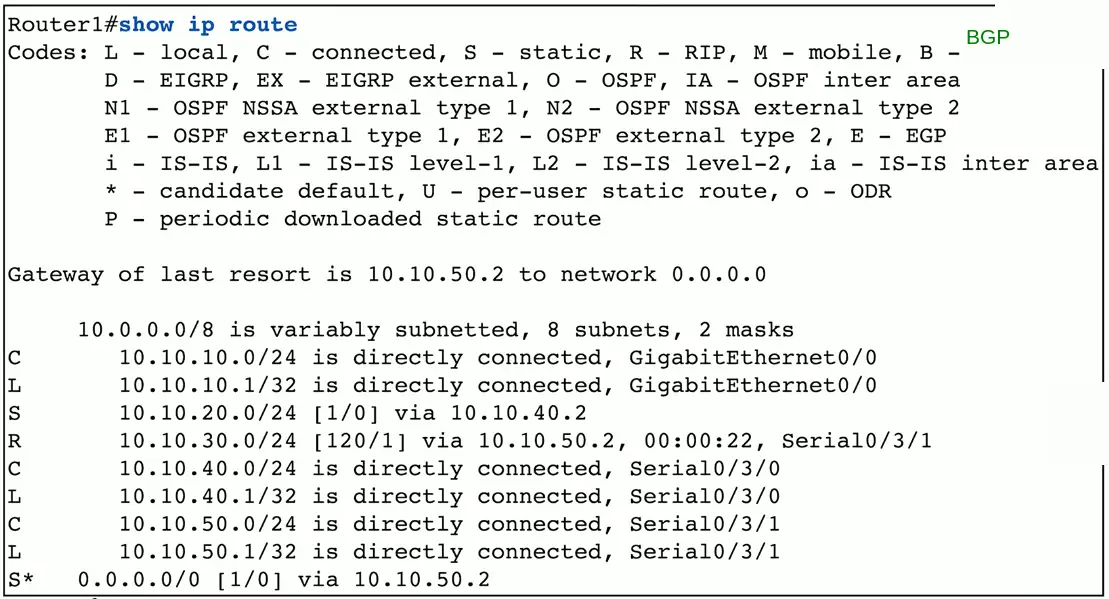
Routing table with EIGRP:
First Hop Redundancy Protocol (FHRP)
Your computer is configured with a single default gateway
We need a way to provide uptime if the default gateway fails
The default router IP address isn’t real
Devices use a virtual IP (VIP) for the default gateway
If a router disappears, another one takes its place
Data continues to flow
Solves a shortcoming with IP addressing
One default gateway can really be many routers
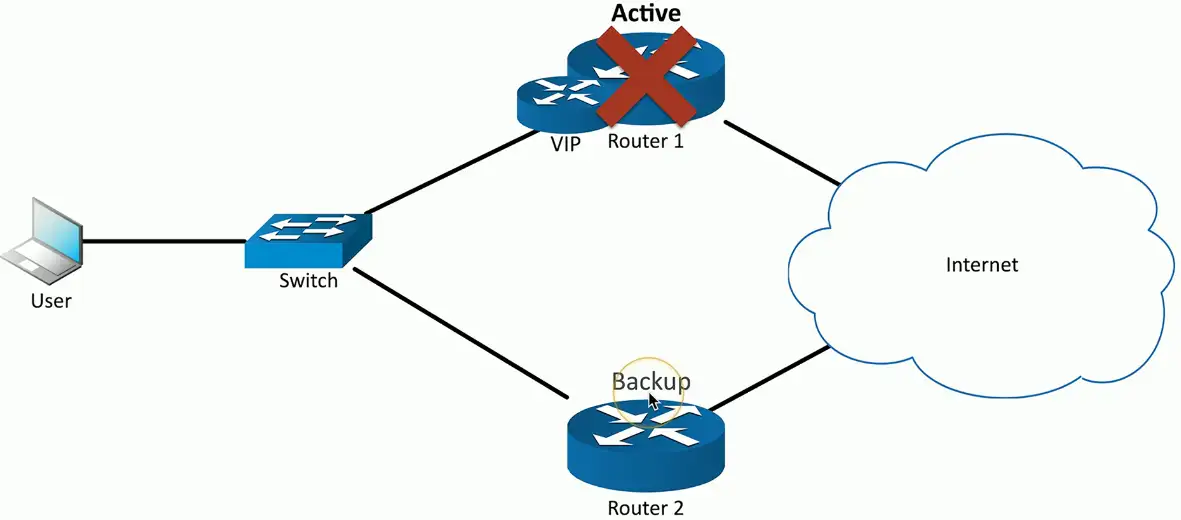
A network with two routers, one acting as a backup, fails:
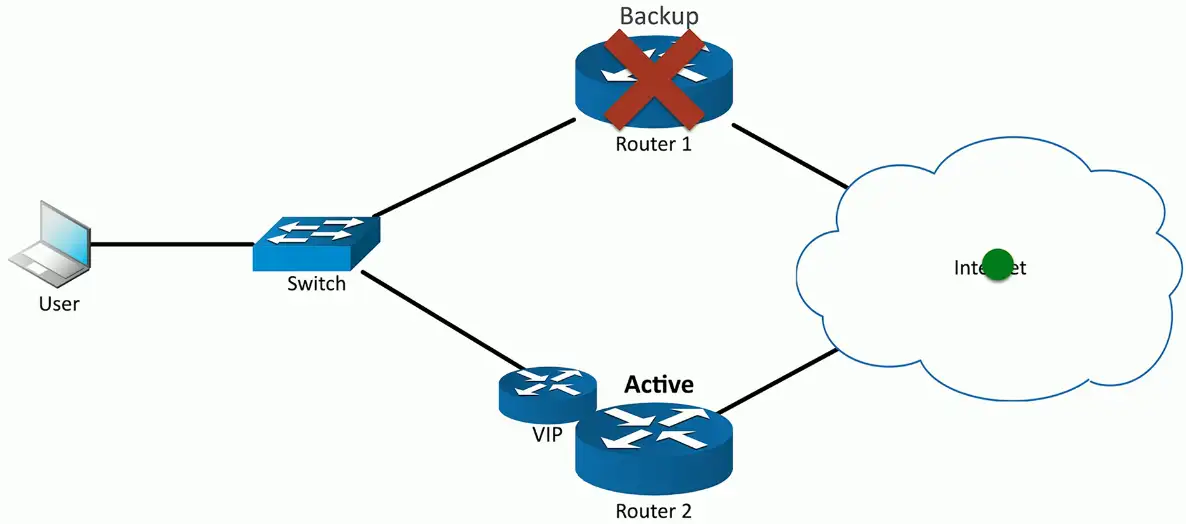
Backup router takes over, and the inactive router will be marked as backup:
Subinterfaces
A device has a physical interface
Configure options for each interface
Some interfaces are not physical
VLANs in a trunk
These are subinterfaces
Often referenced with the physical
Interface Ethernet1/1
Subinterface Ethernet1/1.10
Subinterface Ethernet1/1.20
Subinterface Ethernet1/1.100
Network Address Translation (NAT)
It is estimated that there are over 20 to 30 billion devices connected to the Internet (and growing)
IPv4 supports around 4.29 billion addresses
The address space for IPv4 is exhausted
There are no available addresses to assign
How does it all work?
Network Address Translation
This isn’t the only use of NAT
NAT is handy in many situations
Public addresses vs. Private addresses
RFC 1918 private IPv4 addresses
IP address range
Number of addresses
Classful description
Largest CIDR block (subnet mask)
Host ID size
10.0.0.0 – 10.255.255.255
16,777,216
single class A
10.0.0.0/8 (255.0.0.0)
24 bits
172.16.0.0 – 172.31.255.255
1,048,576
16 contiguous class Bs
172.16.0.0/12 (255.240.0.0)
20 bits
192.168.0.0 – 192.168.255.255
65,536
256 contiguous class Cs
192.168.0.0/16 (255.255.0.0)
16 bits
Network address translation:
NAT overload/PAT
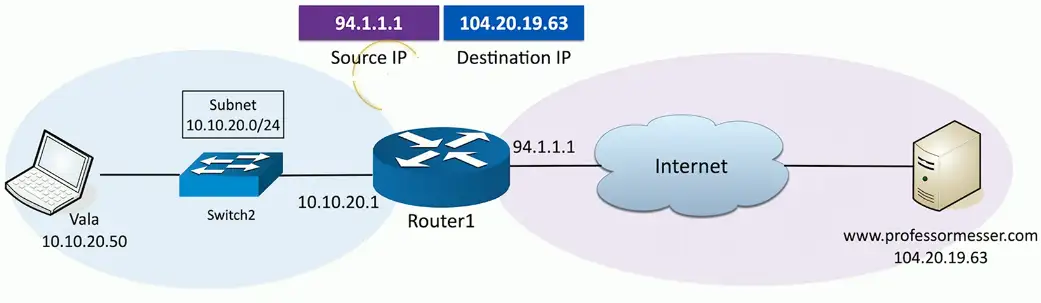
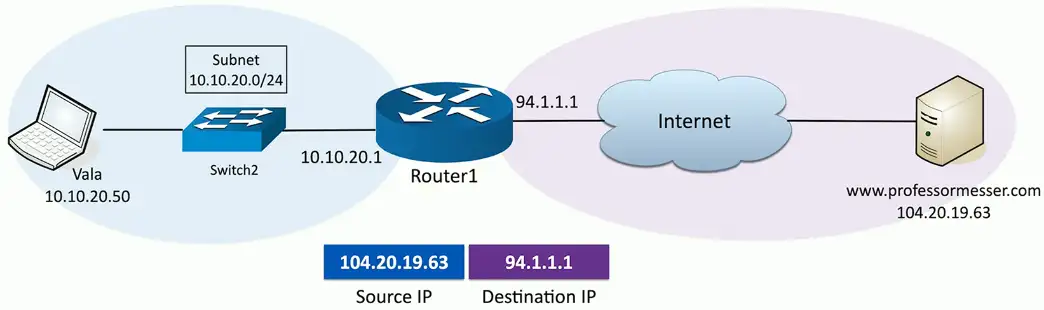
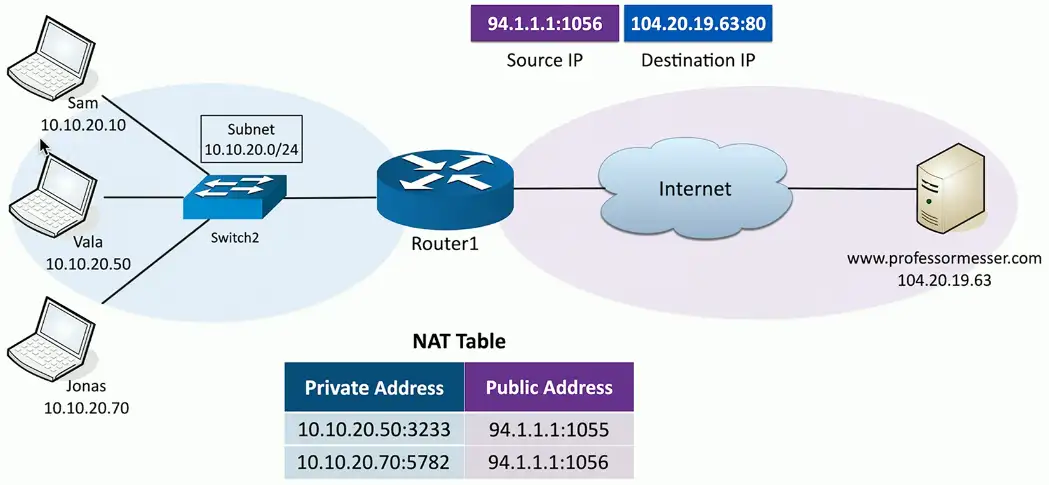
If we need to perform NAT for many computers on the network at the same, we need more public IP addresses to be available. To do this efficiently, we use NAT overload/PAT (Port Address Translation) protocol.
More than one device on the network
Want to reach to the same server on the Internet
They will be assigned Private Addresses with random port numbers and associated Public IPs with random port numbers.
The request goes to the destined server with the associated with Public IPs and port numbers.
The server with respond and router will do the whole process in reverse to direct the server payload to the appropriate client device.
Switching Technologies
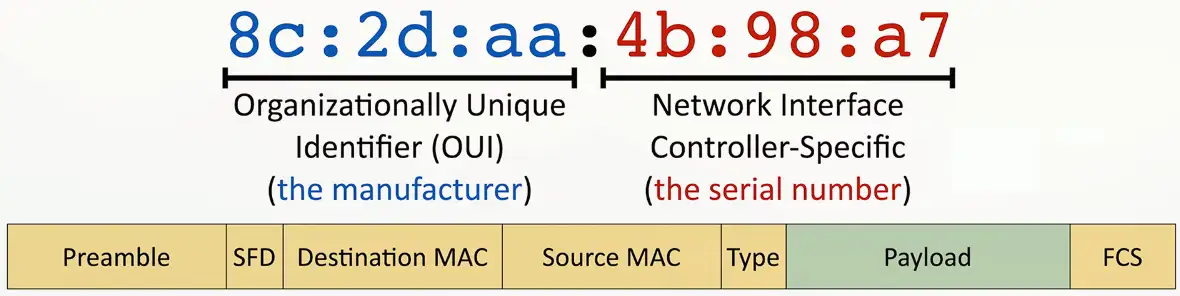
Media Access Control (MAC) Address
A 48-bit unique identifier for an Ethernet client.
MAC represented as hexadecimal notation
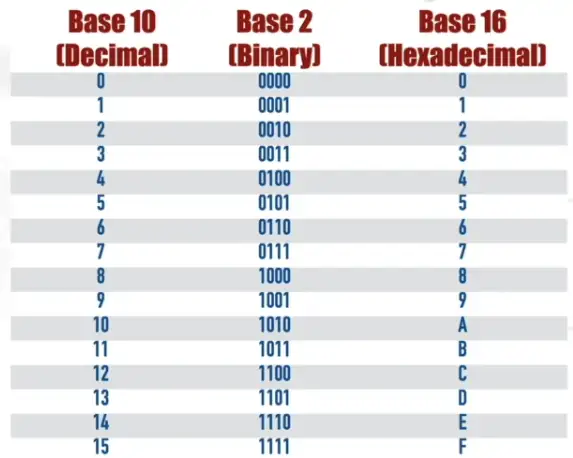
Hexadecimal numbering with Base 10, and Base 2 number:
Organizationally Unique Identifier (OUI): A 24-bit string assigned to a vendor of Ethernet hardware.
First 24-bit of MAC address
A data frame also needs MAC address to reach its destination
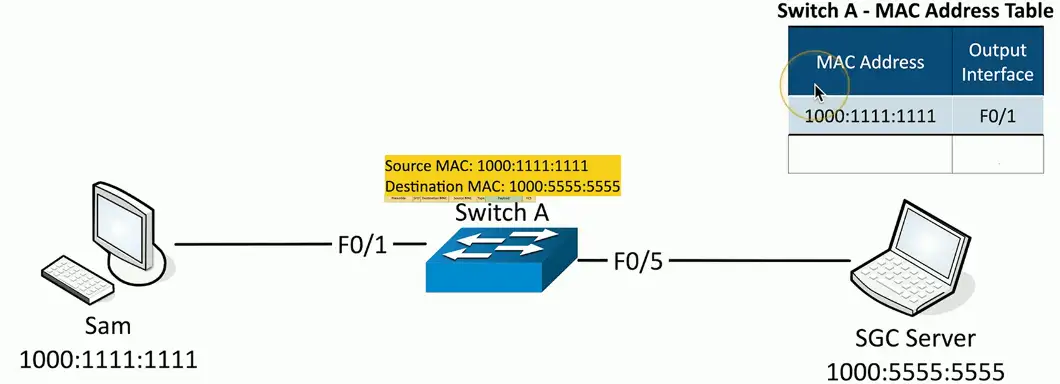
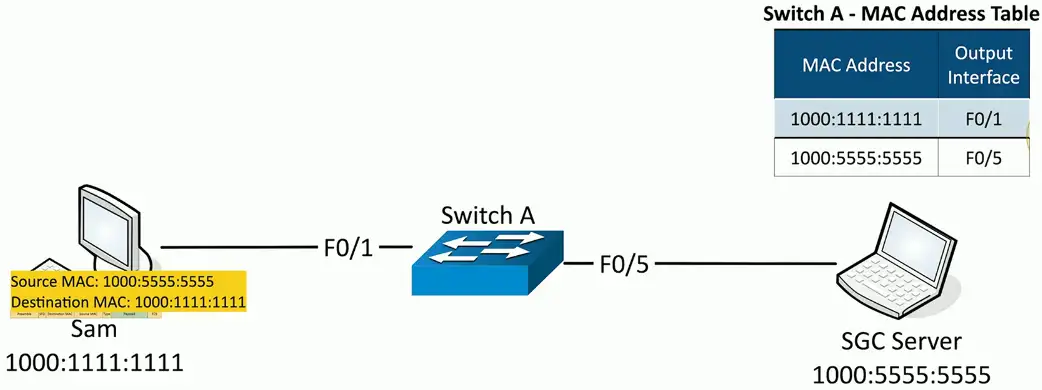
Ethernet Switch Frame Forwarding
Based on MAC address
Happens at layer 2
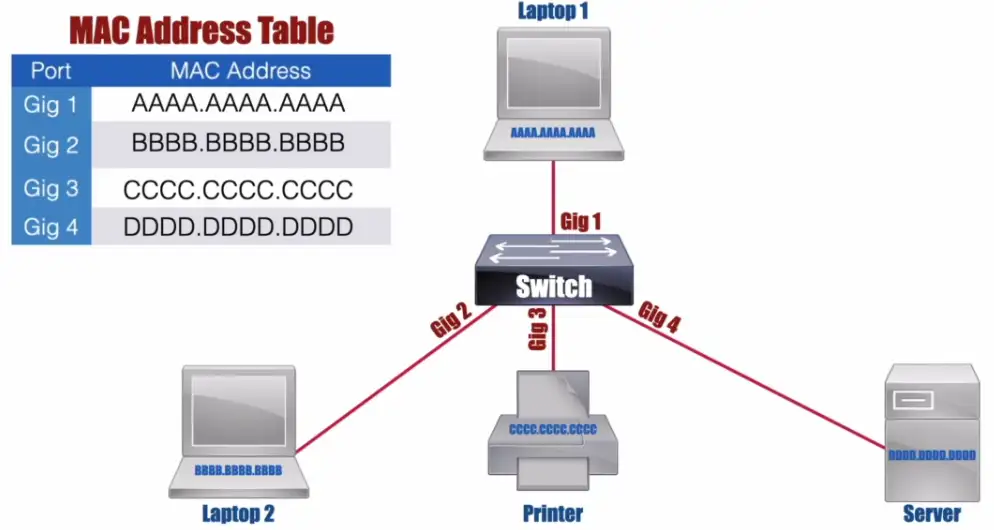
Switch maintains a MAC Address Table
Flooding: Occurs when an Ethernet switch sends a copy of an incoming frame out all of its ports, other than the port on which the frame was received. Because the switch hasn’t learned the port off of which the destination MAC address is connected.
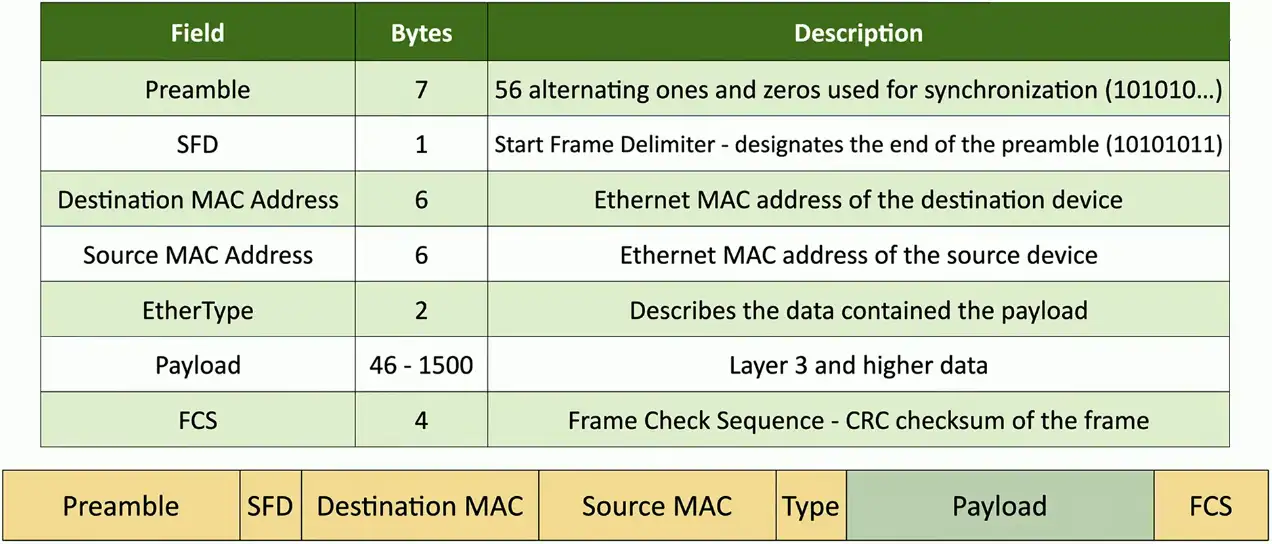
Ethernet Frame has an 18 Bytes Header
Preamble and SFD are part of Layer 1, used for synchronization
Ethernet Jumbo Frame Format
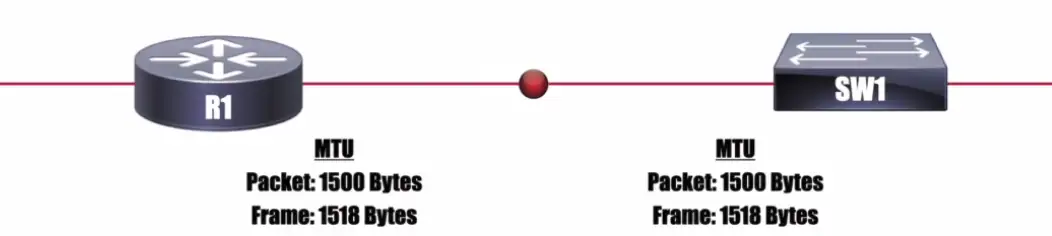
MTU (Maximum Transmission Unit): The maximum size (measured in Bytes) of a packet or frame allowed on an interface.
VLANs and Trunking
LANs
Local Area Networks
A group of devices in the same broadcast domain
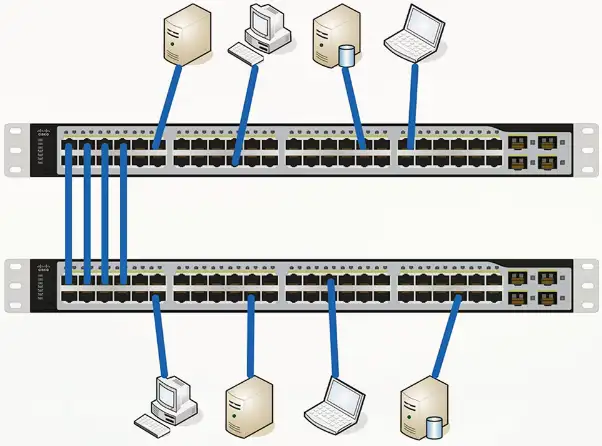
Two switches, taking power
Using double the rack space
Harder to manage
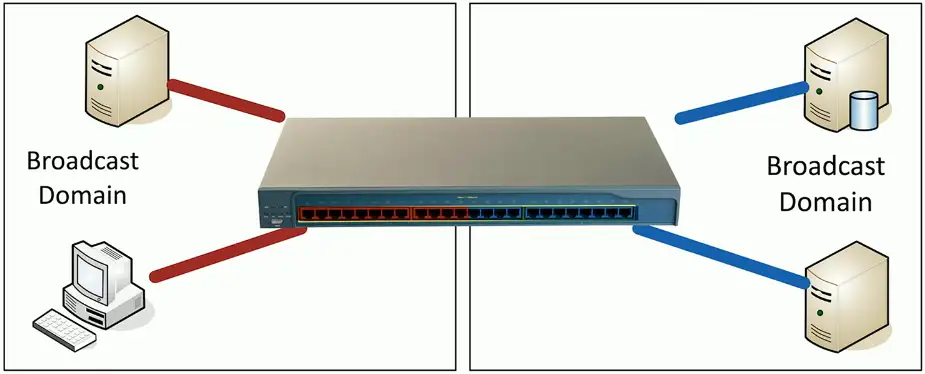
Virtual LANs
Virtual Local Area Networks
A group of devices in the same broadcast domain
Separated logically instead of physically
One switch to manage, less power usage
Cheaper to manage
Lesser rack space
Red and Blue VLANs will not be to communicate between them like physical LANs, except inside the red/blue VLAN only.
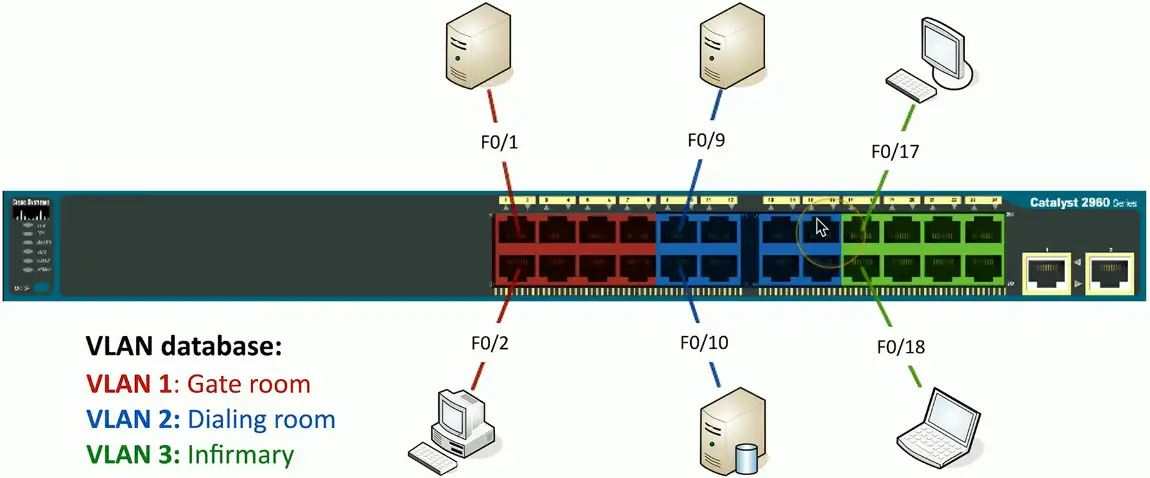
Configuring VLANs
VLAN numbers and names are configured in the switch
The VLAN database
Instead of color, VLANs are represented by number, VLAN1, VLAN2 etc.
VLANs on multiple switches
We want to communicate among VLAN1s on multiple switches
One simple fix is to connect both VLAN100 on each switch with an Ethernet cable
But, it quickly gets complicated when there are hundreds of switches with VLANs.
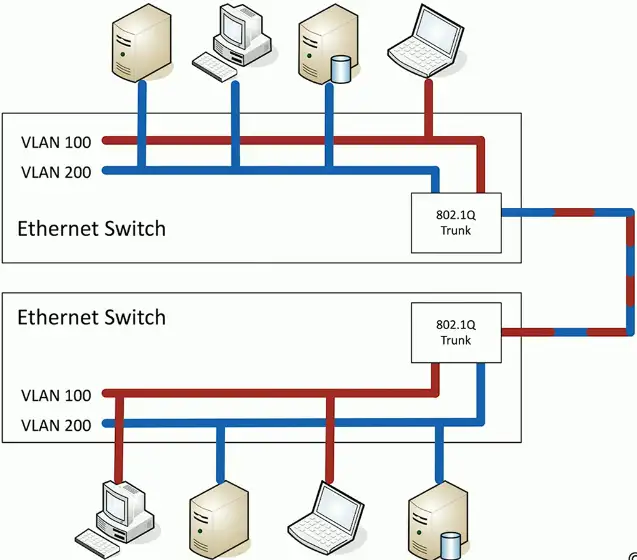
VLAN Trunking
“VLAN trunking is a technology that allows multiple VLANs to share a single physical link between network switches. Instead of needing separate cables for each VLAN, a trunk link carries traffic for all VLANs simultaneously while keeping them logically separated.”
Trunk carry traffic for multiple VLANs
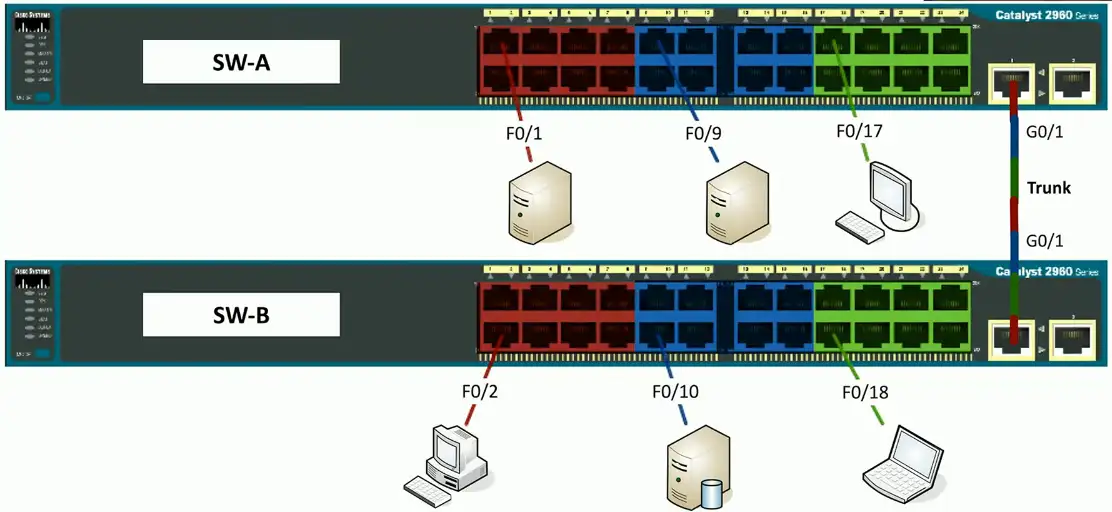
Trunk interface is used to connect VLANs on different physical switches.
Single cable to carry packet for all switches
802.1Q trunking
How trunking identifies which packet belongs to which VLAN interface? By tagging!
Take a normal Ethernet frame
Add a VLAN header in the frame
VLAN IDs – 12 bits long, 4,096 VLANs
“Normal range” – 1 through 1005, “Extended range” – 1006 through 4094 – 0 and 4,095 are reserved VLAN numbers
Before 802.1Q, there was ISL (Inter-Switch Link)
ISL is no longer used; everyone now uses the 802.1Q standard
VLAN trunking:
VLAN200 wants to send an Ethernet frame to VLAN200 on the other physical switch
VLAN200 sends normal packet to the trunking interface
Trunk adds a tag (VLAN200)
Sends the frame to other VLAN200 device on the different switch
The switch at the other receives the frame, sees the tag VLAN200, removes the tag, and sends it to the VLAN200.
Trunking between switches:
It now needs a single packet to connect VLANs on different physical switches
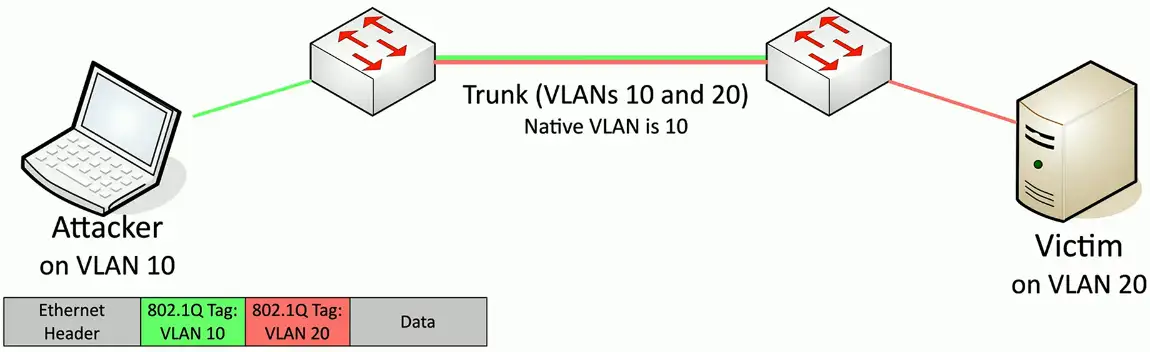
The Native VLAN
This is different from the “default VLAN”
The default VLAN is the VLAN assigned to an interface by default
Each trunk has a native VLAN
The native VLAN doesn’t add an 802.1Q header
The native VLAN connects switches without a tag
Some devices won’t talk 802.1Q
Just use the native VLAN!
Native VLAN should match between switches
You’ll get a message if the VLAN IDs don’t match
Layer 3 switches
A switch (layer 2) and router (layer 3) in the same physical device
Layer 2 router?
Switching still operates at OSI Layer 2, routing still operates at OSI Layer 3
There is nothing new or special happening here
Just saving a space by putting the switch and router in a single physical device
The internal router connects to the VLANs over VLAN interfaces
Also called switched virtual interfaces (SVI)
May need to enable routing on your switch
Will operate as an L2 device until enabled
May require a switch restart
Doesn’t replace a standalone router
Not all designs require extensive routing
You probably use a layer 3 switch at home
Working with Data and Voice
Voice VLAN: A VLAN that can be configured on an Ethernet switch for the purpose of carrying voice packets to and from IP phones.
Old school: Connect computer to switch, connect phone to PBX (Private Branch Exchange)
Two physical cables, two different technologies
Now: Voice over IP (VoIP)
Connect all devices to the Ethernet switch
One network cable for both
Three ways to carry voice and data traffic:
Connect the voice and data to the same switch port, when there is the software based IP phone.
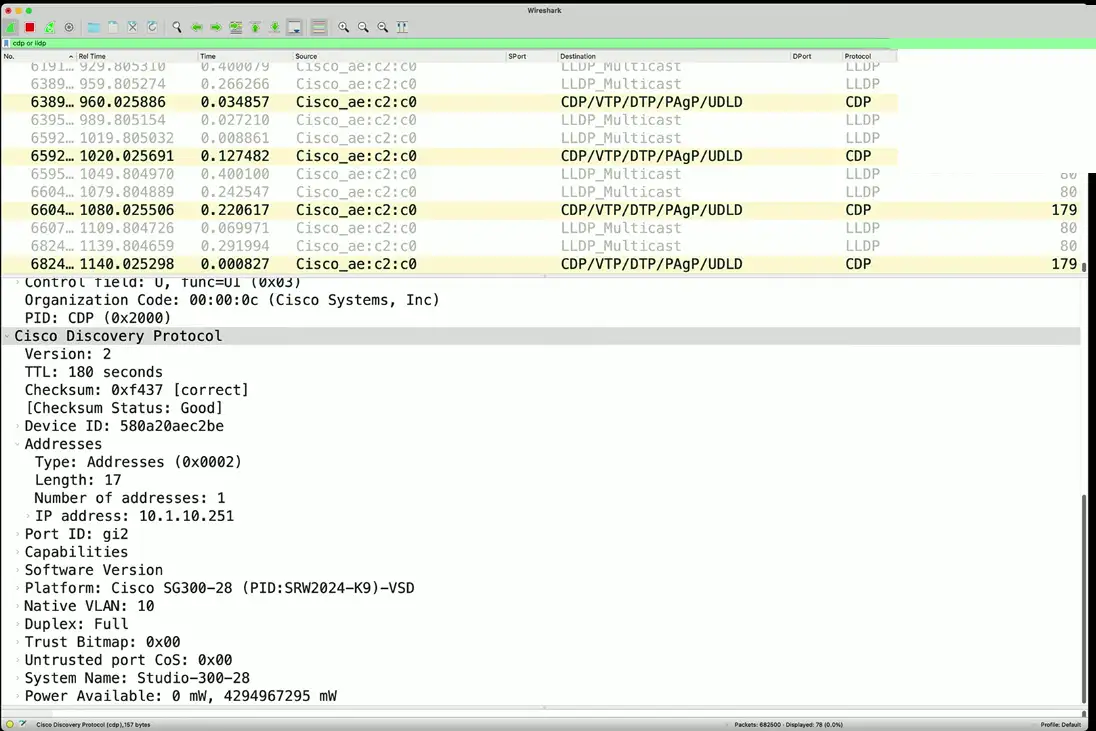
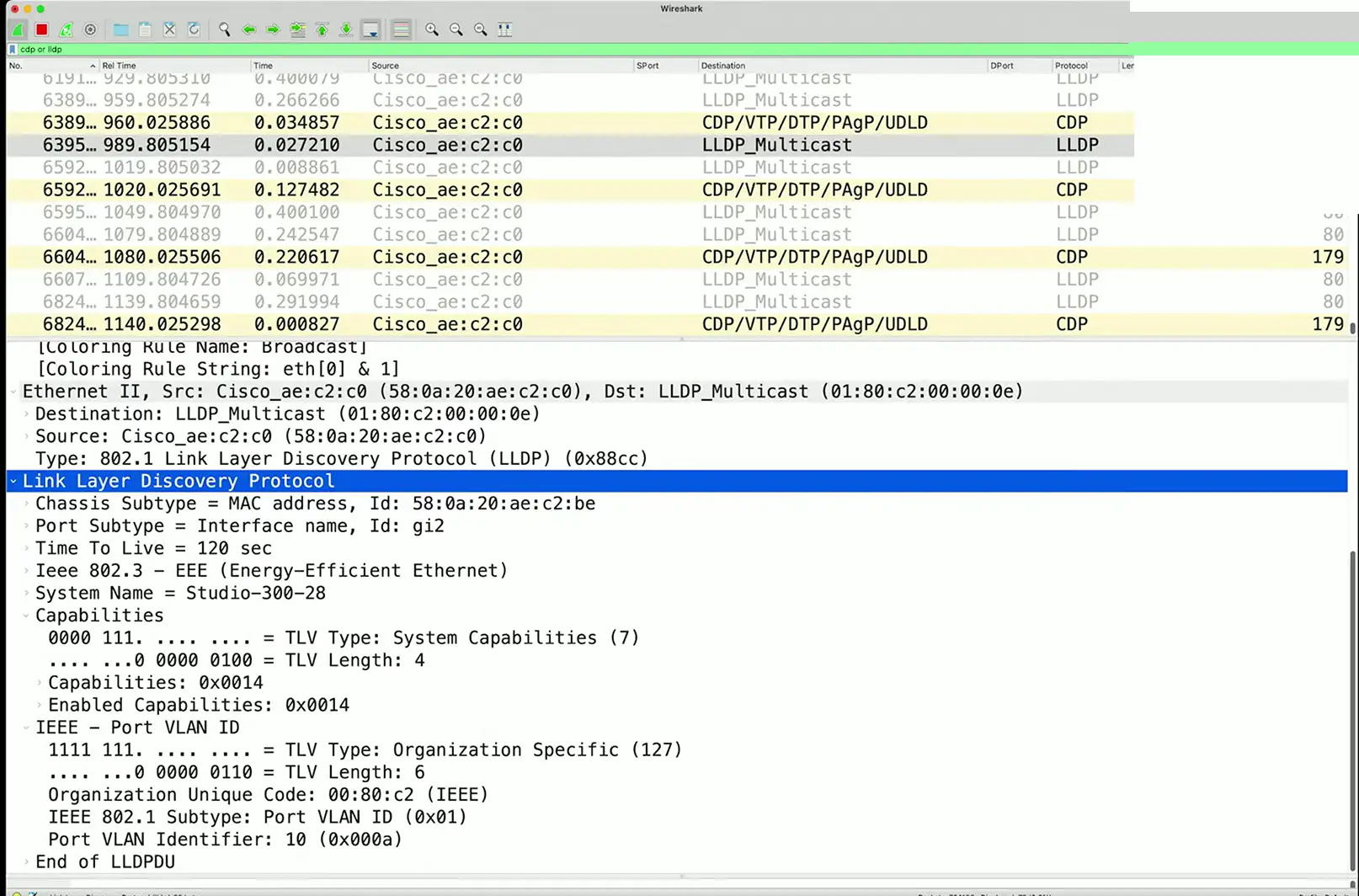
Connect the Cisco IP phone to Cisco switch (which supports two vLANs on a single port, one should carry voice), Cisco uses CDP (Cisco Discovery Protocol) a proprietary protocol to identify voice and data on a single port.
Use a native port for data and VLAN for voice.
There is also vendor natural LLDP (Link Layer Discovery Protocol), which works at Layer 2, but not compatible with Cisco switches. It’s IEEE 802.1AB standard, used by network devices to advertise their identity, capabilities, and neighbors on a local area network.
There is also LLDP-MED, an extension to LLDP protocol known as LLDP Media Endpoint Discovery. It provides additional features for voice and video applications, including auto-discovery of LAN policies (VLAN, QoS), device location for emergency services, and Power over Ethernet (PoE) management.
Data and Voice cabling
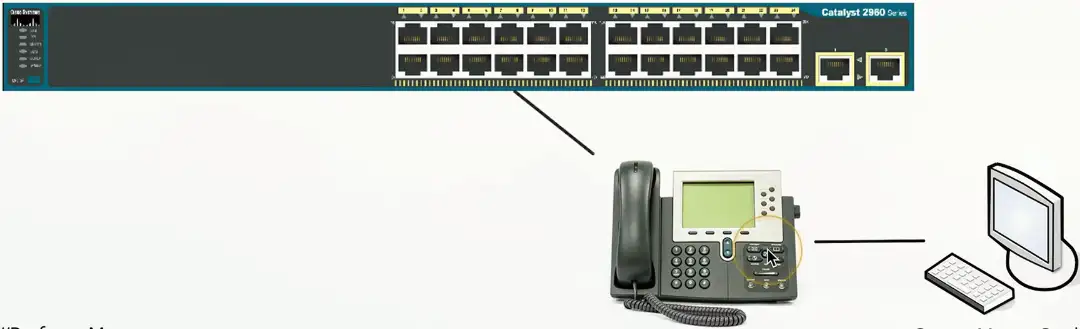
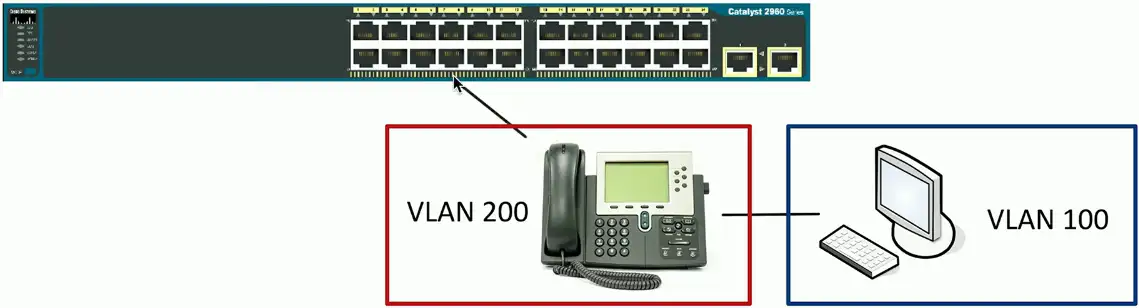
Computer connects to phone
Phone connects to switch
One cable, one run
Just one problem…
Voice and data don’t like each other
Voice is very sensitive to congestion
Data loves to congest the network
Put the computer on one VLAN and the phone on another
But the switch interface is not a trunk
How does that work?
Each switch interface has a data and a voice VLAN
Configure each of them separately
Configuring Voice and Data VLANs
Data passes as a normal untagged access VLAN
Voice is tagged with an 802.1Q header
Interface Configuration
Speed and duplex
Speed: 10/100/1,000/10 Gig
Speed mismatch between switches, connection will not work at all.
Duplex Half/Full
Duplex mismatch, the connection will work but with degraded performance
Automatic and manual
Needs to match on both sides
IP address management
Layer 3 interfaces
VLAN interfaces
Management interfaces
IP address, subnet mask/CIDR block, default gateway, DNS (optional)
Link Aggregation
Port bonding/Link aggregation (LAG)
Multiple interfaces act like one big interface
Four 10 Gbits interfaces will act as a single 40 Gbits interface
LACP
Link Aggregation Control Protocol
Adds additional automation and management
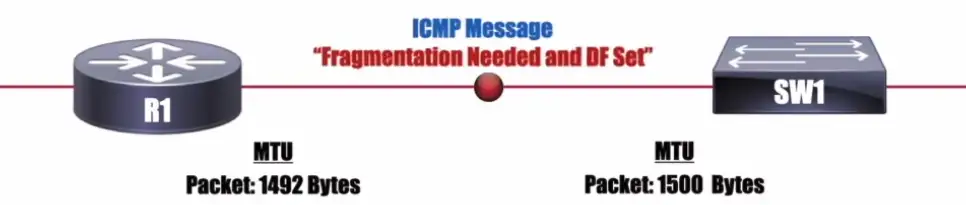
Maximum Transmission Unit (MTU)
The largest frame or packet that can be transmitted or received on an interface.
But not fragment
Fragmentation slows things down
Losing a fragment loses an entire packet
Requires overhead along the path
Don’t Fragment (DF) Bit: A bit in an IPv4 header that prevents a packet from being fragmented.
NOTE: IPv6 doesn’t have a DF bit, and it uses a “Packet Too Big” ICMPv6 message.
Difficult to know the MTU all the way through the path
Automated methods are often inaccurate
Especially when ICMP is filtered
Jumbo Frames
Ethernet frames with more than 1,500 bytes of payload
Up to 9,216 bytes of an MTU (9,000 is the accepted norm)
Increases transfer efficiency
Per-packet size
Fewer packets to switch/route
Ethernet devices must support jumbo frames
Switches, interface cards
Not all devices are compatible with others
Spanning Tree Protocol
Loop Protection
Connect two switches to each other
Create a loop with two cables
They will send traffic back and forth forever
There’s no “counting” mechanism at the MAC layer
This is an easy way to bring down a network
And somewhat difficult to troubleshoot
Relatively easy to resolve
IEEE standard 802.1D to prevent loops in bridged (switched) networks (1990)
Spanning Tree Protocol
Used practically everywhere
STP Port States
Blocking
Not forwarding to prevent a loop
Listening
Not forwarding and cleaning the MAC table
Learning
Not forwarding and adding to the MAC table
Forwarding
Data passes through and is fully operational
Disabled
Administrator has turned off the port
Spanning Tree Protocol
If Network A wants to communicate with Network M, it can use Bridge 6
If bridge 6 is unavailable for some reason, there is no other available root!!!
Spanning Tree recognizes the disconnection, and starts relearning the topology of the network, to clear out congestion. It reconfigures the STP port states to reestablish the connection between Network A and Network M through Bridge 5.
RSTP (802.1w)
Rapid Spanning Tree Protocol (802.1w)
A much-needed updated version of STP
This is the latest standard
Faster convergence
From 30 to 50 seconds to 6 seconds
Backwards-compatible with 802.1D STP
You can mix both in your network
Very similar process
An update, not a wholesale change
Wireless Devices
Wireless Technologies
IEEE standards
Institute of Electrical and Electronics Engineers
802.11 committee
Everyone follows these standards
Also referenced as a generation
802.11ac is Wi-Fi 5
802.11ax is Wi-Fi 6 and Wi-Fi 6E (extended)
802.11be is Wi-Fi 7
Future versions will increment accordingly
Frequencies
2.4 GHz, 5 GHz, and 6GHz
Sometimes a combination
Channels
Groups of frequencies, numbered by the IEEE
Using non-overlapping channels would be optimal
Bandwidth
Amount of frequency in use
20 MHz, 40 MHz, 80 MHz, 160 MHz
Band Selection and Bandwidth
Band steering
Many frequencies to choose from
Not all of them are optimal
Some devices may only use one frequency
Older devices, specialized systems, etc.
Other devices may have a choice
2.4 GHz, 5 GHz, or 6 GHz
Use band steering to direct clients to the best frequency
2.4 GHz and 5 GHz without band steering = strongest frequency
2.4 GHz and 5 GHz with band steering = 5 GHz connection
Regulatory Impacts
Managing the wireless spectrum is a challenge
Individuals, companies, organizations, countries
The world is constantly changing
Frequency allocations can be fluid
Industry standards are also often worldwide standards
We all have to work together
IEEE 802.11h standard
Add interoperability features to 802.11
The 802.11h standard
802.11 wireless complies with ITU guidelines
A worldwide approach
Now part of the 802.11 standard
DFS (Dynamic Frequency Selection)
Avoid frequency conflict
Access point can switch to an unused frequency
Clients move with the access point
TPC (Transmit Power Control)
Avoid conflict with satellite services
Access point determines power output of the client
Wireless Networking
Independent Basic Service Set (IBSS)
Two devices communicate directly to each other using 802.11
No access point required
Ad hoc
Created for a particular purpose without any previous planning
Without an AP
Temporary or long-term communication
Connect to a device with an ad hoc connection
Configure it with the access point settings and credentials
SSID and BSSID
Every wireless network needs a name
SSID (Service Set Identifier)
There might be multiple access points supporting an SSID
How does your computer tell them apart?
The hardware address of an access point is a BSSID (Basic Service Set Identifier)
The MAC (Media Access Control) address
Extending the network
Most organizations have more than one access point
Tens or hundreds
Wireless network names can be used across access points
Makes it easier to roam from one part of the network to another
The network name shared across access points is an ESSID
Extended Service Set Identifier
Your device automatically roams when moving between access points
You don’t have to manually reconnect
ESSID (Extended Service Set Identifier)
Captive Portal
Authentication to a network
Common on wireless network
Access table recognizes a lack of authentication
Redirects your web access to a captive portal page
Username/Password
And additional authentication factors
Once proper authentication is provided, the web session continues
Until the captive portal removes your access (could be 24h timer)
Wireless Security modes
Configure the authentication on your wireless access point/wireless router
Open system
No authentication password is required
WPA/2/3-Personal/WPA/2/3-PSK
WPA2 or WPA3 with a pre-shared key
Everyone uses the same 256-bit key
WPA/2/3-Enterprise/WPA/2/3-802.1X
Authenticates users individually with an authentication server (i.e., RADIUS, LDAP, etc.)
Omnidirectional Antennas
One of the most common
Included on most access points
Signal is evenly distributed on all sides
Omni = all
Good choice for most environments
You need coverage in all directions
No ability to focus the signal
A different antenna will be required
Directional Antennas
Focus the signal
Increased distances
Send and receive in a single direction
Focused transmission and listening
Antenna performance is measured in dB
Double power every 3dB of gain
Yagi antenna
Very directional and high gain
Parabolic antenna
Focus the signal to a single point
Managing Wireless Configurations
Autonomous access points
The access point handles most wireless tasks
The switch is not wireless-aware
Lightweight access points
Just enough to be 802.11 wireless
The intelligence is in the switch
Less expensive
Control and provision
CAPWAP is an RFC standard
Control and Provisioning of Wireless Access Points
Manage multiple access points simultaneously
Wireless LAN Controllers
Centralized management of access points
A single “pane of glass”
Deploy new access points
Performance and security monitoring
Configure and deploy changes to all sites
Report on access point use
Usually a proprietary system
The wireless controller is paired with the access point
Network Types
Wireless mesh
Multiple access points
Access points bridge the gap
Clients across an extended distance can communicate with each other
Ad hoc devices work together to form a mesh “cloud”
Self form and self-heal
Ad hoc mode
Ad hoc
Created for a particular purpose without any previous planning
Without an AP
Two devices communicate directly to each other using 802.11
No access point required
Independent basic service set (IBSS)
Temporary or long-term communication
Connect to a device with an ad hoc connection
Configure it with the access point settings and credentials
Point to point mode
Connect two access points together
Extend a wired network over a distance
Building to building
Site to site
May require specialized wireless equipment
Outdoor antennas and access point
Power adjustments
Frequency options
Infrastructure mode
Clients communicate to an access point
Access point forwards traffic
Clients can communicate to a wired network
Access point bridges the networks
Clients can communicate to each other
If the access point allows
Wireless Encryption
Securing a wireless network
An organization’s wireless network can contain confidential information
Not everyone is allowed access
Authenticate the users before granting access
Who gets access to the wireless network?
Username, password, multifactor authentication
Ensure that all communication is confidential
Encrypt the wireless data
Verify the integrity of all communication
The received data should be identical to the original sent data
A message integrity check (MIC)
WPA (Wi-Fi Protected Access)
2002: WPA was the replacement for serious cryptographic weaknesses in WEP (Wired Equivalent Privacy)
Don’t use WEP
Needed a short-term bridge between WEP and whatever would be the successor
Run on existing hardware
WPA2 and CCMP
Wi-Fi Protected Access II (WPA2)
WPA2 certification began in 2004
CCMP block cipher mode
Counter Mode with Cipher Block Chaining Message Authentication Code Protocol, or Counter/CBC-MAC Protocol
CCMP security services
Data confidentiality with AES encryption
Message Integrity Check (MIC) with CBC-MAC
WPA3 and GCMP
Wi-Fi Protected Access 3 (WPA3)
introduced in 2018
GCMP block cipher mode
Galois/Counter Mode Protocol
A stronger encryption than WPA2
GCMP security services
Data confidentiality with AES
Message Integrity Check (MIC) with Galois Message Authentication Code (GMAC)
Physical Installations
Installing Networks
Distribution Frames
Passive cable termination
Punch down blocks
Patch panels
Usually mounted on the wall or flat surface
Uses a bit of real-estate
All transport media
Copper, fiber, voice, and data
Often used as a room or location name
It’s a significant part of the network
Main Distribution Frame (MDF)
Central point of the network
Usually in a data center
Termination point for WAN links
Connects the inside to the outside
Good test point
Test in both directions
This is often the data center
The central point for data
Intermediate Distribution Frame (IDF)
Extension of the MDF
A strategic distribution point
Connects the users to the network
Uplinks from the MDF
Workgroup switches
Other local resources
Common in medium to large organizations
Users are geographically diverse
Equipment racks
Rack sizes
19" rack/device width
Height measured in rack units
1U is 1.75"
A common rack height is 42U
Depth can vary
Often determined by the equipment
Plan and locate
Devices follow standard sizing
Cooling a data center
Heating, Ventilating, and Air conditioning
Thermodynamics, fluid mechanics, and heat transfer
A complex science
Not something you can properly design yourself
Must be integrated into the fire system
Data centers optimize cooling
Separate aisles for heating and cooling
Heat intake and exhaust is important
Front, back, or side
Cale infrastructure
Copper patch panel/patch bay
Punch-down block on one side
RJ45 connector on the other
Move a connection around
Different switch interfaces
The run to the desk doesn’t move
Fiber Distribution Panel
Permanent fiber installation
Patch panel at both ends
Fiber bend radius
Breaks when bent too tightly
Often includes a service loop
Extra fiber for future changes
Inexpensive insurance
Locking Cabinets
Data center hardware is usually managed by different groups
Responsibility lies with the owner
Racks can be installed together
Side-to-side
Enclosed cabinets with locks
Ventilation on front, back, top, and bottom
Power
WARNING
Always disconnect from the power source when working on a device
Always. Seriously.
Some devices store a charge in capacitors
Know how to discharge before touching
Never connect your body to any part of an electrical system
Do not connect yourself to the ground wire of an electrical system
Respect electricity
It doesn’t respect you
Amp and Volt
Ampere (amp, A) — The rate of electron flow past a point in one second
The diameter of the hose
Voltage (volt, V) Electrical “pressure” pushing the electrons
How open the faucet is
120 volts, 240 volts
Watt
Watt (W)
How much energy is being consumed?
Electrical load is measured in watts
Easy to calculate
Volts × amps = watts
120 V × 0.5 A = 60 W
Current
Alternating current (AC)
Direction of current constantly reverses
Distributes electricity efficiently over long distances
Frequency of this cycle is important
US/Canada – 110 to 120 volts of AC (VAC), 60 hertz (Hz)
Europe — 220-240 VAC, 50 Hz
Direct current (DC)
Current moves in the one direction with a constant voltage
Device power supplies
Devices commonly use DC voltage
Most power sources provide AC voltage
Convert 120 V AC or 240 V AC
To DC voltages
You’ll know when this isn’t working
An important component
UPS
Uninterruptible Power Supply
Short-term backup power
Blackouts, brownouts, surges
Common UPS types
Offline/Standby UPS
Line-interactive UPS
On-line/Double-conversion UPS
Features
Auto shutdown, battery capacity, outlets, phone line suppression
Power distribution units (PDUs)
Provide multiple power outlets
Usually in a rack
Often include monitoring and control
Manage power capacity
Enable or disable individual outlets
Environmental Factors
Humidity
We use a lot of power for data centers
One estimate is nearly 2% of all U.S. power consumption
Humidity level
High humidity promotes condensation
Low humidity promotes static discharge
Industry guidelines for data centers
Somewhere around 40% to 60% humidity
Specific settings vary on location and equipment type
Temperature
Electrical equipment has an optimal operating temperature
Usually part of the device specifications
Industry best practices are around 64 °F (ca. 18 °C) to 81 °F (ca. 27 °C)
Many external influences
Outdoor temperature
Temperature increases as system load increases
HVAC is used to manage temperature and humidity
Sensors are placed in strategic locations
Fire suppression
Data center fire safety
Large area, lots of electronics
Water isn’t the best fire suppression option
Common to use inert gases and chemical agents
Stored in tanks and dispersed during a fire
Many warning signs
Integrated into HVAC system
Monitor for carbon monoxide
Enable/disable air handlers
Processes and Procedures
Network Documentation
Physical Network Maps
Follows the physical wire and device
Can include physical rack locations
Logical Network Maps
Specialized software
Visio, OmniGraffle, Gliffy.com
High level views
WAN layout, application flows
Useful for planning and collaboration
Rack Diagrams
A network admin might never walk into the data center
Physical access is often limited
Provide documentation for installation or change
A picture is worth a thousand words
Detailed digram of rack components
Often listed by physical location of the rack (row 3, rack W)
Each rack unit (U) is documented
Cable maps and diagrams
The foundation of the network
Physical cable and fiber
Valuable documentation
Planning the installation
Numbering each network drop
Troubleshooting after installation
Network Diagrams
Asset management
A record of every asset
Laptops, desktops, servers, routers, switches, cables, fiber modules, tablets, etc.
Associate support tickets with a device make and model
A record of hardware and software
Financial records, audits, depreciation
Make/model, configuration, purchase date, location, etc.
Add an asset tag
Barcode, RFID, visible tracking number, organization name
Asset Database
A central asset tracking system
Used by different parts of the organization
Assigned users
Associate a person with an asset
Useful for tracking a system
Warranty
A different process if out of warranty
Licensing
Software costs
Ongoing renewed deadlines
IP Address Management (IPAM)
Manage IP addressing
Plan, track, configure DHCP
Report on IP address usage
Time of day, user-to-IP mapping
Control DHCP reservations
Identify problems and shortages
Manage IPv4 and IPv6
One console
Service Level Agreement (SLA)
Service Level Agreement (SLA)
Minimum terms for services provided
Uptime, response time agreement, etc.
Commonly used between customers and service providers
Contract with an Internet Provider
SLA is no more than four hours of unscheduled downtime
Technician will be dispatched
May require customer to keep spare equipment on-site
Site surveys
Determine existing wireless landscape
Sample the existing wireless spectrum
Identify existing access points
You may not control all of them
Work around existing frequencies
Layout for ongoing site surveys
Plan for ongoing site surveys
Things will certainly change
Heat maps
Identify wireless signal strengths
Life Cycle Management
End-of-life
End of life (EOL)
Manufacturer stops supporting the hardware
May continue to provide security patches and updates
May provide warranty repair
End of support (EOS)
Manufacturer stops updating a product
Current version is the final version
No ongoing security patches or updates
Technology EOS is a significant concern
Security patches are part of normal operation
Patches and bug fixes
Incredibly important
System stability
Security fixes
Service packs
All at once
Monthly updates
Incremental (and important)
Emergency out-of-band updates
Zero-day and important security discoveries
Operating System Updates
Many and varied
Windows, Linux, iOS, Android, etc.
Updates
OS updates/service packs, security patches
User accounts
Minimum password lengths and complexity
Account limitations
Network access and security
Limit network access
Monitor and secure
Anti-virus, anti-malware
Firmware management
The software inside the hardware
The operating system of the hardware device
The potential exists for security vulnerabilities
Upgrade the firmware to non-vulnerable version
Plan for the unexpected
Always have a rollback plan
Save those firmware binaries
Trane Comfortlink II thermostats
Control the temperature from your phone
Trane notified of three vulnerabilities in April 2014
Configuration and real-time session information is constantly synchronized
The failover might occur at any time
Active-active
You bought two devices
Use both at the same time
More complex to design and operate
Data can flow in many directions
A challenge to manage the flows
Monitoring and controlling data requires a very good understanding of the underlying infrastructure
IP Services
DHCP
IPv4 address configuration used to be manual
IP address, subnet mask, gateway, DNS servers, NTP servers, etc.
October 1993 — The bootstrap protocol
BOOTP
BOOTP didn’t automatically define everything
Some manual configurations were still required
BOOTP also didn’t know when an IP address might be available again
Dynamic Host Configuration Protocol
Initially released in 1997, updated through the years
Provides automatic address/IP configuration for almost all devices
DHCP Process
DORA
A four-step process
Discover
Find a DHCP server
Offer
Get an offer
Request
Lock in the offer
Acknowledge
DHCP server confirmation
Step 1: Discover
DHCP Discover sent from Sam (0.0.0.0:udp/68) to 255.255.255.255:udp/67
Step 2: Offer
DHCP Offer sent from DHCP Server (10.10.10.99:udp/67) to 255.255.255.255:udp/68
Step 3: Request
DHCP Request sent from Sam (0.0.0.0/udp:68) to 255.255.255.255:udp/67
Step 4: Acknowledgement
DHCP Acknowledgement sent from DHCP Server (10.10.10.99:udp/67) to 255.255.255.255:udp/68
Managing DHCP in the Enterprise
Limited Communication range
Uses the IPv4 broadcast domain
Stops at a router
Multiple servers needed for redundancy
Across different locations
Scalability is always an issue
May not want (or need) to manage DHCP servers at every remote location
You’re going to need a little help(er)
Send DHCP request across broadcast domains
DHCP relay
Discover: DHCP relay changes the source IP address to 10.10.30.1:udp/68 and the destination address to 10.10.10.99:udp/67
Offer with DHCP relay
DHCP offer sent from DHCP Server (10.10.10.99:udp/67) to 10.10.30.1:udp/68
Router with IP helper-address changes the destination IP address to 255.255.255.255, and sent as a broadcast message to local subnet.
The process repeats itself for the remaining two processes, REQUEST/ACKNOWLEDGEMENT through the DHCP relay until, and finally the device gets the IP from the DHCP server.
Configuring DHCP
Scope Properties
IP address range
And excluded addresses
Subnet mask
Lease durations
Other scope options
DNS server
Default gateway
VoIP servers
DHCP Pools
Grouping of IP addresses
Each subnet has its own scope
192.168.1.0/24
192.168.2.0/24
192.168.3.0/24
…
A scope is generally a single contiguous pool of IP addresses
DHCP exclusions can be made inside the scope
DHCP address assignment
Dynamic assignment
DHCP server has a big pool of addresses to give out
Addresses are reclaimed after a lease period
Automatic assignment
Similar to dynamic allocation
DHCP server keeps a list of past assignments
You will always get the same IP address
Address reservation
Address reservation
Administratively configured
Table of MAC addresses
Each MAC address has a matching IP address
Other names
Static DHCP Assignment
Static DHCP
IP Reservation
DHCP leases
Leasing your address
It’s only temporary
But it can seem permanent
Allocation
Assigned a lease time by the DHCP server
Administratively configured
Reallocation
Reboot your computer
Confirms the lease
Workstation can also manually release the IP address
Moving to another subnet
DHCP renewal
T1 timer
Check in with the lending DHCP server to renew the IP address
50% of the lease time (by default)
T2 timer
If the original DHCP server is down, try rebinding with any DHCP server
87.5% of the lease time (7/8ths)
The DHCP lease process
After half-time, T1 timer will be passed, and the device asks for another lease
Another half-period later, T1 timer will be expired, and there is no DHCP server to respond for lease renewal
The device waits until the rebinding period (7/8ths) begins
The device will send another lease request, and enterprise environments have fallback DHCP server configured. The backup DHCP server will get this request and renew the lease period.
DHCP options
A special field in the DHCP message
Many, many options
Options are part of the DHCP RFC
BOOTP called them “vendor extensions”
256 (254 usable) options
O through 255
0 is pad, 255 is end
Many common options
Subnet mask, domain name server, domain name, etc.
Options are configured on the DHCP server
Not all DHCP servers support option configuration
Options have been added through the years
Option 129: Call Server IP address
Option 135: HTTP Proxy for phone-specific applications
IPv6 and SLAAC
Automatic IP addressing in IPv6
DHCP servers
Similar process as IPv4
Requires redundant DHCP servers
Ongoing administration
Stateless addressing
No separate server keeping the state
No tracking IP or MAC addresses
Lease time don’t exist
NDP (Neighbor Discovery Protocol)
No broadcasts!
Operates using multicast over ICMPv6
Neighbor MAC discovery
Replaces the IPv4 ARP
SLAAC (Stateless Address Autoconfiguration)
Automatically configure an IP address without a DHCP server
DAD (Duplicate Address Detection)
No duplicate IPs!
Discover routers
Router Solicitation (RS) and Router Advertisement (RA)
Finding Router
ICMPv6 adds the Neighbor Discovery Protocol
Router also sends unsolicited RA messages
From the multicast destination of ff02::1
Transfers IPv6 address information, prefix value, prefix length, DNS server, etc.
SLAAC (Stateless Address Autoconfiguration)
Determine the IP prefix using NDP (Neighbor Discovery Protocol)
Router Solicitation (RS) and Router Advertisement (RA)
Use the IP prefix with a modified EUI-64 address (or randomize)
Put them together to make a complete IPv6 address
64-bit IPv6 Subnet Prefix
Interface ID
2001:0dn8:0000:0001:
8e2d:aaff:fe4b:98a7
Before using, use NDP’s DAD (Duplicate Address Detection)
Just to be sure you are the only one with that IPv6 address
An Overview of DNS
Domain Name System
Translates human-readable names into computer-readable IP addresses
Multipoint GRE (mGRE): Allows a single interface to support multiple GRE tunnels
Next Hop Resolution Protocol (NHRP): Used to discover the IP address of the device at the far-end of a tunnel
Let’s R4 wants to communicate with R3:
It will send an NHRP Query to the Headquarters
(1) What physical interface’s IP address is associated with a tunnel interface’s IP address of 10.0.0.2?
Headquarter will send back an NHRP reply
(2) 10.0.0.2 is at 203.0.113.1
(3) Tunnel formation from R4 to R3
Voice over IP (VoIP)
Private Branch Exchange: A privately owned phone system used in large organizations (NOTE: Key systems were privately owned phone systems for smaller installations)
Keeping old PBX hardware, companies can add routers to have VoIP functionality.
IP Telephony
Real-time Transport Protocol (RTP): A Transport Layer protocol that carries voice and video media.
Remote Access
SSH (Secure Shell)
Encrypted console communication - tcp/22
Looks and acts the same as Telnet - tcp/23
Graphical User Interface (GUI)
Share a desktop from a remote location
It’s like you’re right there
RDP (Microsoft Remote Desktop Protocol)
Clients for macOS, Linux, and others as well
VNC (Virtual Network Computing)
Remote Frame Buffer (RFB) protocol
Clients for many OSes
Many are open source
Commonly used for technical support
And for scammers
API Integration
Control and manage devices
Hundreds of firewall, routers, switches, and servers
Log in to each device and make changes manually
Automate the command line
Bath processes
Very little control or error handling
Application programming interfaces (APIs)
Interact with third-party devices and services
Cloud services, firewalls, operating systems
Talk their language
Console
Directly connect to the device
Traditionally a serial connection
DB9 connector, RJ45 serial, USB connection
When all else fails
The console will be available
A text-based serial interface
The console
Requires a serial or USB connection
May need a USB to DB9 serial adapter
Jump-Box
Access secure network zones
Provides an access mechanism to a protected network
Highly-secured device
Hardened and monitored
SSH/Tunnel/VPN to the jump server
RDP, SSH, or jump from there
A significant security concern
Compromise of the jump server is a significant breach
In-band Management
Assign an IP address to a device
Switch, router, firewall, etc.
Maybe a separate Ethernet interface
Often marked on the device
May be accessible from any connected device
The IP address is inside the device
Access the device
SSH
Browser-based console
Out-of-band management
The network isn’t available
Or the device isn’t accessible from the network
Most devices have a separate management interface
Usually a serial connection/USB
Connect a modem to manage
Or cable, DSL, satellite, etc.
Console router/ comm server
Out-of-band access for multiple devices
Connect to the console router, then choose where you want to go
Network Security Concepts
Security Concepts
Data in transit
Data transmitted over the network
Also called data in motion
Not much protection as it travels
Many switches, routers, devices
Network-based protection
Firewall, IPS
Provide transport encryption
TLS (Transport Layer Security)
IPsec (Internet Protocol Security)
Data at rest
The data is on a storage device
Hard drive, SSD, flash drive, etc.
Encrypt the data
Whole disk encryption
Database encryption
File or folder-level encryption
Apply permissions
Access control lists
Only authorized users can access the data
Public Key Infrastructure (PKI)
Policies, procedures, hardware, software, people
Digital certificates: create, distribute, manage, store, revoke
This is a big, big, endeavor
Lots of planning
Also refers to the binding of public keys to people or devices
The certificate authority
It’s all about trust
Digital Certificates
A public key certificate
Binds a public key with a digital signature
And other details about the keyholder
A digital signature adds trust
PKI uses Certificate Authorities for additional trust
Web of Trust adds other users for additional trust
Certificate creation can be built into the OS
Part of Windows Domain services
Many 3rd-party options
Certificate Authorities
You connect to a random website
Do you trust it?
Need a good way to trust an unknown entity
Use a trusted third-party
An authority
Certificate Authority (CA) has digitally signed the website certificate
You trust the CA, therefore you trust the website
Real-time verification
Self-signed Certificates
Internal certificates don’t need to be signed by a public CA
Your company is the only one going to use it
No need to purchase trust for devices that already trust you
Built your own CA
Issue your own certificates signed by your own CA
Install the CA certificate/trusted chain on all devices
They’ll now trust any certificates signed by your internal CA
Works exactly like a certificate you purchased
Identity and Access Management (IAM)
Applications are available anywhere
Desktop, browser, mobile device, etc.
Data can be located anywhere
Cloud storage, private data centers, etc.
Many applications users
Employees, vendors, contractors, customers
Give the right permissions to the right people at the right time
Prevent unauthorized access
Identity lifecycle management
Every entity (human and non-human) gets a digital identity
Access control
An entity only gets access to what they need
Authentication and authorization
Entities must prove they are who they claim to be
identity governance
Track an entity’s resource access
May be a regulatory requirement
Least Privilege
Rights and permissions should be set to the bare minimum
You only get exactly what’s needed to complete your objective
All user accounts must be limited
Applications should run with minimal privileges
Don’t allow users to run with administrative privileges
Limits the scope of malicious behavior
Role-based Access Control (RBAC)
You have a role in your organization
Manager, director, team lead, project manager
Administrators provide access based on the role of the user
Rights are gained implicitly instead of explicitly
On Windows, use Groups to provide role-based access control
You are in shipping and receiving, so you can use the shipping software
You are the manager, so you can review shipping logs
Geographic Restrictions
Network location
Identify based on IP subnet
Can be difficult with mobile devices
Geolocation — determine a user’s location
GPS — mobile devices, very accurate
802.11 wireless, less accurate
IP address, not very accurate
Geo-fencing
Automatically allow or restrict access when the user is in a particular location
Don’t allow this app to run unless you’re near the office
Cameras
CCTV (Closed circuit television)
Can replace physical guards
Camera features are important
Motion recognition can alarm and alert when something moves
Object detection can identify a license plate, a person’s face, or a type of animal
Often many cameras
Networked together and recorded over time
Door Locks
Conventional
Lock and key
Deadbolt
Physical bolt
Electronic
Keyless, PIN
Token-based
RFID badge, magnetic swipe card, or key fob
Biometric
Hand, fingers, or retina
Multifactor
Smart card and PIN
Authentication
AAA framework
Identification
This is who you claim to be
Usually your username
Authentication
Prove you are who you say you are
Password and other authentication factors
Authorization
Based on your identification and authentication, what access do you have?
Accounting
Resources used: Login time, data sent and received, logout time
Gaining Access
Single sign-on (SSO)
Provide credentials one time
Get access to all available or assigned resources
No additional authentication required
Usually limited by time
A single authentication can work for 24 hours
Authenticate again after the time expires
The underlying authentication infrastructure must support SSO
No always an option
RADIUS (Remote Authentication Dial-in User Service)
One of the more common AAA protocols
Supported on a wide variety of platforms and devices
Not just for dial-in
Centralize authentication for users
Routers, switches, firewalls
Server authentication
Remote VPN access
802.X network access
RADIUS services available on almost any server OS
LDAP (Lightweight Directory Access Protocol)
Protocol for reading and writing directories over an IP network
An organized set of records, like a phone directory
X.500 specification was written by the International Telecommunications Union (ITU)
They know directories!
DAP ran on the OSI protocol stack
LDAP is lightweight
LDAP is the protocol used to query and update an X.500 directory
Used in Windows Active Directory, Apple OpenDirectory, Novell eDirectory, etc.
It’s useful to get ahead of any potential problems
Most things have an associated risk
Manage potential risk
Qualify internal and external threats
Risk analysis helps plan for contingencies
Vulnerabilities
A weakness in a system
Allows the bad guys to gain access or cause a security breach
Some vulnerabilities are never discovered
Or discovered after years of use
Many vulnerability types
Data injection
Broken authentication process
Sensitive data exposure
Security misconfiguration
Exploits
Take advantage of a vulnerability
Gain control of a system
Modify data
Disable a service
Many exploit methods
Built to take advantage of a vulnerability
May be complex
Threat
A vulnerability can be exploited by a threat
May be intentional (attacker) or accidental (fire, flood, etc.)
Many of these threats are external to the organization
A resource can have a vulnerability
The vulnerability can be exploited by a threat agent
The threat agent takes a threat action to exploit the vulnerability
The result is a loss of security
Data breach, system failure, data theft
The CIA Triad
Combination of principles
The fundamentals of security
Sometimes references as the AIC triad
Confidentiality
Prevent disclosure of information to unauthorized individuals or systems
Integrity
Messages can’t be modified without detection
Availability
Systems and networks must be up and running
Regulatory Compliance
Compliance
Meeting the standards of laws, policies, and regulations
A healthy catalog of regulations and laws
Across many aspects of business and life
Many are industry-specific or situational
Penalties
Fines, incarceration, loss of employment
Scope
Covers national, territory, or state laws
Domestic and international requirements
Data Localization
Data from a region or country is stored within the borders of that region or country
Data collected in Vegas stays in Vegas
Laws may prohibit where data is stored
GDPR (General Data Protection Regulation)
A complex mesh of technology and legalities
Where is your data stored?
Compliance laws may prohibit moving data out of the country
GDPR — General Data Protection Regulation
European Union Regulation
Data protection and privacy for individuals in the EU
Name, address, photo, email address, bank details, posts on social media, medical information, a computer’s IP address, etc.
Controls personal data
Data collected on EU citizens must be stored in the EU
Users can decide where their data goes
Can request removal of data from search engines
Gives “data subjects” control of their personal data
A right to be forgotten
PCI DSS
Payment Card Industry Data Security Standard (PCI DSS)
A standard for protecting credit cards
Six control objectives
Build and maintain a secure network and systems
Protect cardholder data
Maintain a vulnerability management program
Implement strong access control measures
Regularly monitor and test networks
Maintain an information security policy
Segmentation Enforcement
Segmenting the network
Physical, logical or virtual segmentation
Devices, VLANs, virtual networks
Performance
High-bandwidth applications
Security
Users should not talk directly to database servers
The only applications in the core are SQL and SSH
Compliance
Mandated segmentation (PCI compliance)
Makes change control much easier
IoT (Internet of Things)
Sensors
Heating and cooling, lighting
Smart devices
Home automation, video doorbells
Wearable technology
Watches, health monitors
Weak defaults
IoT manufacturers are not security professionals
IIoT (Industrial Internet of Things)
IoT for companies
Machine to machine communication
Segmentation is just as important
More data is at stake
Facility automation
Temperature, air quality, lighting
Industrial equipment/ICS monitoring
Oil and gas, robotics, medical devices
Specialized monitoring systems
Wired and wireless connectivity
SCADA/ICS
Supervisory Control and Data Acquisition System
Large-scale, multisite Industrial Control Systems (ICS)
PC manages equipment
Power generation, refining, manufacturing equipment
Facilities, industrial, energy, logistics
Distributed control systems
Real-time information
System control
Requires extensive segmentation
No access from the outside
Operational Technology (OT)
The hardware and software for industrial equipment
Electric grids, traffic control, manufacturing plants, etc.
This is more than a web server failing
Power grid drops offline
All traffic lights are green
Manufacturing plant shuts down
Requires a different approach
A much more critical security posture
Guest Networks
A network for visitors
No access to the private network
Separate wireless network
For guests only
Controlled access
Password or captive portal
Fire walled from the rest of the network
Internet Access only
BYOD
Bring Your Own Device
Bring Your Own Technology
Employee owns the device
Need to meet the company’s requirements
A challenge to secure
Segment the device from the internal network
It’s both a home device and a work device
Attack Types
Denial of Service
Force a service to fail
Overload the service
Take advantage of a design failure or vulnerability
Keep your systems patched!
Cause a system to be unavailable
Competitive advantage
Create a smokescreen for some other exploit
Precursor to a DNS spoofing attack
Doesn’t have to be complicated
Turn off the power
A “friendly” DoS
Unintentional DoSing
It’s not always a ne’er-do-well
Network DoS
Layer 2 loop without STP
Bandwidth DoS
Downloading multi-gigabyte Linux distribution over a DSL line
The water line breaks
Get a good shop vacuum
Distributed Denial of Service (DDoS)
Launch an army of computers to bring down a service
Use all the bandwidth or resources — traffic spike
This is why the attackers have botnets
Thousands or millions of computers at your command
At its peak, Zeus botnet infected over 3.6 million PCs
Coordinated attack
Asymmetric threat
The attacker may have fewer resources than the victim
DDoS reflection and amplification
Turn your small attack into a big attack
Often reflected off another device or service
An increasingly common network DDoS technique
Turn Internet services against the victim
Uses protocols with little (if any) authentication or checks
NTP, DNS, ICMP
Simple DNS query returns much more data than simple domain response
A common example of protocol abuse
VLAN Hopping
Define different VLANs
Organizational, network engineering, security
You only have access to your VLAN
Good security best practice
“Hop” to another VLAN
This shouldn’t happen
Two primary methods
Switch spoofing
Double tagging
Switch Spoofing
Some switches support automatic configuration
Is the switch port for a device, or is it a trunk?
There is no authentication required
Pretend to be a switch
Send trunk negotiation
Now you have got a trunk link to a switch
Send and receive from any configured VLAN
Switch administrators should disable trunk negotiation
Administratively configure trunk interfaces and device/access interfaces
Double Tagging
Craft a packet that includes two VLAN tags
Takes advantage of the “native” VLAN configuration
The first native VLAN tag is removed by the first switch
The second “fake” tag is now visible to the second switch
Packet is forwarded to the target
This is one-way trip
Responses don’t have a way back to the source host
Good for DoS
Don’t put any devices on the native VLAN
Change the native VLAN ID
Force tagging of the native VLAN
MAC Flooding
The MAC address
Ethernet Media Access Control Address
The “physical” address of a network adapter
Unique to a device
48 bits/6 bytes long
LAN Switching
Forward or drop frames
Based on the destination MAC address
Gather a constantly updating list of MAC addresses
Builds the list based on the source MAC address of incoming traffic
These age out periodically, often in 5 minutes
Maintain a loop-free environment
Using Spanning Tree Protocol (STP)
Learning the MACs
Switches examine incoming traffic
Makes a note of the source MAC address
Adds unknown MAC addresses to the MAC address table
Sets the output interface to the received interface
Frame Switching
MAC Flooding
The MAC table is only so big
Attackers starts sending traffic with different source MAC addresses
Force out the legitimate MAC addresses
The table fills up
Switch begins flooding traffic to all interfaces
This effectively turns the switch into a hub
All traffic is transmitted to all interfaces
No interruption in traffic flows
Attacker can easily capture all network traffic!
Flooding can be restricted in the switch’s port security settings
ARP and DNS Poisoning
Spoofing and Poisoning
Pretend to be something you aren’t
Fake web server, fake DNS server, etc.
Email address spoofing
The sending address of an email isn’t really the sender
Caller ID spoofing
The incoming call information is completely fake
On-path attacks
The person in the middle of the conversation pretends to be both endpoints
ARP Poisoning (IP Spoofing)
Simple ARP Request and response:
No security or authentication. That’s what the attacker takes advantage of!
The attacker will capture the traffic, and then send to the legitimate target/router. Neither the router nor the client has any idea about the attacker in the middle who is monitoring their traffic.
DNS Poisoning
Modify the DNS server
Requires some crafty hacking
Modify the client host file
The host file takes precedent over DNS queries
Send a fake response to a valid DNS request
Requires a redirection of the original request or the resulting response
Real-time redirection
This is on-path attack
DNS spoofing/poisoning:
Attacker can poison the DNS server:
Rogue Services
Rogue DHCP server
IP addresses assigned by a non-authorized server
There is no inherent security in DHCP
Client is assigned an invalid or duplicate address
Intermittent connectivity, no connectivity
Disable rogue DHCP communication
Enable DHCP snooping on your switch
Authorized DHCP servers in Active Directory
Disable the rogue
Renew the IP lease
Rogue Access Points
An unauthorized wireless access point
May be added by an employee or an attacker
Not necessarily malicious
A significant potential backdoor
Very easy to plug in a wireless AP
Or enable wireless sharing in your OS
Schedule a periodic survey
Walk around your building/campus
Use third-party tools/Wi-Fi Pineapple
Consider using 802.1X (Network Access Control)
You must authenticate, regardless of the connection type
Wireless Evil Twins
Looks legitimate, but actually malicious
The wireless version of phishing
Configure an access point to look like an existing network
Same (or similar) SSID and security settings/captive portal
Overpower the existing access point
May not require the same physical location
Wi-Fi hotspots (and users) are easy to fool
And they are wide open
You encrypt your communication, right?
Use HTTPS and a VPN
On-Path Network Attack
How can an attacker watch without you knowing?
Formerly known as man-in-the-middle
Redirects your traffic
Then passes it on to the destination
You never know your traffic was redirected
ARP poisoning
On-path attack on the local IP subnet
ARP has no security
Other on-path attacks
Get in the middle of the conversation and view or change information