Week 6: File I/O
| Week 6: Practice Code | GitHub |
|---|
File Handling (I/O)
When programming, you have likely encountered a situation where all data is lost once your script finishes running. This happens because the data is stored in the memory, and when the program ends, the memory is cleared.
To solve this issue, Python offers a feature called File I/O, which allows you to read from or write to files, ensuring that data persists even after your program has ended.
File I/O refers to the ability of a program to take a file as input or create a file as output. This is essential when you want to store data for later use, process large datasets, or manage configurations. —Dilan Nawarathne via Medium
The key function for working with files in Python is the open() function.
The open() function takes two parameters; filename, and mode.
There are four different methods (modes) for opening a file:
"r" - Read — Default Value. Opens a file for reading, error if the file doesn’t exist.
"a" - Append — Opens a file for appending, creates the file if it doesn’t exist.
"w" - Write — Opens a file for writing, creates the file if it doesn’t exist or overwrites the existing file.
"x" - Create — Creates the specified file, returns an error if the file exists.
In addition you can specify if the file should be handled as binary or text mode:
"t" - Text — Default value. Text mode
"b" - Binary — Binary mode (e.g., images)
Syntax
To open a file for reading it is enough to specify the name of the file:
The code above is the same as:
As "r" for read, and "t" for text are the default values, you don’t need to specify them.
Python Read File
Using the with statement
You can also use the with statement when opening a file:
Then you don’t have to worry about closing your files, the with statement takes care of that.
Close Files
It is a good practice to always close the file when you are done with it.
If you’re not using the with statement, you must write a close statement in order to close the file:
Note
You should always close your files. In some cases, due to buffering, changes made to a file may not show until you close a file.
Read Only Parts of the File
By default the read() methods returns the whole text, but you can also specify how many characters you want to return:
Read Lines
You can return one line by using the readline() method:
By calling readline() two times, you can read the two first lines:
By looping through the lines of the file, you can read the whole file, line by line:
Python File Write
Write to an Existing File
To write to an existing file, you must add a parameter to the open() function:
"a" - Append — will append to the end of the file
"w" - Write —- will overwrite any existing content
Note
The “w” method will overwrite the entire file.
Create a New File
To create a new file in Python use the open() method, with one of the following parameters:
"x" - Create — will create a file, returns an error if the file exists
Result: A new empty file is created.
Note
If the file already exits, an error will be raised.
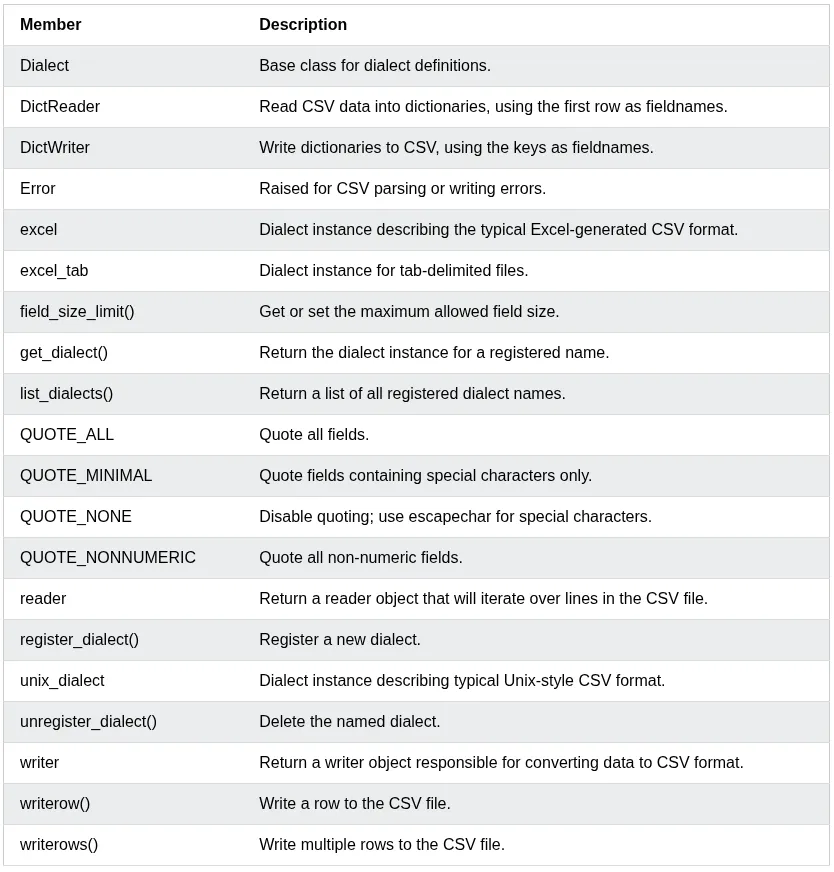
csv Module
The csv module reads and writes tabular data in CSV(Comma Separated Values) format.