Google IT Support Professional Certificate, course consists of 5 individual courses, and each of those courses are further subdivided into different modules.
1. Technical Support Fundamentals
Technical Support Fundamentals is a first course of Google IT Support Professional Certificate.
It has been sub-divided into the following modules…
4. System Administration and IT Infrastructure Services
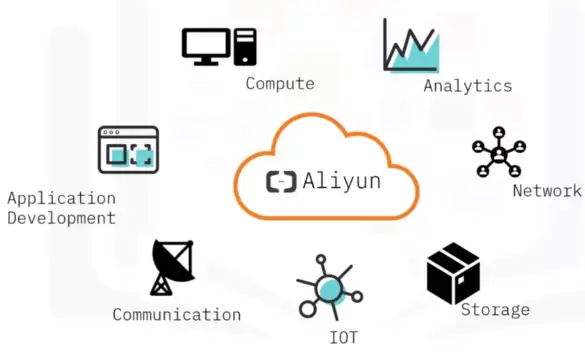
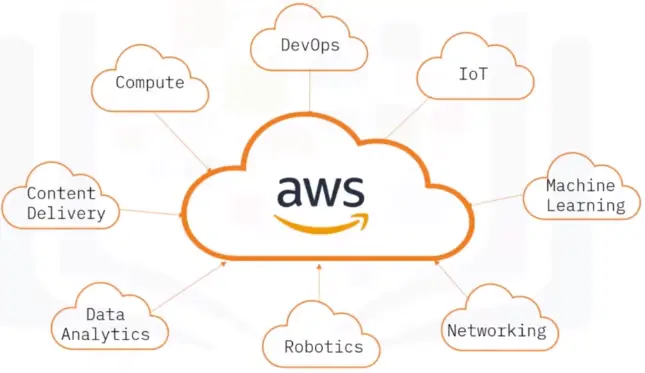
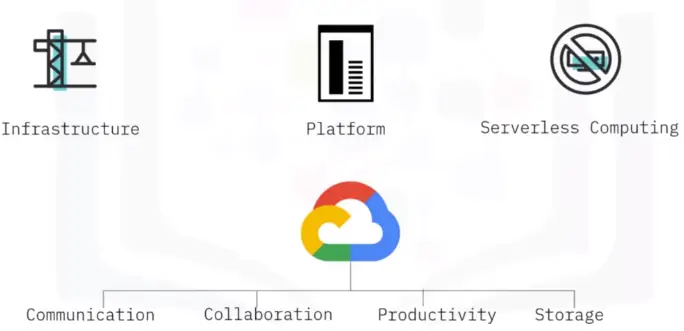
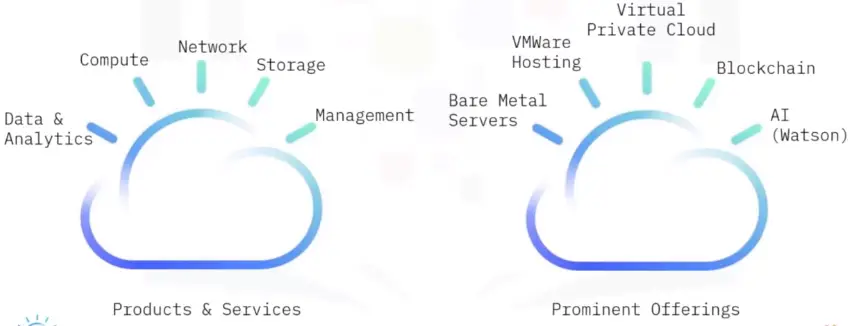
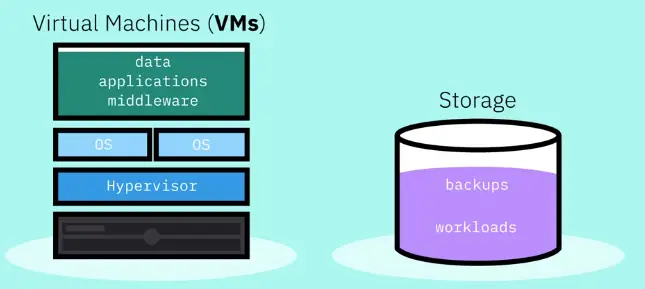
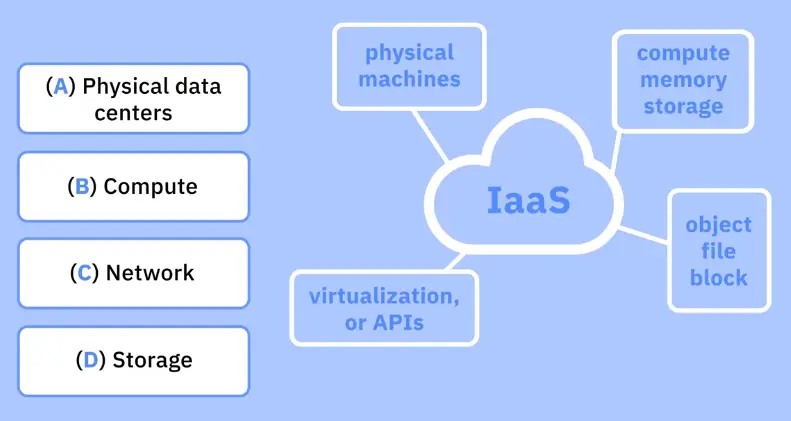
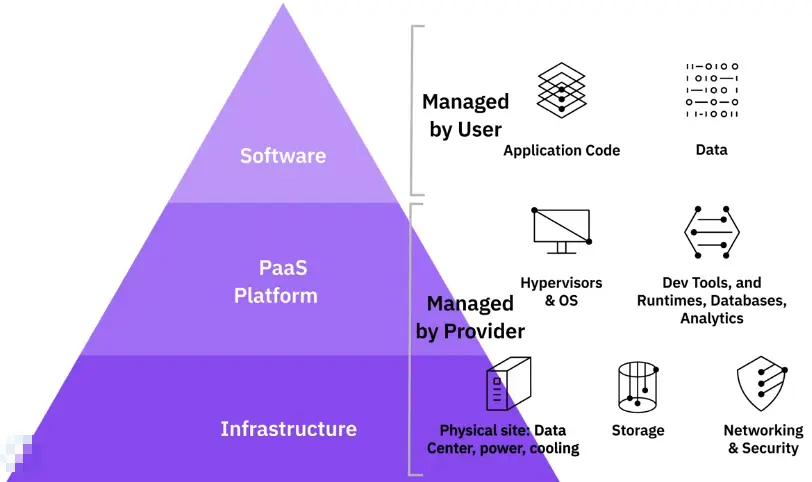
This is all about managing different IT services, including public and private cloud, platform services (PAAS, SAAS, IAAS). Also it teaches about data different backup solution and data recovery techniques.
This courses is sub-divided into 6 weeks of study program, which has 5 sub-topics and a final project…
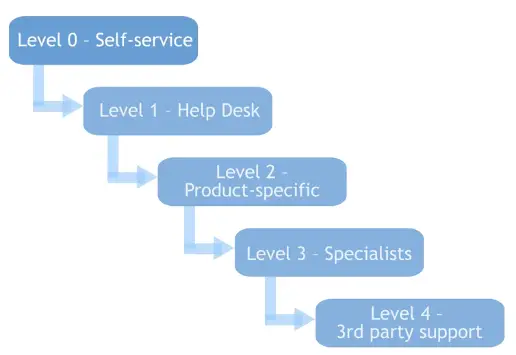
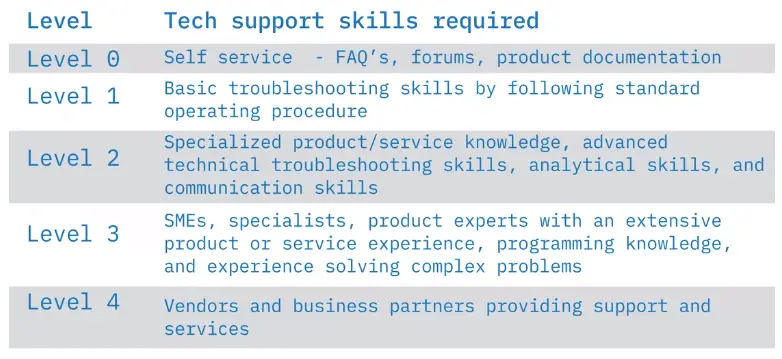
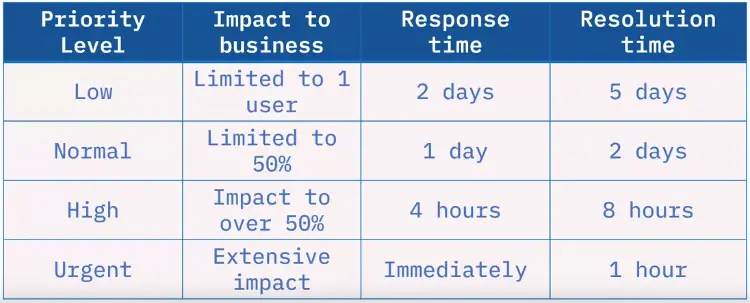
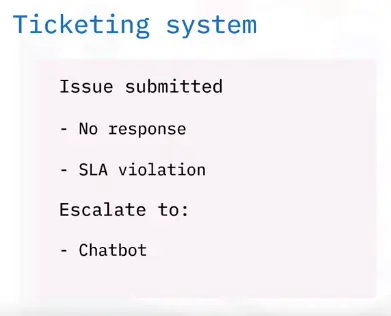
This is the IBM version of introduction to IT Support. But it also gives information about different ticketing systems and service level agreements. It provides details about job opportunities and different skill levels in the field.
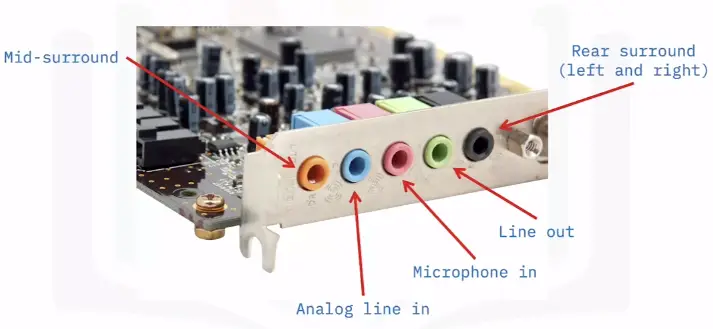
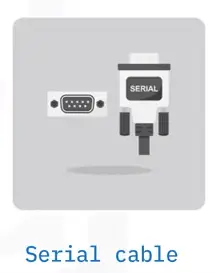
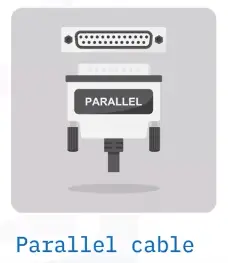
This course is all about building computers and installing different operating systems on them. It also explains about computer connectors and their types, and peripheral devices. In the end, it gives details about how to troubleshoot a system step by step.
3. Introduction to Software, Programming, and Databases
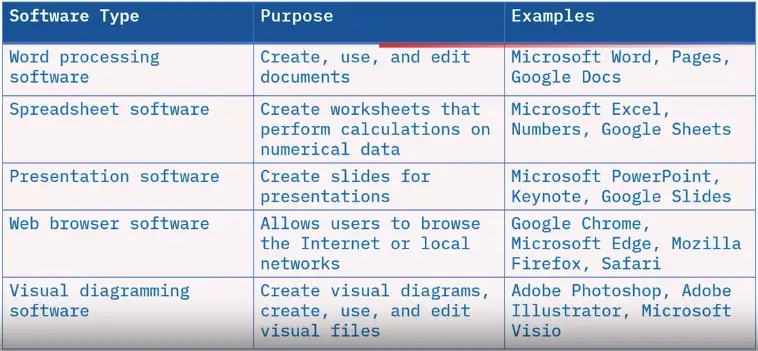
It goes into details about different computing platforms and types of software applications. It also lists down the available web-browsers, types of cloud computing, basics of programming and types of database queries.
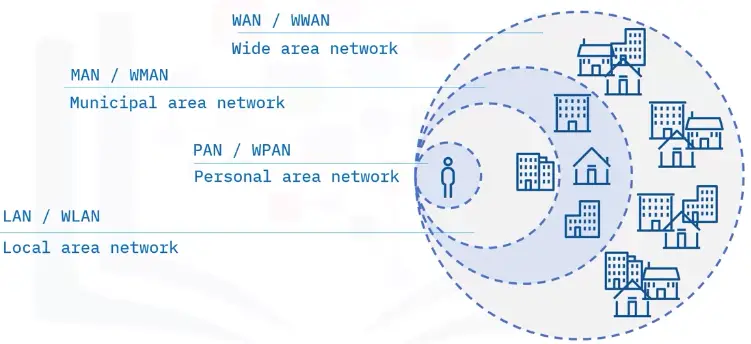
It teaches about the types of networks, like LAN, WAN etc. It lists down the storage types and also goes into the details of troubleshooting common networking problems like DNS issues etc.
Google IT Support Professional Certificate, course consists of 5 individual courses, and each of those courses are further subdivided into different modules.
1. Technical Support Fundamentals
Technical Support Fundamentals is a first course of Google IT Support Professional Certificate.
It has been sub-divided into the following modules…
4. System Administration and IT Infrastructure Services
This is all about managing different IT services, including public and private cloud, platform services (PAAS, SAAS, IAAS). Also it teaches about data different backup solution and data recovery techniques.
This courses is sub-divided into 6 weeks of study program, which has 5 sub-topics and a final project…
It is the first module, of the Technical Support Fundamentals.
What is IT?
The use of digital technology, like computers and the internet, to store and process data into useful information.
Digital Divide: The lack of digital literacy among the masses.
Role of IT Support Specialist
Managing
Installing
Maintaining
Troubleshooting
Configuring
History of Computing
From Abacus to Analytical Engine
Computer
A device that stores and process data performing calculations.
Abacus
The oldest known computer, invented in 500 BC to count large numbers.
Mechanical Engine of 17th Century
It was able to perform summation, subtraction, multiplication, and division but still need human intervention to operate its knob and levers.
Invention of Punch Cards in 18th century shaped the world of computing
Charles Babbage invented the Difference Engine
It was a combination of sophisticated mechanical calculators and was able to perform pretty complex mathematical operations but not much else.
Analytical Engine
Babbage followed his Difference Engine with an Analytical Engine, he was inspired by Punch Cards, and it was able to perform automatic calculations without human interaction.
But it was still a giant Mechanical Computer, though being impressive.
Invention of Algorithms
A Mathematician, Ada Lovelace, realize the true potential of the Analytical Engine. She was the first person to recognize that a machine can be used more than just for pure calculations. She developed the first algorithm for the Engine.
Because of this discovery of Lovelace, the Analytical Engine became the first general purpose computing device in the history.
Algorithm
A series of steps that solve specific problems.
Digital Logic
Computer Language
Binary System
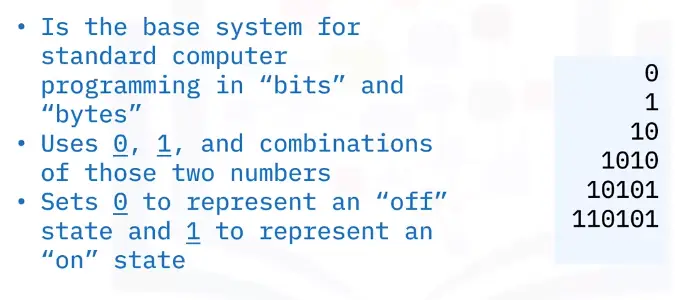
The communication that a computer uses, also known as a base-2 numeral system.
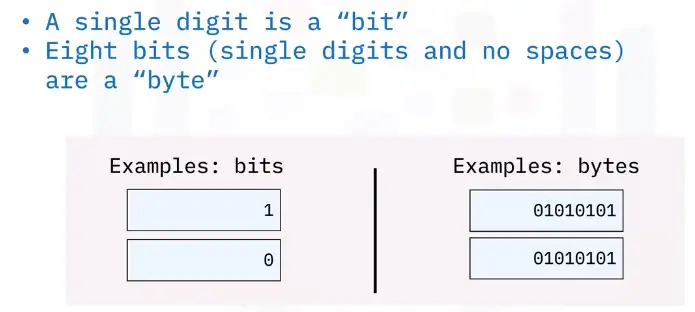
Bit: A number in binary.
Byte: A group of 8-bits.
Each bit can store one character, and we can have 256 possible values thanks to the base-2 system (2**8)
  Examples:
    10100011, 11110011, 00001111
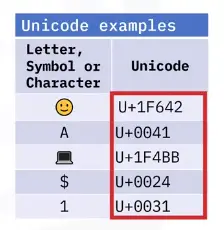
Character Encoding
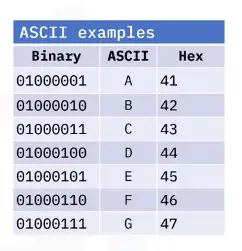
Assigns our binary values to characters, so that we as human can read them.
ASCII
The oldest used character encoding system for English alphabet, digits, punctuation marks.
UTF-8
The most prevalent encoding standard used today. Along with the same ASCII table, it lets us use the variable number of bytes.
Binary
As in Punch Card systems, a hole represents the number 1, and no-hole represents the number 0.
In binary, electrical circuits are used to represent zeros and ones (0s,1s), when current passes through the circuit, the circuit is on, and it represents 1, when no electricity passes, the circuit is closed and represents 0.
Logic gates
Allow our transistors to do more complex tasks, like decide where to send electrical signals depending on logical conditions.
AND logic gate
OR logic gate
NOT logic gate
XOR logic gate
NAND logic gate
XNOR logic gate
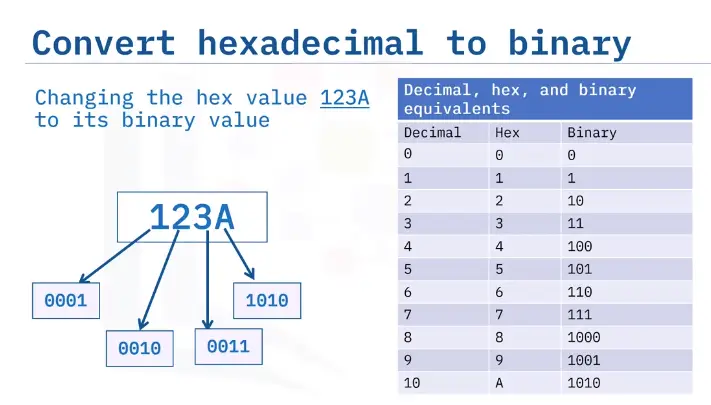
How to Count in Binary?
256
128
64
28
16
8
4
2
unit(0,1)
Decimal System
0
0
1
1
1
0
2
1
1
3
1
0
0
4
1
0
1
5
1
1
0
6
1
1
1
7
1
0
0
0
8
1
0
0
1
9
1
0
1
0
10
Computer Architecture layer
Abstraction
“To take a relatively complex system and simplify it for our use.”
We don’t interact with the computers in the form of 0s and 1s (we actually do), instead an abstraction layer like, keyboard, mouse, error messages instead of showing a bunch of machine code etc.
Software layer
How we as human interact with our computer.
User
User interacts with a computer. One can operate, maintain, and even program the computer.
Introduction to Computer Hardware
Desktops Computers
They are just computers that can fit on or under our desks.
The following are components of a desktop:
Monitor
Keyboard
Mouse
Desktop
Laptops
They have all the components baked-in inside a single chassis.
Ports
To extend the functionality of a computer, we can plug devices into connection points on it.
CPU (Central Processing Unit)
The brain of our computer, it does all the calculations and data processing.
RAM (Random Access Memory)
Our computer’s short-term memory.
Hard Drive
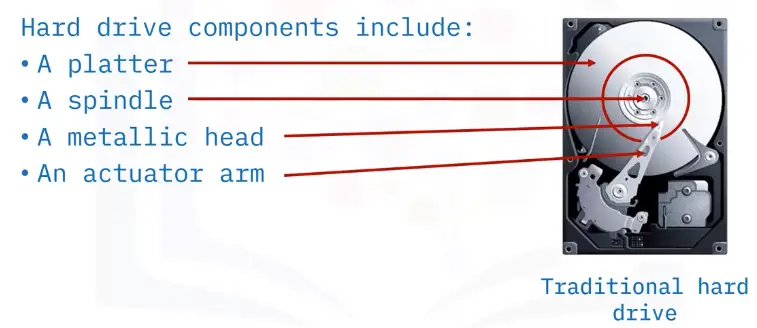
Holds all of our data, which includes all of our music, pictures, applications.
Motherboard
The body or circulatory system of the computer that connects all the pieces together.
It holds everything in place, and lets our components communicate with each other. It’s the foundation of our computer.
Power Supply
It converts the wall power supply to the format which our computer can use.
Programs and Hardware
Programs
Instructions that tell the computer what to do.
Hardware
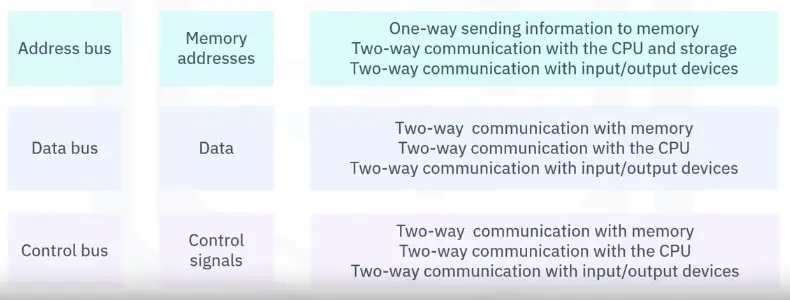
External Data Bus (EDB)/Address Bus
-The instruction travel between CPU and RAM through EDB.
Registers
They let us store the data that our CPU works with.
Memory Controller Chip
The MCC is a bridge between the CPU and the RAM.
The MCC grabs the Data from the RAM and sends it through the EDB
Cache
CPU also uses cache. Cache is smaller than RAM, but it let us store data that we use often.
Cache levels: There are three different level of cache in a CPU
L1 L1 is the smallest and the fastest cache.
L2
L3
Wire Clock:
How does our CPU know when the set of instruction ends, and a new one begins. Here comes the Wire Clock in play.
“When you send or receive data, it sends a voltage to that clock wire to let the CPU know it can start doing calculations.”
Clock Cycle:
When you send a voltage to the clock wire, it is referred to as a clock cycle.
Clock Speed:
The maximum number of clock cycles that it can handle in a certain time period.
Over-clocking:
There are ways to increase the clock speed of the CPU, called over-clocking. It increases the rate of your CPU clock cycles in order to perform more tasks.
Overclocking can increase the performance of low-end CPUs, but it has certain cons attached to it, like overheating, more power usage etc
It can lower CPU lifespan as you’re pushing it limits
Increased power and heat will degrade most PC components faster
Components
CPU
Instruction Set
Literally, a list of instructions that our CPU is able to run.
Adding
subtracting
copying data
When you select your CPU, you’ll need to make sure it’s compatible with your motherboard & the circuit board that connects all your components together.
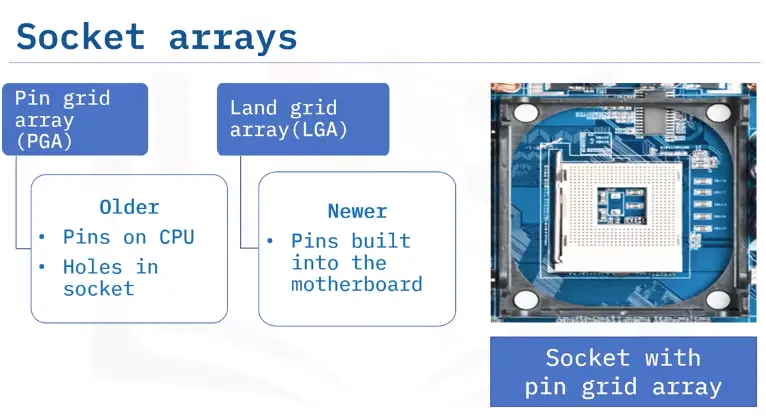
CPU Socket Types
Land grid array (LGA)
pins stick out of the motherboard
pin grid array (PGA)
pins are located on the processor itself
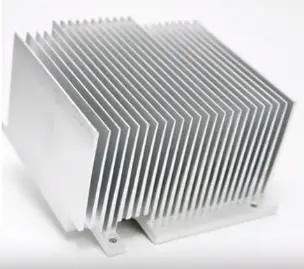
Heat Sink
To cool down CPU, attached with a cooler fan.
RAM
There are lost of types of RAM, and the one that’s commonly found in computers is DRAM, or dynamic random-access memory.
There are also different types of memory sticks that DRAM chips can be put on. The more modern DIMM stick, which usually stand for Dual Inline Memory Module, have different sizes of pins on them.
SDRAM:
Stands for synchronous DRAM. This type of RAM is synchronized with our systems’; clock speed, allowing quicker processing of data.
DDR SDRAM:
In today’s system, we use another type of RAM, called the double data rate SDRAM or DDR SDRAM for short.
DDR1
DDR2
DDR3
DDR4
Just like the CPU, make sure your RAM module is compatible with your motherboard.
Motherboards
Every motherboard has few characteristics:
Chipset
A chipset is a key component of our motherboard that allows us to manage data between our CPU, RAM, and peripherals.
It decides how components talk to each other on our machine:
Northbridge:
It interconnects stuff like RAM and video cards. In some CPUs, northbridge directly baked into the CPU itself.
Southbridge:
It maintains our IO or input/output controllers, like hard drives and USB devices that input and output data.
Peripherals
External devices we connect to our computer, like a mouse, keyboard, and monitor.
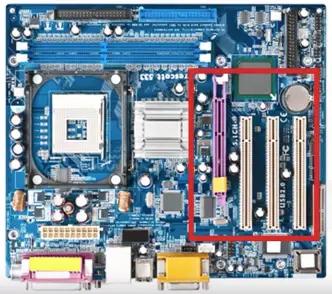
Expansion Slots
Give us the ability to increase the functionality of our computer.
The standard for peripheral slot today is PCI Express or Peripheral Component Interconnect Express.
Form Factor
There are different sizes of motherboards available in market toady.
Form factor plays an important role in the choice of PCIes
You don’t want to respond to a ticked without knowing that a customer bought a GPU which doesn’t fit in the PCIe slot.
ATX (Advanced Technology eXtended)
In desktops, you’ll commonly see full sized ATX’s
ITX (Information Technology eXtended)
These are much smaller than ATX board, for example Intel NUC uses a variation of ITX, which comes in three form factors: 1) mini-ITX 2) nano-ITX 3) pico-ITX
Storage
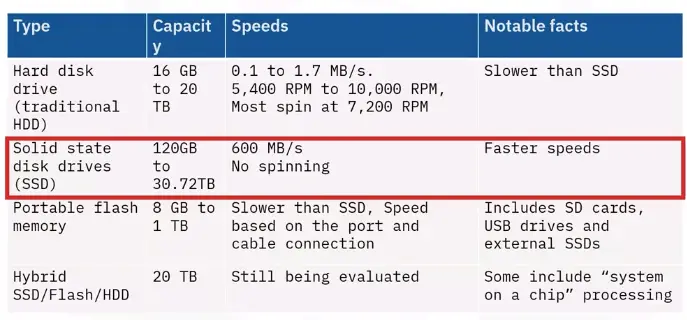
HDD (Hard disk drive)
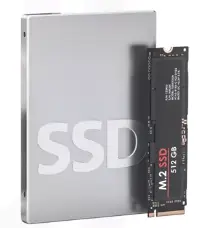
SDD (solid state drive)
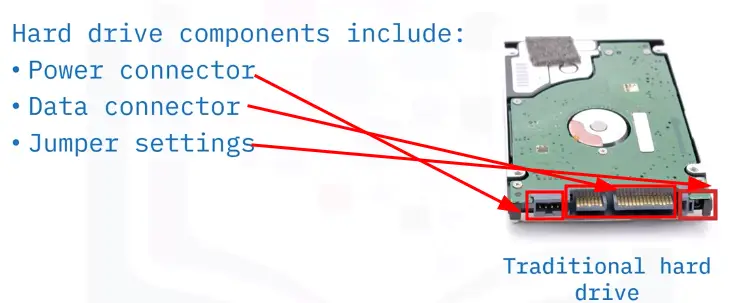
There are few interfaces that hard drive use to connect our system:
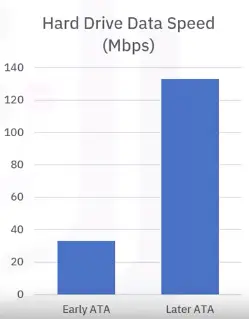
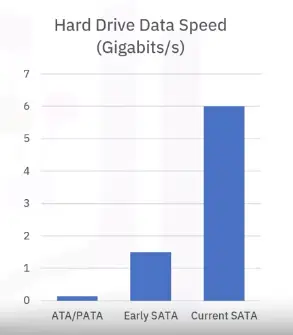
ATA ; the most common ATA is serial ATA or SATA
SATA drive are hot swappable, meaning you don’t need to turn off your computer to swap them
The interface couldn’t keep with speeds of newer SSDs
NVM Express or NVMe are used for more modern SSDs and reduces the pitfalls of SATA
kilobyte
The kilobyte is a multiple of the unit byte for digital information.
In base 10, one kilobyte is 1000 bytes
In base 2, one kilobyte is 1024 bytes
Power Supplies
It converts the AC we get from the wall into low voltage DC that we can use and transmit throughout our computer.
Power supplies have the following components:
chassis
fan
I/O cables
power cable
Voltage
Be sure to use proper voltage for your electronics
Ampere
An ampere, often abbreviated as “A,” is the unit of electric current in the International System of Units (SI). Electric current is the flow of electric charge through a conductor, such as a wire. One ampere is defined as the amount of current that flows when one coulomb of electric charge passes through a given point in a circuit per second.
In equation form, it can be expressed as:
$$ 1A = 1C/s $$
This means that if a current of 1 ampere is flowing in a circuit, it indicates that 1 coulomb of charge is passing through a particular point in the circuit every second.
Wattage
The amount of volts and amps that a device needs.
All kinds of issues are caused by bad power supply, sometimes the computer doesn’t even turn on.
Power supplies can fail for lots of reasons like burnouts, power surge, or even lightning strikes.
Mobile Devices
Mobile devices are a computer too. They have:
CPUs
RAM
Storage
Power systems
Peripherals
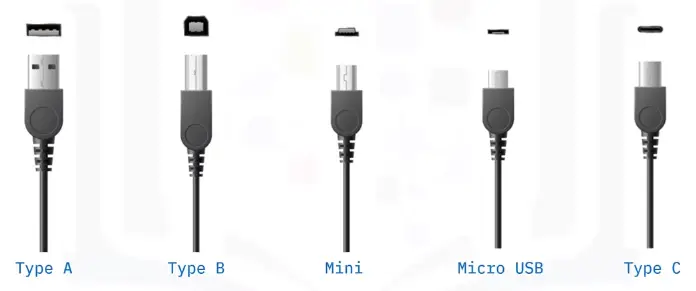
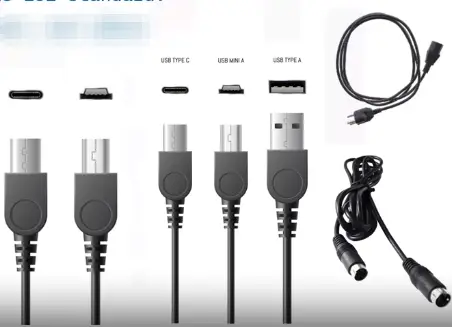
Mobiles devices can use peripherals too, like headset, micro-USB, USB-C, and lightening USB etc.
Mobiles devices can themselves be the peripherals, like Smart-watch, fitness band etc.
Very small mobile devices uses system-on-chip or SoC
System on a Chip (SoC)
Packs the CPU, RAM, and sometimes even the storage onto a single chip
Batteries and Charging Systems
Battery can be charged via wireless pads or cradle
Rechargeable batteries have limited life span measured in charge cycle
Components require to charge batteries:
Charger
PSU or power supply unit to control power flow
Wall outlet
or Solar panel etc
Charge Cycle
One full charge and discharge of a battery.
Peripherals
Anything that you connect to your computer externally that add functionality
Examples:
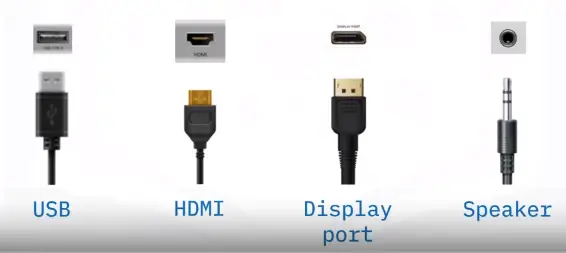
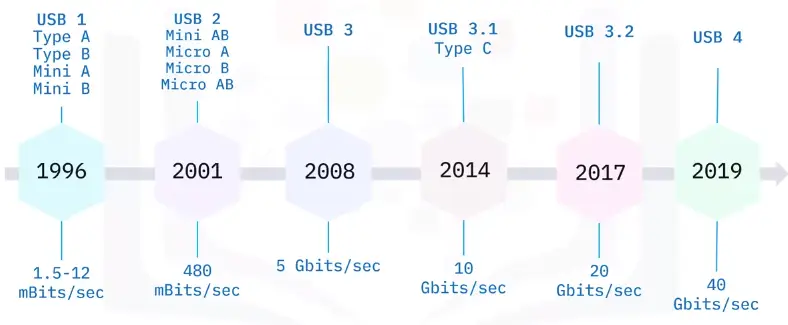
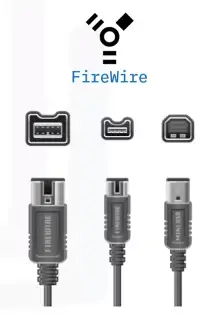
Universal serial bus USB
USB 2.0 – transfer speeds of 480 Mb/s
USB 3.0 – transfer speeds of 5 Gb/s
USB 3.1 – transfer speeds of 10 Gb/s
USB 4 – transfer speed of 40 Gb/s
Difference of MB and Mb/s:
MB is a megabyte, unit of data storage, while Mb/s is a megabit per second, which is a unit of data transfer rate.
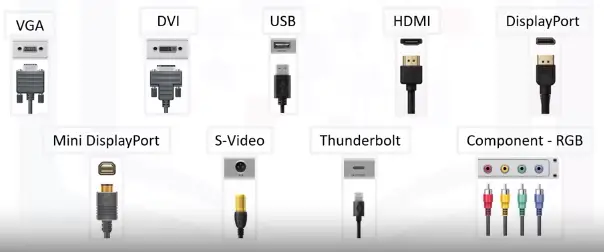
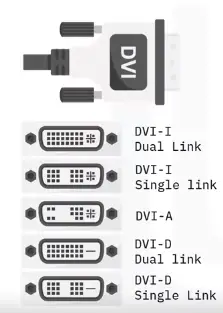
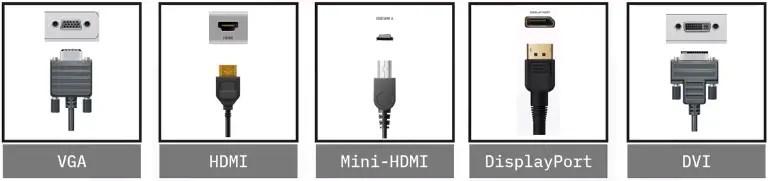
DVI:
It is generally used for video output, like slide presentation, but for audio you’re out of luck
HDMI:
Have audio and video output
Display Port:
Also outputs audio and video
Type C connector:
It can do power and data transfer
Projector
Projectors are display devices for when you need to share information with people in the same location! Most projectors can be used just like any other display on a computer, and with a few differences, can be troubleshot just like any other display device. For example, projectors can have dead or stuck pixels, and can acquire image burn-in, just like other types of displays.
Starting it Up
BIOS
Our CPU doesn’t know that there is a device that it can talk to, so it has to connect to something called the BIOS
The BIOS is software that helps initialize the hardware in our computer and gets our operating system up and running.
It performs the following functions:
Initialize hardware
POST or power on self test
Checks what devices are connected to the computer
The BIOS can be stored on the motherboard in the following components:
ROM or read only memory
More modern systems use UEFI stands for Unified Extensible Firmware Interface
Eventually, UEFI will become the predominant BIOS
Drivers
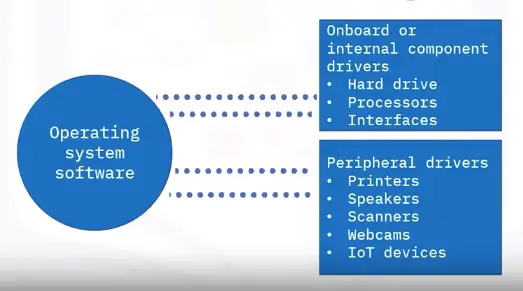
They contain the instructions our CPU needs to understand external devices like keyboards, webcams, printers.
Power ON Self Test or POST
When the computer starts it runs systems checks from time to time, refer to as POST.
CMOS Battery
It stores basic data about booting your computer like the date, time and how you wanted to start up.
Reimaging
A frequently performed IT task is the reimaging of a computer.
It refers to a disk image which a copy of an operating system, the process involves wiping and reinstalling an operating system.
The following devices can be used for reimaging:
USB stick
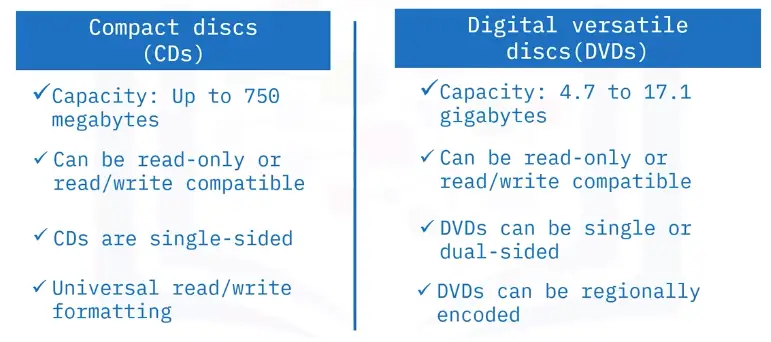
CD/DVD
Server accessible through the network
Putting all together
To build a PC, we need to take care of certain things:
prevent static charge
To avoid, static discharge, you can touch two devices you plugged in but not powered on from time to time
or wear an anti-static wristband
Building Steps
Motherboard: match up holes on motherboard with holes on the desktop
CPU: match CPU pointers alignment on the motherboard, don’t forget to buy compatible motherboard and CPU
Heat-sink: Before attaching on, we need to put even amount of thermal paste on your CPU
Plug molex connector (on Heat sink) to the motherboard to control fan speed
Install RAM sticks on motherboard, line up the pins correctly
Hard Drive: One SATA cable to connect SSD to mother board
Make sure you connect the SATA power to the SSD
Case Fans: Check for label on motherboard which says rear fans
Power Supply: secure it in the case, big pin power the mother board, other for SATA I/O, 8 pin will power the CPU
Plug the cable lying in the case to the mother board, used for buttons, lights etc
Fastens the cables
GPU: plug in PCIe slot
Closed the case
Turn it on plugging it to the monitor, keyboard, mouse, and power outlet.
Mobile Device Repair
Know and understand RMA or return merchandise authorization
Do a factory reset before sending it off-site repair
Before the doing reset inform the end user for possible outcomes of losing all the data
Factory Reset
Removes all data, apps, and customization from the device.
Operating Systems
What is an OS?
An operating system (OS) is software that manages computer hardware and facilitates communication between applications and the underlying hardware. It oversees processes, allocating resources like CPU and memory, and provides a file system for data organization. The OS interacts with input/output devices and often includes a user interface for human-computer interaction. It ensures security through features like user authentication and access control. Examples include Windows, macOS, Linux, and mobile OS like Android and iOS. The OS is a fundamental component that enables the proper functioning of computers and devices.
Remote Connection and SSH
Remote Connection
Allows us to manage multiple machines from anywhere in the world.
Secure Shell (SSH)
A protocol implemented by other programs to securely access one computer from another.
Popular software to work with SSH, on Linux, OpenSSH program, while on Windows, PuTTY is used.
In SSH, a pair of public and private keys is used to authenticate the process.
To securely connect to a remote machine, a VPN is used.
VPN
Allows you to connect to a private network, like your work network, over the Internet.
Remote Connections on Windows
PuTTY
A free, open source software that you can use to make remote connections through several network protocols, including SSH.
DOING PuTTY can be used from CL, as putty.exe & ssh user@ip\<address>
PuTTY comes with a Plink or PuTTYlink program, which can also be used for SSH-ing to other computers.
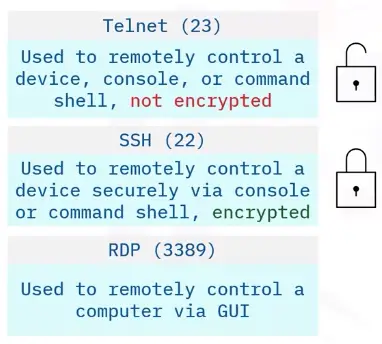
Microsoft provides another way to remotely connect with Windows computer via GUI, called Remote Desktop Protocol (RDP).
Components of an Operating System
Operating System
The whole package that manages our computer’s resources and lets us interact with it.
Two main parts
Kernel: Storage and file management, processes, memory control, I/O management
User Space: Everything out of the scope of the Kernel, like application, CLI tools etc
Files and File Systems
File storage include three things:
Data
File handling
Metadata
Block Storage
Improves faster handling of data because the data is not stored as one long piece and can be accessed quicker.
Process Management
Process
A program that is executing, like our internet browser or text editor.
Program
An application that we can run, like Chrome.
Time slice
A very short interval of time, that gets allocated to a process for CPU execution.
Role of Kernel
Create processes
efficiently schedules them
Manages how processes are terminated
Memory Management
Virtual Memory
The combination of hard drive space and RAM that acts like memory that our processes can use.
Swap Space
Allocated Space for virtual memory.
I/O Management
Kernel does Input/Output devices by managing their intercommunicating and resource management etc.
Interacting with the OS: User Space
Two ways to interact with the OS
Shell
A program that interprets text commands and sends them to the OS to execute.
GUI
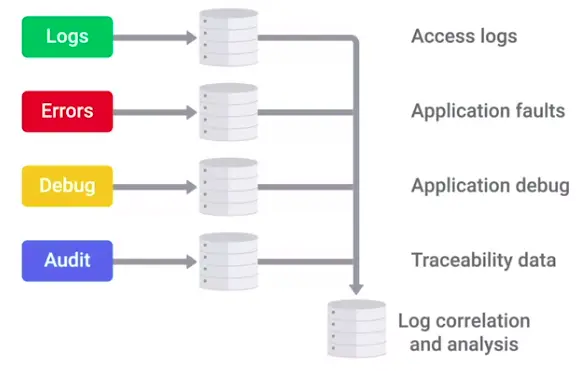
Logs
Files that record system events on our computer, just like a system’s diary.
The Boot Process
The computer boots in the following order.
BIOS/UEFI
A low-level software that initializes our computer’s hardware to make sure everything is good to go.
POST
Power on Self Test (POST) is performed to make sure the computer is in proper working order.
Bootloader
A small program that loads the OS.
Kernel
System Processes
User Space
Networking
Physical Layer
This layer describes that how devices connect to each other at the physical level. On this level, twisted-pair cables and duplexing is used.
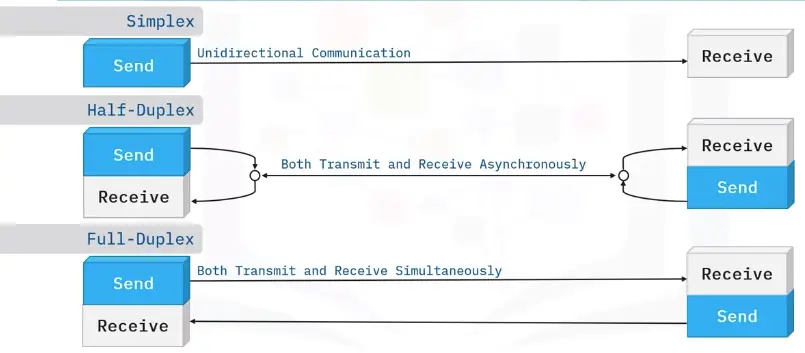
Duplex communication has two types;
Half-duplex: Communication is possible only in one direction at a time.
Full-Duplex/Duplex: The information can flow in the both direction at the same time.
The information travels in the form of bits in the Physical layer.
Data link Layer
Responsible for defining a common way of interpreting signals coming from the physical layer, so network devices can communicate with each other.
It consists of following protocols;
Wi-Fi
Ethernet
The data sent in this layer in the form of frames. We can identify devices working at the Physical layer by their MAC addresses.
Network Layer
This layer corresponds to the combination of Data Link Layer and Physical Layer of OSI Model. It looks out for hardware addressing and the protocols present in this layer allows for the physical transmission of data.
This layer includes
IP addressing
Encapsulation
The unit of data in the network layer is datagram.
Transport Layer
Transport layer is the second layer in TCP/IP model. It is an end-to-end layer used to deliver messages to a host. It is termed an end-to-end layer because it provides a point-to-point connection rather of hop-to-hop, between the source host and destination host to deliver the services reliably. The unit of data in the transport layer is a segment.
Multiplexing and Demultiplexing
Multiplexing allows simultaneous use of different applications over a network that is running on a host. The transport layer provides this mechanism, which enables us to send packet streams from various applications simultaneously over a network. The transport layer accepts these packets from different processes, differentiated by their port numbers, and passes them to the network layer after adding proper headers. Similarly, Demultiplexing is required at the receiver side to obtain the data coming from various processes. Transport receives the segments of the data from the network layer and delivers it to the appropriate process running of the receivers’ machine.
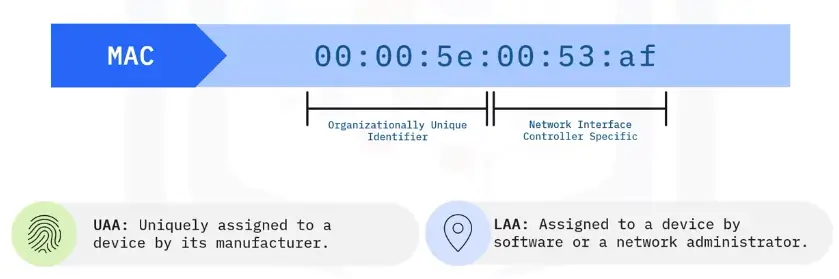
MAC Address
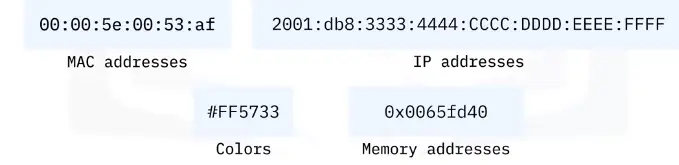
A globally unique identifier attached to the individual network interfaces. It is a 48-bits number, normally represented by 6 groups of 2 hexadecimal numbers.
MAC addresses split up into two categories;
1) Organizationally Unique Identifier (UIO):
The first three groups represent the UIO of the device, which is unique to every organization issuing it. I.e., for Cisco, UIO is 00 60 2F.
2) Vendor Assigned(NIC Cards, interfaces):
The last three octets are assigned by the vendor, depending upon their preferences. Which tells us about that particular device it’s assigned for.
IP Address
An IP address, or Internet Protocol address, is a series of numbers that identifies any device on a network. Computers use IP addresses to communicate with each other, both over the internet and on other networks.
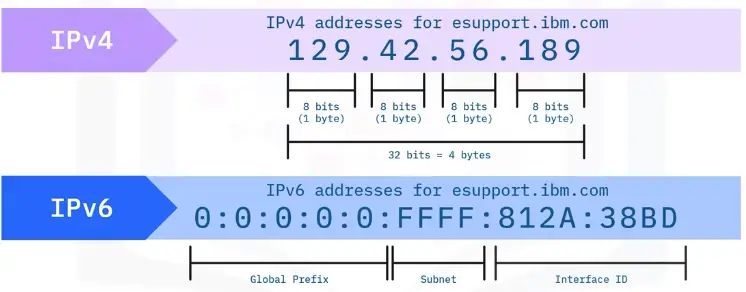
An IP address consists of 4 octets of 8 bits, so it has 32-bits in total. There are two types of IP addresses;
1) IPv4 address
IPv4 addresses consist of 4 octets of decimal numbers, each octet range from 0-255. There are only 4 billion IPv4 addresses to use for us, so we need some other way to assign IPs to the devices to overcome the shortage of IP addresses.
IPv4 addresses are further divided into three major classes;
a) Class-A Addresses: These have only the first octet for network ID, and the rest for the host IDs.
b) Class-B Addresses: These have the first 2 octets for network IDs, and the rest for the host IDs.
c) Class-C addresses: These have first 3 octets for Network IDs, and the only last one for host IDs.
2) IPv6 Addresses
IPv6 addresses has 132-bit of hexadecimal numbers, it has 2^128 IP addresses, which solves our problem of IP address shortage.
TCP Port
A 16-bit number that’s used to direct traffic to specific services running on a networked computer.
There are almost, 65535 ports available to use which are categorized as follows;
Port 0 used for internal traffic between different programs on the same computer.
Ports 1-1024 are called system ports or well known ports. These are used for some well known services such HTTP, FTP, SMTP and require admin level privileges for the port to be accessed.
Ports 1025-49151 are called registered ports. They are used for the services not well known as used by system ports. They don’t require admin level access for the port to be accessed.
Ports 49152-65535 are called ephemeral ports. They are used for establishing outbound connections.
Checksum Check
A checksum is a value that represents the number of bits in a transmission message and is used by IT professionals to detect high-level errors within data transmission.
The common algorithm used for checksum is MD5, SHA-2 etc
Routing Table
A routing table is a set of rules, often viewed in table format, that is used to determine where data packets traveling over an Internet Protocol (IP) network will be directed. All IP-enabled devices, including routers and switches, use routing tables.
Destination
Subnet mask
Interface
128.75.43.0
255.255.255.0
Eth0
128.75.43.0
255.255.255.128
Eth1
192.12.17.5
255.255.255.255
Eth3
default
Eth2
Entries of an IP Routing Table:
A routing table contains the information necessary to forward a packet along the best path toward its destination. Each packet contains information about its origin and destination. The routing table provides the device with instructions for sending the packet to the next hop on its route across the network.
Each Entry in the routing table consists of the following route.
1) Network ID:
The network ID or destination corresponding to the route.
2) Subnet Mask:
The mask that is used to match a destination IP address to the network ID.
3) Next Hop:
The IP address to which the packet is forwarded.
4) Outgoing Interface:
Outgoing interface the packet should go out to reach the destination network.
5) Metric:
A common use of the metric is to indicate the minimum number of hops (routers crossed) to the network ID.
Routing table entries can be used to store the following types of routes:
Directly Attached Network IDs
Remote Network IDs
Host Routes
Default Routes
Destination
TTL
Time-to-live (TTL) in networking refers to the time limit imposed on the data packet to be in-networking before being discarded. It is an 8-bit binary value set in the header of Internet Protocol (IP) by sending the host. The Purpose of a TTL is to prevent data packets from being circulated forever in the network. The maximum TTL value is 255, while the commonly used one is 64.
What is Software?
Coding
Translating one language to another.
Scripting
Coding in a scripting language.
Scripts
Mainly used to perform a single or limited range task.
Programming
Coding in a programming language.
Programming Languages
Special languages that software developers use to write instructions for computers to execute.
Types of Software
Commercial Software
Open-source Software
Application Software
Any software created to fulfill a specific need, like a text editor, web browser, or graphic editor.
System Software
Software used to keep our core system running, like OS tools and utilities.
Firmware
Software that is permanently stored on a computer component.
Revisiting abstraction
The concept of taking a complex system and simplifying it for use.
Recipe for Computer
Assembly language
Allowed computer scientists to use human-readable instructions, assembled into code, that the machine could understand.
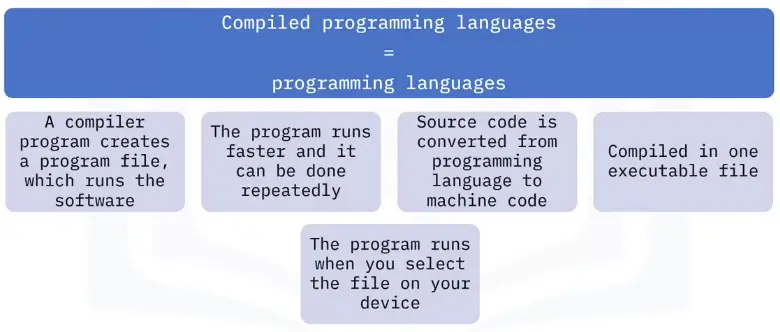
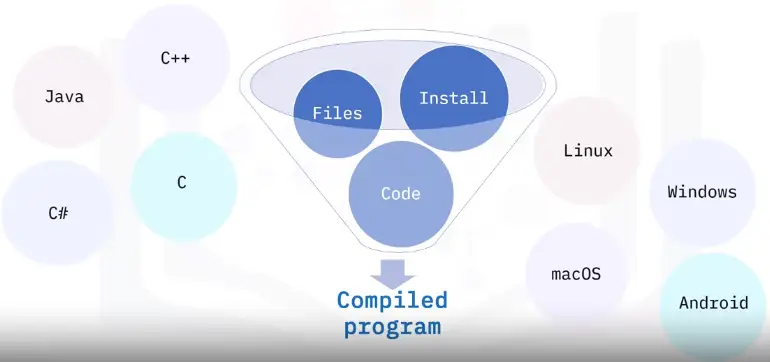
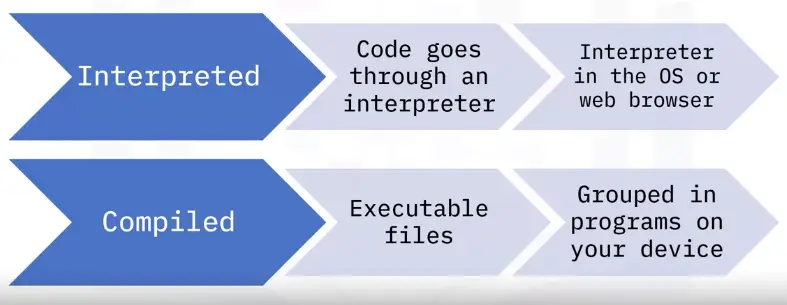
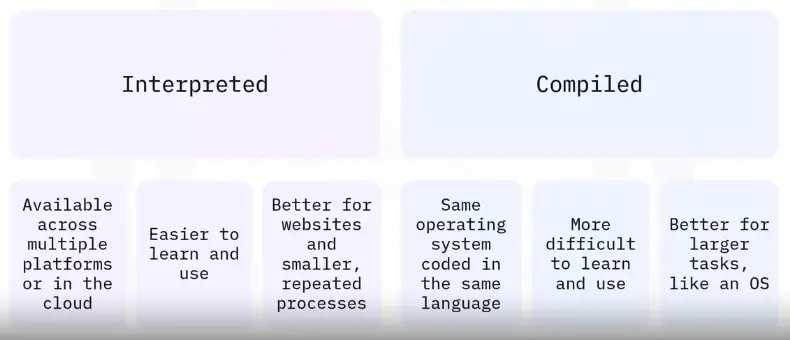
Compiled programming languages
Uses human-readable instructions, then sends them through a compiler.
Interpreted programming languages
The script is run by an interpreter, which interprets the code into CPU instructions just in time to run them.
Troubleshooting Best Practices
1) Ask Questions
Ask good questions to get more information about the problem.
IT Support is about working in the service of others. Always try to create a positive experience for the user.
2) Isolating the Problem
Shrink the scope of the Problem by asking good questions and looking at root cause.
3) Follow the Cookie Crumbs
Go back to the time when the issue started.
Look at the logs at time of crash.
Start with the Quickest Step First
4) Troubleshooting Pitfalls to Avoid
Going into autopilot mode.
Not finding the Root Cause.
Troubleshooting
The ability to diagnose and resolve an issue.
Root Cause
The main factor that is causing a range of issues.
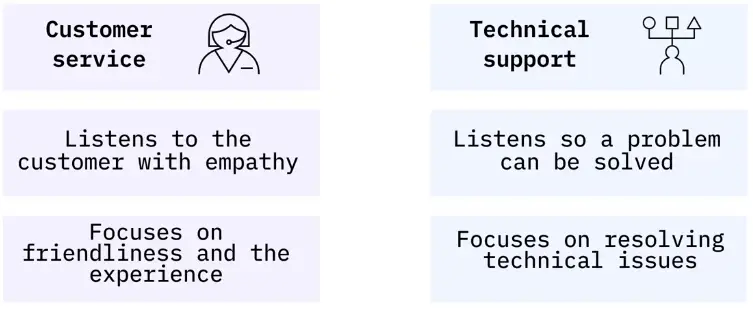
Customer Service
Intro to Soft Skills
Build the trust between you and the User.
Know the Company Policies about handling support request.
Following are some important features for IT Support.
Exhibiting empathy
Being conscious of your tone
Acknowledge the Person
Developing the trust
Anatomy of an Interaction
Learn to say “Hello” in a friendly way.
Good grammar during text/email support.
Just be professional, acknowledge the user, and show them some respect.
Respond to User Questions nicely.
Just clarify the issue beforehand while going for troubleshooting steps.
During a remote support session, tell the user when you are running certain commands.
The last five minutes of the process set the overall impact, so end on positive terms with the user.
How to Deal with Difficult Situations
What you face a difficult situation, relax, and think about what went wrong? How are you feeling? What was your reaction? Why did you raise your voice? Discuss with your peers the situation and get their feedback.
Try to be alerted, when interaction goes sideways, and redirect the conversation.
Try to see things from others people’s point of view.
Documentation
Ticketing Systems and Documenting Your Work
Some ticketing systems help track the user issues.
Bugzilla
JIRA
Redmine
Using the ticketing system and documentation is important for two reasons.
It keeps the user in the loop.
It helps you audit your steps in case you need to go back and see what you did.
Tickets
A common way of documenting an issue.
Bugs
Issues with the system that weren’t caused by an external source.
System and processes are always changing, so should your documentation.
Always write documentation that is easy to read and follow for your user.
Getting Through a Technical Interview
Standing Out from the Crowd
Make sure you have a good and updated online presence and fine-grained resume to stand out from the crowd.
Research about the company you are applying for.
Resume
Your resume is your first introduction to a new company.
If you are a new graduate, or are still studying, you’ll want to include a few additional details, like interesting projects that you did during your studying or highlight an elective subject that you took. After a few years of professional experience, though, you may simply include the degree, year, and location.
Functional or skill based resume format works fresh graduates or candidates with limited work experience: The focus of this format is more around your skill set, rather than your work experience. You can include a brief summary of qualifications, followed by a list of skills with examples for each. This format works well for candidates with less employment history, but lots of applicable skills.
For relevant skills. You want to include the general topics that you are knowledgeable about, as in customer support, networking, system administration, programming, etc. You may list the Operating Systems that you’ve worked with and the programming languages that you are skilled in, but don’t try to list every networking protocol you’ve heard about or every IT tool that you’ve ever used. The noise distracts from the relevant information.
Regardless of the format you decide to use (chronological, functional, etc.), make sure you keep the format and structure consistent throughout. For example, if you use full sentences for your bullets, be sure to use that format for all of them and include proper punctuation and grammar. Check your font sizes and styles to ensure those are consistent as well.
Tailoring the resume
Good practice to check if your resume match with the job description.
Tailor your resume to each job you are applying for.
Add your relevant experience for the job, no matter where you got if from.
Your online Presence
Keep your linked-in and other social media up-to-date
Writing a summary that tell both your current role (if applicable) and your career aspiration.
LinkedIn profiles are much more in depth than resumes. You can include specific accomplishments from as many roles as you like, but use the same format as your resume (Action Verb + specific task + quantifiable point).
Adding in personal projects can also be helpful, especially if you have something tangible to show from it. For example, if you’ve created an application, a website, or similar type of product as part of a hobby or school project, include it and provide a link to it.
Just like a resume, list your skills, your experience and what you are looking for as your next step. Make sure that you include all the relevant background information that a recruiter looking at your profile might be interested in. Make sure you are descriptive, don’t assume the reader will have context.
Getting Ready for the Interview
Mock Interview: Pretending that you are in an interview, even if it is not real, will help you perform your best.
Practice to explain ideas for non-technical audience will make you better equipped for an interview.
Actively listen to the other person, maintaining eye-contact. Ask relevant questions.
Don’t try to memorize the answers, just try to practice with different conceptual approaches to get better at explaining stuff.
You can memorize your Elevator Pitch.
Elevator Pitch
A short summary of who you are and what kind of career you are looking for.
Creating Your Elevator Pitch
An elevator pitch is a short description of yourself. The name comes from the fact that you want it to be so short that you can deliver it to someone that you are meeting in an elevator ride.
The goal of the elevator pitch is to explain who you are, what you do, and why the other person should be interested in you.
In an interviewing context, you want to be able to quickly define who you are, what your current role is and what your future goals are.
Remember that you want to keep it personal, you want to get the attention of the other person and let them know why they are interested in you.
Examples
1) If you are a student, you will want to include what and where you are studying, and what you are looking to do once you have graduated.
Hi! I’m Jamie, I’m in my senior year at Springfield University, studying Computer Science. I enjoy being able to help people and solve problems, so I’m looking forward to putting my tech skills into practice by working as an IT Support Specialist after I graduate.
2) If you already have a job, looking for a change. You will include what you do and what different you are looking for.
Hi! I’m Ellis, I’ve been working at X Company as an IT Support Specialist for the past two years. During those years, I’ve learned a lot about operating systems and networking, and I’m looking to switch to a system administrator position, where I can focus on large scale deployments.
What to Expect During the Technical Interview
A good Interviewer may push you to the limits of your knowledge.
If you don’t know the answer, don’t say just say, I don’t know; Rather explain how would you solve it by going around it.
Having a good problem-solving strategy is more important than knowing all the answers.
If the question is a bit complex, think out loud to keep the interviewer on your thought train, and before going straight into the solution, break into pieces.
When you mention concepts or technologies, you should be ready to explain them and articulate why you may choose one thing over another.
It is OK, and even expected, to ask the interviewer follow-up questions to ensure that the problem is correctly framed.
Take notes when an issue involves many steps, but don’t feel the necessity to write everything during an interview.
Showing Your Best Self During the Interview
Take a good sleep at night.
Don’t try to cram information at the last minute.
Ask for pen and paper for notes during an interview.
Be sure to fully present for the duration of the interview.
Be yourself.
Ask questions about the things that you care about.
Remember to slow down.
The Bits and Bytes of Computer Networking
This course delves deep into computer networking and transport layers.
The physical connection of computers and wires around the world.
The Web
The information present on the Internet.
Networking
In an IT field, managing, building, and designing networks.
Networking Hardware
Ethernet Cables
Wi-Fi
Fiber Optics
Router
ISP Network
Switches and Hubs
Network Stack
A set of hardware or software that provides the infrastructure for a computer.
Language of the Internet
IP
Delivers packets to right computers.
TCP
Delivers information from one network to another.
The Web
URL
Domain Name (registered with ICANN: internet corporation for assigned names and numbers)
DNS
Limitations of the Internet
History of the Internet
1960s DARPA project introduced with the earliest form of Internet called ARPANET.
1970s invention of TCP/IP made possible the interconnection of computers and different networks.
1990s was the start of World Wide Web (WWW).
Limitations of the Internet
IPV4 addresses are limited, only >4 billion.
IPV6 addresses solve this problem with 2128 addresses, but adaptation is slow and expensive.
Network Address Translation (NAT)
Lets an organization use one public IP address and many private IP addresses within the network.
Impact of the Internet
Globalization
The movement that lets governments, businesses, and organizations communicate and integrate together on an international scale.
Internet of Things (IOT)
Smart devices like thermostat, refrigerators, and other home appliances as well as every day smart devices which are being connected to the internet thanks to the IOT.
Privacy and Security
GDPR (General Data Protection Regulation)
COPPA (Children Online Privacy Protection Act)
Copyright Laws
Introduction to Computer Networking
Protocol
A defined set of standards that computers must follow in order to communicate properly.
Computer Networking
The name we’ve given to the full scope of how computer communicate with each other.
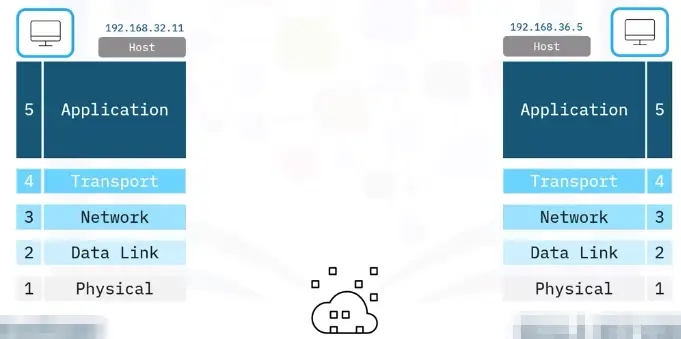
TCP/IP five layered network model
The Basics of Networking Devices
Cables
“Connect different devices to each other, allowing data to be transmitted over them.”
Copper Cables
Change voltage to get binary data
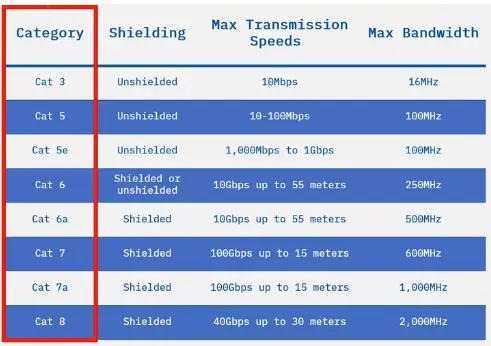
The most common forms of copper twisted-pair cables used in networking are Cat5, Cat5e, and Cat6 cables
Crosstalk: “When an electrical pulse on one wire is accidentally detected on another wire.”
Fiber Optic Cables
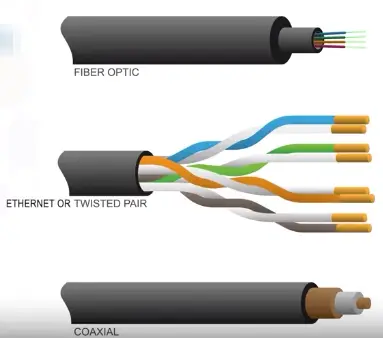
Contain individual optical fibers, which are tiny tubes made out of glass about the width of a human hair.
Unlike copper cables, fibers use light pulses to send 1s and 0s
Hubs and Switches
Hub
A physical layer device that allows for connections from many computers at once.
Layer 1 device
Collision domain: A network segment where only one device can communicate at a time.
If multiple systems try sending data at the same time, the electrical pulses sent across the cable can interfere with each other.
Network Switch
Layer 2 device
Can direct traffic to a particular node on network, so reduces Collision Domain
Routers
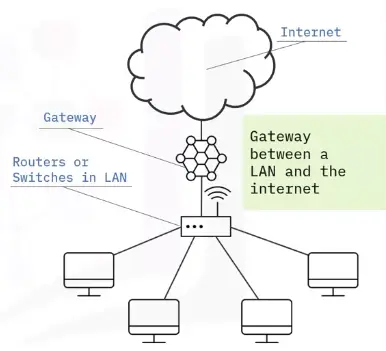
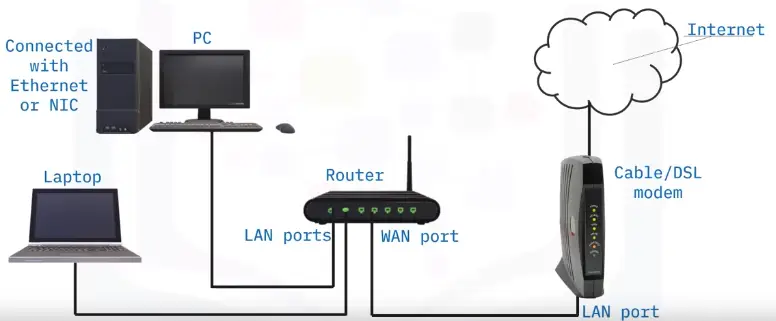
The primary devices used to connect computers on a single network, usually referred to as a LAN or local area network
A device that knows how to forward data between independent networks
Layer 3 (network) device
Core ISP routers (More complex than home routers) form the backbone of the internet.
Servers and Clients
Server Provide data to some client, requesting it
Vague definition, as individual programs running on the computer can also act a server
The TCP/IP Five-Layer Network Model
1) Physical Layer
Represents the physical devices that interconnect computers.
10 Base T, 802.11
Bits
The smallest representation of data that a computer can understand; it’s a one or zero
1s and 0s are sent across the network using modulation
Modulation: A way of varying the voltage of charge moving across the cables
When using modulation in computer networks, it’s called Line coding
Twisted-Pair Cabling and Duplexing
Most common
Twisted-Pair to avoid interference & crosstalk
Duplex Communication: The concept that information can flow in both directions across the globe
Simplex Communication: This is unidirectional
Network Ports and Patch Panels
Twisted-Pair Cables end with the plug which takes the wires and act as a connector
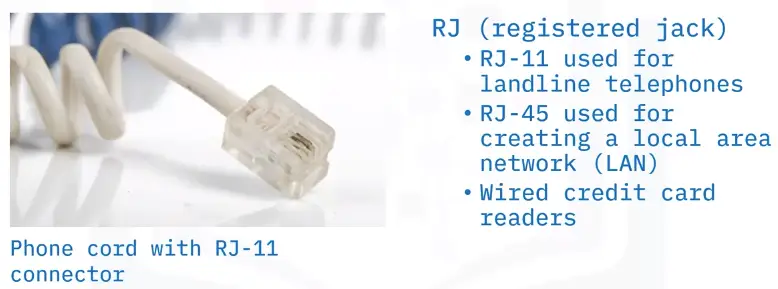
The most common plug RJ45
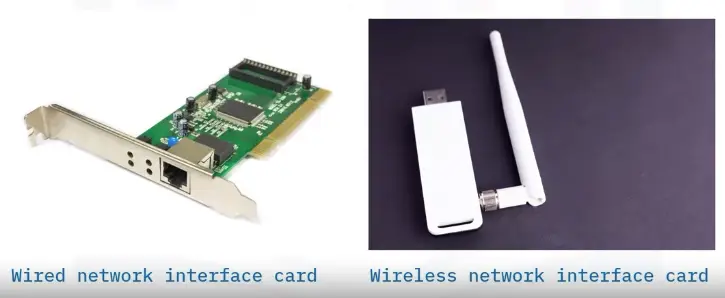
Network Ports: They are generally directly attached to the devices that make up a computer network
Most network ports have two small LEDs
Activity LED: Would flash when data actively transmitted across the cable
Link LED: Lit when cable properly connected to two devices that are both powered on
Sometimes a network port isn’t connected directly to a device.
Instead, there might be network ports mounted on a wall or underneath your desk.
These ports are generally connected to the network via cables,
run through the walls, that eventually end at a patch panel.
Patch Panel: A device containing many network ports. But it does no other work.
2) Data Link Layer
Responsible for defining a common way of interpreting these signals so network devices can communicate.
Ethernet: The Ethernet standards also define a protocol responsible for getting data to nodes on the same network.
WI-FI
Frames
Mac-Address
Ethernet and MAC Addresses
Ethernet is the most common means of sending data
Ethernet solves Collision domain by using a technique known as carrier sense multiple access with collision detection (CSMA/CD).
CSMA/CD: Used to determine when the communications channels are clear, and when device is free to transmit data
MAC Address: A globally unique identifier attached to an individual network interface
It’s a 48- bit number normally represented by six groupings of two hexadecimal numbers
Hexadecimal: A way to represent numbers using 16 digits
Another way to represent MAC Address is Octet
Octet: In computer networking, any number can be represented by 8 bits
MAC-Address is split in two categories
1) Organizationally Unique Identifier(OUI): The first three octets of a MAC address
2) Vendor Assigned(NIC Cards, Interfaces): Last three octets are assigned by the vendor, depending upon their preferences.
Ethernet uses MAC addresses to ensure that the data it sends has both an address for the machine that sent the transmission, and the one the transmission was intended for.
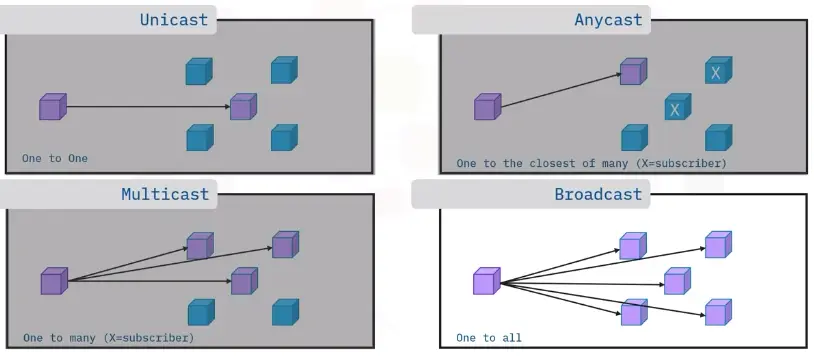
Uni-cast, Multicast and Broadcast
Uni-cast
A uni-cast transmission is always meant for just one receiving address
It’s done by looking at a specific bit in the destination MAC address
If the least significant bit in the first octet of a destination address is set to zero, it means that an Ethernet frame is intended for only the destination address.
If the least significant bit in the first octet of a destination address is set to one, it means you’re dealing with a Multicast frame.
Broadcast
An Ethernet Broadcast is sent to every single device on a LAN
This is accomplished by a special address known as Broadcast address
Ethernet broadcast are used, so devices can learn more about each other
Ethernet broadcast address used is FF:FF:FF:FF:FF:FF:FF
Dissecting an Ethernet Frame
Data Packet
An all-encompassing term that represents any single set of binary data being sent across a network link
Ethernet Frame
A highly structured collection of information presented in a specific order
The first part of an Ethernet frame is called a preamble.
Preamble: 8 bytes (or 64 bits) long, and can itself split into two sections
Preamble can split into two part of 1 byte of series of 1s and 0s
Last frame in preamble is called Start frame delimiter (SFD)
Signals to a receiving device that the preamble is over and that the actual frame contents will now follow
Next is Destination MAC address
The hardware address of the intended recipient
Followed by Source Address
The next part of Ethernet Frame is EtherType field
16 bits long and used to describe the protocol of the contents of the frame
WE can use VLAN header in place of EtherType field
Indicates that the frame itself is what’s called a VLAN frame
If a VLAN header is present, the EtherType field follows it.
Virtual LAN (VLAN): A technique that lets you have multiple logical LANs operating on the same physical equipment
VLANs, use to segregate different type of network traffic
The next part of Ether frame is payload
In networking terms, is the actual data being transported, which is everything that isn’t a header.
Following payload is, Frame Check Sequence (FCS)
A 4-byte (or 32-bit) number that represents a checksum value for the entire frame
This checksum value is calculated by performing what’s known as a cyclical redundancy check against the frame.
Cyclic Redundancy Check (CRC): An important concept for data integrity, and is used all over computing, not just network transmissions
3) Network Layer
Allows different networks to communicate with each other through devices known as routers.
IP: IP is the heart of the Internet and smaller networks around the world.
Datagram
IP Address
Inter-network
A collection of networks connected together through routers, the most famous of these being the Internet.
4) Transport Layer
Sorts out which client and server programs are supposed to get that data.
TCP/UDP
Segment
Ports
5) Application Layer
There are lots of different protocols at this layer, and as you might have guessed from the name, they are application-specific. Protocols used to allow you to browse the web or send, receive email are some common ones.
HTTP, SMTP etc.
Messages
The Network Layer
IP Addresses
32 bit long
4 octets describe in decimal number
Each octet range from 0 to 255
IP Addresses belong to Networks, not to the devices attached to those networks
When connecting to a network, an IP address is assigned automatically by Dynamic Host Configuration Protocol (DHCP)
IP address assigned by DHCP is called Dynamic IP address
Other type is static IP addresses
In most cases, static IP addresses are reserved for servers and networks devices, while Dynamic IP addresses are reserved for clients
IP Datagrams and Encapsulation
IP Datagram
A highly structured series of fields that are strictly defined.
IP Datagram Header
Version
IPv4 is more common than IPv6
Header Length field
Almost always 20 bytes in length when dealing with IPv4
Service Type field
These 8 bits can be used to specify details about quality of service, or QoS, technologies
Total Length field
Indicates the total length of the IP datagram it’s attached to
Identification field
A 16-bit number that’s used to group messages together
The maximum size of a single datagram is the largest number you can represent with 16 bits which is 65535
If the total amount of data that needs to be sent is larger than what can fit in a single datagram, the IP layer needs to split this data up into many individual packets
Next are closely related Flags and Fragment Offset fields
Flags field
Used to indicate if a datagram is allowed to be fragmented, or to indicate that the datagram has already been fragmented
Fragmentation
The process of taking a single IP datagram and splitting it up into several smaller datagrams
Time to Live (TTL) field
An 8-bit field that indicates how many router hops a datagram can transverse before it’s thrown away
Protocol field
Another 8-bit field that contains data about what transport layer protocol is being used, the most common ones are TCP and UDP
Header checksum field
A checksum of the contents of the entire IP datagram header
Source IP address (32-bits)
Destination IP address (32-bits)
IP Options field
An optional field and is used to set special characteristics for datagrams primarily used for testing purposes
Padding field
A series of zeros used to ensure the header is of correct total size, due to variable size to option field
Encapsulation
IP datagram is basically the payload section of network layer, the process involved is called Encapsulation.
Entire content IP datagram are encapsulated in the form of IP payload of 3rd layer
IP Address Classes
IP addresses can be split into two sections: the network ID and host ID
Address class system
A way defining how the global IP address space is split up.
Three Types of IP addresses, ClassA, ClassB, ClassC
ClassA
Only first octet is used for network ID, rest is used for host ID.
ClassB
Only the first two octets are used for network ID, the rest are used for host ID.
ClassC
First three octets used for network ID, the last one used for host ID.
Address Resolution Protocol (ARP)
A protocol used to discover the hardware address of a node with a certain IP address.
ARP table
A list of IP addresses and the MAC addresses associated with them.
ARP table entries generally expire after a short amount of time to ensure changes in the network are accounted for.
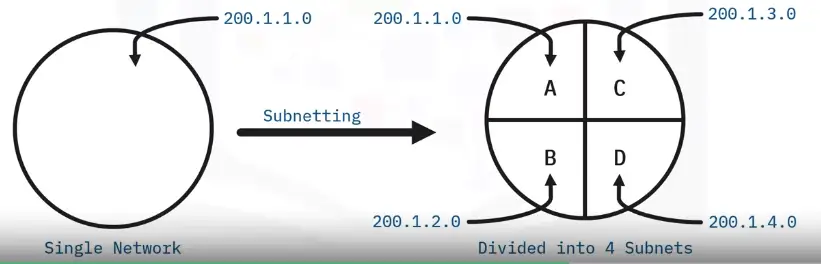
Subnetting
The process of taking a large network and splitting it up into many individual and smaller subnetworks, or subnets.
Class-C subnetting table.
Subnet Masks
32-bits numbers that are normally written out as four octets in decimal.
OR
A way for a computer to use AND operators to determine if an IP address exists on the same network.
A single 8-bit number can represent 256 different numbers, or more specifically, the numbers 0-255.
Subnet ID
Generally, an IP address consists of Network ID and Host ID
In Subnetting world, Host ID is further divided into Subnet ID to identify the subnet mask.
Basic Binary Math
Two of the most important operators are OR and AND.
In computer logic, a 1 represents true and a 0 represents false.
CIDR (Classless Inter-Domain Routing)
Addresses should be continuous
Number of addresses in a block must be in power of 2
First address of every block must be evenly divisible with the size of the block
Demarcation point
To describe where one network or system ends and another one begins.
Routing
Basic Routing Concepts
Router
A network device that forwards traffic depending on the destination address of that traffic.
Routing Tables
Destination Network
Next Hop
Total Hops
Interface
Routing Protocols
Routing protocols fall into two main categories: interior gateway protocols and exterior gateway protocols.
Interior Gateway Protocols
Link state routing protocols
distance-vector protocols
Interior Gateway Protocols
Used by routers to share information within a single autonomous system.
Autonomous system
“A collection of networks that all fall under the control of a single network operator.”
In computer science, a list is known as a vector.
Exterior Gateway Protocol
Internet Assigned Numbers Authority (IANA)
“A non-profit organization that helps manage things like IP address allocation.”
Also, responsible for ASN allocation
Autonomous System Number (ASN)
Numbers assigned to individual autonomous systems.
32-bits long as IP addresses
But has only single decimal block instead of 4 octets
Non-Routable Address Space
IPv4 standard doesn’t have enough IP addresses
There are non-routable address spaces, set aside for internal use only and couldn’t free communicate on the free internet
Transport Layer and Application Layer
The Transport Layer
“Allows traffic to be directed to specific network applications”
It handles multiplexing and demultiplexing through ports
Port
A 16-bit number that’s used to direct traffic to specific services running on a networked computer
Dissection of a TCP Segment
IP datagram encapsulate TCP segment
TCP segment
“Made up of a TCP header and a data section.”
TCP Header
Destination port
The port of the service the traffic is intended for.
Source port
A high-numbered port chosen from a special section of ports known as ephemeral ports.
Sequence number
A 32-bit number that’s used to keep track of where in a sequence of TCP segments this one is expected to be.
Acknowledgement number
The number of the next expected segment.
Data offset field
A 4-bit number that communicates how long the TCP header for this segment is.
Control Flag (See next part)
TCP window
Specifies the range of sequence numbers that might be sent before an acknowledgement is required.
TCP checksum
Operates just like the checksum fields at the IP and Ethernet level.
Urgent pointer field
Used in conjunction with one of the TCP control flags to point out particular segments that might be more important than others. (No real world adoption of this TCP feature)
Options field
It is sometimes used for more complicated flow control protocols. (rarely used in real world)
Padding
Just a sequence of zeros to make sure the data payload section starts at the expected location.
TCP Control Flags and the Three-way Handshake
TCP Control Flags
Not in strict order;
URG (urgent)
A value of one here indicates that the segment is considered urgent and that the urgent pointer field has more data about this. (No particular real world use for this flag)
ACK (acknowledged)
A value of one in this field means that the acknowledgement number field should be examined.
PSH (push)
The transmitting device wants the receiving device to push currently-buffered data to the application on the receiving end asap.
RST (reset)
On the sides in a TCP connection hasn’t been able to properly recover from a series of missing or malformed segments.
SYN (synchronize)
It’s used when first establishing a TCP connection and makes sure the receiving end knows to examine the sequence number field.
FIN (finish)
When this flag is set to one, it means the transmitting computer doesn’t have any more data to send and the connection can be closed.
The Three-way Handshake
Handshake
“A way for two devices to ensure that they’re speaking the same protocol and will be able to understand each other.”
The Four-way Handshake
Not very common
TCP connection when finishes sending data, it sends FIN to request the port closure.
Then receiving end responds with ACK flag and connection closes
Even though the port, on one end, can simply remain open, and the connection ends without closing it
TCP Socket States
Socket
“The instantiation of an end-point in a potential TCP connection.”
Instantiation
“The actual implementation of something defined elsewhere.”
Socket States
LISTEN
A TCP socket is ready and listening for incoming connection.
SYN-SENT
A synchronization request has been sent, but the connection has not been established yet.
SYN-RECEIVED
A socket previously in a LISTEN state has received a synchronization request and sent a SYN/ACK back.
ESTABLISHED
The TCP connection is in working order and both sides are free to send each other data.
FIN-WAIT
A FIN has been sent, but the corresponding ACK from the other end hasn’t been received yet.
CLOSE-WAIT
The connection has been closed at the TCP layer, but the application that opened the socket hasn’t yet released its hold on the socket yet.
CLOSED
The connection has been fully terminated and that no further communication is possible.
Connection-oriented and Connectionless Protocols
Connection-oriented Protocol
“Established a connection, and uses this to ensure that all data has been properly transmitted.”
Connectionless Protocol
The most common one is UDP
Used where data integrity is not super important, i.e., video streaming
System Ports vs. Ephemeral Ports
Port 0 isn’t in use for network traffic, but sometimes used in communications taking place between different programs on the same computer
Ports 1-1024 are referred as system ports or sometimes as well-known ports. These ports represent the official ports for the most well-known network services.
i.e., HTTP uses port-80, FTP uses port-21
Admin level access is needed to listen on these port in mos OSs
Ports 1024-49151 are known as registered ports. These ports are used for lots of other network services that might not be quite as common as the ones that are on system ports.
i.e., Port-3306 is used for many Databases listen on
Some of these ports are registered with IANA but not always
Ports 49152-65535 are known as Private or ephemeral ports. Ephemeral ports can’t be registered with the IANA and are generally used for establishing outbound connections.
When a client wants to communicate with a server, the client will be assigned an ephemeral port to be used for just that one connection, while the server listen on a static system or registered port
Not all OSs follow the ephemeral port recommendation of the IANA
Firewalls
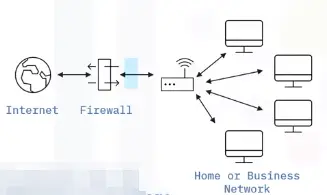
“A device that blocks traffic that meets certain criteria.”
The Application Layer
“Allows network applications to communicate in a way they understand.”
Too many protocols in use at application layer, a hassle to list them all.
i.e., HTTP, SMTP, etc.
The Application Layer and the OSI Model
Session Layer
“Facilitating the communication between actual applications and the transport layer.”
Takes application layer data and hands it off to the presentation layer
Presentation Layer
“Responsible for making sure that the un-encapsulated application layer data is able to understand by the application in question.”
Networking Services
Name Resolution
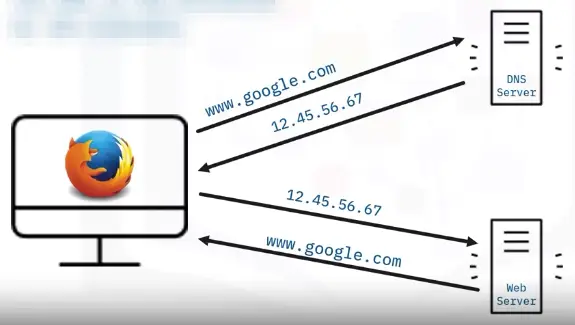
Why do we need DNS?
Human brain is not good at remembering numbers
So a system called DNS is developed to assign those IP addresses to memorable domain names
Domain Name System (DNS)
“A global and highly distributed network service that resolves strings of letters into IP addresses for you.”
Domain Name
“The term we use for something that can be resolved by DNS.”
The Many Steps of Name Resolution
There are five primary types of DNS servers;
Caching name servers
Recursive name servers
Root name servers (13 root servers all over world)
TLD name servers
Authoritative name servers
Caching and Recursive name servers
The purpose is to store known domain name lookups for a certain amount of time.
Recursive name servers
Perform full DNS resolution requests
Time to live (TTL)
A value, in seconds, that can be configured by the owner of a domain name for how long a name server is allowed to cache an entry before it should discard it and perform a full resolution again
A Typical DNS Query
Anycast
“A technique that’s used to route traffic to different destinations depending on factors like location, congestion, or link health.”
DNS and UDP
DNS, an application layer service, uses UDP
A full DNS lookup with TCP in use, will use 44 total packets
A full DNS lookup with UDP on the other hand require only 8 packets
Error recovery is done by asking again in the UDP, as no error check is present
Name Resolution is Practice
Resource Record Types
A record
“An A record is used to point a certain domain name at a certain IPv4 IP address.”
A single A record is configured for a single domain
But a single domain name can have multiple A records, this allows for a technique known as DNS round-robin to be used to balance traffic across multiple IPs
Round-robin is a concept that involves iterating over a list of items one by one in hastily fashion. The hope is that this ensures a fairly equal balance of each entry on the list that’s selected.
AAAA – Quad A
“Quad A record is used to point a certain domain name at a certain IPv6 IP address.”
CNAME
“A CNAME record is used to redirect traffic from one domain name to another.”
MX record – mail exchange
“This resource record is used in order to deliver e-mail to the correct server.”
SRV record – service record
“It’s used to define the location of various specific services.”
MX record is only used for e-mails, SRC is used for every other service
I.e., caldav (calendar and scheduling service)
TXT record – text
Used to communicate configuration preferences of a domain
Anatomy of a Domain Name
Top level domain (TLD)
The last part of a domain name. E.g. .com, .net etc.
TLDs are handled by non-profit The Internet Corporation for Assigned Names and Number (ICANN)
ICANN is a sister organization to IANA, together both help define and control the global IP spaces and DNS system
Domains
“Used to demarcate where control moves from a TLD name server to an authoritative name server.”
Subdomain
“The WWW portion of a domain.”
Full qualified domain name (FQDN)
When you combine all of these parts together, you have what’s known as this.
A DNS can technically support up to 127 level of domain in total for a single fully qualified domain name
Some other restrictions are, each individual section can only be 63 characters and a complete FQDN is limited to 255 characters
DNS Zones
“An authoritative name server is actually responsible for a specific DNS zone.”
Allow for easier control over multiple level of a domain.
DNS zones are a hierarchical concept. The root name servers are responsible for some even finer-grained zones underneath that.
The root and TLD name servers are actually just authoritative name servers, too. It’s just that the zones that they’re authoritative for are special zones.
E.g., a large company has three servers, one in LA, other in Paris and 3rd one in Shanghai. It will have three zones that and fourth for large company server, so in total 4 DNS server zones.
Zone files
“Simple configuration files that declare all resource record for a particular zone.”
Start of authority (SOA)
“Declares the zone and the name of the name server that is authoritative for it.”
NS records
“Indicate other name servers that might also be responsible for this zone.”
Reverse lookup zone files
These let DNS resolvers ask for an IP and get the FQDN associated with it returned.
Pointer resource record (PTR)
Resolves an IP to a name.
Dynamic Host Configuration Protocol
Overview of DHCP
Every single computer on a modern TCP/IP based network needs to have at least four things specifically configured;
IP address
Subnet mask
Gateway
Name server
DHCP
“An application layer protocol that automates the configuration process of hosts on a network.”
Resolves problem having to manually give an IP address to a device each time, it connects to the internet.
DHCP works on some standards, like Dynamic allocation.
Dynamic Allocation
“A range of IP addresses is set aside for client devices, and one of these IPs is issued to these devices when they request one.”
Under Dynamic allocation, IP of the computer is different every time, it connects to the Internet. Automatic allocation does it**.
Automatic Allocation
“A range of IP addresses is set aside for assignment purposes.”
The main difference is that, the DHCP server is asked to keep track of which IPs it’s assigned to certain devices in the past.
Using this information, the DHCP server will assign the same IP to the same machine each time if possible.
Fixed Allocation
Requires a manually specified list of MAC address and their corresponding IPs.
Network time protocol (NTP) servers
“Used to keep all computers on a network synchronized in time.”
DHCP keeps track of NTP
DHCP in Action
It is an application layer protocol, so it relies on:
Transport layer
Network layer
Data link layer
Physical layer
So, how DHCP works in practice:
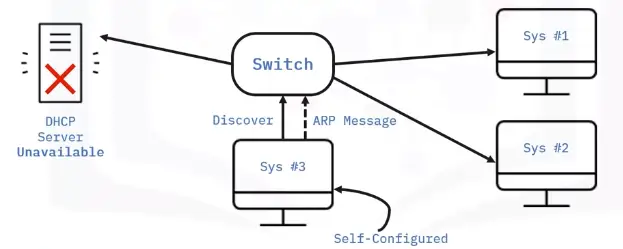
DHCP discovery
“The process by which a client configured to use DHCP attempts to get network configuration information.”
It has four steps
The DHCP clients sends what’s known as a DHCP discover message out onto the network.
The response is sent via DHCP offer message.
A DHCP client will respond to a DHCP offer message with a DHCP request message.
DHCP server will receive DHCPREQUEST and respond with DHCPACK message
All of this configuration is known as DHCP lease, as it includes an expiration time. DHCP lease might last for days or only a short amount of time.
Network Address Translation
Basics of NAT
It is a technique, instead of a protocol.
Different hardware vendor implement NAT differently
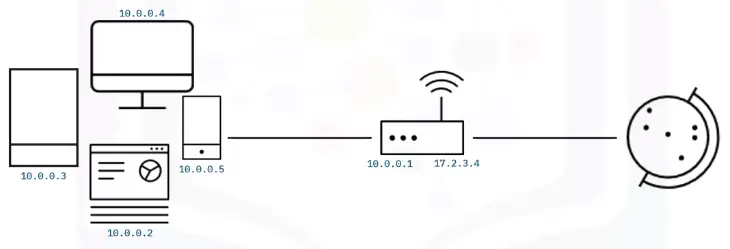
Network Address Translation (NAT)
“A technology that allows a gateway, usually a router or firewall, to rewrite the source IP of an outgoing IP datagram while retaining the original IP in order to rewrite it into the response.”
Hides the IP of the computer originating the request. This is known as IP masquerading.
To the outside world, the entire space of Network A is hidden and private. This is called One-to-many NAT.
NAT and the Transport Layer
When traffic is outbound, for hundreds, even thousands of computers can all have their IPs translated via NAT to a single IP.
The concept become a bit cumbersome when return traffic is involved.
In inbound traffic, we have potentially hundreds of responses all directed at the same IP, and the router at this IP needs to figure out which response go to which computer.
The simplest way to do this, is port preservation technique.
Port preservation
“A technique where the source port chosen by a client is the same port used by the router.”
Port forwarding
“A technique where specific destination ports can be configured to always be delivered to specific nodes.”
NAT, Non-Routable Address Space and the Limits of IPv4
IANA is in-charge of distributing IPs since 1988. The 4.2 billion have run out since long.
For some time now, the IANA has primarily been responsible with assigning address blocks to the five regional internet registries or RIRs.
AFRINIC servers the continent of Africa. (Mar 2017 – ran out of addresses)
ARIN serves the USA, Canada, and parts of the Caribbean. (Sep 2015 – ran out of addresses)
APNIC is responsible for most of Asia, Australia, New Zealand, and Pacific island nations. (2011 – ran out of addresses)
LACNIC covers Central and South America and any parts of the Caribbean not covered by ARIN. (June 2014 – ran out of addresses)
RIPE serves Europe, Russia, the Middle East, and portions of Central Asia. (Sep 2012 – ran out of addresses)
The IANA assigned the last unallocated /8 network blocks to the various RIRs on February 3, 2011.
Solution is NAT, and Non-Routable Address Space, defined rfc1918.
VPNs and Proxies
Virtual Private Networks
“A technology that allows for the extension of a private or local network to hosts that might not be on that local network.”
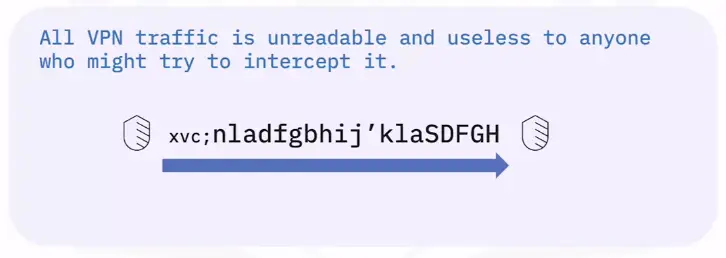
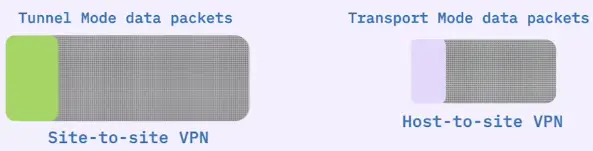
A VPN is a tunneling protocol, it’s basically a technique not a strict protocol which involves, using different methods.
VPNs require strict authentication protocols to allow only access to the required clients
VPNs were the first to implement the 2FA on a large scale
VPNs can be used to have site to site connectivity as well
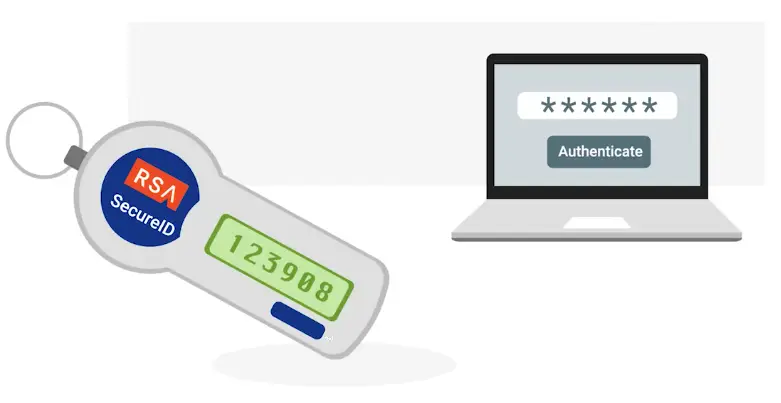
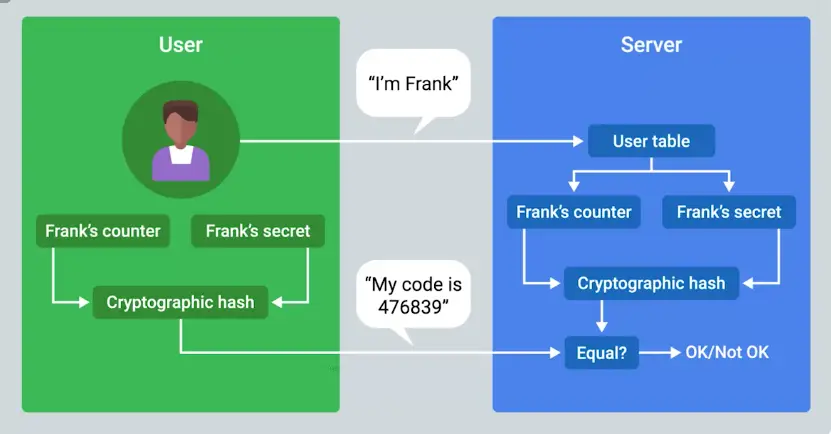
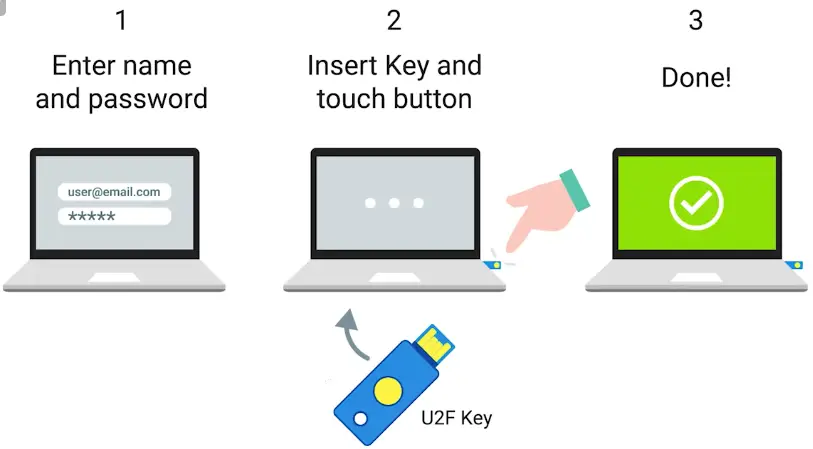
Two-factor authentication
“A technique where more than just a username and password are required to authenticate.”
Proxy Services
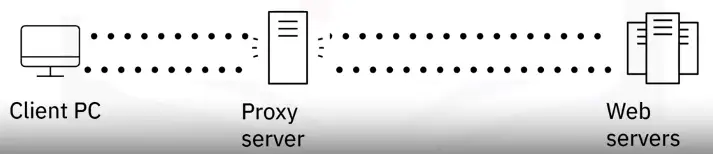
“A server that acts on behalf of a client in order to access another service.”
They sit between client and server, providing some additional benefits like;
Anonymity
Security
Content flittering
Increased performance
The most commonly heard are Web proxies intended for web traffic.
Reverse proxy
“A service that might appear to be a single server to external clients, but actually represents many servers living behind it.”
Connecting to the Internet
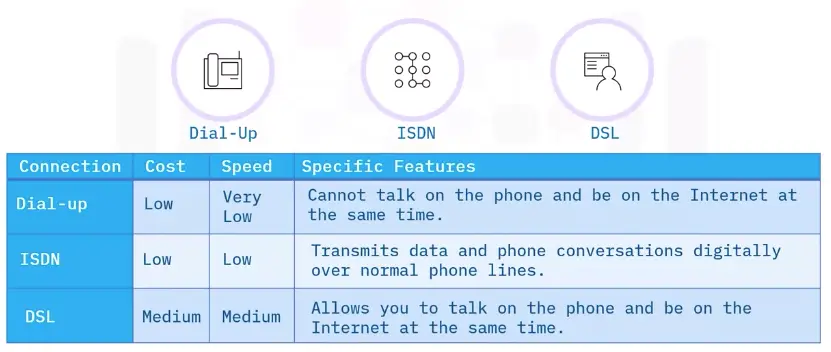
POTS and Dial-up
Dial-up, Modems and Point-to-Point Protocols
In the late 1970s, two graduate students of Duke University were trying to come up with a better way to connect computers at further distances.
They realized basic infrastructure in the form of telephone lines already existed.
The Public Switched Telephone Network or PSTN also referred as the Plain Old Telephone Service or POTS.
The system they built was called USENET, which was the precursor for Dial-up.
Dial-up
A dial-up connection uses POTS for data transfer, and gets its name because the connection is established by actually dialing a phone number.
Transferring data on dial-ups is done through Modems, stands for Modulator/Demodulator.
Early modems have very low Baud rate
By the late 1950s, computers can generally send data at the rate of 110bps.
When USENET was developed, this rate was increased to 300bps
In the early 1990s, when the dial-up access to the Internet became a household commodity, this rate was increased to 14.4kbps.
Baud rate
“A measurement of how many bits can be passed across a phone line in a second.”
Broadband Connections
What is broadband?
“Any connectivity technology that isn’t dial-up Internet.”
In the late 1990s, it was to become common for most businesses to use T-carrier technologies.
T-carrier technologies require dedicated line, so are used by mainly only businesses.
Other solutions and technologies also available for businesses and normal consumers
DSL
Cable broadband
Fiber connections
T-carrier technologies
“Originally invented by AT&T in order to transmit multiple phone calls over a single link.”
Before Transmission System 1 or short T1, each phone call requires its own copper cable to transmit.
With T1, AT&T invented a way to carry 24 phone calls simultaneously over a single copper cable.
A few years later, T1 technology was repurposed for data transfers.
Over the years, the phrase T1 has come to mean any twisted pair copper connection capable of speeds of 1.544mbps, even if they don’t strictly follow the original Transferring System 1 specifications.
Initially, T1 lines were used to connect telecommunication channels only
But as the Internet grew, many businesses and companies paid to have T1 cables installed for faster connectivity.
Improvements were made by developing a way for multiple T1s to act as a single link.
T3 line was invented which has 28 T1 lines combined, and total speed of 44.736mbps.
Now for small businesses and companies, Fiber connection are more common as they cheaper.
For inner-ISP communications, different Fiber technologies have all replaced older copper-based ones.
Digital Subscriber Lines (DSL)
DSL made possible the occurrence of phone calls and data transfer on the same line, and at the same time.
DSL uses their own modems called Digital Subscriber Line Access Multiplexers (DSLAMs).
Just like dial-up modems, these devices establish data connections across phone lines, but inline dial-up connections, they’re usually long-running.
Two most common DLSs are:
ADSL (Asymmetric Digital Subscriber Line)
Feature different speed of outbound and inbound data. It means faster download speeds and slower upload.
SDSL (Symmetric Digital Subscriber Line)
Same as ADSL, but upload and download speeds are the same.
Most SDSLs have an upper cap of speed, 1.544mbps.
Further developments in SDSL technology have yielded things like:
HDSL (High Bit-rate Digital Subscriber Lines)
These provision speeds above 1.544mbps.
Cable Broadband
The history of both computer and telephone tells a story that started with all communications being wired, but the recent trend is moving towards more traffic as wireless.
But television followed the opposite path. Originally, all television broadcast was wireless, sent out by giant television towers and received by smaller antennas in people’s houses.
You had to be in range of that towers to receive signals, like today you’ve to be in range of cellular tower for cellular communications.
Late 1940s, first television technology was developed.
In 1984, Cable Communications Policy Act deregulated the television industry, started booming, rest of the world soon followed suit.
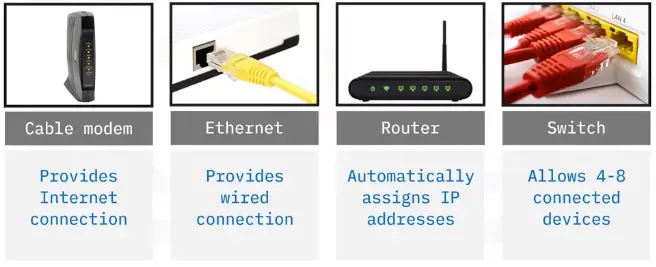
Cable connections are managed by Cable modems.
Cable modems
The device that sits at the edge of a consumer’s network and connects it to the cable modem, termination system, or CMTS.
Cable modem termination system (CMTS)
Connects lots of different cable connections to an ISPs core network.
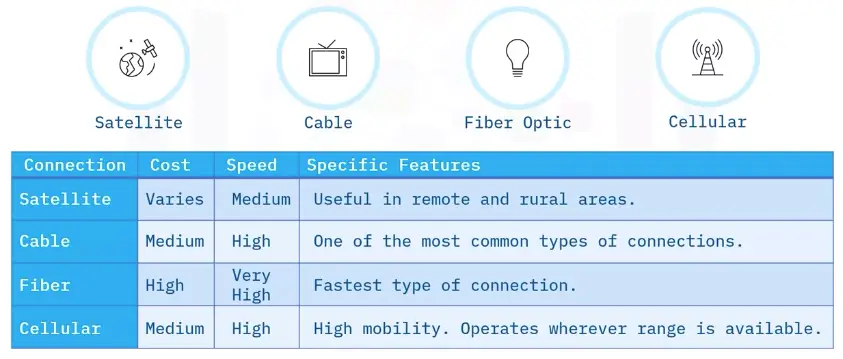
Fiber Connections
Fiber achieve higher speed, no degradation in signal transfer.
An electrical signal can only travel a few hundred meters before degradation in copper cable.
While light signal in fiber cables can travel many, many KMs before degradation.
Producing and laying fibers a lot more expensive than copper cables.
Fiber connection to the end consumers, varies tons due to tons of implications.
That’s why the phrase FTTX or fiber to the X was developed.
FTTN: Fiber to the Neighborhood
FTTB: Fiber to the Building, FTTB is a setup where fiber technologies are used for data delivery to an individual building.
FTTH: Fiber to the Home
FTTB and FTTH, both may also refer to as FTTP or Fiber to the Premises
Instead of modem, the demarcation point for Fiber technologies is known as Optical Network Terminator or ONT.
Optical Network Terminator (ONT)
Converts data from protocols, the fiber network can understand, to those that more traditional, twisted-pair copper networks can understand.
WANs
Wide Area Network Technologies
“Acts like a single network, but spans across multiple physical locations.”
It works at Data Link Layer.
WANs are built to be superfast.
Some technologies used in WANs:
Frame Relay
Frame Relay is a standardized wide area network (WAN) technology that specifies the Physical & Data Link Layer of digital telecommunications channels using a packet switching methodology. Originally designed for transport across Integrated Services Digital Network (ISDN) infrastructure, it may be used today in the context of many other network interfaces.
High-Level Data Link Control (HDLC)
HDLC is a bit-oriented code-transparent synchronous data link layer protocol developed by the International Organization for Standardization (ISO). The standard for HDLC is ISO/IEC 13239:2002.
HDLC provides both connection-oriented and connectionless service.
Asynchronous Transfer Mode (ATM)
A standard defined by **American National Standards Institute (ANSI) and ITU-T for digital transmission of multiple types of traffic.
ATM was developed to meet the needs of the Broadband Integrated Services Digital Network (BISDN) as defined in the late 1980s.
Local Loop
“In a WAN, the area between a demarcation point and the ISP’s core network is called Local Loop.”
Point-to-Point VPNs
A popular alternative to WAN technologies
Companies are moving to cloud for services such as email, Cloud Storage. So, expensive cost of WANs is often outnumbered.
They maintain their secure connection to these cloud solutions through Point-to-Point VPNs.
Point-to-Point VPN, typically called Site-to-Site VPN.
Wireless Networking
Introduction to Wireless Networking Technologies
“A way to network without wires.”
IEEE 802.11 Standards or 802.11 family define the most common workings of Wireless networks.
Wireless devices communicate via radio waves.
Different 802.11 generally use the same basic protocol but different frequency bands.
In North America, FM radio transmissions operate between 88 and 108 MHz. This specific frequency band is called FM Frequency Band.
Wi-Fi works at 2.4GHz and 5GHz bands.
There are many 802.11 specifications, but common ones, you might run into are: (In order of when it were introduced)
802.11b
802.11a
802.11g
802.11n
802.11ac
802.11 = physical and data link layers
All specifications operate with the same basic data link protocol. But, how they operate at the 88physical layer** varies.
802.11 frame has a number of fields.
Frame control field
It is 16-bits long and contains a number of subfields that are used to describe how the frame itself should be processed.
Duration field
It specifies how long the total frame is, so the receiver knows how long it should expect to have to listen to this transmission.
The rest are 4 address fields. 6 bytes long.
Source address field
Intended destination
Receiving address
Transmitter address
Sequence control field
It is 16-bits long and mainly contains a sequence number used to keep track of the ordering of frames.
Data payload
Has all the data of the protocols further up the stack.
Frame check sequence field
Contains a checksum used for a cyclical redundancy check, just like how Ethernet does it.
The most common wireless setup includes wireless access point.
Frequency band
“A certain section of the radio spectrum that’s been agreed upon to be used for certain communications.”
Wireless access point
“A device that bridges the wireless and wired portions of a network.”
Wireless Network Configuration
There are few ways wireless networks can be configured
Ad-hoc networks: Nodes speak directly to each other.
Wireless LANS (WLANS): Where one or more access point act as a bridge between a wireless and a wired network.
Mesh Networks: Hybrid of the former two.
Ad-hoc Network
Simplest of the three
In an ad-hoc network, there isn’t really any supporting network infrastructure.
Every device on the network speaks directly to every other device on the network.
Used in smartphones, Warehouses
Important tool during disaster like earthquake, the relief workers, can communicate via ad-hoc network.
Wireless LAN (WLAN)
Most common in business settings
Mesh Network
Most mesh networks are only made up of wireless access points. And are still connected to the wired network.
Wireless Channels
“Individual, smaller sections of the overall frequency band used by a wireless network.”
Channels solve the problem of collision domain.
Collision domain
“Any one of the network segment where one computer can interrupt another.”
Wireless Security
Data packets sent in the air via radio waves need to be protected.
Wired Equivalent Privacy (WEP) was invented to encrypt data packets.
WEP uses only 40-bits for its encryption keys, which could easily be compromised with modern and fast computers.
So, WEP was quickly replaced in most places with WPA or Wi-Fi Protected Access.
WPA, by-default, uses 128-bits key.
Nowadays, the most common wireless encryption method used is WPA2, an update to the original WPA
WPA2 uses 256-bits key.
Another common way of securing wireless traffic is MAC filtering.
Wired Equivalent Privacy (WEP)
“An encryption technology that provides a very low level of privacy.”
MAC filtering
You configure your access points to only allow for connections from a specific set of MAC addresses belonging to devices you trust.
Cellular Networking
Cellular networks have a lot in common with 802.11 networks.
Just like Wi-Fi, they also operate on radio waves.
There are cellular frequency bands reserved for Cellular communications.
Phone frequency waves can travel several KMs.
Mobile Device Networks
Mobile devices use wireless networks to communicate with the Internet and with other devices.
Depending on the device, it might use:
Cellular networks
Wi-Fi
Bluetooth
Internet of Things (IoT) network protocols
IoT Wireless network protocols at the physical layer
IoT devices can use both wired and wireless connections.
Most IoT devices can use at least one of the following network protocols:
Wi-Fi
Wireless Fidelity (Wi-Fi): IEEE 802.11 Standard
Wi-Fi 6 can support up-to 500mbps
The 2.4 GHz frequency extends to 150 feet (45.72 m) indoors, and 300 feet (91.44 m) outdoors.
2.4 GHz may feel congestion due to limited number of channels and high interference from other devices.
5.0 GHz provide stronger signal and has more channels to handle more traffic. The drawback is a limited range of 50 feet (ca. 15 meters) indoors and 100 feet (30.48 m) outdoors.
IEEE 802.15.4
An inexpensive, low-power wireless access technology intended for IoT devices that operate on battery power.
IEEE 802.15.4 uses 2.4 GHz or lower frequencies
IEEE 802.15.4 is normally used for low-rate wireless personal area networks (LR-WPANs) and uses a 128-bits encryption.
ZigBee
ZigBee is an LR-WPANs intended for smart home use. Also adopted globally for commercial use. ZigBee LR-WPAN networks can be accessed through Wi-Fi or Bluetooth.
Thread
Thread: a low latency wireless mesh network protocol based on IPv6.
Don’t use proprietary gateways or translators, making them inexpensive and easier to implement and maintain than other wireless technologies.
Thread is used by Google Nest Hub Max.
Z-Wave
Z-Wave: An interoperable, wireless mesh protocol that is based on low powered radio frequency (RF) communications.
The Z-Wave protocol uses an RF signal on the *908.2MHz frequency and extends to 330 feet (0.1 km).
Z-Wave is inexpensive, reliable, and simple to use. The Z-Wave protocol supports a closed network for security purposes.
Over 3300 types and models of home and business IoT devices are certified to use Z-Wave technology, with more than 100 million devices in use worldwide.
Wireless mesh network (WMN)
Mesh networks are used by many popular wireless IoT network protocols, like Zigbee and Z-Wave, for device communication. Wireless mesh networks use less power than other wireless connectivity options. Wireless mesh is a decentralized network of connected wireless access points (WAP), also called nodes. Each WAP node forwards data to the next node in the network until the data reaches its destination. This network design is “self-healing,” meaning the network can recover on its own when a node fails. The other nodes will reroute data to exclude the failed node. Wireless mesh is a good option for high reliability and low power consumption, which is better for battery powered IoT devices. Wireless mesh networks can be configured to be full or partial mesh:
Full mesh network: Every node can communicate with all the other nodes in the network.
Partial mesh network: Nodes can only communicate with nearby nodes.
Bluetooth
Bluetooth is a widely used wireless network that operates at a 2.45 GHz frequency band and facilitates up to 3 Mbps connections among computing and IoT devices. Bluetooth has a range of up to 100 feet (ca. 30 m) and can accommodate multiple paired connections. It is a good choice for creating a short distance wireless connection between Bluetooth enabled devices. Bluetooth is often used by computing devices to manage, configure, control, and/or collect small amounts of data from one or more close range IoT devices. For example, Bluetooth may be used to control smart home lighting or thermostat IoT devices from a smartphone.
Near-Field Communication (NFC)
NFC is a short-range, low data, wireless communication protocol that operates on the 13.56 MHz radio frequency. NFC technology requires a physical chip (or tag) to be embedded in the IoT device. NFC chips can be found in credit and debit cards, ID badges, passports, wallet apps on smartphones (like Google Pay), and more. A contactless NFC scanner, like a Point-of-Sale (POS) device, is used to read the chip. This scanner communication connection typically requires the IoT device to be within 2 inches (5.08 cm) of the scanner, but some NFC chips have an 8 inch (20.32 cm) range. This short-distance range helps to limit wireless network security threats. However, criminals can carry a portable NFC scanner into a crowded area to pick up NFC chip data from items like credit cards stored inside purses and wallets. To protect against this type of data theft, the cards should be placed inside special NFC/RFID sleeves that make the chips unreadable until they are removed from the sleeves. NFC technology may also be used in the pairing process for Bluetooth connections.
Long Range Wide Area Network (LoRaWAN)
LoRaWan is an open source networking protocol designed to connect battery powered, wireless IoT devices to the Internet for widely dispersed networks.
Troubleshooting and the Future of Networking
Introduction to Troubleshooting and the Future of Networking
After every possible safeguard in place, misconfiguration happens and:
Error still pop-up
Misconfiguration occur
Hardware breaks down
System incompatibilities come to light
Error-detection
“The ability for a protocol or program to determine that something went wrong.”
Error-recovery
“The ability for a protocol or program to attempt to fix it.”
Verifying Connectivity
Ping: Internet Control Message Protocol (ICMP)
ICMP Message
ICMP packet is sent to troubleshoot network issues.
The make-up of an ICMP packet is pretty simple, it has a HEADER and DATA section.
The ICMP HEADER has the following fields:
TYPE: 8-bits long, which specifies what type of data is being delivered. Like, destination unreachable or time exceeded.
CODE: 8-bits long, which indicates a more specific reason than just a type. I.e., destination unreachable type, there are different cods for destination network unreachable or destination port unreachable.
Checksum: 16-bits checksum, that work like every other checksum field.
Rest of Header 32-bits long, this field is optionally used by some specific codes and types to send more data.
Data Payload section for ICMP
The payload for an ICMP packet exists entirely so that the recipient of the message knows which of their transmissions caused the error being reported.
It contains the entire IP Header, and the first 8-bytes of the data payload section of the offending packet.
ICMP isn’t developed for the humans to interact with.
Ping
Ping lets you send a special type of ICMP message called an Echo Request.
Echo Request just asks, hi, are you there?
If the destination is up and running and able to communicate on the network, it’ll send back an ICMP Echo Reply message type.
Traceroute
“A utility that lets you discover the path between two nodes, and gives you information about each hop along the way.”
Two similar tools to traceroute are:
MTR - Linux/macOS
pathping - Windows
Testing Port Connectivity
Sometimes, you need to know if things working at transport layer.
There are two powerful tools for this at your disposal:
netcat - Linux/macOS
Test-NetConnection - Windows
Digging into DNS
Name Resolution Tools
The most common tool is nslookup.
Available on all OSs.
Public DNS Servers
An ISP almost always gives you access to a recursive name server as part of the service it provides.
Many businesses run their own name servers. To give names to the Printers, computers etc. instead of referring them with their IPs.
Another option is using DNS as a service provider. It is becoming more popular.
Some organizations run Public DNS servers, like Google’s 8.8.8.8, Cloudflare’s 1.1.1.1, quad9’s 9.9.9.9 etc.
Some level 3 DNS provider also provide free public DNS servers, but not advertised by them. I.e., 4.2.2.3 etc.
Name servers specifically set up so that anyone can use them, for free.
Most public DNS servers are available globally through anycast.
One should be careful when using Public DNS server, hijacking outbound DNS query, and redirecting the traffic to a malicious website is a common intrusion technique.
Always make sure the name server is run by a reputable company, and try to use the name servers provided by your ISP outside of troubleshooting scenarios.
DNS Registration and Expiration
Registrar
An organization responsible for assigning individual domain names to other organizations or individuals.
Originally, there was only one company, Network Solutions INC responsible for domain Registration.
Network Solutions Inc. and USA government came to an agreement to let other companies also sell domain names.
Hosts Files
The original way that numbered network addresses were correlated with words was through hosts files.
Most modern system, like computers and Mobile phones, still hosts files.
Hosts files are a popular way for the computer viruses to disrupt and redirect users’ traffic.
Hosts File
“A flat file that contains, on each line, a network address followed by the host name it can be referred to as.”
Loopback Address
A way of sending network traffic to yourself.
Loopback IP for IPv4 is 127.0.0.1
Almost all hosts files in existence will, in the very least, contain a line that reads 127.0.0.1 localhost, most likely followed by ::1 localhost, where ::1 is the loop back address for IPv6.
The Cloud
What is The Cloud?
Not a single technology, it’s a technique.
Cloud Computing
“A technological approach where computing resources are provisioned in a shareable way, so that lots of users get what they need, when they need it.”
Or
“A new model in computing where large clusters of machines let us use the total resources available in a better way.”
Hardware virtualization is at the heart of cloud computing.
Hardware virtualization platforms deploy what’s called a hypervisor.
Virtualization
“A single physical machine, called a host, could run many individual virtual instances, called guests.”
Hypervisor
“A piece of software that runs and manages virtual machines, while also offering these guests a virtual operating platform that’s indistinguishable from an actual hardware.”
Public Cloud
A large cluster of machines runs by another company.
Private Cloud
Used by a single large corporation and generally physically hosted on its own premises.
Hybrid Cloud
A term used to describe situations where companies might run a thing like their most sensitive proprietary technologies on a private cloud, while entrusting their less-sensitive servers to a public cloud.
Everything as a Service
X as a Service, where X can mean many things.
Infrastructure as a Service (IaaS)
You shouldn’t have to worry about building your own network or your own servers.
Platform as a Service (PaaS)
A subset of cloud computing where a platform is provided for customers to run their services.
Software as a Service (SaaS)
A way of licensing the use of software to others while keeping that software centrally hosted and managed.
Gmail for Business
Office 365 Outlook
Cloud Storage
Operate in different geographic region.
Pay as you use
Good for backup
IPv6
IPv6 Addressing and Subnetting
IPv4 was run out of new IPs
IPv5 was an experimental protocol that introduced the concept of connections.
IPv6 = 128 bits, written as 8 groups of 16-bits each. Each one of these groups is further made up of four hexadecimal numbers.
Full IPv6 address looks like this
Reserved IPv6 range is as follows, for education, documentation, books, courses etc.
Shortening of an IPv6 address
Two rules
Remove any leading zeros from a group
Any number of consecutive groups composed of just zeros can be replaced with two colons ::.
Any IPv6 address begins with FF00:: is used for multicast.
Any IPv6 address begins with FE80:: is used for Link-local unicast.
The first 32-bits of IPv6 are network ID, and last are host ID.
IPv6 uses the same CIDR notation for subnet mask.
Multicast
A way of addressing groups of hosts all at once.
Link-local unicast
Allow for local network segment communication and are configured based upon a host’s MAC address.
IPv6 Headers
Header, much simpler than IPv4 header.
IPv6 header has the following components:
Version field
A 4-bit field that defines what version of IP is in use.
Traffic class field
An 8-bit field that defines the type of traffic contained within the IP datagram, and allows for different classes of traffic to receive different priorities.
Flow Label Field
A 20-bit field that’s used in conjunction with the traffic class field for routers to make decisions about the quality of service level for a specific datagram.
Payload length field
A 16-bit field that defines how long the data payload section of the datagram is.
Next header field
A unique concept of IPv6, and needs a little extra explanation. It defines what header is up next after that. To help reduce the problems with additional data that IPv6 addresses impose on the network, the IPv6 header was built to be a short as possible. One way to do that is to take all the optional fields and abstract them away from the IPv6 header itself. The next header field defines what kind of header is immediately after this current one. These additional headers are optional, so they’re not required for a complete IPv6 datagram. Each of these additional optional headers contain a next header field and allow for a chain of headers to be formed if there’s a lot of optional configuration.
Hop limit
An 8-bit field that’s identical in purpose to the TTL field in an IPv4 header.
Source Address : 128-bits
Destination Address : 128-bits
Data Payload section
IPv6 and IPv4 harmony
Not possible for whole Internet to switch to IPv6 in no time.
So, IPv6 and IPv4 traffic need to coexist during the transition period.
This is possible with IPv4 mapped address space. The IPv6 specifications have set aside a number of addresses that can be directly correlated to an IPv4 address.
More important is IPv6 traffic needs to travel to IPv4 servers.
This is done through IPv6 tunnels.
IPv6 tunnels
Servers take incoming IPv6 traffic and encapsulate it within traditional IPv4 datagram.
They consist of IPv6 tunnel servers on either end of a connection. These IPv6 tunnel servers take incoming IPv6 traffic and encapsulate it within traditional IPv4 datagrams. This is then delivered across the IPv4 Internet space, where it’s received by another IPv6 tunnel server. That server performs the de-encapsulation and passes the IPv6 traffic further along in the network.
IPv6 tunnel broker
Companies that provide IPv6 tunneling endpoints for you, so you don’t have to introduce additional equipment to your network.
-Filter parameter is used with ls so search for particular files in a directory.
The -Filter parameter will filter the results for file names that match a pattern.
ls <path\to\the\file> -Recurse -Filter *.exe
The asterisk means match anything, and the .exe is the file extension for executable files in Windows.
Linux: Searching within Files
To search in files
grep <Search String> <path/to/the/file>
To search through multiple files at once
grep <Search String> *.txt
Windows: Input, Output, and the Pipeline
echo hello_word > hello.py
The echo is an alias for PowerShell command Write-Output.
Every Windows process and every PowerShell command can take input and can produce output. To do this, we use something called I/O streams or input output streams.
I/O streams are
stdin
stdout
stderr
The symbol > is something we call a Redirector operator that let us change where we want our stdout to go.
The symbol » is used to not create a new file, just append the stdout
echo 'Hello Planet' >> hello.py
| Pipe operator is used to redirect the stdout of one command to stdin of another command.
cat hello.py | Select-String planet
To put new stdout to a new file.
cat hello.py | Select-String pla > planet.txt
If we don’t want to see error in CLI, to get them in a file
rm secure_file 2> error.txt
All the output streams are numbered, 1 is for stdout and 2 for stderr
If we don’t care about error messages and don’t want to save them in a file, we can redirect them to a null variable (a black hole for stderr)
rm secure_file 2> $null
Linux: Input, Output, and the Pipeline
On Linux, stdin operator can be used via symbol <.
cat < SomeFile.py
Here we are using < operator for file input instead of keyboard input.
To redirect error message to a file
ls /dir/fake_dir 2> error_output.txt
To filter out error message completely without saving
ls /dir/fake_dir 2> /dev/null
Windows and Linux Advanced Navigation
For more advance navigation, regex is used.
Regular expression (Regex)
Used to help you do advance pattern-based selections.
Users and Permissions
Users and Groups
User, Administrators, and Groups
Two different types of users
Standard user
Admin
Users are put into different groups, according to level of permissions and ability to do certain tasks.
1) Standard user
One who is given access to a machine but has restricted access to do things like install software or change certain settings.
2) Administrator (Admin)
A user that has complete control over a machine.
Windows: View User and Group Information
To view user and groups information, Computer management application is used.
In an Enterprise environment, you can manage multiple machines in something called a domain.
You can manage admin tasks while being logged in as a normal user. This is done through User Access Control (UAC) prompt.
Windows domain
A network of computers, users, files, etc. that are added to a central database.
User Access Control (UAC)
A feature on Windows that prevents unauthorized changes to a system.
Windows: View User and Group Information using CLI
To check all users on the system and either admin access enabled or not.
Get-LocalUser
To get all the groups present on a local machine
Get-LocalGroup
To check members of an individual group
Get-LocalGroupMember Administrator
Linux: Users, Superuser and Beyond
To see all groups, who are their members
cat /etc/group
It shows information something like this
sudo:x:27:user1, user2, user3
First field is a group name
2nd is password but redacted
3rd is a group id
4th is a list of users in a group
To view all users on a machine
cat /etc/passwd
Most of these accounts are system processes running the computer.
Windows: Passwords
An admin shouldn’t know the password of the user using it.
But as an admin to manage users passwords, computer management application is used.
To change user’s password from CLI
net user <username> <password>
To interactively change the password
net user <username> *
To force user itself to change its password on next logon
net user <username> /logonpasswordchg:yes
Linux: Passwords
To change a password on Linux
sudo passwd <username>
To force a user to change his/her password
sudo passwd -e <username>
Windows: Adding and Removing Users
To add users
net user <username> * /add
To add a new user and forcing him/her to change its password on new logon
net user <username> password /add /logonpasswordchg:yes
To remove a local user
net user <username> /del
OR
Remove-LocalUser <username>
Linux: Adding and Removing Users
To add a user
sudo useradd <username>
To remove a user
sudo userdel <username>
Permissions
Windows: File Permissions
On Windows, files and directory permissions assigned using Access Control Lists or ACLs. Specifically, we’re going to be working with Discretionary Access Control Lists or DACLs.
Windows files and folders can also have System Access Control Lists or SACLs assigned to them.
SACLs are used to tell Windows that it should use an event log to make a note of every time someone accesses a file or folder.
Windows allow certain permissions to be set for files and folders.
Read
The Read permission lets you see that a file exists, and allow you to read its contents. It also lets you read the files and directories in a directory.
Read & Execute
The Read & Execute permission lets you read files, and if the file is an executable, you can run the file. Read & Execute includes Read, so if you select Read & Execute, Read will be automatically selected.
List folder contents
List folder contents is an alias for Read & Execute on a directory. Checking one will check the other. It means that you can read and execute files in that directory.
Write
The Write permission lets you make changes to a file. It might be surprising to you, but you can have write access to a file without having read permission to that file!
The Write permission also lets you create subdirectories, and write to files in the directory.
Modify
The Modify permission is an umbrella permission that includes read, execute, and write.
Full control
A user or group with full control can do anything they want to the file! It includes all the permissions to Modify, and adds the ability to take ownership of a file and change its ALCs
To view file permissions in a CLI, Improved change ACLs command icacls is used
To view more options and their explanation
icacls /? #icacls is a old dos command
icacls <filepath>
Linux: File Permissions
There are three different permissions you can have on Linux
Read – This allows someone to read the contents of a file or folder.
Write – This allows someone to write information to a file or folder.
Execute – This allows someone to execute a program.
To see file permissions
ls -l <filepath>
Windows: Modifying Permissions
To modify permissions
icacls <filepath> /grant 'Everyone:(OI)(CI)(R)'
Everyone gives permissions to literally everyone of the computer including guest users, to avoid this
This is a special type of user that’s allowed to use the computer without a password. Guest users are disabled by default. You might enable them in very specific situations.
Linux: Modifying Permissions
The permissions are changed by chmod command
The owner, which is denoted by a “u”
The group the file belongs to, which is denoted a “g”
Or other users, which is denoted by an “o”
To change execute permission
chmod u+x <filepath>
chmod u-x <filepath>
To add/remove multiple permissions to file
chmod u+rx <filepath>
To change permissions for owner, the group, and others
chmod ugo+r <filepath>
This format of changing permissions is called symbolic format.
Other method is changing permissions numerically, which is faster.
The numerical equivalent of rwx is:
4 for read or r
2 for write or w
1 for execute or x
To change permissions numerically
chmod 745 <filepath>
1st is for user
2nd is for group
3rd is for other
To change ownership of a file
sudo chown <username> <filepath>
To change group of a file
sudo chgrp <username> <filepath>
Windows: Special Permissions
The permissions we looked so far are called simple permissions.
Simple Permissions
Simple permissions are actually sets of special, or specific permissions.
When you set the Read permission on a file, you’re actually setting multiple special permissions.
To see special permissions, icacls command is used
icacls <filepath>
Linux: SetUID, SetGID, Sticky Bit
SetUID is a special permission, use to allow a file to be run as the owner of the file.
To apply SetUID
sudo chmod u+s <filepath>
The numerical value for SetUID is 4
sudo chmod 4755 <filepath>
SetGID is a special permission which allow a user to run a particular file in a group member though the user isn’t part of that group.
sudo chmod g+s <filepath>
The numerical value for SetGID is 2.
sudo chmod 2755 <filepath>
Sticky Bit is a special permission, use to allow anyone to write to a file or folder but can’t delete it.
sudo chmod +t <filepath>
The numerical value for Sticky bit is 1.
sudo chmod 1755 <filepath>
Package and Software Management
Software Distribution
Windows: Software Packages
On Windows, software is usually packaged in a .exe executable file.
Software is packaged according to Microsoft Portable Executable or PE format.
Executable not only include install instructions but also things like text or computer code, images that the program might use, and potentially something called an MSI file.
For precise granular control over installation, you can use executable with a custom installer packaged in something like setup.exe.
On the other hand, .msi installer along with Windows installer program has some strict guidelines to be followed.
Windows store uses a package format called APPX.
To install an executable from CLI, type its name.
Executable file (.exe)
Contain instructions for a computer to execute when they’re run.
Microsoft install package (.msi)
Used to guide a program called the Windows Installer in the installation, maintenance, and removal of programs on the Windows operating system.
Linux: Software Packages
Fedora use Red-Hat package manager package or (.RPM).
Debian uses .deb file.
To install a standalone .deb package
sudo dpkg -i abc.deb
To remove package on Debian
sudo dpkg -r abc.deb
To list .deb Packages
dpkg -l
Mobile App Packages
Software is distributed as Mobile Applications or Apps.
Mobile phones use App stores for software installation
Enterprise App management allows companies to distribute their custom apps internally.
Enterprise Apps are managed through Mobile Device Management or (MDM) service.
Another way to install apps is through side-loading
Apps stored their files to storage assigned to them called cache.
Clearing the cache will remove all changes to the settings, and sign out of any accounts that the app was signed-into.
Clearing the cache might not be the first step in application troubleshooting, but it is handy in desperate times.
App Stores
A central, managed marketplace for app developers to publish and sell mobile apps.
Side-loading
Where you install mobile apps directly, without using an app store.
Mobile apps are standalone software packages, so they contain all their dependencies.
To compress files from CLI
Compress-Archive -Path <filepath: files to be compressed> <filepath: Where to save compressed file>
Windows: Archives
7-zip is a popular Windows tools for archives management.
Archive
Comprised of one or more files that’s compressed into a single file.
Popular archive types are .tar, .zip, .rar.
Package archives
The core or source software files that are compressed into one file.
Linux: Archives
p7zip is the Linux version of 7-zip.
To extract a file, use the command 7z and the flag e for extract and then the file you want to extract.
7z e <filepath>
Windows: Package Dependencies
A game might depend on rendering library for graphic and physics engine for correct movements.
On Windows, these shared libraries are called Dynamic Link Libraries or DLL.
A useful feature of DLL is, one DLL can be used by ‘many’ different programs.
In the past, when one DLL gets updated, some programs dependent on it, would become unusable, as they didn’t know how to update the DLL for next version number.
On modern systems, more shared libraries and resources on Windows are managed by something called side-by-side assemblies or SxS
Most of these shared libraries are stored in C:\Windows\WinSxS
If an application needs to use a shared library, this is declared in a file called manifest.
SxS stores multiple versions of DLLs, so programs dependent on them remain functioning.
Using a cmdletFind-Package, can locate software, along with its dependencies, right from the command line.
Having Dependencies
Counting on other pieces of software to make an application work, since one bit of code depends on another, in order to work.
Library
A way to package a bunch of useful code that someone else wrote.
cmdlet
A name given to Windows PowerShell commands
Linux: Package Dependencies
dpkg on Debian and Debian-based Linux systems doesn’t handle dependencies automatically
So, package managers come to your rescue for automatic dependency resolution.
Package managers
Come with the works to make package installation and removal easier, including installing package dependencies.
Package Managers
Windows: Package Manager
“Makes sure that the process of software installation, removal, update, and dependency management is as easy and automatic as possible.”
Chocolatey is a third party package manager for Windows.
NuGet is another third party package manager for Windows.
Based on Windows PowerShell
Configuration management tools like SCCM & puppet integrate with Chocolatey.
APT comes with default distro software repo linked.
To add other repos, we add them through /etc/apt/sources.list
Ubuntu and based-distros have additional repos in the form of PPAs
PPAs are not as vetted by distros, so use them careful, or you might get infected, or break your installation with defected programs.
Personal Package Archive (PPA)
A Personal Package Archive or PPA is a software repo for uploading source packages to be built and published as an Advanced Packaging Tool (APT) repo by Launchpad.
What’s happening in the background?
Windows: Underneath the Hood
When click an .exe to install, next step depends on the developer, how he, setups the installation instructions for his/her program.
If an EXE contains code for a custom installation that doesn’t use the Windows installer system, then the details of what happens under the hood will be mostly unclear. As the most Windows’ software are closed source packages.
So, you can’t really see what instructions are given, but tools like Process Monitoring provided by Microsoft CIS internal toolkit.
It will show any activity the installation executable is taking, like the files it writes and any process activity it performs.
In case of MSI files, though code is closed source, but developers need to stick to strict guidelines.
Orca tool lets you examine, create and edit MSI files, it’s part of Windows SDK.
Linux: Underneath the Hood
Installations are clearer than Windows due to open nature of the OS
Software usually consists of setup script, actual app files and README.
Most devices you’ve got on your computer will be groped together according to some broad categories by Windows.
This grouping typically happens automatically when you plug in a new device, Plug&Play or PnP system.
When a new device plugs-in, Windows asks for its hardware ID.
When it gets the right hardware ID, it searches for its drivers in some known locations, starting with a local list of well-known drivers. Then goes on to Windows Update or the driver store.
Other times devices comes with custom drivers.
Device Software Management
Windows: Devices and Drivers
Device Manager console is used in GUI, for devices and drivers management.
You can open it by searching devmgmt.msc from the search console, or right-click on This PC and click Device Manager.
Driver
Used to help our hardware devices interact with our OS.
Linux: Devices and Drivers
On Linux, everything is considered a file, even the hardware devices.
When a new device is connected, a file is created in the /dev/ directory.
There are lots of devices in /dev/ directory, but not all of them are physical devices.
The more common one in there are character devices and block devices.
As in long ls listing - in the front represents file, and d represents directory, in /dev/, c shows block devices, and b represents block devices.
Device drivers on Linux are easy at the same time difficult to install.
Linux kernel is monolithic software, that contains drivers for popular devices as well.
The devices that don’t have driver backed in the kernel, will have drivers in the form of kernel modules.
Character Devices
Like a keyboard or a mouse, transmit data character by character.
Block Devices
Like USB drives, hard drives and CDROMs, transfer blocks of data; a data block is just a unit of data storage.
Pseudo Devices
Device nodes on Unix-like OSs, that don’t necessarily have to correspond to physical devices. I.e. /dev/null, /dev/zero, /dev/full etc.
Windows: Operating System Updates
When your OS vendor discovers a security hole in a system, they prepare a security patch.
As an IT specialist, it’s important to keep your system up-to-date with security and other patches, though feature updates can be delayed for reasons.
The Windows Update Client service runs in the background and download and install security patches and updates.
Security Patch
Software that’s meant to fix up a security hole.
Linux: Operating System Updates
For Ubuntu based distros
sudo apt update && sudo apt upgrade
To be on the latest security patches, you need to run and update newer kernels.
To see your kernel version
uname -r
-r is a flag, to know kernel release, to know kernel version you have.
Filesystems
Filesystem Types
Review of Filesystems
FAT32 reading and writing data to Windows, Linux, and macOS
Shortcomings are, max file size supported is 4 GB
Max file system 32 GB
Disk Anatomy
A storage device can be divided into partitions
You can dual-boot Windows and Linux, with disk partitions dedicated for each.
Other component is Partition table
Two main Partition tables are used
Master Boot Record (MBR)
GUID Partition Table (GPT)
For new booting standard UEFI, you need GPT table.
Partition
The piece of a disk that you can manage.
Partition Table
Tells the OS how the disk is partitioned.
Windows: Partitioning and Formatting a Filesystem
Windows ships with a great tool, Disk Management Utility.
To manage disks from CLI, a tool called Diskpart is used.
Diskpart
Typing Diskpart in the CLI, will open an interactive shell.
Next, type list disk to list out all the storage devices on your computer
Then to select a disk:
select disk <Disk ID>
After to wipe all volumes and files from the disk, type clean in the interactive shell.
To create blank partition in a disk
create partition primary
Then, to select the newly created partition
select partition 1
To mark it as active, simply type active.
To format the disk with filesystem:
format FS=NTFS label=<Label the Disk> quick
Cluster
Cluster (allocation unit size) is the minimum amount of space a file can take up in a volume or drive.
Cluster size
Cluster size is the smallest division of storage possible in a drive. Cluster size is important because a file will take up the entire size of the cluster, regardless of how much space it actually requires in the cluster.
For example, if the cluster size is 4kb (the default size for many formats and sizes) and the file you’re trying to store is 4.1kb, that file will take up 2 clusters. This means that the drive has effectively lost 3.9 Kb of space for use on a single file.
Volume
A single accessible storage area with a single file system; this can be across a single disk or multiple.
Partition
A logical division of a hard disk that can create unique spaces on a single drive. Generally used for allowing multiple operating systems.
Windows: Mounting and Unmounting a Filesystem
When you plug a USB drive, it shows up in the list of your devices, and you can start using it right away.
When done using, safely eject it.
Mounting
Making something accessible to the computer, like filesystem or a hard disk.
Linux: Disk Partitioning and Formatting a Filesystem
There are different disk partitioning CLI tools
parted Can be used in both interactive and in command line.
Parted
To list the devices
sudo parted -l
To run parted in interactive mode on some disk
sudo parted /dev/sdX
You can use help to see different commands used in the interactive mode.
To format the partition with filesystem using mkfs
sudo mkfs -t ext4 /dev/sdXx
Linux: Mounting and Unmounting a Filesystem
To mount the previously formatted disk
sudo mount /dev/sdXx /my_disk/
To unmount the disk
sudo umount /dev/sdXx
File System table (fstab)
To permanently mount a disk, we need to make changes in a fstab file.
The fstab configuration table consists of six columns containing the following parameters:
Device name or UUID (Universally Unique ID)
Mount Point: Location for mounting the device
Filesystem Type
Options : list of mounting options in use, delimited by commas.
Backup operation of dump – this is an outdated method for making device or partition backups and command dumps. It should not be used. In the past, this column contained a binary code that signified:
0 = turns off backups
1 = turns on backups
Filesystem check (fsck) order or Pass – The order in which the mounted device should be checked by the fsck utility:
0 = fsck should not run a check on the filesystem
1 = mounted device is the root file system and should be checked by the fsck command first.
2 = mounted device is a disk partition, which should be checked by fsck command after the root file system.
Example of an fstab table:
To get a UUID of a disk
sudo blkid
Windows: Swap
Windows use Memory Manager to handle virtual memory.
On Windows, pages saved to disk are stored in a special hidden file on the root partition of a volume called pagefile.sys
Windows provides the way to modify size, number, and location of paging files through a control panel applet called System Properties.
Virtual memory
How our OS provides the physical memory available in our computer (like RAM) to the applications that run on the computer.
Linux: Swap
You can make swap, with tools like fdisk, parted, gparted etc.
To make it auto-mount on system start, add its entry in the fstab file.
Swap space
On Linux, the dedicated area of the hard drive used for virtual memory.
Windows: Files
NTFS uses Master File Table or MFT to represent the files.
Every file on the system has at least one entry on the MFT
Shortcut is an MFT entry which takes us to the specific location of a file, which it is a shortcut of.
Other methods to link to files are:
Symbolic Links: OS treats Symbolic links just like the files themselves
To create a symbolic link:
mklink <Symlink Name> <Original File Name>
Hard Links: When you create a hard link in NTFS, an entry is added to the MFT that points to the linked file record number, not the name of the file. This means the file name of the target can change, and the hard link will still point to it.
To create a hard link:
mklink /H <Hard link Name> <Original File Name>
File metadata
All the data, other than the file contents.
Master File Table (MFT)
The NTFS file system contains a file called the master file table or MFT, There is at least one entry in the MFT for every file on an NTFS file system volume, including the MFT itself.
All information about a file, including its size, time and date stamps, permissions, and data content, is stored either in the MFT table, or in space outside the MFT that describe by MFT entries.
As files are added to an NTFS file system volume, more entries are added to the MFT and the MFT increases in size. When files are deleted from an NTFS file system volume, their MFT entries are marked as free and may be reused.
Linux: Files
In Linux, metadata and files organize into a structure called an inode.
Inode doesn’t store filename and the file data.
We store inodes in an inode table, and they help us manage the files on our file system.
Shortcut on Linux, referred to as Softlink.
To create a soft link:
ln -s <File Name> <Softlink Name>
To create a hard link:
ln <File Name> <Hardlink Name>
If you move a file, all the Softlinks, will be broken
Windows: Disk Usage
To check disk usage, open up, computer management utility.
Disk cleanup is done through CleanManager.exe, to clear out, cache, log file, temporary files, and old file etc.
Another disk health feature is Defragmentation.
This beneficial for spinning hard drives, and less of important for SSDs.
Defragmentation in spinning drives is handled by task schedulers on Windows automatically, and you don’t need to worry about manual intervention most of the time.
To start manual defragmentation, start Disk defragmenter tool.
For Solid state drives, the system can use the Trim feature to reclaim unused space.
For CLI, disk cleanup du tool is used
Defragmentation
The idea behind disk defragmentation is to take all the files stored on a given disk, and reorganize them into neighboring locations.
Linux: Disk Usage
To see disk usage:
du -h
du List file sizes of current directory if no option is specified.
To see free disk space:
df -h
Linux generally does a good job of avoiding fragmentation, more than Windows.
Windows: File-system Repair
Ejecting a USB drive is necessary, as the file copying/moving might still be running in the background, even after successful copy/move prompt.
When we read or write something to a drive, we actually put it into a buffer, or cache, first.
If you don’t give enough time for data to be moved away from buffer, you may experience a Data corruption.
Power outage, system failure, or some bug in the OS or the program, can also cause data corruption.
NTFS has some advanced feature in the form of Data journaling, which avoid data corruption or even attempts data recovery in case of failure.
Minor errors and data corruptions are self healed by NTFS.
To check self-heal status:
fsutill repair query C:
In case of catastrophic failure, run chkdsk tool in PowerShell as an admin, by default it will run in read-only mode. So it will only report the error, and not fix it.
chkdsk
To fix the errors
chkdsk /F <Drive Path>
Most of the time, you won’t need to run chkdsk manually, and OS will handle it for you running it, and then fixing the errors, by looking the at the NTFS Journaling log.
Data buffer
A region of RAM that’s used to temporarily store data while it’s being moved around.
Linux: File-system Repair
Run fsck on unmounted drive, otherwise it will damage it.
sudo fsck /dev/sdX
On some systems, fsck runs automatically on boot.
Operating Systems in Practice
Remote Access
Remote Connection and SSH
The most popular SSH client on Linux is **OpenSSH program.
The most popular SSH program on Windows is PuTTY.
Another way to connect to a remote machine is VPN.
On Linux, GUI remote connection can be established through programs like RealVNC.
On MAC, remote GUI connections are possible via Microsoft RDP on Mac.
Remote Connection
Allows us to manage multiple machines from anywhere in the world.
Secure shell (SSH)
A protocol implemented by other programs to securely access one computer from another.
We can authenticate via password in SSH.
But more secure way is the use of SSH keys. An SSH key is a pair of two keys:
Private
Public
Virtual private network (VPN)
Allows you to connect to a private network, like your work network, over the Internet.
Remote Connections on Windows
Microsoft has built Remote Desktop Protocol or RDP for GUI remote connections.
A client named Microsoft Terminal Services Client or mtsc.exe is used for remote RDP connections.
PuTTY
A free, open source software that you can use to make remote connections through several network protocols, including SSH.
To connect via PuTTY in a CLI:
putty.exe -ssh username@ip_address <Port Number> # Port number is 22 by default for SSH connections
To enable remote connection on a pc go-to:
MY PC > Properties > Remote Settings
Remote Connection File Transfer
Secure copy (SCP)
A command you can use on Linux to copy files between computers on a network.
To copy file from local computer to remote:
scp <filepath> username@ip_address:location
Remote Connection File Transfer on Windows
PuTTY comes with PuTTY Secure Copy Client or pscp.exe.
pscp.exe <filepath> username@ip_address:location
To transfer files via PuTTY is a little time-consuming, so Windows came up with the concept of ShareFolders.
To share folders via CLI:
net share <ShareName>=<drive>:<DirectoryPath> /grant:everyone,full
To list currently shared folders on your computer:
net share
Virtualization
Virtual Machines
To manage virtual instances, we can use FOSS program Virtual Box.
Virtual Instance
A single virtual machine.
Logging
System Monitoring
Log
A log is a system diary of events happening on the system.
Logging
The act of creating log events.
The Windows Event Viewer
It stores all the events happening on a Windows computer.
Linux logs
The logs on Linux are stored in /var/log directory.
One log file that pretty much everything on the system is /var/log/syslog
The utility logrotate is used for log cleanup by the system.
Centralized logging is used for parsing multiple systems log files in a single place.
Working with Logs
The logs are written in a very standard way, so we don’t need to go through each and every bit of them to troubleshoot problems, all you need to do is look for specific things.
Logs can be searched with keywords like, error.
Name of the troublesome program.
The troubleshooting technique is viewing logs in the real time, to find the out the specific errors causing the program to fail.
To see real-time logs on Linux:
tail -f /var/log/syslog
Operating System Deployment
Imaging Software
It is extremely cumbersome to install OSs on new machines via USB drive formatted with OS.
In IT world, tools are used to format a machine with an image of another machine, which includes everything, from the OS to the settings.
Operating Systems Deployment Methods
Disk cloning tools are used to obtain an image of a computer OS and settings. Some tools are:
Clonezilla (FOSS)
Symantec Ghost (Commercial)
Different disk cloning tools offer different methods to clone systems
Disk-to-disk cloning
Let’s use Linux CLI tool dd to copy files from a disk to make a clone.
Another useful CLI tool is uptime, which show info about the current time, how long your computer running, how many users are logged on, and what the load average of your machine is.
When ejecting a USB drive, you get the error “Device or resource busy” though none of the files on the USB drive is in use or opened anywhere, or so you think. Using the lsof lists open files and what processes are using them.
It is great for tracking down pesky processes that are holding open files.
System Administration and IT Infrastructure Services
This courses is sub-divided into 6 weeks of study program, which has 5 sub-topics and a final project.
Subsections of SysAmin and IT Infrastructure Services
What is System Administration?
System Administration
The field in IT that’s responsible for maintaining reliable computer systems in a multi-user environment.
What is System Administration?
IT Infrastructure
IT Infrastructure encompasses the software, the hardware, network, services required for an organization to operate in an enterprise IT environment.
Sysadmins work in the background to make sure the company’s IT infrastructure is always up and running.
In large companies, sysadmin can be split-up into:
Network Administrators
Database Administrators
Servers Revisited
Sysadmins, responsible for managing things like
Email
File storage
Running a website and more.
These services are stored on servers.
Server
Software or a machine that provides services to other software or machines.
Servers include:
Web server
Email server
SSH server
The servers can be of three of the most common types in terms of their space efficiency:
Tower Servers
Rack Servers
Blade Servers
KVM Switch
Keyboard, Video, and Mouse (KVM) is an industry standard hardware device for connecting directly to the servers.
The Cloud
Cloud computing, a concept in which you can access your files, emails etc. from anywhere in the world.
Cloud is not a magical thing, rather hundreds and even thousands of computer act as a server to form a cloud, somewhere in the data center.
Data Center
A facility that stores hundreds, if not thousands, of servers.
System Administration
Organizational Policies
In a small company, it’s usually a Sysadmin’s responsibility to decide what computer policies to use.
In larger companies with hundreds of employees or more, this responsibility typically falls under the chief security officer or CSO.
User and Hardware Provisioning
In other responsibilities, Sysadmins have is managing users and hardware.
There are four stages of hardware life cycle
Routine Maintenance
To affectively update a fleet of hardware, you set up a Batch update, once every month or so, depending upon company policies.
Good practice is to install security and critical bug fixes routinely.
Vendors
Not only do sysadmins in a small company work with using computers, they also have to deal with printers and phone, too.
Whether your employees have cellphones or desk phones, their phone lines have to be setup.
Other hardware generally used in companies is:
Printers
Fax machines
Audio/video conferencing equipment
Sysadmins might be responsible for making sure printers are working or, if renting a commercial printer, they have to make sure that someone can be on site to fix it.
Setting up businesses account with vendors like **Hewlett Packard, Dell, Apple, etc. is usually beneficial since they generally offer discounts for businesses.
Troubleshooting and Managing Issues
While working in an organization, sysadmins have to constantly troubleshoot and fix issues on machines.
You need to prioritize the issues all the time.
In Case of Fire, Break Glass
As a sysadmin, you need to have some recovery plan for companies critical data and IT infrastructure in case of a critical failure.
Applying Changes
With Great Power Comes Great Responsibility
Avoid using administrator’s rights for tasks that don’t require them.
When using Admin rights, make sure to:
Respect the privacy of others.
Think before you type or do anything.
With great power comes great responsibility.
Documenting what you do is pretty important, for future you or someone else in the company to troubleshoot the same issues.
script Command used to record a group of commands as they’re being issued on Linux
Start-Transcript is an equivalent command on Windows
We can record the desktop with some GUI application.
Some commands are easy to rollback than others, so be careful of what you’re doing.
Script
In the case of script you can call it like this:
script session.log
This writes the contents of your session to the session.log file. When you want to stop, you can write exit or press CTRL+D.
The generated file will be in ANSI format, which includes the colors that were displayed on scree. In order to read them, you can use CLI tools like, ansi2txt or ansi2html to convert it to plain text or HTML respectively.
Start-Script
In the case of Start-Script, you can call it like this:
Start-Script -Path <drive>:\Transcript.txt # File name can be anything.
To stop recording, you need to call Stop-Transcript. The file created is a plain text file where the commands executed, and their outputs, are stored.
Rollback
Reverting to the previous state is called a rollback.
Never Test in Production
Before pushing any changes to Production, test them first on the Test environment to make sure, they are bug free.
If you’re in charge of an important service that you need to keep running during a configuration change, it’s recommended that you have a secondary or stand-by machine.
First apply the changes after testing them in the test environment, to the stand-by or secondary machine, then make that machine primary, and apply changes to the production machine.
For even bigger services, when you have lots of servers providing the service, you may want to have canaries. (canaries: small group of servers, if anything still doesn’t work, it shouldn’t take down the whole infrastructure.)
Production
The parts of the infrastructure where a certain service is executed and served to its users.
Test environment
A virtual machine running the same configuration as the production environment, but isn’t actually serving any users of the service.
Secondary or stand-by machine
This machine will be exactly the same as a production machine, but won’t receive any traffic from actual suers until you enable it to do so.
Assessing Risk
There is no point of having test/secondary servers, when nobody cares about the downtime.
So, it’s very important to assess the risk before going forward to invest in the backup plans.
In general, the more users your service reaches, the more you’ll want to ensure that changes aren’t disruptive.
The more important your service is to your company’s operations, the more you’ll work to keep the serve up
Fixing Things the Right Way
Reproduction case
Creating a roadmap to retrace the steps that led the user to an unexpected outcome.
When looking for a Reproduction case, there are three questions you need to look for:
What steps did you take to get to this point?
What is the unexpected or bad result?
What is the expected result?
After applying your fix, retrace the same steps that took you to the bad experience. If your fix worked, the expected experience should now take place.
Network and Infrastructure Services
Types of IT Infrastructure Services
You can use Cloud Infrastructure Services or IaaS, if you don’t want to use own hardware. Some common IaaS providers are:
Amazon EC2
Linode
Windows Azure
Google Compute Engine (GCP)
Networks can be integrated into an IaaS
But in recent years, Network as a Service or NaaS has emerged.
Every company needs, some email service, word processor, ppt makers, CMS, etc. Software as a Service or SaaS can handle it for you.
Some companies have a product built around a software application. In this case, there are some things that software developers need to be able to code, build and shape their software.
First, specific applications have to be installed for their programming development environment.
Then, depending on the product, they might need a database to store information.
Finally, if they’re serving web content like a website, they might need to publish their product on the Internet.
For all in one solution, Platform as a Service or PaaS, is used.
The last IT Infrastructure service we’ll discuss is the management of users, access, and authorization. A directory service, centralizes your organization’s users and computers in one location so that you can add, update, and remove users and computers. Some popular directory services are:
Windows Active Directory (AD)
OpenLDAP
The directory services can be directly deployed in the cloud via Directory as a Service or DaaS.
Physical Infrastructure Services
Server Operating Systems
Regular operating systems that are optimized for server functionality.
Windows Server
Linux Servers
macOS Servers
Virtualization
Advantages:
Resource Utilization
Maintenance
Point of Failure
Cost
Connectivity
Limitations:
Performance
Network Services
FTP, SFTP, and TFTP
Network service commonly used in an organization is File transfer service.
PXE Boot (Preboot Execution)
It allows you to boot into software available on the network.
NTP (Network Time Protocol)
One of the oldest network protocols
You can use Public NTP server, or deploy your own if you have a fleet of hundreds and thousands of computers.
Network Support Services Revisited
There are a few services that are used internally in an IT enterprise environment, to improve employee productivity, privacy, and security.
Intranet
Proxy servers
Intranet
An internal network inside a company; accessible if you’re on a company network.
Proxy server
Acts as an intermediary between a company’s network and the Internet.
DNS
Maps human-understandable names to IP addresses.
DNS for Web Servers
First, we need a domain name.
We can also have own server, pointed to the domain name.
DNS for Internal Networks
The other reason we might want our own DNS servers is, so we can map our internal computers to IP addresses. That way, we can reference a computer by name, instead of IP address.
You can do this through hosts files.
Hosts, files allow us to map IP addresses to host name manually.
AD/OpenLDAP can be used to handle user and machine information in its central location. Once local DNS servers is set, it will automatically populate with machine to IP address mappings.
When connecting to a network, you have two options for IP address assignment:
Static IP
DHCP assigned IP
Troubleshooting Network Services
Unable to Resolve a Hostname or Domain Name
To check if website accepts ping requests
ping google.com
To verify if your DNS is giving you correct address for <google.com>
nslookup google.com
Remember that when a DNS query is performed, your computer first checks the host file. To access a host file:
sudo vim /etc/hosts
Managing System Services
What do Services Look Like in Action
We have looked at many services so far:
DHCP
DNS
NTP etc.
It’s important to understand how the programs that provide these services operate. So, that you can manage them and fix any problems that pop-up.
These programs as background processes, also known as daemons, or just services.
This means that the program doesn’t need to interact with a user through the graphical interface or the CLI to provide the necessary service.
Each service has one or more configuration file, you as Sysadmin will determine how to operate.
Some services offer interactive interface for configuration and changes, others may rely on the system’s infrastructure.
It means you need to edit the configuration file yourself.
You should also know how to start or stop a service.
Services are usually configured to start when the machine boots, so that if there’s a power outage or a similar event that causes the machine to reboot, you won’t need a system administrator to manually start the service.
Managing Services on Linux
To check if NTP daemon running on a system
timedatectl
If there is a change of more than 120ms, the NTP daemon will not adjust for the change.
Stopping and starting the NTP service manually, will adjust the clock to correct settings.
Restart first stops and then start the service.
Managing Services on Windows
Here, for example, we will deal with Windows Update Service
To check the status of the service:
Get-Service wuauserv # Short hand for Windows Update Service
To get more information about the service:
Get-Service wuauserv | Format-List *
To stop service (Admin required):
Stop-Service wuauserv
To start a service (Admin required):
Start-Service wuauserv
To list all services running in the system:
Get-Service
**Same actions can be performed via Service Management Console in GUI.
Configuring Services on Linux
Most services are enabled as you install them, they are default services ship with the program itself.
The configuration files for the installed services are located in the /etc directory.
Here we will use the example of ftp client.
After installing ftp client vsftpd, it will start the service automatically.
We can start ftp client
lftp localhost
It requires username and password to view contents
To enable anonymous ftp logins, we can edit the configuration file in /etc/vsftpd.conf
Then reload the ftp client
sudo service vsftpd reload
lftp
A ftp client program that allows us to connect to a ftp server.
Reload
The service re-reads the configuration without having to stop and start.
Configuring Services on Windows
Here as an example we will use Internet Information Services, the feature offered by Windows to serve the web pages.
First, Turn the Feature ON and OFF in the settings to first enable it.
Then we can add and remove IIS in the server manager, where IIS tab is now available after applying the above changes.
Configuring DNS with Dnsmasq
dnsmasq
A program that provides DNS, DHCP, TFTP, and PXE services in a simple package.
To install it:
sudo apt install dnsmasq
It immediately gets enabled with basic functionality, provides cache for DNS queries. This means you can make DNS request to it, and it’ll remember answers, so your machine doesn’t need to ask an external DNS server each time.
To check this functionality, we’ll use dig command, which lets us query DNS servers and see their answers:
dig www.example.com @localhost
Part after @ sign specifies which DNS server to use for query.
To see what’s happening in the background, we can run dnsmasq in the debug mode.
First stop the service:
sudo service dnsmasq stop
Now, run it in debug mode:
sudo dnsmasq -d -q
Now open a second console, and run dig command again, dnsmasq console running with flags -d (debug), q (query logging)
Configuring DHCP with Dnsmasq
A DHCP server is usually set up on a machine or a device that has a static IP address configured to the network interface which is being used to serve the DHCP queries. That interface is then connected to the physical network that you want to configure through DHCP, which can have any number of machines on it. In real life, the DHCP server and the DHCP client typically run on two separate machines.
For this example, we’ll use a single machine
In this machine, we have an interface called eth_srv, that’s configured to be the DHCP server’s interface.
We also have an interface called eth_cli, which is the interface that we’ll use to simulate a client requesting an address using DHCP. This interface doesn’t have an IP configured yet.
So, I’m going to type in
ip address show eth_cli
We can see that this interface doesn’t have an IPV4 address configured. We will change this by using our DHCP server. To do this, we need to provide additional configuration to dnsmasq. There are lots of things we can configure. We’re going to use a very basic set of options. Let’s look at the configuration file.
cat DHCP config.
The interface option tells dnsmasq that it should listen for DHCP queries on the eth_srv interface. The bind interfaces option tells it not to listen on any other interfaces for any kind of queries. This allows us to have more than one dnsmasq server running at the same time, each on its own interface. The domain option tells the clients, the networks’ domain name and will be used for querying host names. Then, we have two different DHCP options, which are additional information that will be transmitted to DHCP clients when the IP is assigned. In this case, we’re telling clients what to configure as a default gateway and which DNS servers should be used. There are a lot more options that we can set, but these two are the most common ones.
Finally, we configure the DHCP range. This is the range of IP addresses that the DHCP server can hand out. Depending on your specific setup, you may want to reserve some addresses in your network for machines that need to have a static address. If you don’t plan to do that, you can make the range larger, but make sure you don’t include the address of the DHCP server itself. The last value in the DHCP range Line is the length of the lease time for the IP address. In this case, it’s 12 hours, which means that once an address is assigned to a machine, it will be reserved for that machine for those 12 hours. If the lease expires without the client renewing it, the address can be assigned to a different machine.
Let’s tell dnsmasq to start listening for queries using this config.
sudo dnsmasq -d -q -c dhcp.conf
We can see in the output that dnsmasq is listening for DHCP queries on the eth_srv interface with the options that we set in our configuration file. Now, let’s run a DHCP client on a second terminal.
sudo dhclient -i eth_cli -v
We’re using dhclient which is a very common DHCP client on Linux. We’re telling it to run on the eth_cli interface, and we’re using the -v flag to see the full output of what’s happening.
ip address show eth_cli
Our eth_cli interface has successfully acquired an IP address.
Provide a platform for developers to code, build, and manage software applications.
Software Services
Services that employees use that allow them to do their daily job functions.
Major software services are
Communication services
Security services
User productivity services
Communication services
Some instant chat communication services are:
Internet Chat relay (IRC)
Paid for options: HipChat and Slack
IM protocols: XMPP or Extensible Messaging and Presence Protocol
Configuring Email Services
Domain name for company
Google Suite
Some email protocols are:
POP3 or Post Office Protocol 3
It first downloads the email from the server and onto your local device. It then deletes the email from the email server. If you want to retrieve your email through POP3, you can view it from one device.
IMAP or Internet Message Protocol
Allows you to download emails from your email server onto multiple devices. It keeps your messages on the email server.
SMTP or Simple Mail Transfer Protocol
It is an only protocol for sending emails.
Configuring User Productivity Services
When considering software licenses, it’s important to review the terms and agreements.
Software used has consumer won’t be the same as the software used as business.
Configuring Security Services
Different protocols for managing the security of the online services
Hyper Text Transfer Protocol Secure (HTTPS)
The secure version of HTTP, which makes sure the communication your web browser has with the website is secured through encryption.
Transport layer security protocol or TLS
Secure Socket layer or SSL (deprecated)
To enable TLS, so a website can use HTTP over TLS, you need to get an SSL certificate for Trust authority.
File Services
What are File Services?
Network File Storage
Only few file systems are cross-compatible. Like FAT32.
Network File System (NFS), allows us to share files over a network, cross-compatible.
NFS is even through cross-compatible, but there are some compatibility issues on Windows.
Even your fleet is mostly Windows, you can use Samba, though Samba is also cross-platform.
SMB or Server Message Block is a protocol that Samba uses.
An affordable solution is to use Network Attached Storage or NAS. They are optimized for network storage and comes with the OS stripped down and optimized for file transfer and storage.
Print Services
Configuring Print Services
On Windows, print feature can be enabled
In Linux, CUPS, or Common Unix Printing Service.
Platform Services
Web Servers Revisited
Web server
Stores and serves content to clients through the Internet.
Some server software:
Apache2
Nginx
Microsoft IIS
What is a database server?
Databases
Allow us to store, query, filter, and manage large amounts of data.
Common databases:
MySQL
PostgreSQL
There is a specialized field within IT that handles databases:
Database Administration
Troubleshooting Platform Services
Is the Website down?
HTTP status codes are of great help for troubleshooting web servers errors.
Knowing common HTTP status codes comes handy for fixing website errors.
HTTP status Codes
HTTP status Codes are codes or numbers that indicate some sort of error or info messages that occurred when trying to access a web resource.
HTTP status codes that start with 4xx indicate an issue on the client-side.
The other common HTTP status codes you might see start with 5xx. These errors indicate an issue on the server-side.
They tell us more than just errors. They can also tell us when our request is successful, which is denoted by the codes that begin with 2xx.
404 Not Found
A 404 error indicates that the URL you entered doesn’t point to anything.
Managing Cloud Resources
Cloud Concepts
When setting up cloud server, region is important
SaaS
The software is already pre-configured and the user isn’t deeply involved in the cloud configuration.
IaaS
You’re hosting your own services in the cloud. You need to decide how you want the infrastructure to look, depending on what you want to run on it.
Regions
A geographical location containing a number of data centers.
Each of these data centers are called zones.
If one of them fails for some reason, the others are still available and services can be migrated without visibly affecting users.
Public cloud
Cloud services provided to you by a third party.
Private cloud
When your company owns the services and the rest of your infrastructure – whether on-site or in a remote data center.
Hybrid cloud
A mixture of both private and public clouds.
Typical Cloud Infrastructure Setups
Let’s say you have a web server providing a website to a client. In a typical setup for this kind of service running in a cloud, a number of virtual machines will be serving this same website using Load balancers.
To make sure servers running properly, you can set:
Monitoring
Alerting
Load Balancer
Ensures that each VM receives a balanced number of queries.
Auto-scaling
It allows the service to increase or reduce capacity as needed, while the service owner only pays for the cost of the machines that are in use at any given time.
Directory Services
Introduction to Directory Services
What is a directory server?
“Contains a lookup service that provides mapping between network resources and their network addresses.”
A sysadmin will be responsible for directory server:
Setup
Configuration
Maintenance
Replication
The stored directory data can be copied and distributed across a number of physically distributed servers, but still appear as one, unified data store for querying and administrating.
Directory services
Useful for organizing data and making it searchable for an organization.
Implementing Directory Services
Directory services became an open network standard for interoperability among different vendors.
Directory Access Protocol or DAP
Directory System Protocol or DSP
Directory Information Shadowing Protocol or DISP
Directory Operational Bindings Management Protocol or DOP
The most popular of these alternatives was:
Lightweight Directory Access Protocol or LDAP
The popular industry implementation of these protocols are:
Microsoft Active Directory or AD
OpenLDAP
Centralized Management
What is centralized management?
“A central service that provides instructions to all the different parts of the company’s IT infrastructure.”
Directory services provide centralized authentication, authorization, and accounting, also known as AAA.
Role base access control or RBAC is super important in centralized management to restrict access to authorized users only.
They’re super powerful configuration management, and automation software tools like:
Chef
Puppet
SCCM
LDAP
What is LDAP?
“Used to access information in directory services, like over a network.”
The most famous one which use LDAP:
AD
OpenLDAP
LDIF (LDAP data Interchange Format) has the following fields
dn (distinguished name)
This refers to the name that uniquely identifies an entry in the directory.
dc (domain component)
This refers to each component of the domain.
ou (organizational unit)
This refers to the organizational unit (or sometimes the user group) that the user is part of.
cn (common name)
This refers to the individual object (person’s name; meeting room; recipe name; job title; etc.) for whom/which you are querying.
What is LDAP Authentication
There are three ways of LDAP authentication:
Anonymous
Simple
SASL - Simple Authentication & Security Layer
The common SASL authentication technique is Kerberos.
Kerberos
A network authentication protocol that’s used to authenticate user identity, secure the transfer of user credentials, and more.
Active Directory
What is Active Directory?
The native directory service for Microsoft Windows.
Central point for managing Group Policy Objects or GPOs.
Managing Active Directory Users and Groups
Local user accounts and security groups are managed by the **Security Accounts Manager (SAM) on a local computer.
There are three group scopes:
Universal
global
domain local
Managing Active Directory User Passwords
Passwords are stored as cryptographic hash.
If there’s more than one person who can authenticate using the same username and passwords, then auditing become difficult or even impossible.
If a user forgets his/her password, you as a sysadmin can reset their password for them.
Password reset will wipe out any encrypted files on the user’s computer.
Designated user accounts, called recovery agents > accounts, are issued recovery agent certificates with public keys and private keys that are used for EFS data recovery operations.
Joining an Active Directory Domain
A computer not part of the AD is called a WorkGroup computer.
Settings > System and Security > System > Computer name, domain, and workgroup settings
Functional levels determine the available AD Domain Service (AD DS) domain or forest capabilities. They also determine which Windows Server OS you can run on domain controllers in the domain or forest.
What is Group Policy?
Group Policy Object (GPO)
A set of policies and preferences that can be applied to a group of objects in the directory.
When you link a GPO, all the computers or users under that domain, site, or OU will have that policy applied.
A GPO can contain computer configuration, user configuration, or both.
Group Policy Management tool, or gpms.msc, to change GPOs.
Policies
Settings that are reapplied every few minutes, and aren’t meant to be changed even by the local administrators.
By default, a GPO, will be applied every 90 mins, so OUs don’t drift away from policies.
Group policy preferences
Settings that, in many cases, are meant to be a template for settings.
Windows Registry
A hierarchical database of settings that Windows, and many Windows applications, use for storing configuration data.
GPOs are applied by changing Windows Registry settings.
Group Policy Creation and Editing
Always make backup before creating new policies or editing existing ones.
Group Policy Inheritance and Precedence
When a computer is processing GPO that apply to it, all of these policies will be applied in Precedence rules.
The Resultant Set of Policy or RSOP report is used to review applied policies and preferences.
When GPOs collide, they’re applied:
Site → Domain → OU (Applied from least specific to the most specific)
Group Policy Troubleshooting
One of the most common issues you might encounter is when a user isn’t able to log in to their computer, or isn’t able to authenticate to the Active Directory domain.
Maybe user locked out due to multiple failed log-in attempts.
Sometimes they just forget their password.
Start with the simplest problem statement, like perhaps there is a network connectivity issue, not directly from AD troubleshooting.
Possibly there is a problem with DNS record and computer cannot find src-record.
The SRV records that we’re interested in are _ldap._tcp.dc_msdcs.Domain.Name, where DOMAIN.NAME is the DNS name of our domain.
OpenLDAP is an open source implementation of Lightweight Directory Access Protocol (LDAP)
Using LDAP Data Interchange Format (LDIF), you can authenticate, add, remove users, groups and so on in the active directory service.
Works on Linux, Windows, and macOS.
To install it on Debian and Debian-based distros:
sudo apt install slapd ldap-utils
Then we’ll reconfigure the slapd package:
sudo dpkg-recofigure slapd
Now you have a running ldap server.
To get Web Interface:
sudo apt install phpldapadmin
The web server is now configured to serve the application, but we need to make additional changes. We need to configure phpldapadmin to use our domain, and not to autofill the LDAP login information.
sudo vim /etc/phpldapadmin/config.php
Look for the line that start with $ servers->setValue('server','name
$server->setValue('server','name','Example LDAP')
Next, move down to the $servers->setValue('server','base' line.
The last thing that we need to adjust is a setting that controls the visibility of some phpLDAPadmin warning messages. By default, the application will show quite a few warning messages about template files. These have no impact on our current use of the software. We can hide them by searching for the hide_template_warning parameter, uncommenting the line that contains it, and setting it to true:
“The process of trying to restore data after an unexpected even that results in data loss or corruption.”
How you go for data recovery depends on few factors:
Nature of Data Loss
Backups already in place
When an unexpected even occurs, your main objective is to resume normal operations asap, while minimizing the disruption to business functions.
The best way to be prepared for a data-loss event is to have a well-thought-out disaster plan and procedure in place.
Disaster plans should involve making regular backups of any and all critical data that’s necessary for your ongoing business processes.
Postmortem
A Postmortem is a way for you to document any problems you discovered along the way, and most importantly, the ways you fixed them so, you can make sure they don’t happen again.
Backing Up Your Data
Absolutely necessary data should be backed up.
Backed up data as well as, data in transit for backup, both should be encrypted.
Backup Solutions
Too many backup solutions are there, some of them are:
rsync
A file transfer utility that’s designed to efficiently transfer and synchronize files between locations or computers.
Time Machine
Apple’s backup solution, that can restore entire snapshot or individual files.
Microsoft Backup and Restore
Backup and restore is used to back up files as well as, system snapshots in the disk.
This tool can do following tasks:
Back up
Create a system image
Create a restore point
Testing Backups
Disaster recovery testing should be done every year or so.
Restoration procedure
Should be documented and accessible so that anyone with the right access can restore operations when needed.
Types of Backup
Ways to Perform Regular Backups:
Full backup
Differential backup
Regular incremental backups
It’s a good practice to perform infrequent full backups, while also doing more frequent differential backups.
While a differential backup backs up files that have been change or created since the last full backup, an incremental backup is when only the data that’s changed in files since the last incremental backup is backed up**.
RAID array can solve the problem of failing disks on on-site backups.
Redundant Array of Independent Disks (RAID)
A method of taking multiple physical disks and combining them into one large virtual disk.
RAID isn’t a replacement for backups
It’s data storage solution which can save you from accidental deletion, or malware.
User Backups
For user backups:
Dropbox
Apple iCloud
Google Drive
Disaster Recovery Plans
What’s Disaster Recovery Plan?
“A collection of documented procedures and plans on how to react and handle an emergency or disaster scenario, from the operational perspective.”
Preventive measures
Any procedures or systems in place that will proactively minimize the impact of a disaster.
Detection measures
Meant to alert you and your team that a disaster has occurred that can impact operations.
Environmental Sensors
Flood sensors
Temp and Humidity Sensors
Evacuation procedures
Corrective or recovery measures
Those enacted after a disaster has occurred.
Designing Disaster Recovery Plan
No fit for all plan, there is a lot to go into a disaster recovery plan.
Designing a Disaster Recovery Plan:
Perform Risk Assessment
Determine Backup and Recovery Systems
Determine Detection & Alert Measures & Test Systems
Determine recovery measures
Risk assessment
Allows you to prioritize certain aspects of the organizations that are more at risk if there’s an unforeseen event.
Postmortems
What’s a Postmortem?
“A Postmortem is a way for you to document any problems you discovered along the way, and most importantly, the ways you fixed them so, you can make sure they don’t happen again.”
We create a Postmortem after an incident, an outage, or some event when something goes wrong, or at the end of a project to analyze how it went.
Writing a Postmortem
Typical postmortem report consists of:
Brief Summary of the incident happened
Detailed Timeline of Key events
Root Cause
Resolution and Recovery Efforts
Actions to Avoid Same Scenario
What went well?
Final Project: SysAdmin and IT Infrastructure Services
System Administration for Network Funtime Company
Scenario 1
You’re doing systems administration work for Network Funtime Company. Evaluate their current IT infrastructure needs and limitations, then provide at least five process improvements and rationale behind those improvements. Write a 200-400 word process review for this consultation. Remember, there’s no right or wrong answer, but make sure to provide your reasoning.
The company overview:
Network Funtime Company is a small company, that builds open-source software.
The Company is made up of 100 employees:
Software engineers
Designers
A Single HR Department
A Small Sales Team
Problem Statement
There is no technical support personnel.
The HR, is responsible for buying hardware for new resources.
Due to lack of funds, company go for the cheapest hardware possible.
Due to lack of funds, everyone in the company has different laptops models.
There are no backups for hardware, which creates additional wait time for new employees to start working.
Due to missing standardized labeling convention, when a laptop or computer goes missing/stolen, there is no way to audit it.
No Inventory system.
HR manages System setups for engineers as well as answer their support queries through email.
No standard way for login management, password management and recovery.
The company use cloud applications like:
Email
Word Processor
Spreadsheets
Slack – Instant Communication
The Improvements
The company should hire an IT Support specialist, who will take care of:
Buying new hardware, and disposing off the retired machines
According to company budget, selecting a hardware with similar specs.
Keep the inventory record, and labeling each and every machine before handing over to new employees.
Keeping a few machines as a backup in the inventory.
Managing a ticking system for employees’ support question.
Keeping the documentation of the fixes and issues.
Keeping a bootable USB of the OSs used in the company.
When the company hires a new resource, he/she sets up their machine for them.
The company should move to OpenLDAP or Active Directory for centralized passwords and permissions management and recovery.
The HR should be responsible for his/her tasks instead of providing IT Support, Hardware management, and Employees’ software installation and setup.
The Rationale Behind Improvements
Hiring an IT support specialist:
Will reduce the work of an HR
Keep the inventory record, which will make auditing very easy.
Selecting a standardized hardware, will make troubleshooting and tracking issues and fixes much easier, which in turn lessen the time spent in fixing and more in doing the work.
Keeping backups in the inventory, reduce time wastage for the new employees, they can start working asap.
Having a ticketing system or some centralized way of tracking issues and fixes, will create a documentation for future reference, and if the same issue arises again, it will be solved in no time.
Keeping bootable USB, saves in hunting down the software and makes the setup process easy, so reduces the overhead for new employees. And They can start working immediately.
Centralized management:
OpenLDAP/Active Directory, will make sure to centrally manage users and permissions, so everyone has only required access to the company’s sensitive documents.
Password resets will become more easy, there be less time wastage.
Scenario 2
You’re doing systems administration work for W.D. Widgets. Evaluate their current IT infrastructure needs and limitations, then provide at least five process improvements and rationale behind those improvements. Please write a 200-400 word process review for this consultation. Remember, there’s no right or wrong answer, but make sure to provide your reasoning.
The Company Overview
The company is in the business of selling widgets. There are mostly sales persons in the company.
The company size is 80–100 people.
Problem Statement
Sole IT person
Manual installation of the software on new machines.
Direct emails for IT support related issues.
Almost every software is kept in house:
Email server
Local Machine Software
Instant messenger
The Single file server for customers data.
No centralized management of the data.
No backups
Everyone has their copy with their unique data.
The company growth is exponential. They expect to hire hundreds of new employees.
The Improvements
The company should hire new talent for IT Support related stuff.
The automation for the following should be done:
Installation of software on the new machines.
Automated backups should be in place for critical data.
Storage server should be redundant.
A centralized management of the data is required:
To manage customers information in a single place
The company should move from one server to many redundant storage solutions.
Permissions, and access to the data, should be limited to the role of the person.
To answer IT Support questions:
There should be a ticketing system in place.
There should be documentation of the common issues.
The company should move some of their services to the cloud, like:
Email
Instant Chats
The Rationale
Hiring new tech talent:
Will make sure you’re ready for next big step of your expansion
Will distribute the work load, so fewer burnouts.
The automation will make sure:
There is no manual input, so fewer chances of errors.
No hours wasted on installing software, and configuring the new machines.
The cloud will make the company:
Less reliant on local servers, which require more maintenance, and security related complex configuration.
It will reduce the number of the people required for managing those servers.
There will be almost zero maintenance overhead for the cloud.
The data will be centrally available and backed up.
Email and chat servers are pretty complex to manage, and require a lot of security knowledge.
The centralized management:
Will make sure the right person has access to the right information
Removing the access of Ex-employees will become easy.
Role based access control, will make sure sensitive internal documents are exposed to wrong persons.
Scenario 3
You’re doing systems administration work for Dewgood. Evaluate their current IT infrastructure needs and limitations, then provide at least five process improvements and rationale behind those improvements. Please write a 200-400 word process review for this consultation. Remember, there’s no right or wrong answer, but make sure to provide your reasoning.
The Company Overview
A small local non-profit of 50 employees.
Sole IT person
Problem Statement
Computers are bought directly in a physical store on the day new talent is hired.
Due to budget issue, they can’t keep extra stock.
The company has a single server with multiple services:
Email
File server
Don’t have an internal chat system.
AD is used, but Ex-employees are not disabled.
Ticketing system is confusing and difficult to use, so:
Many employees reach out to IT person, to know how to use it.
Employees are always asking around the questions of how to use it.
IT person, takes backups on a personal Drive and takes it home.
A website with single HTML page is hosted on internal server, and remain down many times, no one know why.
The Improvements and Rationale
The computer should be purchased directly from vendors:
Vendors offer special discounts to businesses and non-profits, so it will save cost.
There should some standardization to which hardware to buy to avoid fix issues every time for new hardware type.
The company should move their email sever to the cloud:
The cloud solutions are cheap.
There’s virtually no maintenance is involved.
Maintaining own email servers, requires a lot of complex configuration to make sure the security and redundancy, which isn’t possible with Single IT Person.
Should use some cloud-based solution for internal instant chats:
The teams can keep track of each other progress.
The teams can discuss issues, plans, and procedure without any hiccups.
To improve the customer ticketing system:
There should be proper documentation of to use it, so every time an employee doesn’t have to go to the IT person for help.
The common issues and fixes should properly document and stored on the server, so employees can access them, and fix the common issues themselves to reduce time wastage.
For the backups:
There should be on-site and off-site backups for sensitive data for redundancy purposes.
The cloud backup solutions can also be used for a small company.
Self-hosted backups should be automatic, and redundant.
Backups tests and recovery should be done once every year or so, to make sure in the case of an emergency, your backups will prove reliable.
IT Security: Defense against the Digital Dark Arts
It has 6 sub-modules about different security related topics and a 7th project module.
The Information we have is readily accessible to those people that should have it.
Essential Security Terms
Risk
The possibility of suffering a loss in the event of an attack on the system.
Vulnerability
A flaw in a system that could be exploited to compromise the system.
0-day vulnerability (zero day)
A vulnerability that is not known to the software developer or vendor, but is known to an attacker.
Exploit
Software that is used to take advantage of a security bug or vulnerability.
Threat
The possibility of danger that could exploit a vulnerability.
Hacker
Someone who attempts to break into or exploit a system.
White-hat hackers
Black-hat hackers
Attack
An actual attempt at causing harm to a system.
Malicious Software
Malware
A type of malicious software that can be used to obtain your sensitive information, or delete or modify files.
Adware
Software that displays advertisements and collects data.
Trojan
Malware that disguises itself as one thing but does something else.
Spyware
A type of malware that’s meant to spy on you.
Keylogger
A common type of spyware that’s used to record every keystroke you make.
Ransomeware
“A type of attack that holds your data or system hostage until you pay some sort of ransom.”
If the computer has one or more of the following symptoms, it may be infected with malware:
Running slower than normal
Restarts on its own multiple times
Uses all or a higher than normal amount of memory
After you’ve gathered information, verify that the issues are still occurring by monitoring the computer for a period of time. One way to monitor and verify is to review the activity on the computer’s resource manager, where you can see open processes running on a system.
When looking at the resource manager, you might see a program with a name you do not recognize, a program that is using a lot of memory, or both. If you see a suspicious program, you should investigate this application by asking the user if it is familiar to them.
Quarantine malware
Some malware communicates with bad actors or sends out sensitive information. Other malware is designed to take part in a distributed botnet. A botnet is a number of Internet-connected devices, each of which runs one or more bots. Because of malware’s potential ability to communicate with other bad actors, you should quarantine the infected device.
To quarantine, or separate, the infected device from the rest of the network, you should disconnect from the internet by turning off Wi-Fi and unplugging the Ethernet cable. Once the computer is disconnected, the malware can no longer spread to other computers on the network.
You should also disable any automatic system backup. Some malware can reinfect a computer by using automatic backup, because you can restore the system with files infected by the malware.
Remove malware
Once you have confirmed and isolated the malware on a device, you should attempt to remove the malware from the device. First, run an offline malware scan. This scan helps find and remove the malware while the computer is still disconnected from the local network and internet.
All antivirus/anti-malware programs rely on threat definition files to identify a virus or malware. These files are often updated automatically, but in the case of an infected computer they may be incomplete or unable to update. In this case, you may need to briefly connect to the internet to confirm that your malware program is fully updated.
The scan should successfully identify, quarantine, and remove the malware on the computer. Once the process is complete, monitor the computer again to confirm that there are no further issues.
To help ensure that a malware infection doesn’t happen again, threat definitions should be set to update automatically, and to automatically scan for and quarantine suspected malware.
After the malware has been removed from the computer, you should turn back on the automatic backup tool and manually create a safe restore point. If the computer needs attention in the future, this new restore point is confirmed safe and clean.
Malware education
One of the most important things an IT professional can do to protect a company and its employees is to educate users about malware. The goal of education is to stop malware from ever gaining access to company systems. Here are a few ways users and IT professionals can protect their computer and the company from malware:
Keep the computer and software updated
Use a non-administrator account whenever possible
Think twice before clicking links or downloading anything
Be careful about opening email attachments or images
Don’t trust pop-up windows that ask to download software
Limit your file-sharing
Use antivirus software
When all employees are on the lookout for suspicious files, it’s much easier to prevent malware and viruses from taking hold.
Botnets
Designed to utilize the power of the internet-connected machines to perform some distributed function.
Backdoor
A way to get into a system if the other methods to get in the system aren’t allowed.
Rootkit
A collection of software or tools that an Admin would use.
Man-in-the-middle attack is an attack that places the attacker in the middle of two hosts that think they’re communicating directly with each other.
The methods of Man-in-the-middle attack are:
Session or Cookie hijacking
Rogue AP
Evil twin
Rogue AP
An access point that is installed on the network without the network administrator’s knowledge.
Evil Twin
The premise of an evil twin attack is for you to connect to a network that is identical to yours. This identical network is our network’s evil twin and is controlled by our attacker.
Denial-of-service (DoS) attack
An attack that tries to prevent access to a service for legitimate users by overwhelming the network or server.
The ping of death or POD is an example of DoS attack, where the attacker sends the large number of pings to take down the server.
Another example is a ping flood, sends tons of ping packets to a system. More specifically, it sends ICMP echo requests.
Similar is a SYN flood, to make a TCP connection a client needs to send a SYN packet to a server it wants to connect to. Next, the server sends back a SYN-ACK message, then the client sends in ACK message.
In a SYN flood, the server is being bombarded with SYN packets.
During SYN flood, the TCP connection remains open, so it is also called a Half-open attack.
A type of injection attack where the attacker can insert malicious code and target the user of the service.
SQL injection attack
Password Attacks
Utilize software like password-crackers that try and guess your password.
Brute Force Attack
A Catchpa, can save your website from brute force attack.
Dictionary Attack
Deceptive Attacks
Social Engineering
An attack method that relies heavily on interactions with humans instead of computers.
The popular types of social engineering attacks:
Phishing attack – Use of email or text messaging
Spear phishing — Attack individuals
Email Spoofing
Baiting – Entice a victim to do something
Tailgating
Whaling – Spear phishing a high value target
Vishing - Use of Voice over IP (VoIP)
Spoofing
A source masquerading around as something else.
Tailgating
Gaining access into a restricted area or building by following a real employee in.
Pelcgbybtl (Cryptology)
Symmetric Encryption
Cryptography
The cryptography has two main fields:
Cryptology: The study of cryptographic methods.
Cryptanalysis: The study of breaking the cryptography.
Encryption
The act of taking a message, called plaintext, and applying an operation to it, called a cipher, so that you receive a garbled, unreadable message as the output, called ciphertext.
The reverse is Decryption.
The Cipher is made up of two components:
Encryption algorithm
Key
Encryption algorithm
The underlying logic of the process that’s used to convert the plaintext into ciphertext.
These algorithms are usually very complex. But there are also simple algorithms as well.
Security through obscurity is a principle where underlying encryption algorithm is also kept hidden for security purposes. But you shouldn’t rely on it, as once the underlying mechanism is discovered, your whole security will wash away.
The underlying principle of cryptography is called Kirchhoff’s principle.
Cryptosystem
A collection of algorithms for key generation and encryption and decryption operations that comprise a cryptographic service should remain secure – even if everything about the system is known, except the key.
The system should remain secure even if your adversary knows exactly what kind of encryption systems you’re employing, as long as your keys remain secure.
Frequency analysis
The practice of studying the frequency with which letters appear in a ciphertext.
An Arab mathematician of 9th century, used this first cryptographic method
Steganography
The practice of hiding the information from observers, but not encoding it.
The writing of messages with invisible ink.
The modern steganographic techniques involves, hiding the code/scripts in the PDF or image files etc.
Types of cryptanalysis attack
Known-Plaintext Analysis (KPA)
Requires access to some or all the of the plaintext of the encrypted information. The plaintext is not computationally tagged, specially formatted, or written in code. The analyst’s goal is to examine the known plaintext to determine the key used to encrypt the message. Then they use the key to decrypt the encoded information.
Chose-Plaintext Analysis (CPA)
Requires that the attacker knows the encryption algorithm or has access to the device used to do the encryption. The analyst can encrypt one block of chosen plaintext with the targeted algorithm to get information about the key. Once the analyst obtains the key, they can decrypt and use sensitive information.
Ciphertext-Only Analysis (COA)
Requires access to one or more encrypted messages. No information is needed about the plaintext data, the algorithm, or data about the cryptographic key. Intelligence agencies face this challenge when intercepting encrypted communications with no key.
Adaptive Chosen-Plaintext attack (ACPA)
ACPA is similar to a chosen-plaintext attack. Unlike a CPA, it can use smaller lines of plaintext to receive its encrypted ciphertext and then crack the encryption code using the ciphertext.
Meddler-in-the-Middle (MITM)
MITM uses cryptanalysts to insert a meddler between two communication devices or applications to exchange their keys for secure communication. The meddler replies as the user, and then performs a key exchange with each party. The users or systems think they communicate with each other, not the meddler. These attacks allow the meddler to obtain login credentials and other sensitive information.
These types of algorithms use the same key for encryption and decryption.
Substitution cipher
An encryption mechanism that replaces parts of your plaintext with ciphertext.
E.g., Caesar cipher, ROT13 etc.
Stream cipher
Takes a stream of input and encrypts the stream one character or one digit at a time, outputting one encrypted character or digit at a time.
Initialization vector (IV) is used, to add a random string of characters to the key.
Block ciphers
The cipher takes data in, places it into a bucket or block of data that’s a fixed size, then encodes that entire block as one unit.
Symmetric Encryption Algorithms
Data Encryption Standard (DES)
One of the earliest standard is Data Encryption Standard (DES).
With input from NSA, IBM developed it in the 1970s.
It was used as a FIPS.
Used 64-bits key sizes.
FIPS
Federal Information Processing Standard.
Standard Encryption Standard (AES)
NIST (National Institute of Standards and Technology), adopted Advanced Encryption Standard (AES) in 2001.
128-blocks, twice the size of DES blocks, and supports key length of 128-bits, 192-bits, or 256-bits.
Because of the large key size, brute-force attacks on AES are only theoretical right now, because the computing power required (or time required using modern technology) exceeds anything feasible today.
An important thing to keep in mind when considering various encryption algorithms is speed, and ease of implementation.
RC4 (Rivest Cipher 4)
A symmetric stream cipher that gained widespread adoption because of its simplicity and speed.
The first practical asymmetric cryptography systems to be developed is RSA.
Pretty complex math is involved in generating key pair for RSAs.
This crypto system was patented in 1983 and was released to the public domain by RSA Security in the year 2000.
Digital Signature Algorithm or DSA
It was patented in 1991, and is part of the US government’s Federal Information Processing Standard.
Similar to RSA, the specification covers the key generation process along with the signing and verifying data using the key pairs. It’s important to call out that the security of this system is dependent on choosing a random seed value that’s incorporated into the signing process. If this value was leaked or if it can be inferred if the prime number isn’t truly random, then it’s possible for an attacker to recover the private key.
Diffie-Hellman
Named after coworkers, invented it. It is solely used for key exchange.
Let’s assume we have two people who would like to communicate over an unsecured channel, and let’s call them Suzanne and Daryll. First, Suzanne and Daryl agree on the starting number that would be random and will be a very large integer. This number should be different for every session and doesn’t need to be secret. Next, each person decides another randomized large number, but this one is kept secret. Then, they combine their shared number with their respective secret number and send the resulting mix to each other. Next, each person combines their secret number with the combined value they received from the previous step. The result is a new value that’s the same on both sides, without disclosing enough information to any potential eavesdroppers to figure out the shared secret. This algorithm was designed solely for key exchange, though there have been efforts to adapt it for encryption purposes.
Elliptic curve cryptography (ECC)
A public-key encryption system that uses the algebraic structure of elliptic curves over finite fields to generate secure keys.
The benefit of elliptic curve based encryption systems is that they are able to achieve security similar to traditional public key systems with smaller key sizes. So, for example, a 256 bit elliptic curve key, would be comparable to a 3,072 bit RSA key. This is really beneficial since it reduces the amount of data needed to be stored and transmitted when dealing with keys.
Both Diffie-Hellman and DSA have elliptic curve variants, referred to as ECDH and ECDSA, respectively.
The US NEST recommends the use of EC encryption, and the NSA allows its use to protect up to top secret data with 384 bit EC keys
But, the NSA has expressed concern about EC encryption being potentially vulnerable to quantum computing attacks, as quantum computing technology continues to evolve and mature.
A type of function or operation that takes in an arbitrary data input and maps it to an output of fixed size, called a hash or digest.
You feed in any amount of data into a hash function, and the resulting output will always be the same size. But the output should be unique to the input, such that two different inputs should never yield the same output.
Hashing can also be used to identify duplicate data sets in databases or archives to speed up searching tables, or to remove duplicate data to save space.
Cryptographic hashing is distinctly different from encryption because cryptographic hash functions should be one directional.
The ideal cryptographic has function should be deterministic, meaning that the same input value should always return the same hash value.
The function should not allow Hash collisions.
Hash collisions
Two different inputs mapping to the same output.
Hashing Algorithms
MD5
Designed in early 1990s. Operates on 512-bits block and generates 128-bits hash digest.
While MD5 was designed in 1992, a design flaw was discovered in 1996, and cryptographers recommended using the SHA-1 hash.
In 2004, it was discovered that is MD5 is susceptible to hash collisions.
In 2008, security researchers create a fake SSL certificate that was validated due to MD5 hash collision.
Due to these very serious vulnerabilities in the hash function, it was recommended to stop using MD5 by 2010.
In 2012, this hash collision was used for nefarious purposes in the flame malware, which used to forge a Microsoft digital certificate to sign their malware, which resulted in the malware appearing to be from legitimate software that came from Microsoft.
Create a text file
echo 'This is some text in a file' > file.txt
To create an MD5 hash:
md5sum file.txt > file.txt.md5
To verify the hash
md5sum -c file.txt.md5
SHA-1
SHA-1 is part of the Secure Hash Algorithm suite of functions, designed by the NSA, published in 1995.
Operated at 512-bits blocks and use 160-bits hash digest.
It is used in popular protocols like:
TLS/SSL
PGP SSH
IPsec
VCS like git
NIST recommended stopping the use of SHA-1, and relying on SHA-2 in 2010.
Major browsers vendor dropped support for SSL certificates that use SHA-1 in 2017.
In early 2017, full collision of SHA-1 was published. Two PDFs were created with same SHA-1 hashes.
MIC or Message Integrity Check to make sure there is no data corruption in transit to the hash digest.
To create a hash
shasum file.txt > file.txt.sha1
To verify sha1
shasum -c file.txt.sha1
To create SHA256 hash
shasum -a 256 file.txt > file.txt.sha256
For verification, use the same command as above.
Defense against hash attacks
The passwords should not be stored in plaintext, instead they should be hashed and, store a hash.
Brute-force attack against a password hash can be pretty computationally expensive, depending upon the hash system used.
A successful brute force attack, against even the most secure system imaginable, is a function of attacker time and resources.
Another common methods to help raise the computational bar and protect against brute force attacks is to run the password through the hashing function multiple times, sometimes through thousands of iterations.
A rainbow table is ta table of precalculated hashes.
To protect against these precalculated rainbow tables, password salt come into play.
Password salt
Additional randomized data that’s added into the hashing function to generate a hash that’s unique to the password and salt combination.
Modern systems use 128-bits salt.
It means there are 2^128 possible salt combination.
Cryptographic Applications
Public Key Infrastructure (PKI)
PKI is a system that defines the creation, storage, and distribution of digital certificates. A digital certificate is a file that proves that an entity owns a certain public key.
The entity responsible for storing, issuing, and signing digital certificates is call Certificate authority or CA.
There’s also a Registration authority, or RA, that’s responsible for verifying the identities of any entities requesting certificates to be signed and stored with the CA.
A central repository is needed to securely store and index keys, and a certificate management system of some sort makes managing access to stored certificates and issuance of certificates easier.
PKI signing process
Start from the Root Certificate authority, which signs the certificate itself, as no one above it.
This Root certificate authority can now use the self-signed certificate and the associated private key to begin signing other public keys and issuing certificates.
A certificate that has no authority as a CA is referred to as an end-entity or leaf certificate.
The X.509 standard is what defines the format of digital certificates.
The fields defined in X.509 are:
Version
What version of the X.509 standard the certificate adheres to.
Serial number
A unique identifier for the certificate assigned by the CA, which allows the CA to manage and identify individual certificates.
Certificate Signature Algorithm
This field indicates what public key algorithm is used for the public key and what hashing algorithm is used to sign the certificate.
Issuer Name
This field contains information about the authority that signed the certificate.
Validity
This contains two subfields – “Not Before” and “Not After” – which define the dates when the certificate is valid for.
Subject
This field contains identifying information about the entity the certificate was issued to.
Subject Public Key Info
These two subfields define the algorithm of the public key, along with the public key itself.
Certificate Signature Algorithm
Same as the Subject Public Key Info field; These two fields must match.
Certificate Signature Value
The digital signature data itself.
SSL/TLS server certificate
This is a certificate that a web server presents to a client as part of the initial secure setup of an SSL, TLS connection.
Self-signed certificate
Signed by the same entity that issued the certificate. Signing your own public key using your own with private key.
SSL/TLS client certificate
As the names implies, these are certificates that are bound to clients and are used to authenticate the client to the server, allowing access control to an SSL/TLS service.
Code Signing Certificates
This allows users of these signed applications to verify the signatures and ensure that the application was not tampered with.
Webs of Trust
Individuals are signing each other certificates, after verifying the identity of the persons with agreed upon methods.
Cryptography in Action
HTTPS
The secure version of HTTP, the Hyper Text Transport Protocol.
It can also be called HTTP over the TLS.
Even though, TLS is a completely independent protocol from HTTPS.
TLS
It grants us three things
A secure communication line, which means data being transmitted, is protected from potential eavesdroppers.
The ability to authenticate both parties communicating, though typically only the server is authenticated by the client.
The integrity of communications, meaning there are checks to ensure that messages aren’t lost or altered in transit.
To establish a TLS channel, there is a TLS handshake in place.
The session key is the shared symmetric encryption key used in TLS sessions to encrypt data being sent back and forth.
Secure Shell (SSH)
A secure network protocol that uses encryption to allow access to a network service over unsecured networks.
SSH uses public key cryptography.
Pretty Good Privacy (PGP)
An encryption application that allows authentication of data, along with privacy from third parties, relying upon asymmetric encryption to achieve this.
Securing Network Traffic
Virtual Private Network (VPN)
A mechanism that allows you to remotely connect a host or network to an internal, private network, passing the data over a public channel, like the internet.
There are different VPN protocols:
IPsec
IPsec support two modes:
When transport mode is used, only the payload of the IP packet is encrypted, leaving the IP headers untouched.
In tunnel mode, the entire IP packet, header payload and all, is encrypted and encapsulated inside a new IP packet with new headers.
Layer 2 tunneling protocol or L2TP
It is not an all alone protocol, it is used in conjunction with IPsec protocol.
The tunnel is provided by L2TP, which permits the passing of unmodified packets from one network to another. The secure channel, on the other hand, is provided by IPsec, which provides confidentiality, integrity, and authentication of data being passed.
The combination of L2TP and IPsec is referred to as L2TP/IPsec and was officially standardized in IETF RFC 3193
OpenVPN
OpenVPN is an example of LT2p/IPsec.
It uses OpenSSL library to handle key exchange and encryption of data, along with control channels.
OpenVPN can operate over either TCP or UDP, typically over port 1194.
It can either rely on a Layer 3 IP tunnel or a Layer 2 Ethernet tap. The Ethernet tap is more flexible, allowing it to carry a wider range of traffic.
OpenVPN supports up to 256-bits encryption through OpenSSL library. It runs in user space, so avoid the underlying vulnerabilities of the system.
Cryptographic Hardware
TPM or Trusted Platform Module
Another interesting application of cryptography concepts, is the Trusted Platform Module or TPM. This is a hardware device that’s typically integrated into the hardware of a computer, that’s a dedicated crypto processor.
TPM offers:
Secure generation of keys
Random number generation
Remote attestation
Data binding and sealing
There’s been a report of a physical attack on a TPM which allowed a security researcher to view and access the entire contents of a TPM.
For Full disk encryption or FDE, we have the number of options:
PGP
BitLocker
Filevault 2
dm-crypt
Generating OpenSSL Public-Private Key pairs
To generate a 2048-bits RSA private key
openssl genrsa -out private_key.pem 2048
To generate a public key from the private_key.pem file
In order to issue client certificates, an organization must set up and maintain CA infrastructure to issue and sign certificates.
The certificates are checked against CRL.
Certificate revocation list (CRL)
A signed list published by the CA which defines certificates that have been explicitly revoked.
LDAP
Lightweight Directory Access Protocol (LDAP) is an open, industry-standard protocol for accessing and maintaining directory services.
Bind: How clients authenticate to the server.
StartTLS: It permits a client to communicate using LDAP v3 over TLS
Search: For performing look-ups and retrieval of records.
Unbind: It closes the connection to the LDAP server.
RADIUS
Remote Authentication Dial-In User Service (RADIUS) is a protocol that provides AAA services for users on a network.
Kerberos
A network authentication protocol that uses “tickets” to allow entities to prove their identity over potentially insecure channels to provide mutual authentication.
TACACS+
Terminal Access Controller Access-Control System Plus
TACACS+ is primarily used for device administration, authentication, authorization, and accounting.
Single Sign-On
An authentication concept that allows users to authenticate once to be granted access to a lot of different services and applications.
OpenID
Authorization
Pertains to describing what the user account has access to, or doesn’t have access to.
Authorization and Access Control Methods
One popular and open standard for authorization is:
OAuth
Access Control
OAuth
An open standard that allows users to grant third-party websites and applications access to their information without sharing account credentials.
OAuth’s permissions can be used in phishing-style attacks to again access to accounts, without requiring credentials to be compromised.
This was used in an OAuth-based worm-like attack in early 2017, with a rash of phishing emails that appeared to be from a friend or colleague who wants to share a Google Document.
Access Control List (ACL)
A way of defining permissions or authorization for objects.
Accounting
Keeping records of what resources and services your users accessed, or what they did when they were using your systems.
Auditing
Tracking Usage and Access
What exactly accounting tracks, depends on the purpose and intent of the system.
A TACACS+ server would be more concerned with keeping track of user authentication, what systems they authenticated to, and what commands they ran during their session.
TACACS+ is a devices access AAA system that manages who has access to your network devices and what they do on them.
CISCO’s AAA system supports accounting of individual commands executed, connection to and from network devices, commands executed in privileged mode, and network services and system details like configuration reloads or reboots.
RADIUS will track details like session duration, client location and bandwidth, or other resources used during the session.
RADIUS accounting can be used by ISPs to charge for their services.
Securing Your Networks
Secure Network Architecture
Network Hardening Best Practices
Disable the network services that are not needed.
Monitoring network traffic
Analyze the network logs
Network separation
Network hardening
The process of securing a network by reducing its potential vulnerabilities through configuration changes and taking specific steps.
Implicit deny
A network security concept where anything not explicitly permitted or allowed should be denied.
Analyzing logs
The practice of collecting logs from different network and sometimes client devices on your network, then performing an automated analysis on them.
Log analysis systems are configured using user-defined rules to match interesting or atypical log entries.
Normalizing log data is an important step, since logs from different devices and systems may not be formatted in a common way.
This makes correlation analysis easier.
Correlation analysis
The process of taking logs data from different systems and matching events across the systems.
Flood guards
Provide protection against DoS or Denial of Service attacks.
fail2ban
Network Hardware Hardening
To protect against Rogue DHCP server attack, enterprise switches offer a feature called DHCP snooping.
Another form of network hardening is Dynamic ARP inspection.
Dynamic ARP inspection is also a feature of enterprise switches.
IP Source Guard is used to protect against IP spoofing attacks in enterprise switches.
To really hardened your network, you should apply IEEE 802.1X recommendation.
IEEE 802.1x is a protocol developed to let clients connect to port based networks using modern authentication methods.
There are three nodes in the authentication process: supplicant, authenticator, and authentication server.
The authentication server uses either a shared key system or open access system to control who is able to connect to the network.
Based on the criteria of the authentication server, the supplicator will grant the authentication request and begin the connection process, or it will be sent an Access Reject message and terminate the connection.
EAP-TLS
An authentication type supported by EAP that uses TLS to provide mutual authentication of both the client and the authenticating server.
In the ideal world, we all should protect our wireless networks with 802.1X with EAP-TLS.
If 802.1X is too complicated for a company, the next best alternative would be WPA2 with AES/CCMP mode.
But to protect against Rainbow tables attack, we need some extra measures.
A long and complex passphrase that wouldn’t find in a dictionary would increase the amount of time and resources an attacker would need to break the passphrase.
If your company values security over convenience, you should make sure that WPS isn’t enabled on your APs.
Network Monitoring
Sniffing the Network
There are number of network sniffing open source tools like:
Aircrack-ng
Kismet
Packet sniffing (packet capture)
The process of intercepting network packets in their entirety for analysis.
Promiscuous Mode
A type of computer networking operational mode in which all network data packets can be accessed and viewed by all network adapters operating in this mode.
Port mirroring
Allows the switch to take all packets from a specified port, port range, or entire VLAN and mirror the packets to a specified switch port.
Monitor mode
Allows us to scan across channels to see all wireless traffic being sent by APs and clients.
Wireshark and tcpdump
Tcpdump
A super popular, lightweight, command-line based utility that you can use to capture and analyze packets.
Wireshark
A graphical tool for traffic monitoring, that is more powerful and easier to use than tcpdump.
Intrusion Detection/Prevention System
IDS or IPS systems operate by monitoring network traffic and analyzing it.
They look for matching behavior for malicious packets.
IDS on logs the packets, while IPS can change firewall rules on the fly to drop malicious packets.
IDS/IPS may be host-based or network-based.
Network Intrusion Detection System (NIDS)
The detection system would be deployed somewhere on a network, where it can monitor traffic for a network segment or subnet.
Bro NIDS (Rename to the Zeek Network Security Monitor)
Unified Threat Management (UTM)
UTM solutions stretch beyond the traditional firewall to include an array of network security tools with a single management interface. UTM simplifies the configuration and enforcement of security controls and policies, saving time and resources. Security event logs and reporting are also centralized and simplified to provide a holistic view of network security events.
UTM options and configurations
UTM solutions are available with a variety of options and configurations to meet the network security needs of an organization:
UTM hardware and software options:
Stand-alone UTM network appliance
Set of UTM networked appliances or devices
UTM server software application(s)
Extent of UTM protection options:
Single host
Entire network
UTM security service and tool options can include:
Firewalls
IDS
IPS
Antivirus software
Anti-malware software
Spam gateway
Web and content filters
Data leak/loss prevention (DLP)
VPN
Stream-based vs. proxy-based UTM inspections
UTM solutions offer two methods for inspecting packets in UTM firewalls, IPS, IDS, and VPNs:
Stream-based inspection, also called flow-based inspection: UTM ddevices,inspects data samples from packets for malicious content and threats as the packets flow through the device in a stream of data. This process minimizes the duration of the security inspection, which keeps network data flowing at a faster rate than a proxy-based inspection.
Proxy-based inspection: A UTM network appliance works as a proxy server for the flow of network traffic. The UTM appliance intercepts packets and uses them to reconstruct files. Then the UTM device will analyze the file for threats before allowing the file to continue on to its intended destination. Although this security screening process is more thorough than the stream-based inspection technique, proxy-based inspections are slower in the transmission of data.
Benefits of using UTM
UTM can be cost-effective
UTM is flexible and adaptable
UTM offers integrated and centralized management
Risk of using UTM
UTM can become a single point of failure in a network security attack
UTM might be a waste of resources for small businesses
Home Network Security
Employees, who work from home, use home networks to access company files and programs. Using home networks creates security challenges for companies. Companies can provide employees guidance for protecting their home networks from attacks. This reading will cover common attacks on home networks and steps to make home networks more secure.
Common security vulnerabilities
Meddler in the middle attacks allows a meddler to get between two communication devices or applications. The meddler then replies as the sender and receiver without either one knowing they are not communicating with the correct person, device, or application. These attacks allow the meddler to obtain login credentials and other sensitive information.
Data Theft is when data within the network is stolen, copied, sent, or viewed by someone who should not have access.
Ransomware uses malware to keep users from accessing important files on their network. Hackers grant access to the files after receiving a ransom payment.
Keeping home networks secure
Change the default name and password
Limit access to the home network
Create a guest network
Turn on Wi-Fi network encryption
Turn on the router’s firewall
Update to the newer Wi-Fi standard
Defense in Depth
System Hardening
Intro to Defense in Depth
The concept of having multiple, overlapping systems of defense to protect IT systems.
Disabling Unnecessary Components
Two important security risk mitigation components:
Attack Vectors
Attack surfaces
The less complex something is, the less likely there will be undetected flaws.
Another way to keep things simple is to reduce your software deployments.
Telnet access for a managed switch has no business being enabled in a real-world environment.
Attack vector
The method or mechanism by which an attacker or malware gains access to a network or system.
Attack surface
The sum of all the different attack vectors in a given system.
Host-Based Firewall
Protect individuals hosts from being compromised when they’re used in untrusted, potentially malicious environments.
A host-based firewall plays a big part in reducing what’s accessible to an outside attacker.
If the users of the systems have administrator rights, then they have the ability to change firewall rules and configuration.
Bastion Hosts
Bastion hosts are specially hardened and minimized in terms of what is permitted to run on them. Typically, bastion hosts are expected to be exposed to the internet, so special attention is paid to hardening and locking them down to minimize the chances of compromise.
These are servers that are specifically hardened and minimized to reduce what’s permitted to run on them.
Logging and Auditing
Security Information and Event Management (SIEM) system is a centralized log management system.
Once logs are centralized and standardized, you can write an automated alerting based on rules.
Lots of unprotected systems would be compromised in a matter of minutes if directly connected to the internet without any safeguards or protections in place.
Antivirus software will monitor and analyze things, like new files being created or being modified on the system, in order to watch for any behavior that matches a known malware signature.
Antivirus software is just one piece of our anti-malware defenses.
There are binary whitelisting defense software, that only allow white listed programs on the system.
Home directory or file-based encryption only guarantees confidentiality and integrity of files protected by encryption.
Full-disk encryption (FDE)
Works by automatically converting data on a hard drive into a form that cannot be understood by anyone who doesn’t have the key to “undo” the conversation.
When you implement a full disk encryption solution at scale, it’s super important to think how to handle cases where passwords are forgotten.
Key Escrow
Allows the encryption key to be securely stored for later retrieval by an authorized party.
Application Hardening
Software Patch Management
As an IT Support Specialist, it’s critical that you make sure that you install software updates and security patches in a timely way, in order to defend your company’s systems and networks.
The best protection is to have a good system and policy in place for your company.
Critical infrastructure devices should be approached carefully when you apply updates. There’s always the risk that a software update will introduce a new bug that might affect the functionality of the device.
Browser Hardening
The methods include evaluating sources for trustworthiness, SSL certificates, password managers, and browser security best practices. Techniques for browser hardening are significant components in enterprise-level IT security policies. These techniques can also be used to improve internet security for organizations of any size and for individual users.
Identifying trusted versus untrusted sources
Use antivirus and anti-malware software and browser extensions
Check for SSL certificates
Ensure the URL displayed in the address bar shows the correct domain name.
Search for negative reviews of the website from trusted sources.
Don’t automatically trust website links provided by people or organizations you trust.
Use hashing algorithms for downloaded files.
Secure connections and sites
Secure Socket Layer (SSL) certificates are issued by trusted certificate authorities (CA), such as DigiCert. An SSL certificate indicates that any data submitted through a website will be encrypted. A website with a valid SSL certificate has been inspected and verified by the CA. You can find SSL certificates by performing the following steps:
Check the URL in the address bar. The URL should begin with the https:// protocol. If you see http:// without the “s”, then the website is not secure.
Click on the closed padlock icon in the address bar to the left of the URL. An open lock indicates that the website is not secure.
A pop-up menu should open. Websites with SSL certificates will have a menu option labeled “Connection is secure.” Click on this menu item.
A new pop-up menu will appear with a link to check the certificate information. The layout and wording of this pop-up will vary depending on which browser you are using. When you review the certificate, look for the following items:
The name of this suer – Make sure it is a trusted certificate authority.
The domain it was issue to – This is name should match the website domain name.
The expiration date – The certificate should not have passed its expiration date.
Note that cybercriminals can obtain SSL certificates too. So, this is not a guarantee that the site is safe. CAs also vary in how thorough they are in their inspections.
Application Policies
A common recommendation, or even a requirement, is to only support or require the latest version of a piece of software.
It’s generally a good idea to disallow risky classes of software by policy. Things like file sharing software and piracy-related software tend to be closely associated with malware infections.
Understanding what your users need to do their jobs will help shape your approach to software policies and guidelines.
Helping your users accomplish tasks by recommending or supporting specific software makes for a more secure environment.
Extensions that require full access to websites visited can be risky, since the extension developer has the power to modify pages visited.
Creating a Company Culture for Security
Risk in the Workplace
Security Goals
If your company handles credit card payments, then you have to follow the PCI DSS, or Payment Card Industry Data Security Standard.
PCI DSS is subdivided into 6 broad objectives:
Build and maintain a secure network and systems.
Protect cardholder data.
Maintain a vulnerability management program.
Implement strong access control measures.
Regularly monitor and test networks.
Maintain an information security policy.
Measuring and Assessing Risk
Security is all about determining risks or exposure; understanding the likelihood of attacks; and designing defenses around these risks to minimize the impact of an attack.
Security risk assessment starts with threat modeling.
High-value data usually includes account information, like usernames and passwords. Typically, any kind of user data is considered high value, especially if payment processing is involved.
Another way to assess risk is through vulnerability scanning.
Conducting regular penetration testing to check your defenses.
Vulnerability Scanner
A computer program designed to assess computers, computer systems, networks, or applications for weaknesses.
The practice of attempting to break into a system or network to verify the systems in place.
Privacy Policy
Privacy policies oversee the access and use of sensitive data.
Periodic audits of access logs.
It’s a good practice to apply the principle of least privilege here, by not allowing access to this type of data by default.
Any access that doesn’t have a corresponding request should be flagged as a high-priority potential breach that need to be investigated as soon as possible.
Data-handling policies should cover the details of how different data is classified.
Once different data classes are defined, you should create guidelines around how to handle these different types of data.
Data Destruction
Data destruction makes data unreadable to an operating system or application. You should destroy data on devices no longer used by a company, unused or duplicated copies of data, or data that’s required to destroy. Data destruction methods include:
Recycling: erasing the data from a device for reuse
Physical destruction: destroying the device itself to prevent access to data
Outsourcing: using an external company specializing in data destruction to handle the process
If you can, ask for a third-party security assessment report.
Security Training
Helping others keep security in mind will help decrease the security burdens you’ll have as an IT Support Specialist.
Incident Handling
Incident Reporting and Analysis
The very first step of handling an incident is to detect it in the first place.
The next step is to analyze it and determine the effects and scope of damage.
Once the scope of the incident is determined, the next step is containment.
If an account was compromised, change the password immediately. If the owner is unable to change the password right away, then lock the account.
Another part of incident analysis is determining severity, impact, and recoverability of the incident.
Severity includes factors like what and how many systems were compromised, and how the breach affects business functions.
The impact of an incident is also an important issue to consider.
Data exfiltration
The unauthorized transfer of data from a computer.
Recoverability
How complicated and time-consuming the recovery effort will be.
Incident Response
Incident handling requires careful attention and documentation during an incident investigation’s analysis and response phases.
Be familiar with what types of regulated data may be on your systems, and ensure proper procedures are in place to ensure your organization’s compliance.
DRM technologies can be beneficial for safeguarding business-critical documents or sensitive information and helping organizations comply with data protection regulations.
When incident analysis involves the collection of forensic evidence, you must thoroughly document the chain of custody.
Incident Response and Recovery
Update firewall rules and ACLs if an exposure was discovered in the course of the investigation.
Create new definitions and rules for intrusion detection systems that can watch for the signs of the same attack again.
Mobile Security and Privacy
Screen lock
Storage encryption
Apps permissions
Bring Your Own Device (BYOD)
Organizations are taking advantage of the cost savings created by adopting “bring your own device” (BYOD) policies for employees. However, permitting employees to connect personal mobile devices to company networks introduces multiple security threats. There are a variety of security measures that IT departments can implement to protect organizations’ information systems:
Develop BYOD policies
Enforce BYOD policies with MDM software
Distribute MDS settings to multiple OSes through Enterprise Mobile Management (EMM) systems
Require MFA
Create acceptable use policies for company data and resources
Final Project: Creating a Company Culture for Security Design Document
Assignment
In this project, you’ll create a security infrastructure design document for a fictional organization. The security services and tools you describe in the document must be able to meet the needs of the organization. Your work will be evaluated according to how well you met the organization’s requirements.
About the Organization
This fictional organization has a small, but growing, employee base, with 50 employees in one small office. The company is an online retailer of the world’s finest artisanal, hand-crafted widgets. They’ve hired you on as a security consultant to help bring their operations into better shape.
Organization Requirements
As the security consultant, the company needs you to add security measures to the following systems:
An external website permitting users to browse and purchase widgets
An internal intranet website for employees to use
Secure remote access for engineering employees
Reasonable, basic firewall rules
Wireless coverage in the office
Reasonably secure configurations for laptops
Since this is a retail company that will be handling customer payment data, the organization would like to be extra cautious about privacy. They don’t want customer information falling into the hands of an attacker due to malware infections or lost devices.
Engineers will require access to internal websites, along with remote, command line access to their workstations.
Security Plan
This plan will explain the steps required for improving the security of the organization’s existing infrastructure, depending upon their needs and requirements.
Centralized Access Management System
The company should deploy some directory services like OpenLDAP or Windows Active Directory service so:
Centralized management of permissions to company infrastructure
Group based permissions: Only software engineers should have access to the source code, only sales people should have access to the sales data etc.
To better manage passwords, and ability to centrally reset and change them when required.
Revoke Ex-employee’s access to the company infrastructure.
Company network should be divided into Virtual Local Area Networks (VLANS), to containerize every department to their premise.
External Website Security
To make the company’s website secure from external threats:
Make sure admin pages are not exposed on the clearnet. You can robo.txt to tell Google Website Crawler to don’t crawl them.
When a user, signs up for the website or enter any query in the website console, the standards, and methods for query sanitization and validation should be in place.
Make sure the website uses HTTPS to ensure encrypted communication across the servers.
Place firewall rules and IPS/IDS systems for threat detection and prevention.
As the company is involved in the online retail, make sure:
PCI DSS standards are met for secure debit and credit cards transactions.
Only those employees should have access to stored data, that explicitly need it.
Internal Intranet Website
To make the company’s internal website is secure:
Configure the website as such that it should only be accessible through the company’s internal network.
To make sure the employees working away from the office have access to the internal website and other resources, use Virtual Private Networks (VPNs), or Reverse Proxy for secure tunnel.
Remote Connections
To give remote access:
Use Secure Shell (SSH), Virtual Private Networks, or Reverse Proxies.
Firewalls and IPS/IDS Solutions
Host based firewalls should be used on employees’ laptops.
Network-based firewalls should be used to protect the company’s network.
Intrusion Detection and Intrusion Prevention Systems (IDS/IPS) should in-place.
There should be some kind of monitoring and alerting system, to tell you of the suspicious activity on your network.
Firewalls should only allow traffic explicitly mentioned in the rules list, instead of allowing every packet to enter the network.
Wireless Security
To protect wireless traffic:
Use WPA2 security protocol which uses modern cipher technology AES for encryption which is a lot harder to crack than old WEP or WPA.
Install protection against IP Spoofing attacks and Rogue AP attacks.
Divide your network into vLANs, one for guests and one for employees.
Employees AP should use whitelisting MAC address to allow connection to the network.
Employees Laptop Configuration
The laptops should equip with:
Full-disk encryption
Host-based firewalls with whitelisting rules for better security
Managing the accounts and passwords for laptop through AD.
The employees should not leave their laptops logged in and unlocked on their desks or café.
The Company Security Culture
The humans are always the first line of defense for any system or organization, so educating them about the security is more necessary than anything else.
Organize seminar, record short videos, have small sessions occasionally to educate your employees about imminent security threats, and latest security techniques.
Educate them about phishing attacks to avoid any stolen data or credentials.
There should be small exercise including quizzes and real life examples of what not to do in security realm, how to react if you get phished or hacked after every possible cautionary step.
IBM IT Support Professional Certificate
1. Introduction to Technical Support
This is the IBM version of introduction to IT Support. But it also gives information about different ticketing systems and service level agreements. It provides details about job opportunities and different skill levels in the field.
This course is all about building computers and installing different operating systems on them. It also explains about computer connectors and their types, and peripheral devices. In the end, it gives details about how to troubleshoot a system step by step.
3. Introduction to Software, Programming, and Databases
It goes into details about different computing platforms and types of software applications. It also lists down the available web-browsers, types of cloud computing, basics of programming and types of database queries.
It teaches about the types of networks, like LAN, WAN etc. It lists down the storage types and also goes into the details of troubleshooting common networking problems like DNS issues etc.
The global IT spending on devices, including PCs, tablets, mobile phones, printers, as well as data center systems, enterprise software, and communication services came to 4.24 trillion USD in 2021.
It expected to increase by approximately 5.1 percent to around 4.45 trillion USD in 2022.
A computer is a device or system that includes:
Functions of computing
Benefits of computing
Common Computing Devices and Platforms
Stationary computing devices
Remain on a desk, rack, or other stationary location.
Consist of a box or chassis.
Includes processors, storage, memory, input, and output connections.
Memory and storage, often updatable.
Workstations
Used at the office and at home.
Typically, in a hard box containing processors, memory, storage, slots.
Include connections for external devices and wireless connectivity.
Enable memory, storage, and graphic card upgrades.
Use Microsoft Windows, macOS, and Linux OSes.
Servers: functions
Installed on networks
Enabling shared access
Media storage – movies videos, sound
Web servers – websites
Print servers – print documents
File servers – files and documents
Email servers – email storage
Provide fault tolerance for businesses to keep working
Servers: hardware support
Motherboard providers hardware support for multiple:
Processors
Memory (RAM)
Graphic cards
Storage
Port connections
Servers: operating systems
Use operating systems that support distributed workloads:
Console include Microsoft Xbox, Sony PlayStation, and Nintendo
Hardware features enhanced memory caching and graphics processing
Required additional hardware devices such as wired or cabled handheld devices
Usually not upgradable
Mobile devices
Laptop processing power matches desktop performance
Tablets have both business and personal uses
Smartphones are a hub for life management
Portable and Wi-Fi enabled gaming systems abound
Transforming both business and personal life
IoT devices
Contain chips, sensors, input and output capabilities, and onboard software.
Enable the exchange of data with other devices and systems.
Communicate via Wi-Fi, Bluetooth, NFC, Zigbee, and other protocols.
Software updatable, but generally no hardware upgrades.
IoT devices: categorized
Understanding How Computers Talk
Notational systems defined
A system of symbols that represent types of numbers.
Notational systems – decimal
Notational systems – binary
Convert to decimal to binary
Convert binary to decimal
Notational Systems – hexadecimal
Uses 16 digits, referred to as base 16, including the numbers 0 through 9, and the letters A through F.
Enables compact notation for large numbers
Used for MAC addresses, colors, IP addresses, and memory addresses
Convert hex to binary
Note the hex number, and represent each hex digit by its binary equivalent number.
Add insignificant zeros if the binary number has less than 4 digits. For example, write the decimal 10 as 0010.
String (concatenate) all the binary digits together from left to right.
Discard any leading zeros at the left of the concatenated number.
The result is 100100011010.
Data Types
Character Types
ASCII
American Standard Code for Information Interchange:
Developed from telegraph code and first published in 1963.
Translates computer text to human text.
Originally a 7-byte system (to save on transmission costs) representing 128 binary character.
Expanded to 8-bytes representing another 256 characters.
Full charts are available online.
Unicode
Unicode includes ASCII and other characters from languages around the world, as well as emojis.
Web pages use UTF-8.
Popular programming languages use Unicode 16-bit encoding and a few use 32-bit.
Commonly formatted as U+hhhh, known as “code points”, where hhhh is character hexadecimal value.
Conversion services are available online.
An Introduction to Operating Systems
Operating system basics
Operating systems consist of standardized code for:
Input>Output>Processing>Storage
CLI
GUI
Operating system history
The first generation (1945-1955)
Operating systems that worked for multiple computers didn’t yet exist.
All input, output, processing, and storage instructions were coded every time, for every task.
This repetitive code became the basis for future operating systems.
The second generation (1955-1965)
Mainframe computers became available for commercial and scientific use.
Tape drives provided input and output storage.
In 1956, GM Research produced the first single-stream batch operating system for its IBM 704 computing system.
IBM became the first company to create OSes to accompany computers.
Embedded operating systems were developed in the early 1960s and are still in use.
Focus on a single task.
Provide split-second response times.
Real-time operating systems are a type of embedded operating system used in airplanes and air traffic control, space exploration.
As the time passed, real-time OSes started being used in satellite systems, Robotics, Cars/automobiles.
The third generation (1965-1980)
Additional companies began creating their own batch file operating systems for their large computing needs.
Network operating systems were developed during this time.
Provide scalable, fast, accurate, and secure network communications.
Enables workstations to operate independently.
In 1969, the UNIX operating system, operable on multiple computer systems, featured processor time-sharing.
The fourth generation (1980 to now)
Multitasking operating systems enable computers to perform multiple tasks at the same time.
Linux
1991: Linus Torvalds created a small, open source PC operating system.
1994: Version 1.0 released.
1996: Version 2.0 released, included support for network-based SMP benefitting commercial and scientific data processing.
2013: Google’s Linux-based mobile operating system, Android, took 75% of the mobile operating system market share.
2018: IBM acquired Red Hat for $34 billion.
macOS
1999: OS X and macOS, based on UNIX, offered with PowerPC with PowerPC-based Macs.
2006: Apple began selling Macs using Intel Core processors.
2020: Apple began the Apple Silicon chip transition, using self-designed 64-bit, ARM-based Apple M1 processors on new Mac computers.
Windows
1981: MS-DOS launched
1985: Launched a graphical user interface version of the Windows operating system.
1995: Windows 95 catapulted Microsoft’s dominance in the consumer operating system software market.
Today, Microsoft holds about 70% of consumer desktop operating system market share.
Microsoft also offers network, server management, mobile, and phone operating systems.
ChromeOS
2011: Launched ChromeOS, built atop Linux.
Offers a lightweight operating system built for mobile devices.
Requires less local storage and costs less.
Currently composes about 10% of the laptop market.
Mobile operating systems also fit the definition of multitasking operating systems.
Android
iOS
Windows
ChromeOS
Getting Started with Microsoft Windows
Logging into Windows
Four methods of logging into Windows
PIN
Password
Photo
Fingerprint
Using Keyboard Shortcuts
Computing Devices and Peripherals
Identifying Hardware Components and Peripherals
What is a computer component?
A physical part needed for computer functioning, also called “hardware”.
Each component performs a specific task.
Components can be internal or external.
External components connect via ports and connectors.
Without a given component, such as a CPU, a computer system cannot function as desired.
Common internal components
A part inside a computing device:
RAM
Hard Drive
CPU
Peripherals
Connect to the computer to transfer data.
External devices easily removed and connected to a computer.
Connections vary
Examples: Mouse, Printer, and a Keyboard etc.
Categories of peripherals
Input – send commands to the computer
Output – receive commands from the computer
Storage – save files indefinitely
Connectors for Components
A connector is the unique end of a plug, jack, or the edge of a card that connects to a port.
For example, all desktop computer expansion cards have an internal connector that allows them to connect to a slot on the motherboard.
A Universal Serial Bus (USB) connector at the end of a cable is an example of an external connector.
Ports
A connector plugs into an opening on a computer called a port.
A port is the jack or receptacle for a peripheral device to plug into.
Ports are standardized for each purpose.
Common ports include USB ports and HDMI ports.
Input and Pointing Devices
Input Devices
Keyboards
Mouse
Camera
Joystick
Trackball
Pointing Devices
The stylus (Pen)
Input tool
Moves the cursor and sends commands
Generally used on tablets
Uses capacitive technology
Detects heat and pressure
Hard Drives
Hard drives:
are a repository for images, video, audio, and text.
RAM
ROM
HDD/SSD/NVMe
Hard drive performance
Measurement benchmarks
Spin speed: how fast the platter spins.
Access time: how fast the data is retrieved.
Transfer/media rate: how fast the data is written to the drive.
Connecting an internal hard drive
Back up data
transfer the enclosure
Secure with screws
prevent movement
attach to motherboard via SATA/PATA cables
plug into power supply
finally, it can be configured in the disk management utility of windows
Optical Drives and External Storage
Optical drives
Reading and writing data
Laser pressing or “burning”
Burning pits on lands
Reflective disk surface
Storage disks
Single-sided
Double-side
Types of optical drive
Several types
CD-ROM
CD-RW
DVD-ROM
DVD-RW
Blu-ray
Solid state drives
Solid state drive → (SSD)
Integrated circuit assemblies store data
Flash memory
Permanent, secondary storage
AKA “solid state drive” or “solid state disk”
No moving parts
Unlike hard disk drives and floppy drives
External hard drive
File backup and transfer
Capacity: 250 GB to 20 TB
Several file types
USB or eSATA connection
eSATA – signal, not power
Expansion devices
Additional file storage
Usually, USB
Frees hard drive space
Automatically recognized
Known as a “Thumb drive”
Holds up to 2 TB of data
Flash Drives
Combines a USB interface and Flash memory
Highly portable
Weighs less than an ounce
Storage has risen as prices have dropped
Available capacity up to 2 TB
Memory card
Uses Flash memory to store data
Found in portable devices such as portable media players and smartphones
Contained inside a device
Unlike USB drives
Available in both Secure Digital (SD) and Micro Secure Digital (MSD) formats
Display Devices
Defining display devices:
Hardware component for the output of information in visual form
Tactile monitors present information in a fingertip-readable format
Often seen as television sets and computer monitors
Cathode ray tube (CRT) monitors
Create an image by directing electrons beams over phosphor dots
Used in monitors throughout the mid to late 1990s
By 1990, they boasted 800 × 600 pixel resolution
Flat-screen monitors
Also known as liquid crystal display (LCD)/ Think film transistor (TFT)
Digital signal drives color value of each picture element (Pixel)
Replaced CRT monitors
Touchscreens
Use a touch panel on an electronic display
Capacitive technology measures heat and pressure
Often found on smartphones, laptops, and tablets
Projectors
Take images from a computer and display them
the surface projected onto is large, flat, and lightly colored
Projected images can be still or animated
Printers and Scanners
Output devices
“Hardware that shows data in readable form.”
That data can take many forms:
Scanner and speech synthesizer
Unnecessary (though highly useful) for computer function
Printers
Laser/LED
Inkjet
Thermal
Shared printers
IP-based
Web-based
Scanners
Converts images from analog to digital
Flatbed (stand alone) or multifunction device
Faxes and multifunction devices
Facsimile (fax) machines send documents using landlines
Multifunction devices often include fax capabilities
Audio Visual Devices
Defining audio devices
Digital data is converted into an audible format
Components are used to reproduce, record, or process sound
Examples include microphones, CD players amplifiers, mixing consoles, effects units, and speakers
Defining visual devices
Present images electronically on-screen
Typically, greater than 4" diagonally
Examples include smartphones, monitors, and laptop computers
Interfaces and Connectors
Identifying Ports and Connectors
Ports enable devices to connect to computers
Connectors plug into ports
Each port has a unique function and accepts only specific connectors
Interfaces
Point of communication between two or more entities
Can be hardware or software based
Common Interfaces are:
USB
USB connectors
Thunderbolt
Combines data transfer, display, and power
Initial versions reused Mini DisplayPort
New versions reuse USB-C connectors
Identified with a thunderbolt symbol
FireWire
Predecessor to Thunderbolt
FireWire 400 = 400 mBits/second
FireWire 800 = 800 mBits/second
Uses a serial bus to transfer data on e bit at a time
Still used for audio/video connections on older computers (before 2011), and in the automobile and aerospace industries
PS/2
Developed for IBM PS/2
Connects keyboard and mice
Ports are device specific
Green for mice
Purple for keyboard
Considered a legacy port
eSATA
Standard port for connecting external storage devices
Allows hot swapping of devices
Since 2008, Upgraded eSATAp that supports both eSATA and USB on the same port
eSATA revisions:
Revision 1: Speeds of 1.5 Gbps
Revision 2: Speeds of 3 Gbps
Revision 3: Speeds of 6 Gbps
Identifying Graphic Devices
Display Unit
Display unit (GPU) connected to the computer via a display card or adapter
Low-end generic graphic cards come built into the computer
Require specialized adapters for high-end functions
ATI/AMD, nVIDIA, SiS, Intel, and Via are leading manufacturers
Display System
VGA Display System
LED Display System
Display Connectors
Different cables and connectors for different display adapters
Each connector has specific function and benefits
HDMI Interface
Most widely used digital audio and video interface
Also offers remote control and content protection
Uses a proprietary 19-pin connector
Offers up to 8K UHD resolutions
DisplayPort
Royalty-free complement to HDMI
First interface to use packetized data transmission
Uses a 20-pin connector
Can support even different transmission modes of increasing bandwidth
Thunderbolt
Developed by Intel and Apple, primarily for Apple laptops and computers
Can be used as either a display or peripheral interface
Initial versions used the MiniDP interface
Version 3 and now version 4 use the USB-C interface
Thunderbolt features don’t work with a standard USB-C cable and port
Digital Visual Interface (DVI)
Designed as a high-quality interface for flat-paneled devices
Support both analog and digital devices
DVI-I supports both analog and digital
DVI-A supports only analog
DVI-D supports only digital
Single-link for lower resolutions and Dual-link for HDTV
Superseded by HDMI and Thunderbolt
Video Graphics Array (VGA)
A legacy interface, used for analog video on PC
Has a 15-pin connector that can be secured with screws
Identifying Audio Connectors
The audio connection
Onboard or internal expansion
Has multiple ports to connect a variety of devices
Used for multimedia application, education and entertainment, presentation, and teleconferencing
Audio connectors
Sound cards
Bluetooth
Game ports/USB ports
External audio interfaces
External audio interfaces
Single device for multiple input and output ports
Mostly used in professional studies
Use USB, FireWire, Thunderbolt, or similar connectors
Wired and Wireless Connections
Data packets
Communication technology allows components to communicate over a network
Data packets are sent from one smart object to another
Information about the sending and receiving device, along with the message
Devices built to talk over a network can communicate with each other
Network types
Closed (limited number of devices can connect)
Open (unlimited number of devices can connect)
Either could be wired or wireless
Wired connectors
Wire connection benefits
Faster data transmission
Up to 5 Gbps
More reliable than wireless
Immune to signal drops and dead zones
Less prone to radio interference
More secure
Less likely to be hacked
Wireless connections
Use different technologies based on connection requirements
Wireless Fidelity (Wi-Fi)
Connects a router to a modem for network access
Bluetooth
1998
Pairing
Radio-frequency identification (RFID)
Identification and tracks objects using tags
Range up to several hundred meters
Collection of road tolls
Other uses of RFID tags
Livestock tracking, tacking pharmaceuticals through warehouses, preventing theft, and expediting checkout in stores
NFC (Near Field Communication)
Based on RFID
Extremely short range
Transmits data through electromagnetic radio fields
Wireless connection advantages
Increased mobility
Reduced time to set up
Flexibility and scalability
Wider reach
Lower cost of ownership
Peripherals and Printer Connections
Common installation steps
Computers require software that enables peripheral or printer device recognition and communication using:
Onboard Plug and Play software
Device driver software
Device application software
Initial stand-alone, peripheral installation often still requires a wired connection or network connection
Connect the printer to the computer using a cable
Turn on the printer
Frequently used stand-alone peripherals are:
USB
Bluetooth
Wi-Fi
NFC
Three other connection methods are:
Serial port
Parallel port
Network
Serial cable connections
Are less common
Transmit data more slowly
RS232 protocol remains in use
Data can travel longer distances
Better noise immunity
Compatibility among manufacturers
Cables commonly feature 9-pin connections and two screws to secure the cable
Parallel port cable connection
Are less common
Send and receive multiple bits of data simultaneously
Feature 25-pin connections
Include two screws to keep the cable connected
Network connections
Generally, are Wi-Fi or wired Ethernet connections
Before you begin, verify that your computer has a network connection
Connecting to local printers
Installation Types
Plug and Play
Driver Installation
PnP vs. driver installation
PnP devices work as soon as they’re connected to a computer
Examples include mice and keyboards
A malfunctioning device should be investigated in Device Manager.
Possible cause of malfunction is an outdated driver
IP-based peripherals
Hardware connected to a TCP/IP network
Examples of such devices include wireless routers and security cameras
These devices must be connected to a local area network (LAN) or the Internet to function
Web-based configuration
Different from installation
Used for networking devices such as routers
Is an easier process to set up a device
Completed on a web page
Often on the manufacturer’s site
Internal Computer Components
Internal Computer Components
Motherboard
Main printed circuit board (PCB) in computers
Contains significant subsystems
Allows communication among many of the crucial internal electronic components
Enables communications and power distribution for peripherals and other components
Chip sets
A set of electronic components in an integrated circuit
Manage data flow
Have two distinct parts: the northbridge and the southbridge
Manage communications between the CPU and other parts of the motherboard
Chip sets: Northbridge and southbridge
Northbridge – the first half of the core logic chip set on a motherboard
Directly connected to the CPU
Responsible for tasks that require the highest performance
Southbridge – the second half of the core logic chip set
Implements slower-performance tasks
Not directly connected to the CPU
What is a bus?
A high-speed internal connection on a motherboard
Used to send control signals and data internally
The front-side bus carries data between the CPU and the memory controller hub (northbridge)
Sockets
“Components not directly attached to a motherboard connect via sockets”
Array of pins holding a processor and connecting the processor to the motherboard
Differ based on the motherboard
Power connectors
Found on a motherboard
Allow an electrical current to provide power to a device
ATX-style power connectors are larger than most
Join the power supply to the motherboard
Data Processing and Storage
Central Processing Unit (CPU)
Silicon chip in a special socket on the motherboard
Billions of microscopic transistors
Makes calculations to run programs
32-bit is like a two-lane information highway
64-bit is like a four-lane information highway
Memory (RAM)
Typically used to store working data
Volatile: Data existing in RAM is lost when power is terminated
Is cold pluggable (cold swappable)
Speed measured in Megahertz (MHz)
Available in varying speeds
Available in varying storage capacities
Types of Memory
Choice depends on the motherboard
Dynamic Random-Access Memory (DRAM)
Synchronous Dynamic Random-Access Memory (SDRAM)
Double Data Rate Synchronous Dynamic Random-Access Memory (DDR-SDRAM)
Double Data Rate 3 Synchronous Dynamic Access Memory (DDR3 and DDR4)
Small outline Dual Input Memory Module (SO-DIMM)
Memory Slots
Hold RAM chips on the motherboard
Allow the system to use RAM by enabling the motherboard to communicate with memory
Most motherboards include two to four memory slots
Type determines which RAM is compatible
Expansion Slots
Use PCI or PCIe slots
Add additional capabilities
Peripherals (such as sound cards)
Memory
High-end graphics
Network interfaces
Availability depends on the motherboard configuration
Disk Controllers
Circuit that enables the CPU to communicate with hard disk drive
Interface between the hard disk drive and the bus
Integrated Drive Electronics is a standard
IDE controller-circuit board guides how the hard disk drive manages data
Have memory that boosts hard drive performance
BIOS (Basic Input Output System)
Manages your computer’s exchange of inputs and outputs
Preprogrammed into the motherboard
Needs to always operate
Update in a flash
Use the System Summary window
CMOS: Battery and chip
Uses a coin-sized battery
Is attached to the motherboard
Powers the memory chip that stores hardware settings
Replace the computer’s system data, time, and hardware settings
Internal Storage
Hard drive characteristics
Introduced by IBM in 1956, internal hard drives provide:
- Stable, long-term data storage
- Fast access time
- Fast data transfer rates
Traditional hard drive technology
IDE and PATA drives
1980s to 2003:
Integrated Drive Electronics (IDE) hard drives and Parallel Advanced Technology Attachment (PATA) drives were popular industry standard storage options
Early ATA drives: 33 Mbps
Later ATA drives: 133 Mbps
SATA drives
2003 to today:
Serial advanced technology attachment drives (SATA) became an industry standard technology
Communicate using a serial cable and bus
Initial data processing of 1.5 Gbps
Current processing of 6 Gbps
Available in multiple sizes
Spin at 5400 or 7200 rpm
Capacity: 250 GB to over 30 TB
Still dominate today’s desktop and laptop market
Each SATA port supports a single drive
Most desktop motherboards have at least four SATA ports
SCSI drives
1986:
Small computer system interface, pronounced “scuzzy” (SCSI) drives
Historical speeds: 10,000 or 15,000 rpm
1994:
Discontinued usage
Solid-state drives
1989:
Solid-state drives (SSDs) came to market
Consist of nonvolatile flash memory
Provide faster speeds: 10 to 12 Gbps
Capacity: 120 GB to 2 TB
Cost: More expensive than SATA or SCSI drives but also more reliable
Available as internal, external, and hybrid hard drives
As part of an internal hybrid configuration:
SSD serves as a cache
SATA drive functions as storage
Hybrid drives tend to operate slower than SSD drives
Optical Drives
1992:
Invented in the 1960s, but came to the market in 1992.
CDs and DVDs provide nonvolatile storage.
Optical drives use low-power laser beams to retrieve and write data.
Data is stored in tiny pits arranged in a spiral track on the disc’s surface.
CDs and DVDs compared
Blu-ray discs
Media specific for movies and video games
Provide high resolution
Single-sided, but with up to four layers
Store 25 GB per layer
Writable Blu-ray discs exist in 100 GB and quad-layer 128 GB formats
Writable Blu-ray discs require BD-XL-compatible drives
Expansion Slots
Locations on the motherboard where you can add additional capabilities, including hard drive storage
Display Cards and Sound Cards
Video card
An expansion card installed in an empty slot on the motherboard
Or a chip built into a system’s motherboard
Allows the computer to send graphical information to a video display device
Also known as a display adapter, graphics card, video adapter, video board, or video controller
Graphics processing unit (GPU)
Specialized processor originally designed to accelerate graphics rendering
Process many pieces of data simultaneously
Machine learning, video editing, and gaming applications
Several industries rely on their power processing capabilities
Audio card
Also known as a sound card
Integrated circuit that generates an audio signal and send it to a computer’s speakers
Can accept an analog sound and convert it to digital data
Usually built into PC motherboard
Users desiring higher-quality audio can buy a dedicated circuit board
MIDI controller
A simple way to sequence music and play virtual instruments and play virtual instruments on your PC
Works by sending musical instrument digital interface (MIDI) data to a computer or synthesizer
Interprets the signal and produces a sound
Frequently used by musicians
Network Interface Cards
A hardware component without which a computer cannot connect to a network
A circuit board that provides a dedicated network connection to the computer
Receives network signals and translates network signals and translates them into data that the computer displays
Types of NIC
Provides a connection to a network
Usually, the Internet
Onboard: built into motherboard
Add-on: fit into expansion slot
No significant difference in speed or quality
Wired and wireless network cards
Wireless – use an antenna to communicate through radio frequency waves on a Wi-Fi connection
Wired-use an input jack and a wired LAN technology, such as fast Ethernet
Modems
Connects your system to the Internet.
Translates ISP signals into a digital format.
Then feeds those digitized signals to your router, so you can connect to a network.
Cooling and Fans
System cooling
Computers generate heat
Excessive heat can damage internal components
Never operate a computer w/out proper cooling
Designed to dissipate heat produced by the processor
Allow the accumulated heat energy to flow away from vital internal parts
Cooling methods
Passive
Active
Fans draw cool air through front vents and expel warm air through the back
Forced convection
Using thermal paste and a baseplate
Cooling methods – heat sink
Heat sink
Use heat sink compound to fill gaps
Place the heat sink over the CPU
Excess heat is drawn away
Before warm air can damage the internal components
Liquid-based cooling
Quieter and more efficient than fans
Water blocks rest atop the chip
Cool liquid in the blocks cool the chip
Heated fluid is pumped to a radiator-cooled by fans.
That fluid goes back to the water block to repeat the cycle.
Workstation Setup Evaluation and Troubleshooting
Managing File and Folders
Rules for naming files and folders
Name so the file or folder you want is easy to find
Make names short but descriptive
Use 25 characters or fewer
Avoid using special characters
Use capitals and underscores
Consider using a date format
Introduction to Workstation Evaluation, Setup, and Troubleshooting
Screen Capture and Tools
Screen capture on macOS
Saves screenshots on the desktop.
Command + shift +3
Capture entire screen
Command + shift +4
Capture part of the screen
Command + shift +5
Capture as photo/video
Screen captures on Windows
Saves screenshots to the screenshot folder.
Windows + PrintSc
Capture entire screen
Alt + PrintSc
Capture active window
Windows + Shift + S (Opens up snip and sketch tool)
Entire screen
Part of the screen
Active window
Screen captures on a Chromebook
Saves screenshots to Downlaods or Google Drive.
Ctrl + Show Windows
Capture entire screen
CTRL + shift + show windows
Capture part of the screen
Evaluating Computing Performance and Storage
Assessing processor performance
The processor’s speed
The number of cores
The bus types and speeds
Located on the processor’s perimeter
The data highway wiring from the processor to other board components
The presence of cache or other onboard memory
Bus types
Historically, three bus types:
Bus alternatives
Replacement technologies include:
And others.
Cache
Consist of processor platform memory that buffers information and speeds tasks
Can help offset slower processor speeds
Storage
RAM error symptoms
Screen or computer freezes or stops working
Computer runs more slowly
Browser tabs error or other error messages display
Out-of-memory or other error messages display
Files become corrupt
Computer beeps
A “blue screen” with an error message displays
Workstation Evaluation and Setup
Identifying user needs
Environment: Where does the use work?
What are the user’s workspace conditions?
Network access: What are the user’s options?
Data storage requirements:
Application requirements:
Evaluating peripheral needs
Suggested computing solutions
Evaluating computing options
Purchasing decisions
Four important considerations:
Workstation setup
Environment
Is a desk present or needed? If so, is the desk safe and sturdy?
Is a chair present? If so, is the chair safe and sturdy?
Is lighting present?
Are electrical outlets present, of appropriate amperage and grounded?
Can the use physically secure the computer?
Unboxing
Read and follow the manufacturer’s practices for workstation setup
Move boxes and packing materials into a safe location, out of the user’s workspace
Cable management
Reduce service calls with three practices
Install shorter cable lengths where possible
Securely attach and identify each cable
Collect and tie the cables together
Electrical
Safety for you and your user:
Label each electric cable.
Verify that electrical connections are away from the user and are accessible.
Connect power supplies to their assigned wall or power strip location. Note the wall outlet number.
Ergonomics
Can the user work comfortably?
Feet are on the floor.
Monitor at or just below eye height.
Arms are parallel with the keyboard, table, and chair.
Shoulders are relaxed and not hunched.
The environment provides enough light to see the display and keyboard.
Cords and cables are out of the way.
Workstation setup
Power on the workstation and peripherals
Setup the operating system and options for the user:
User logon credentials
Keyboard options
Monitor resolution
Printer connections
Sound options
Security options
Network connections
Select the user’s default browser
Uninstall bloatware or unnecessary software
Install and configure additional productivity software
Modify the desktop Productivity pane
Setup backup options
Introduction to Troubleshooting
3 Basic Computer Support Concepts
Determining the problem
Ask questions
Reproduce the problem
Address individual problems separately
Collect information
Examining the problem
Consider simple explanations
Consider all possible causes
Test your theory
Escalate if needed
Solving the problem
Create your plan
Document the process beforehand
Carry out the solution
Record each step
Confirm the system is operational
Update your documentation
Troubleshooting
“Troubleshooting is a systematic approach to problem-solving that is often used to find and correct issues with computers.”
Troubleshooting steps
Gathering information
Duplicating the problem
Triaging the problem
Identifying symptoms
Researching an online knowledge base
Establishing a plan of action
Evaluating a theory and solutions
Implementing the solution
Verifying system functionality
Restoring Functionality
Common PC issues
Internet Support
Manufacturer Technical Support
Before contacting support:
Have all documentation
Be prepared to provide:
Name of the hardware/software
Device model and serial number
Date of purchase
Explanation of the problem
CompTIA troubleshooting model
The industry standard troubleshooting model comes from The Computing Technology Industry Association (CompTIA)
CompTIA model steps
Identify the problem
Gather information
Duplicate the problem
Question users
Identify symptoms
Determine if anything has changed
Approach multiple problems individually
Research knowledge base/Internet
Establish a theory of probable cause
Question the obvious
Consider multiple approaches
Divide and conquer
Test the theory to determine the cause
Establish a plan of action
Implement the solution or escalate
Verify fully system functionality and implement preventive measures
Document findings/lessons, actions, and outcomes
Advanced Microsoft Windows 10 Management and Utilities
Policy management
Applies rules for passwords, retries, allowed programs, and other settings
Type “group policy” in the taskbar search box
View Edit group policy and click open
Select the User Configuration settings to view its details and edit policy settings
Process management
Schedules processes and allocates resources
Task manager
Memory management
Windows uses:
RAM for frequent memory tasks
Virtual memory for less-frequent tasks
When you notice that:
Performance is slow
You see errors that report “low on virtual memory”
Service management
Automatically manages background tasks and enables advanced troubleshooting of performance issues.
Capabilities include:
Stopping services
Restarting services
Running a program
Taking no action
Restarting the computer
Driver configuration
Drivers are the software components that enable communications between the operating system and the device
Utilities
Utilities help you administer and manage the operating system:
Subsections of Software, Programming, and Databases
Computing Platforms and Software Application
A computing platform is the environment where the hardware and the software work together to run applications.
Hardware is the type of computer or device, such as a desktop computer, a laptop, or a smartphone.
Software refers to the type of operating system (OS), such as Windows, macOS, iOS, Android and Linux, and the programs and applications that run on the OS.
Types of computing platforms
Desktop platform
Includes personal computers and laptops that run operating system like Windows, macOS, and Linux.
Web-based platform
Includes modern browsers like Firefox, and Chrome that function the same in various operating system, regardless of the hardware.
Mobile platform
Includes devices like Pixel and the iPhone that run operating systems like Android OS and iOS.
Single-platform vs. cross-platform
Compatibility concerns
Cross-platform software acts differently or may have limited usability across devices and platforms.
Software is created by different developers, and programs may interpret the code differently in each application.
Functionality and results differ across platforms, which might mean undesired results or a difference in appearance.
Commercial and Open Source Software
Commercial Software
Commercial Proprietary Closed source
Copyrighted software, which is identified in the End User License Agreement (EULA).
Private source code, which users are not allowed to copy, modify, or redistribute.
Developed for commercial profit and can include open source code bundled with private source code.
Commercial software usually requires a product key or serial number to certify that software is original.
Some commercial software is free, but upgrades and updates may cost extra, or the software contains ads.
Examples: Microsoft Office, Adobe Photoshop, and Intuit QuickBooks.
Open source software
Open source: Free and open source (FOSS)
Free software, which can be downloaded, installed, and used without limits or restrictions
Free source code, which can be freely copied, modified, and redistributed.
Open access to the software functions and software code without cost or restrictions.
Developers and users can contribute to the source code to improve the software.
Open source software requires users to agree to an End User License Agreement (EULA) to use the software.
Examples: Linux, Mozilla Firefox, and Apache OpenOffice.
Software Licenses
What is a software license?
A software license states the terms and conditions for software providers and users.
It is a contract between the developer of the source code and the user of the software.
It specifies who owns the software, outlines copyrights for the software, and specifies the terms and duration of the license.
Likewise, it states where the software can be installed, how many copies can be installed, and how it can be used.
Not only that, but it can be lengthy and full of definitions, restrictions, and penalties for misuse.
Agreeing to licensing terms
If you want to use software, you must agree to the licensing terms and requirements, called an End-User License Agreement (EULA).
Agreeing means you accept the terms of the license, such as how many computers the software can be installed on, how it can be used, and what the limitations on developer liability are.
Different software programs and applications have various ways of presenting their EULAs.
Types of software licenses
Single-use license
Allows single installation.
Allows installation on only one computer or device.
Ideal for a single user to install on computers or devices owned only by the user.
Group use, corporate, campus, or site license
Allows multiple installation for specified number of multiple users.
Allows installation on many computers or devices.
Idea for use with computers and devices that are required and owned by organizations.
Concurrent license
Allows installation on many computers, but can only use concurrently by a lower number.
Allows many users to have access, but is not used often by a lot of people at once.
Ideal for companies that do not have all workers using the software at the same time.
Software licensing cost
Costs vary, depending on the type of software, how it will be used, and how much was spent to develop the software.
The cost is for the license to use the software.
Several options are available, such trial subscription, and one-time purchase.
Trial licenses are usually free for a limited time, for a user to decide if they want to purchase the software.
Subscription or one-time licenses
Software Installation Management
Before installing software
Read application details and be selective.
Avoid ads or other unwanted software.
Avoid downloading software that contains malware.
Review permissions requests to access other apps and hardware on your device.
Be selective when allowing application privileges.
Installing software
Consider minimum system requirements, such as:
Minimum processor speed
Minimum amount of RAM
Minimum amount of hard disk space available
Compatible OS versions
Additional requirements may be:
Specific display adapter
Amount display adapter RAM
Internet connection to use the software.
Software versions
Software versions are identified by version number.
Version numbers indicate:
When the software was released.
When it was updated.
If any minor changes or fixes were made to the software.
Software developers use versioning to keep track of new software, updates, and patches.
Version numbers
Version numbers can be short or long, with 2,3, or 4 sets.
Each number set is divided by a period.
An application with a 1.0 version number indicated the first release.
Software with many releases and updates will have a larger number.
Some use dates for versioning, such as Ubuntu Linux version 18.04.2 released in 2018 April, with a change shown in the third number set.
What do version numbers mean?
Some version numbers follow the semantic numbering system and have 4 parts separated by a period.
The first number indicates major changes to the software, such as a new release.
The second number indicated that minor changes were made to a piece of software.
The third number in the version number indicates patches or minor bug fixes.
The fourth number indicates build numbers, build dates, and less significant changes.
Version compatibility
Older versions may not work as well in newer versions.
Compatibility with old and new versions of software is a common problem.
Troubleshooting compatibility issues by viewing the software version.
Update software to a newer version that is compatible.
Backwards-compatible software functions properly with older versions of files, programs, and systems.
Productivity, Business, and Collaboration Software
Types of software
Productivity software enables users to be productive in their daily activities.
Business software is related to work tasks and business-specific processes.
Collaboration software enables people to work together and communicate with each other.
Utility software helps manage, maintain, and optimize a computer.
Note: A program or application can be categorized as multiple types of software.
What is productivity software?
“Productivity software is made up of programs and application that we use every day.”
Types of productivity software
What is business software?
Programs and applications that help businesses complete tasks and function more efficiently are considered business software.
Some business software is uniquely designed to meet an industry-specific need.
Types of business software
What is collaboration software?
Collaboration software helps people and companies communicate and work together.
Collaboration software can also be business software, but they are not interchangeable.
The primary purpose is to help users create, develop, and share information collaboratively.
Types of collaboration software
What is utility software?
Utility software runs continuously on a computer without requiring direct interaction with the user.
These programs keep computers and networks functioning properly.
Utility software
Types of File Formats
Executable files
Executable files run programs and applications.
Some executable file format extensions are:
EXE or .exe for Windows applications
BAT or .bat for running a list of commands
SH or .sh for shell commands on Linux/Unix
CMD or .cmd for running command in order
APP or .app for Mac application bundles
MSI or .msi for installer package on Windows
Common compression formats
Common audio and video formats
Audio and video formats often share the same extensions and the same properties.
Some audio formats:
WAV
MPEG, including MP3 and MP4
AAC
MIDI
Some video formats:
AVI
FLV
MPEG, including MP4 and MPG
WMV
Images formats
Some common image formats are:
Document formats
Some examples of document formats and extensions:
TXT / .txt for text files
RTF / .rtf for rich text format
DOCX and DOC / .docx and .doc for Microsoft Word
XLSX and XLS / .xlsx and .xls Microsoft Excel
PDF / .pdf for Adobe Acrobat and Adobe Reader
PPTX and PPT / .pptx and .ppt for PowerPoint
Fundamentals of Web Browsers, Applications, and Cloud Computing
Common Web Browsers
Web Browser components
Browser installs and updates
Importance of browser updates
Compatibility with websites
Security
New features
Frequency of browser updates
Most web browsers update at the same frequency:
Major updates every four weeks
Minor updates as needed within the four-week period
Security fixes, crash fixes, policy updates
Some vendors offer an extended release:
Major updates are much less frequent
Better for structured environments
Malicious plug-ins and extensions
Malicious plug-ins and extensions typically not displayed in list of installed apps and features.
Use an anti-malware program to remove them.
Use trusted sources for plug-ins and extensions to avoid malware.
Basic Browser Security Settings
What is a proxy server?
Acts as go-between when browsing the web.
The website thinks the proxy is the site visitor.
Protects privacy or bypass content restrictions.
Allows organizations to maintain web security, web monitoring, and content filtering.
Controls what, when, and who.
Reduces bandwidth consumption and improves speed.
How does a proxy server work?
Proxy servers perform network address translation to request and retrieve web content on behalf of requesting computers on the network.
Managing cookies
Cookies:
Small text-based data stores information about your computer when browsing
Save session information
More customized browsing experience
Example: Online shopping basket
Cookies can be useful but could be malicious too:
Tracking browsing activity
Falsifying your identity
What is cache?
Cache is temporary storage area
Stores web data, so it can be quickly retrieved and reused without going to original source
Cache is stored on local disk
Improves speed, performance, and bandwidth usage
Cache can be cleared when no longer needed
Browser Security Certificates and Pop-ups Settings
Security certificates
Good security practice to check websites’ authenticity
Look for HTTPS in URL and padlock icon
‘Connection is secure’
If it says ‘not secure’ be wary
Certificate expired
Issuing CA not trusted
Script and pop-ups blockers
Pop-ups:
Typically are targeted online ads
Can be annoying and distracting
Can be malicious
Associated with ‘innocent’ actions
Take care when interacting with pop-ups
Popular third-party pop-up blockers:
Adlock
AdGuard
AdBlock
Ghostery
Adblock Plus
May provide additional features such as ad filtering.
Private Browsing and Client-side Scripting Settings
Private browsing mode that doesn’t save:
History
Passwords
Form data
Cookies
Cache
Only hidden locally
ISPs, websites, workplace can view data
Client-side scripting
Web pages were static in early days of WWW
Dynamic web pages adapt to situation/user
Server-side scripting performed by server hosting dynamic pages
Client-side scripting performed by client’s web browser
Code is embedded in web page
JavaScript
Pros
Client-side scripts are visible to user
No reliance on web server resources
Cons
Client-side scripts have security implications
Malware developers constantly trying to find security flaws
You may need to disable client-side scripts
Should you disable JavaScript?
Pros of disabling
Security
Browsing speed
Browser support
Disabled cookies
Cons of disabling
Lack of dynamic content
Less user-friendly browsing experience
Website navigation
Introduction to cloud computing and cloud deployment and service models
What is cloud computing?
Delivery of on-demand computing resources:
Networks
Servers
Storage
Applications
Services
Data centers
Over the Internet on a pay-for-use basis.
Applications and data users access over the Internet rather than locally:
Online web apps
Secure online business applications
Storing personal files
Google Drive
OneDrive
Dropbox
Cloud computing user benefits
No need to purchase applications and install them on local computer
Use online versions of applications and pay a monthly subscription
More cost-effective
Access most current software versions
Save local storage space
Work collaboratively in real time
Cloud computing
Five characteristics
Three deployment models
Three service models
Cloud computing characteristics
ON-demand self-service
Broad network access
Resource pooling
Rapid elasticity
Measured service
Cloud deployment models
Public Cloud
Private Cloud
Hybrid cloud
Cloud service models
IaaS
PaaS
SaaS
Application Architecture and Delivery Methods
Application Architecture models
How will an application be use?
How will it be accessed?
One-tier model
Single-tier model
Also called monolithic model
Applications run on a local computer
Two-tier model
Workspace-based client – Personal computer
Web server – Database server
Three-tier model
Workspace-based client
Application server or web server
Additional server (Database)
Each tier can be:
Individually developed and updated by a separate team
Modified and upgraded without affecting the other tiers
N-tier model
A number of tiers
Multi-tier model
Workspace-based client
Web server or database server
Security
Additional servers
Preferred for the microservices pattern and Agile model
Pros
Changes can be made to specific tiers
Each tier can have its own security settings
Different tiers can be load balanced
Tiers can be individually backed up by IT administrators
Cons
Changes to all tiers may take longer
Application Delivery methods
Local installation
Hosted on a local network
Cloud hosted
Software Development Life Cycle
Introduction to the SDLC
Structured methodology that defines creating and developing software
Detailed plan to develop maintain, or enhance software
Methodology for consistent development that ensures quality production
Six major steps
Requirement analysis and planning
Design
Coding or implementation
Testing
Deployment
Maintenance
SDLC models
Waterfall
Linear sequential model
Output of one phase is input for the next phase
Next doesn’t start until work is completed on the previous phase
Iterative
Iterative incremental model
Product features developed iteratively
Once complete, final product build contains all features
Spiral
Uses waterfall and prototype models
Good for large projects
Largely reduces risk
Planning, risk analysis, engineering, and evaluation
Follows an iterative process
V-shaped
Verification and validation model
Coding and testing are concurrent, implemented at development stage
Agile
Joint development process over several short cycles
Teams work in cycles, typically two to four weeks
Testing happens in each sprint, minimizes risk
Iterative approach to development
At the end sprint, basic product developed for user feedback
Process is repeated every sprint cycle
Four core values of agile model
Individuals and interactions over process and tools
Working software over comprehensive documentation
Customer collaboration over contract negotiation
Responding to change over following plan
Lean
Application of lean principles
Focuses on delivery speed
Continuous improvement
Reducing waste each phase
Seven rules of Lean Model
Build in quality
Create knowledge
Defer commitment
Deliver fast
Respect people
Optimize the whole
DevOps evolved from Agile and Lean principles
Development and Operations teams work collaboratively
Accelerate software deployment
Traditional SDLC vs. Agile
Basics of Programming
Interpreted and Compiled Programming Languages
Programming Languages
Common programming languages categories:
Interpreted
Compiled
Many programming languages are compiled and interpreted
The developer determines which languages is best suited for the project
Interpreted programming
Some interpreted programming languages are outdated
Some are more versatile and easier to learn languages
Interpreted programming languages need an interpreter to translate the source code
Translators are built into the browser or require a program on your computer to interpret the code
Interpreted programming examples
Compiled programming
Programs that you run on your computer
Packaged or compiled into one file
Usually larger programs
Used to help solve more challenging problems, like interpreting source code
Examples
Examples of compiled programming languages are:
C, C++ and C# are used in many operating systems, like Microsoft. Windows, Apple macOS, and Linux
Java works well across platforms, like the Android OS
Compiled programming
Comparing Compiled and Interpreted Programming Languages
Choosing a programming language
Developers determine what programming language is best to use depending on:
What they are most experienced with and trust
What is best for their users
What is the most efficient to use
Programming Languages
Interpreted Programming Languages
Also called script code or scripting, used to automate tasks
Interpreter programs read and execute the source code line by line
The source code need to be executed each time
Runs on almost any OS with the right interpreter
Compiled programming languages
Also called programming languages
Used for more complex programs that complete larger tasks
Larger programs installed on the computer or device
Longer time to write the code but runs faster
Grouped into one downloadable file
Interpreted vs. compiled
Programming Language examples
C, C++, C#:
Compiled programming language
C is the original language, C++ and C# are variations
Case sensitive
Basis for Windows and many operating systems
Takes more time to learn and use for coding but requires less memory and code runs faster
Java:
Compiled programming language
Case-sensitive, object-oriented programming language
Requires Java Virtual Machine (JVM) to run the code
Programming language for Android OS
Cross-platform language that runs the same code on macOS, Windows and Linux
Python:
Interpreted programming language
Scripting language
General-use, case-sensitive
Used with Windows, macOS, and Linux OSes and with server-side web app code
Requires Python engine to interpret code
JavaScript:
Interpreted
Scripting language that runs on client side web browsers
Case insensitive
Simple scripts are run with HTML
Complex scripts are run in separate files
Not to be confused with Java, the compiled programming language
HTML:
Interpreted
HyperText Markup Language
Mostly case-insensitive
Uses tags to format web pages on client-side web browsers
Query and Assembly Programming Languages
Programming language levels
High-level programming languages
More sophisticated
Use common English
SQL, Pascal, Python
Low-level programming languages
Use simple symbols to represent machine code
ARM, MIPS, X86
Query languages
A query is a request for information from a database
The database searches its tables for information requested and returns results
Important that both the user application making the query and the database handling the query are speaking the same language
Writing a query means using predefined and understandable instructions to make the request to a database
Achieved using programmatic code (query language/database query language)
Most prevalent database query language is SQL
Other query languages available:
AQL, CQL, Datalog, and DMX
SQL vs. NoSQL
NoSQL (not only SQL)
Key difference is data structures
SQL databases:
Relational
Use structured, predefined schemas
NoSQL databases:
Non-relational
Dynamic schemas for unstructured data
How does a query language work?
Query language is predominantly used to:
Request data from a database
Create, read, update, and delete data in a database (CRUD)
Database consists of structured tables with multiple rows and columns of data
When a user performs a query, the database:
Retrieves data from the table
Arranges data into some sort of order
Returns and prevents query results
Query statements
Database queries are either:
Select commands
Action commands (CREATE, INSERT, UPDATE)
More common to use the term “statement”
Select queries request data from a database
Action queries manipulate data in a database
Common query statements
Query statement examples
SELECT * FROM suppliers;
SELECT name FROM suppliers, WHERE name = ‘Mike’;
CREATE DATABASE products;
DROP TABLE suppliers;
ALTER TABLE suppliers;
DROP COLUMN firstname;
SELECT AVG(purchases);
FROM suppliers;
Assembly languages
Less sophisticated than query languages, structured programming languages, and OOP languages
Uses simple symbols to represent 0s and 1s
Closely tied to CPU architecture
Each CPU type has its own assembly language
Assembly language syntax
Simple readable format
Entered one line at a time
One statement per line
{label}mnemonic{operandlist}{;comment}
mov TOTAL, 212;Transfer the value 212 in the memory variable TOTAL
Assemblers
Assembly languages are translated using an assembler instead of a compiler or interpreter
One statement translates into just one machine code instruction
Opposite to high-level languages where one statement can be translated into multiple machine code instructions
Translate using mnemonics:
Input (INP), Output (OUT), Load (LDA), Store (STA), Add (ADD)
Statements consist of:
Opcodes that tell the CPU what to do with data
Operands that tell the CPU where to find the data
Understanding Code Organization Methods
Code organization is important
Planning and organizing software design:
Enables writing cleaner, more reliable code
Helps improve code base
Reduce bugs and errors
Has a positive impact on program quality
Provides consistent and logical format while coding
Pseudocode vs. flowcharts
Pseudocode
Flowcharts
Informal, high-level algorithm description
Pictorial representation of algorithm, displays steps as boxes and arrows
Step-by-step sequence of solving a problem
Used in designing or documenting a process or program
Bridge to project code; follows logic
Good for smaller concepts and problems
Helps programmers share ideas without extraneous waste of a creating code
Provide easy method of communication about logic behind concept
Provides structure that is not dependent on a programming language
Offer good starting point for project
Flowcharts
Graphical or pictorial representation of an algorithm
Symbols, shapes, and arrows in different colors to demo a process of program
Analyze different methods of solving a problem or completing a process
Standard symbols to highlight elements and relationships
Flowchart software
Provides ability to create flowcharts
Drag functionality
Easy-to-use interface
Team collaboration creating flowcharts
Examples:
Microsoft Visio
Lucidchart
Draw.io
DrawAnywhere
Pseudocode advantages
Simply explains each line of code
Focuses more on logic
Code development stage is easier
Words/phrases represent lines of computer operations
Simplifies translation
Code in different computer languages
Easier review by development groups
Translates quickly and easily to any computer language
More concise, easier to modify
Easier than developing a flowchart
Usually less than one page
Branching and Looping Programming Logic
Introduction to programming logic
Boolean expressions and variables
Branching programming logic
Branching statements allow program execution flow:
if
if-then-else
Switch
GoTo
Looping programming logic
There are three basic loop statements:
While loop: Condition is evaluated before processing, if true, then loop is executed
For loop: Initial value performed once, condition tests and compares, if false is returned, loop is stopped
Do-While loop:Condition always executed after the body of a loop
Introduction to Programming Concepts, Part 1
What are identifiers?
Software developers use identifiers to reference program components
Stored values
Methods
Interfaces
Classes
Identifiers store two types of data values:
Constants
Variables
What are containers?
Special type of identifier to reference multiple program elements
No need to create a variable for every element
Faster and more efficient
Examples:
To store six numerical integers – create six variables
To store 1,000+ integers – use a container
Arrays
Simplest type of container
Fixed number of elements stored in sequential order, starting at zero
Declare an array
Specify data type (Int, bool, str)
Specify max number of elements it can contain
Syntax
Data type > array name > max array size [ ]
int my_array[50]
Vectors
Dynamic size
Automatically resize as elements are added or removed
a.k.a. ‘Dynamic arrays’
Take up more memory space
Take longer to access as not stored in sequential memory
Syntax
Container type/data type in <>/name of array
vector <int> my_vector;
Introduction to Programming Concepts, Part 2
What are functions?
Consequence of modular programming software development methodology
Multiple modular components
Structured, stand-alone, reusable code that performs a single specific action
Some languages refer to them as subroutines, procedures, methods, or modules
How functions work
Functions take in data as input
Then process the data
Then return the result as output
Types of functions
Standard library functions – built-in functions
if, else, while, print
User-defined functions – you write yourself
Once a function is written, you can use it over and over
Blocks of code in a function are identified in different ways
Use {}
Use begin-end statements
Use indentations
Using function
Define a function (create)
Function keyword, unique name, statements
Call a function (invoke)
Specified actions are performed using supplied parameters
Declare a function (some programming languages)
C, C++
What are objects?
Objects are key to understanding object-oriented programming (OOP)
OOP is a programming methodology focused on objects rather than functions
Objects contain data in the form of properties (attributes) and code in the form of procedures (methods)
OOP packages methods with data structures
Objects operate on their own data structure
Objects in programming
Consist of states (properties) and behaviors (methods)
Store properties in field (variables)
Expose their behaviors through methods (functions)
Database Fundamentals
Types of Data, Sources, and Uses
What is data?
A set of characters gathered and translated for some purpose, usually analysis
Common types:
Single character
Boolean (true or false)
Text (string)
Number (integer or floating point)
Picture
Sound
Video
Forms of data
Types of data
Categorized by level and rigidity
Structured data
Structured in rows and columns
Well-defined with rigid structure
Relational databases
Microsoft SQL server
IBM Db2
Oracle database
Semi-structured data
Some organizational properties
Not in rows or columns
Organized in hierarchy using tags and metadata
Non-relational database
Unstructured data
No identifiable structure, specific format, sequence, or rules
Most common include text, email
Also images, audio files, and log files
Examples of Semi and Unstructured data
MonoDB
Hbase
Cassandra DB
Oracle NoSQL DB
Data Sources
Using data
Data sources may be internal or external
Internal
Collects data from reports or records from organization
Known as internal sourcing
Accounting
Order processing
Payroll
Order shipping
External
Collects data from outside the organization
Known as external sourcing
Social media feeds
Weather reports
Government
Database and research
Database Fundamentals and Constructs
What is a database?
Components of a database
Schema
Collection of tables of data
A database can have more than one schema
Table
One or more columns of data
Two or more columns of stored data
Column
A pillar of information containing one or more data or values
Can contain dates, numeric or integer values, alphabetic values
Row
A horizontally formatted line of information like rows in Excel
100s or 1000s rows of data are typically in a table
Database constructs
Queries
Request for data
Provide answers
Perform calculations
Combine data
Add, change, or delete data
Constraints
Primary and foreign key enforce rules
Values in columns not repeated
Limit the type of data
Ensure data accuracy and reliability
Database query
Database constraints
Database characteristics
Flat file vs. database
Flat File
Database
Stores data in single table
Uses multiple table structures
Set in various application types
Tables are organized in rows and columns
Sorted based on column values
One piece of data per column
Solution for simple tasks
Faster, more efficient, more powerful
Database Roles and Permissions
Database permissions
Three types of permissions:
Database
Right to execute a specific type of SQL statement
Access second person’s object
Controls use of computing resources
Does not apply to DBA
System
Right to perform any activity
Ability to add or delete columns and rows
Object
Right to perform specific actions
Allows user to INSERT, DELETE, UPDATE, or SELECT data
Object’s owner has permissions for object
Permission commands
Database roles
Benefits of roles
Database types
Structured data type
Tabular data, columns, and rows
These databases are called relational databases
Formed set of data
All rows have same columns
Semi-structured data type
Some structure
Documents in JavaScript Object Notation (JSON) format
Include key-value stores and graph database
Unstructured data type
Not in pre-defined structure or data model
Text heavy files, but may contain numbers and dates
Videos, audio, sensor data, and other types of information
Relational database
Relational
Non-Relational
Structured to recognize relations among stored items of information
Stores data in a non-tabular form, and tends to be more flexible than the traditional, SQL-based, relational database structures
Non-relational database
Permit storing, store data in a format that closely meets the original structure.
Most common types of data stores:
Document data stores
Handles
Objects
Data values
Named string fields in an entity referred to as a document
Generally store data in the form of JSON documents
Key-value stores
Column-oriented databases
Graph databases
Interfacing with Databases
What is a database interface?
Enable users to input queries to a database
Principles of a database interface
How to access a database
Types of access:
Direct
Enters SQL commands
Selects a menu
Accesses tables directly
Works well with locally stored database or local area network
Programmatic
Accesses’ database using programming language
Enables data to be used in more ways
Safer than using direct access
Oracle databases support access from many languages
Might be necessary to perform a query with a supported language
User interface
Microsoft Access permits access to user interface
Optional user interface may be needed
Oracle offers MySQL Workbench as a graphical user interface
Allows ability to input queries without the query language
Menu-base interface
Forms-based interface
GUI displays schema in diagrammatic form
Specific query by manipulating diagram
GUIs utilize both menus and forms
GUIs using point device to pick sections of displayed schema diagram
Natural language interfaces accepts user requests and tries to interpret it
These interfaces have own schema like database conception schemas
Search engine example of entering and retrieving information using natural language
Query
Find specified data using SELECT statement
Query and reporting function included with software like Microsoft Access
Query Builder’s GUI is designed to enhance productivity and simplify query tasks
SQL or SQL displayed visually
Has pane displaying SQL text
Related tables determined by Query Builder that constructs join command
Query and update database using SELECT statement
Quickly view and edit query results
Examples:
Chartio Visual SQL
dbForge Query Builder for SQL Server
Active Query Builder
FlySpeed SQL
QueryDbVis Query Builder
Drag multiple tables, views, and columns to generate SQL statements
Database Management
Managing databases with SQL commands
Queries refer to request information from a database
Queries generate data of different formats according to function
Query commands perform the data retrieval and management in a database
SQL command Categories
DDL
SQL commands that define database schema
Create, modify, and delete database structures
Not set by general user
DML
SQL commands that manipulate data
DCL
SQL commands for rights, permissions, and other database system controls
Inputting and importing data
Data is input manually into a database through queries.
Another way is through importing data from different sources.
SQL Server Import Export Wizard
SQL Server Integrated Services (or SSIS)
OPENROWSET function
Extracting data from a database
Backing Up Databases
What is a database backup?
Two backup types:
Logical
Physical
Physical database backups
Needed to perform full database restoration
Minimal errors and loss
Full or incremental copies
Logical database backups
Copies of database information
Tables, schemas, procedures
Backup pros and cons
Physical backup
Logical backup
Pros:
Pros:
Simple and fast, despite format
Only selected data is backed up
Mirror copy loaded to another device
Saves time and storage
Cons:
Cons:
Used only to recreate system
No file system information
Cannot do full restore
Complications restoring process
Database backup methods
Full
Stores copies of all files
Preset schedule
Files are compressed but may need large storage capacity
Differential
Simplifies recovery
Requires last full backup
Last differential back up for full recovery
Incremental
Saves storage
Back up files generated or updated since last backup
Subsections of Introduction to Networking and Storage
Networking Fundamentals
Network Topologies, Types, and Connections
Types and Topologies
What is a computer network?
Computer networking refers to connected computing devices and an array of IoT devices that communicate with one another.
Network Types
There are multiple network types:
PAN (Personal Area Network)
LAN (Local Area Network)
MAN (Metropolitan Area Network)
WAN (Wide Area Network)
WLAN (Wireless LAN)
VPN (Virtual Private Network)
PAN (Personal Area Network)
A PAN enables communication between devices around a person. PANs can be wired or wireless.
USB
FireWire
Infrared
ZigBee
Bluetooth
LAN (Local Area Network)
A LAN is typically limited to a small, localized area, such as a single building or site.
MAN (Metropolitan Area Network)
A MAN is a network that spans an entire city, a campus, or a small region.
MANs are sometimes referred to as CANs (Campus Area Networks).
WAN (Wide Area Network)
A WAN is a network that extends over a large geographic area.
Businesses
Schools
Government entities
WLAN (Wireless LAN)
A WLAN links two or more devices using wireless communication.
Home
School
Campus
Office building
Computer Lab
Through a gateway device, a WLAN can also provide a connection to the wider Internet.
VPN (Virtual Private Network)
A private network connection across public networks.
Encrypt your Internet traffic.
Disguise your online identity
Safeguard your data.
Topology
Topology defines a network’s structure
A network’s topology type is chosen bases on the specific needs of the group installing that network
Physical Topology: It describes how network devices are physically connected.
Logical Topology: It describes how data flows across the physically connected network devices.
Star topology
Star topology networks feature a central computer that acts as a hub.
Ring topology
Ring topology networks connect all devices in a circular ring pattern, where data only flows in one direction (clockwise).
Bus topology
Bus topology networks connect all devices with a single cable or transmission line.
Small networks, LAN.
Tree topology
Tree topology networks combine the characteristics of bus topology and star topology.
University campus
Mesh topology
Mesh topology networks connect all devices on the network together.
This is called dynamic routing.
It is commonly used in WAN network for backup purposes.
It is not used in LAN implementations.
Wire Connections
Older Internet Connection Types
Newer Internet Connection Types
Wired Networks
Wired networking refers to the use of wire connections that allow users to communicate over a network.
Most computer networks still depend on cables or wires to connect devices and transfer data.
Wire Connections: Dial-Up
Requires a modem and phone line to access the internet.
Pros:
Widely available
Low cost
Easy Setup
Cons:
Very slow speeds
Can’t use phone and Internet at the same time
Wire Connections: DSL
Connects to the Internet using a modem and two copper wires within the phone lines to receive and transmit data.
Pros:
Faster than dial-up
Inexpensive
Dedicated connection (no bandwidth sharing)
Can provide Wi-Fi
Uses existing phone lines
Cons:
Slow speeds (less than 100 Mbps)
Not always available
Wired Connections: Cable
Cable delivers Internet via copper coaxial television cable.
Pros:
Lower cost than fiber
Fast speeds
Better than DSL
Long distances
Lower latency
Cons:
Bandwidth congestion
Slower uploads
Electromagnetic interference
Wired Connection: Fiber Optic
Transmit data by sending pulses of light across strands of glass (up to 200 Gbps).
Pros:
Efficient
Reliable
Covers long distances
Fast speeds
Streaming and hosting
Cons:
Expensive
Not available everywhere
Cables
Cables types
Hard Drive Cables
Hard drive cables connect a hard drive to a motherboard or controller card. May also be used to connect optical drives or older floppy drives.
SATA
Next-generation
Carries high-speed data
Connects to storage devices
IDE
Older tech
40-wire ribbon
Connect motherboard to one or two drives
SCSI
Supports variety of devices
Different cable types
Up to 16 connections
Network Cables
In wired networks, network cables connect devices and route information from one network device to another.
Cable need is determined by:
Network topology
Protocol
Size
Types:
Coaxial
TV signals to cable boxes
Internet to home modems
Inner copper wire surrounded by shielding
Highly Resistant to signal interference
Supports greater cable lengths between devices
10 Mbps capacity, uses DOCSIS standard
Fiber optic
Work over long distances without much interference
Handles heavy volumes of data traffic
Two Types
Single-Mode
Carries one light path
Sourced by a laser
Longer transmission distance
Multimode
Multiple light paths
Sourced by an LED
Ethernet
Consist of four pairs of twisted wires
Reduce interference
Wire a computer to LAN
Fast and Consistent
Two Types:
Unshielded Twisted Pair (UTP)
Cheaper and more common
Shielded Twisted Pair (STP)
More expensive
Designed to reduce interference
Serial Cables
A serial cable follows the RS-232 standard:
“Data bits must flow in a line, one after another, over the cable.”
Used in:
Modems
Keyboards
Mice
Peripheral devices
Video Cables
Transmits video signals.
VGA
Older, analog
DisplayPort
Connects interface to display
HDMI
High definition
Different connector types
Type A is common
DVI
Can be digital or integrated
Can be single or dual link
Mini-HDMI
Type C HDMI
Multipurpose Cables
Multipurpose cables connect devices and peripherals without a network connection. They transfer both data and power.
USB
Low speed 1.5 Mbps @3 meters
Full speed 12 Mbps @5 meters
Lighting
Apple only
Connects to USB ports
Thunderbolt
Apple only
Copper max length 3 meters
Optical max length 60 meters
20-40 Gbps throughput
Wireless Connections
Wireless network types
WPAN networking examples
WLAN networking examples
WMAN networking examples
WWAN networking examples
Wired vs. wireless
Latest Networking Trends
Advantages and Disadvantages of Network Types
Networks vs. devices
Smaller vs. larger
Wired vs. wireless
Network Types
Basic network types are:
Wired
Wireless
PAN
A PAN enables communication between devices around a person. PANs are wired and WPANs are wireless.
Advantages:
Flexible and mobile
One-time, easy setup
Portable
Disadvantages:
Limited range
Limited bandwidth
LAN
Advantages:
Reliable and versatile
Higher data transmission rates
Easier to manage
Disadvantages:
Smaller network coverage area
Number of device affects speed
Security risks
MAN
A MAN is optimized for a larger geographical area, ranging from several building blocks to entire cities.
Advantages:
Cover multiple areas
Easy to use, extend, and exchange
Managed by an ISP, government entity, or corporation
Disadvantages:
Requires special user permissions
Security risk
WAN
WANs and WWANs provide global coverage. Examples include the Internet and cellular networks.
Advantages:
Global coverage
More secure
Disadvantages:
Expensive
Difficult to maintain
Hardware, Network Flow, and Protocols
Networking Hardware Devices
Network Devices
Network devices, or networking hardware, enable communication and interaction on a computer network.
This includes:
Cables
Servers
Desktops
Laptops
Tablets
Smartphones
IoT devices
What is a server?
Other computers or devices on the same network can access the server
The devices that access the server are known as clients
A user can access a server file or application from anywhere
What are nodes and clients?
A node is a network-connected device that can send and receive information.
All devices that can send, receive, and create information on a network are nodes.
The nodes that access servers to get on the network are known as clients.
Client-server
Client-server networks are common in businesses.
They keep files up-to-date
Easy-to-find
One shared file in one location
Examples of services that use client-server networks:
FTP sites
Web servers
Web browsers
Peer-to-peer
Peer-to-peer networks are common in homes on the Internet.
Examples:
File sharing sites
Discussion forums
Media streaming
VoIP services
Hubs and Switches
A hub:
Connects multiple devices together
Broadcasts to all devices except sender
A switch:
Keeps a table of MAC addresses
Sends directly to correct address (More efficient than hubs)
Routers and modems
Routers interconnect different networks or subnetworks.
Manage traffic between networks by forwarding data packets
Allow multiple devices to use the same Internet connection
Routers use internal routing to direct packets effectively
The router:
Reads a packet’s header to determine its path
Consults the routing table
Forwards the packet
A modem converts data into a format that is easy to transmit across a network.
Data reaches its destination, and the modem converts it to its original form
Most common modems are cable and DSL modems
Bridges and gateways
A bridge joins two separate computer networks, so they can communicate with each other and work as a single network.
Wireless bridges can support:
Wi-Fi to Wi-F i
Wi-Fi to Ethernet
Bluetooth to Wi-Fi
A gateway is a hardware or software that allows data to flow from one network to another, for examples, a home network to the Internet.
Repeaters and WAPs
Repeaters
Receive a signal and retransmits it
Used to extend a wireless signal
Connect to wireless routers
Wireless Access Point (WAP)
Allows Wi-Fi devices to connect to a wired network
Usually connects to a wired router as a standalone device
Acts as a central wireless connection point for computers equipped with wireless network adapters
Network Interface Cards (NICs)
NICs connect individual devices to a network.
Firewalls, proxies, IDS, and IPS
A firewall monitors and controls incoming and outgoing network traffic based on predetermined security rules.
Firewalls can be software or hardware
Routers and operating systems have built-in firewalls
A Proxy Server:
Works to minimize security risks
Evaluates requests from clients and forwards them to the appropriate server
Hides an IP address
Saves bandwidth
IDS and IPS:
IDS monitors network traffic and reports malicious activity
IPS inspects network traffic and removes, detains, or redirects malicious items
Packets, IP Addressing, DNS, DHCP, and NAT
What is a packet?
Everything you do on the Internet involves packets.
Packets are also called:
Frames
Blocks
Cells
Segments
Data Transmission Flow Types
IP Packets Transmission Modes
Data Transmission Flow
When you send an email, it is broken down into individually labeled data packets and sent across the network.
IPv4 and IPv6
IPv4 is one of the core protocols for the Internet.
IPv6 is the newest version of Internet Protocol.
What is an IP address?
An IP address is used to logically identify each device (Host) on a given network.
IP Address Types
Static: Static IP addresses are manually assigned.
Dynamic: Dynamic IP addresses are automatically assigned.
Public: Public IP address is used to communicate publically.
Private: Private IP address is used to connect securely within an internal, private network.
Loopback: Loopback is the range of IP addresses reserved for the local host.
Reserved: Reserved IP addresses have been reserved by the IETF and IANA.
DNS
The DNS is the phone book of the internet.
Dynamic Host Configuration Protocol (DHCP)
The DHCP automates the configuring of IP network devices.
A DHCP server uses a pool of reserved IP addresses to automatically assign dynamic IP addresses or allocate a permanent IP address to a device.
Static allocation:
The server uses a manually assigned “permanent” IP address for a device.
Dynamic allocation:
The server chooses which IP address to assign a device each time it connects to the network.
Automatic allocation:
The server assigns a “permanent” IP addresses for a device automatically.
Subnetting (and Subnet Mask)
Subnetting is the process of taking a large, single network and splitting it up into many individual smaller subnetworks or subnets.
Identifies the boundary between the IP network and the IP host.
Internal usage within a network.
Routers use subnet masks to route data to the right place.
Automatic Private IP Addressing (APIPA)
APIPA is a feature in operating systems like Windows that let computers self-configure an IP address and subnet mask automatically when the DHCP server isn’t reachable.
Network Address Translation (NAT)
NAT is a process that maps multiple local private addresses to a public one before transferring the information.
Multiple devices using a single IP address
Home routers employ NAT
Conserves public IP addresses
Improves security
NAT instructions send all data packets without revealing private IP addresses of the intended destination.
Media Access Control (MAC) Addresses
A MAC address is the physical address of each device on a network.
Models, Standards, Protocols, and Ports
Networking Models
A networking model describes:
Architecture
Components
Design
Two types:
OSI Model: A conceptual framework used to describe the functions of a networking system.
TCP/IP Model: A set of standards that allow computers to communicate on a network. TCP/IP is based on the OSI model.
7 Layer OSI Model
5 Layer TCP/IP Model
The TCP/IP model is a set of standards that allow computers to communicate on a network. TCP/IP is based on the OSI model.
Network Standards and their Importance
Networking standards define the rules for data communications that are needed for interoperability of networking technologies and processes.
There are two types of network standards:
De-jure or Formal Standards: Developed by an official industry or government body.
Examples: HTTP, HTML, IP, Ethernet 802.3d
De-Facto Standards: De-facto standards result from marketplace domination or practice.
Examples: Microsoft Windows, QWERTY keyboard
Noted Network Standards Organizations
Standards are usually created by government or non-profit organizations for the betterment of an entire industry.
ISO: Established the well known OSI reference networking model.
DARPA: Established the TCP/IP protocol suit.
W3C: Established the World Wide Web (WWW) standard.
ITU: Standardized international telecom, set standards for fair use of radio frequency.
IEEE: Established the IEEE 802 standards.
IETF: Maintains TCP/IP protocol suites. IETF also developed RFC standard.
Protocols
A network protocol is a set of rules that determines how data is transmitted between different devices in the same network.
Network Management:
- Connection
- Link Aggregation
- Troubleshooting
Protocols – TCP vs. UDP
TCP
UDP
Slower but more reliable
Faster but not guaranteed
Typical applications
Typical application
1) File transfer protocol
1) Online games
2) Web browsing
2) Calls over the internet
3) EMAIL
Protocols – TCP/IP
The TCP/IP suite is a collection of protocols.
Protocols – Internet of Things
Protocols – Crypto Classic
The Crypto Classic protocol is designed to serve as one of the most efficient, effective, and secure payment methods built on the blockchain network.
Bitcoin Protocol: A peer-to-peer network operating on a cryptographic protocol used for bitcoin transactions and transfers on the Internet.
Blockchain Protocol: An open, distributed ledger that can record transactions between two parties efficiently and in a verifiable and permanent way.
Commonly Used Ports
Ports are the first and last stop for information sent across a network.
A port is a communication endpoint.
A port always has an associated protocol and application.
The protocol is the path that leads to the application’s port.
A network device can have up to 65536 ports.
Port numbers do not change.
Wireless Networks and Standards
Network types
WPAN
A WPAN connects devices within the range of an individual person (10 meters). WPANs use signals like infrared, Zigbee, Bluetooth, and ultra-wideband.
WLAN
A WLAN connects computers and devices within homes, offices, or small businesses. WLANs use Wi-Fi signals from routers, modems, and wireless access points to wirelessly connect devices.
WMAN
A WMAN spans a geographic area (size of a city). It serves ranges greater than 100 meters.
WWAN
A WWAN provides regional, nationwide, and global wireless coverage. This includes private networks of multinational corporations, the Internet, and cellular networks like 4G, 5G, LTE, and LoRaWAN.
Wireless ad hoc network
A WANET uses Wi-Fi signals from whatever infrastructure happens to be available to connect devices instantly, anywhere. WANETs are similar in size to WLANs, but use technology that is closer to WWANs and cellular network.
Advantages:
Flexible
No required infrastructure
Can be set up anywhere instantly
Disadvantages:
Limited bandwidth quality
Not robust
Security risks
Cellular networks
A cellular network provides regional, nationwide, and global mesh coverage for mobile devices.
Advantages
Flexibility
Access
Speed and efficiency
Disadvantages
Expensive
Decreased coverage
Hardware limitations
IEEE 802.20 and IEEE 802.22
The IEEE 802.20 and 802.22 standards support WWANs, cellular networks and WANETs.
IEEE 802.20
Optimizes bandwidth to increase coverage or mobility
Used to fill the gap between cellular and other wireless networks
IEEE 802.22
Uses empty spaces in the TV frequency spectrum to bring broadband to low-population, hard-to-reach areas
Protocol Table
Web page protocols
File transfer protocols
Remote access protocols
Email protocols
Network Protocols
Configuring and Troubleshooting Networks
Configuring a Wired SOHO Network
What is a SOHO Network?
A SOHO (small office, home office) network is a LAN with less than 10 computers that serves a small physical space with a few employees or home users.
It can be a wired Ethernet LAN or a LAN made of both wired and wireless devices.
A typical wired SOHO network includes:
Router with a firewall
Switch with 4-8 Ethernet LAN ports
Printer
Desktops and /or laptops
Setup steps – plan ahead
When setting up a SOHO network, knowing the compatibility requirements is very important.
Before setting up any SOHO network, review and confirm everything in your plan to ensure a successful installation.
Setup steps – gather hardware
SOHO networks need a switch to act as the hub of the network
If Internet is desired, a router can be added or used instead
Setup steps – connect hardware
Setup steps – router settings
Log in to router settings
Enter ‘ipconfig’ in a command prompt window to find your router’s public IP address (listed next to default gateway)
Enter it into a browser and log in
Update username and password
All routers have default administrator usernames and passwords
To improve security, change the default username password
Update firmware
Updating router firmware solves problems and enhances security
Check the manufacturer website for available firmware updates
Download and install if your firmware is not up-to-date
Setup steps – additional settings
SOHO wired network security depends on a firewall
Most routers have a built-in firewall, additional software can be installed on individual machines
Servers and hardware have built-in DHCP and NAT actions
DHCP servers use IP addresses to provide network hosts
NAT maps public IPv4 address to private IP addresses
Setup steps – user accounts
User account setup is included in most operating systems.
Setup steps – test connectivity
Network performance depends on Internet strength, cable specification, installation quality, connected devices, and network and software settings.
Test and troubleshoot to ensure proper network performance.
To troubleshoot performance:
Run security tools
Check for updates
Restart devices
Run diagnostic
Reboot the router or modem
Configuring a (wireless) SOHO network
What is a SOHO wireless network?
A SOHO wireless network is a WLAN that serves a small physical space with a few home users.
A SOHO wireless network can be configured with the help of a central WAP, which can cover a range of wireless devices within a small office or home.
Common broadband types
Common broadband types that enable network connection:
DHCP:
The most common broadband type, used in cable modem connections.
PPPoE:
Used in DSL connections in areas that don’t have newer options.
Static IP:
More common in business.
DHCP is the easiest broadband type to use. Internet Service Providers can provide other options if needed.
Wireless security factors
Wireless networks can be setup to be either open (unencrypted) or encrypted.
Get to know your wireless router
Connect to router admin interface
To manage router settings, you must find its default IP address, paste it into a browser and hit enter.
Assign a SSID
SSID is the name of a wireless network.
This name is chosen during setup.
Unique names help to identify the network.
Each country determines band and available modes.
2.4 GHz and 5 GHz have specific supported modes.
Every router has as a default option.
Wireless encryption security modes
Going wireless
Once the router is configured, your wireless network is ready.
Users will see it among the available wireless networks when they click the Wi-Fi icon.
Test and troubleshoot connectivity
Test network performance and Internet connectivity on each wireless device in the vicinity of the WAP.
If required, troubleshoot performance issues (network lags, glitches, or network cannot be accessed) with the following actions:
Check router configuration settings.
Run security tools.
Check for updates.
Restart devices.
Run diagnostics.
Reboot the router or modem.
Check equipment for damage.
Mobile configuration
IMEI vs. IMSI
IMEI and IMSI are used to identify cellular devices and network users when troubleshooting device and account issues.
Internation Mobile Equipment Identity (IMEI)
ID# for phones on GSM, UMTS, LTE, and iDEN networks
Can be used to block stolen phones
International Mobile Subscriber Identity (IMSI)
ID# for cell network subscribers
Stored in a network sim card
Troubleshooting Network Connectivity
Symptoms of connectivity problems
“Can’t connect” or “slow connection” are two of the most common network problems. These symptoms can be caused by several things.
Causes of Connectivity Problems
Common causes of network connectivity problems:
Cable Damage
Cable damage slows or stops network connections. The damage can be obvious or hidden from view.
Ways to solve:
Check for physical damage
Test the cable using different devices or a specialized tool
Replace the cable
Equipment malfunction
An equipment malfunction can slow or stop network connections.
Ways to solve:
Check network adapter drivers in Device Manager
Check switch or router port settings in the management software
Replace the equipment
Out of range
When a user is too far away from a wireless signal, their connection will lag or fail.
Ways to solve:
Move physically closer to the source of the wireless connection
Move the wireless connection source closer to the affected user(s)
Use stronger devices to boost the signal strength
Use more devices to ensure the Wi-Fi reaches users who are farther away
Missing SSID
Network connections can fail when a user can’t find the network name (SSID) in the available networks list.
Ways to solve:
Move physically closer to the Wi-Fi source
Reconfigure the network to ensure the SSID is not hidden
Upgrade devices or use compatibility mode on newer network, so older devices can still connect
Compatibility mode can slow a network
Reserve 2.4 GHz band for legacy devices
Interference
Interference is when a radio or microwave signal slows or breaks a wireless connection.
Ways to solve:
Remove the source of the interference signal
Use a different Wi-Fi frequency (wireless)
Use shielded cables to connect (wired)
Remodel the building with signal-blocking materials
Weak signal strength
When signal strength is weak, a wireless adapter might slow speeds down to make the connection more reliable.
Weak signals cause:
Lags
Dropped connection
Back-and-forth network hopping
Out of range
Interference
Physical obstacles
Ways to solve:
Move closer to signal
Adjust Wi-Fi frequency
Realign router antennae
Wireless access points should be placed up high and in the middle of the space.
DNS and software configuration
Network connections can fail when DNS or software is configured incorrectly.
DNS issue:
Domain not recognized
IP addresses recognized
OS and apps issue:
Software affecting connection
Ways to solve:
For DNS servers, test domains using ipconfig in a command prompt
For apps and OSes, use the network troubleshooter in Windows Settings
Malware
Malware slows or stops network connections intentionally, or as a result of overloading a system with other tasks.
Ways to solve:
Use antimalware tools
Adjust firewall settings
Configure Privacy settings
Windows
Browser
Email
Network Troubleshooting with Command Line Utilities
Common command line utility commands that you would use to troubleshoot or diagnose network issues:
ipconfig
IP address
Subnet mask
Default gateway
ping
You can ping:
IP addresses, or
Domains
nslookup
It lists:
Your DNS server
Your DNS server’s IP address
Domain name
tracert
Tracert lists:
Sent from
Sent to
Number of transfers
Transfer locations
Duration
netstat: It shows if a server’s email and ports are open and connecting to other devices.
Netstat lists:
Protocol
Local address
Foreign address
Current state
Storage Types and Network Sharing
Types of Local Storage Devices
Hard Drive (HD or HDD)
HDDs:
Large storage capacity
Up to 200 MB/s
Can overheat
Were the standard PC storage for decades
Solid-state Drive (SSD)
No moving parts
Do not need power to retain data
faster than any HDD
Solid-state Hybrid Drive (SSHD)
SSHDs integrate the speed of an SSD and the capacity of an HDD into a single device. It decides what to store in SSD vs. HDD based on user activity.
SSHDs are:
Faster than HDDs
Perform better than HDDs
Cost less than SSDs
Higher capacities than SSDs
Optical Disk Drive (ODD)
ODDs are also called:
CD Drives
DVD Drives
BD Drives
Disc Drives
Optical Drives
Flash Drive
Flash drives store data on solid-state drives (SSDs). Less energy is needed to run flash drives, as they don’t have moving parts that require cooling. High-end versions deduplicate and compress data to save space.
Local Storage wit Multiple Drives
Hybrid disk arrays physically combine multiple SSD and HDD devices into an array of drives working together to achieve the fast and easy performance of solid-state and the lower costs and higher capacities of hard-disk.
Direct Attached Storage (DAS)
DAS is one or more storage units within an external enclosure that is directly attached to the computer accessing it.
Ephemeral and Persistent storage
In DAS units and other storage devices, you can configure storage settings to be Ephemeral or Persistent.
Redundant Array of Independent Disks (RAID)
A RAID spread data across multiple storage drives working in parallel.
Companies choose RAID devices for their durability and performance.
Maintain RAID devices
Keep spare drives
Perform routine backups
Troubleshooting Storage Issues
Disk Failure symptoms
Disk failure can be caused by wear and tear over time, faulty manufacturing, or power loss.
Read/write failure
Blue screen of Death (BSoD)
Bad sectors
Disk thrashing
Clicking and grinding noises
Chkdsk and SMART
The chkdsk tools and the SMART program are used to monitor and troubleshoot disk health.
SMART: Self-Monitoring Analysis, and Reporting Technology
wmic/node: localhost diskdrive get status
Check disk tools
chkdsk /r locates bad sectors
chkdsk /f attempts to fix file system errors
Boot failures
When a computer fails to boot:
Computer power up
Lights and sound
Plugged in
Drive configuration
Correct firmware boot sequence
No removable disks
Cables connected and undamaged
Motherboard port enables
Filesystem error
Boot into recovery and enter C: in command prompt.
If invalid media type, reformat disk with bootrec tool (erases all data).
If invalid drive specification, partition structure with diskparttool.
Boot block repair
Errors like “Invalid drive specification” or “OSS not found” indicate boot errors (caused by disk corruption, incorrect OS installation, or viruses).
Try antivirus boot disk and recovery options
Original product disk > Repair
Startup repair
Command prompt
Fix MBR: bootrec /fixmbr
Fix boot sector: bbotrec /fixboot
Correct missing installation in BCD: bootrec /rebuild bcd
File recovery options
For computers that won’t boot, you can try to recover files by removing the hard drive and connecting it to another computer.
Recovery options:
Windows disk management
chkdsk
Third-Party file recovery
Disk Performance issues
Disk performance can slow if a disk is older, too full, or its files are not optimized.
To improve performance:
Defragment the drive
Add RAM
Upgrade to a solid state or hybrid drive
Remove files and applications
Add additional drive space
Troubleshooting optical drives
Optical drives are laser-based and don’t physically touch disks.
Cleaning kits solve read/write errors
CD-ROM drives cannot play DVDs and Blu-rays
DVD and Blu-ray drives have third-party support
Writable discs have recommended write speeds
Buffer underrun
When the OS is too slow for the optical drive’s write process, errors occur.
To fix buffer underrun:
Use latest writes
Burn at lower speeds
Close apps during burn
Save to hard drive instead
Troubleshooting RAID issues
Here are some common RAID troubleshooting steps:
Types of Hosted Storage and Sharing
Storage as a Service (STaaS)
STaaS is when companies sell network storage space to customers, so they don’t have to buy and maintain their own network equipment.
Dropbox
OneDrive
Google Drive
box
Amazon Drive
Email and social media storage
Email
Companies store your data, emails, and attachments in their data centers.
Social Media
Companies store your photos, videos, and messages in their data centers.
Gmail waits 30 days before permanent removal.
Facebook deleted after 90 days, but keeps certain user data indefinitely.
Workgroup and homegroup
A workgroup or homegroup is a group of computers on a SOHO network, typically without a server.
To share files and folders, users set them to ‘public’
Data is stored on the user device that created it.
The added points of failure create higher risk of data loss.
Newer cloud solutions provide the same features more securely.
Workgroups and homegroups are less common. Homegroups have been removed from Windows 10 altogether.
Repositories
A repository is a network location that lets a user store, manage, track, collaborate on, and control changes to their code.
Repositories save every draft. Users can roll things back if problems occur. This can save software developers months of time.
GitHub
DockerHub
Active Directory Domain Service (AD DS)
AD is a Microsoft technology that manages domain elements such as users and computers.
Organizes domain structure.
Grants network access.
Connects to external domains.
It can be managed remotely from multiple locations.
Active Directory Domain Services:
Stores centralized data, manages communication and search.
Authenticates users so they can access encrypted content.
Manages single-sign on (SSO) user authentication.
Limits content access via encryption.
Network drives
Network drives are installed on a network and shared with selected users. They offer the same data storage and services as a standard disk drive.
Network drives can be located anywhere.
Network drives appear alongside local drive.
Network drives can be installed on computers, servers, NAS units, or portable drives.
Network file and print sharing
File and Printer Sharing is part of the Microsoft Networks services.
Appear alongside local drives
Accessed via a web browser
Appears in the printer options
Network Storage Types
Network storage is digital storage that all users on a network can access.
Small networks might rely on a single device for the storage needs of 1–5 people.
Large networks (like the Internet) must rely on hundreds of datacenters full of servers.
Storage Area Network (SAN)
A SAN combines servers, storage systems, switches, software, and services to provide secure, robust data transfers.
Better application performance.
Central and consolidated.
Offsite (data protected and ready for recovery)
Simple, centralized management of connections and settings.
Network Attached Storage (NAS)
A NAS device is a local file server. It acts as a hard drive for all devices on a local network.
Convenient sharing across network devices.
Better performance through RAID configuration.
Remote Access
Work when the Internet is down.
Difference between NAS and SAN
Cloud-based Storage Devices
Cloud storage
Cloud storage is when files and applications are stored and engaged with via the Internet.
Cloud companies manage data centers around the world to keep applications functioning properly, and user data stored securely.
Public Cloud:
Provide offsite storage for Internet users.
Private Cloud:
Provides collaboration and access to private network users.
Hybrid Cloud:
A mix of both. Provides public sharing and restricted private areas via cloud storage and cloud-hosted apps.
File, Block, and Object storage
Cloud companies use multiple data storage types depending on how often they need to access different data and the volume of that data.
File Storage
File storage saves all data in a single file and is organized by a hierarchical path of folders and subfolders. File storage uses app extensions like .jpg or .doc or .mp3.
Familiar and easy for most users
User-level customization
Expensive
Hard to manage at larger scale
Block Storage
Block Storage splits data into fixed blocks and stores them with unique identifiers. Blocks can be stored in different environments (like one block on Windows, and the rest in Linux). When a block is retrieved, it’s reassembled with associated blocks to recreate the original data.
Default storage for data that is frequently updated.
Fast, reliable, easy to manage.
No metadata, not searchable, expensive.
Used in databases and email servers.
Object Storage
Object Storage divides data into self-contained units stored at the same level. There are no subdirectories like in file storage.
Users metadata for fast searching.
Each object has a unique number.
Requires an API to access and manage objects.
Good for large amounts of unstructured data.
Important for AI, machine learning, and big data analytics.
Storage gateways
A storage gateway is a service that connect on-premises devices with cloud storage.
Definition and Essential Characteristics of Cloud Computing
Cloud computing (NIST)
A model for enabling convenient, on-demand network access to a shared pool of configurable computing resources with minimal management effort or service provider interaction.
Examples of computing resources include:
Networks
Servers
Applications
Services
Cloud model
5 Essential characteristics
3 Deployment models
3 Service models
5 Essential characteristics
Cloud Computing as a Service
3 Types of cloud deployment models
Public
Hybrid
Private
3 Service models
Three layers in a computing stack:
Infrastructure (IaaS)
Platform (PaaS)
Application (SaaS)
History and Evolution of Cloud Computing
In the 1950s:
Large-scale mainframes with high-volume processing power.
The practice of time-sharing, or resource pooling, evolved.
Multiple users were able to access the same data storage layer and CPU power.
In the 1970s:
Virtual Machine (VM)
Mainframes to have multiple virtual systems, or virtual machines, on a single physical node
Cloud: Switch from CapEx to OpEx
Key Considerations for Cloud Computing
Key Drivers for moving to cloud
Infrastructure and Workloads
The cost of building and operating data centers can become astronomical.
Low initial costs and pay-as-you-go attributes of cloud computing can add up to significant cost savings.
SaaS and development platforms
Organizations need to consider if paying for application access is a more viable option than purchasing off-the-shelf software and subsequently investing in upgrades
Speed and Productivity
Organizations also need to consider what it means to them to get a new application up and running in ‘x’ hours on the cloud versus a couple of weeks, even months on traditional platforms.
Also, the person-hour cost efficiencies increases from using cloud dashboards, real-time statistics, and active analytics.
Risk Exposure
Organizations need to consider the impact of making a wrong decision – their risk exposure.
Is it safer for an organization to work on a 12-month plan to build, write, test, and release the code if they’re certain about adoption?
And is it better for them to “try” something new paying-as-you-go rather than making long-term decisions based on little or no trial or adoption?
Benefits of cloud adoption
Flexibility
Efficiency
Strategic Value
Challenges of cloud adoption
Data security, associated with loss or unavailability of data causing business disruption
Governance and sovereignty issues
Legal, regulatory, and compliance issues
Lack of standardization in how the constantly evolving technologies integrate and interoperate
Choosing the right deployment and service models to serve specific needs
Partnering with the right cloud service providers
Concerns related to business continuity and disaster recovery
Key Cloud Service Providers and Their Services
Future of Cloud Computing
Cloud Service Providers
Alibaba Cloud
Amazon Web Services
Google Cloud Platform
IBM Cloud
Microsoft Azure
Oracle Cloud
Salesforce
SAP
Business Case for Cloud Computing
Cloud Adoption – No longer a choice
It is no longer a thing of the future
Single individual to Global multi-billion dollar enterprise, anybody can access the computing capacity they need on the cloud.
Cloud makes it possible for businesses to:
Experiment
Fail
Learn
Faster than ever before with low risk.
Businesses today have greater freedom to change course than to live with the consequences of expensive decisions taken in the past.
To remain, competitive, businesses need to be able to respond quickly to marketplace changes.
Product lifecycles have shortened, and barriers to entry have become lower.
The power, scalability, flexibility, and pay-as-you-go economics of cloud has made it underpinning foundation for digital transformation.
Emerging Technologies Accelerated by Cloud
Internet of Things in the Cloud
Artificial Intelligence on the Cloud
AI, IoT, and the Cloud
BlockChain and Analytics in the Cloud
Blockchain & Cloud
A 3-Way Relationship
Analytics on the Cloud
How can analytics technology leverage the cloud?
Track trends on social media to predict future events
Analyze data to build machine learning models in cognitive applications
Data analytics and predictions maintenance solutions for city infrastructure
Cloud Computing Models
Overview of Cloud Service Models
IaaS
PaaS
SaaS
IaaS – Infrastructure as a Service
It is a form of cloud computing that delivers fundamentals:
compute
network
storage
to consumers on-demand, over the internet, on a pay-as-you-go basis.
The cloud provider hosts the infrastructure components traditionally present in an on-premises data center, as well as the virtualization or hypervisor layer.
IaaS Cloud
The ability to track and monitor the performance and usage of their cloud services and manage disaster recovery.
End users don’t interact directly with the physical infrastructure, but experience it as a service provided to them.
Comes with supporting services like auto-scaling and load balancing that provide scalability and high performance.
Object storage is the most common mode of storage in the cloud, given that it is highly distributed and resilient.
IaaS use cases
Test and Development
Enable their teams to set up test and development environments faster.
Helping developers focus more on business logic than infrastructure management.
Business Continuity and Disaster Recovery
Require a significant amount of technology and staff investment.
Make applications and data accessible as usual during a disaster or outage.
Faster Deployments and Scaling
To deploy their web applications faster.
Scale infrastructure up and down as demand fluctuates.
High Performance Computing
To solve complex problems involving millions of variables and calculations
Big Data Analysis
Patterns, trends, and associations requires a huge amount of processing power.
Provides the required high-performance computing, but also makes it economically viable.
IaaS Concerns
Lack of transparency
Dependency on a third party
PaaS – Platform as a Service
PaaS
A cloud computing model that provides a complete application platform to:
Develop
Deploy
Run
Manage
PaaS Providers Host and Manages
Installation, configuration, operation of application infrastructure:
Servers
Networks
Storage
Operating system
Application runtimes
APIs
Middleware
Databases
User manages: Application Code
Essential Characteristics of PaaS
High level of abstraction
Eliminate complexity of deploying applications
Support services and APIs
Simplify the job of developers
Run-time environments
Executes code according to application owner and cloud provider policies
Rapid deployment mechanisms
Deploy, run, and scale applications efficiently
Middleware capabilities
Support a range of application infrastructure capabilities
Use Cases of PaaS
API development and management
Internet of Things (IoT)
Business analytics/intelligence
Business Process Management (BPM)
Master data management (MDM)
Advantages of PaaS
Scalability
Faster time to market
Greater agility and innovation
PaaS available offerings
Risks of PaaS
Information security threats
Dependency on service provider’s infrastructure
Customer lack control over changes in strategy, service offerings, or tools
SaaS – Software as a Service
A cloud offering that provides access to a service provider’s cloud-based software.
Provider maintains:
Servers
Databases
Application Code
Security
Providers manages application:
Security
Availability
Performance
SaaS Supports
Email and Collaboration
Customer Relationship Management
Human Resource Management
Financial Management
Key Characteristics
Multi-tenant architecture
Manage Privileges and Monitor Data
Security, Compliance, Maintenance
Customize Applications
Subscription Model
Scalable Resources
Key Benefits
Greatly reduce the time from decision to value
Increase workforce productivity and efficiency
Users can access core business apps from anywhere
Buy and deploy apps in minutes
Spread out software costs over time
Use Cases for SaaS
Organizations are moving to SaaS to:
Reduce on-premise IT infrastructure and capital expenditure
Avoid ongoing upgrades, maintenance, and patching
Run applications with minimal input
Manage websites, marketing, sales, and operations
Gain resilience and business continuity of the cloud provider
Trending towards SaaS integration platforms.
SaaS Concerns
Data ownership and data safety
Third-party maintains business-critical data
Needs good internet connection
Deployment Models
Public Cloud
Public Cloud providers in the market today
Public cloud characteristics
Public cloud benefits
Public cloud concerns
Public cloud use cases
Building and testing applications, and reducing time-to-market for their products and services.
Businesses with fluctuating capacity and resourcing needs.
Build secondary infrastructures for disaster recovery, data protection, and business continuity.
Cloud storage and data management services for greater accessibility, easy distribution, and backing up their data.
IT departments are outsourcing the management of less critical and standardized business platforms and applications to public cloud providers.
Private Cloud
“Cloud infrastructure provisioned for exclusive use by a single organization comprising multiple consumers, such as the business units within the organization. It may be owned, managed, and operated by the organization, a third party, or some combination of them, and it may exist on or off premises.”
Internal or External
Virtual Private Cloud (VPC)
An external cloud that offers a private, secure, computing environment in a shared public cloud.
Best of Both Worlds
Benefits of Private Clouds
Common Use Cases
Hybrid Cloud
Connects an organization on-premise private cloud and third-party public cloud.
It gives them:
Flexibility
Workloads move freely
Choice of security and regulation features
With proper integration and orchestration between the public and private clouds, you can leverage both clouds for the same workload. For example, you can leverage additional public cloud capacity to accommodate a spike in demand for a private cloud application also known as “cloud bursting”.
The Three Tenets
Types of Hybrid Clouds
Benefits
Security and compliance
Scalability and resilience
Resource optimization
Cost-saving
A hybrid cloud lets organizations deploy highly regulated or sensitive workloads in a private cloud while running the less-sensitive workloads on a public cloud.
Using a hybrid cloud, you can scale up quickly, inexpensively, and even automatically using the public cloud infrastructure, all without impacting the other workloads running on your private cloud.
Because you’re not locked-in with a specific vendor and also don’t have to make either-or- decisions between the different cloud models, you can make the most cost-efficient use of your infrastructure budget. You can maintain workloads where they are most efficient, spin-up environments using pay-as-you-go in the public cloud, and rapidly adopt new tools as you need them.
Hybrid Cloud Use Cases
SaaS integration
Data and AI integration
Enhancing legacy apps
VMware migration
Components of Cloud Computing
Overview of Cloud Infrastructure
After choosing the cloud service model and the cloud type offered by vendors, customers need to plan the infrastructure architecture. The infrastructure layer is the foundation of the cloud.
Region
It is a geographic area or location where a cloud provider’s infrastructure is clustered, and may have names like NA South or US East.
Availability Zones
Multiple Availability Zones (AZ)
Have their own power, cooling, networking resources
Isolation of zones improves the cloud’s fault tolerance, decrease latency, and more
very high bandwidth connectivity with other AZs, Data Centers and the internet
Computing Resources
Cloud providers offer several compute options:
Virtual Servers (VMs)
Bare Metal Servers
Serverless (Abstraction)
Storage
Virtual servers come with their default local storage, but the stored documents are lost as we destroy the servers. Other more persistent options are:
Traditional Data Centers:
Block Storage
File Storage
Often struggle with scale, performance and distributed characteristics of cloud.
The most common mode of storage
Object Storage
It is highly distributed and resilient
Networking
Networking infrastructure in a cloud datacenter include traditional networking hardware like:
routers
switches
For users of the Cloud, the Cloud providers have Software Defined Networking (SDN), which allows for easier networking:
provisioning
configuration
management
Networking interfaces in the cloud need:
IP address
Subnets
It is even more important to configure which network traffic and users can access your resources:
Security Groups
ACLs
VLANs
VPCs
VPNs
Some traditional hardware appliances:
firewalls
load balancers
gateways
traffic analyzers
Another networking capability provided by the Cloud Providers is:
CDNs
Types of Virtual Machines
Shared or Public Cloud VMs
Transient or Spot VMs
The Cloud provider can choose to de-provision them at any time and reclaim the resources
These VMs are great for:
Non-production
Testing and developing applications
Running stateless workloads, testing scalability
Running big data and HPC workloads at a low cost
Reserved virtual server instances
Reserve capacity and guarantee resources for future deployments
If you exceed your reserved capacity, complement it with hourly or monthly VMs
Note: Not all predefined VMs families or configuration may be available as reserved.
Dedicated Hosts
Single tenant isolation
Specify the data center and pod
This allows for maximum control over workload placement
Used for meeting compliance and regulatory requirements or licensing terms
Bare Metal Servers
A bare metal server is a single-tenant, dedicated physical server. In other words, it’s dedicated to a single customer.
Cloud Provider manages the server up to the OS.
The Customer is responsible for administering and managing everything else on the server.
Bare Metal Server Configuration
Preconfigured by the cloud provider
Custom-configured as per customer specifications
Processors
RAM
Hard drives
Specialized components
The OS
Add GPUs:
Accelerating scientific computation
Data analytics
Rendering professional grade virtualized graphics
Characteristics
Can take longer to provision
Minutes to hours
More expensive than VMs
Only offered by some cloud providers
Workloads
Fully customizable/ demanding environments
Dedicated or long-term usage
High Performance Computing
Highly secure / isolated environments
Bare-metal server vs. Virtual Servers
Bare Metal
Virtual Servers
Work best for: CPU and I/O intensive workloads
Rapidly provisioned
Excel with the highest performance and security
Satisfy strict compliance requirements
Provide an elastic and scalable environment
Offer complete flexibility, control, and transparency
Come with added management and operational over head
Low cost to use
Secure Networking in Cloud
Networking in Cloud vs. On Premise
To create a network in cloud:
Define the size of the Network using IP address range, e.g.,: 10.10.0.0/16
Direct Connectivity
Building a Cloud
It entails creating a set of logical constructs that deliver networking functionality akin to data center networks for securing environments and ensuring high performing business applications.
Containers
Containers are an executable unit of software in which application code is packaged, along with its libraries and dependencies, in common ways so that it can be run anywhere—desktops, traditional IT, or the cloud. Containers are lighter weight and consume fewer resources than Virtual Machines.
Containers streamline development and deployment of cloud native applications
Fast
Portable
Secure
Cloud Storage and Content Delivery Networks
Basics of Storage on the Cloud
Direct Attached/Local Storage
Within the same server or rack
Fast
Use for OS
Not suitable
Ephemeral (Temporary)
Not shared
Non-resilient
File Storage
Disadvantages
Slower
Advantages
Low cost
Attach to multiple servers
Block Storage
Advantages
Faster read/write speeds
Object Storage
Disadvantages
Slowest speed
Advantages
Least expensive
Infinite in size
Pay for what you use
File Storage
Like Direct attached:
Attached to a compute node to store data
Unlike Direct attached:
Less expensive
More resilient to failure
Less disk management and maintenance for user
Provision much larger amounts of Storage
File storage is mounted from remote storage appliances:
Resilient to failure
Offer Encryption
Managed by service provider
File storage is mounted on compute nodes via Ethernet networks:
Multiple Compute Nodes
File storage can be mounted onto more than one compute node
Common Workloads:
Departmental file share
‘Landing zone’ for incoming files
Repository of files
i.e., speed variance is not an issue
Low cost database storage
IOPS
Input/Output Operations Per Second – the speed at which disks can write and read data.
Higher IOPS value = faster speed of underlying disk
Higher IOPS = higher costs
Low IOPS value can become a bottleneck
Block Storage
What is Block Storage?
Block storage breaks files into chunks (or block) of data.
Stores each block separately under a unique address.
Must be attached to a compute node before it can be utilized.
Advantages:
Mounted from remote storage appliances
Extremely resilient to failure
Data is more secure
Mounted as a volume to compute nodes using a dedicated network of optical fibers:
Signals move at the speed of light
Higher price-point
Perfect for workloads that need low-latency
Consistent high speed
Databases and mail servers
Not suitable for shared storage between multiple servers
IOPS
For block storage, as it is for file storage, you need to take the IOPS capacity of the storage into account:
Specify IOPS characteristics
Adjust the IOPS as needed
Depending on requirements and usage behavior
Common Attributes of File and Block Storage
Block and File Storage is taken from appliances which are maintained by the service provider
Both are highly available and resilient
Often include data encryption at rest and in transit
Differences: File Storage vs. Block Storage
File Storage
Block Storage
Attached via Ethernet network
Attached via high-speed fiber network
Speeds vary, based on load
Only attach to one node at a time
Can attach to multiple computer nodes at once
Good for file share where:
1) Fast connectivity isn’t required
Good for applications that need:
2) Cost is a factor
1) Consistent fast access to disk
Remember: Consider workload IOPS requirements for both storage types.
Object Storage
Object storage can be used without connecting to a particular compute node to use it:
Object storage is less expensive than other cloud storage options
The most important thing to note about Object Storage is that it’s effectively infinite
- With Object Storage, you just consume the storage you need and pay per gigabyte cost for what you use.
When to use Object Storage:
Good for large amounts of unstructured data
Data is not stored in any kind of hierarchical folder or directory structure
Object Storage Buckets
Managed by Service Provider
Object Storage – Resilience Options
Object Storage – Use Cases
Any Data which is static and where fast read and write speeds are not necessary
Text files
Audio files
Video files
IoT Data
VM images
Backup files
Data Archives
Not suitable for operating systems, databases, changing content.
Object Storage – Tiers and APIs
Object Storage Tiers
Standard Tier
Store objects that are frequently accessed
Highest per gigabyte cost
Vault/Archive Tier
Store objects that are accessed once or twice a month
Low storage cost
Cold Vault Tier
Store data that is typically accessed once or twice a year
Costs just a fraction of a US cent per/GB/month
Automatic archiving rules
Automatic archiving rules for your data
Automatically be moved to a cheaper storage tier if object isn’t accessed for long
Object Storage – Speed
Doesn’t come with IOPS options
Slower than file or block storage
Data in ‘cold vault’ buckets, can take hours for retrieval
Object storage not suitable for fast access to files.
Object Storage – Costs
Object Storage is priced per/GB
Other costs related to retrieval of the data
e.g., Higher access costs for cold vault tiers
Ensure data is stored in correct tier based on frequency of access.
Application Programming Interface, or API
Object Storage – Backup solutions
Effective solution for Backup and Disaster Recovery
Replacement for offsite backups
Many backup solutions come with built-in options for Object Storage on Cloud
More efficient than tape backups for geographic redundancy
CDN – Content Delivery Network
Accelerates content delivery to users of the websites, by caching the content in data centers near their locations.
Makes websites faster.
Reduction in load on servers
Increase uptime
Security through obscurity
Hybrid Multi-Cloud, Microservices, and Serverless
Hybrid Multi-cloud
A computing environment that connects an organization’s on-premise private cloud and third-party public cloud into a single infrastructure for running the organization’s applications.
Hybrid Multicloud use cases
Cloud scaling
Composite cloud
Modernization
Data and AI
Prevent lock-in to a particular cloud vendor and having a flexibility to move to a new provider of choice
Microservices
Microservices architecture:
Single application
coupled and independently deployable smaller components or services
These services typically have their own stack running on their own containers.
They communicate with one another over a combination of:
APIs
Even streaming
Message brokers
What this means for businesses is:
Multiple developers working independently
Different stacks and runtime environments
Independent scaling
Serverless Computing
Offloads responsibility for common infrastructure management tasks such as:
Scaling
Scheduling
Patching
Provisioning
Key attributes
Attributes that distinguish serverless computing from other compute models:
No provisioning of servers and runtimes
Runs code on-demand, scaling as needed
Pay only when invoked and used
i.e., not when underlying computer resources are idle.
Serverless
Abstracts the infrastructure away from developers
Code executed as individual functions
No prior execution context is required
A Scenario
Serverless computing services
IBM Cloud Functions
AWS Lambda
Microsoft Azure Functions
Determining Fit with Serverless
Evaluate application characteristics
Ensure that the application is aligned to serverless architecture patterns
Applications that qualify for a serverless architecture include:
Short-running stateless functions
Seasonal workloads
Production volumetric data
Event-based processing
Stateless microservices
Use Cases
Serverless architecture are well-suited for use cases around:
Data and event processing
IoT
Microservices
Mobile backends
Serverless is well-suited to working with:
Text
Audio
Image
Video
Tasks:
Data enrichment
Transformation
Validation and cleansing
PDF processing
Audio normalization
Thumbnail generation
Video transcoding
Data search and processing
Genome processing
Data Streams:
Business
IoT sensor data
Log data
Financial market data
Challenges
Vendor Dependent Capabilities
Authentication
Scaling
Monitoring
Configuration management
Cloud Native Applications, DevOps, and Application Modernization
Cloud Native Applications
Developed to work only in the cloud environment
Refactored and reconfigured with cloud native principles
Development Principles
Whether creating a new cloud native application or modernizing an existing application:
Microservices Architecture
Rely on Containers
Adopt Agile Methods
Benefits
Innovation
Agility
Commoditization
DevOps on the Cloud
What is DevOps?
Dev Teams:
Design Software
Develop Software
Deliver Software
Run Software
Ops Teams
Monitoring
Predicting Failure
Managing Environment
Fixing Issues
A collaborative approach that allows multiple stakeholders to collaborate:
Business owners
Development
Operations
Quality assurance
The DevOps Approach
It applies agile and lean thinking principles to all stakeholders in an organization who develop, operate, or benefit from the business’s software systems, including customers, suppliers, partners. By extending lean principles across the software supply chain, DevOps capabilities improve productivity through accelerated customer feedback cycles, unified measurements and collaboration across an enterprise, and reduced overhead, duplication, and rework.
Using the DevOps approach:
Developers can produce software in short iterations
A continuous delivery schedule of new features and bug fixes in rapid cycles
Businesses can seize market opportunities
Accelerated customer feedback into products
DevOps Process
Continuous Delivery
Continuous Integration
Continuous Deployment
Continuous Monitoring
Delivery Pipeline
DevOps and Cloud
With its near limitless compute power and available data and application services, cloud computing platforms come with their own risks and challenges, which can be overcome by DevOps:
Tools
Practices
Processes
DevOps provides the following solutions to cloud’s complexities:
Automated provisioning and installation
Continuous integration and deployment pipelines
Define how people work together and collaborate
Test in low-cost, production-like environments
Recover from disasters by rebuilding systems quickly and reliably
Application Modernization
Enterprise Applications
Application Modernization
Architecture: Monoliths > SOA (Service Oriented Architecture) > Microservices
Infrastructure: Physical servers > VM > Cloud
Delivery: Waterfall > Agile > DevOps
Cloud Security, Monitoring, Case Studies, Jobs
What is Cloud Security
The security in context of cloud is a shared responsibility of:
User
Cloud Provider
Protect data
Manage access
SEC DevOps
Secure Design
Secure Build
Manage Security
Identity and Access Management
Biggest cloud security concerns are:
Data Loss and Leakage
Unauthorized Access
Insecure Interfaces and APIs
Identity and Access Management are:
First line of defense
Authenticate and authorize users
Provide user-specific access
Main types of users
A comprehensive security strategy needs to encompass the security needs of a wide audience:
Organizational users
Internet and social-based users
Third-party business partner organizations
Vendors
There are three main type of users:
Administrative users
Developer users
Application users
Administrative Users
Administrators | Operators | Mangers
roles that typically create, update, and delete application and instances, and also need insight into their team members’ activities.
It is used to combat identity theft by adding another level of authentication for application users.
Cloud Directory Services
They are used to securely manage user profiles and their associated credentials and password policy inside a cloud environment.
Applications hosted on the cloud do not need to use their own user repository
Reporting
It helps provide a user-centric view of access to resources or a resource-centric view of access by users:
which users can access which resources
changes in user access rights
access methods used by each user
Audit and Compliance
Critical service within identity and access management framework, both for cloud provider, and cloud consumer.
User and service access management
It enables cloud application/service owners to provision and de-provision:
Streamline access control based on:
Role
Organization
Access policies
Mitigating Risks
Some of the controls that can help secure these sensitive accounts include:
Provisioning users by specifying roles on resources for each user
Password policies that control the usage of special characters, minimum password lengths, and other similar settings
Multifactor authentication like time-based one-time passwords
Immediate provisioning of access when users leave or change roles
Access Groups
A group of users and service IDs created so that the same access can be assigned to all entities within the group with one or more access policies.
Access Policies
Access policies define how users, service IDs, and access groups in the account are given permission to access account resources.
Access Group Benefits
Streamline access assignment process vs. assigning individual user access
Reduce number of policies
Cloud Encryption
Encryption
It plays a key role on cloud, and is often referred to as the last line of defense, in a layered security model.
Encrypts Data
Data Access Control
Key management
Certificate management
Definition
Scrambling data in a way that makes it illegible.
Encryption Algorithm:
Defines rules by which data will be transformed
Decryption Key:
Defines how encrypted data will be transformed back to legible data.
It makes sure:
Only authorized users have access to sensitive data.
When accessed without authorization, data is unreadable and meaningless.
Cloud Encryption Services
Can be limited to encryption of data that is identified as sensitive, or
end-to-end encryption of all data uploaded to the cloud
Data Protection States
Encryption at Rest:
Protects stored data
Multiple encryption options:
Block and file storage
Built-in for object storage
Database encryption
Encryption in Transit:
Protects data while transmitting
Includes encrypting before transmission
Authenticates endpoints
Decrypts data on arrival
Secure Socket Layer (SSL)
Transport Layer Security (TSL)
Encryption in Use:
Protects data in use in memory
Allows computations to be performed on encrypted text without decryption
Client or Server-side Encryption
Cloud storage encryption could be server-side or client-side.
Server-side:
Create and manage your own encryption keys, or
Generate and manage keys on cloud
Client-side:
Occurs before data is sent to cloud
Cloud providers cannot decrypt hosted data
There is a need to implement a singular data protection strategy across an enterprise’s on-premise, hybrid, and multi-cloud deployments.
Multi-Cloud Data Encryption
Features:
Data access management
Integrated key management
Sophisticated encryption
Multi-cloud encryption console:
Define and manage access policies
Create, rotate, and manage keys
Aggregate access logs
Key Management
Encryption doesn’t eliminate security risk.
It separates the security risk from the data itself.
Keys need to be managed and protected against threats.
Key Management Services
They enable customers to:
Encrypt sensitive data at rest
Easily create and manage the entire lifecycle of cryptographic keys
Protect data from cloud service providers
Key Management Best Practices
Storing encryption keys separately from the encrypted data
Taking key backups offsite and auditing them regularly
Refreshing the keys periodically
Implementing multifactor authentication for both the master and recovery keys
Cloud Monitoring Basics and Benefits
Cloud Monitoring Solutions
Monitoring performance across an entire stack of applications and services can be time-consuming and draining on internal resources.
Cloud Monitoring Assessment
Cloud Monitoring Features
Cloud monitoring includes:
Strategies
Practices
Processes
Used for:
Analyzing
Tracking
Managing services and apps
It also serves to provide actionable insights that can help improve availability and user experience.
Cloud Monitoring Helps to:
Accelerate the diagnosis and resolution of performance incidents
Control the cost of your monitoring infrastructure
Mitigate the impact of abnormal situations with proactive notifications
Get critical Kubernetes and container insights for dynamic microservice monitoring
Troubleshoot your applications and infrastructure
Cloud Monitoring Solutions Provide:
Data in real-time with round the clock monitoring of VMs, services, databases, apps
Multilayer visibility into application, user, and file access behavior across all apps
Advanced reporting and auditing capabilities for ensuring regulatory standards
Large-scale performance monitoring integrations across multicloud and hybrid cloud
Cloud Monitoring Categories
Infrastructure
Help identify minor and large-scale failures
So that developers can take corrective action
Database
Help track processes, queries, and availability of services
To ensure accuracy and reliability
Application Performance and Monitoring
Help improve user experience
Meet app and user SLAs
Minimize downtime and lower operational costs
Cloud Monitoring Best Practices
To get the most benefit from your cloud-based deployments, you can follow some standard cloud monitoring best practices.
Leverage end-user experience monitoring solutions
Move all aspects of infrastructure under one monitoring platform
Use monitoring tools that help track usage and cost
Increase cloud monitoring automation
Simulate outages and breach scenarios
Cloud monitoring needs to be a priority for organizations looking to leverage the benefits of cloud technologies.
Case Studies and Jobs
Case Studies in Different Industry Verticals
The Weather Company migrating to the cloud to reliably deliver critical weather data at high speed, especially during major weather events such as hurricanes and tornadoes
American Airlines, using the cloud platform and technologies to deliver digital self-service tools and customer value more rapidly across its enterprise
Cementos Pacasmayo, achieving operational excellence and insight to help drive strategic transformation and reach new markets using cloud services
Welch choosing cloud storage to drive business value from hybrid cloud
Liquid Power using cloud-based SAP applications to fuel business growth
Career Opportunities and Job Roles in Cloud Computing
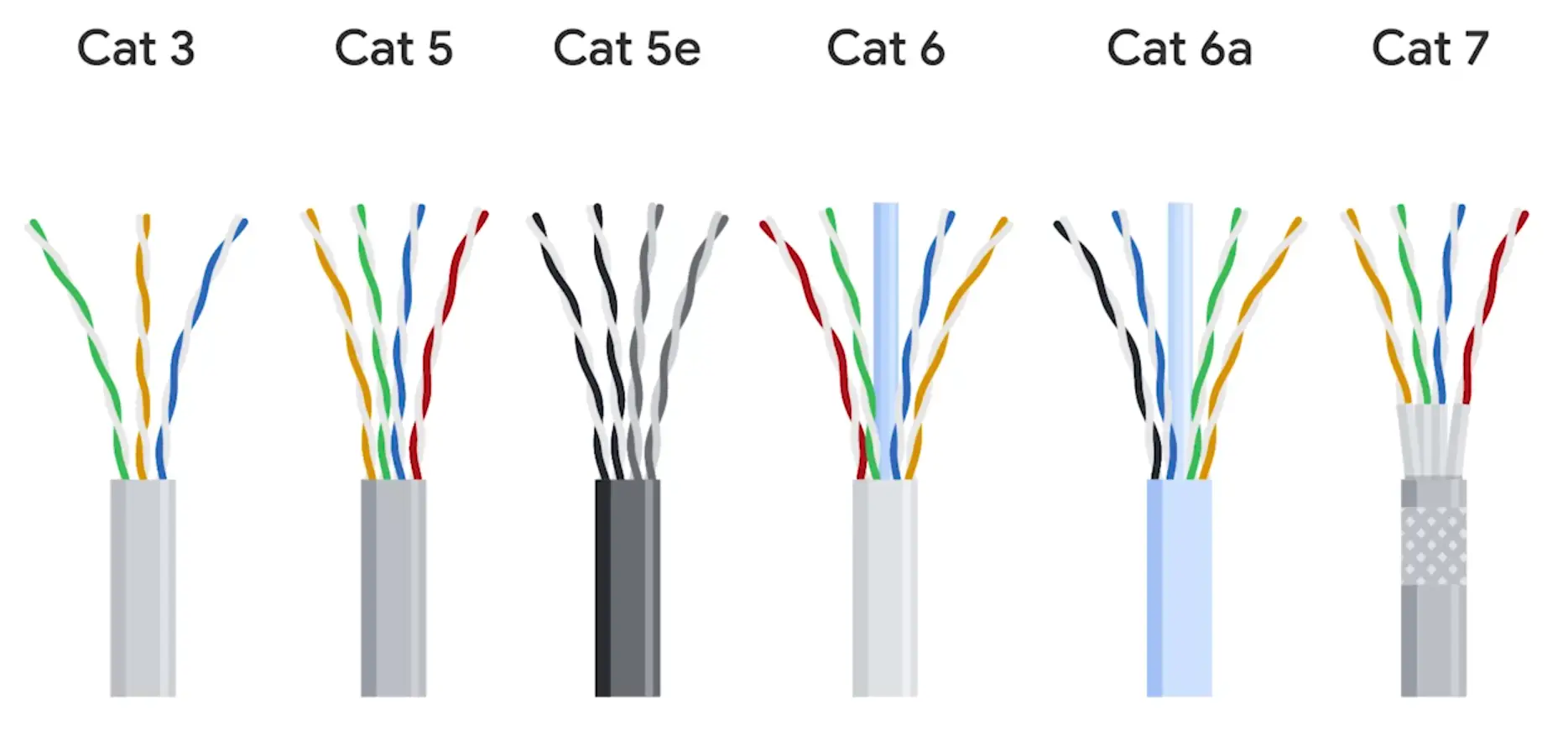
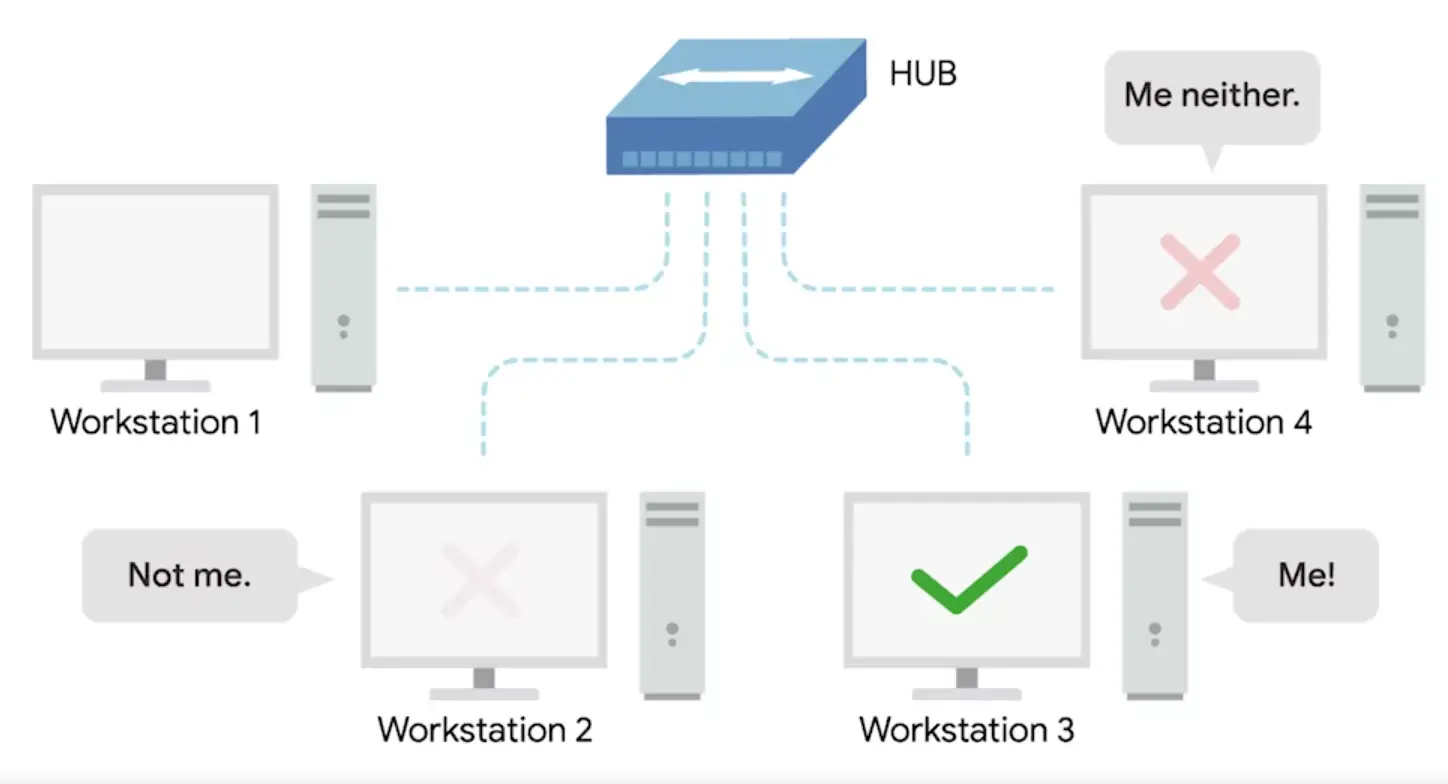
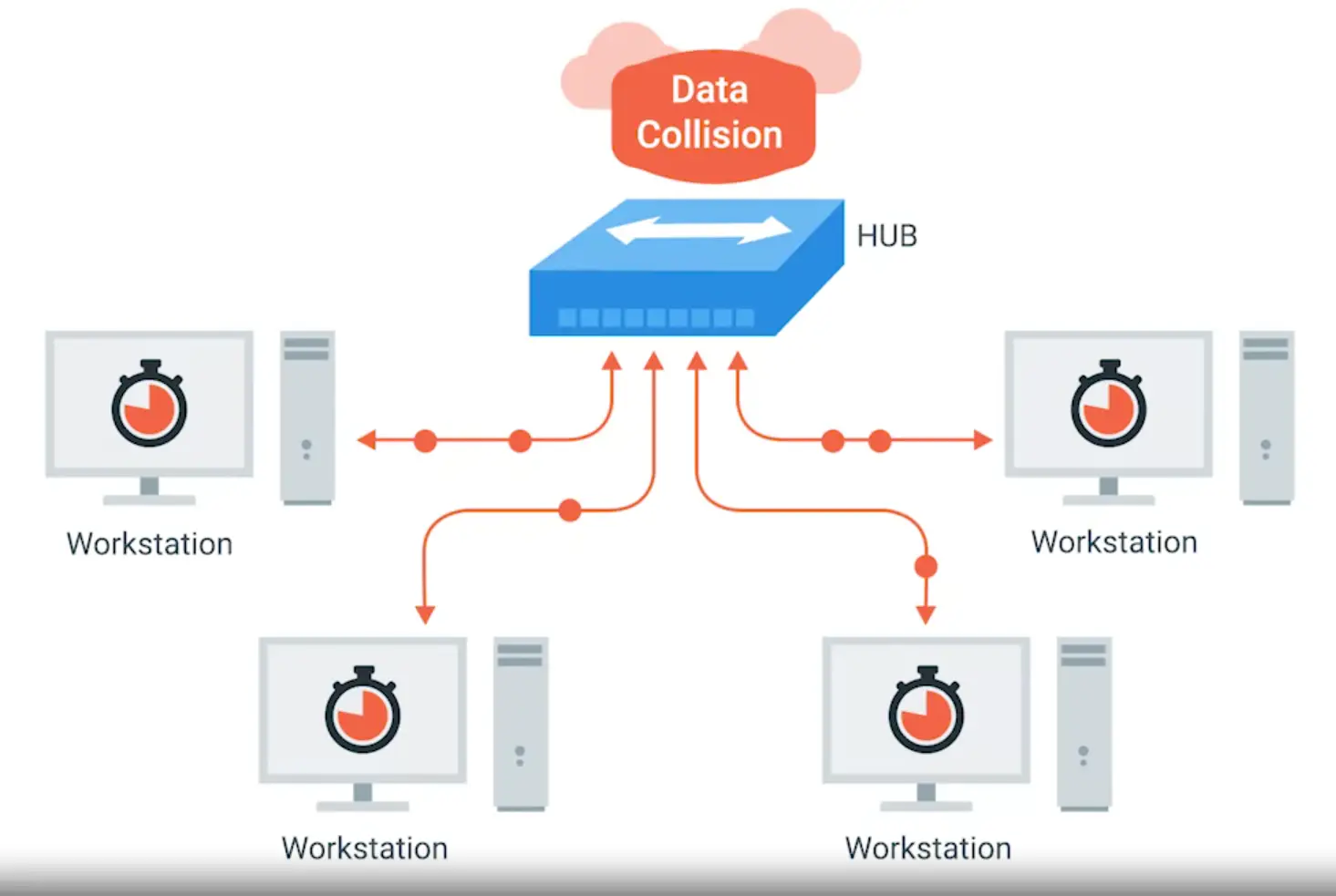
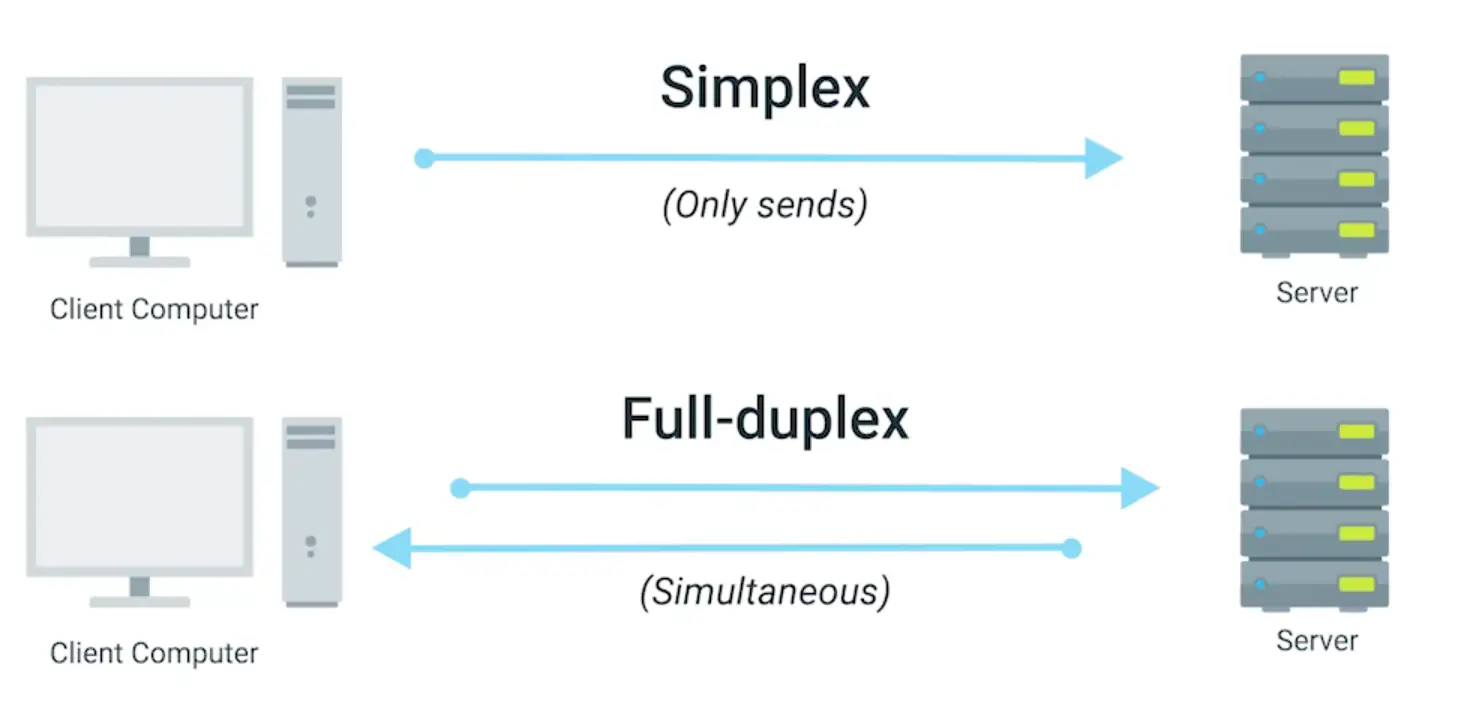
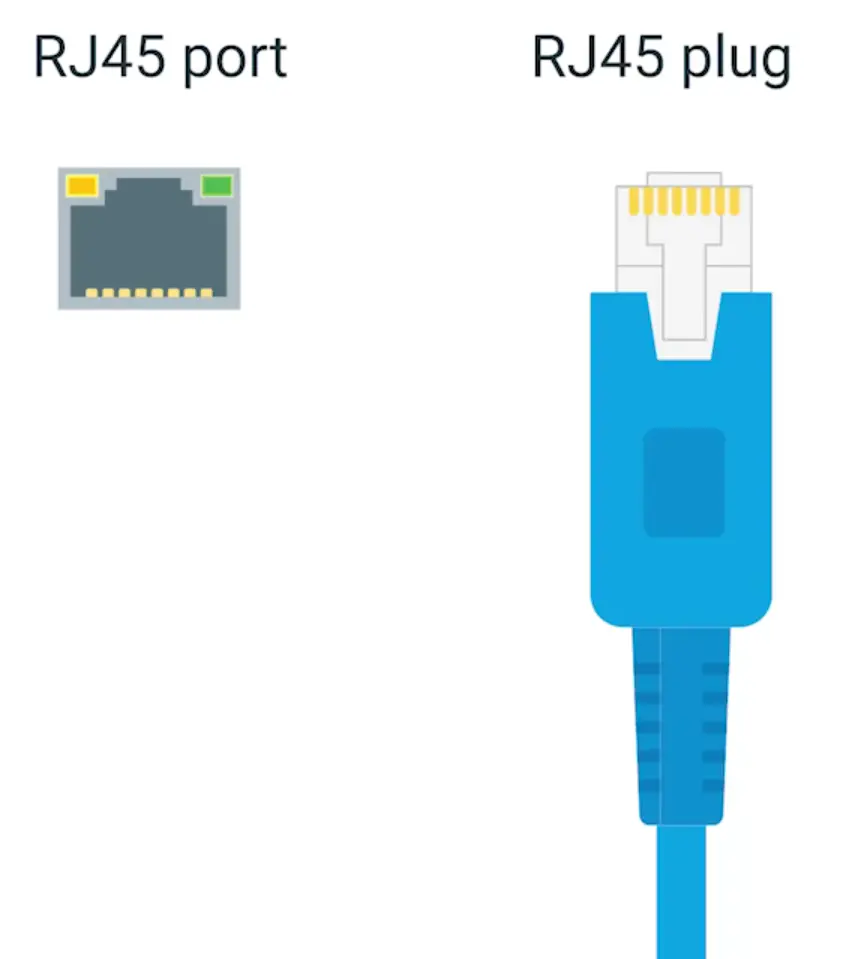

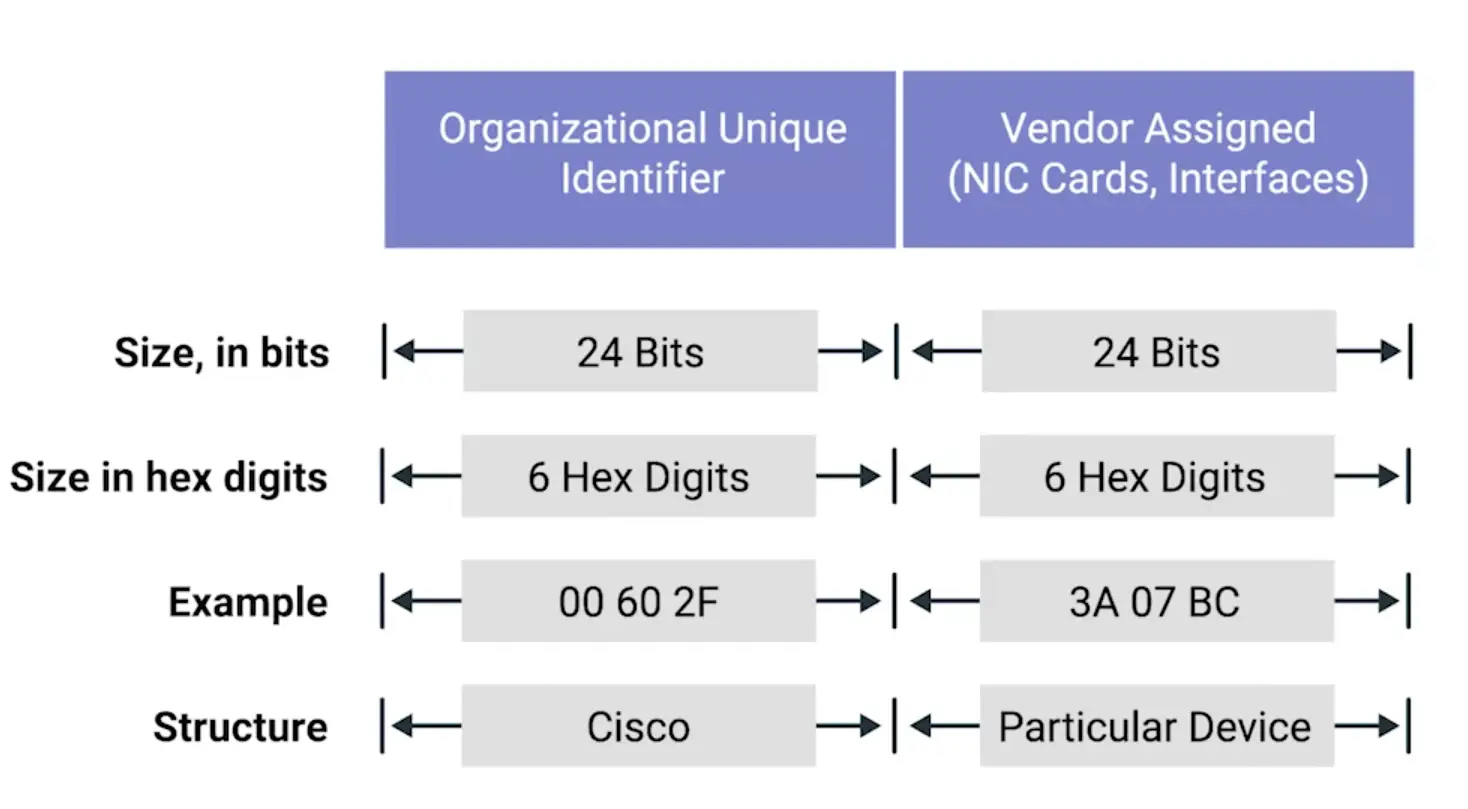
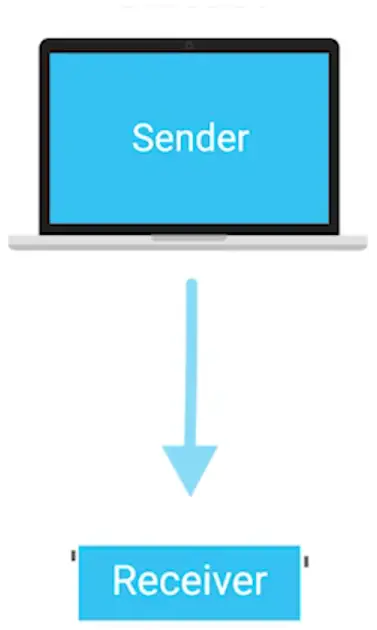
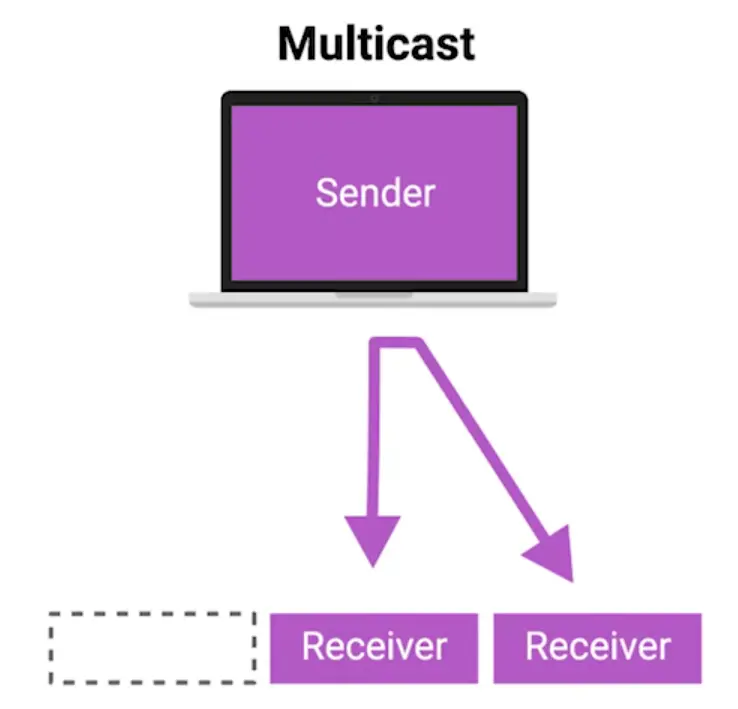
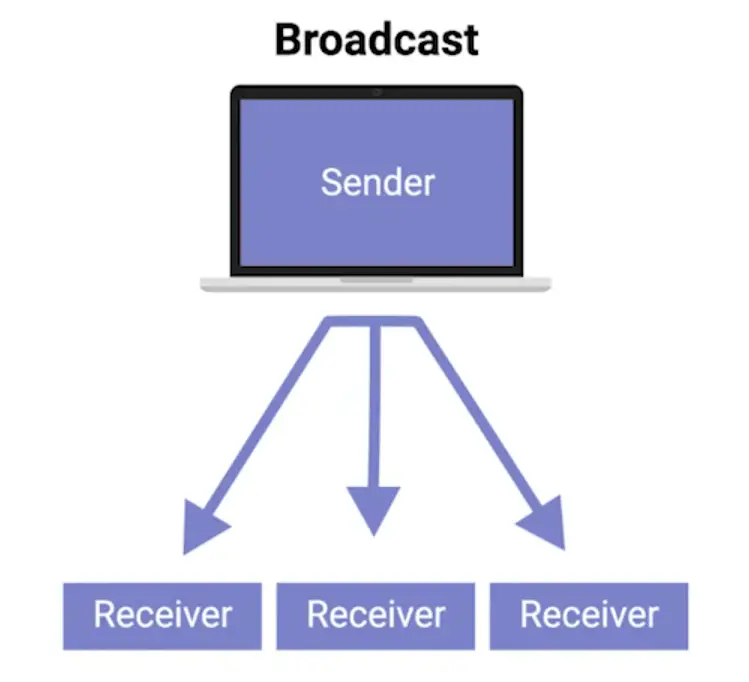

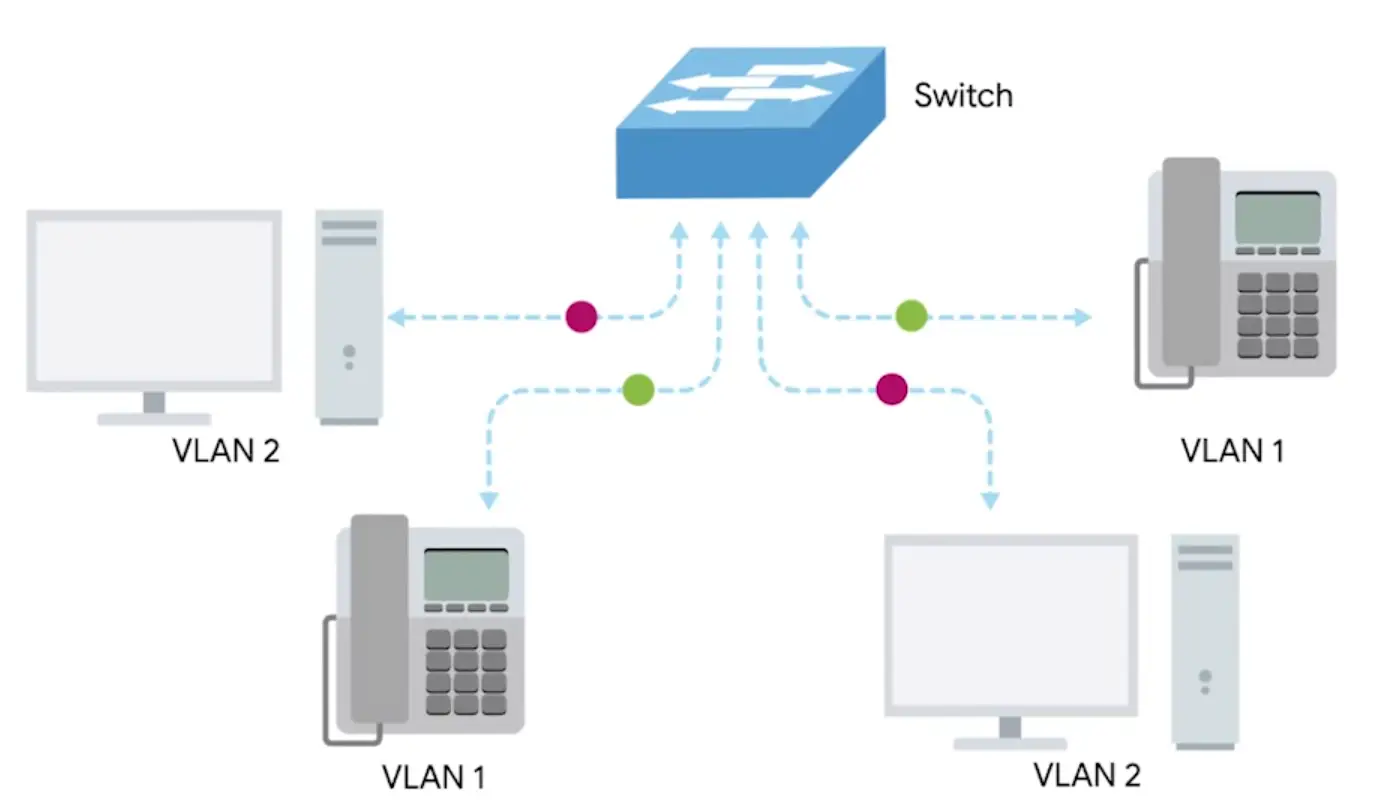
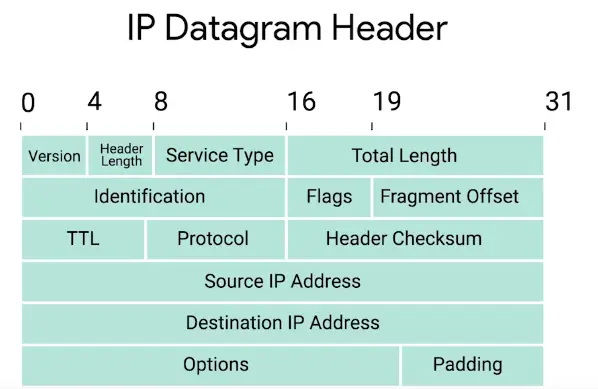
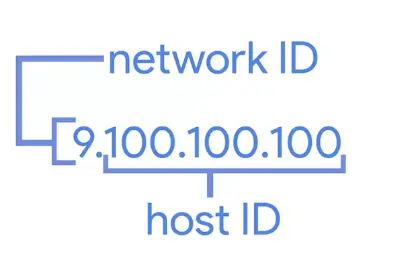
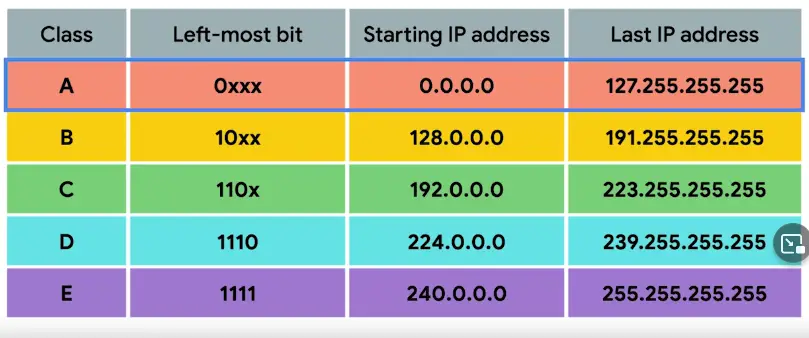
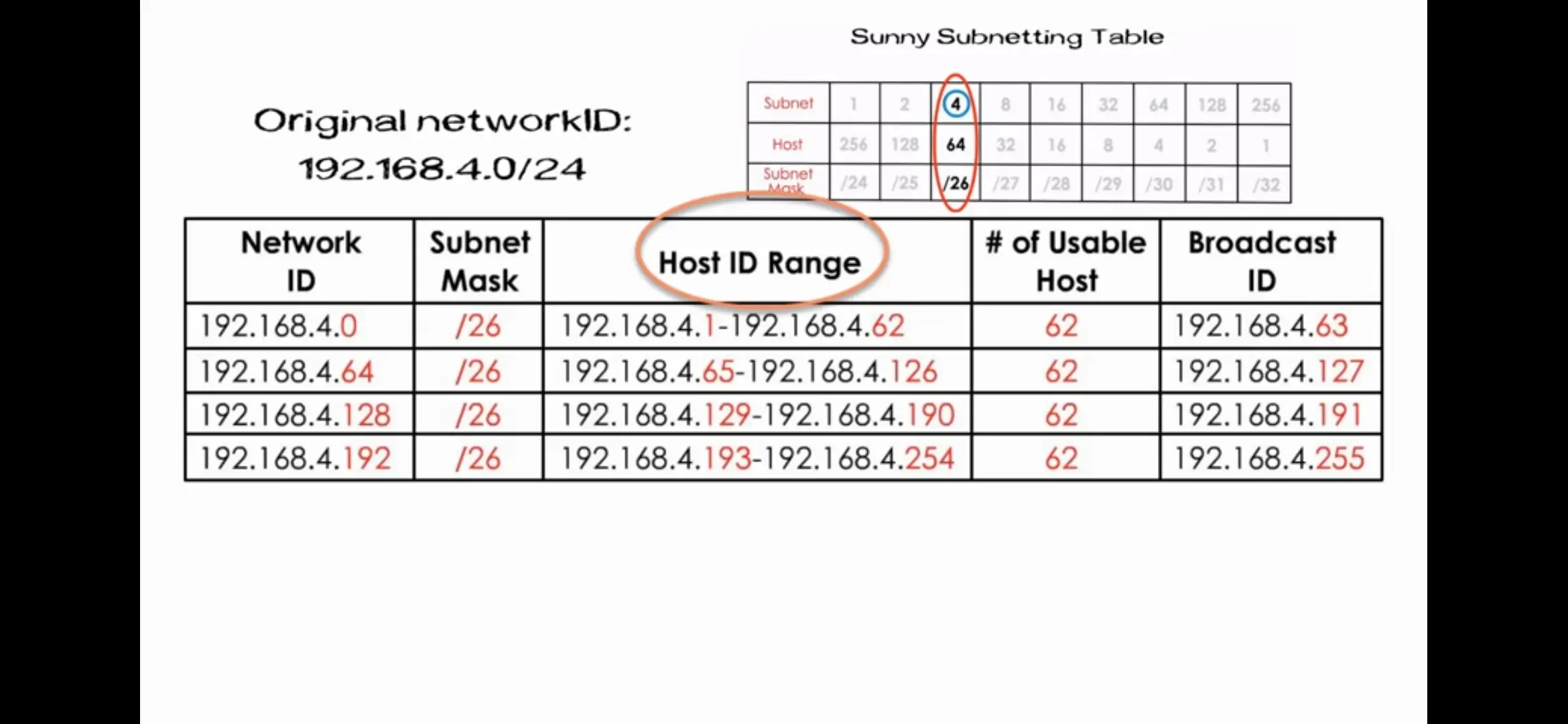
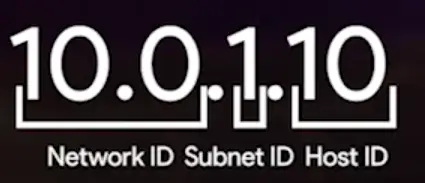
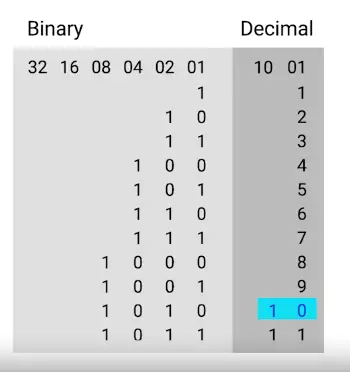
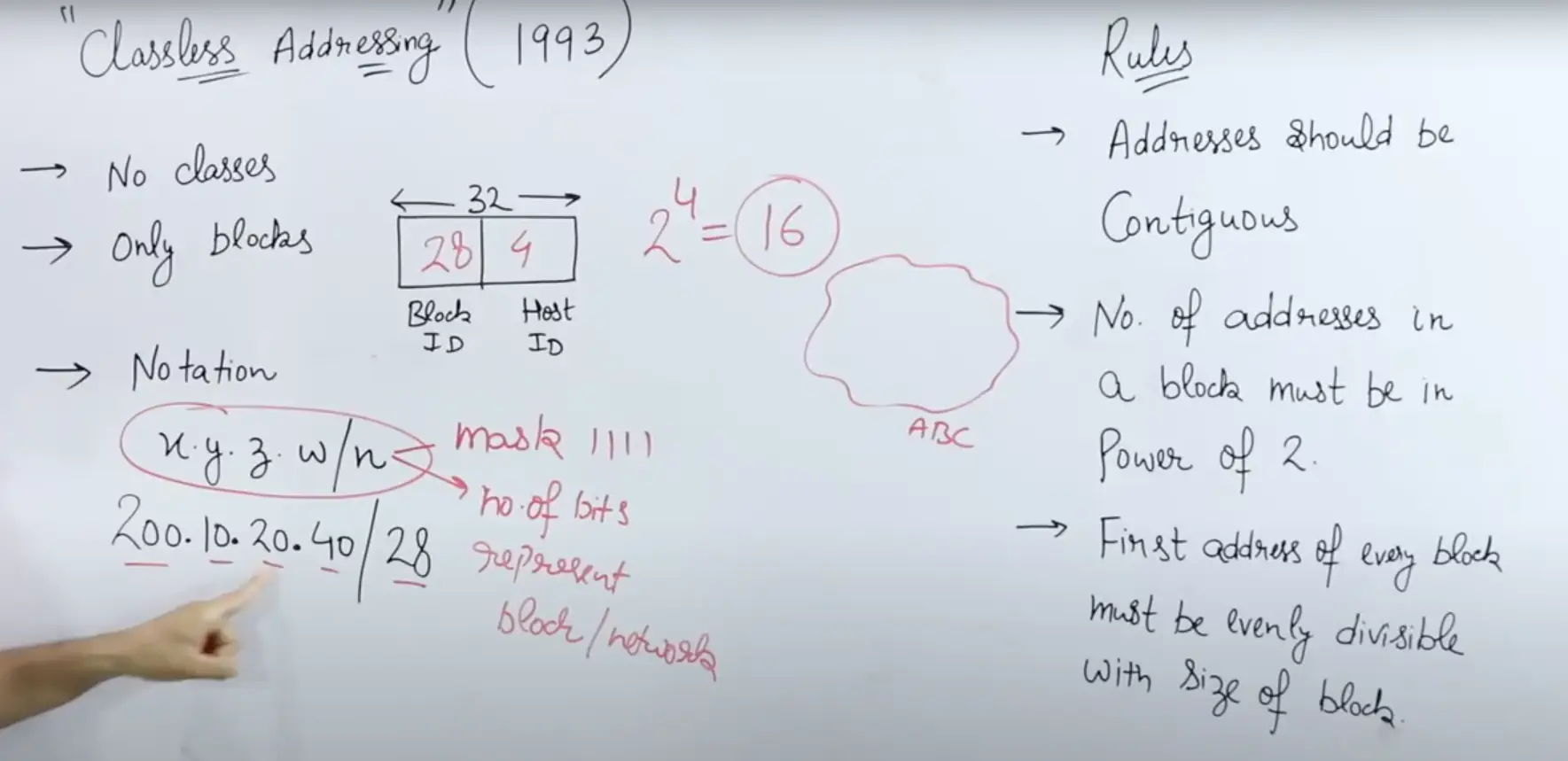
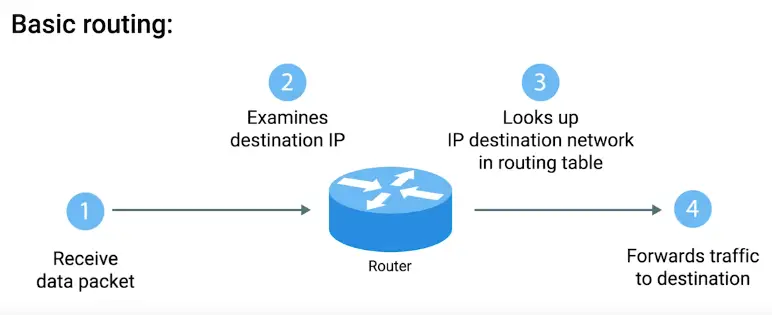
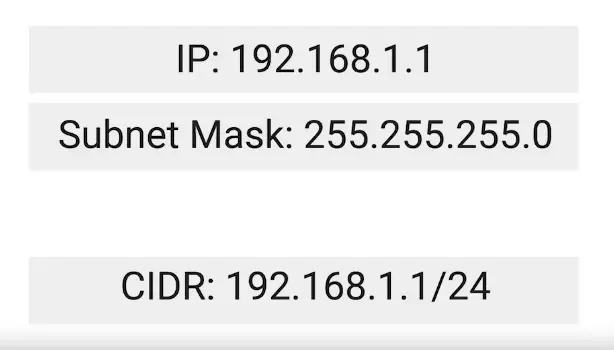
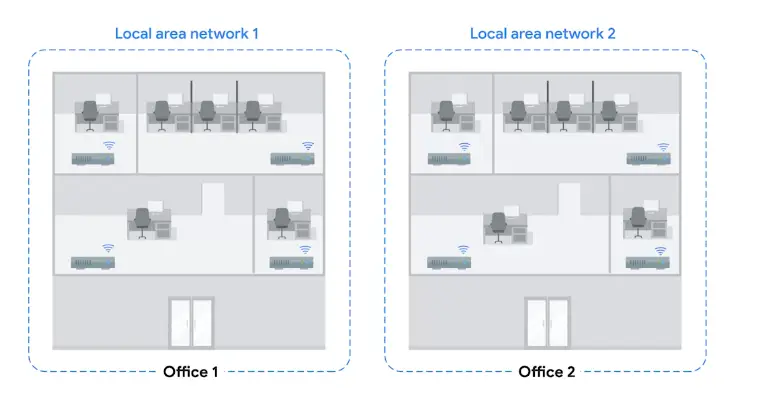
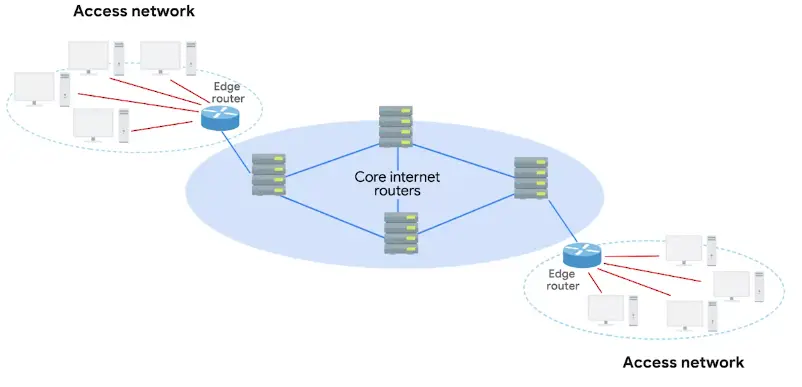
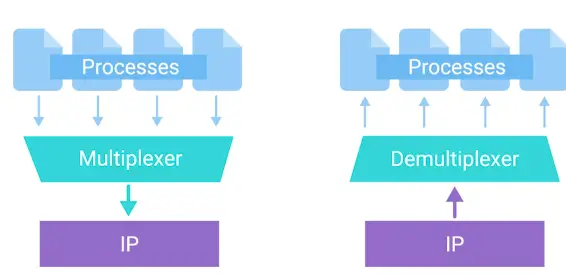

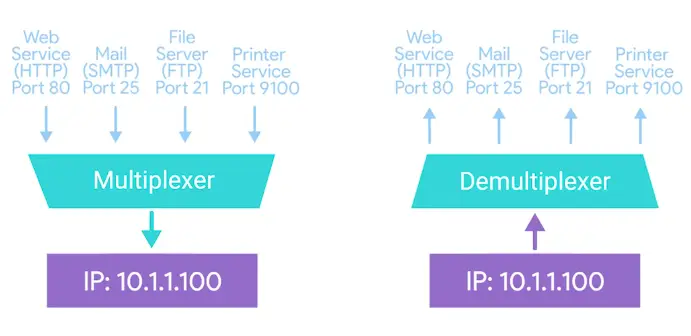
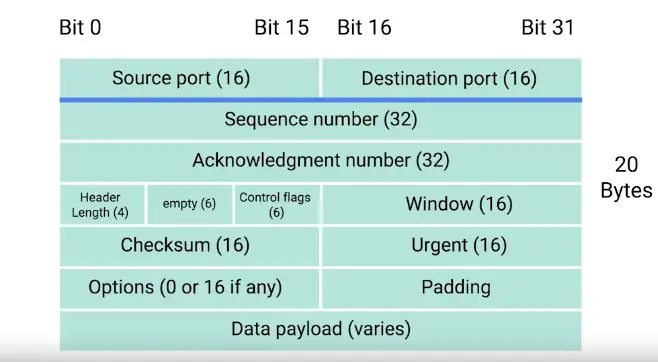
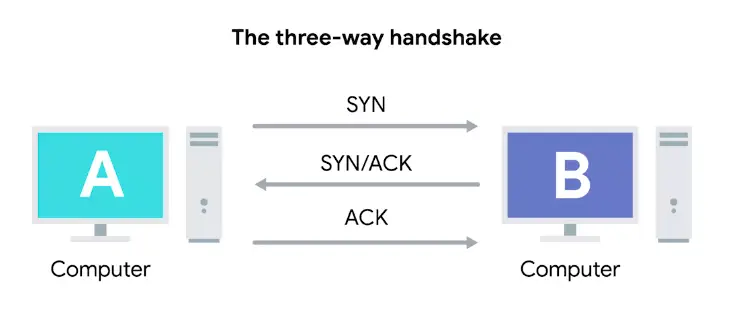
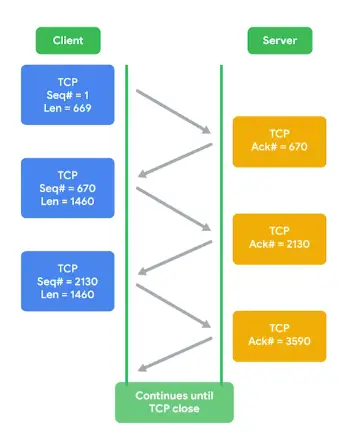
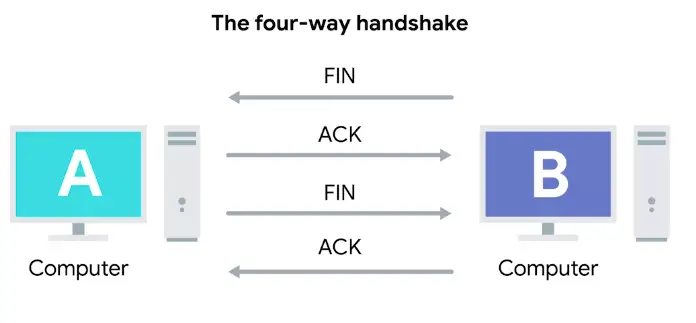
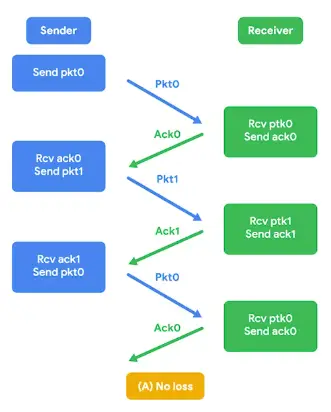
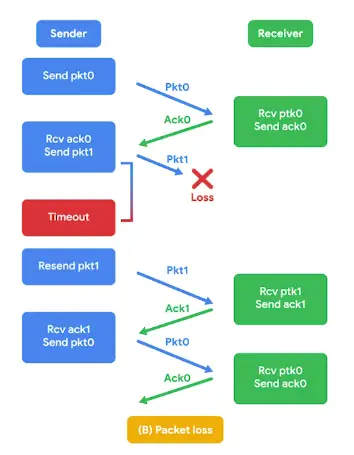
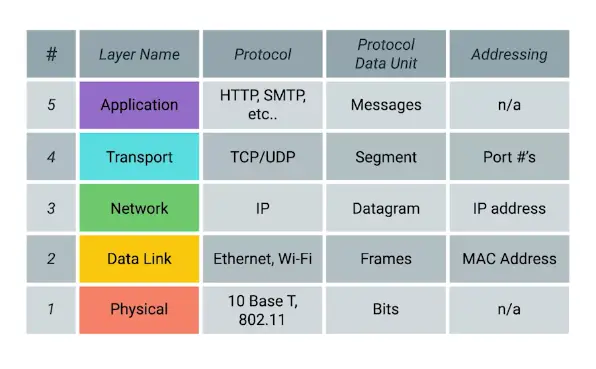
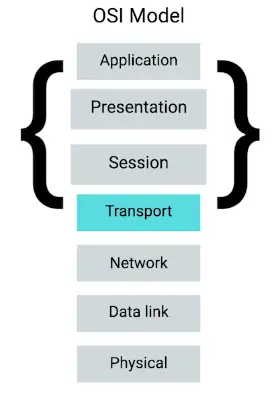
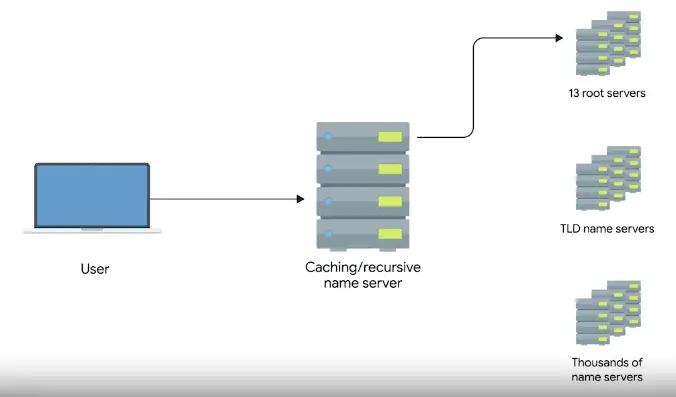
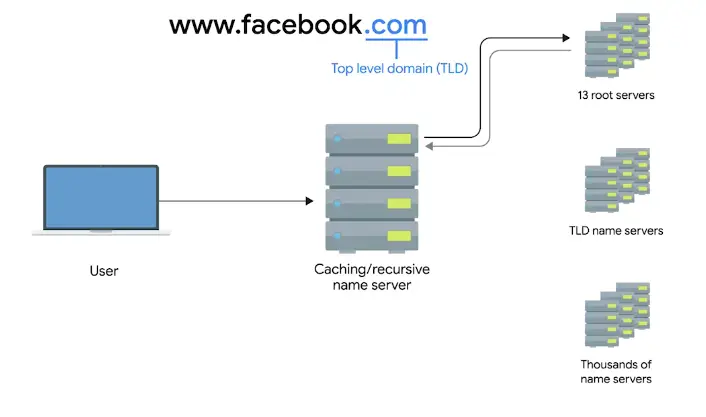
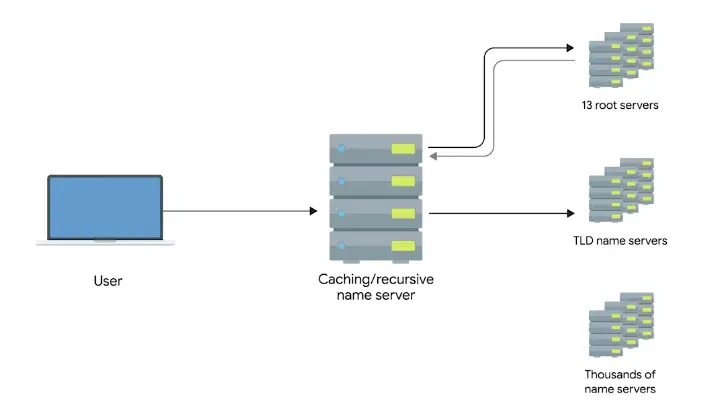
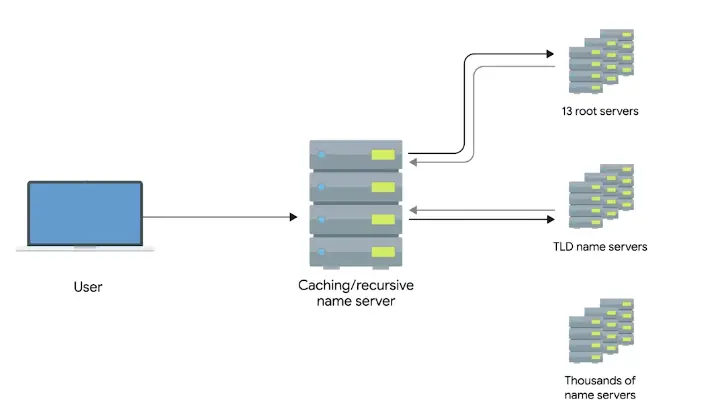
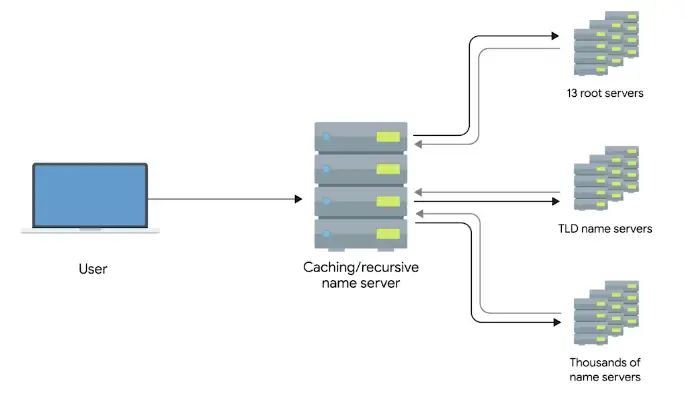
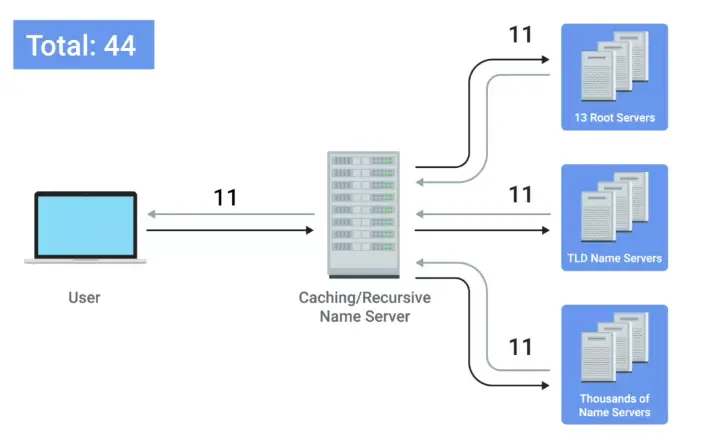
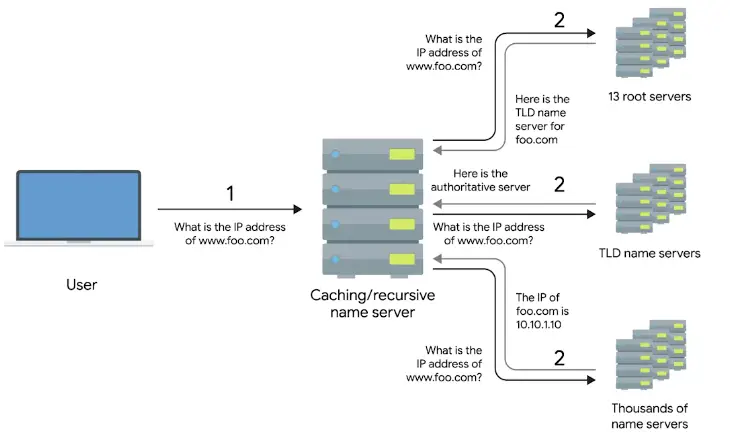

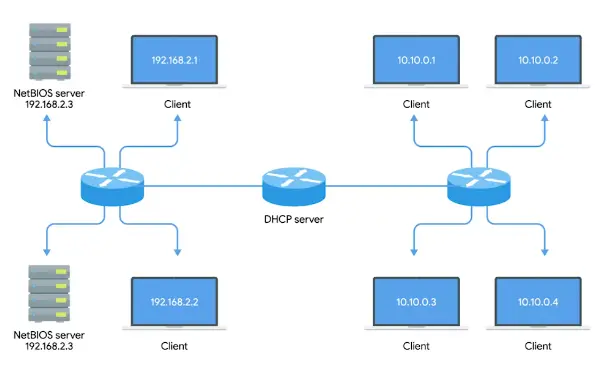
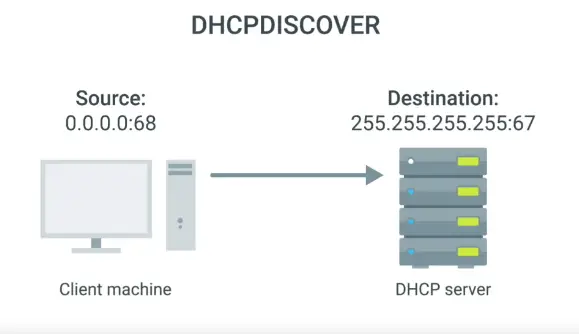
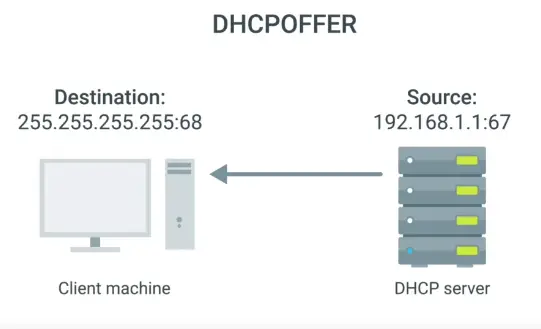
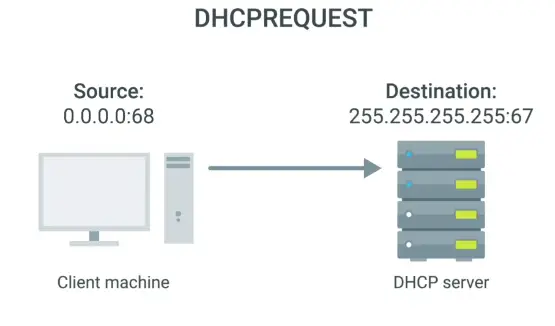
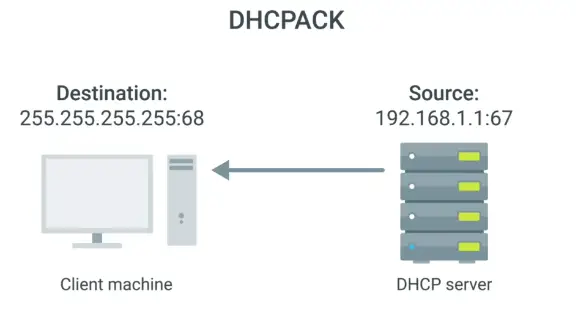

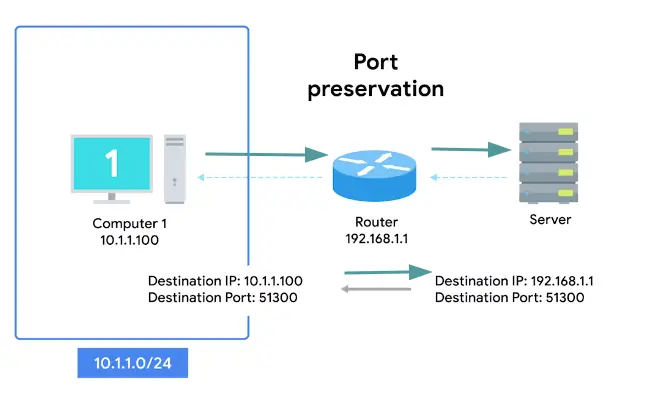
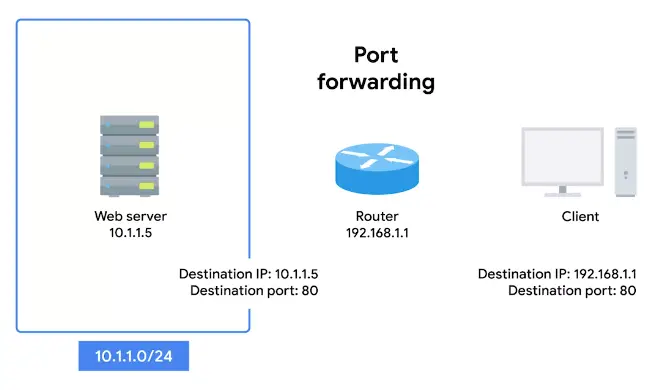
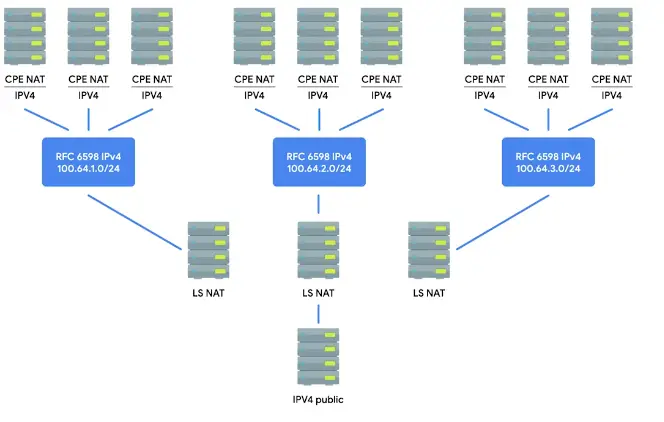
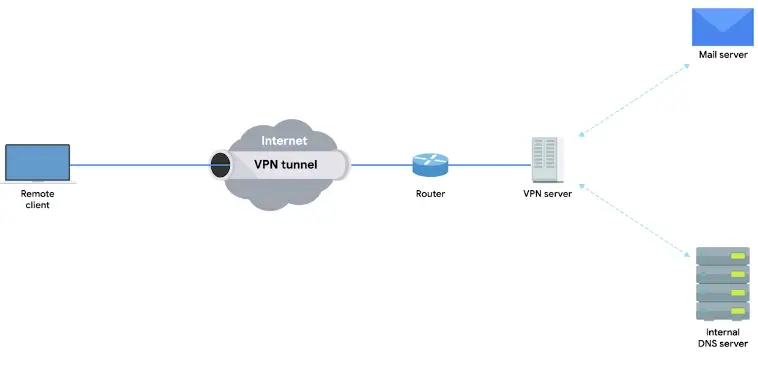
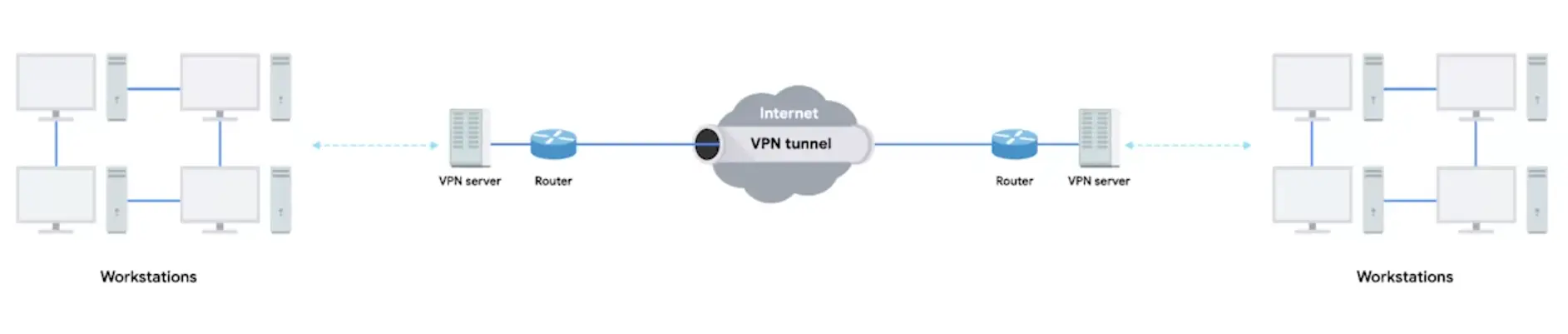
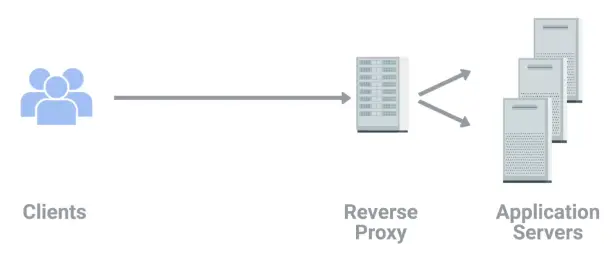
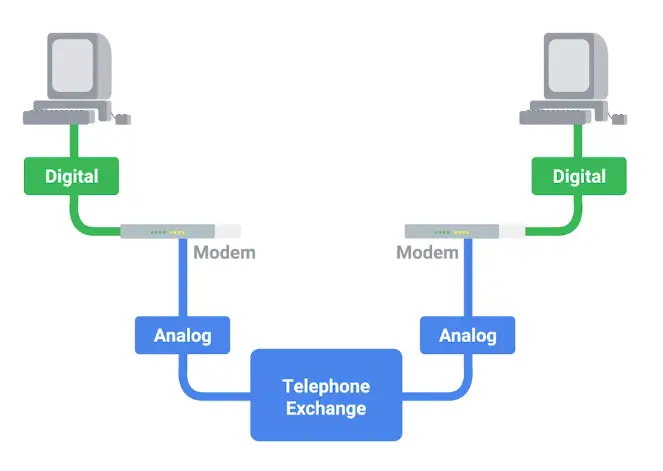
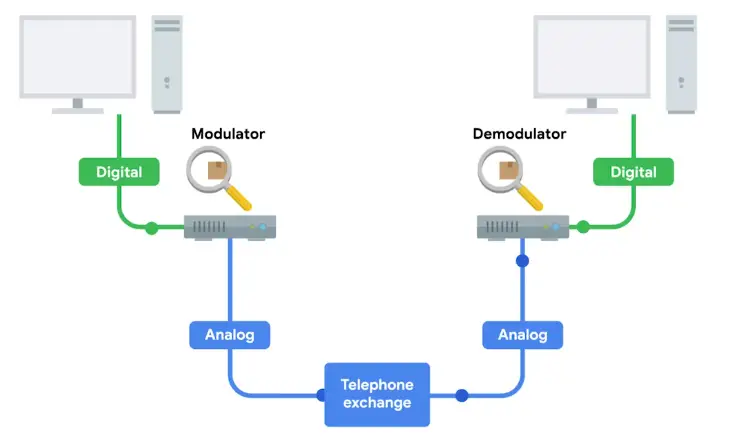
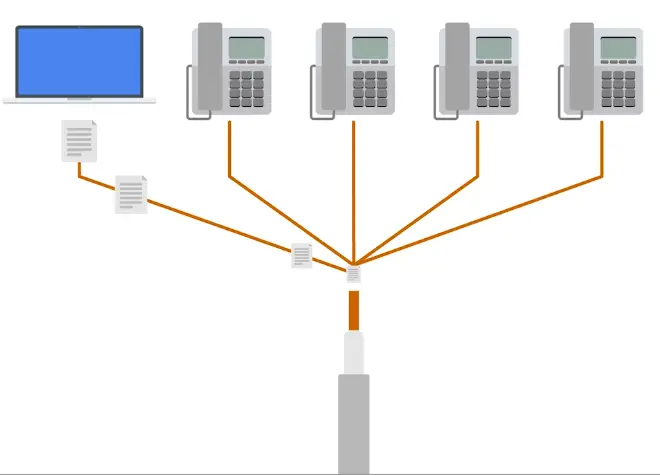
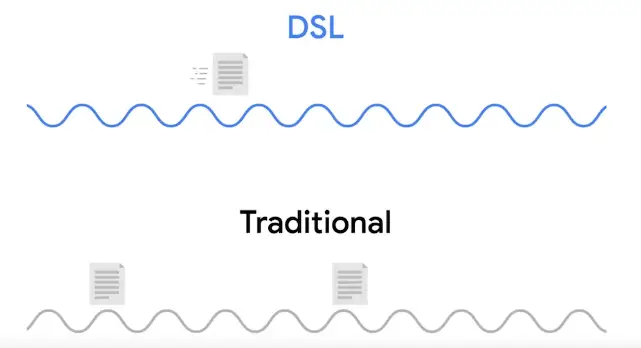
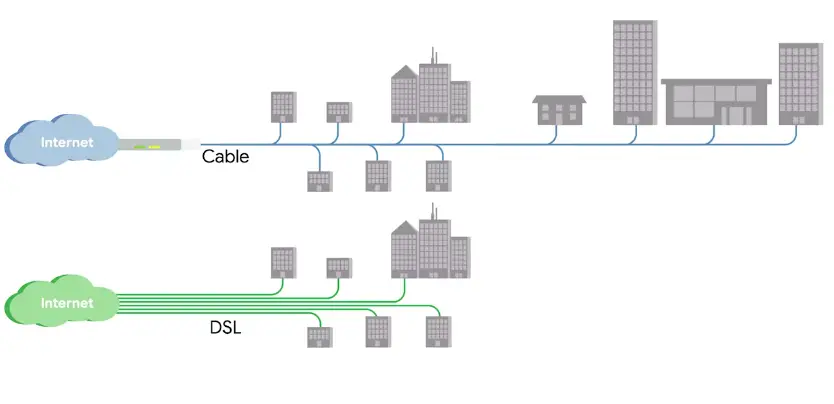
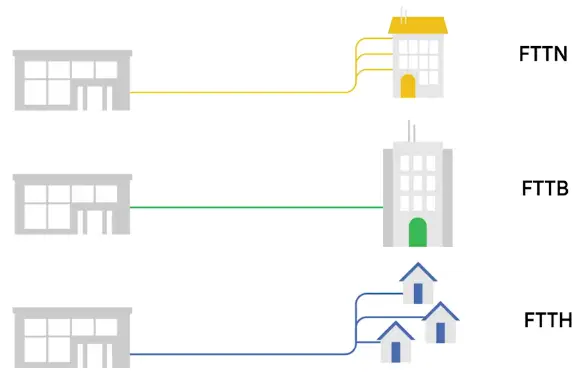
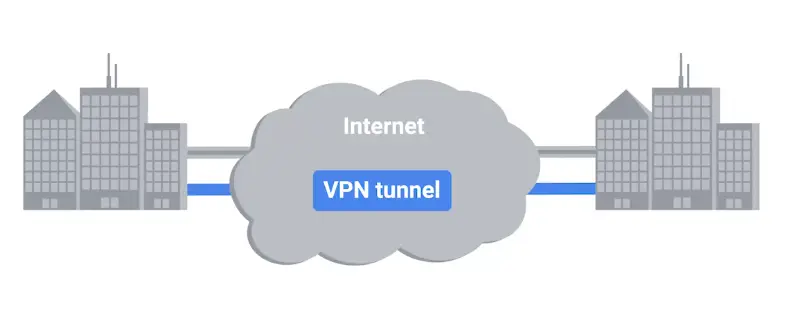
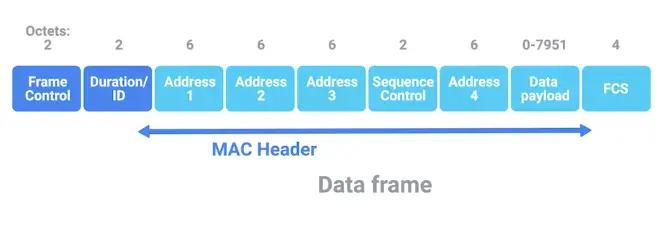
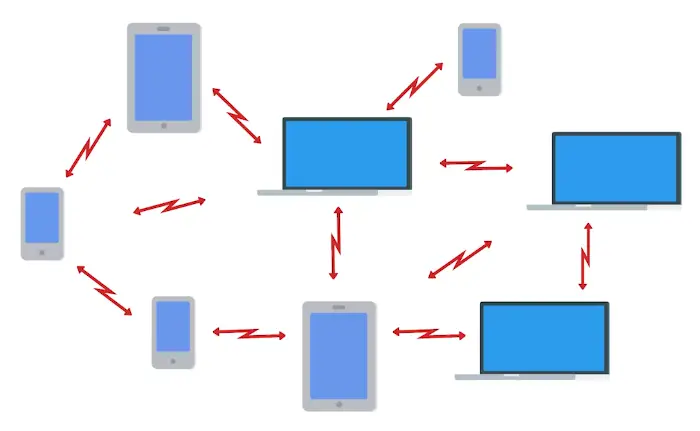
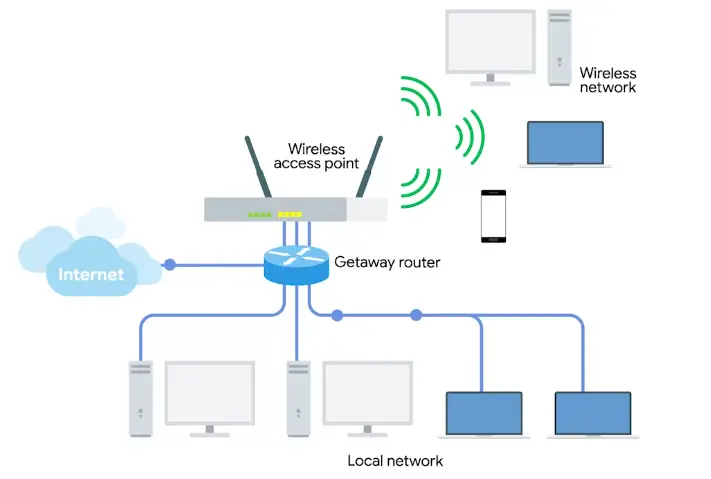
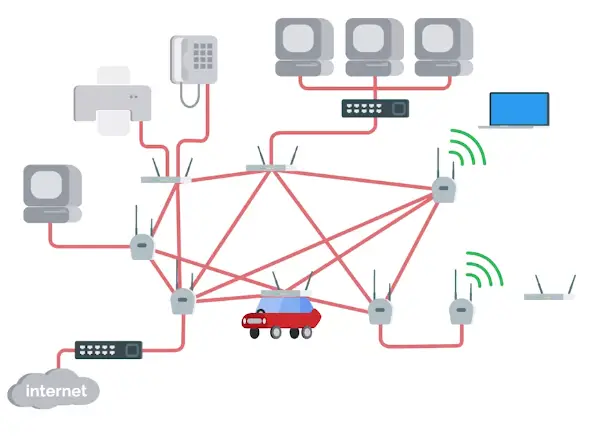
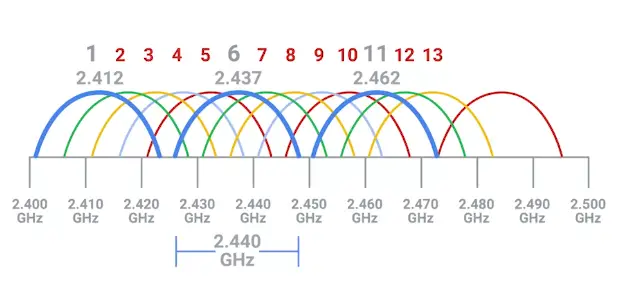
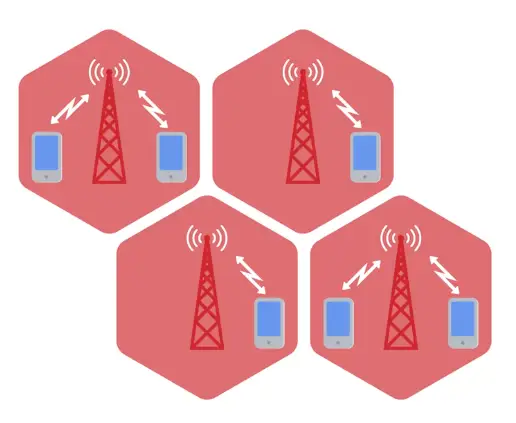
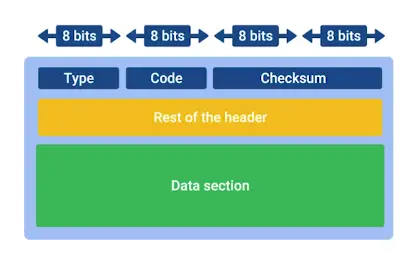
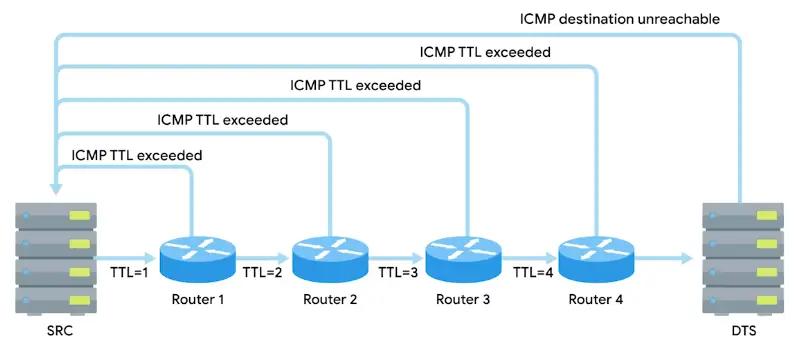
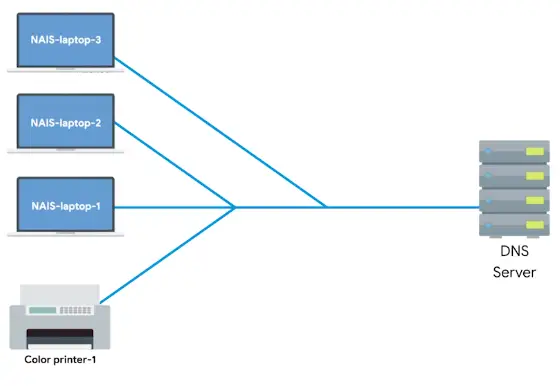
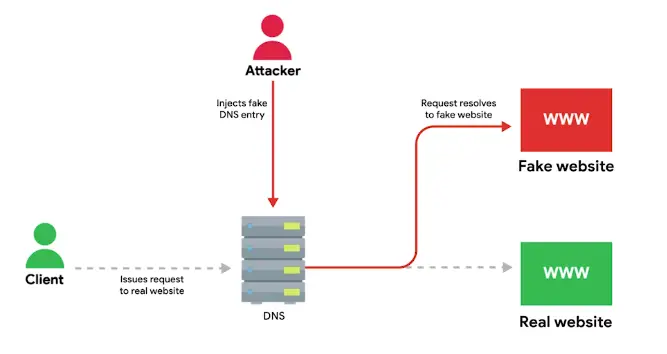
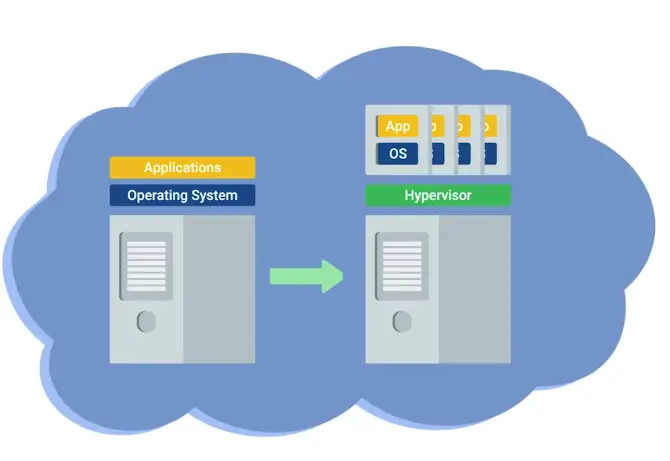

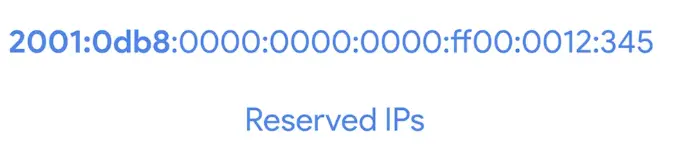
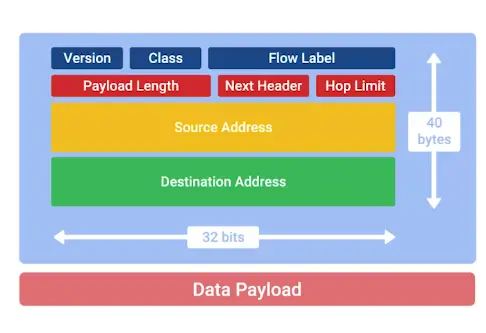

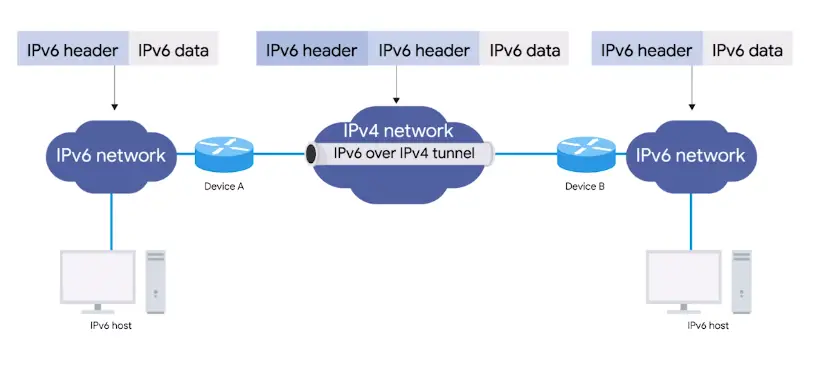
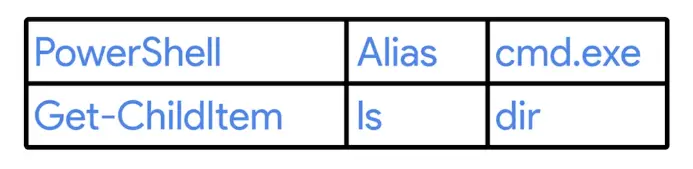
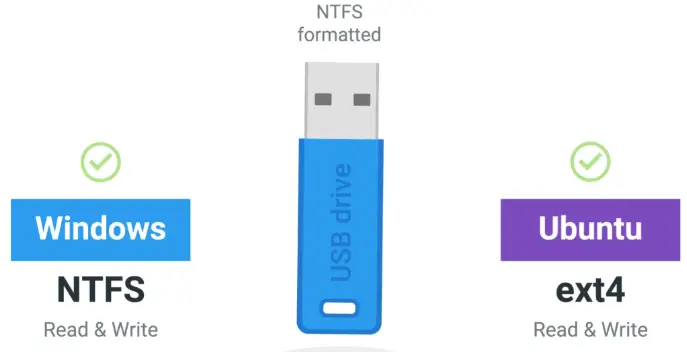
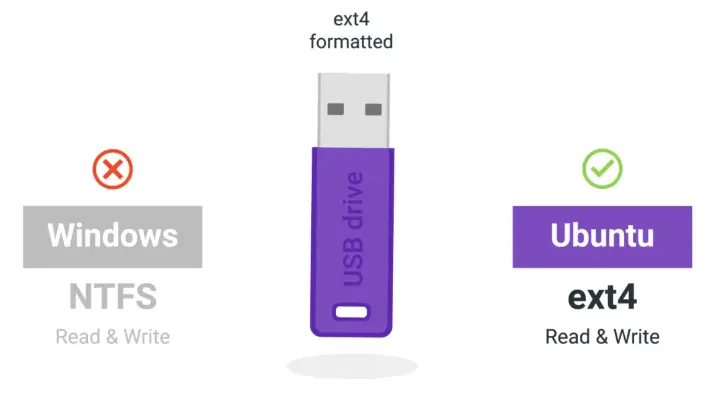
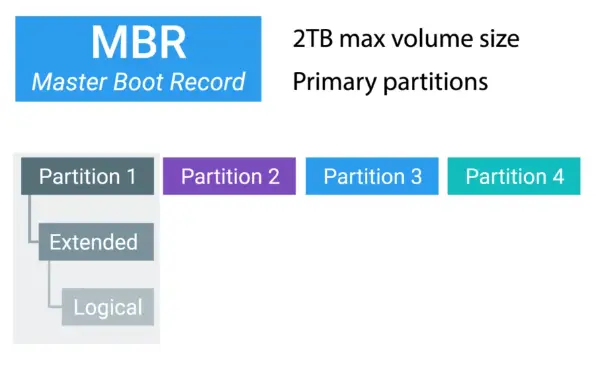
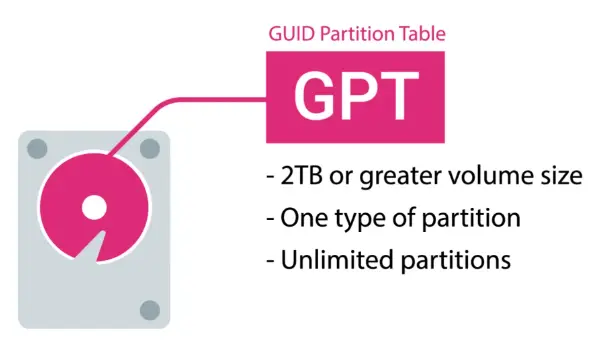
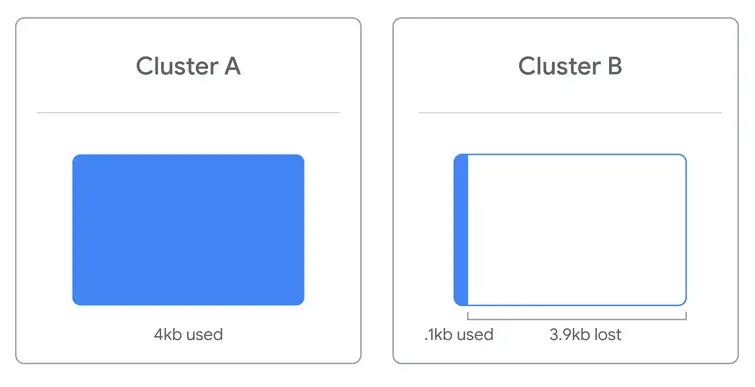

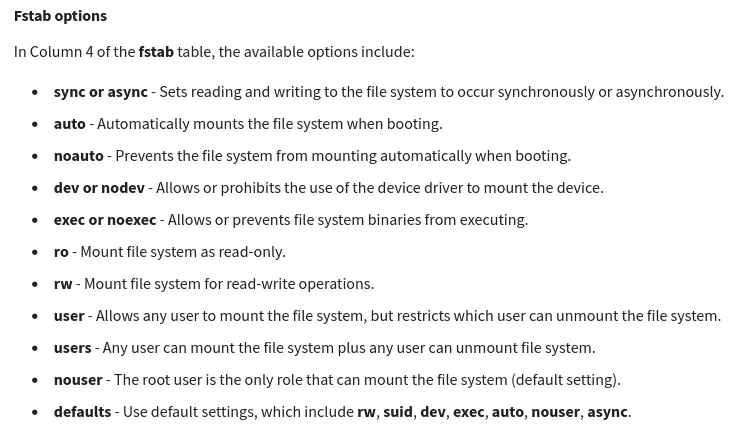
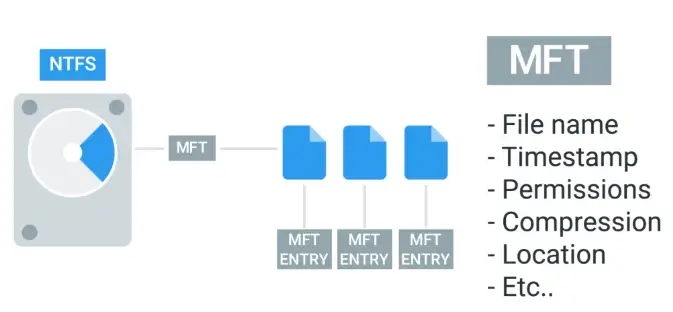
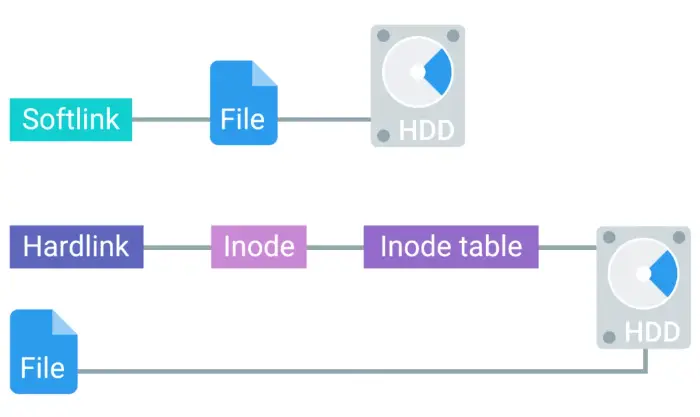
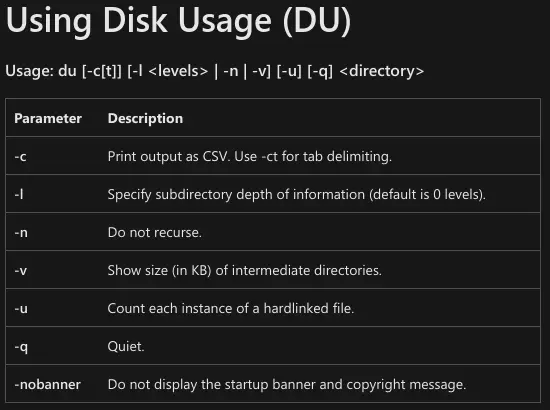
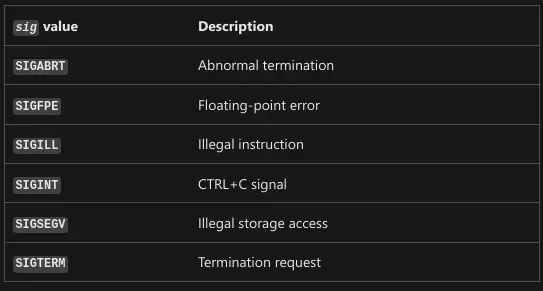
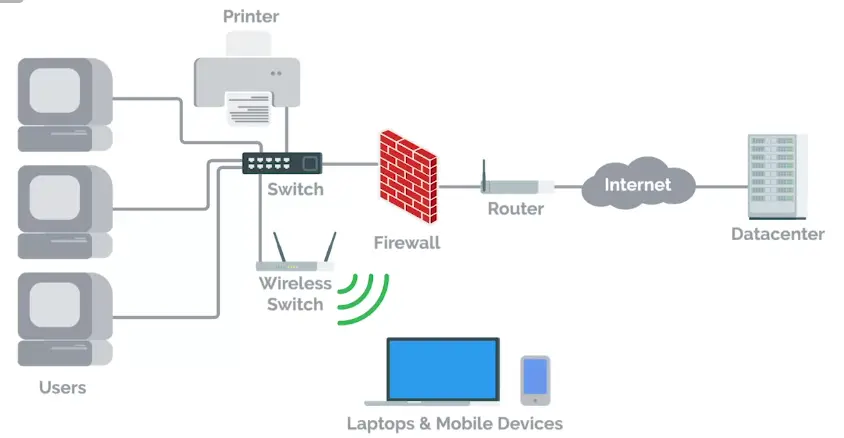
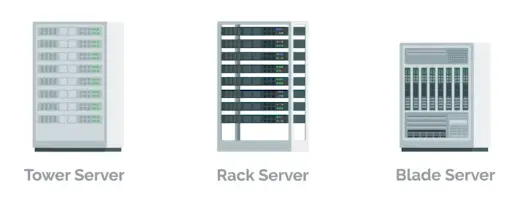
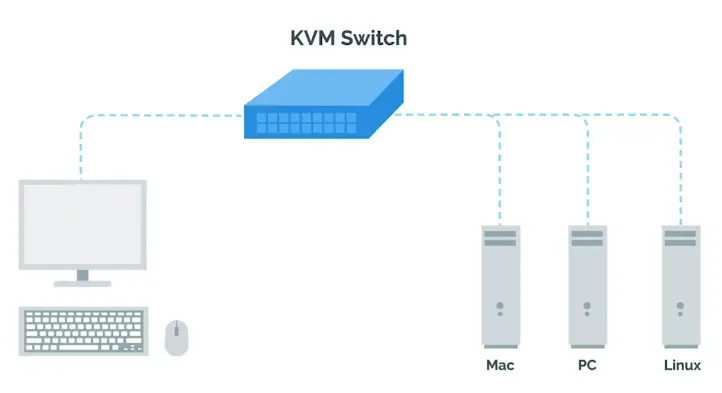
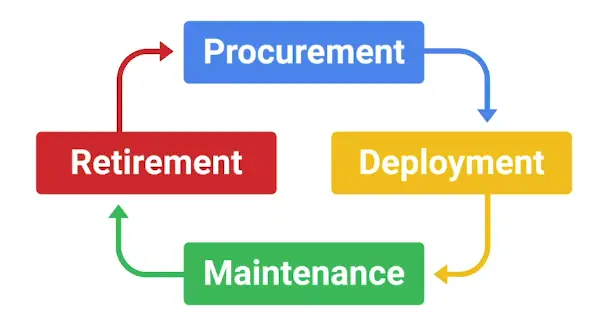
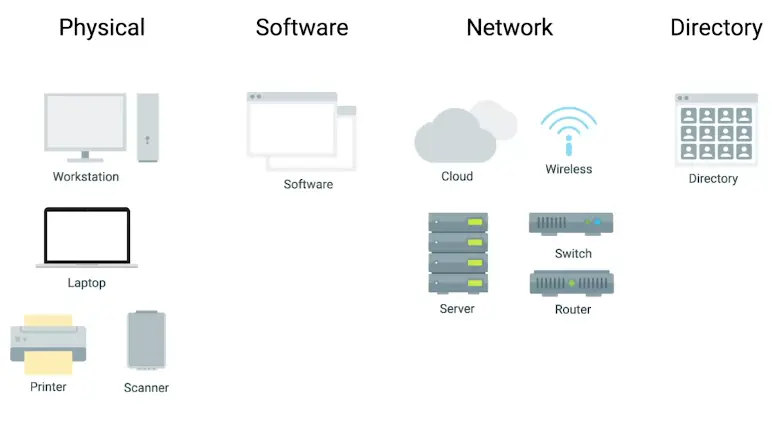
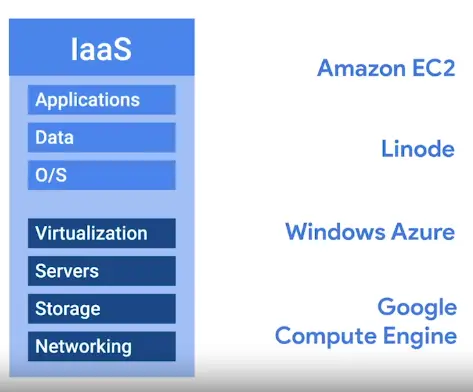
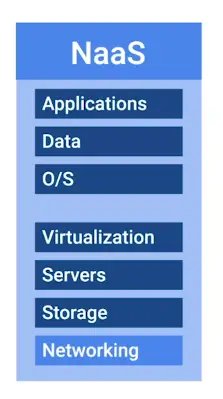
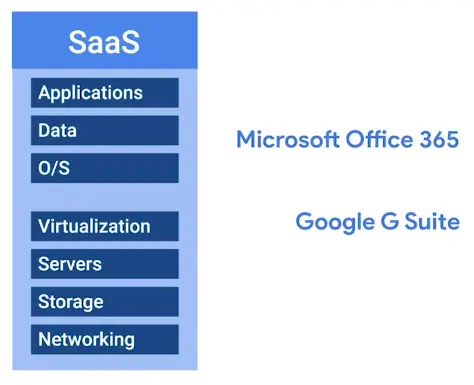
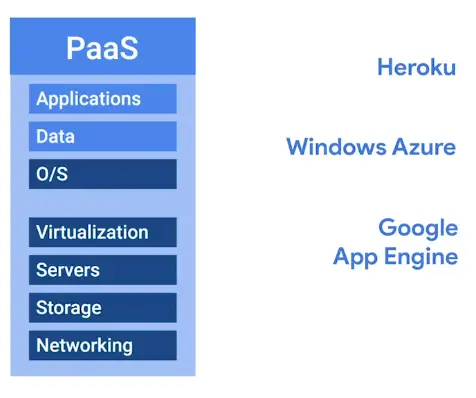
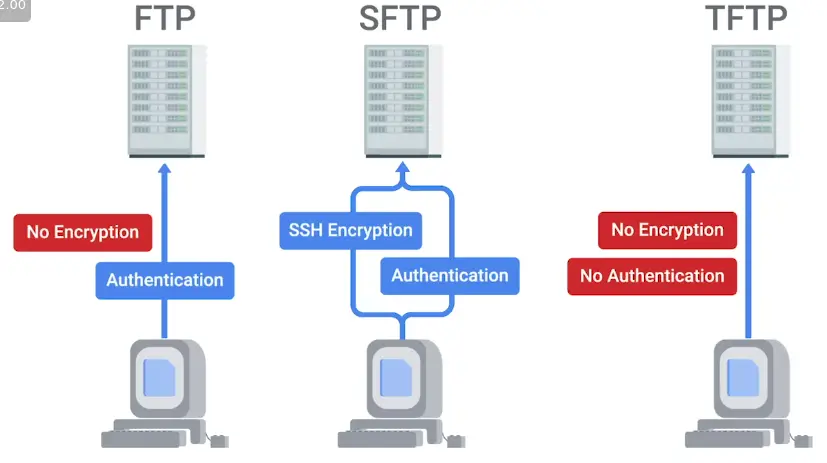
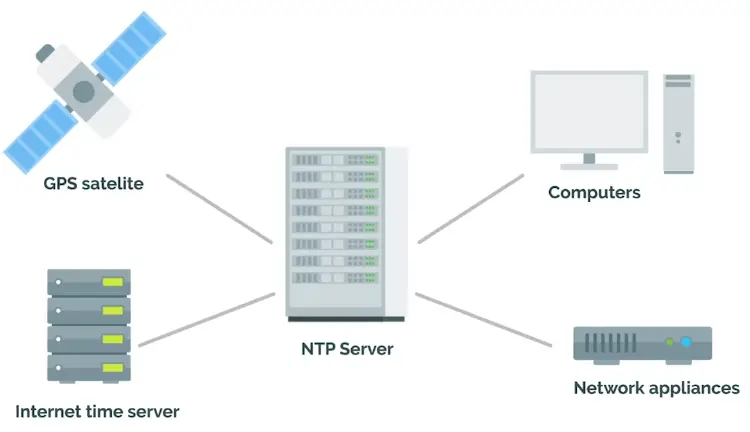
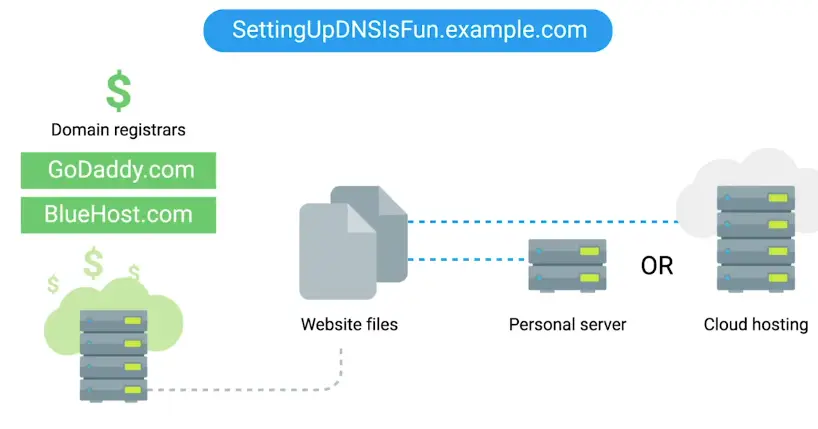
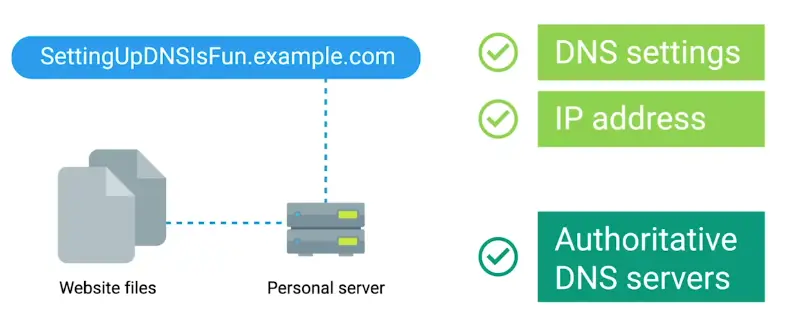
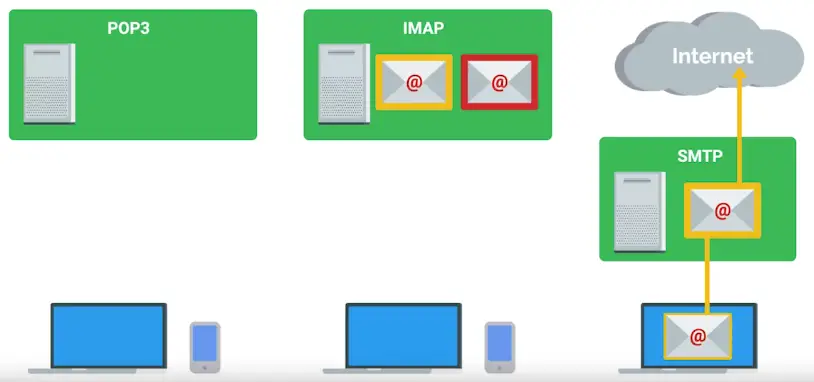
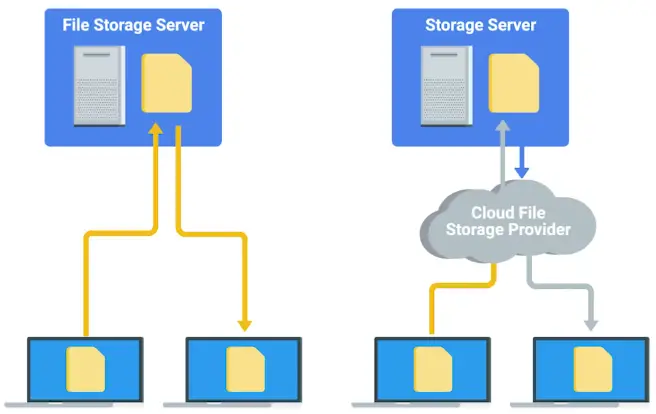
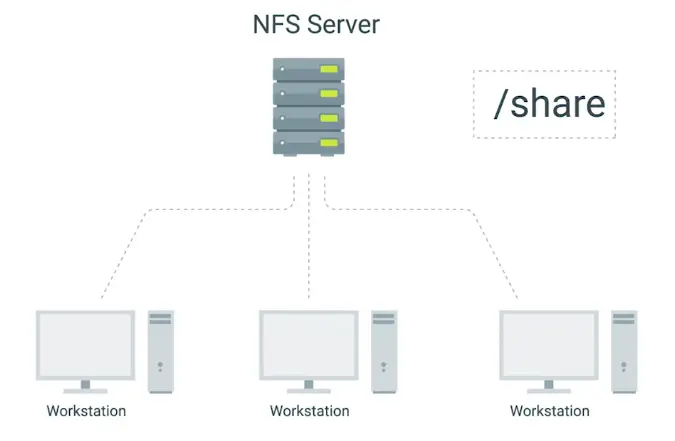
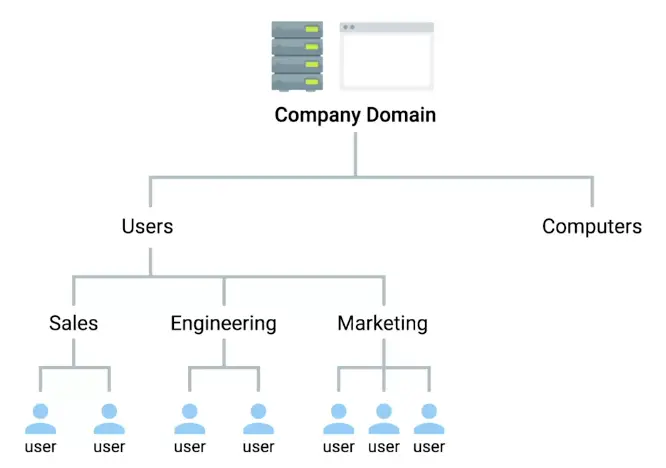
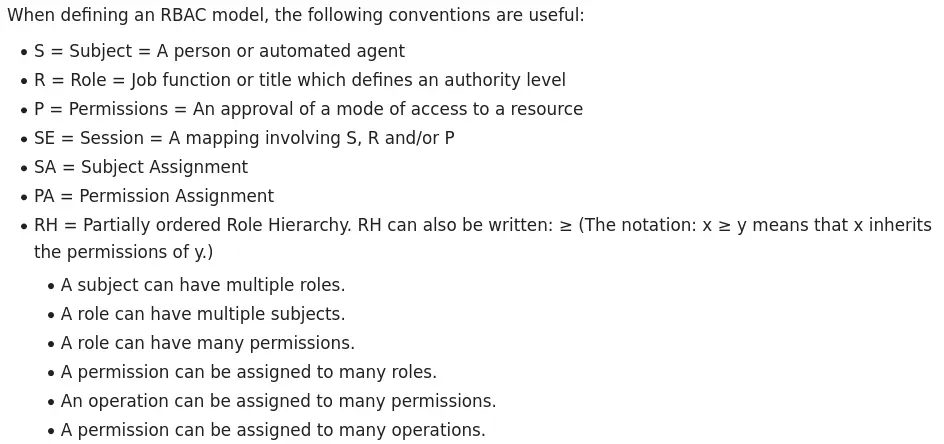
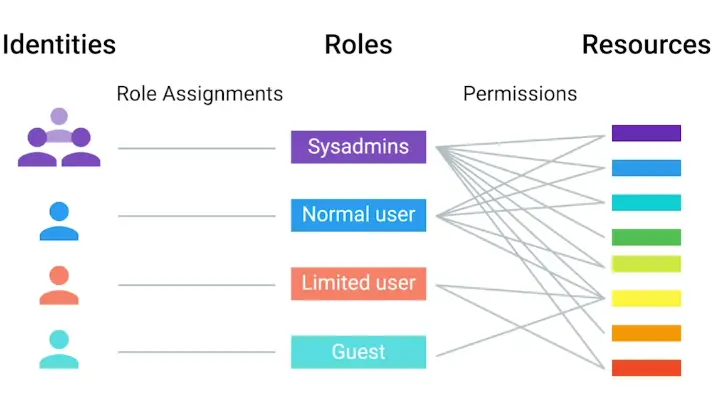
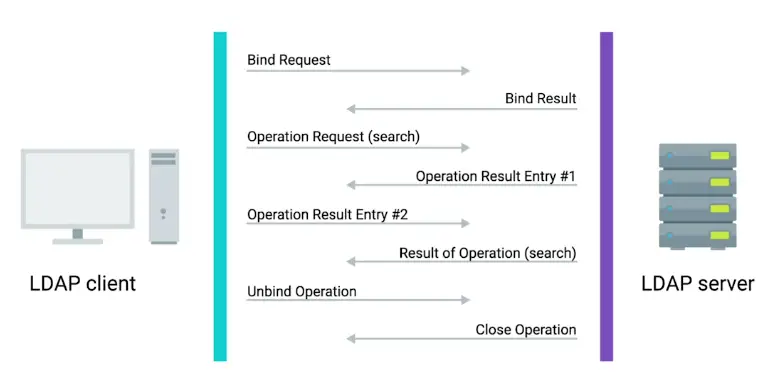
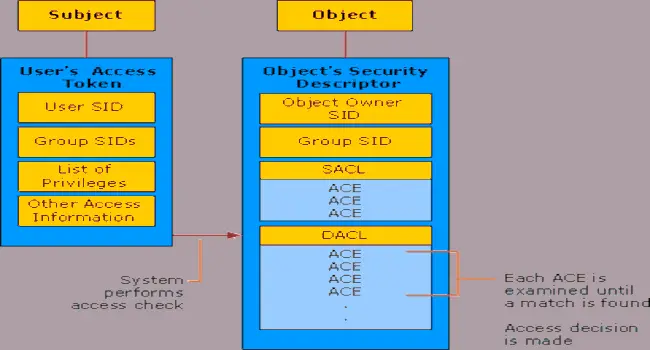
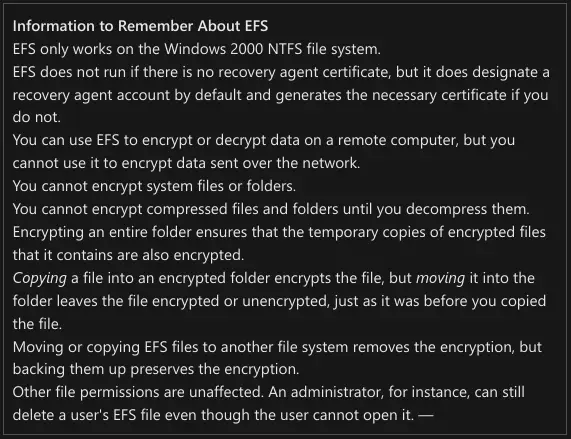
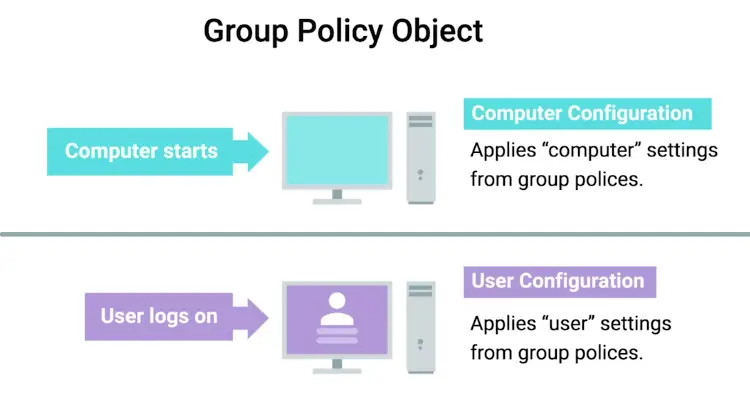
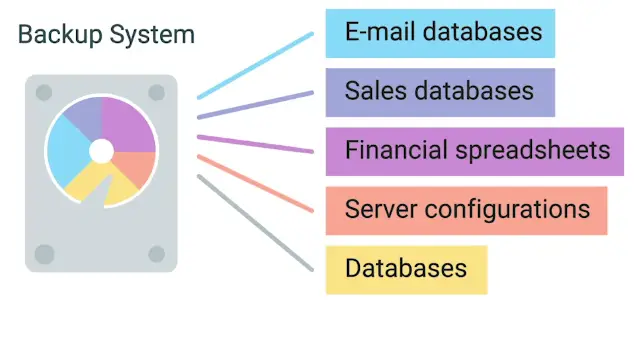
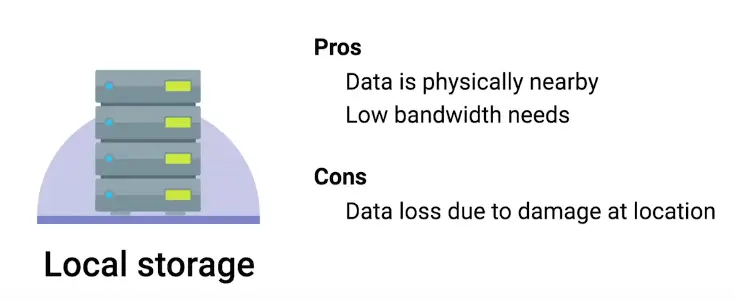
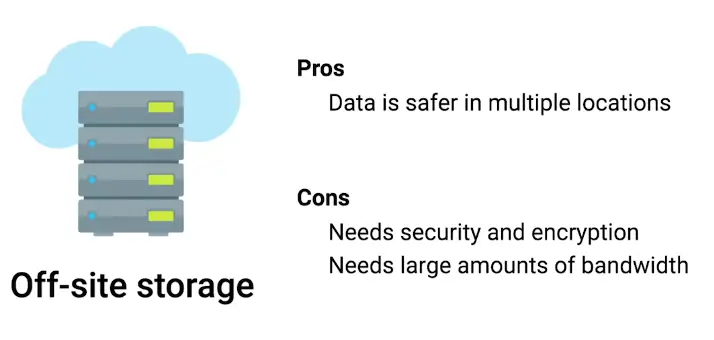
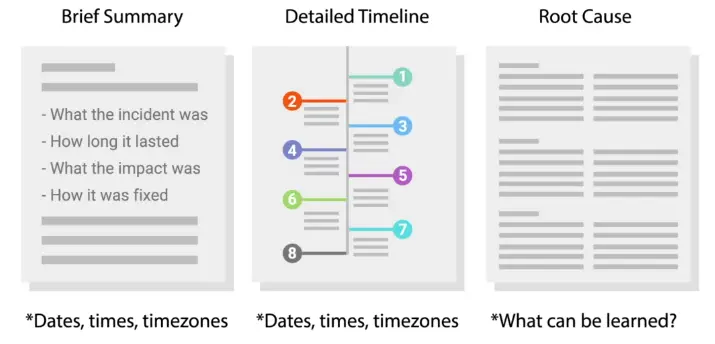
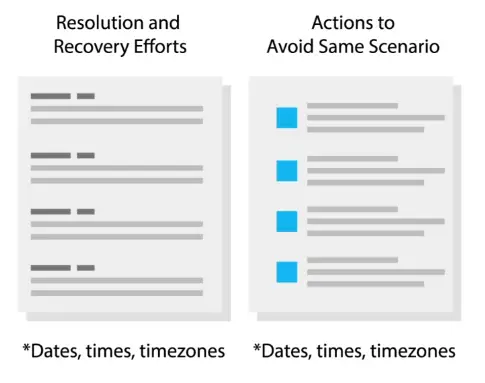
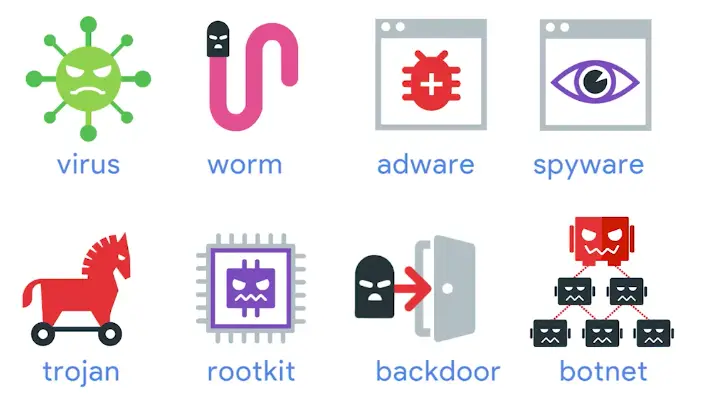
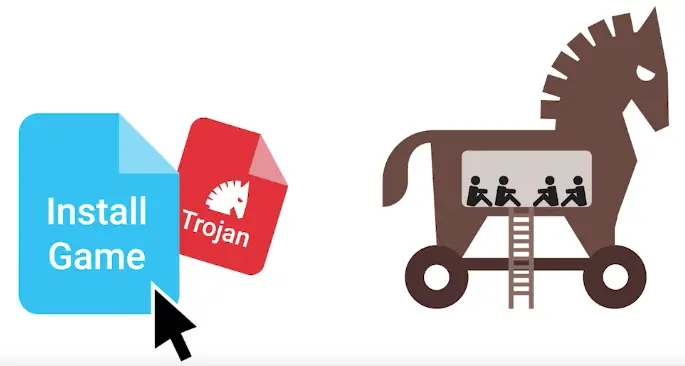
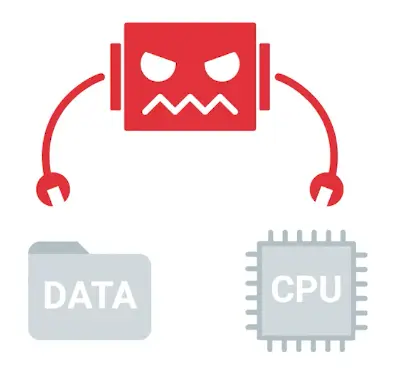
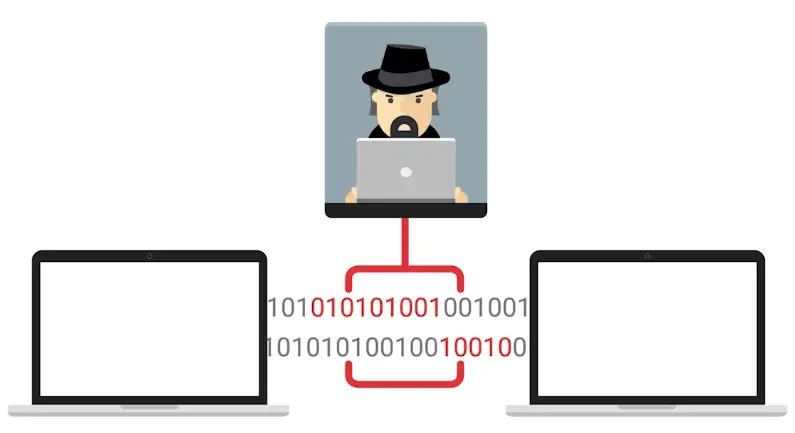
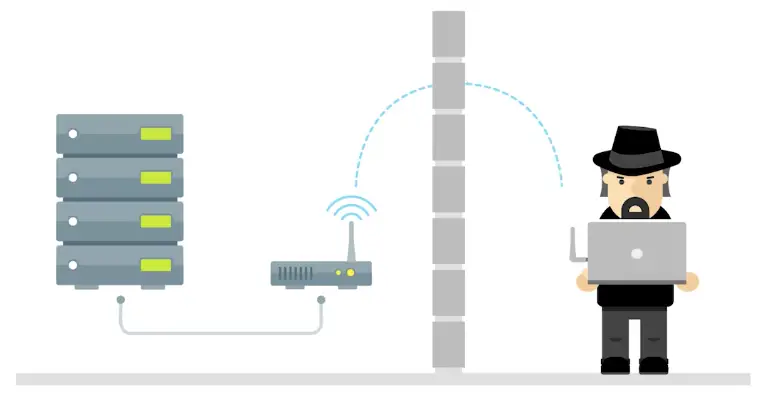
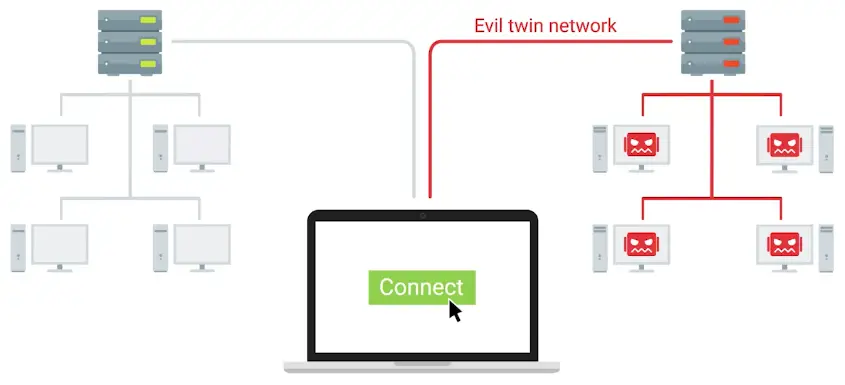
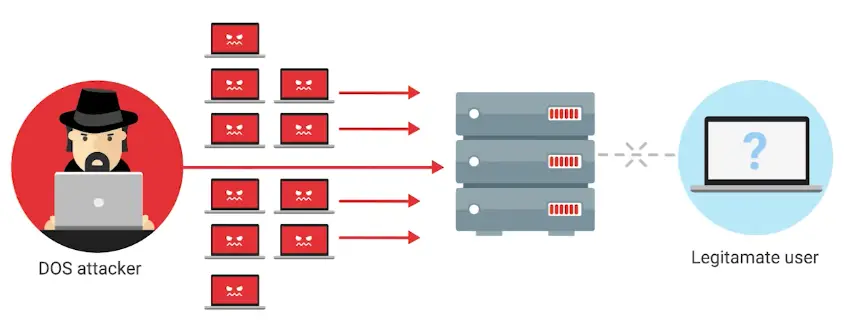
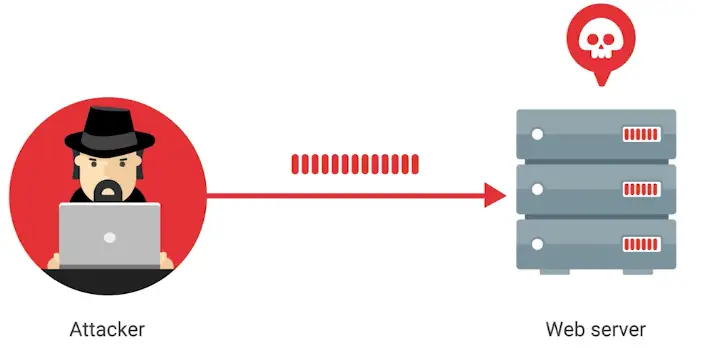
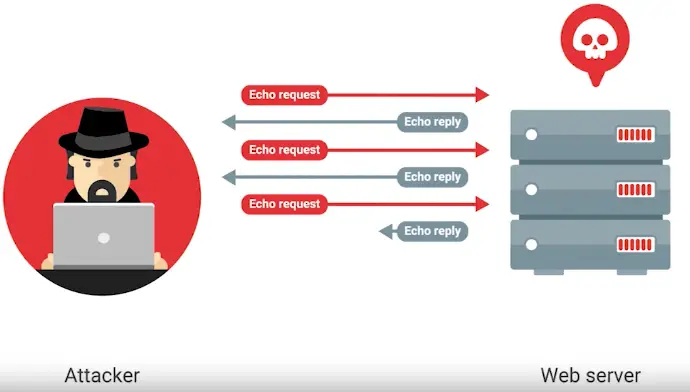
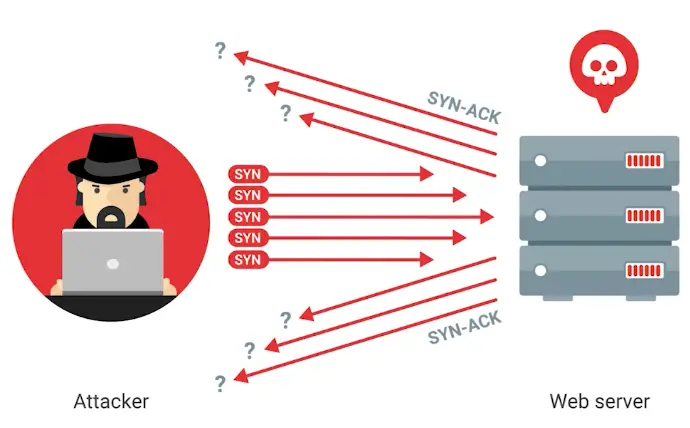
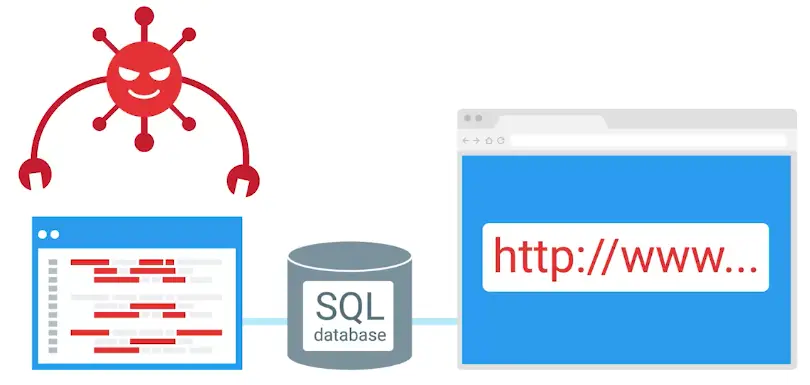
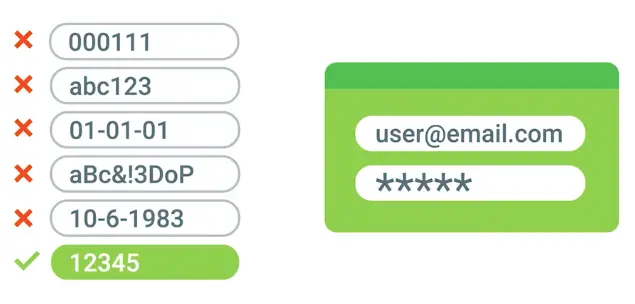
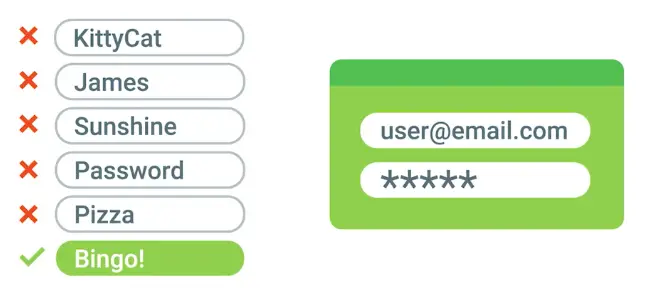
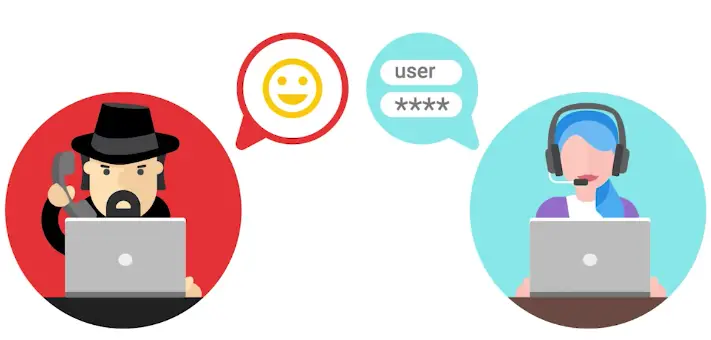


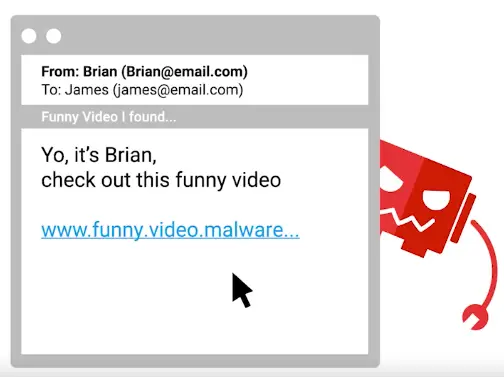
.webp)
-1.webp)
-2.webp)
-3.webp)
-4.webp)
-5.webp)
-6.webp)
-7.webp)
-8.webp)
-9.webp)
-10.webp)
-11.webp)
-12.webp)
-13.webp)
-14.webp)
-15.webp)
-16.webp)