The global IT spending on devices, including PCs, tablets, mobile phones, printers, as well as data center systems, enterprise software, and communication services came to 4.24 trillion USD in 2021.
It expected to increase by approximately 5.1 percent to around 4.45 trillion USD in 2022.
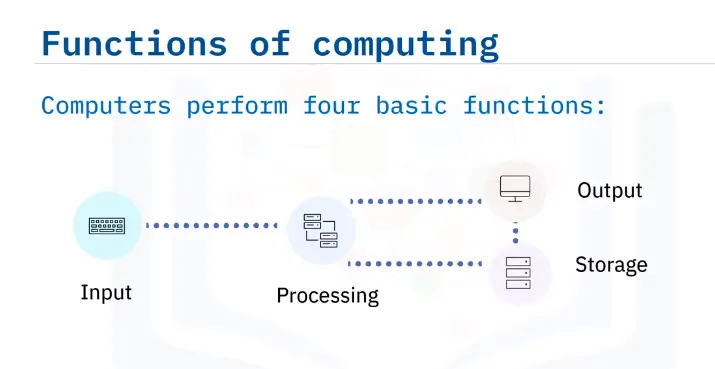
A computer is a device or system that includes:
Functions of computing
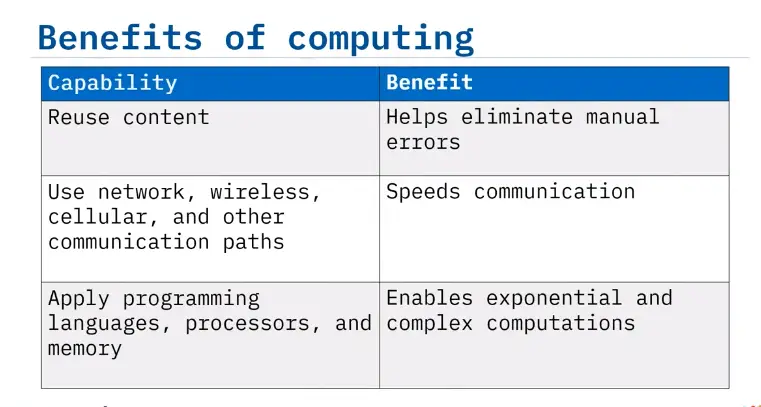
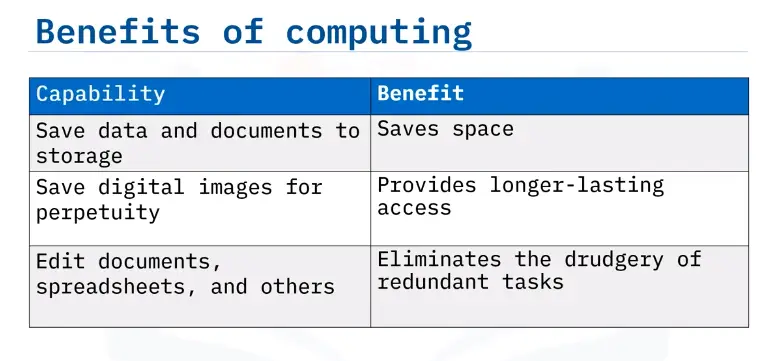
Benefits of computing
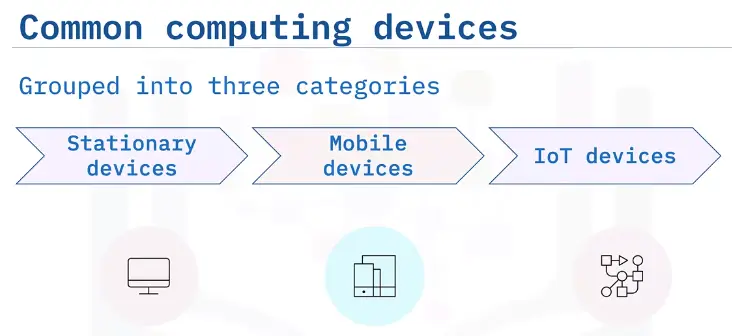
Common Computing Devices and Platforms
Stationary computing devices
Remain on a desk, rack, or other stationary location.
Consist of a box or chassis.
Includes processors, storage, memory, input, and output connections.
Memory and storage, often updatable.
Workstations
Used at the office and at home.
Typically, in a hard box containing processors, memory, storage, slots.
Include connections for external devices and wireless connectivity.
Enable memory, storage, and graphic card upgrades.
Use Microsoft Windows, macOS, and Linux OSes.
Servers: functions
Installed on networks
Enabling shared access
Media storage – movies videos, sound
Web servers – websites
Print servers – print documents
File servers – files and documents
Email servers – email storage
Provide fault tolerance for businesses to keep working
Servers: hardware support
Motherboard providers hardware support for multiple:
Processors
Memory (RAM)
Graphic cards
Storage
Port connections
Servers: operating systems
Use operating systems that support distributed workloads:
Console include Microsoft Xbox, Sony PlayStation, and Nintendo
Hardware features enhanced memory caching and graphics processing
Required additional hardware devices such as wired or cabled handheld devices
Usually not upgradable
Mobile devices
Laptop processing power matches desktop performance
Tablets have both business and personal uses
Smartphones are a hub for life management
Portable and Wi-Fi enabled gaming systems abound
Transforming both business and personal life
IoT devices
Contain chips, sensors, input and output capabilities, and onboard software.
Enable the exchange of data with other devices and systems.
Communicate via Wi-Fi, Bluetooth, NFC, Zigbee, and other protocols.
Software updatable, but generally no hardware upgrades.
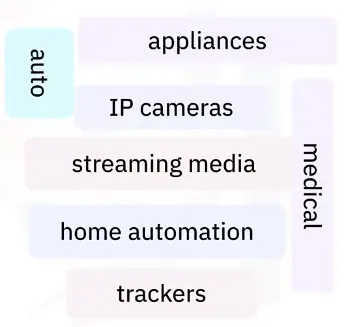
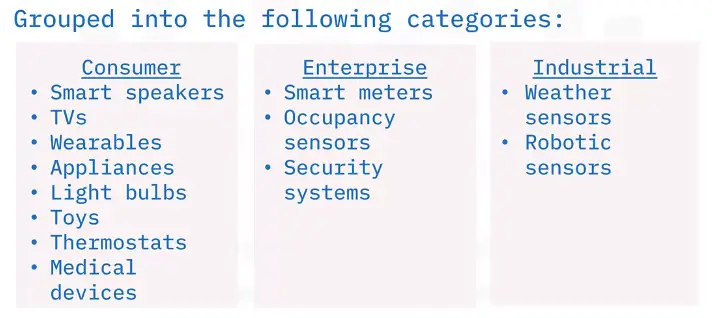
IoT devices: categorized
Understanding How Computers Talk
Notational systems defined
A system of symbols that represent types of numbers.
Notational systems – decimal
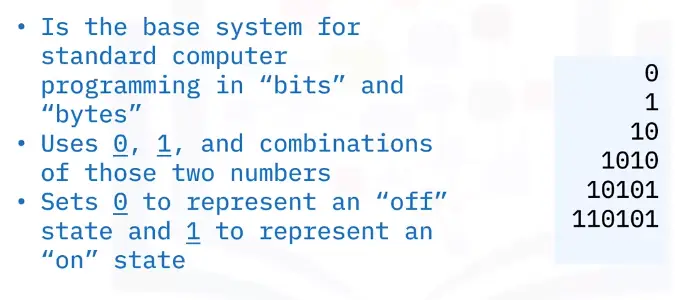
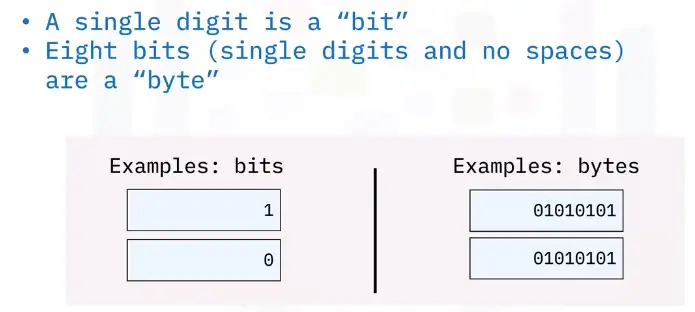
Notational systems – binary
Convert to decimal to binary
Convert binary to decimal
Notational Systems – hexadecimal
Uses 16 digits, referred to as base 16, including the numbers 0 through 9, and the letters A through F.
Enables compact notation for large numbers
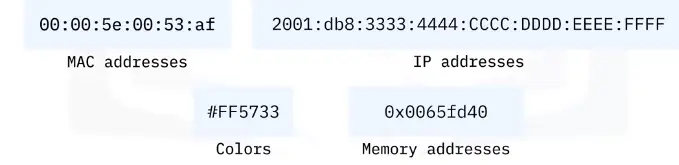
Used for MAC addresses, colors, IP addresses, and memory addresses
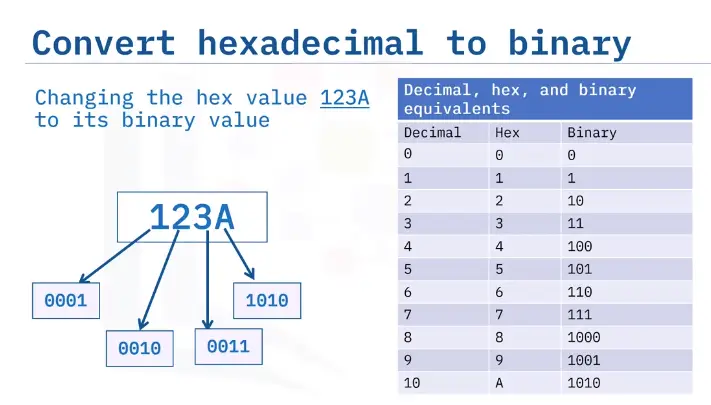
Convert hex to binary
Note the hex number, and represent each hex digit by its binary equivalent number.
Add insignificant zeros if the binary number has less than 4 digits. For example, write the decimal 10 as 0010.
String (concatenate) all the binary digits together from left to right.
Discard any leading zeros at the left of the concatenated number.
The result is 100100011010.
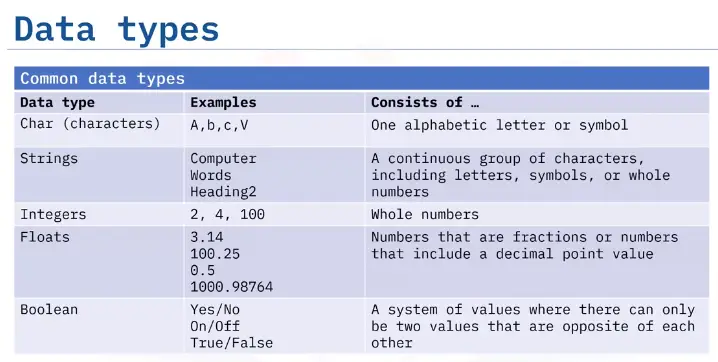
Data Types
Character Types
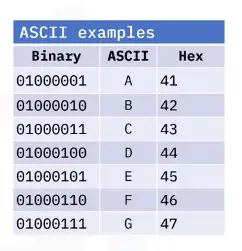
ASCII
American Standard Code for Information Interchange:
Developed from telegraph code and first published in 1963.
Translates computer text to human text.
Originally a 7-byte system (to save on transmission costs) representing 128 binary character.
Expanded to 8-bytes representing another 256 characters.
Full charts are available online.
Unicode
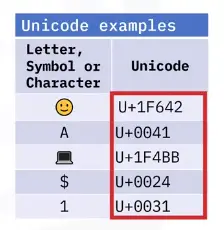
Unicode includes ASCII and other characters from languages around the world, as well as emojis.
Web pages use UTF-8.
Popular programming languages use Unicode 16-bit encoding and a few use 32-bit.
Commonly formatted as U+hhhh, known as “code points”, where hhhh is character hexadecimal value.
Conversion services are available online.
An Introduction to Operating Systems
Operating system basics
Operating systems consist of standardized code for:
Input>Output>Processing>Storage
CLI
GUI
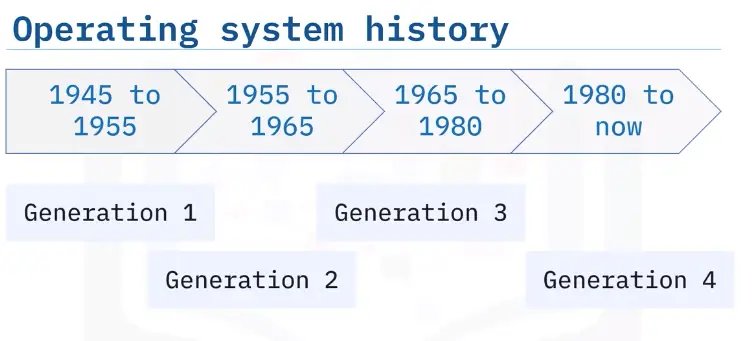
Operating system history
The first generation (1945-1955)
Operating systems that worked for multiple computers didn’t yet exist.
All input, output, processing, and storage instructions were coded every time, for every task.
This repetitive code became the basis for future operating systems.
The second generation (1955-1965)
Mainframe computers became available for commercial and scientific use.
Tape drives provided input and output storage.
In 1956, GM Research produced the first single-stream batch operating system for its IBM 704 computing system.
IBM became the first company to create OSes to accompany computers.
Embedded operating systems were developed in the early 1960s and are still in use.
Focus on a single task.
Provide split-second response times.
Real-time operating systems are a type of embedded operating system used in airplanes and air traffic control, space exploration.
As the time passed, real-time OSes started being used in satellite systems, Robotics, Cars/automobiles.
The third generation (1965-1980)
Additional companies began creating their own batch file operating systems for their large computing needs.
Network operating systems were developed during this time.
Provide scalable, fast, accurate, and secure network communications.
Enables workstations to operate independently.
In 1969, the UNIX operating system, operable on multiple computer systems, featured processor time-sharing.
The fourth generation (1980 to now)
Multitasking operating systems enable computers to perform multiple tasks at the same time.
Linux
1991: Linus Torvalds created a small, open source PC operating system.
1994: Version 1.0 released.
1996: Version 2.0 released, included support for network-based SMP benefitting commercial and scientific data processing.
2013: Google’s Linux-based mobile operating system, Android, took 75% of the mobile operating system market share.
2018: IBM acquired Red Hat for $34 billion.
macOS
1999: OS X and macOS, based on UNIX, offered with PowerPC with PowerPC-based Macs.
2006: Apple began selling Macs using Intel Core processors.
2020: Apple began the Apple Silicon chip transition, using self-designed 64-bit, ARM-based Apple M1 processors on new Mac computers.
Windows
1981: MS-DOS launched
1985: Launched a graphical user interface version of the Windows operating system.
1995: Windows 95 catapulted Microsoft’s dominance in the consumer operating system software market.
Today, Microsoft holds about 70% of consumer desktop operating system market share.
Microsoft also offers network, server management, mobile, and phone operating systems.
ChromeOS
2011: Launched ChromeOS, built atop Linux.
Offers a lightweight operating system built for mobile devices.
Requires less local storage and costs less.
Currently composes about 10% of the laptop market.
Mobile operating systems also fit the definition of multitasking operating systems.
Android
iOS
Windows
ChromeOS
Getting Started with Microsoft Windows
Logging into Windows
Four methods of logging into Windows
PIN
Password
Photo
Fingerprint
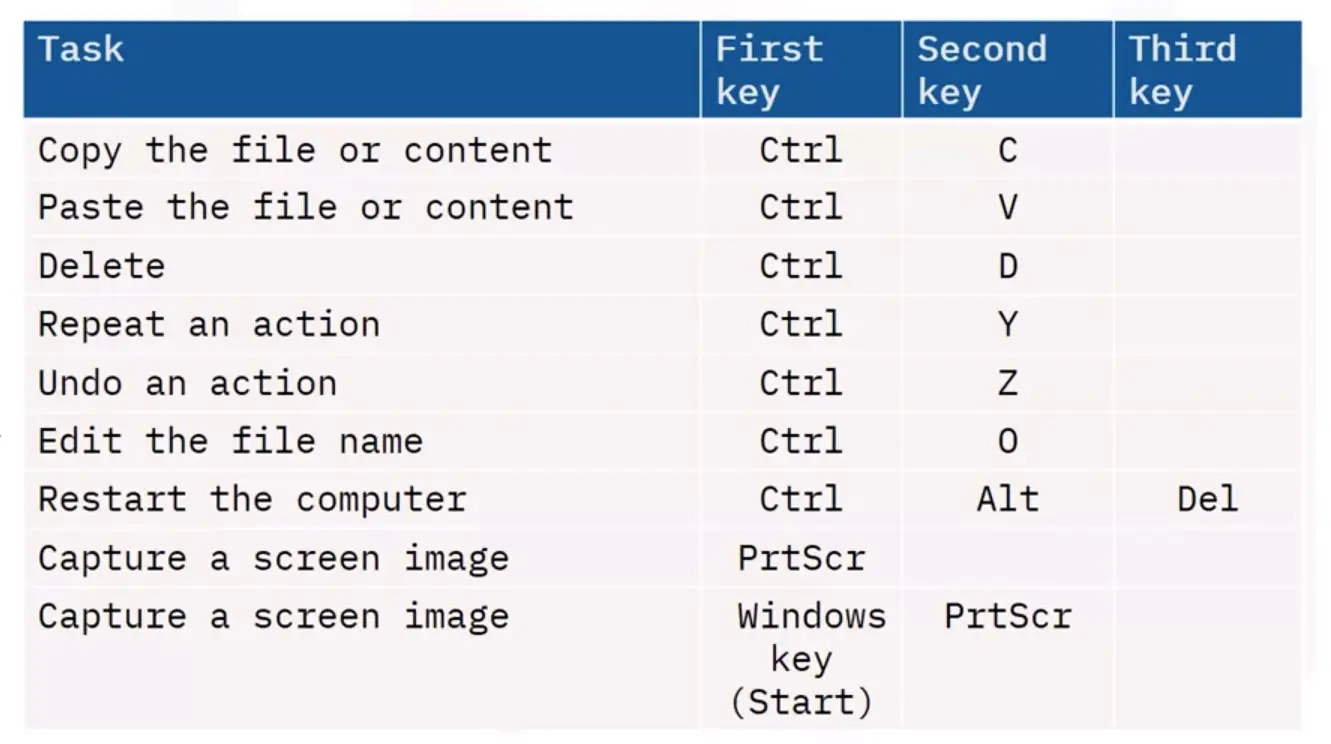
Using Keyboard Shortcuts
Computing Devices and Peripherals
Identifying Hardware Components and Peripherals
What is a computer component?
A physical part needed for computer functioning, also called “hardware”.
Each component performs a specific task.
Components can be internal or external.
External components connect via ports and connectors.
Without a given component, such as a CPU, a computer system cannot function as desired.
Common internal components
A part inside a computing device:
RAM
Hard Drive
CPU
Peripherals
Connect to the computer to transfer data.
External devices easily removed and connected to a computer.
Connections vary
Examples: Mouse, Printer, and a Keyboard etc.
Categories of peripherals
Input – send commands to the computer
Output – receive commands from the computer
Storage – save files indefinitely
Connectors for Components
A connector is the unique end of a plug, jack, or the edge of a card that connects to a port.
For example, all desktop computer expansion cards have an internal connector that allows them to connect to a slot on the motherboard.
A Universal Serial Bus (USB) connector at the end of a cable is an example of an external connector.
Ports
A connector plugs into an opening on a computer called a port.
A port is the jack or receptacle for a peripheral device to plug into.
Ports are standardized for each purpose.
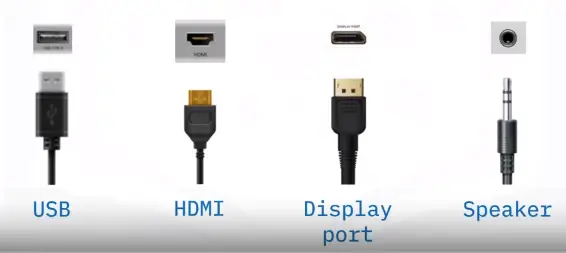
Common ports include USB ports and HDMI ports.
Input and Pointing Devices
Input Devices
Keyboards
Mouse
Camera
Joystick
Trackball
Pointing Devices
The stylus (Pen)
Input tool
Moves the cursor and sends commands
Generally used on tablets
Uses capacitive technology
Detects heat and pressure
Hard Drives
Hard drives:
are a repository for images, video, audio, and text.
RAM
ROM
HDD/SSD/NVMe
Hard drive performance
Measurement benchmarks
Spin speed: how fast the platter spins.
Access time: how fast the data is retrieved.
Transfer/media rate: how fast the data is written to the drive.
Connecting an internal hard drive
Back up data
transfer the enclosure
Secure with screws
prevent movement
attach to motherboard via SATA/PATA cables
plug into power supply
finally, it can be configured in the disk management utility of windows
Optical Drives and External Storage
Optical drives
Reading and writing data
Laser pressing or “burning”
Burning pits on lands
Reflective disk surface
Storage disks
Single-sided
Double-side
Types of optical drive
Several types
CD-ROM
CD-RW
DVD-ROM
DVD-RW
Blu-ray
Solid state drives
Solid state drive → (SSD)
Integrated circuit assemblies store data
Flash memory
Permanent, secondary storage
AKA “solid state drive” or “solid state disk”
No moving parts
Unlike hard disk drives and floppy drives
External hard drive
File backup and transfer
Capacity: 250 GB to 20 TB
Several file types
USB or eSATA connection
eSATA – signal, not power
Expansion devices
Additional file storage
Usually, USB
Frees hard drive space
Automatically recognized
Known as a “Thumb drive”
Holds up to 2 TB of data
Flash Drives
Combines a USB interface and Flash memory
Highly portable
Weighs less than an ounce
Storage has risen as prices have dropped
Available capacity up to 2 TB
Memory card
Uses Flash memory to store data
Found in portable devices such as portable media players and smartphones
Contained inside a device
Unlike USB drives
Available in both Secure Digital (SD) and Micro Secure Digital (MSD) formats
Display Devices
Defining display devices:
Hardware component for the output of information in visual form
Tactile monitors present information in a fingertip-readable format
Often seen as television sets and computer monitors
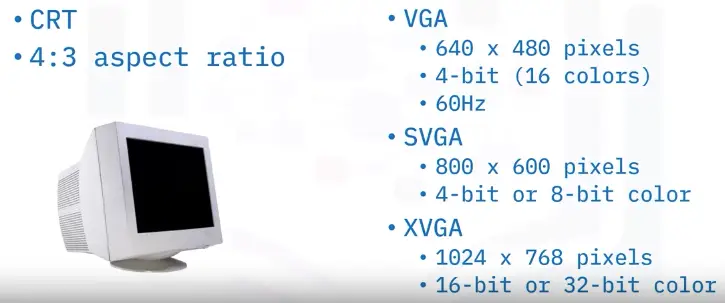
Cathode ray tube (CRT) monitors
Create an image by directing electrons beams over phosphor dots
Used in monitors throughout the mid to late 1990s
By 1990, they boasted 800 × 600 pixel resolution
Flat-screen monitors
Also known as liquid crystal display (LCD)/ Think film transistor (TFT)
Digital signal drives color value of each picture element (Pixel)
Replaced CRT monitors
Touchscreens
Use a touch panel on an electronic display
Capacitive technology measures heat and pressure
Often found on smartphones, laptops, and tablets
Projectors
Take images from a computer and display them
the surface projected onto is large, flat, and lightly colored
Projected images can be still or animated
Printers and Scanners
Output devices
“Hardware that shows data in readable form.”
That data can take many forms:
Scanner and speech synthesizer
Unnecessary (though highly useful) for computer function
Printers
Laser/LED
Inkjet
Thermal
Shared printers
IP-based
Web-based
Scanners
Converts images from analog to digital
Flatbed (stand alone) or multifunction device
Faxes and multifunction devices
Facsimile (fax) machines send documents using landlines
Multifunction devices often include fax capabilities
Audio Visual Devices
Defining audio devices
Digital data is converted into an audible format
Components are used to reproduce, record, or process sound
Examples include microphones, CD players amplifiers, mixing consoles, effects units, and speakers
Defining visual devices
Present images electronically on-screen
Typically, greater than 4" diagonally
Examples include smartphones, monitors, and laptop computers
Interfaces and Connectors
Identifying Ports and Connectors
Ports enable devices to connect to computers
Connectors plug into ports
Each port has a unique function and accepts only specific connectors
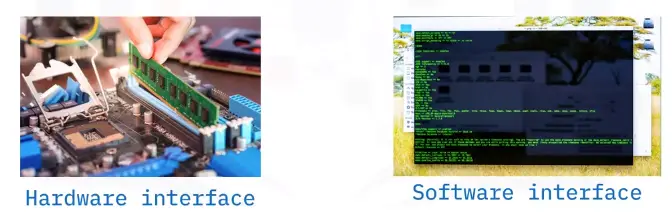
Interfaces
Point of communication between two or more entities
Can be hardware or software based
Common Interfaces are:
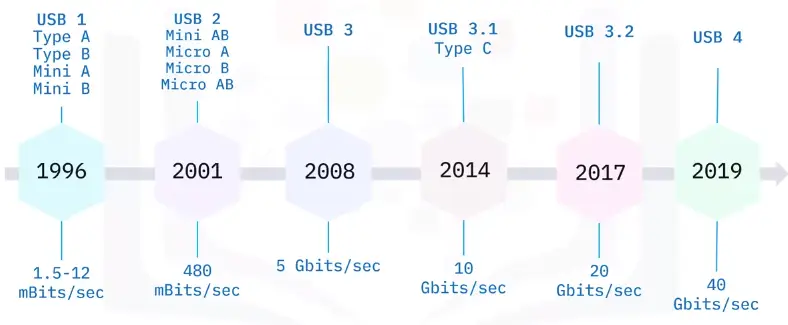
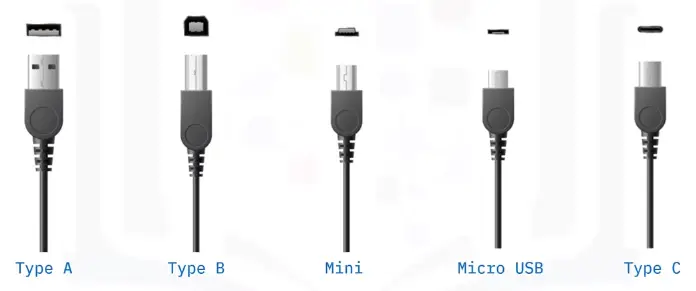
USB
USB connectors
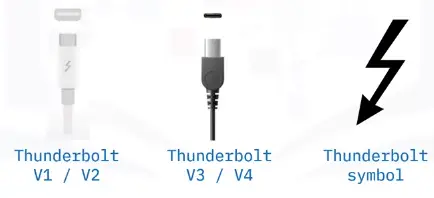
Thunderbolt
Combines data transfer, display, and power
Initial versions reused Mini DisplayPort
New versions reuse USB-C connectors
Identified with a thunderbolt symbol
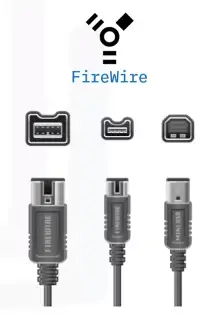
FireWire
Predecessor to Thunderbolt
FireWire 400 = 400 mBits/second
FireWire 800 = 800 mBits/second
Uses a serial bus to transfer data on e bit at a time
Still used for audio/video connections on older computers (before 2011), and in the automobile and aerospace industries
PS/2
Developed for IBM PS/2
Connects keyboard and mice
Ports are device specific
Green for mice
Purple for keyboard
Considered a legacy port
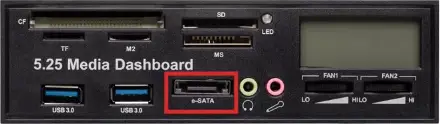
eSATA
Standard port for connecting external storage devices
Allows hot swapping of devices
Since 2008, Upgraded eSATAp that supports both eSATA and USB on the same port
eSATA revisions:
Revision 1: Speeds of 1.5 Gbps
Revision 2: Speeds of 3 Gbps
Revision 3: Speeds of 6 Gbps
Identifying Graphic Devices
Display Unit
Display unit (GPU) connected to the computer via a display card or adapter
Low-end generic graphic cards come built into the computer
Require specialized adapters for high-end functions
ATI/AMD, nVIDIA, SiS, Intel, and Via are leading manufacturers
Display System
VGA Display System
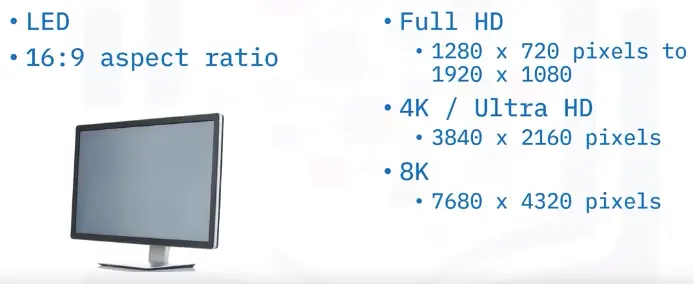
LED Display System
Display Connectors
Different cables and connectors for different display adapters
Each connector has specific function and benefits
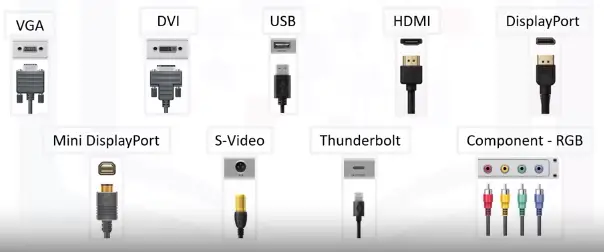
HDMI Interface
Most widely used digital audio and video interface
Also offers remote control and content protection
Uses a proprietary 19-pin connector
Offers up to 8K UHD resolutions
DisplayPort
Royalty-free complement to HDMI
First interface to use packetized data transmission
Uses a 20-pin connector
Can support even different transmission modes of increasing bandwidth
Thunderbolt
Developed by Intel and Apple, primarily for Apple laptops and computers
Can be used as either a display or peripheral interface
Initial versions used the MiniDP interface
Version 3 and now version 4 use the USB-C interface
Thunderbolt features don’t work with a standard USB-C cable and port
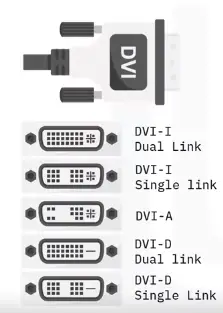
Digital Visual Interface (DVI)
Designed as a high-quality interface for flat-paneled devices
Support both analog and digital devices
DVI-I supports both analog and digital
DVI-A supports only analog
DVI-D supports only digital
Single-link for lower resolutions and Dual-link for HDTV
Superseded by HDMI and Thunderbolt
Video Graphics Array (VGA)
A legacy interface, used for analog video on PC
Has a 15-pin connector that can be secured with screws
Identifying Audio Connectors
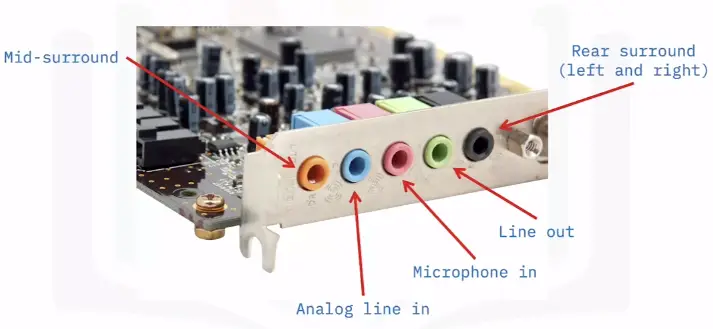
The audio connection
Onboard or internal expansion
Has multiple ports to connect a variety of devices
Used for multimedia application, education and entertainment, presentation, and teleconferencing
Audio connectors
Sound cards
Bluetooth
Game ports/USB ports
External audio interfaces
External audio interfaces
Single device for multiple input and output ports
Mostly used in professional studies
Use USB, FireWire, Thunderbolt, or similar connectors
Wired and Wireless Connections
Data packets
Communication technology allows components to communicate over a network
Data packets are sent from one smart object to another
Information about the sending and receiving device, along with the message
Devices built to talk over a network can communicate with each other
Network types
Closed (limited number of devices can connect)
Open (unlimited number of devices can connect)
Either could be wired or wireless
Wired connectors
Wire connection benefits
Faster data transmission
Up to 5 Gbps
More reliable than wireless
Immune to signal drops and dead zones
Less prone to radio interference
More secure
Less likely to be hacked
Wireless connections
Use different technologies based on connection requirements
Wireless Fidelity (Wi-Fi)
Connects a router to a modem for network access
Bluetooth
1998
Pairing
Radio-frequency identification (RFID)
Identification and tracks objects using tags
Range up to several hundred meters
Collection of road tolls
Other uses of RFID tags
Livestock tracking, tacking pharmaceuticals through warehouses, preventing theft, and expediting checkout in stores
NFC (Near Field Communication)
Based on RFID
Extremely short range
Transmits data through electromagnetic radio fields
Wireless connection advantages
Increased mobility
Reduced time to set up
Flexibility and scalability
Wider reach
Lower cost of ownership
Peripherals and Printer Connections
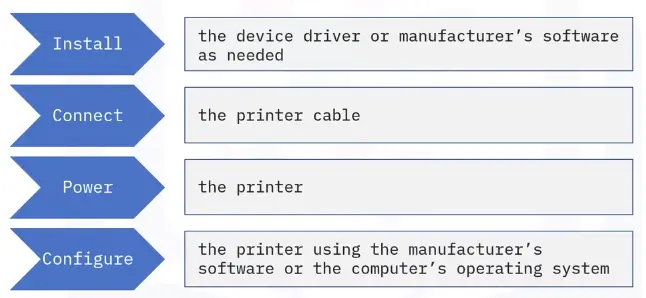
Common installation steps
Computers require software that enables peripheral or printer device recognition and communication using:
Onboard Plug and Play software
Device driver software
Device application software
Initial stand-alone, peripheral installation often still requires a wired connection or network connection
Connect the printer to the computer using a cable
Turn on the printer
Frequently used stand-alone peripherals are:
USB
Bluetooth
Wi-Fi
NFC
Three other connection methods are:
Serial port
Parallel port
Network
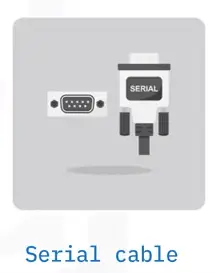
Serial cable connections
Are less common
Transmit data more slowly
RS232 protocol remains in use
Data can travel longer distances
Better noise immunity
Compatibility among manufacturers
Cables commonly feature 9-pin connections and two screws to secure the cable
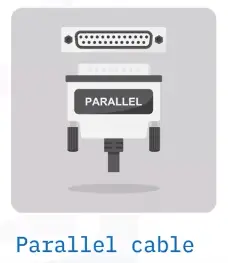
Parallel port cable connection
Are less common
Send and receive multiple bits of data simultaneously
Feature 25-pin connections
Include two screws to keep the cable connected
Network connections
Generally, are Wi-Fi or wired Ethernet connections
Before you begin, verify that your computer has a network connection
Connecting to local printers
Installation Types
Plug and Play
Driver Installation
PnP vs. driver installation
PnP devices work as soon as they’re connected to a computer
Examples include mice and keyboards
A malfunctioning device should be investigated in Device Manager.
Possible cause of malfunction is an outdated driver
IP-based peripherals
Hardware connected to a TCP/IP network
Examples of such devices include wireless routers and security cameras
These devices must be connected to a local area network (LAN) or the Internet to function
Web-based configuration
Different from installation
Used for networking devices such as routers
Is an easier process to set up a device
Completed on a web page
Often on the manufacturer’s site
Internal Computer Components
Internal Computer Components
Motherboard
Main printed circuit board (PCB) in computers
Contains significant subsystems
Allows communication among many of the crucial internal electronic components
Enables communications and power distribution for peripherals and other components
Chip sets
A set of electronic components in an integrated circuit
Manage data flow
Have two distinct parts: the northbridge and the southbridge
Manage communications between the CPU and other parts of the motherboard
Chip sets: Northbridge and southbridge
Northbridge – the first half of the core logic chip set on a motherboard
Directly connected to the CPU
Responsible for tasks that require the highest performance
Southbridge – the second half of the core logic chip set
Implements slower-performance tasks
Not directly connected to the CPU
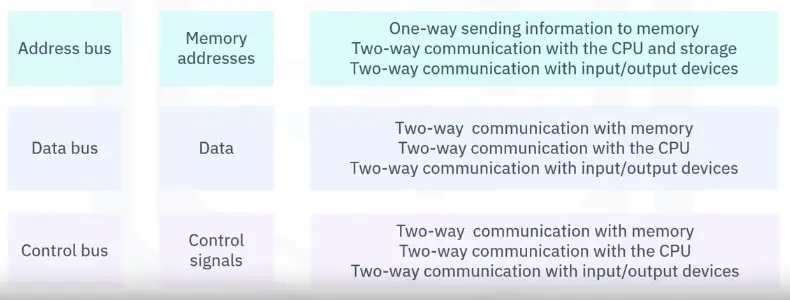
What is a bus?
A high-speed internal connection on a motherboard
Used to send control signals and data internally
The front-side bus carries data between the CPU and the memory controller hub (northbridge)
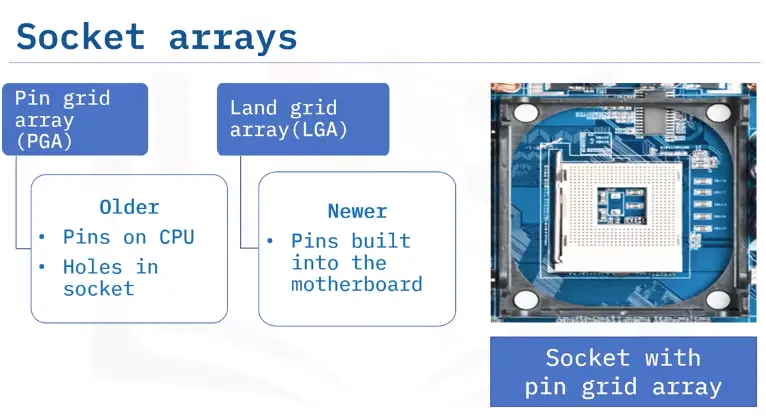
Sockets
“Components not directly attached to a motherboard connect via sockets”
Array of pins holding a processor and connecting the processor to the motherboard
Differ based on the motherboard
Power connectors
Found on a motherboard
Allow an electrical current to provide power to a device
ATX-style power connectors are larger than most
Join the power supply to the motherboard
Data Processing and Storage
Central Processing Unit (CPU)
Silicon chip in a special socket on the motherboard
Billions of microscopic transistors
Makes calculations to run programs
32-bit is like a two-lane information highway
64-bit is like a four-lane information highway
Memory (RAM)
Typically used to store working data
Volatile: Data existing in RAM is lost when power is terminated
Is cold pluggable (cold swappable)
Speed measured in Megahertz (MHz)
Available in varying speeds
Available in varying storage capacities
Types of Memory
Choice depends on the motherboard
Dynamic Random-Access Memory (DRAM)
Synchronous Dynamic Random-Access Memory (SDRAM)
Double Data Rate Synchronous Dynamic Random-Access Memory (DDR-SDRAM)
Double Data Rate 3 Synchronous Dynamic Access Memory (DDR3 and DDR4)
Small outline Dual Input Memory Module (SO-DIMM)
Memory Slots
Hold RAM chips on the motherboard
Allow the system to use RAM by enabling the motherboard to communicate with memory
Most motherboards include two to four memory slots
Type determines which RAM is compatible
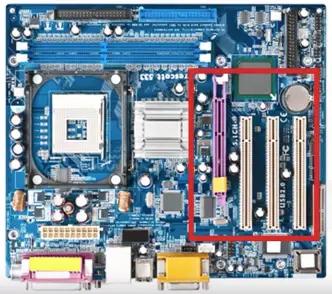
Expansion Slots
Use PCI or PCIe slots
Add additional capabilities
Peripherals (such as sound cards)
Memory
High-end graphics
Network interfaces
Availability depends on the motherboard configuration
Disk Controllers
Circuit that enables the CPU to communicate with hard disk drive
Interface between the hard disk drive and the bus
Integrated Drive Electronics is a standard
IDE controller-circuit board guides how the hard disk drive manages data
Have memory that boosts hard drive performance
BIOS (Basic Input Output System)
Manages your computer’s exchange of inputs and outputs
Preprogrammed into the motherboard
Needs to always operate
Update in a flash
Use the System Summary window
CMOS: Battery and chip
Uses a coin-sized battery
Is attached to the motherboard
Powers the memory chip that stores hardware settings
Replace the computer’s system data, time, and hardware settings
Internal Storage
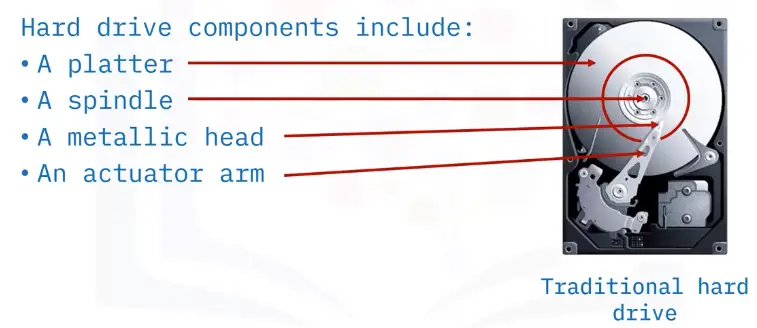
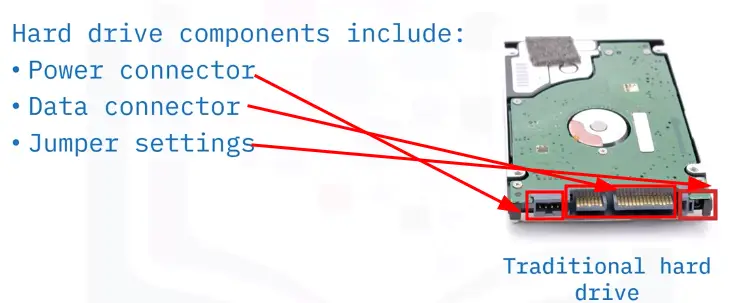
Hard drive characteristics
Introduced by IBM in 1956, internal hard drives provide:
- Stable, long-term data storage
- Fast access time
- Fast data transfer rates
Traditional hard drive technology
IDE and PATA drives
1980s to 2003:
Integrated Drive Electronics (IDE) hard drives and Parallel Advanced Technology Attachment (PATA) drives were popular industry standard storage options
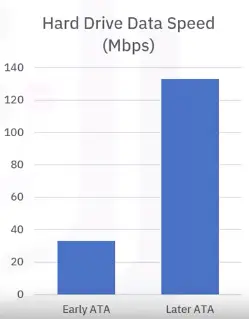
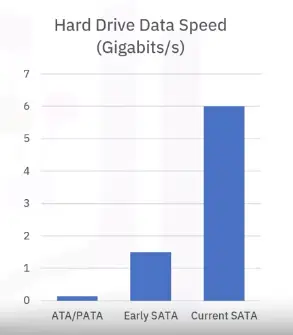
Early ATA drives: 33 Mbps
Later ATA drives: 133 Mbps
SATA drives
2003 to today:
Serial advanced technology attachment drives (SATA) became an industry standard technology
Communicate using a serial cable and bus
Initial data processing of 1.5 Gbps
Current processing of 6 Gbps
Available in multiple sizes
Spin at 5400 or 7200 rpm
Capacity: 250 GB to over 30 TB
Still dominate today’s desktop and laptop market
Each SATA port supports a single drive
Most desktop motherboards have at least four SATA ports
SCSI drives
1986:
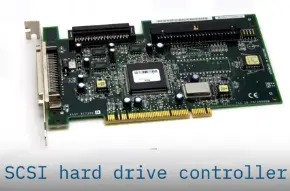
Small computer system interface, pronounced “scuzzy” (SCSI) drives
Historical speeds: 10,000 or 15,000 rpm
1994:
Discontinued usage
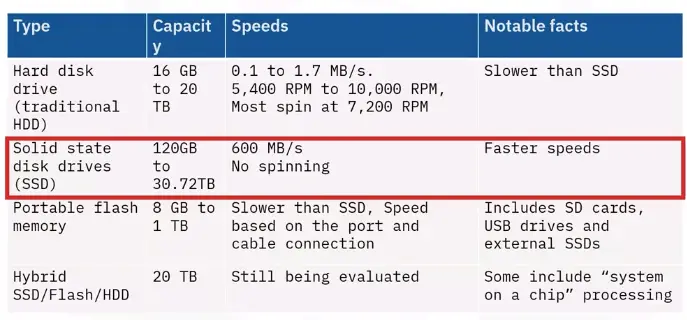
Solid-state drives
1989:
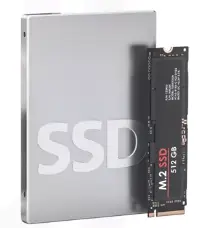
Solid-state drives (SSDs) came to market
Consist of nonvolatile flash memory
Provide faster speeds: 10 to 12 Gbps
Capacity: 120 GB to 2 TB
Cost: More expensive than SATA or SCSI drives but also more reliable
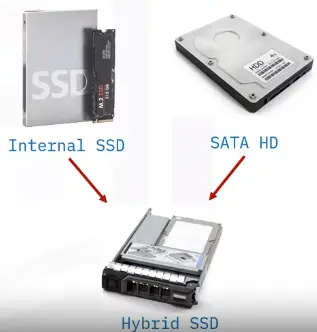
Available as internal, external, and hybrid hard drives
As part of an internal hybrid configuration:
SSD serves as a cache
SATA drive functions as storage
Hybrid drives tend to operate slower than SSD drives
Optical Drives
1992:
Invented in the 1960s, but came to the market in 1992.
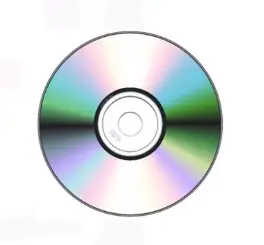
CDs and DVDs provide nonvolatile storage.
Optical drives use low-power laser beams to retrieve and write data.
Data is stored in tiny pits arranged in a spiral track on the disc’s surface.
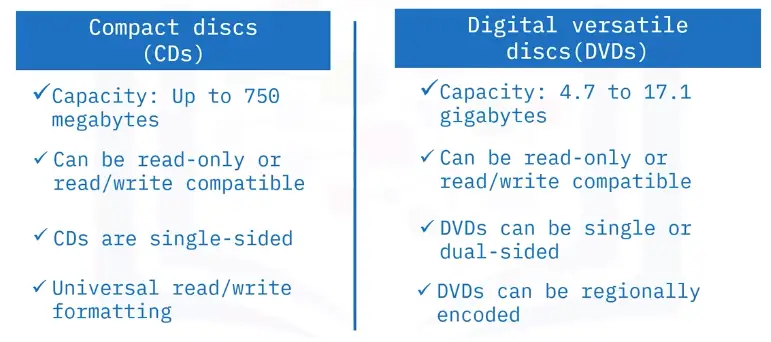
CDs and DVDs compared
Blu-ray discs
Media specific for movies and video games
Provide high resolution
Single-sided, but with up to four layers
Store 25 GB per layer
Writable Blu-ray discs exist in 100 GB and quad-layer 128 GB formats
Writable Blu-ray discs require BD-XL-compatible drives
Expansion Slots
Locations on the motherboard where you can add additional capabilities, including hard drive storage
Display Cards and Sound Cards
Video card
An expansion card installed in an empty slot on the motherboard
Or a chip built into a system’s motherboard
Allows the computer to send graphical information to a video display device
Also known as a display adapter, graphics card, video adapter, video board, or video controller
Graphics processing unit (GPU)
Specialized processor originally designed to accelerate graphics rendering
Process many pieces of data simultaneously
Machine learning, video editing, and gaming applications
Several industries rely on their power processing capabilities
Audio card
Also known as a sound card
Integrated circuit that generates an audio signal and send it to a computer’s speakers
Can accept an analog sound and convert it to digital data
Usually built into PC motherboard
Users desiring higher-quality audio can buy a dedicated circuit board
MIDI controller
A simple way to sequence music and play virtual instruments and play virtual instruments on your PC
Works by sending musical instrument digital interface (MIDI) data to a computer or synthesizer
Interprets the signal and produces a sound
Frequently used by musicians
Network Interface Cards
A hardware component without which a computer cannot connect to a network
A circuit board that provides a dedicated network connection to the computer
Receives network signals and translates network signals and translates them into data that the computer displays
Types of NIC
Provides a connection to a network
Usually, the Internet
Onboard: built into motherboard
Add-on: fit into expansion slot
No significant difference in speed or quality
Wired and wireless network cards
Wireless – use an antenna to communicate through radio frequency waves on a Wi-Fi connection
Wired-use an input jack and a wired LAN technology, such as fast Ethernet
Modems
Connects your system to the Internet.
Translates ISP signals into a digital format.
Then feeds those digitized signals to your router, so you can connect to a network.
Cooling and Fans
System cooling
Computers generate heat
Excessive heat can damage internal components
Never operate a computer w/out proper cooling
Designed to dissipate heat produced by the processor
Allow the accumulated heat energy to flow away from vital internal parts
Cooling methods
Passive
Active
Fans draw cool air through front vents and expel warm air through the back
Forced convection
Using thermal paste and a baseplate
Cooling methods – heat sink
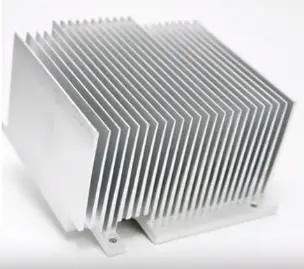
Heat sink
Use heat sink compound to fill gaps
Place the heat sink over the CPU
Excess heat is drawn away
Before warm air can damage the internal components
Liquid-based cooling
Quieter and more efficient than fans
Water blocks rest atop the chip
Cool liquid in the blocks cool the chip
Heated fluid is pumped to a radiator-cooled by fans.
That fluid goes back to the water block to repeat the cycle.
Workstation Setup Evaluation and Troubleshooting
Managing File and Folders
Rules for naming files and folders
Name so the file or folder you want is easy to find
Make names short but descriptive
Use 25 characters or fewer
Avoid using special characters
Use capitals and underscores
Consider using a date format
Introduction to Workstation Evaluation, Setup, and Troubleshooting
Screen Capture and Tools
Screen capture on macOS
Saves screenshots on the desktop.
Command + shift +3
Capture entire screen
Command + shift +4
Capture part of the screen
Command + shift +5
Capture as photo/video
Screen captures on Windows
Saves screenshots to the screenshot folder.
Windows + PrintSc
Capture entire screen
Alt + PrintSc
Capture active window
Windows + Shift + S (Opens up snip and sketch tool)
Entire screen
Part of the screen
Active window
Screen captures on a Chromebook
Saves screenshots to Downlaods or Google Drive.
Ctrl + Show Windows
Capture entire screen
CTRL + shift + show windows
Capture part of the screen
Evaluating Computing Performance and Storage
Assessing processor performance
The processor’s speed
The number of cores
The bus types and speeds
Located on the processor’s perimeter
The data highway wiring from the processor to other board components
The presence of cache or other onboard memory
Bus types
Historically, three bus types:
Bus alternatives
Replacement technologies include:
And others.
Cache
Consist of processor platform memory that buffers information and speeds tasks
Can help offset slower processor speeds
Storage
RAM error symptoms
Screen or computer freezes or stops working
Computer runs more slowly
Browser tabs error or other error messages display
Out-of-memory or other error messages display
Files become corrupt
Computer beeps
A “blue screen” with an error message displays
Workstation Evaluation and Setup
Identifying user needs
Environment: Where does the use work?
What are the user’s workspace conditions?
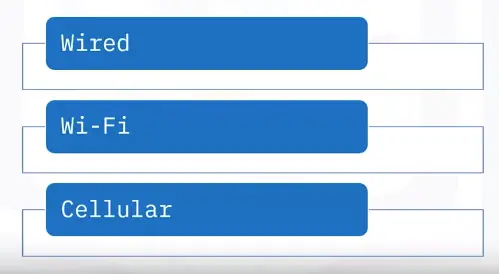
Network access: What are the user’s options?
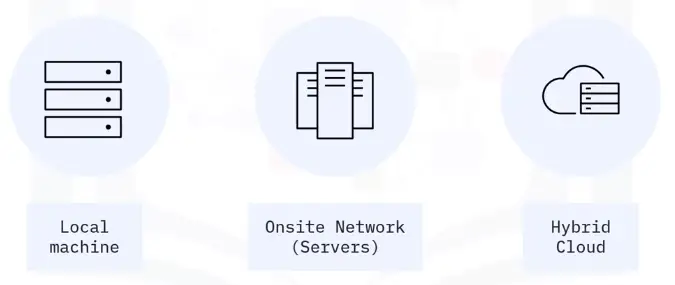
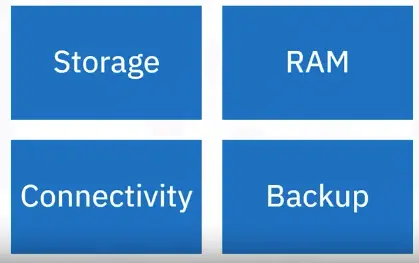
Data storage requirements:
Application requirements:
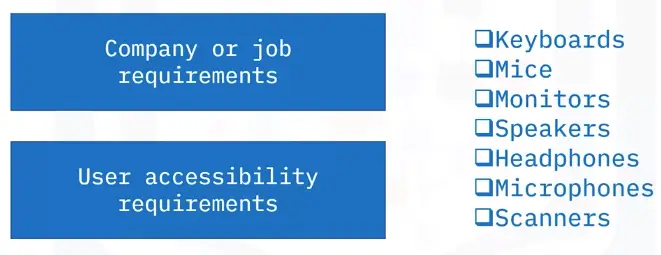
Evaluating peripheral needs
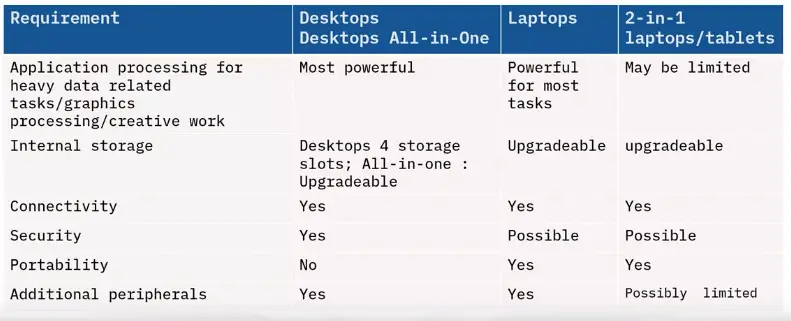
Suggested computing solutions
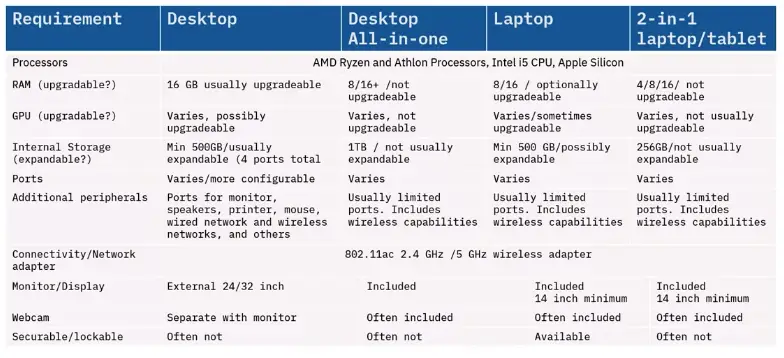
Evaluating computing options
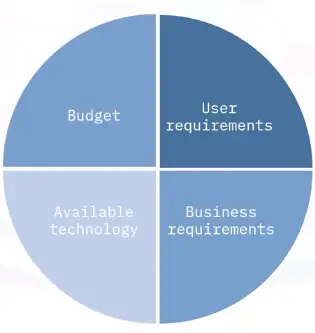
Purchasing decisions
Four important considerations:
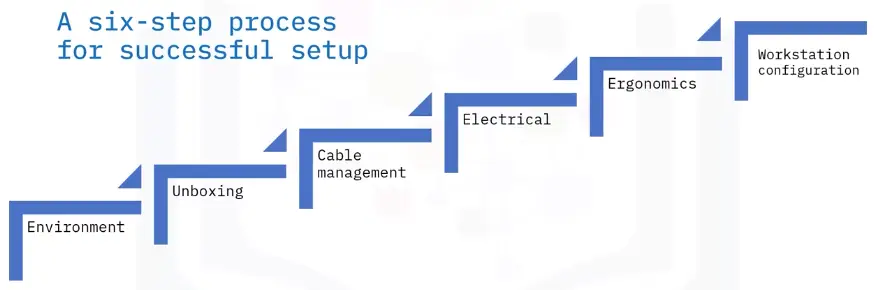
Workstation setup
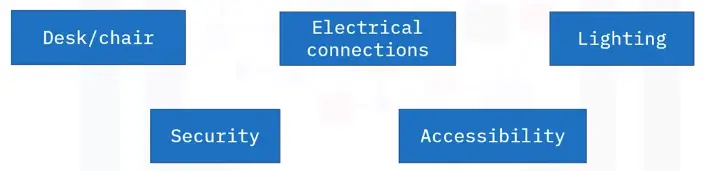
Environment
Is a desk present or needed? If so, is the desk safe and sturdy?
Is a chair present? If so, is the chair safe and sturdy?
Is lighting present?
Are electrical outlets present, of appropriate amperage and grounded?
Can the use physically secure the computer?
Unboxing
Read and follow the manufacturer’s practices for workstation setup
Move boxes and packing materials into a safe location, out of the user’s workspace
Cable management
Reduce service calls with three practices
Install shorter cable lengths where possible
Securely attach and identify each cable
Collect and tie the cables together
Electrical
Safety for you and your user:
Label each electric cable.
Verify that electrical connections are away from the user and are accessible.
Connect power supplies to their assigned wall or power strip location. Note the wall outlet number.
Ergonomics
Can the user work comfortably?
Feet are on the floor.
Monitor at or just below eye height.
Arms are parallel with the keyboard, table, and chair.
Shoulders are relaxed and not hunched.
The environment provides enough light to see the display and keyboard.
Cords and cables are out of the way.
Workstation setup
Power on the workstation and peripherals
Setup the operating system and options for the user:
User logon credentials
Keyboard options
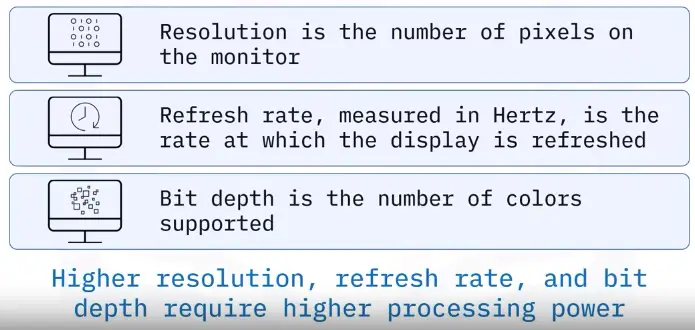
Monitor resolution
Printer connections
Sound options
Security options
Network connections
Select the user’s default browser
Uninstall bloatware or unnecessary software
Install and configure additional productivity software
Modify the desktop Productivity pane
Setup backup options
Introduction to Troubleshooting
3 Basic Computer Support Concepts
Determining the problem
Ask questions
Reproduce the problem
Address individual problems separately
Collect information
Examining the problem
Consider simple explanations
Consider all possible causes
Test your theory
Escalate if needed
Solving the problem
Create your plan
Document the process beforehand
Carry out the solution
Record each step
Confirm the system is operational
Update your documentation
Troubleshooting
“Troubleshooting is a systematic approach to problem-solving that is often used to find and correct issues with computers.”
Troubleshooting steps
Gathering information
Duplicating the problem
Triaging the problem
Identifying symptoms
Researching an online knowledge base
Establishing a plan of action
Evaluating a theory and solutions
Implementing the solution
Verifying system functionality
Restoring Functionality
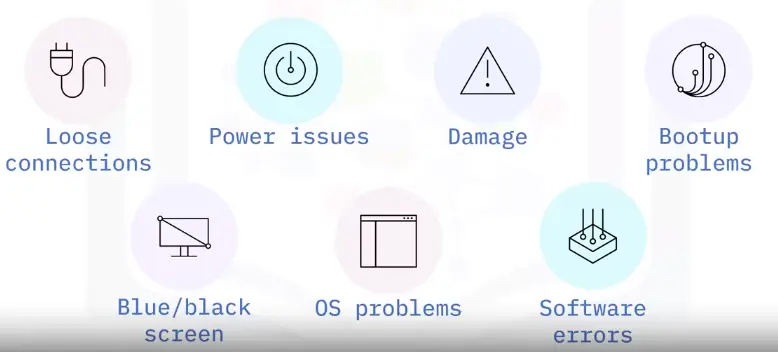
Common PC issues
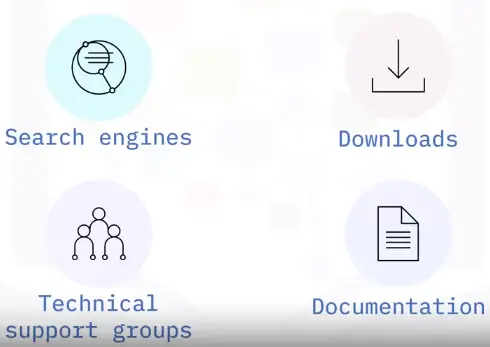
Internet Support
Manufacturer Technical Support
Before contacting support:
Have all documentation
Be prepared to provide:
Name of the hardware/software
Device model and serial number
Date of purchase
Explanation of the problem
CompTIA troubleshooting model
The industry standard troubleshooting model comes from The Computing Technology Industry Association (CompTIA)
CompTIA model steps
Identify the problem
Gather information
Duplicate the problem
Question users
Identify symptoms
Determine if anything has changed
Approach multiple problems individually
Research knowledge base/Internet
Establish a theory of probable cause
Question the obvious
Consider multiple approaches
Divide and conquer
Test the theory to determine the cause
Establish a plan of action
Implement the solution or escalate
Verify fully system functionality and implement preventive measures
Document findings/lessons, actions, and outcomes
Advanced Microsoft Windows 10 Management and Utilities
Policy management
Applies rules for passwords, retries, allowed programs, and other settings
Type “group policy” in the taskbar search box
View Edit group policy and click open
Select the User Configuration settings to view its details and edit policy settings
Process management
Schedules processes and allocates resources
Task manager
Memory management
Windows uses:
RAM for frequent memory tasks
Virtual memory for less-frequent tasks
When you notice that:
Performance is slow
You see errors that report “low on virtual memory”
Service management
Automatically manages background tasks and enables advanced troubleshooting of performance issues.
Capabilities include:
Stopping services
Restarting services
Running a program
Taking no action
Restarting the computer
Driver configuration
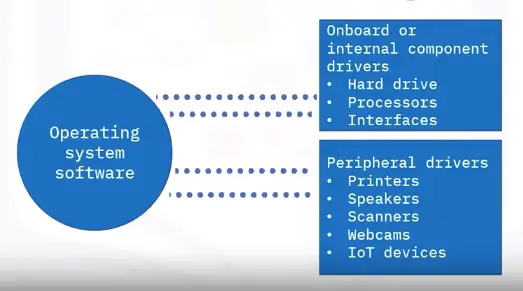
Drivers are the software components that enable communications between the operating system and the device
Utilities
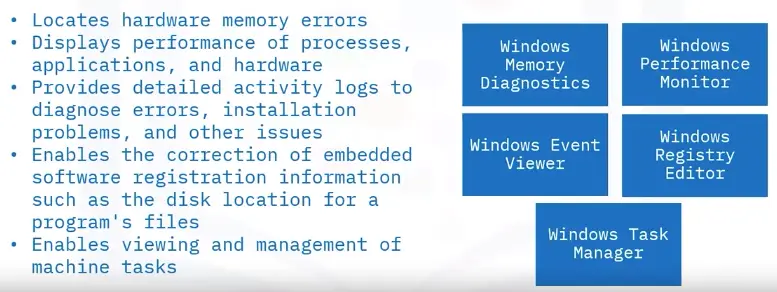
Utilities help you administer and manage the operating system: