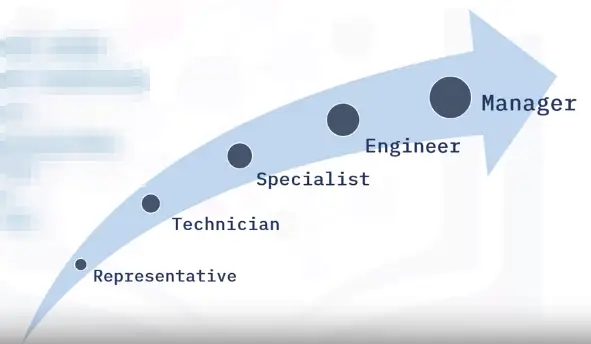
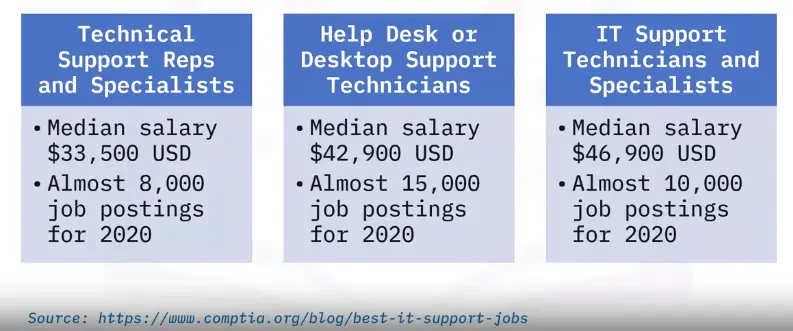
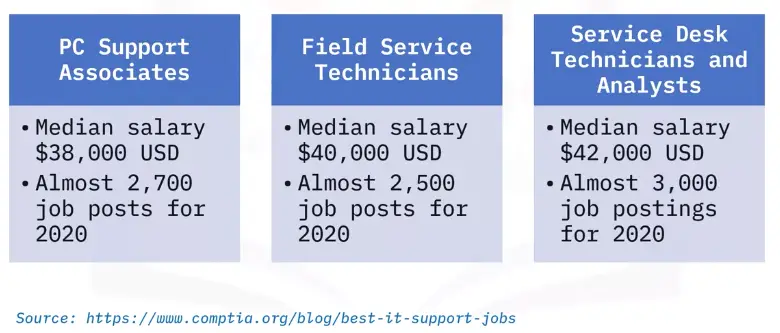
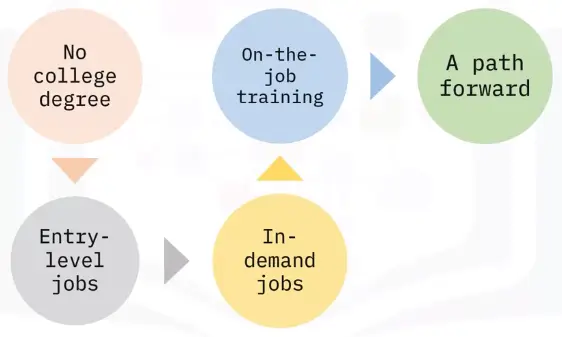
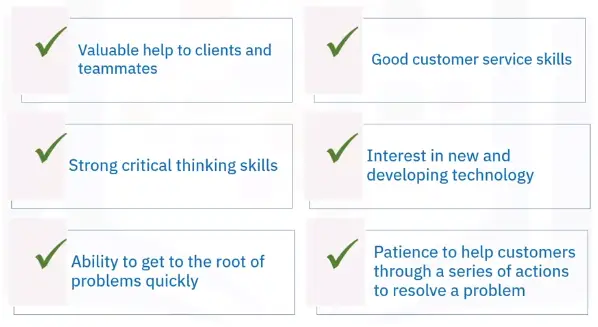
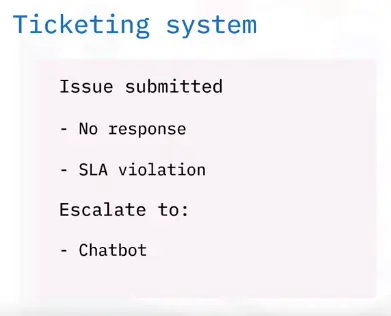
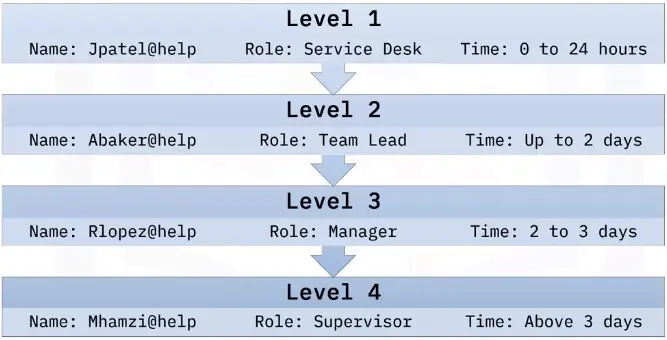
This is the IBM version of introduction to IT Support. But it also gives information about different ticketing systems and service level agreements. It provides details about job opportunities and different skill levels in the field.
This course is all about building computers and installing different operating systems on them. It also explains about computer connectors and their types, and peripheral devices. In the end, it gives details about how to troubleshoot a system step by step.
3. Introduction to Software, Programming, and Databases
It goes into details about different computing platforms and types of software applications. It also lists down the available web-browsers, types of cloud computing, basics of programming and types of database queries.
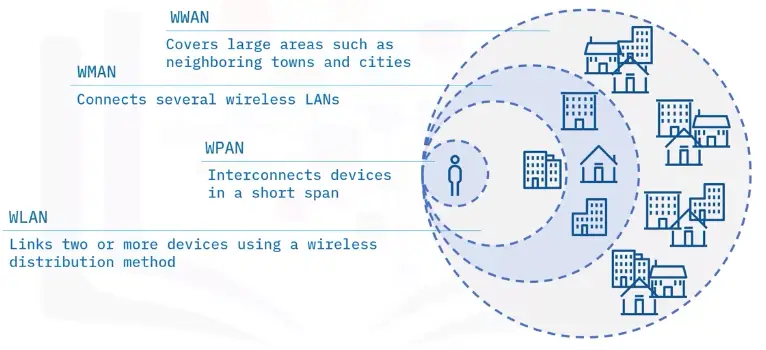
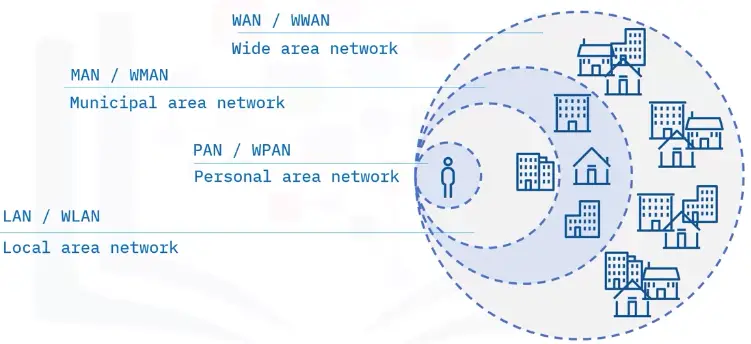
It teaches about the types of networks, like LAN, WAN etc. It lists down the storage types and also goes into the details of troubleshooting common networking problems like DNS issues etc.
The global IT spending on devices, including PCs, tablets, mobile phones, printers, as well as data center systems, enterprise software, and communication services came to 4.24 trillion USD in 2021.
It expected to increase by approximately 5.1 percent to around 4.45 trillion USD in 2022.
A computer is a device or system that includes:
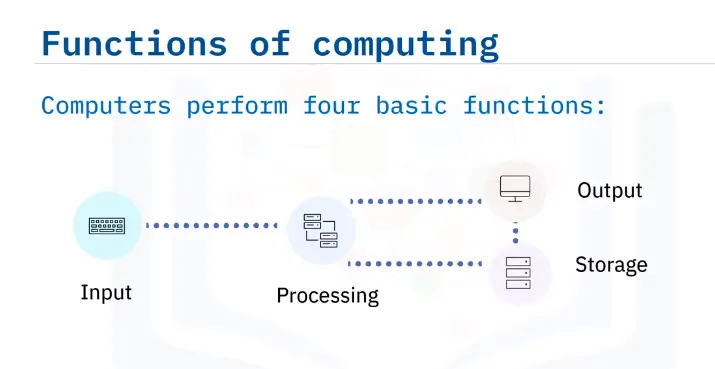
Functions of computing
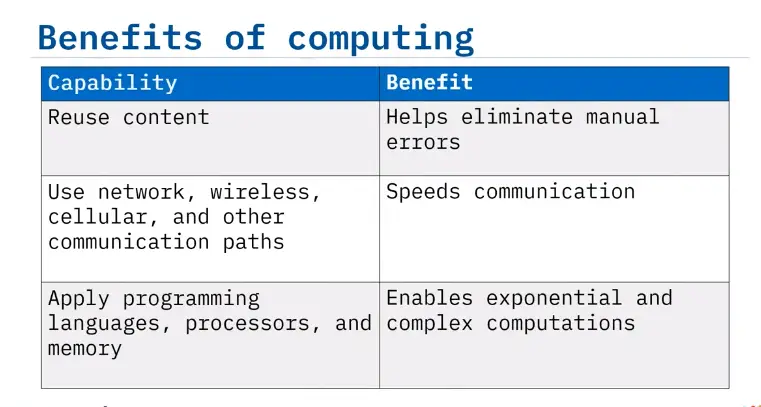
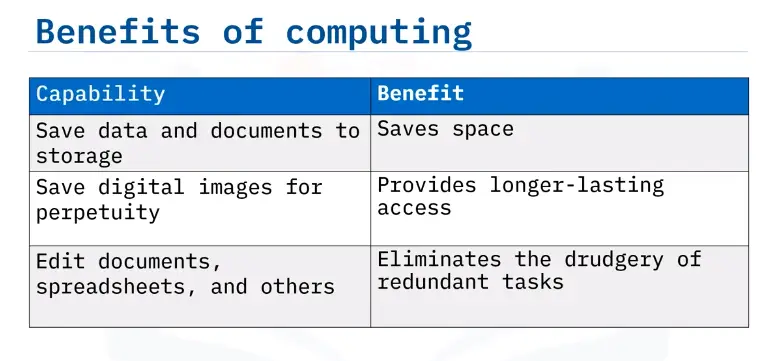
Benefits of computing
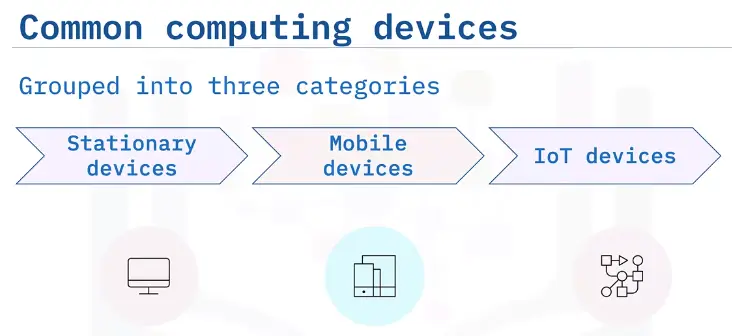
Common Computing Devices and Platforms
Stationary computing devices
Remain on a desk, rack, or other stationary location.
Consist of a box or chassis.
Includes processors, storage, memory, input, and output connections.
Memory and storage, often updatable.
Workstations
Used at the office and at home.
Typically, in a hard box containing processors, memory, storage, slots.
Include connections for external devices and wireless connectivity.
Enable memory, storage, and graphic card upgrades.
Use Microsoft Windows, macOS, and Linux OSes.
Servers: functions
Installed on networks
Enabling shared access
Media storage – movies videos, sound
Web servers – websites
Print servers – print documents
File servers – files and documents
Email servers – email storage
Provide fault tolerance for businesses to keep working
Servers: hardware support
Motherboard providers hardware support for multiple:
Processors
Memory (RAM)
Graphic cards
Storage
Port connections
Servers: operating systems
Use operating systems that support distributed workloads:
Console include Microsoft Xbox, Sony PlayStation, and Nintendo
Hardware features enhanced memory caching and graphics processing
Required additional hardware devices such as wired or cabled handheld devices
Usually not upgradable
Mobile devices
Laptop processing power matches desktop performance
Tablets have both business and personal uses
Smartphones are a hub for life management
Portable and Wi-Fi enabled gaming systems abound
Transforming both business and personal life
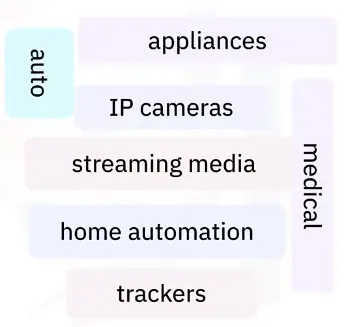
IoT devices
Contain chips, sensors, input and output capabilities, and onboard software.
Enable the exchange of data with other devices and systems.
Communicate via Wi-Fi, Bluetooth, NFC, Zigbee, and other protocols.
Software updatable, but generally no hardware upgrades.
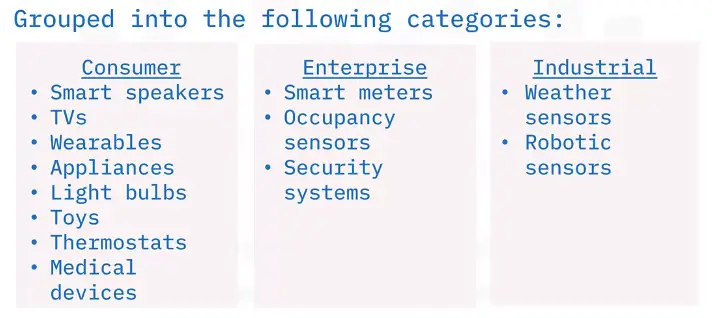
IoT devices: categorized
Understanding How Computers Talk
Notational systems defined
A system of symbols that represent types of numbers.
Notational systems – decimal
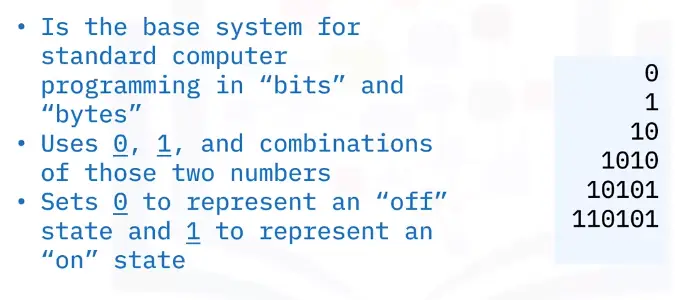
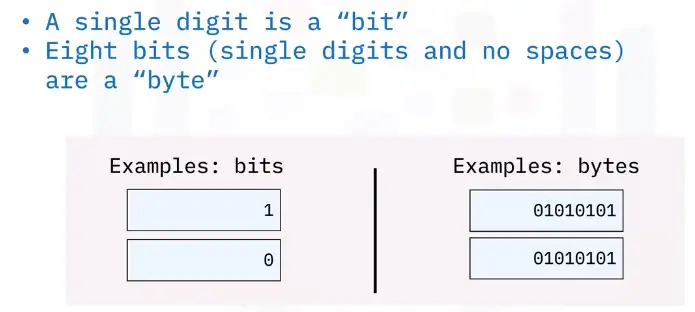
Notational systems – binary
Convert to decimal to binary
Convert binary to decimal
Notational Systems – hexadecimal
Uses 16 digits, referred to as base 16, including the numbers 0 through 9, and the letters A through F.
Enables compact notation for large numbers
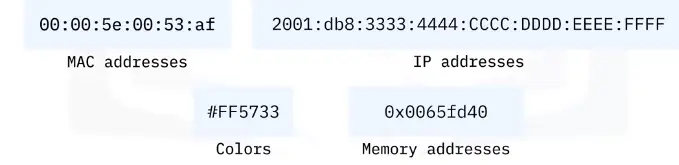
Used for MAC addresses, colors, IP addresses, and memory addresses
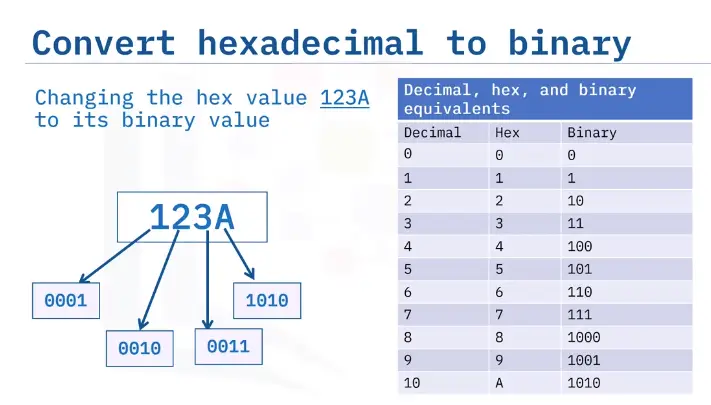
Convert hex to binary
Note the hex number, and represent each hex digit by its binary equivalent number.
Add insignificant zeros if the binary number has less than 4 digits. For example, write the decimal 10 as 0010.
String (concatenate) all the binary digits together from left to right.
Discard any leading zeros at the left of the concatenated number.
The result is 100100011010.
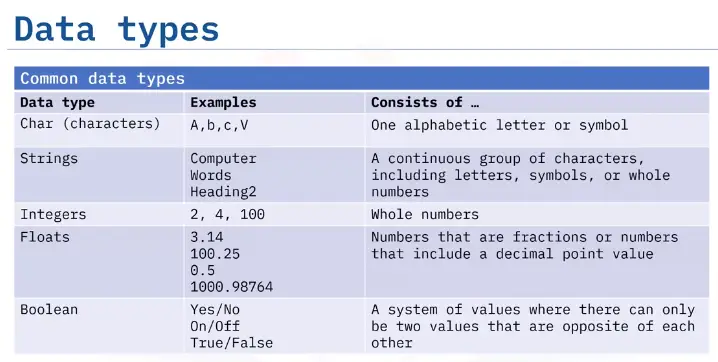
Data Types
Character Types
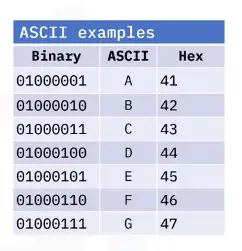
ASCII
American Standard Code for Information Interchange:
Developed from telegraph code and first published in 1963.
Translates computer text to human text.
Originally a 7-byte system (to save on transmission costs) representing 128 binary character.
Expanded to 8-bytes representing another 256 characters.
Full charts are available online.
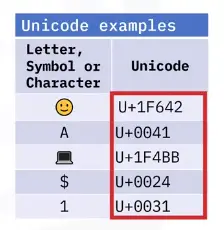
Unicode
Unicode includes ASCII and other characters from languages around the world, as well as emojis.
Web pages use UTF-8.
Popular programming languages use Unicode 16-bit encoding and a few use 32-bit.
Commonly formatted as U+hhhh, known as “code points”, where hhhh is character hexadecimal value.
Conversion services are available online.
An Introduction to Operating Systems
Operating system basics
Operating systems consist of standardized code for:
Input>Output>Processing>Storage
CLI
GUI
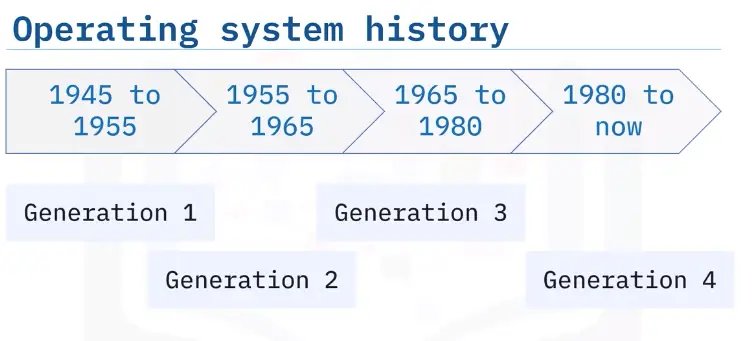
Operating system history
The first generation (1945-1955)
Operating systems that worked for multiple computers didn’t yet exist.
All input, output, processing, and storage instructions were coded every time, for every task.
This repetitive code became the basis for future operating systems.
The second generation (1955-1965)
Mainframe computers became available for commercial and scientific use.
Tape drives provided input and output storage.
In 1956, GM Research produced the first single-stream batch operating system for its IBM 704 computing system.
IBM became the first company to create OSes to accompany computers.
Embedded operating systems were developed in the early 1960s and are still in use.
Focus on a single task.
Provide split-second response times.
Real-time operating systems are a type of embedded operating system used in airplanes and air traffic control, space exploration.
As the time passed, real-time OSes started being used in satellite systems, Robotics, Cars/automobiles.
The third generation (1965-1980)
Additional companies began creating their own batch file operating systems for their large computing needs.
Network operating systems were developed during this time.
Provide scalable, fast, accurate, and secure network communications.
Enables workstations to operate independently.
In 1969, the UNIX operating system, operable on multiple computer systems, featured processor time-sharing.
The fourth generation (1980 to now)
Multitasking operating systems enable computers to perform multiple tasks at the same time.
Linux
1991: Linus Torvalds created a small, open source PC operating system.
1994: Version 1.0 released.
1996: Version 2.0 released, included support for network-based SMP benefitting commercial and scientific data processing.
2013: Google’s Linux-based mobile operating system, Android, took 75% of the mobile operating system market share.
2018: IBM acquired Red Hat for $34 billion.
macOS
1999: OS X and macOS, based on UNIX, offered with PowerPC with PowerPC-based Macs.
2006: Apple began selling Macs using Intel Core processors.
2020: Apple began the Apple Silicon chip transition, using self-designed 64-bit, ARM-based Apple M1 processors on new Mac computers.
Windows
1981: MS-DOS launched
1985: Launched a graphical user interface version of the Windows operating system.
1995: Windows 95 catapulted Microsoft’s dominance in the consumer operating system software market.
Today, Microsoft holds about 70% of consumer desktop operating system market share.
Microsoft also offers network, server management, mobile, and phone operating systems.
ChromeOS
2011: Launched ChromeOS, built atop Linux.
Offers a lightweight operating system built for mobile devices.
Requires less local storage and costs less.
Currently composes about 10% of the laptop market.
Mobile operating systems also fit the definition of multitasking operating systems.
Android
iOS
Windows
ChromeOS
Getting Started with Microsoft Windows
Logging into Windows
Four methods of logging into Windows
PIN
Password
Photo
Fingerprint
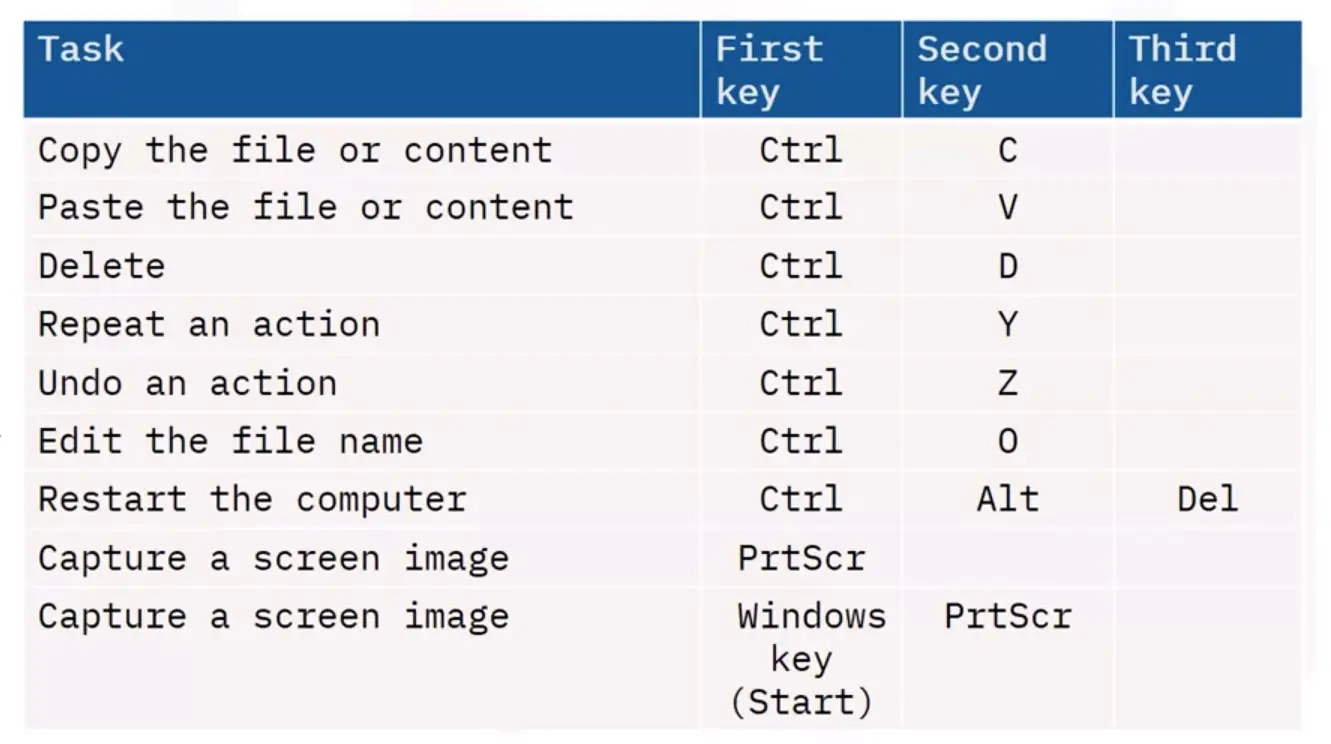
Using Keyboard Shortcuts
Computing Devices and Peripherals
Identifying Hardware Components and Peripherals
What is a computer component?
A physical part needed for computer functioning, also called “hardware”.
Each component performs a specific task.
Components can be internal or external.
External components connect via ports and connectors.
Without a given component, such as a CPU, a computer system cannot function as desired.
Common internal components
A part inside a computing device:
RAM
Hard Drive
CPU
Peripherals
Connect to the computer to transfer data.
External devices easily removed and connected to a computer.
Connections vary
Examples: Mouse, Printer, and a Keyboard etc.
Categories of peripherals
Input – send commands to the computer
Output – receive commands from the computer
Storage – save files indefinitely
Connectors for Components
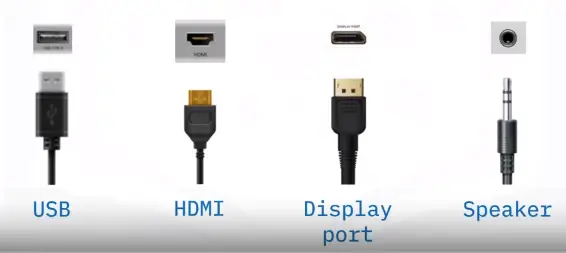
A connector is the unique end of a plug, jack, or the edge of a card that connects to a port.
For example, all desktop computer expansion cards have an internal connector that allows them to connect to a slot on the motherboard.
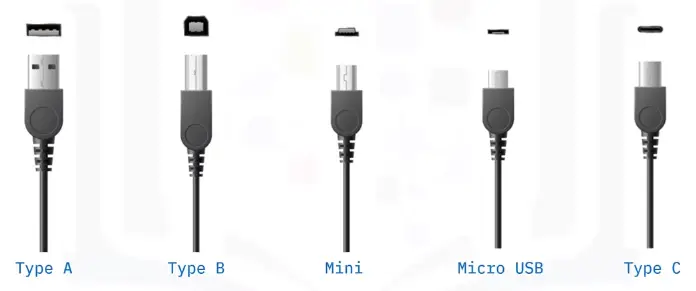
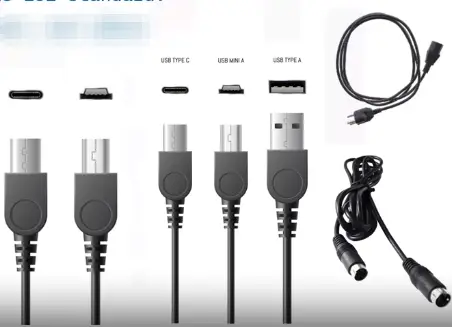
A Universal Serial Bus (USB) connector at the end of a cable is an example of an external connector.
Ports
A connector plugs into an opening on a computer called a port.
A port is the jack or receptacle for a peripheral device to plug into.
Ports are standardized for each purpose.
Common ports include USB ports and HDMI ports.
Input and Pointing Devices
Input Devices
Keyboards
Mouse
Camera
Joystick
Trackball
Pointing Devices
The stylus (Pen)
Input tool
Moves the cursor and sends commands
Generally used on tablets
Uses capacitive technology
Detects heat and pressure
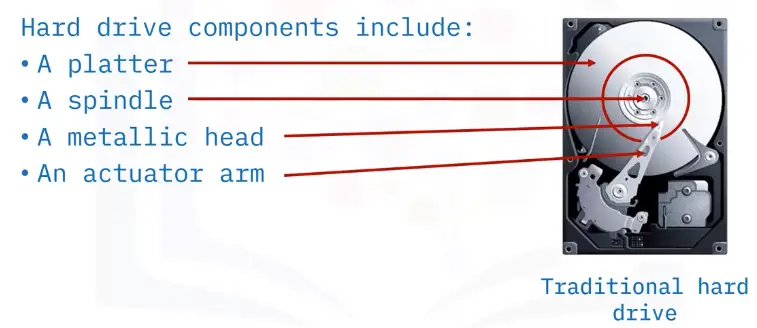
Hard Drives
Hard drives:
are a repository for images, video, audio, and text.
RAM
ROM
HDD/SSD/NVMe
Hard drive performance
Measurement benchmarks
Spin speed: how fast the platter spins.
Access time: how fast the data is retrieved.
Transfer/media rate: how fast the data is written to the drive.
Connecting an internal hard drive
Back up data
transfer the enclosure
Secure with screws
prevent movement
attach to motherboard via SATA/PATA cables
plug into power supply
finally, it can be configured in the disk management utility of windows
Optical Drives and External Storage
Optical drives
Reading and writing data
Laser pressing or “burning”
Burning pits on lands
Reflective disk surface
Storage disks
Single-sided
Double-side
Types of optical drive
Several types
CD-ROM
CD-RW
DVD-ROM
DVD-RW
Blu-ray
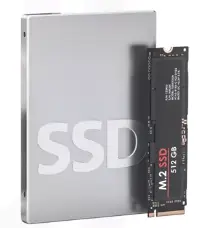
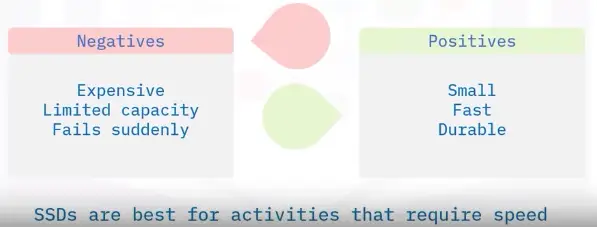
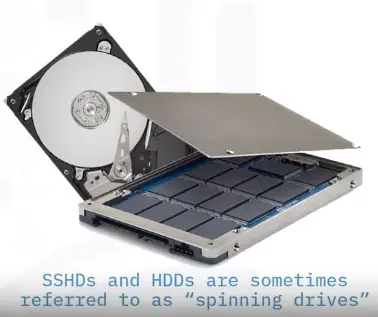
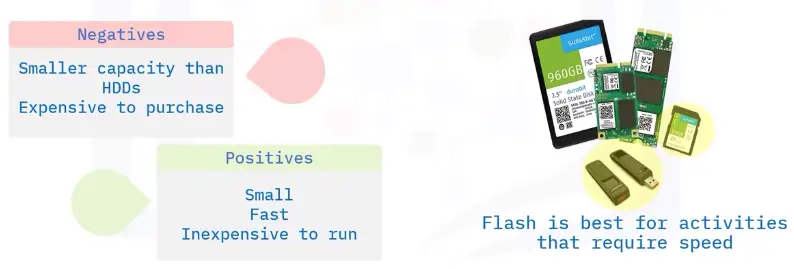
Solid state drives
Solid state drive → (SSD)
Integrated circuit assemblies store data
Flash memory
Permanent, secondary storage
AKA “solid state drive” or “solid state disk”
No moving parts
Unlike hard disk drives and floppy drives
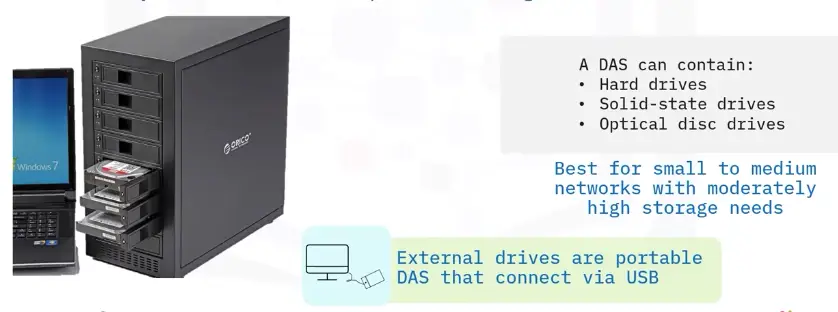
External hard drive
File backup and transfer
Capacity: 250 GB to 20 TB
Several file types
USB or eSATA connection
eSATA – signal, not power
Expansion devices
Additional file storage
Usually, USB
Frees hard drive space
Automatically recognized
Known as a “Thumb drive”
Holds up to 2 TB of data
Flash Drives
Combines a USB interface and Flash memory
Highly portable
Weighs less than an ounce
Storage has risen as prices have dropped
Available capacity up to 2 TB
Memory card
Uses Flash memory to store data
Found in portable devices such as portable media players and smartphones
Contained inside a device
Unlike USB drives
Available in both Secure Digital (SD) and Micro Secure Digital (MSD) formats
Display Devices
Defining display devices:
Hardware component for the output of information in visual form
Tactile monitors present information in a fingertip-readable format
Often seen as television sets and computer monitors
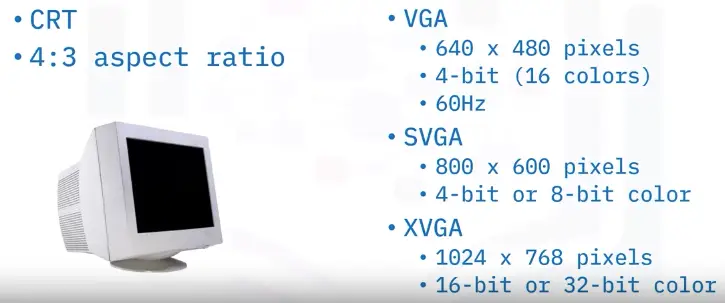
Cathode ray tube (CRT) monitors
Create an image by directing electrons beams over phosphor dots
Used in monitors throughout the mid to late 1990s
By 1990, they boasted 800 × 600 pixel resolution
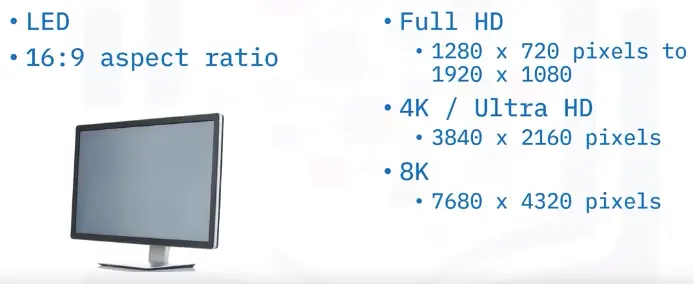
Flat-screen monitors
Also known as liquid crystal display (LCD)/ Think film transistor (TFT)
Digital signal drives color value of each picture element (Pixel)
Replaced CRT monitors
Touchscreens
Use a touch panel on an electronic display
Capacitive technology measures heat and pressure
Often found on smartphones, laptops, and tablets
Projectors
Take images from a computer and display them
the surface projected onto is large, flat, and lightly colored
Projected images can be still or animated
Printers and Scanners
Output devices
“Hardware that shows data in readable form.”
That data can take many forms:
Scanner and speech synthesizer
Unnecessary (though highly useful) for computer function
Printers
Laser/LED
Inkjet
Thermal
Shared printers
IP-based
Web-based
Scanners
Converts images from analog to digital
Flatbed (stand alone) or multifunction device
Faxes and multifunction devices
Facsimile (fax) machines send documents using landlines
Multifunction devices often include fax capabilities
Audio Visual Devices
Defining audio devices
Digital data is converted into an audible format
Components are used to reproduce, record, or process sound
Examples include microphones, CD players amplifiers, mixing consoles, effects units, and speakers
Defining visual devices
Present images electronically on-screen
Typically, greater than 4" diagonally
Examples include smartphones, monitors, and laptop computers
Interfaces and Connectors
Identifying Ports and Connectors
Ports enable devices to connect to computers
Connectors plug into ports
Each port has a unique function and accepts only specific connectors
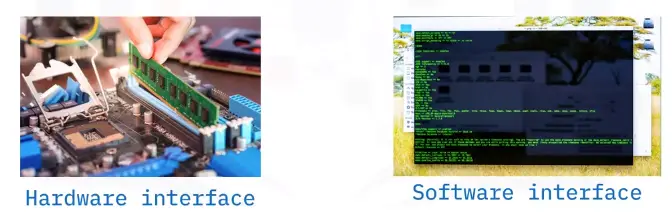
Interfaces
Point of communication between two or more entities
Can be hardware or software based
Common Interfaces are:
USB
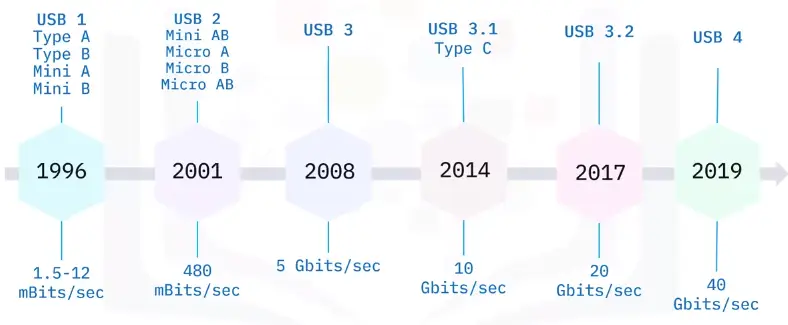
USB connectors
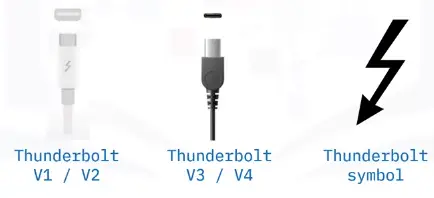
Thunderbolt
Combines data transfer, display, and power
Initial versions reused Mini DisplayPort
New versions reuse USB-C connectors
Identified with a thunderbolt symbol
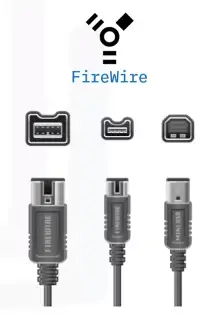
FireWire
Predecessor to Thunderbolt
FireWire 400 = 400 mBits/second
FireWire 800 = 800 mBits/second
Uses a serial bus to transfer data on e bit at a time
Still used for audio/video connections on older computers (before 2011), and in the automobile and aerospace industries
PS/2
Developed for IBM PS/2
Connects keyboard and mice
Ports are device specific
Green for mice
Purple for keyboard
Considered a legacy port
eSATA
Standard port for connecting external storage devices
Allows hot swapping of devices
Since 2008, Upgraded eSATAp that supports both eSATA and USB on the same port
eSATA revisions:
Revision 1: Speeds of 1.5 Gbps
Revision 2: Speeds of 3 Gbps
Revision 3: Speeds of 6 Gbps
Identifying Graphic Devices
Display Unit
Display unit (GPU) connected to the computer via a display card or adapter
Low-end generic graphic cards come built into the computer
Require specialized adapters for high-end functions
ATI/AMD, nVIDIA, SiS, Intel, and Via are leading manufacturers
Display System
VGA Display System
LED Display System
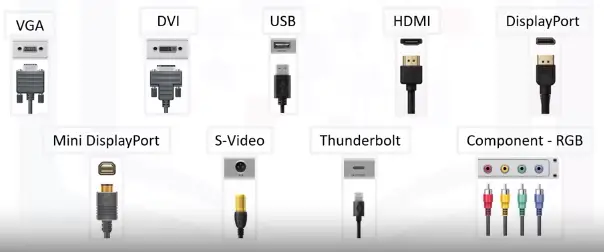
Display Connectors
Different cables and connectors for different display adapters
Each connector has specific function and benefits
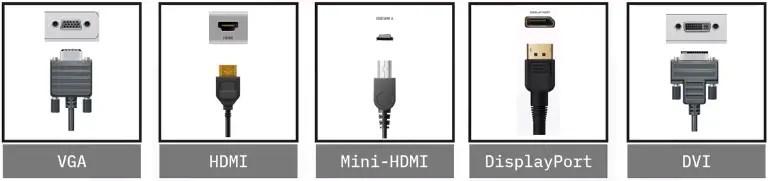
HDMI Interface
Most widely used digital audio and video interface
Also offers remote control and content protection
Uses a proprietary 19-pin connector
Offers up to 8K UHD resolutions
DisplayPort
Royalty-free complement to HDMI
First interface to use packetized data transmission
Uses a 20-pin connector
Can support even different transmission modes of increasing bandwidth
Thunderbolt
Developed by Intel and Apple, primarily for Apple laptops and computers
Can be used as either a display or peripheral interface
Initial versions used the MiniDP interface
Version 3 and now version 4 use the USB-C interface
Thunderbolt features don’t work with a standard USB-C cable and port
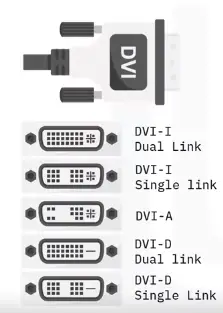
Digital Visual Interface (DVI)
Designed as a high-quality interface for flat-paneled devices
Support both analog and digital devices
DVI-I supports both analog and digital
DVI-A supports only analog
DVI-D supports only digital
Single-link for lower resolutions and Dual-link for HDTV
Superseded by HDMI and Thunderbolt
Video Graphics Array (VGA)
A legacy interface, used for analog video on PC
Has a 15-pin connector that can be secured with screws
Identifying Audio Connectors
The audio connection
Onboard or internal expansion
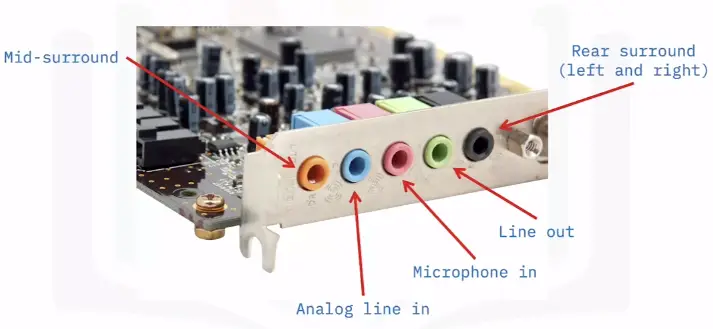
Has multiple ports to connect a variety of devices
Used for multimedia application, education and entertainment, presentation, and teleconferencing
Audio connectors
Sound cards
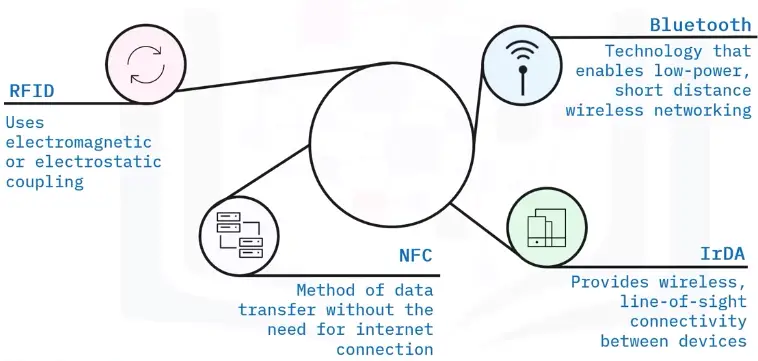
Bluetooth
Game ports/USB ports
External audio interfaces
External audio interfaces
Single device for multiple input and output ports
Mostly used in professional studies
Use USB, FireWire, Thunderbolt, or similar connectors
Wired and Wireless Connections
Data packets
Communication technology allows components to communicate over a network
Data packets are sent from one smart object to another
Information about the sending and receiving device, along with the message
Devices built to talk over a network can communicate with each other
Network types
Closed (limited number of devices can connect)
Open (unlimited number of devices can connect)
Either could be wired or wireless
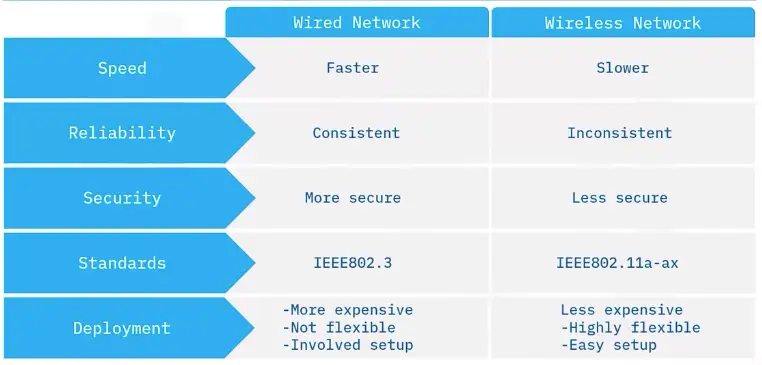
Wired connectors
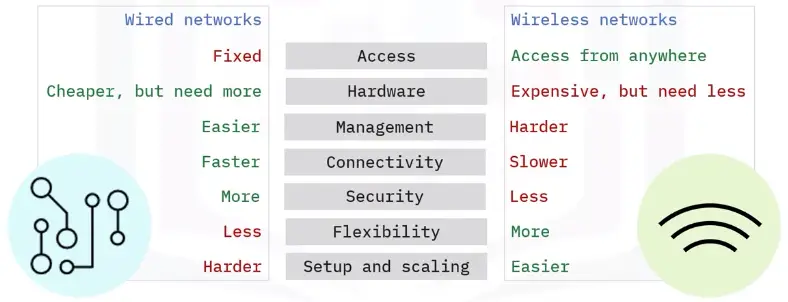
Wire connection benefits
Faster data transmission
Up to 5 Gbps
More reliable than wireless
Immune to signal drops and dead zones
Less prone to radio interference
More secure
Less likely to be hacked
Wireless connections
Use different technologies based on connection requirements
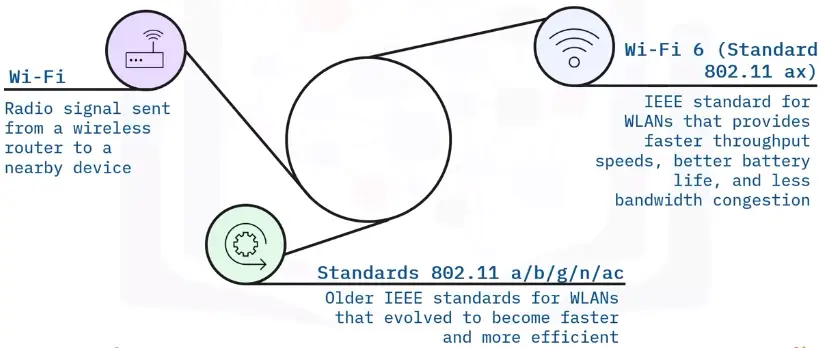
Wireless Fidelity (Wi-Fi)
Connects a router to a modem for network access
Bluetooth
1998
Pairing
Radio-frequency identification (RFID)
Identification and tracks objects using tags
Range up to several hundred meters
Collection of road tolls
Other uses of RFID tags
Livestock tracking, tacking pharmaceuticals through warehouses, preventing theft, and expediting checkout in stores
NFC (Near Field Communication)
Based on RFID
Extremely short range
Transmits data through electromagnetic radio fields
Wireless connection advantages
Increased mobility
Reduced time to set up
Flexibility and scalability
Wider reach
Lower cost of ownership
Peripherals and Printer Connections
Common installation steps
Computers require software that enables peripheral or printer device recognition and communication using:
Onboard Plug and Play software
Device driver software
Device application software
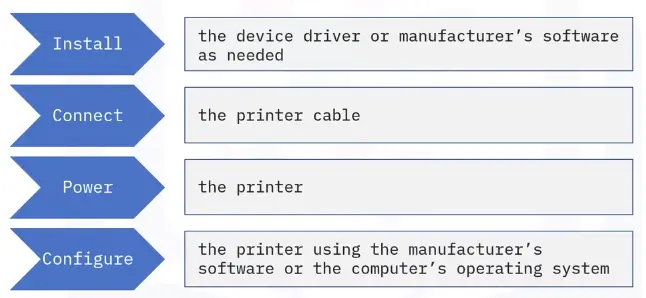
Initial stand-alone, peripheral installation often still requires a wired connection or network connection
Connect the printer to the computer using a cable
Turn on the printer
Frequently used stand-alone peripherals are:
USB
Bluetooth
Wi-Fi
NFC
Three other connection methods are:
Serial port
Parallel port
Network
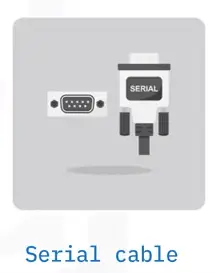
Serial cable connections
Are less common
Transmit data more slowly
RS232 protocol remains in use
Data can travel longer distances
Better noise immunity
Compatibility among manufacturers
Cables commonly feature 9-pin connections and two screws to secure the cable
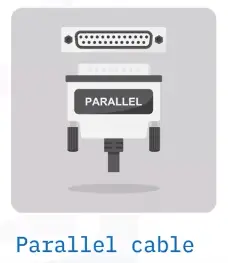
Parallel port cable connection
Are less common
Send and receive multiple bits of data simultaneously
Feature 25-pin connections
Include two screws to keep the cable connected
Network connections
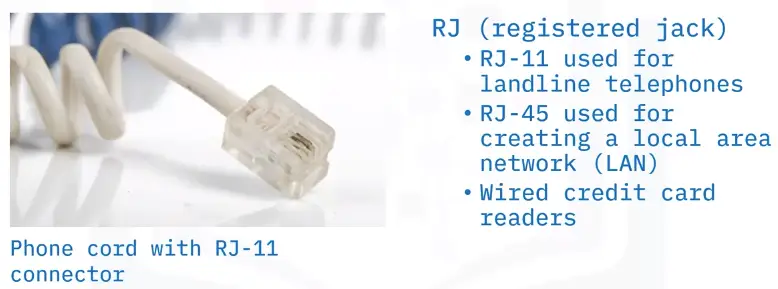
Generally, are Wi-Fi or wired Ethernet connections
Before you begin, verify that your computer has a network connection
Connecting to local printers
Installation Types
Plug and Play
Driver Installation
PnP vs. driver installation
PnP devices work as soon as they’re connected to a computer
Examples include mice and keyboards
A malfunctioning device should be investigated in Device Manager.
Possible cause of malfunction is an outdated driver
IP-based peripherals
Hardware connected to a TCP/IP network
Examples of such devices include wireless routers and security cameras
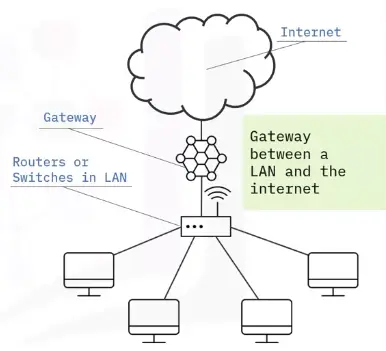
These devices must be connected to a local area network (LAN) or the Internet to function
Web-based configuration
Different from installation
Used for networking devices such as routers
Is an easier process to set up a device
Completed on a web page
Often on the manufacturer’s site
Internal Computer Components
Internal Computer Components
Motherboard
Main printed circuit board (PCB) in computers
Contains significant subsystems
Allows communication among many of the crucial internal electronic components
Enables communications and power distribution for peripherals and other components
Chip sets
A set of electronic components in an integrated circuit
Manage data flow
Have two distinct parts: the northbridge and the southbridge
Manage communications between the CPU and other parts of the motherboard
Chip sets: Northbridge and southbridge
Northbridge – the first half of the core logic chip set on a motherboard
Directly connected to the CPU
Responsible for tasks that require the highest performance
Southbridge – the second half of the core logic chip set
Implements slower-performance tasks
Not directly connected to the CPU
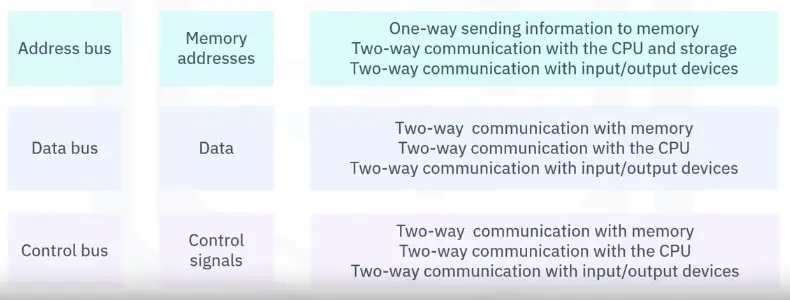
What is a bus?
A high-speed internal connection on a motherboard
Used to send control signals and data internally
The front-side bus carries data between the CPU and the memory controller hub (northbridge)
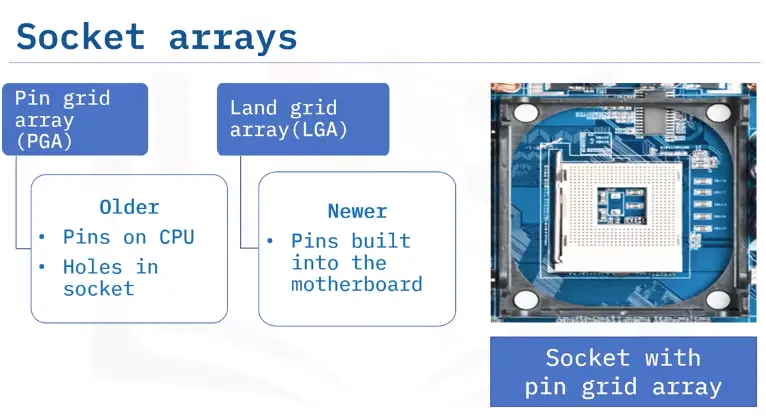
Sockets
“Components not directly attached to a motherboard connect via sockets”
Array of pins holding a processor and connecting the processor to the motherboard
Differ based on the motherboard
Power connectors
Found on a motherboard
Allow an electrical current to provide power to a device
ATX-style power connectors are larger than most
Join the power supply to the motherboard
Data Processing and Storage
Central Processing Unit (CPU)
Silicon chip in a special socket on the motherboard
Billions of microscopic transistors
Makes calculations to run programs
32-bit is like a two-lane information highway
64-bit is like a four-lane information highway
Memory (RAM)
Typically used to store working data
Volatile: Data existing in RAM is lost when power is terminated
Is cold pluggable (cold swappable)
Speed measured in Megahertz (MHz)
Available in varying speeds
Available in varying storage capacities
Types of Memory
Choice depends on the motherboard
Dynamic Random-Access Memory (DRAM)
Synchronous Dynamic Random-Access Memory (SDRAM)
Double Data Rate Synchronous Dynamic Random-Access Memory (DDR-SDRAM)
Double Data Rate 3 Synchronous Dynamic Access Memory (DDR3 and DDR4)
Small outline Dual Input Memory Module (SO-DIMM)
Memory Slots
Hold RAM chips on the motherboard
Allow the system to use RAM by enabling the motherboard to communicate with memory
Most motherboards include two to four memory slots
Type determines which RAM is compatible
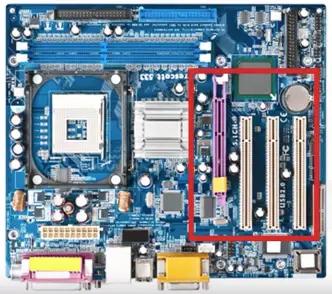
Expansion Slots
Use PCI or PCIe slots
Add additional capabilities
Peripherals (such as sound cards)
Memory
High-end graphics
Network interfaces
Availability depends on the motherboard configuration
Disk Controllers
Circuit that enables the CPU to communicate with hard disk drive
Interface between the hard disk drive and the bus
Integrated Drive Electronics is a standard
IDE controller-circuit board guides how the hard disk drive manages data
Have memory that boosts hard drive performance
BIOS (Basic Input Output System)
Manages your computer’s exchange of inputs and outputs
Preprogrammed into the motherboard
Needs to always operate
Update in a flash
Use the System Summary window
CMOS: Battery and chip
Uses a coin-sized battery
Is attached to the motherboard
Powers the memory chip that stores hardware settings
Replace the computer’s system data, time, and hardware settings
Internal Storage
Hard drive characteristics
Introduced by IBM in 1956, internal hard drives provide:
- Stable, long-term data storage
- Fast access time
- Fast data transfer rates
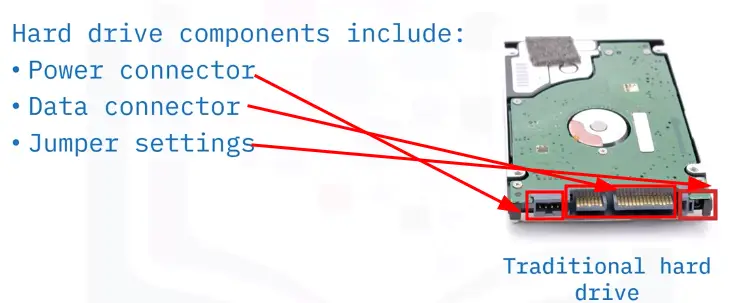
Traditional hard drive technology
IDE and PATA drives
1980s to 2003:
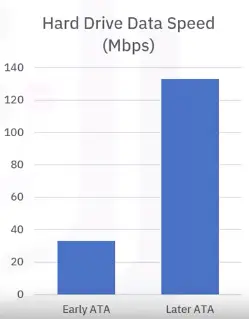
Integrated Drive Electronics (IDE) hard drives and Parallel Advanced Technology Attachment (PATA) drives were popular industry standard storage options
Early ATA drives: 33 Mbps
Later ATA drives: 133 Mbps
SATA drives
2003 to today:
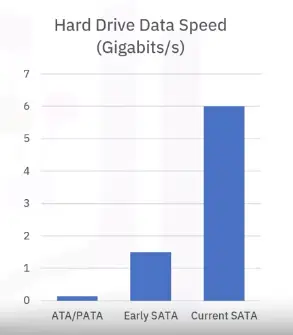
Serial advanced technology attachment drives (SATA) became an industry standard technology
Communicate using a serial cable and bus
Initial data processing of 1.5 Gbps
Current processing of 6 Gbps
Available in multiple sizes
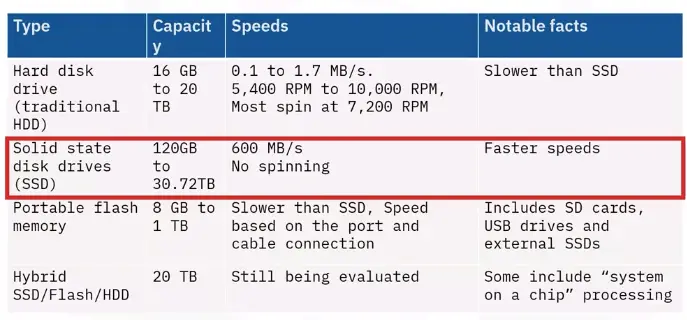
Spin at 5400 or 7200 rpm
Capacity: 250 GB to over 30 TB
Still dominate today’s desktop and laptop market
Each SATA port supports a single drive
Most desktop motherboards have at least four SATA ports
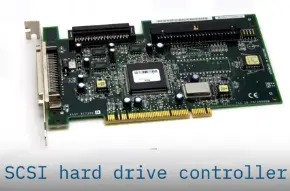
SCSI drives
1986:
Small computer system interface, pronounced “scuzzy” (SCSI) drives
Historical speeds: 10,000 or 15,000 rpm
1994:
Discontinued usage
Solid-state drives
1989:
Solid-state drives (SSDs) came to market
Consist of nonvolatile flash memory
Provide faster speeds: 10 to 12 Gbps
Capacity: 120 GB to 2 TB
Cost: More expensive than SATA or SCSI drives but also more reliable
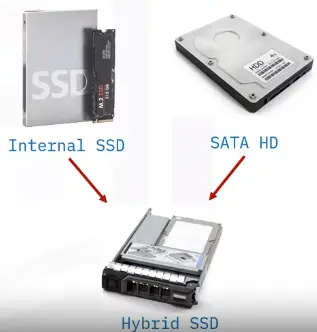
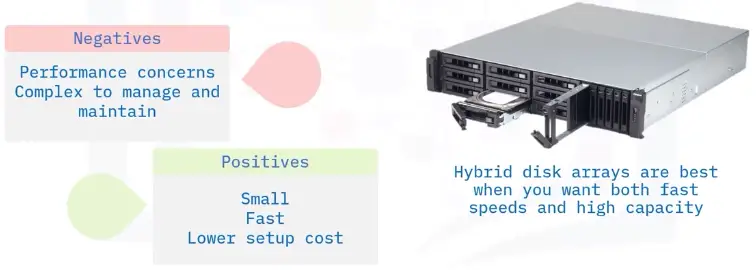
Available as internal, external, and hybrid hard drives
As part of an internal hybrid configuration:
SSD serves as a cache
SATA drive functions as storage
Hybrid drives tend to operate slower than SSD drives
Optical Drives
1992:
Invented in the 1960s, but came to the market in 1992.
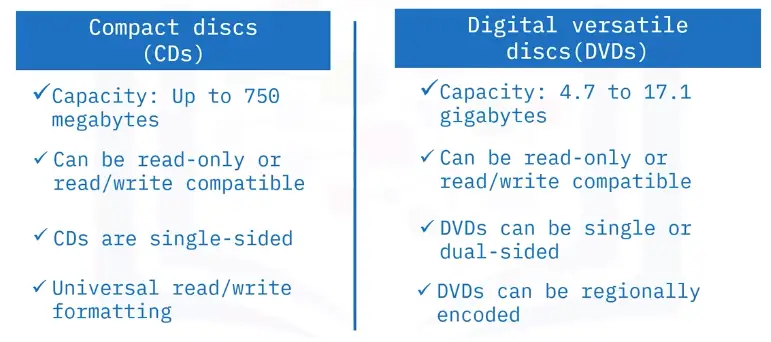
CDs and DVDs provide nonvolatile storage.
Optical drives use low-power laser beams to retrieve and write data.
Data is stored in tiny pits arranged in a spiral track on the disc’s surface.
CDs and DVDs compared
Blu-ray discs
Media specific for movies and video games
Provide high resolution
Single-sided, but with up to four layers
Store 25 GB per layer
Writable Blu-ray discs exist in 100 GB and quad-layer 128 GB formats
Writable Blu-ray discs require BD-XL-compatible drives
Expansion Slots
Locations on the motherboard where you can add additional capabilities, including hard drive storage
Display Cards and Sound Cards
Video card
An expansion card installed in an empty slot on the motherboard
Or a chip built into a system’s motherboard
Allows the computer to send graphical information to a video display device
Also known as a display adapter, graphics card, video adapter, video board, or video controller
Graphics processing unit (GPU)
Specialized processor originally designed to accelerate graphics rendering
Process many pieces of data simultaneously
Machine learning, video editing, and gaming applications
Several industries rely on their power processing capabilities
Audio card
Also known as a sound card
Integrated circuit that generates an audio signal and send it to a computer’s speakers
Can accept an analog sound and convert it to digital data
Usually built into PC motherboard
Users desiring higher-quality audio can buy a dedicated circuit board
MIDI controller
A simple way to sequence music and play virtual instruments and play virtual instruments on your PC
Works by sending musical instrument digital interface (MIDI) data to a computer or synthesizer
Interprets the signal and produces a sound
Frequently used by musicians
Network Interface Cards
A hardware component without which a computer cannot connect to a network
A circuit board that provides a dedicated network connection to the computer
Receives network signals and translates network signals and translates them into data that the computer displays
Types of NIC
Provides a connection to a network
Usually, the Internet
Onboard: built into motherboard
Add-on: fit into expansion slot
No significant difference in speed or quality
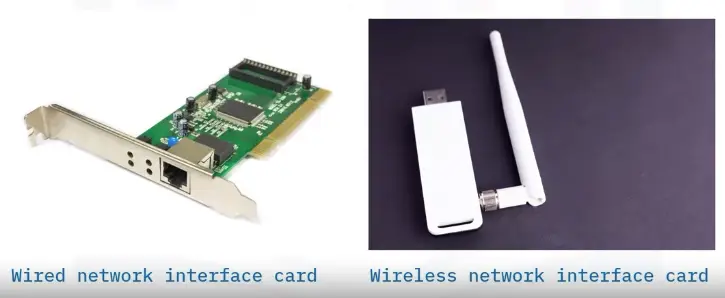
Wired and wireless network cards
Wireless – use an antenna to communicate through radio frequency waves on a Wi-Fi connection
Wired-use an input jack and a wired LAN technology, such as fast Ethernet
Modems
Connects your system to the Internet.
Translates ISP signals into a digital format.
Then feeds those digitized signals to your router, so you can connect to a network.
Cooling and Fans
System cooling
Computers generate heat
Excessive heat can damage internal components
Never operate a computer w/out proper cooling
Designed to dissipate heat produced by the processor
Allow the accumulated heat energy to flow away from vital internal parts
Cooling methods
Passive
Active
Fans draw cool air through front vents and expel warm air through the back
Forced convection
Using thermal paste and a baseplate
Cooling methods – heat sink
Heat sink
Use heat sink compound to fill gaps
Place the heat sink over the CPU
Excess heat is drawn away
Before warm air can damage the internal components
Liquid-based cooling
Quieter and more efficient than fans
Water blocks rest atop the chip
Cool liquid in the blocks cool the chip
Heated fluid is pumped to a radiator-cooled by fans.
That fluid goes back to the water block to repeat the cycle.
Workstation Setup Evaluation and Troubleshooting
Managing File and Folders
Rules for naming files and folders
Name so the file or folder you want is easy to find
Make names short but descriptive
Use 25 characters or fewer
Avoid using special characters
Use capitals and underscores
Consider using a date format
Introduction to Workstation Evaluation, Setup, and Troubleshooting
Screen Capture and Tools
Screen capture on macOS
Saves screenshots on the desktop.
Command + shift +3
Capture entire screen
Command + shift +4
Capture part of the screen
Command + shift +5
Capture as photo/video
Screen captures on Windows
Saves screenshots to the screenshot folder.
Windows + PrintSc
Capture entire screen
Alt + PrintSc
Capture active window
Windows + Shift + S (Opens up snip and sketch tool)
Entire screen
Part of the screen
Active window
Screen captures on a Chromebook
Saves screenshots to Downlaods or Google Drive.
Ctrl + Show Windows
Capture entire screen
CTRL + shift + show windows
Capture part of the screen
Evaluating Computing Performance and Storage
Assessing processor performance
The processor’s speed
The number of cores
The bus types and speeds
Located on the processor’s perimeter
The data highway wiring from the processor to other board components
The presence of cache or other onboard memory
Bus types
Historically, three bus types:
Bus alternatives
Replacement technologies include:
And others.
Cache
Consist of processor platform memory that buffers information and speeds tasks
Can help offset slower processor speeds
Storage
RAM error symptoms
Screen or computer freezes or stops working
Computer runs more slowly
Browser tabs error or other error messages display
Out-of-memory or other error messages display
Files become corrupt
Computer beeps
A “blue screen” with an error message displays
Workstation Evaluation and Setup
Identifying user needs
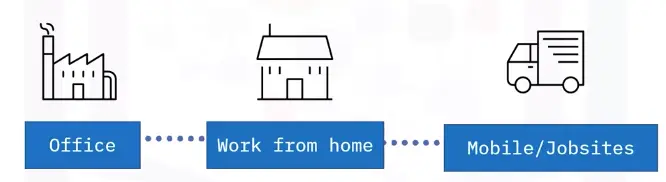
Environment: Where does the use work?
What are the user’s workspace conditions?
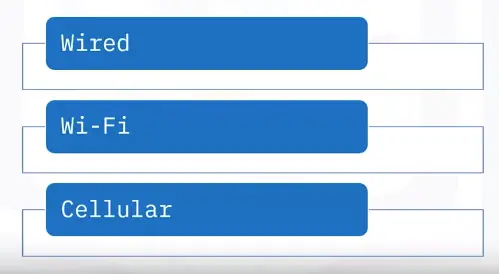
Network access: What are the user’s options?
Data storage requirements:
Application requirements:
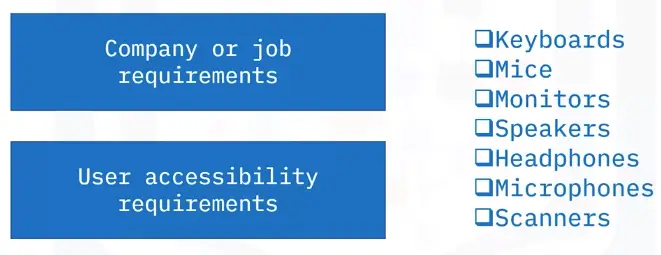
Evaluating peripheral needs
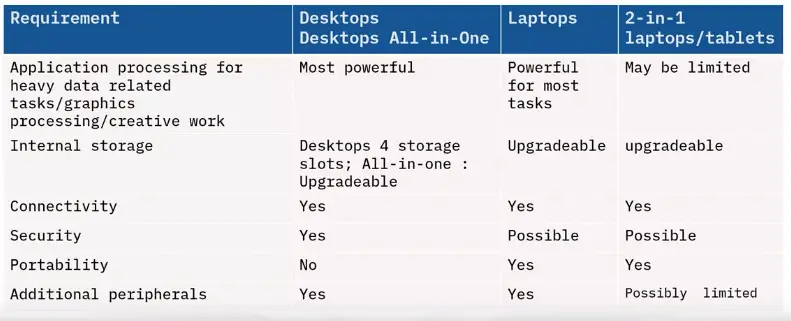
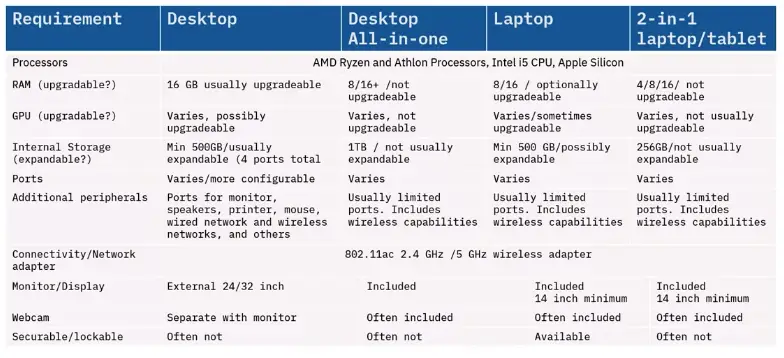
Suggested computing solutions
Evaluating computing options
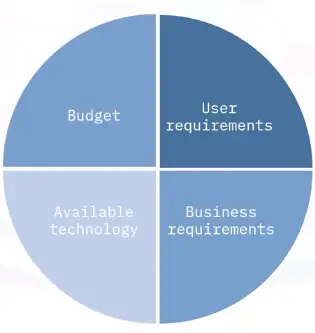
Purchasing decisions
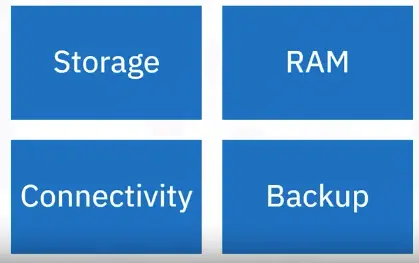
Four important considerations:
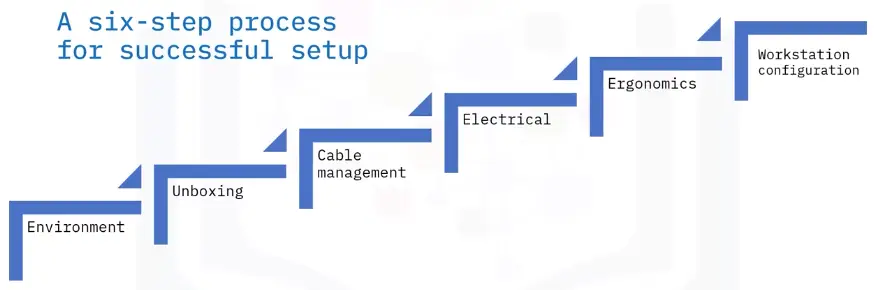
Workstation setup
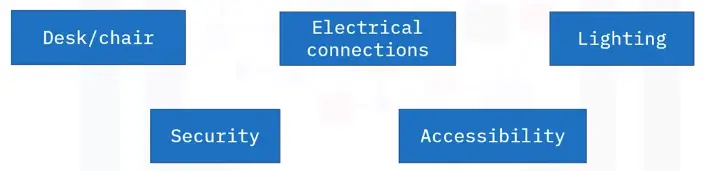
Environment
Is a desk present or needed? If so, is the desk safe and sturdy?
Is a chair present? If so, is the chair safe and sturdy?
Is lighting present?
Are electrical outlets present, of appropriate amperage and grounded?
Can the use physically secure the computer?
Unboxing
Read and follow the manufacturer’s practices for workstation setup
Move boxes and packing materials into a safe location, out of the user’s workspace
Cable management
Reduce service calls with three practices
Install shorter cable lengths where possible
Securely attach and identify each cable
Collect and tie the cables together
Electrical
Safety for you and your user:
Label each electric cable.
Verify that electrical connections are away from the user and are accessible.
Connect power supplies to their assigned wall or power strip location. Note the wall outlet number.
Ergonomics
Can the user work comfortably?
Feet are on the floor.
Monitor at or just below eye height.
Arms are parallel with the keyboard, table, and chair.
Shoulders are relaxed and not hunched.
The environment provides enough light to see the display and keyboard.
Cords and cables are out of the way.
Workstation setup
Power on the workstation and peripherals
Setup the operating system and options for the user:
User logon credentials
Keyboard options
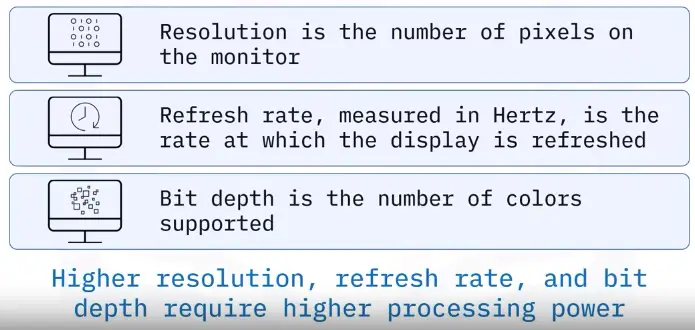
Monitor resolution
Printer connections
Sound options
Security options
Network connections
Select the user’s default browser
Uninstall bloatware or unnecessary software
Install and configure additional productivity software
Modify the desktop Productivity pane
Setup backup options
Introduction to Troubleshooting
3 Basic Computer Support Concepts
Determining the problem
Ask questions
Reproduce the problem
Address individual problems separately
Collect information
Examining the problem
Consider simple explanations
Consider all possible causes
Test your theory
Escalate if needed
Solving the problem
Create your plan
Document the process beforehand
Carry out the solution
Record each step
Confirm the system is operational
Update your documentation
Troubleshooting
“Troubleshooting is a systematic approach to problem-solving that is often used to find and correct issues with computers.”
Troubleshooting steps
Gathering information
Duplicating the problem
Triaging the problem
Identifying symptoms
Researching an online knowledge base
Establishing a plan of action
Evaluating a theory and solutions
Implementing the solution
Verifying system functionality
Restoring Functionality
Common PC issues
Internet Support
Manufacturer Technical Support
Before contacting support:
Have all documentation
Be prepared to provide:
Name of the hardware/software
Device model and serial number
Date of purchase
Explanation of the problem
CompTIA troubleshooting model
The industry standard troubleshooting model comes from The Computing Technology Industry Association (CompTIA)
CompTIA model steps
Identify the problem
Gather information
Duplicate the problem
Question users
Identify symptoms
Determine if anything has changed
Approach multiple problems individually
Research knowledge base/Internet
Establish a theory of probable cause
Question the obvious
Consider multiple approaches
Divide and conquer
Test the theory to determine the cause
Establish a plan of action
Implement the solution or escalate
Verify fully system functionality and implement preventive measures
Document findings/lessons, actions, and outcomes
Advanced Microsoft Windows 10 Management and Utilities
Policy management
Applies rules for passwords, retries, allowed programs, and other settings
Type “group policy” in the taskbar search box
View Edit group policy and click open
Select the User Configuration settings to view its details and edit policy settings
Process management
Schedules processes and allocates resources
Task manager
Memory management
Windows uses:
RAM for frequent memory tasks
Virtual memory for less-frequent tasks
When you notice that:
Performance is slow
You see errors that report “low on virtual memory”
Service management
Automatically manages background tasks and enables advanced troubleshooting of performance issues.
Capabilities include:
Stopping services
Restarting services
Running a program
Taking no action
Restarting the computer
Driver configuration
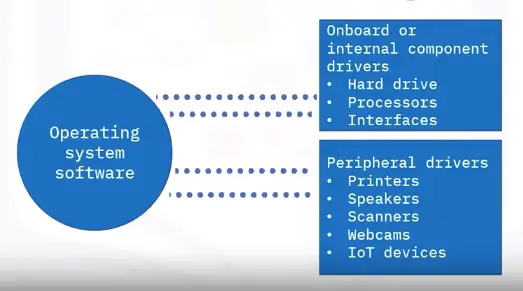
Drivers are the software components that enable communications between the operating system and the device
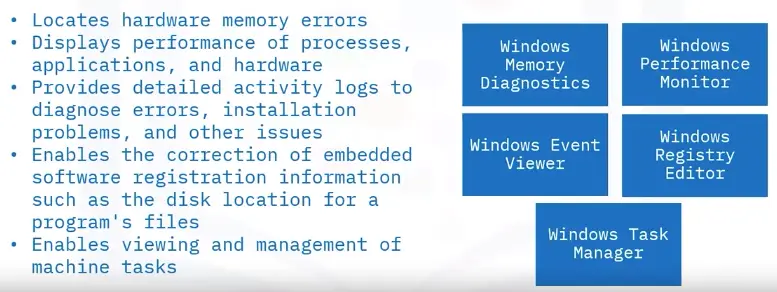
Utilities
Utilities help you administer and manage the operating system:
Subsections of Software, Programming, and Databases
Computing Platforms and Software Application
A computing platform is the environment where the hardware and the software work together to run applications.
Hardware is the type of computer or device, such as a desktop computer, a laptop, or a smartphone.
Software refers to the type of operating system (OS), such as Windows, macOS, iOS, Android and Linux, and the programs and applications that run on the OS.
Types of computing platforms
Desktop platform
Includes personal computers and laptops that run operating system like Windows, macOS, and Linux.
Web-based platform
Includes modern browsers like Firefox, and Chrome that function the same in various operating system, regardless of the hardware.
Mobile platform
Includes devices like Pixel and the iPhone that run operating systems like Android OS and iOS.
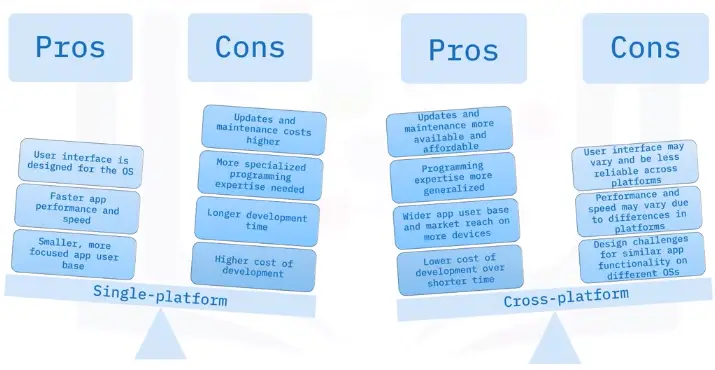
Single-platform vs. cross-platform
Compatibility concerns
Cross-platform software acts differently or may have limited usability across devices and platforms.
Software is created by different developers, and programs may interpret the code differently in each application.
Functionality and results differ across platforms, which might mean undesired results or a difference in appearance.
Commercial and Open Source Software
Commercial Software
Commercial Proprietary Closed source
Copyrighted software, which is identified in the End User License Agreement (EULA).
Private source code, which users are not allowed to copy, modify, or redistribute.
Developed for commercial profit and can include open source code bundled with private source code.
Commercial software usually requires a product key or serial number to certify that software is original.
Some commercial software is free, but upgrades and updates may cost extra, or the software contains ads.
Examples: Microsoft Office, Adobe Photoshop, and Intuit QuickBooks.
Open source software
Open source: Free and open source (FOSS)
Free software, which can be downloaded, installed, and used without limits or restrictions
Free source code, which can be freely copied, modified, and redistributed.
Open access to the software functions and software code without cost or restrictions.
Developers and users can contribute to the source code to improve the software.
Open source software requires users to agree to an End User License Agreement (EULA) to use the software.
Examples: Linux, Mozilla Firefox, and Apache OpenOffice.
Software Licenses
What is a software license?
A software license states the terms and conditions for software providers and users.
It is a contract between the developer of the source code and the user of the software.
It specifies who owns the software, outlines copyrights for the software, and specifies the terms and duration of the license.
Likewise, it states where the software can be installed, how many copies can be installed, and how it can be used.
Not only that, but it can be lengthy and full of definitions, restrictions, and penalties for misuse.
Agreeing to licensing terms
If you want to use software, you must agree to the licensing terms and requirements, called an End-User License Agreement (EULA).
Agreeing means you accept the terms of the license, such as how many computers the software can be installed on, how it can be used, and what the limitations on developer liability are.
Different software programs and applications have various ways of presenting their EULAs.
Types of software licenses
Single-use license
Allows single installation.
Allows installation on only one computer or device.
Ideal for a single user to install on computers or devices owned only by the user.
Group use, corporate, campus, or site license
Allows multiple installation for specified number of multiple users.
Allows installation on many computers or devices.
Idea for use with computers and devices that are required and owned by organizations.
Concurrent license
Allows installation on many computers, but can only use concurrently by a lower number.
Allows many users to have access, but is not used often by a lot of people at once.
Ideal for companies that do not have all workers using the software at the same time.
Software licensing cost
Costs vary, depending on the type of software, how it will be used, and how much was spent to develop the software.
The cost is for the license to use the software.
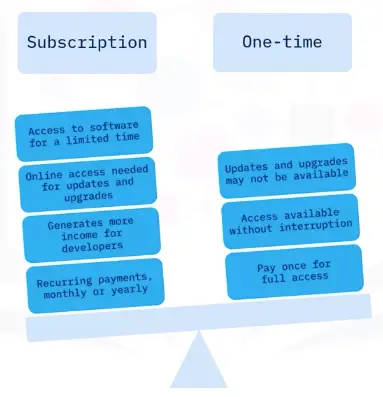
Several options are available, such trial subscription, and one-time purchase.
Trial licenses are usually free for a limited time, for a user to decide if they want to purchase the software.
Subscription or one-time licenses
Software Installation Management
Before installing software
Read application details and be selective.
Avoid ads or other unwanted software.
Avoid downloading software that contains malware.
Review permissions requests to access other apps and hardware on your device.
Be selective when allowing application privileges.
Installing software
Consider minimum system requirements, such as:
Minimum processor speed
Minimum amount of RAM
Minimum amount of hard disk space available
Compatible OS versions
Additional requirements may be:
Specific display adapter
Amount display adapter RAM
Internet connection to use the software.
Software versions
Software versions are identified by version number.
Version numbers indicate:
When the software was released.
When it was updated.
If any minor changes or fixes were made to the software.
Software developers use versioning to keep track of new software, updates, and patches.
Version numbers
Version numbers can be short or long, with 2,3, or 4 sets.
Each number set is divided by a period.
An application with a 1.0 version number indicated the first release.
Software with many releases and updates will have a larger number.
Some use dates for versioning, such as Ubuntu Linux version 18.04.2 released in 2018 April, with a change shown in the third number set.
What do version numbers mean?
Some version numbers follow the semantic numbering system and have 4 parts separated by a period.
The first number indicates major changes to the software, such as a new release.
The second number indicated that minor changes were made to a piece of software.
The third number in the version number indicates patches or minor bug fixes.
The fourth number indicates build numbers, build dates, and less significant changes.
Version compatibility
Older versions may not work as well in newer versions.
Compatibility with old and new versions of software is a common problem.
Troubleshooting compatibility issues by viewing the software version.
Update software to a newer version that is compatible.
Backwards-compatible software functions properly with older versions of files, programs, and systems.
Productivity, Business, and Collaboration Software
Types of software
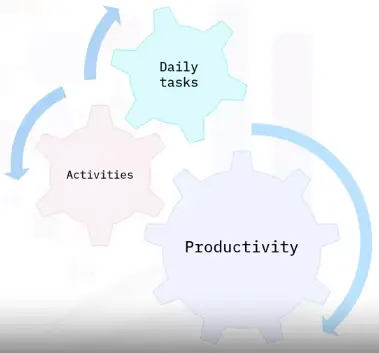
Productivity software enables users to be productive in their daily activities.
Business software is related to work tasks and business-specific processes.
Collaboration software enables people to work together and communicate with each other.
Utility software helps manage, maintain, and optimize a computer.
Note: A program or application can be categorized as multiple types of software.
What is productivity software?
“Productivity software is made up of programs and application that we use every day.”
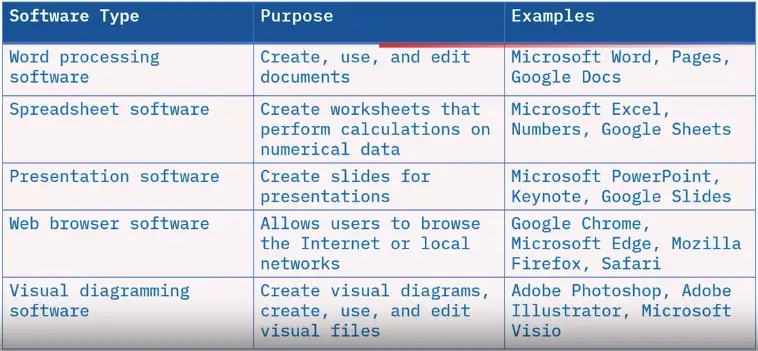
Types of productivity software
What is business software?
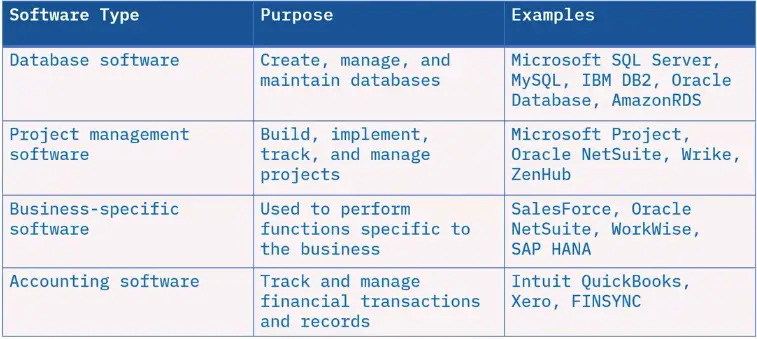
Programs and applications that help businesses complete tasks and function more efficiently are considered business software.
Some business software is uniquely designed to meet an industry-specific need.
Types of business software
What is collaboration software?
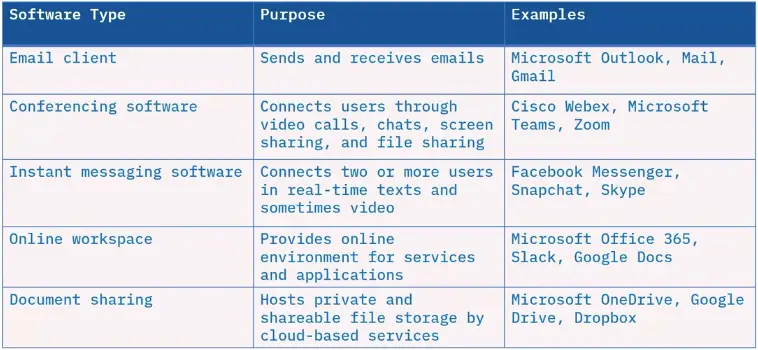
Collaboration software helps people and companies communicate and work together.
Collaboration software can also be business software, but they are not interchangeable.
The primary purpose is to help users create, develop, and share information collaboratively.
Types of collaboration software
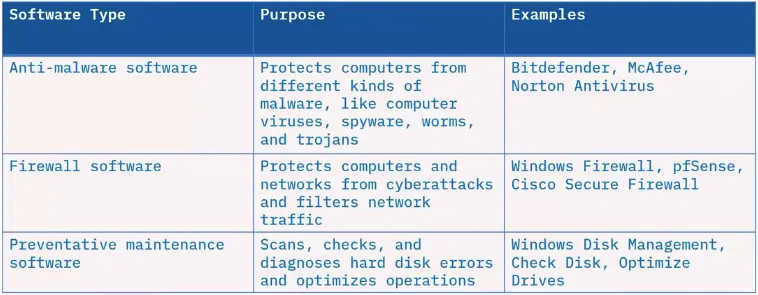
What is utility software?
Utility software runs continuously on a computer without requiring direct interaction with the user.
These programs keep computers and networks functioning properly.
Utility software
Types of File Formats
Executable files
Executable files run programs and applications.
Some executable file format extensions are:
EXE or .exe for Windows applications
BAT or .bat for running a list of commands
SH or .sh for shell commands on Linux/Unix
CMD or .cmd for running command in order
APP or .app for Mac application bundles
MSI or .msi for installer package on Windows
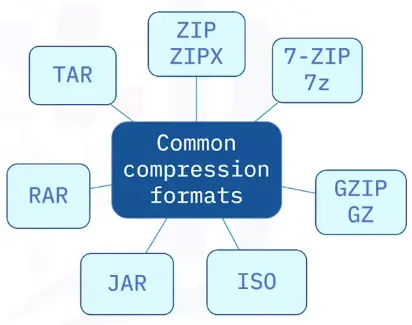
Common compression formats
Common audio and video formats
Audio and video formats often share the same extensions and the same properties.
Some audio formats:
WAV
MPEG, including MP3 and MP4
AAC
MIDI
Some video formats:
AVI
FLV
MPEG, including MP4 and MPG
WMV
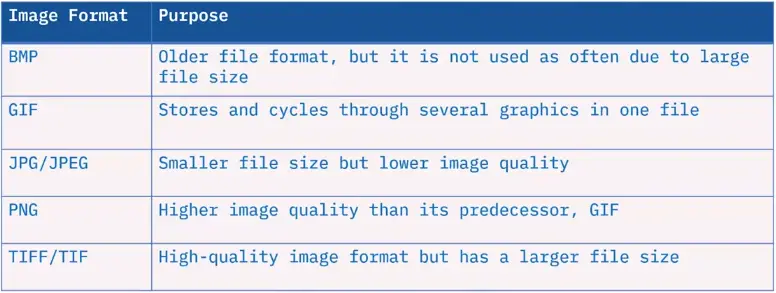
Images formats
Some common image formats are:
Document formats
Some examples of document formats and extensions:
TXT / .txt for text files
RTF / .rtf for rich text format
DOCX and DOC / .docx and .doc for Microsoft Word
XLSX and XLS / .xlsx and .xls Microsoft Excel
PDF / .pdf for Adobe Acrobat and Adobe Reader
PPTX and PPT / .pptx and .ppt for PowerPoint
Fundamentals of Web Browsers, Applications, and Cloud Computing
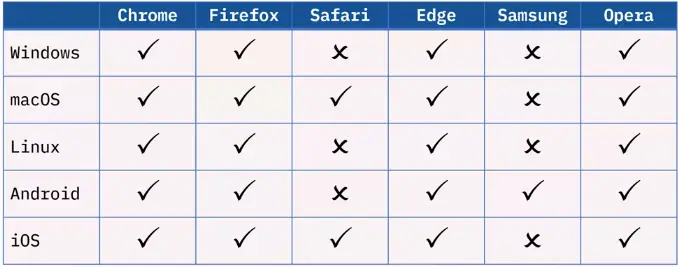
Common Web Browsers
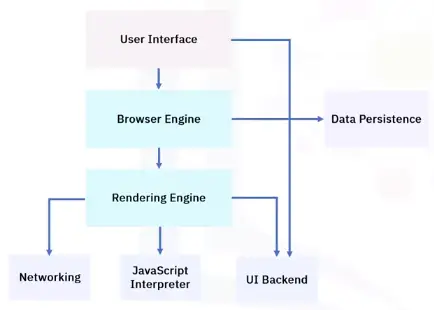
Web Browser components
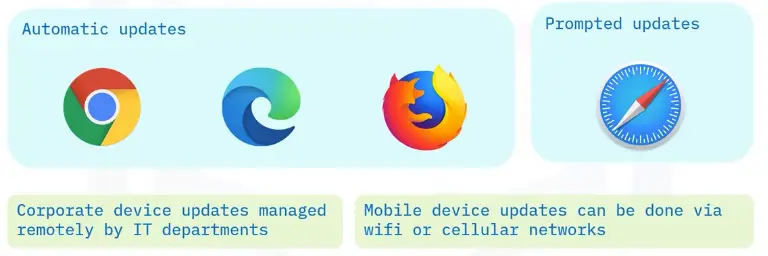
Browser installs and updates
Importance of browser updates
Compatibility with websites
Security
New features
Frequency of browser updates
Most web browsers update at the same frequency:
Major updates every four weeks
Minor updates as needed within the four-week period
Security fixes, crash fixes, policy updates
Some vendors offer an extended release:
Major updates are much less frequent
Better for structured environments
Malicious plug-ins and extensions
Malicious plug-ins and extensions typically not displayed in list of installed apps and features.
Use an anti-malware program to remove them.
Use trusted sources for plug-ins and extensions to avoid malware.
Basic Browser Security Settings
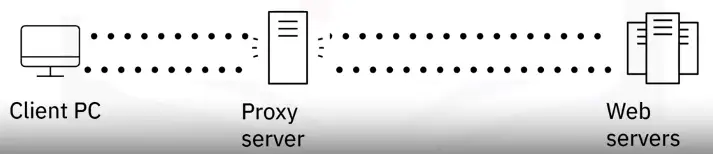
What is a proxy server?
Acts as go-between when browsing the web.
The website thinks the proxy is the site visitor.
Protects privacy or bypass content restrictions.
Allows organizations to maintain web security, web monitoring, and content filtering.
Controls what, when, and who.
Reduces bandwidth consumption and improves speed.
How does a proxy server work?
Proxy servers perform network address translation to request and retrieve web content on behalf of requesting computers on the network.
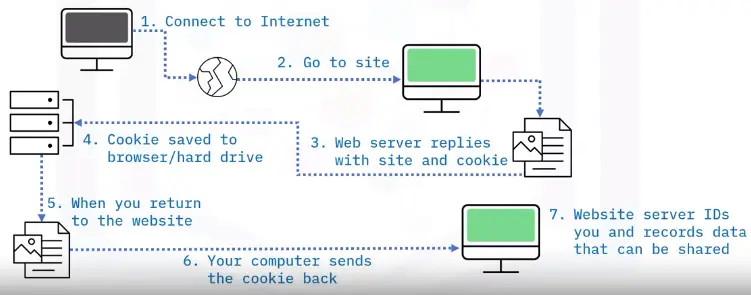
Managing cookies
Cookies:
Small text-based data stores information about your computer when browsing
Save session information
More customized browsing experience
Example: Online shopping basket
Cookies can be useful but could be malicious too:
Tracking browsing activity
Falsifying your identity
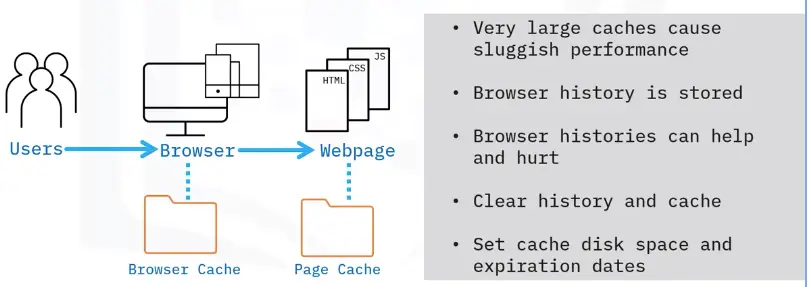
What is cache?
Cache is temporary storage area
Stores web data, so it can be quickly retrieved and reused without going to original source
Cache is stored on local disk
Improves speed, performance, and bandwidth usage
Cache can be cleared when no longer needed
Browser Security Certificates and Pop-ups Settings
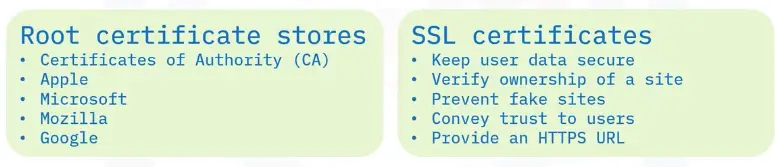
Security certificates
Good security practice to check websites’ authenticity
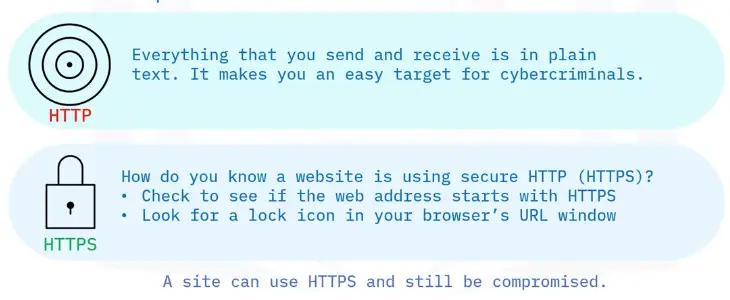
Look for HTTPS in URL and padlock icon
‘Connection is secure’
If it says ‘not secure’ be wary
Certificate expired
Issuing CA not trusted
Script and pop-ups blockers
Pop-ups:
Typically are targeted online ads
Can be annoying and distracting
Can be malicious
Associated with ‘innocent’ actions
Take care when interacting with pop-ups
Popular third-party pop-up blockers:
Adlock
AdGuard
AdBlock
Ghostery
Adblock Plus
May provide additional features such as ad filtering.
Private Browsing and Client-side Scripting Settings
Private browsing mode that doesn’t save:
History
Passwords
Form data
Cookies
Cache
Only hidden locally
ISPs, websites, workplace can view data
Client-side scripting
Web pages were static in early days of WWW
Dynamic web pages adapt to situation/user
Server-side scripting performed by server hosting dynamic pages
Client-side scripting performed by client’s web browser
Code is embedded in web page
JavaScript
Pros
Client-side scripts are visible to user
No reliance on web server resources
Cons
Client-side scripts have security implications
Malware developers constantly trying to find security flaws
You may need to disable client-side scripts
Should you disable JavaScript?
Pros of disabling
Security
Browsing speed
Browser support
Disabled cookies
Cons of disabling
Lack of dynamic content
Less user-friendly browsing experience
Website navigation
Introduction to cloud computing and cloud deployment and service models
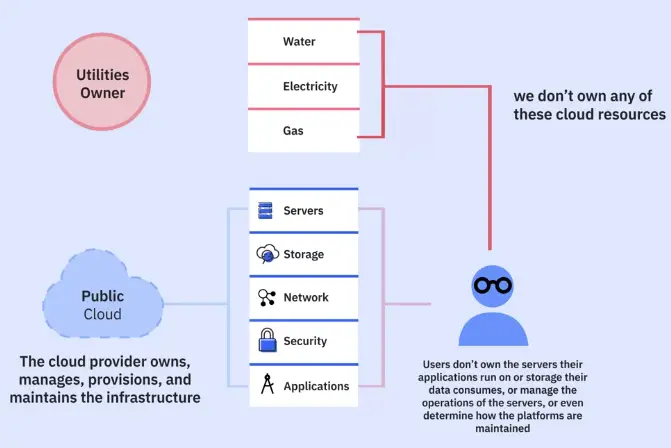
What is cloud computing?
Delivery of on-demand computing resources:
Networks
Servers
Storage
Applications
Services
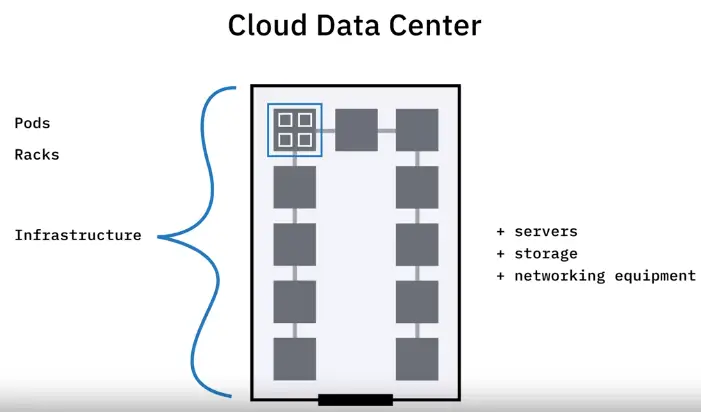
Data centers
Over the Internet on a pay-for-use basis.
Applications and data users access over the Internet rather than locally:
Online web apps
Secure online business applications
Storing personal files
Google Drive
OneDrive
Dropbox
Cloud computing user benefits
No need to purchase applications and install them on local computer
Use online versions of applications and pay a monthly subscription
More cost-effective
Access most current software versions
Save local storage space
Work collaboratively in real time
Cloud computing
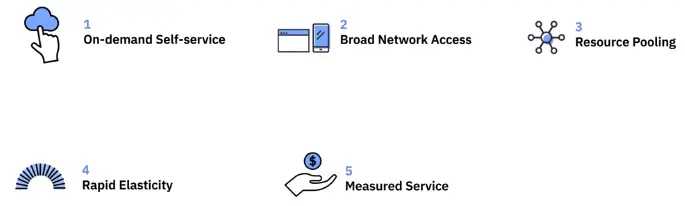
Five characteristics
Three deployment models
Three service models
Cloud computing characteristics
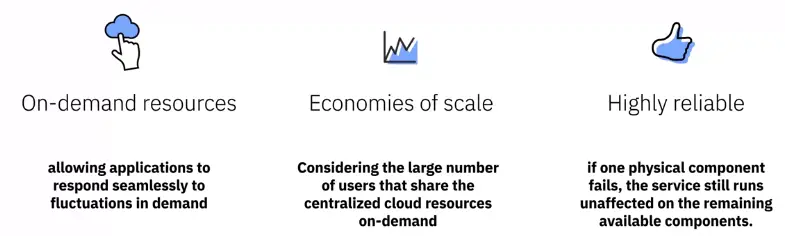
ON-demand self-service
Broad network access
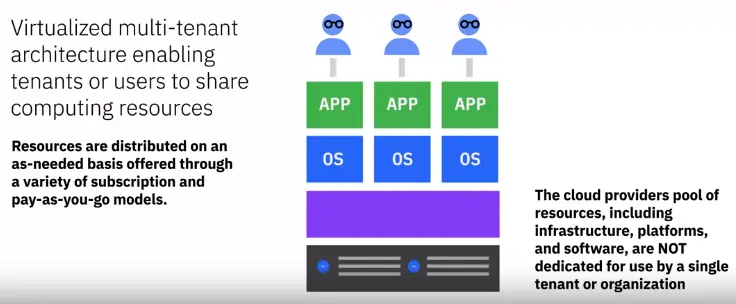
Resource pooling
Rapid elasticity
Measured service
Cloud deployment models
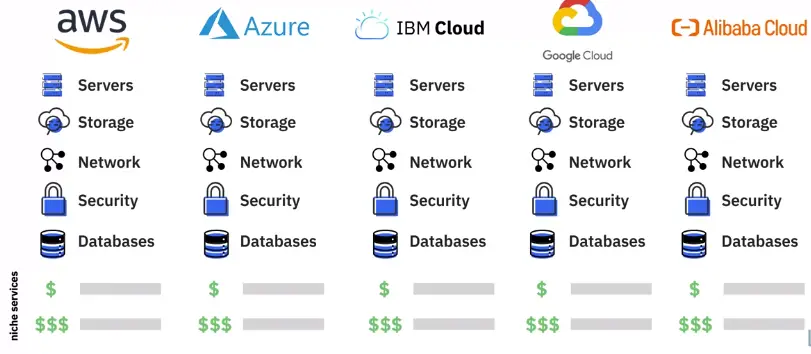
Public Cloud
Private Cloud
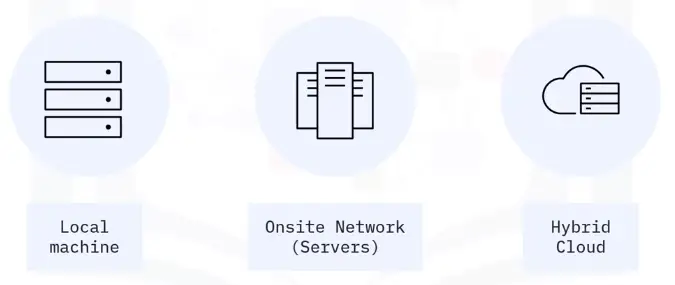
Hybrid cloud
Cloud service models
IaaS
PaaS
SaaS
Application Architecture and Delivery Methods
Application Architecture models
How will an application be use?
How will it be accessed?
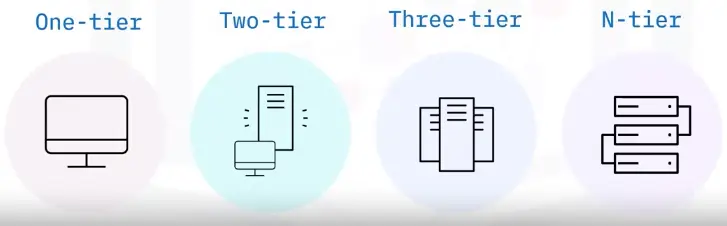
One-tier model
Single-tier model
Also called monolithic model
Applications run on a local computer
Two-tier model
Workspace-based client – Personal computer
Web server – Database server
Three-tier model
Workspace-based client
Application server or web server
Additional server (Database)
Each tier can be:
Individually developed and updated by a separate team
Modified and upgraded without affecting the other tiers
N-tier model
A number of tiers
Multi-tier model
Workspace-based client
Web server or database server
Security
Additional servers
Preferred for the microservices pattern and Agile model
Pros
Changes can be made to specific tiers
Each tier can have its own security settings
Different tiers can be load balanced
Tiers can be individually backed up by IT administrators
Cons
Changes to all tiers may take longer
Application Delivery methods
Local installation
Hosted on a local network
Cloud hosted
Software Development Life Cycle
Introduction to the SDLC
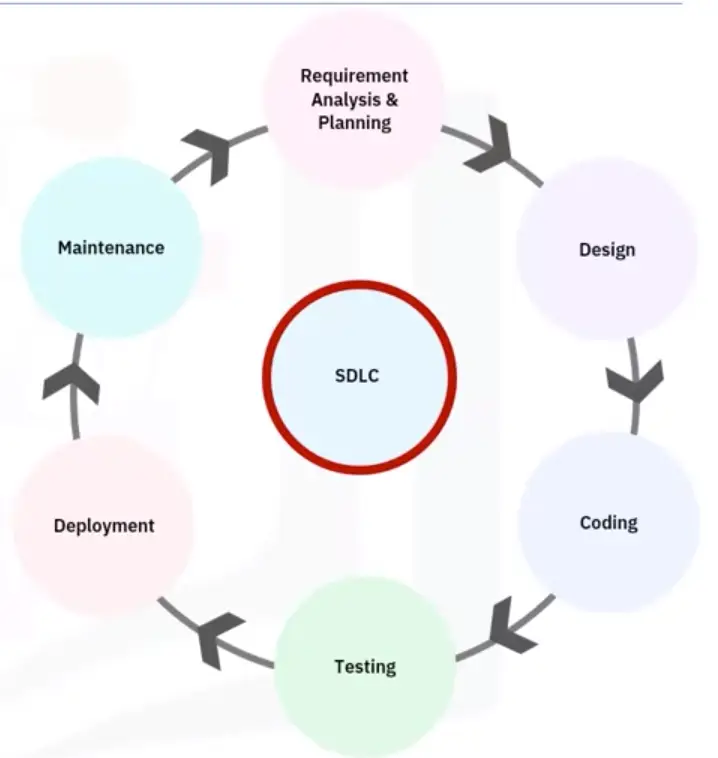
Structured methodology that defines creating and developing software
Detailed plan to develop maintain, or enhance software
Methodology for consistent development that ensures quality production
Six major steps
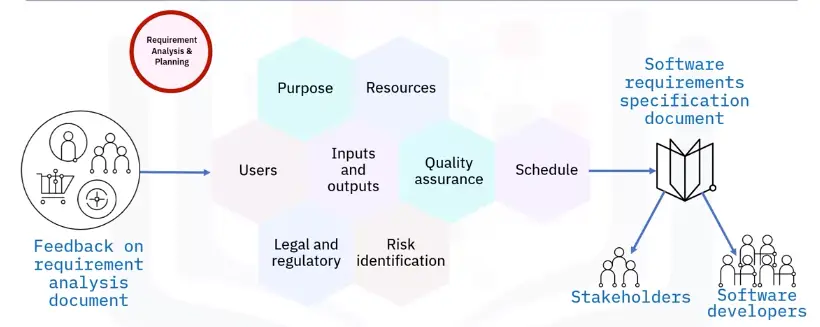
Requirement analysis and planning
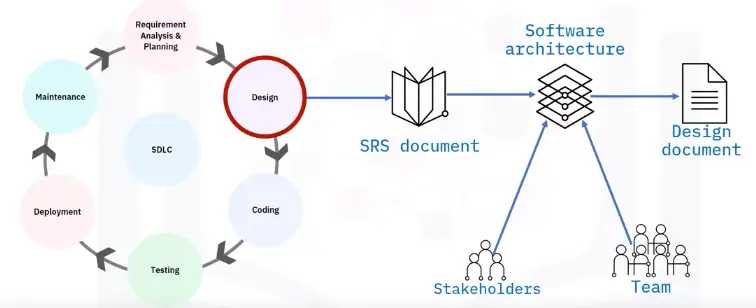
Design
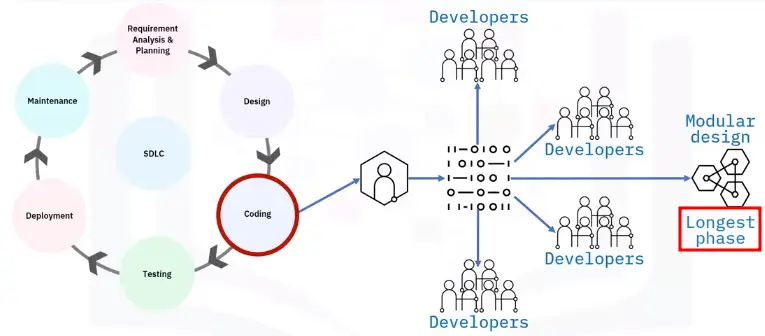
Coding or implementation
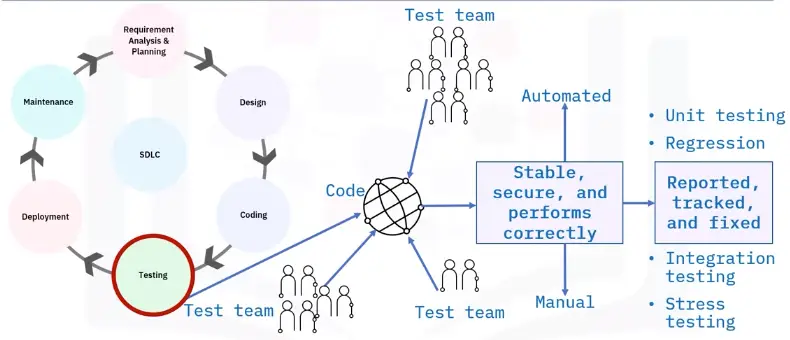
Testing
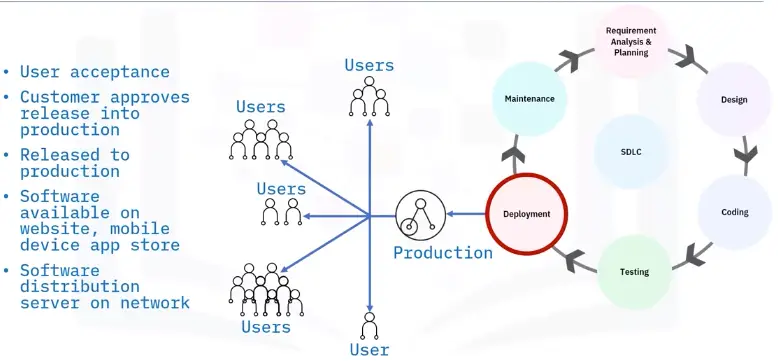
Deployment
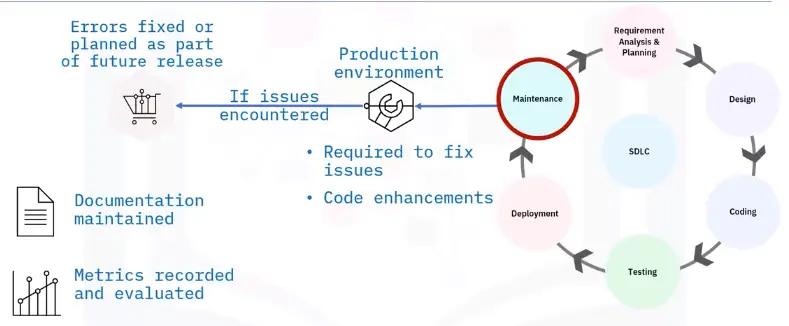
Maintenance
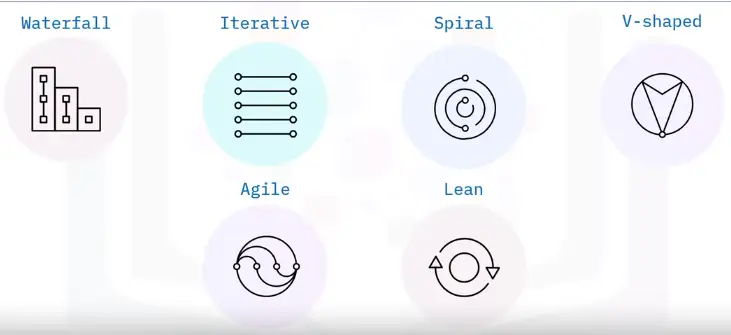
SDLC models
Waterfall
Linear sequential model
Output of one phase is input for the next phase
Next doesn’t start until work is completed on the previous phase
Iterative
Iterative incremental model
Product features developed iteratively
Once complete, final product build contains all features
Spiral
Uses waterfall and prototype models
Good for large projects
Largely reduces risk
Planning, risk analysis, engineering, and evaluation
Follows an iterative process
V-shaped
Verification and validation model
Coding and testing are concurrent, implemented at development stage
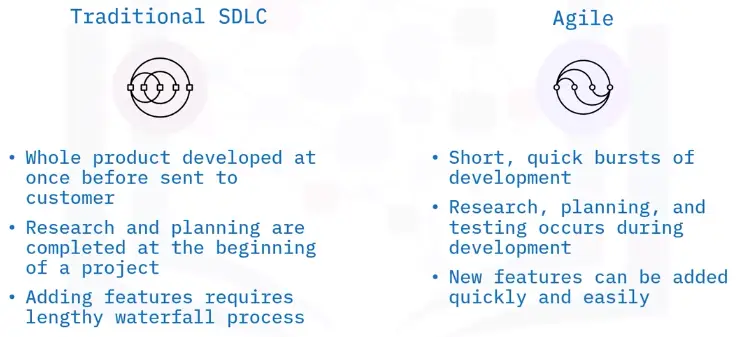
Agile
Joint development process over several short cycles
Teams work in cycles, typically two to four weeks
Testing happens in each sprint, minimizes risk
Iterative approach to development
At the end sprint, basic product developed for user feedback
Process is repeated every sprint cycle
Four core values of agile model
Individuals and interactions over process and tools
Working software over comprehensive documentation
Customer collaboration over contract negotiation
Responding to change over following plan
Lean
Application of lean principles
Focuses on delivery speed
Continuous improvement
Reducing waste each phase
Seven rules of Lean Model
Build in quality
Create knowledge
Defer commitment
Deliver fast
Respect people
Optimize the whole
DevOps evolved from Agile and Lean principles
Development and Operations teams work collaboratively
Accelerate software deployment
Traditional SDLC vs. Agile
Basics of Programming
Interpreted and Compiled Programming Languages
Programming Languages
Common programming languages categories:
Interpreted
Compiled
Many programming languages are compiled and interpreted
The developer determines which languages is best suited for the project
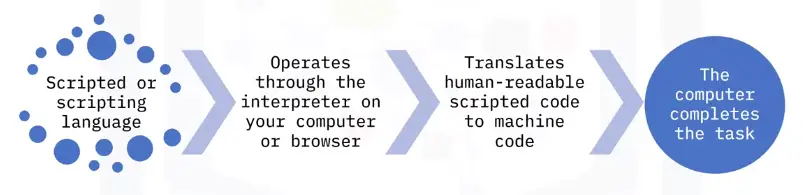
Interpreted programming
Some interpreted programming languages are outdated
Some are more versatile and easier to learn languages
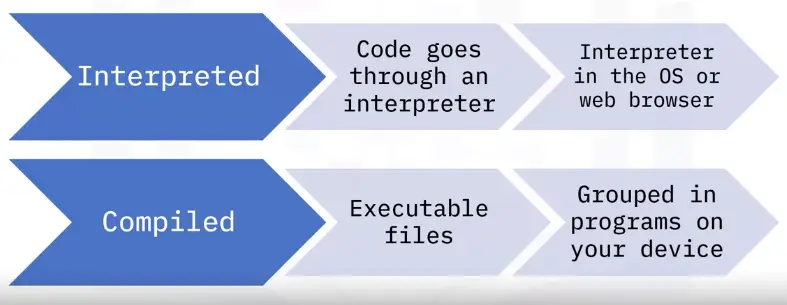
Interpreted programming languages need an interpreter to translate the source code
Translators are built into the browser or require a program on your computer to interpret the code
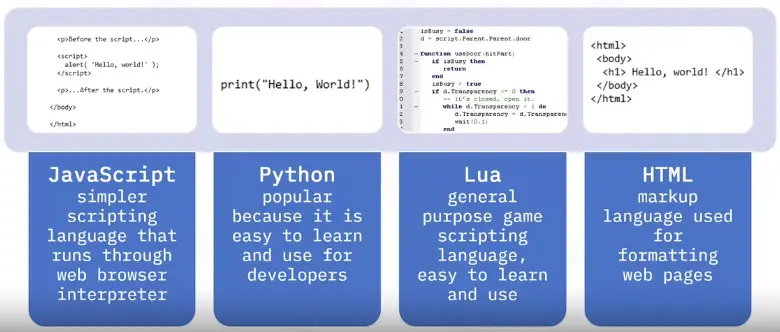
Interpreted programming examples
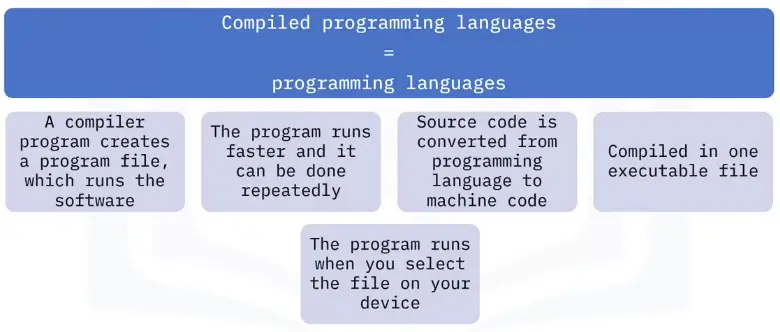
Compiled programming
Programs that you run on your computer
Packaged or compiled into one file
Usually larger programs
Used to help solve more challenging problems, like interpreting source code
Examples
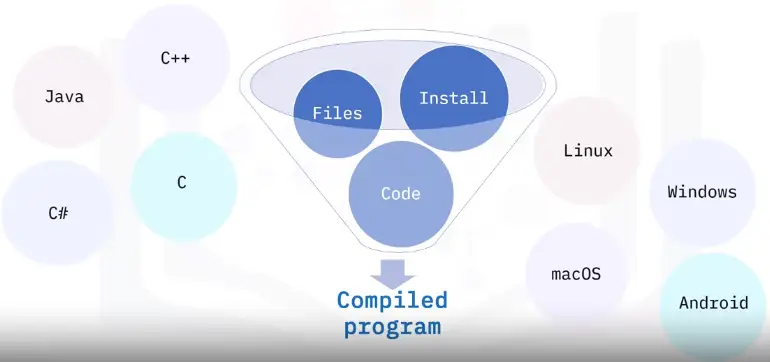
Examples of compiled programming languages are:
C, C++ and C# are used in many operating systems, like Microsoft. Windows, Apple macOS, and Linux
Java works well across platforms, like the Android OS
Compiled programming
Comparing Compiled and Interpreted Programming Languages
Choosing a programming language
Developers determine what programming language is best to use depending on:
What they are most experienced with and trust
What is best for their users
What is the most efficient to use
Programming Languages
Interpreted Programming Languages
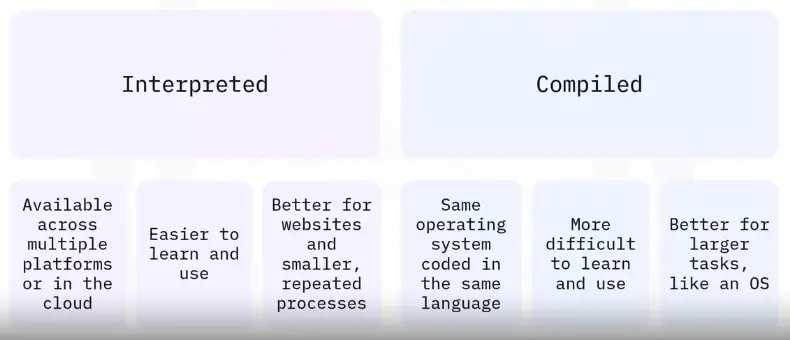
Also called script code or scripting, used to automate tasks
Interpreter programs read and execute the source code line by line
The source code need to be executed each time
Runs on almost any OS with the right interpreter
Compiled programming languages
Also called programming languages
Used for more complex programs that complete larger tasks
Larger programs installed on the computer or device
Longer time to write the code but runs faster
Grouped into one downloadable file
Interpreted vs. compiled
Programming Language examples
C, C++, C#:
Compiled programming language
C is the original language, C++ and C# are variations
Case sensitive
Basis for Windows and many operating systems
Takes more time to learn and use for coding but requires less memory and code runs faster
Java:
Compiled programming language
Case-sensitive, object-oriented programming language
Requires Java Virtual Machine (JVM) to run the code
Programming language for Android OS
Cross-platform language that runs the same code on macOS, Windows and Linux
Python:
Interpreted programming language
Scripting language
General-use, case-sensitive
Used with Windows, macOS, and Linux OSes and with server-side web app code
Requires Python engine to interpret code
JavaScript:
Interpreted
Scripting language that runs on client side web browsers
Case insensitive
Simple scripts are run with HTML
Complex scripts are run in separate files
Not to be confused with Java, the compiled programming language
HTML:
Interpreted
HyperText Markup Language
Mostly case-insensitive
Uses tags to format web pages on client-side web browsers
Query and Assembly Programming Languages
Programming language levels
High-level programming languages
More sophisticated
Use common English
SQL, Pascal, Python
Low-level programming languages
Use simple symbols to represent machine code
ARM, MIPS, X86
Query languages
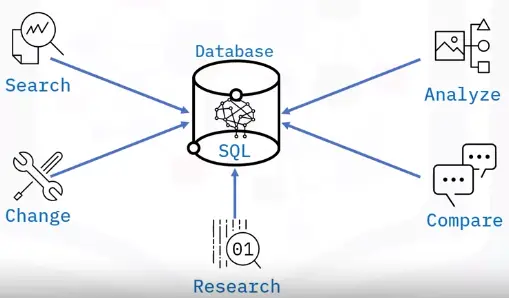
A query is a request for information from a database
The database searches its tables for information requested and returns results
Important that both the user application making the query and the database handling the query are speaking the same language
Writing a query means using predefined and understandable instructions to make the request to a database
Achieved using programmatic code (query language/database query language)
Most prevalent database query language is SQL
Other query languages available:
AQL, CQL, Datalog, and DMX
SQL vs. NoSQL
NoSQL (not only SQL)
Key difference is data structures
SQL databases:
Relational
Use structured, predefined schemas
NoSQL databases:
Non-relational
Dynamic schemas for unstructured data
How does a query language work?
Query language is predominantly used to:
Request data from a database
Create, read, update, and delete data in a database (CRUD)
Database consists of structured tables with multiple rows and columns of data
When a user performs a query, the database:
Retrieves data from the table
Arranges data into some sort of order
Returns and prevents query results
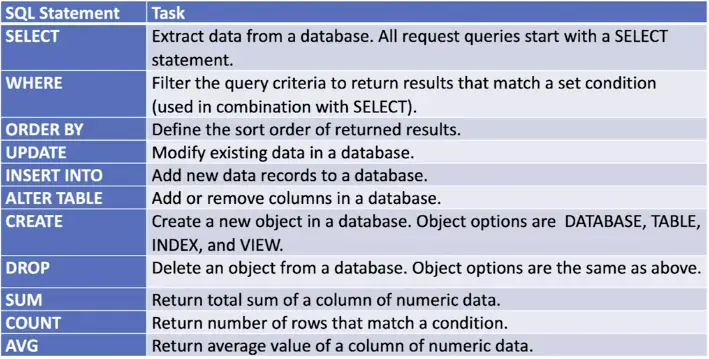
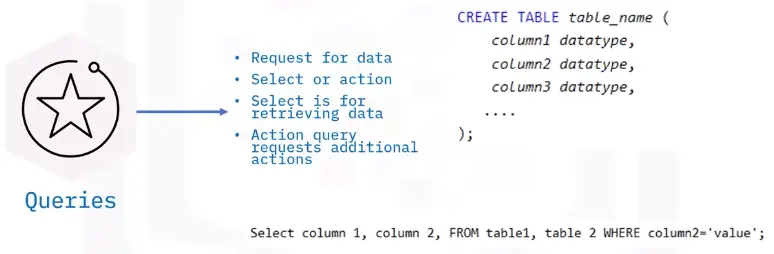
Query statements
Database queries are either:
Select commands
Action commands (CREATE, INSERT, UPDATE)
More common to use the term “statement”
Select queries request data from a database
Action queries manipulate data in a database
Common query statements
Query statement examples
SELECT * FROM suppliers;
SELECT name FROM suppliers, WHERE name = ‘Mike’;
CREATE DATABASE products;
DROP TABLE suppliers;
ALTER TABLE suppliers;
DROP COLUMN firstname;
SELECT AVG(purchases);
FROM suppliers;
Assembly languages
Less sophisticated than query languages, structured programming languages, and OOP languages
Uses simple symbols to represent 0s and 1s
Closely tied to CPU architecture
Each CPU type has its own assembly language
Assembly language syntax
Simple readable format
Entered one line at a time
One statement per line
{label}mnemonic{operandlist}{;comment}
mov TOTAL, 212;Transfer the value 212 in the memory variable TOTAL
Assemblers
Assembly languages are translated using an assembler instead of a compiler or interpreter
One statement translates into just one machine code instruction
Opposite to high-level languages where one statement can be translated into multiple machine code instructions
Translate using mnemonics:
Input (INP), Output (OUT), Load (LDA), Store (STA), Add (ADD)
Statements consist of:
Opcodes that tell the CPU what to do with data
Operands that tell the CPU where to find the data
Understanding Code Organization Methods
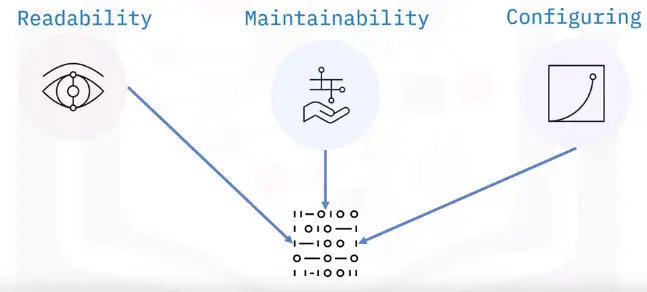
Code organization is important
Planning and organizing software design:
Enables writing cleaner, more reliable code
Helps improve code base
Reduce bugs and errors
Has a positive impact on program quality
Provides consistent and logical format while coding
Pseudocode vs. flowcharts
Pseudocode
Flowcharts
Informal, high-level algorithm description
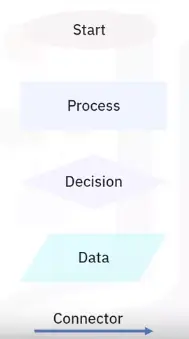
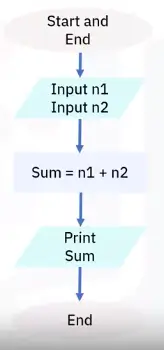
Pictorial representation of algorithm, displays steps as boxes and arrows
Step-by-step sequence of solving a problem
Used in designing or documenting a process or program
Bridge to project code; follows logic
Good for smaller concepts and problems
Helps programmers share ideas without extraneous waste of a creating code
Provide easy method of communication about logic behind concept
Provides structure that is not dependent on a programming language
Offer good starting point for project
Flowcharts
Graphical or pictorial representation of an algorithm
Symbols, shapes, and arrows in different colors to demo a process of program
Analyze different methods of solving a problem or completing a process
Standard symbols to highlight elements and relationships
Flowchart software
Provides ability to create flowcharts
Drag functionality
Easy-to-use interface
Team collaboration creating flowcharts
Examples:
Microsoft Visio
Lucidchart
Draw.io
DrawAnywhere
Pseudocode advantages
Simply explains each line of code
Focuses more on logic
Code development stage is easier
Words/phrases represent lines of computer operations
Simplifies translation
Code in different computer languages
Easier review by development groups
Translates quickly and easily to any computer language
More concise, easier to modify
Easier than developing a flowchart
Usually less than one page
Branching and Looping Programming Logic
Introduction to programming logic
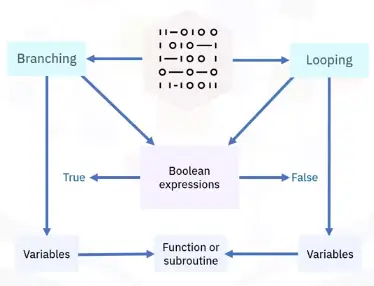
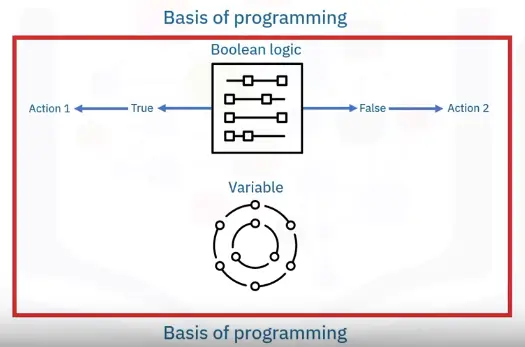
Boolean expressions and variables
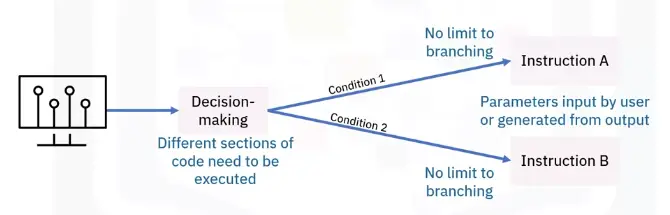
Branching programming logic
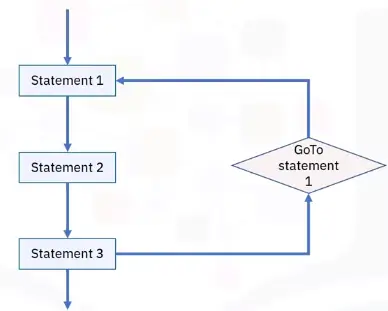
Branching statements allow program execution flow:
if
if-then-else
Switch
GoTo
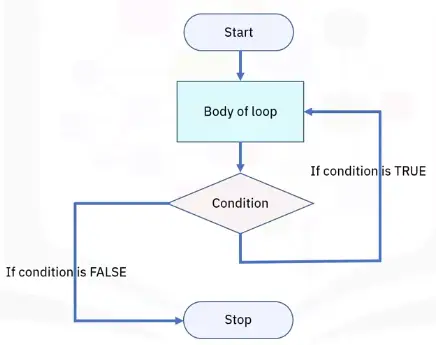
Looping programming logic
There are three basic loop statements:
While loop: Condition is evaluated before processing, if true, then loop is executed
For loop: Initial value performed once, condition tests and compares, if false is returned, loop is stopped
Do-While loop:Condition always executed after the body of a loop
Introduction to Programming Concepts, Part 1
What are identifiers?
Software developers use identifiers to reference program components
Stored values
Methods
Interfaces
Classes
Identifiers store two types of data values:
Constants
Variables
What are containers?
Special type of identifier to reference multiple program elements
No need to create a variable for every element
Faster and more efficient
Examples:
To store six numerical integers – create six variables
To store 1,000+ integers – use a container
Arrays
Simplest type of container
Fixed number of elements stored in sequential order, starting at zero
Declare an array
Specify data type (Int, bool, str)
Specify max number of elements it can contain
Syntax
Data type > array name > max array size [ ]
int my_array[50]
Vectors
Dynamic size
Automatically resize as elements are added or removed
a.k.a. ‘Dynamic arrays’
Take up more memory space
Take longer to access as not stored in sequential memory
Syntax
Container type/data type in <>/name of array
vector <int> my_vector;
Introduction to Programming Concepts, Part 2
What are functions?
Consequence of modular programming software development methodology
Multiple modular components
Structured, stand-alone, reusable code that performs a single specific action
Some languages refer to them as subroutines, procedures, methods, or modules
How functions work
Functions take in data as input
Then process the data
Then return the result as output
Types of functions
Standard library functions – built-in functions
if, else, while, print
User-defined functions – you write yourself
Once a function is written, you can use it over and over
Blocks of code in a function are identified in different ways
Use {}
Use begin-end statements
Use indentations
Using function
Define a function (create)
Function keyword, unique name, statements
Call a function (invoke)
Specified actions are performed using supplied parameters
Declare a function (some programming languages)
C, C++
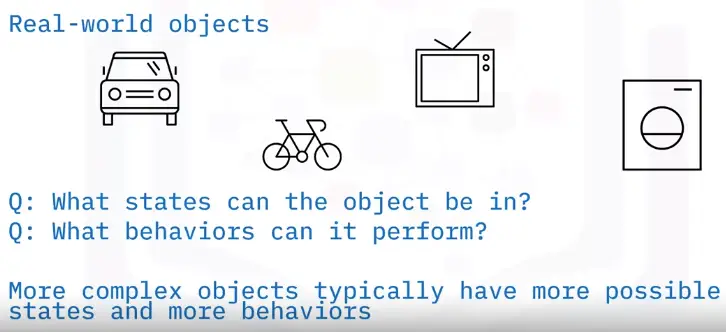
What are objects?
Objects are key to understanding object-oriented programming (OOP)
OOP is a programming methodology focused on objects rather than functions
Objects contain data in the form of properties (attributes) and code in the form of procedures (methods)
OOP packages methods with data structures
Objects operate on their own data structure
Objects in programming
Consist of states (properties) and behaviors (methods)
Store properties in field (variables)
Expose their behaviors through methods (functions)
Database Fundamentals
Types of Data, Sources, and Uses
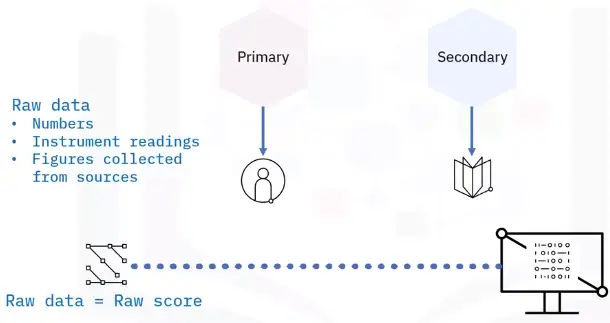
What is data?
A set of characters gathered and translated for some purpose, usually analysis
Common types:
Single character
Boolean (true or false)
Text (string)
Number (integer or floating point)
Picture
Sound
Video
Forms of data
Types of data
Categorized by level and rigidity
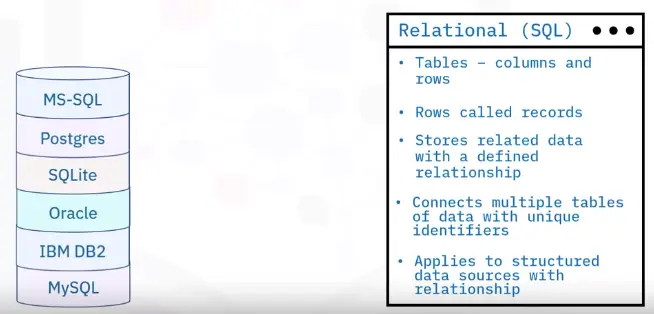
Structured data
Structured in rows and columns
Well-defined with rigid structure
Relational databases
Microsoft SQL server
IBM Db2
Oracle database
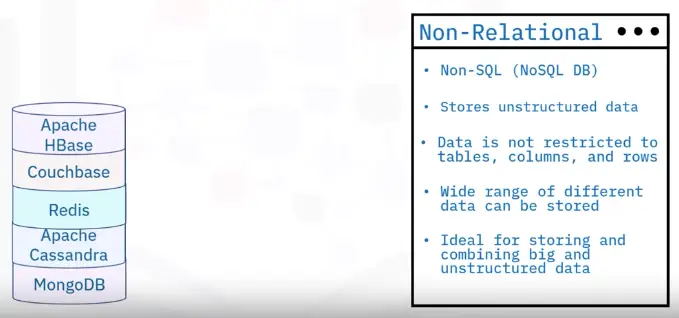
Semi-structured data
Some organizational properties
Not in rows or columns
Organized in hierarchy using tags and metadata
Non-relational database
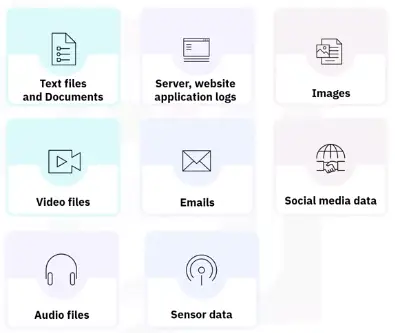
Unstructured data
No identifiable structure, specific format, sequence, or rules
Most common include text, email
Also images, audio files, and log files
Examples of Semi and Unstructured data
MonoDB
Hbase
Cassandra DB
Oracle NoSQL DB
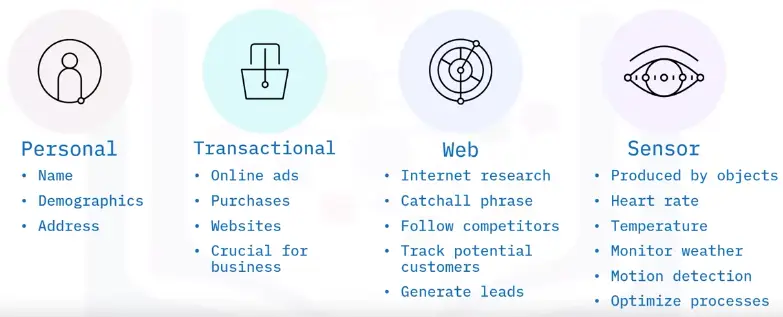
Data Sources
Using data
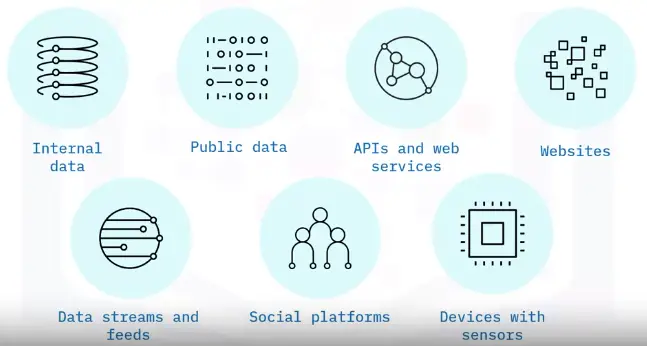
Data sources may be internal or external
Internal
Collects data from reports or records from organization
Known as internal sourcing
Accounting
Order processing
Payroll
Order shipping
External
Collects data from outside the organization
Known as external sourcing
Social media feeds
Weather reports
Government
Database and research
Database Fundamentals and Constructs
What is a database?
Components of a database
Schema
Collection of tables of data
A database can have more than one schema
Table
One or more columns of data
Two or more columns of stored data
Column
A pillar of information containing one or more data or values
Can contain dates, numeric or integer values, alphabetic values
Row
A horizontally formatted line of information like rows in Excel
100s or 1000s rows of data are typically in a table
Database constructs
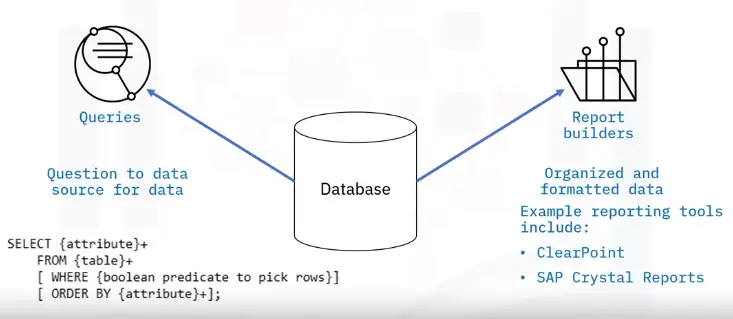
Queries
Request for data
Provide answers
Perform calculations
Combine data
Add, change, or delete data
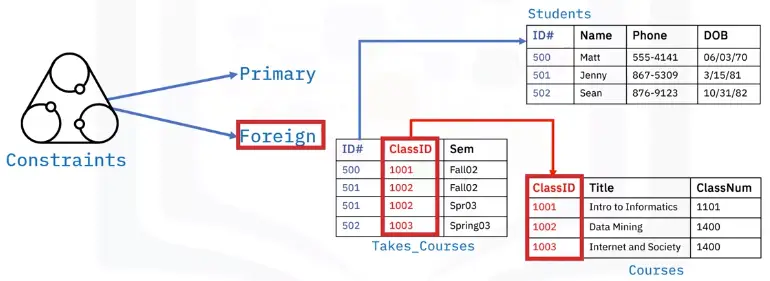
Constraints
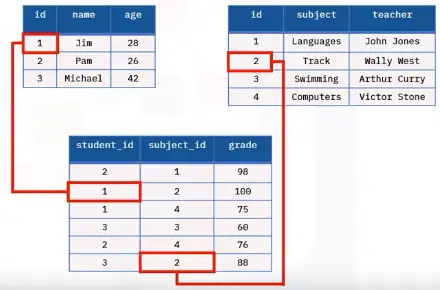
Primary and foreign key enforce rules
Values in columns not repeated
Limit the type of data
Ensure data accuracy and reliability
Database query
Database constraints
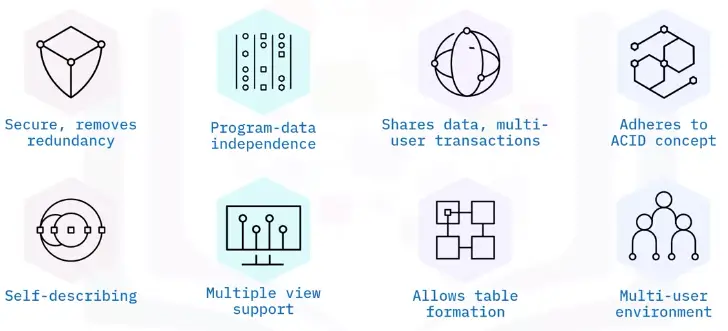
Database characteristics
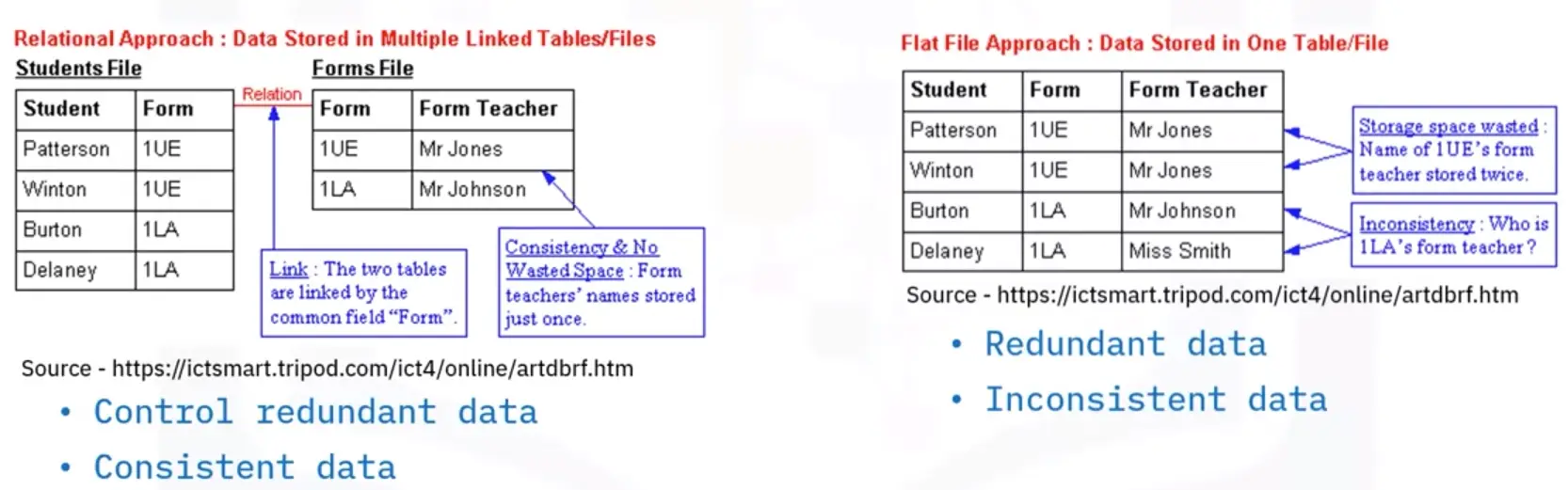
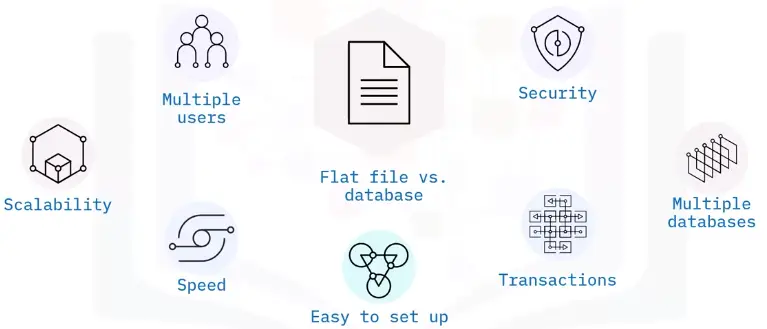
Flat file vs. database
Flat File
Database
Stores data in single table
Uses multiple table structures
Set in various application types
Tables are organized in rows and columns
Sorted based on column values
One piece of data per column
Solution for simple tasks
Faster, more efficient, more powerful
Database Roles and Permissions
Database permissions
Three types of permissions:
Database
Right to execute a specific type of SQL statement
Access second person’s object
Controls use of computing resources
Does not apply to DBA
System
Right to perform any activity
Ability to add or delete columns and rows
Object
Right to perform specific actions
Allows user to INSERT, DELETE, UPDATE, or SELECT data
Object’s owner has permissions for object
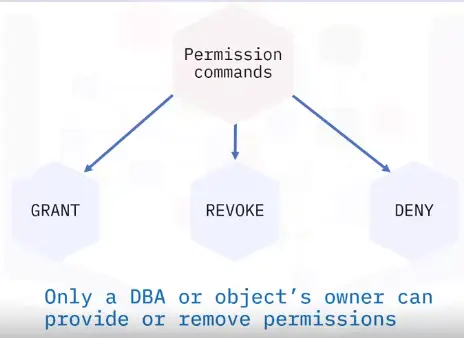
Permission commands
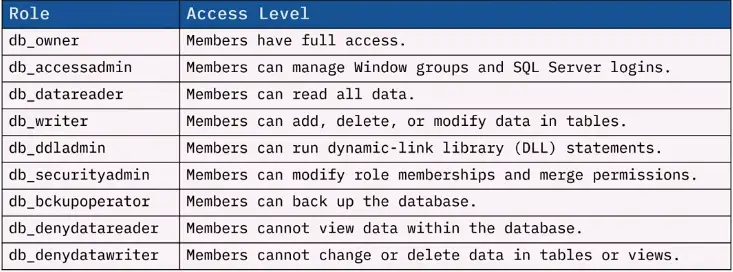
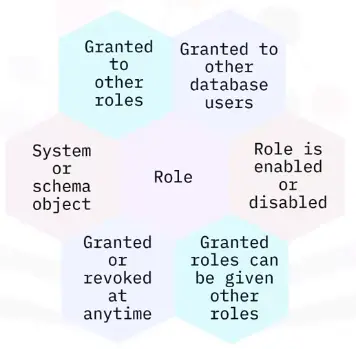
Database roles
Benefits of roles
Database types
Structured data type
Tabular data, columns, and rows
These databases are called relational databases
Formed set of data
All rows have same columns
Semi-structured data type
Some structure
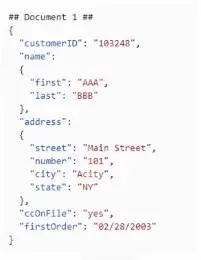
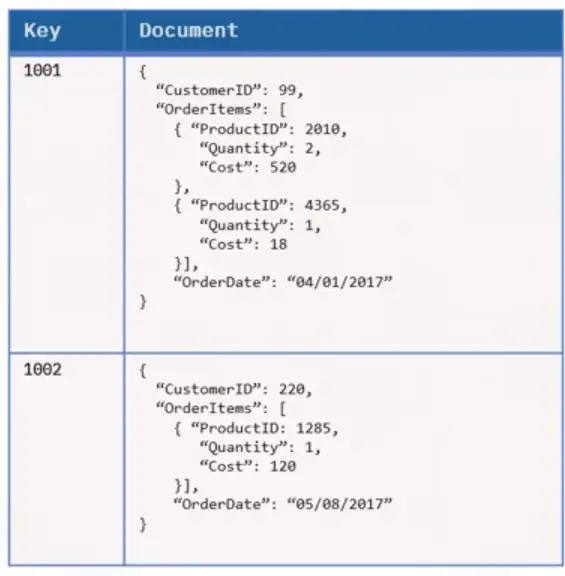
Documents in JavaScript Object Notation (JSON) format
Include key-value stores and graph database
Unstructured data type
Not in pre-defined structure or data model
Text heavy files, but may contain numbers and dates
Videos, audio, sensor data, and other types of information
Relational database
Relational
Non-Relational
Structured to recognize relations among stored items of information
Stores data in a non-tabular form, and tends to be more flexible than the traditional, SQL-based, relational database structures
Non-relational database
Permit storing, store data in a format that closely meets the original structure.
Most common types of data stores:
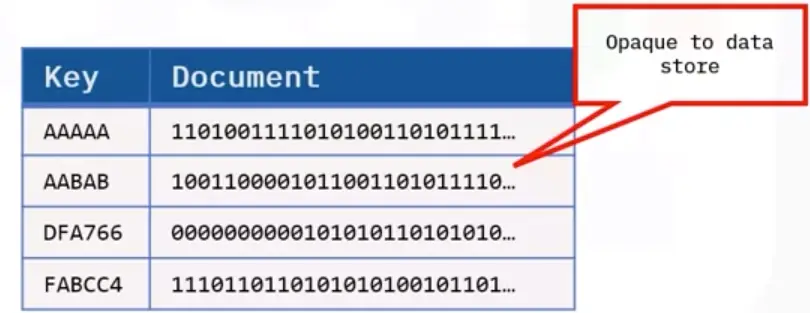
Document data stores
Handles
Objects
Data values
Named string fields in an entity referred to as a document
Generally store data in the form of JSON documents
Key-value stores
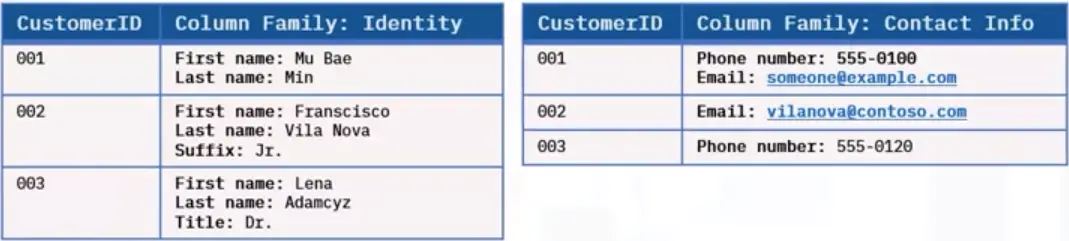
Column-oriented databases
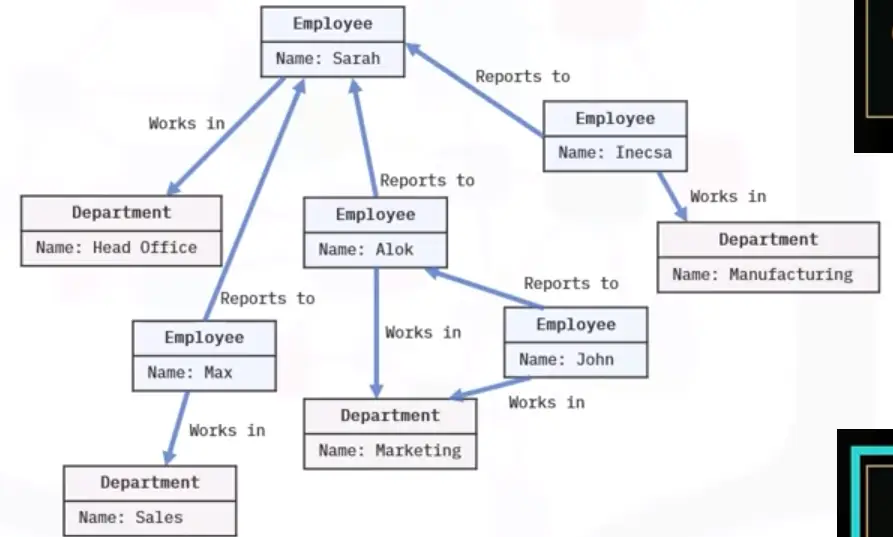
Graph databases
Interfacing with Databases
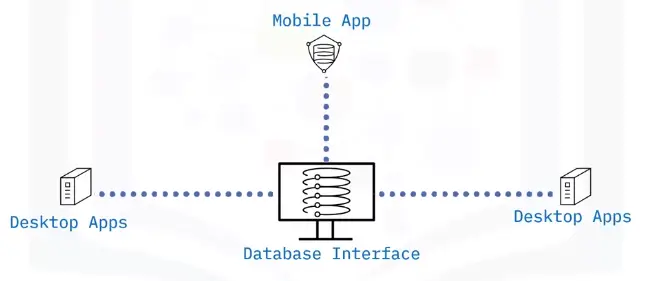
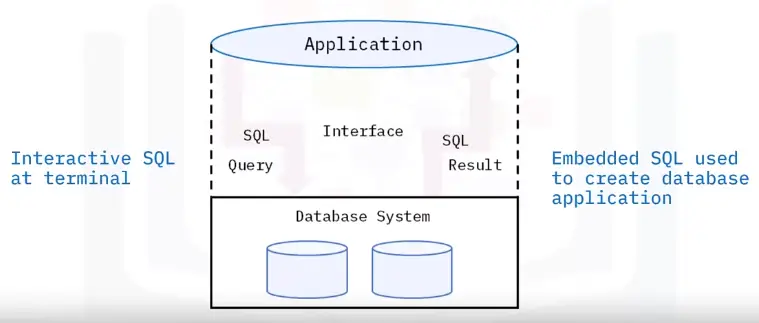
What is a database interface?
Enable users to input queries to a database
Principles of a database interface
How to access a database
Types of access:
Direct
Enters SQL commands
Selects a menu
Accesses tables directly
Works well with locally stored database or local area network
Programmatic
Accesses’ database using programming language
Enables data to be used in more ways
Safer than using direct access
Oracle databases support access from many languages
Might be necessary to perform a query with a supported language
User interface
Microsoft Access permits access to user interface
Optional user interface may be needed
Oracle offers MySQL Workbench as a graphical user interface
Allows ability to input queries without the query language
Menu-base interface
Forms-based interface
GUI displays schema in diagrammatic form
Specific query by manipulating diagram
GUIs utilize both menus and forms
GUIs using point device to pick sections of displayed schema diagram
Natural language interfaces accepts user requests and tries to interpret it
These interfaces have own schema like database conception schemas
Search engine example of entering and retrieving information using natural language
Query
Find specified data using SELECT statement
Query and reporting function included with software like Microsoft Access
Query Builder’s GUI is designed to enhance productivity and simplify query tasks
SQL or SQL displayed visually
Has pane displaying SQL text
Related tables determined by Query Builder that constructs join command
Query and update database using SELECT statement
Quickly view and edit query results
Examples:
Chartio Visual SQL
dbForge Query Builder for SQL Server
Active Query Builder
FlySpeed SQL
QueryDbVis Query Builder
Drag multiple tables, views, and columns to generate SQL statements
Database Management
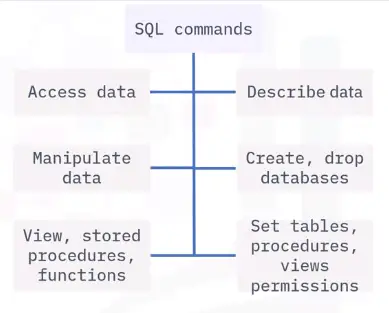
Managing databases with SQL commands
Queries refer to request information from a database
Queries generate data of different formats according to function
Query commands perform the data retrieval and management in a database
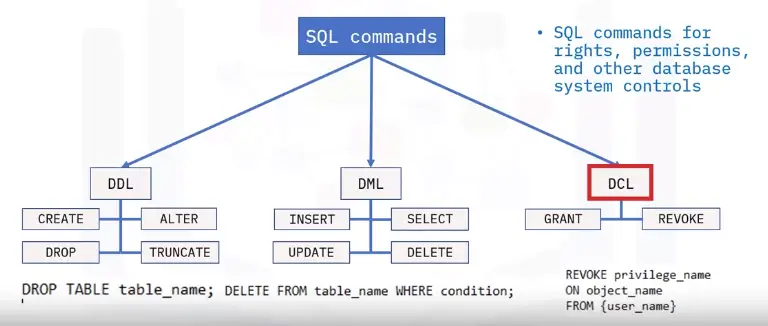
SQL command Categories
DDL
SQL commands that define database schema
Create, modify, and delete database structures
Not set by general user
DML
SQL commands that manipulate data
DCL
SQL commands for rights, permissions, and other database system controls
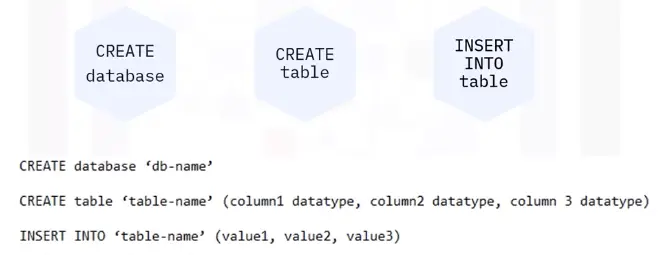
Inputting and importing data
Data is input manually into a database through queries.
Another way is through importing data from different sources.
SQL Server Import Export Wizard
SQL Server Integrated Services (or SSIS)
OPENROWSET function
Extracting data from a database
Backing Up Databases
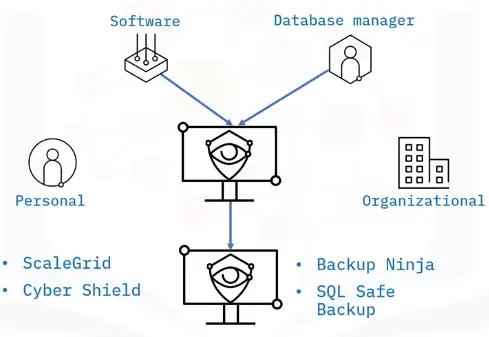
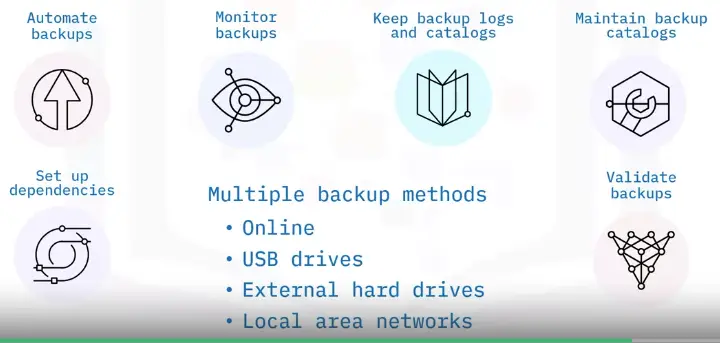
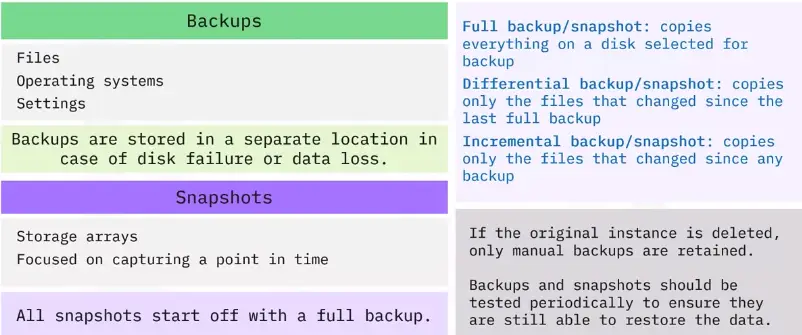
What is a database backup?
Two backup types:
Logical
Physical
Physical database backups
Needed to perform full database restoration
Minimal errors and loss
Full or incremental copies
Logical database backups
Copies of database information
Tables, schemas, procedures
Backup pros and cons
Physical backup
Logical backup
Pros:
Pros:
Simple and fast, despite format
Only selected data is backed up
Mirror copy loaded to another device
Saves time and storage
Cons:
Cons:
Used only to recreate system
No file system information
Cannot do full restore
Complications restoring process
Database backup methods
Full
Stores copies of all files
Preset schedule
Files are compressed but may need large storage capacity
Differential
Simplifies recovery
Requires last full backup
Last differential back up for full recovery
Incremental
Saves storage
Back up files generated or updated since last backup
Subsections of Introduction to Networking and Storage
Networking Fundamentals
Network Topologies, Types, and Connections
Types and Topologies
What is a computer network?
Computer networking refers to connected computing devices and an array of IoT devices that communicate with one another.
Network Types
There are multiple network types:
PAN (Personal Area Network)
LAN (Local Area Network)
MAN (Metropolitan Area Network)
WAN (Wide Area Network)
WLAN (Wireless LAN)
VPN (Virtual Private Network)
PAN (Personal Area Network)
A PAN enables communication between devices around a person. PANs can be wired or wireless.
USB
FireWire
Infrared
ZigBee
Bluetooth
LAN (Local Area Network)
A LAN is typically limited to a small, localized area, such as a single building or site.
MAN (Metropolitan Area Network)
A MAN is a network that spans an entire city, a campus, or a small region.
MANs are sometimes referred to as CANs (Campus Area Networks).
WAN (Wide Area Network)
A WAN is a network that extends over a large geographic area.
Businesses
Schools
Government entities
WLAN (Wireless LAN)
A WLAN links two or more devices using wireless communication.
Home
School
Campus
Office building
Computer Lab
Through a gateway device, a WLAN can also provide a connection to the wider Internet.
VPN (Virtual Private Network)
A private network connection across public networks.
Encrypt your Internet traffic.
Disguise your online identity
Safeguard your data.
Topology
Topology defines a network’s structure
A network’s topology type is chosen bases on the specific needs of the group installing that network
Physical Topology: It describes how network devices are physically connected.
Logical Topology: It describes how data flows across the physically connected network devices.
Star topology
Star topology networks feature a central computer that acts as a hub.
Ring topology
Ring topology networks connect all devices in a circular ring pattern, where data only flows in one direction (clockwise).
Bus topology
Bus topology networks connect all devices with a single cable or transmission line.
Small networks, LAN.
Tree topology
Tree topology networks combine the characteristics of bus topology and star topology.
University campus
Mesh topology
Mesh topology networks connect all devices on the network together.
This is called dynamic routing.
It is commonly used in WAN network for backup purposes.
It is not used in LAN implementations.
Wire Connections
Older Internet Connection Types
Newer Internet Connection Types
Wired Networks
Wired networking refers to the use of wire connections that allow users to communicate over a network.
Most computer networks still depend on cables or wires to connect devices and transfer data.
Wire Connections: Dial-Up
Requires a modem and phone line to access the internet.
Pros:
Widely available
Low cost
Easy Setup
Cons:
Very slow speeds
Can’t use phone and Internet at the same time
Wire Connections: DSL
Connects to the Internet using a modem and two copper wires within the phone lines to receive and transmit data.
Pros:
Faster than dial-up
Inexpensive
Dedicated connection (no bandwidth sharing)
Can provide Wi-Fi
Uses existing phone lines
Cons:
Slow speeds (less than 100 Mbps)
Not always available
Wired Connections: Cable
Cable delivers Internet via copper coaxial television cable.
Pros:
Lower cost than fiber
Fast speeds
Better than DSL
Long distances
Lower latency
Cons:
Bandwidth congestion
Slower uploads
Electromagnetic interference
Wired Connection: Fiber Optic
Transmit data by sending pulses of light across strands of glass (up to 200 Gbps).
Pros:
Efficient
Reliable
Covers long distances
Fast speeds
Streaming and hosting
Cons:
Expensive
Not available everywhere
Cables
Cables types
Hard Drive Cables
Hard drive cables connect a hard drive to a motherboard or controller card. May also be used to connect optical drives or older floppy drives.
SATA
Next-generation
Carries high-speed data
Connects to storage devices
IDE
Older tech
40-wire ribbon
Connect motherboard to one or two drives
SCSI
Supports variety of devices
Different cable types
Up to 16 connections
Network Cables
In wired networks, network cables connect devices and route information from one network device to another.
Cable need is determined by:
Network topology
Protocol
Size
Types:
Coaxial
TV signals to cable boxes
Internet to home modems
Inner copper wire surrounded by shielding
Highly Resistant to signal interference
Supports greater cable lengths between devices
10 Mbps capacity, uses DOCSIS standard
Fiber optic
Work over long distances without much interference
Handles heavy volumes of data traffic
Two Types
Single-Mode
Carries one light path
Sourced by a laser
Longer transmission distance
Multimode
Multiple light paths
Sourced by an LED
Ethernet
Consist of four pairs of twisted wires
Reduce interference
Wire a computer to LAN
Fast and Consistent
Two Types:
Unshielded Twisted Pair (UTP)
Cheaper and more common
Shielded Twisted Pair (STP)
More expensive
Designed to reduce interference
Serial Cables
A serial cable follows the RS-232 standard:
“Data bits must flow in a line, one after another, over the cable.”
Used in:
Modems
Keyboards
Mice
Peripheral devices
Video Cables
Transmits video signals.
VGA
Older, analog
DisplayPort
Connects interface to display
HDMI
High definition
Different connector types
Type A is common
DVI
Can be digital or integrated
Can be single or dual link
Mini-HDMI
Type C HDMI
Multipurpose Cables
Multipurpose cables connect devices and peripherals without a network connection. They transfer both data and power.
USB
Low speed 1.5 Mbps @3 meters
Full speed 12 Mbps @5 meters
Lighting
Apple only
Connects to USB ports
Thunderbolt
Apple only
Copper max length 3 meters
Optical max length 60 meters
20-40 Gbps throughput
Wireless Connections
Wireless network types
WPAN networking examples
WLAN networking examples
WMAN networking examples
WWAN networking examples
Wired vs. wireless
Latest Networking Trends
Advantages and Disadvantages of Network Types
Networks vs. devices
Smaller vs. larger
Wired vs. wireless
Network Types
Basic network types are:
Wired
Wireless
PAN
A PAN enables communication between devices around a person. PANs are wired and WPANs are wireless.
Advantages:
Flexible and mobile
One-time, easy setup
Portable
Disadvantages:
Limited range
Limited bandwidth
LAN
Advantages:
Reliable and versatile
Higher data transmission rates
Easier to manage
Disadvantages:
Smaller network coverage area
Number of device affects speed
Security risks
MAN
A MAN is optimized for a larger geographical area, ranging from several building blocks to entire cities.
Advantages:
Cover multiple areas
Easy to use, extend, and exchange
Managed by an ISP, government entity, or corporation
Disadvantages:
Requires special user permissions
Security risk
WAN
WANs and WWANs provide global coverage. Examples include the Internet and cellular networks.
Advantages:
Global coverage
More secure
Disadvantages:
Expensive
Difficult to maintain
Hardware, Network Flow, and Protocols
Networking Hardware Devices
Network Devices
Network devices, or networking hardware, enable communication and interaction on a computer network.
This includes:
Cables
Servers
Desktops
Laptops
Tablets
Smartphones
IoT devices
What is a server?
Other computers or devices on the same network can access the server
The devices that access the server are known as clients
A user can access a server file or application from anywhere
What are nodes and clients?
A node is a network-connected device that can send and receive information.
All devices that can send, receive, and create information on a network are nodes.
The nodes that access servers to get on the network are known as clients.
Client-server
Client-server networks are common in businesses.
They keep files up-to-date
Easy-to-find
One shared file in one location
Examples of services that use client-server networks:
FTP sites
Web servers
Web browsers
Peer-to-peer
Peer-to-peer networks are common in homes on the Internet.
Examples:
File sharing sites
Discussion forums
Media streaming
VoIP services
Hubs and Switches
A hub:
Connects multiple devices together
Broadcasts to all devices except sender
A switch:
Keeps a table of MAC addresses
Sends directly to correct address (More efficient than hubs)
Routers and modems
Routers interconnect different networks or subnetworks.
Manage traffic between networks by forwarding data packets
Allow multiple devices to use the same Internet connection
Routers use internal routing to direct packets effectively
The router:
Reads a packet’s header to determine its path
Consults the routing table
Forwards the packet
A modem converts data into a format that is easy to transmit across a network.
Data reaches its destination, and the modem converts it to its original form
Most common modems are cable and DSL modems
Bridges and gateways
A bridge joins two separate computer networks, so they can communicate with each other and work as a single network.
Wireless bridges can support:
Wi-Fi to Wi-F i
Wi-Fi to Ethernet
Bluetooth to Wi-Fi
A gateway is a hardware or software that allows data to flow from one network to another, for examples, a home network to the Internet.
Repeaters and WAPs
Repeaters
Receive a signal and retransmits it
Used to extend a wireless signal
Connect to wireless routers
Wireless Access Point (WAP)
Allows Wi-Fi devices to connect to a wired network
Usually connects to a wired router as a standalone device
Acts as a central wireless connection point for computers equipped with wireless network adapters
Network Interface Cards (NICs)
NICs connect individual devices to a network.
Firewalls, proxies, IDS, and IPS
A firewall monitors and controls incoming and outgoing network traffic based on predetermined security rules.
Firewalls can be software or hardware
Routers and operating systems have built-in firewalls
A Proxy Server:
Works to minimize security risks
Evaluates requests from clients and forwards them to the appropriate server
Hides an IP address
Saves bandwidth
IDS and IPS:
IDS monitors network traffic and reports malicious activity
IPS inspects network traffic and removes, detains, or redirects malicious items
Packets, IP Addressing, DNS, DHCP, and NAT
What is a packet?
Everything you do on the Internet involves packets.
Packets are also called:
Frames
Blocks
Cells
Segments
Data Transmission Flow Types
IP Packets Transmission Modes
Data Transmission Flow
When you send an email, it is broken down into individually labeled data packets and sent across the network.
IPv4 and IPv6
IPv4 is one of the core protocols for the Internet.
IPv6 is the newest version of Internet Protocol.
What is an IP address?
An IP address is used to logically identify each device (Host) on a given network.
IP Address Types
Static: Static IP addresses are manually assigned.
Dynamic: Dynamic IP addresses are automatically assigned.
Public: Public IP address is used to communicate publically.
Private: Private IP address is used to connect securely within an internal, private network.
Loopback: Loopback is the range of IP addresses reserved for the local host.
Reserved: Reserved IP addresses have been reserved by the IETF and IANA.
DNS
The DNS is the phone book of the internet.
Dynamic Host Configuration Protocol (DHCP)
The DHCP automates the configuring of IP network devices.
A DHCP server uses a pool of reserved IP addresses to automatically assign dynamic IP addresses or allocate a permanent IP address to a device.
Static allocation:
The server uses a manually assigned “permanent” IP address for a device.
Dynamic allocation:
The server chooses which IP address to assign a device each time it connects to the network.
Automatic allocation:
The server assigns a “permanent” IP addresses for a device automatically.
Subnetting (and Subnet Mask)
Subnetting is the process of taking a large, single network and splitting it up into many individual smaller subnetworks or subnets.
Identifies the boundary between the IP network and the IP host.
Internal usage within a network.
Routers use subnet masks to route data to the right place.
Automatic Private IP Addressing (APIPA)
APIPA is a feature in operating systems like Windows that let computers self-configure an IP address and subnet mask automatically when the DHCP server isn’t reachable.
Network Address Translation (NAT)
NAT is a process that maps multiple local private addresses to a public one before transferring the information.
Multiple devices using a single IP address
Home routers employ NAT
Conserves public IP addresses
Improves security
NAT instructions send all data packets without revealing private IP addresses of the intended destination.
Media Access Control (MAC) Addresses
A MAC address is the physical address of each device on a network.
Models, Standards, Protocols, and Ports
Networking Models
A networking model describes:
Architecture
Components
Design
Two types:
OSI Model: A conceptual framework used to describe the functions of a networking system.
TCP/IP Model: A set of standards that allow computers to communicate on a network. TCP/IP is based on the OSI model.
7 Layer OSI Model
5 Layer TCP/IP Model
The TCP/IP model is a set of standards that allow computers to communicate on a network. TCP/IP is based on the OSI model.
Network Standards and their Importance
Networking standards define the rules for data communications that are needed for interoperability of networking technologies and processes.
There are two types of network standards:
De-jure or Formal Standards: Developed by an official industry or government body.
Examples: HTTP, HTML, IP, Ethernet 802.3d
De-Facto Standards: De-facto standards result from marketplace domination or practice.
Examples: Microsoft Windows, QWERTY keyboard
Noted Network Standards Organizations
Standards are usually created by government or non-profit organizations for the betterment of an entire industry.
ISO: Established the well known OSI reference networking model.
DARPA: Established the TCP/IP protocol suit.
W3C: Established the World Wide Web (WWW) standard.
ITU: Standardized international telecom, set standards for fair use of radio frequency.
IEEE: Established the IEEE 802 standards.
IETF: Maintains TCP/IP protocol suites. IETF also developed RFC standard.
Protocols
A network protocol is a set of rules that determines how data is transmitted between different devices in the same network.
Network Management:
- Connection
- Link Aggregation
- Troubleshooting
Protocols – TCP vs. UDP
TCP
UDP
Slower but more reliable
Faster but not guaranteed
Typical applications
Typical application
1) File transfer protocol
1) Online games
2) Web browsing
2) Calls over the internet
3) EMAIL
Protocols – TCP/IP
The TCP/IP suite is a collection of protocols.
Protocols – Internet of Things
Protocols – Crypto Classic
The Crypto Classic protocol is designed to serve as one of the most efficient, effective, and secure payment methods built on the blockchain network.
Bitcoin Protocol: A peer-to-peer network operating on a cryptographic protocol used for bitcoin transactions and transfers on the Internet.
Blockchain Protocol: An open, distributed ledger that can record transactions between two parties efficiently and in a verifiable and permanent way.
Commonly Used Ports
Ports are the first and last stop for information sent across a network.
A port is a communication endpoint.
A port always has an associated protocol and application.
The protocol is the path that leads to the application’s port.
A network device can have up to 65536 ports.
Port numbers do not change.
Wireless Networks and Standards
Network types
WPAN
A WPAN connects devices within the range of an individual person (10 meters). WPANs use signals like infrared, Zigbee, Bluetooth, and ultra-wideband.
WLAN
A WLAN connects computers and devices within homes, offices, or small businesses. WLANs use Wi-Fi signals from routers, modems, and wireless access points to wirelessly connect devices.
WMAN
A WMAN spans a geographic area (size of a city). It serves ranges greater than 100 meters.
WWAN
A WWAN provides regional, nationwide, and global wireless coverage. This includes private networks of multinational corporations, the Internet, and cellular networks like 4G, 5G, LTE, and LoRaWAN.
Wireless ad hoc network
A WANET uses Wi-Fi signals from whatever infrastructure happens to be available to connect devices instantly, anywhere. WANETs are similar in size to WLANs, but use technology that is closer to WWANs and cellular network.
Advantages:
Flexible
No required infrastructure
Can be set up anywhere instantly
Disadvantages:
Limited bandwidth quality
Not robust
Security risks
Cellular networks
A cellular network provides regional, nationwide, and global mesh coverage for mobile devices.
Advantages
Flexibility
Access
Speed and efficiency
Disadvantages
Expensive
Decreased coverage
Hardware limitations
IEEE 802.20 and IEEE 802.22
The IEEE 802.20 and 802.22 standards support WWANs, cellular networks and WANETs.
IEEE 802.20
Optimizes bandwidth to increase coverage or mobility
Used to fill the gap between cellular and other wireless networks
IEEE 802.22
Uses empty spaces in the TV frequency spectrum to bring broadband to low-population, hard-to-reach areas
Protocol Table
Web page protocols
File transfer protocols
Remote access protocols
Email protocols
Network Protocols
Configuring and Troubleshooting Networks
Configuring a Wired SOHO Network
What is a SOHO Network?
A SOHO (small office, home office) network is a LAN with less than 10 computers that serves a small physical space with a few employees or home users.
It can be a wired Ethernet LAN or a LAN made of both wired and wireless devices.
A typical wired SOHO network includes:
Router with a firewall
Switch with 4-8 Ethernet LAN ports
Printer
Desktops and /or laptops
Setup steps – plan ahead
When setting up a SOHO network, knowing the compatibility requirements is very important.
Before setting up any SOHO network, review and confirm everything in your plan to ensure a successful installation.
Setup steps – gather hardware
SOHO networks need a switch to act as the hub of the network
If Internet is desired, a router can be added or used instead
Setup steps – connect hardware
Setup steps – router settings
Log in to router settings
Enter ‘ipconfig’ in a command prompt window to find your router’s public IP address (listed next to default gateway)
Enter it into a browser and log in
Update username and password
All routers have default administrator usernames and passwords
To improve security, change the default username password
Update firmware
Updating router firmware solves problems and enhances security
Check the manufacturer website for available firmware updates
Download and install if your firmware is not up-to-date
Setup steps – additional settings
SOHO wired network security depends on a firewall
Most routers have a built-in firewall, additional software can be installed on individual machines
Servers and hardware have built-in DHCP and NAT actions
DHCP servers use IP addresses to provide network hosts
NAT maps public IPv4 address to private IP addresses
Setup steps – user accounts
User account setup is included in most operating systems.
Setup steps – test connectivity
Network performance depends on Internet strength, cable specification, installation quality, connected devices, and network and software settings.
Test and troubleshoot to ensure proper network performance.
To troubleshoot performance:
Run security tools
Check for updates
Restart devices
Run diagnostic
Reboot the router or modem
Configuring a (wireless) SOHO network
What is a SOHO wireless network?
A SOHO wireless network is a WLAN that serves a small physical space with a few home users.
A SOHO wireless network can be configured with the help of a central WAP, which can cover a range of wireless devices within a small office or home.
Common broadband types
Common broadband types that enable network connection:
DHCP:
The most common broadband type, used in cable modem connections.
PPPoE:
Used in DSL connections in areas that don’t have newer options.
Static IP:
More common in business.
DHCP is the easiest broadband type to use. Internet Service Providers can provide other options if needed.
Wireless security factors
Wireless networks can be setup to be either open (unencrypted) or encrypted.
Get to know your wireless router
Connect to router admin interface
To manage router settings, you must find its default IP address, paste it into a browser and hit enter.
Assign a SSID
SSID is the name of a wireless network.
This name is chosen during setup.
Unique names help to identify the network.
Each country determines band and available modes.
2.4 GHz and 5 GHz have specific supported modes.
Every router has as a default option.
Wireless encryption security modes
Going wireless
Once the router is configured, your wireless network is ready.
Users will see it among the available wireless networks when they click the Wi-Fi icon.
Test and troubleshoot connectivity
Test network performance and Internet connectivity on each wireless device in the vicinity of the WAP.
If required, troubleshoot performance issues (network lags, glitches, or network cannot be accessed) with the following actions:
Check router configuration settings.
Run security tools.
Check for updates.
Restart devices.
Run diagnostics.
Reboot the router or modem.
Check equipment for damage.
Mobile configuration
IMEI vs. IMSI
IMEI and IMSI are used to identify cellular devices and network users when troubleshooting device and account issues.
Internation Mobile Equipment Identity (IMEI)
ID# for phones on GSM, UMTS, LTE, and iDEN networks
Can be used to block stolen phones
International Mobile Subscriber Identity (IMSI)
ID# for cell network subscribers
Stored in a network sim card
Troubleshooting Network Connectivity
Symptoms of connectivity problems
“Can’t connect” or “slow connection” are two of the most common network problems. These symptoms can be caused by several things.
Causes of Connectivity Problems
Common causes of network connectivity problems:
Cable Damage
Cable damage slows or stops network connections. The damage can be obvious or hidden from view.
Ways to solve:
Check for physical damage
Test the cable using different devices or a specialized tool
Replace the cable
Equipment malfunction
An equipment malfunction can slow or stop network connections.
Ways to solve:
Check network adapter drivers in Device Manager
Check switch or router port settings in the management software
Replace the equipment
Out of range
When a user is too far away from a wireless signal, their connection will lag or fail.
Ways to solve:
Move physically closer to the source of the wireless connection
Move the wireless connection source closer to the affected user(s)
Use stronger devices to boost the signal strength
Use more devices to ensure the Wi-Fi reaches users who are farther away
Missing SSID
Network connections can fail when a user can’t find the network name (SSID) in the available networks list.
Ways to solve:
Move physically closer to the Wi-Fi source
Reconfigure the network to ensure the SSID is not hidden
Upgrade devices or use compatibility mode on newer network, so older devices can still connect
Compatibility mode can slow a network
Reserve 2.4 GHz band for legacy devices
Interference
Interference is when a radio or microwave signal slows or breaks a wireless connection.
Ways to solve:
Remove the source of the interference signal
Use a different Wi-Fi frequency (wireless)
Use shielded cables to connect (wired)
Remodel the building with signal-blocking materials
Weak signal strength
When signal strength is weak, a wireless adapter might slow speeds down to make the connection more reliable.
Weak signals cause:
Lags
Dropped connection
Back-and-forth network hopping
Out of range
Interference
Physical obstacles
Ways to solve:
Move closer to signal
Adjust Wi-Fi frequency
Realign router antennae
Wireless access points should be placed up high and in the middle of the space.
DNS and software configuration
Network connections can fail when DNS or software is configured incorrectly.
DNS issue:
Domain not recognized
IP addresses recognized
OS and apps issue:
Software affecting connection
Ways to solve:
For DNS servers, test domains using ipconfig in a command prompt
For apps and OSes, use the network troubleshooter in Windows Settings
Malware
Malware slows or stops network connections intentionally, or as a result of overloading a system with other tasks.
Ways to solve:
Use antimalware tools
Adjust firewall settings
Configure Privacy settings
Windows
Browser
Email
Network Troubleshooting with Command Line Utilities
Common command line utility commands that you would use to troubleshoot or diagnose network issues:
ipconfig
IP address
Subnet mask
Default gateway
ping
You can ping:
IP addresses, or
Domains
nslookup
It lists:
Your DNS server
Your DNS server’s IP address
Domain name
tracert
Tracert lists:
Sent from
Sent to
Number of transfers
Transfer locations
Duration
netstat: It shows if a server’s email and ports are open and connecting to other devices.
Netstat lists:
Protocol
Local address
Foreign address
Current state
Storage Types and Network Sharing
Types of Local Storage Devices
Hard Drive (HD or HDD)
HDDs:
Large storage capacity
Up to 200 MB/s
Can overheat
Were the standard PC storage for decades
Solid-state Drive (SSD)
No moving parts
Do not need power to retain data
faster than any HDD
Solid-state Hybrid Drive (SSHD)
SSHDs integrate the speed of an SSD and the capacity of an HDD into a single device. It decides what to store in SSD vs. HDD based on user activity.
SSHDs are:
Faster than HDDs
Perform better than HDDs
Cost less than SSDs
Higher capacities than SSDs
Optical Disk Drive (ODD)
ODDs are also called:
CD Drives
DVD Drives
BD Drives
Disc Drives
Optical Drives
Flash Drive
Flash drives store data on solid-state drives (SSDs). Less energy is needed to run flash drives, as they don’t have moving parts that require cooling. High-end versions deduplicate and compress data to save space.
Local Storage wit Multiple Drives
Hybrid disk arrays physically combine multiple SSD and HDD devices into an array of drives working together to achieve the fast and easy performance of solid-state and the lower costs and higher capacities of hard-disk.
Direct Attached Storage (DAS)
DAS is one or more storage units within an external enclosure that is directly attached to the computer accessing it.
Ephemeral and Persistent storage
In DAS units and other storage devices, you can configure storage settings to be Ephemeral or Persistent.
Redundant Array of Independent Disks (RAID)
A RAID spread data across multiple storage drives working in parallel.
Companies choose RAID devices for their durability and performance.
Maintain RAID devices
Keep spare drives
Perform routine backups
Troubleshooting Storage Issues
Disk Failure symptoms
Disk failure can be caused by wear and tear over time, faulty manufacturing, or power loss.
Read/write failure
Blue screen of Death (BSoD)
Bad sectors
Disk thrashing
Clicking and grinding noises
Chkdsk and SMART
The chkdsk tools and the SMART program are used to monitor and troubleshoot disk health.
SMART: Self-Monitoring Analysis, and Reporting Technology
wmic/node: localhost diskdrive get status
Check disk tools
chkdsk /r locates bad sectors
chkdsk /f attempts to fix file system errors
Boot failures
When a computer fails to boot:
Computer power up
Lights and sound
Plugged in
Drive configuration
Correct firmware boot sequence
No removable disks
Cables connected and undamaged
Motherboard port enables
Filesystem error
Boot into recovery and enter C: in command prompt.
If invalid media type, reformat disk with bootrec tool (erases all data).
If invalid drive specification, partition structure with diskparttool.
Boot block repair
Errors like “Invalid drive specification” or “OSS not found” indicate boot errors (caused by disk corruption, incorrect OS installation, or viruses).
Try antivirus boot disk and recovery options
Original product disk > Repair
Startup repair
Command prompt
Fix MBR: bootrec /fixmbr
Fix boot sector: bbotrec /fixboot
Correct missing installation in BCD: bootrec /rebuild bcd
File recovery options
For computers that won’t boot, you can try to recover files by removing the hard drive and connecting it to another computer.
Recovery options:
Windows disk management
chkdsk
Third-Party file recovery
Disk Performance issues
Disk performance can slow if a disk is older, too full, or its files are not optimized.
To improve performance:
Defragment the drive
Add RAM
Upgrade to a solid state or hybrid drive
Remove files and applications
Add additional drive space
Troubleshooting optical drives
Optical drives are laser-based and don’t physically touch disks.
Cleaning kits solve read/write errors
CD-ROM drives cannot play DVDs and Blu-rays
DVD and Blu-ray drives have third-party support
Writable discs have recommended write speeds
Buffer underrun
When the OS is too slow for the optical drive’s write process, errors occur.
To fix buffer underrun:
Use latest writes
Burn at lower speeds
Close apps during burn
Save to hard drive instead
Troubleshooting RAID issues
Here are some common RAID troubleshooting steps:
Types of Hosted Storage and Sharing
Storage as a Service (STaaS)
STaaS is when companies sell network storage space to customers, so they don’t have to buy and maintain their own network equipment.
Dropbox
OneDrive
Google Drive
box
Amazon Drive
Email and social media storage
Email
Companies store your data, emails, and attachments in their data centers.
Social Media
Companies store your photos, videos, and messages in their data centers.
Gmail waits 30 days before permanent removal.
Facebook deleted after 90 days, but keeps certain user data indefinitely.
Workgroup and homegroup
A workgroup or homegroup is a group of computers on a SOHO network, typically without a server.
To share files and folders, users set them to ‘public’
Data is stored on the user device that created it.
The added points of failure create higher risk of data loss.
Newer cloud solutions provide the same features more securely.
Workgroups and homegroups are less common. Homegroups have been removed from Windows 10 altogether.
Repositories
A repository is a network location that lets a user store, manage, track, collaborate on, and control changes to their code.
Repositories save every draft. Users can roll things back if problems occur. This can save software developers months of time.
GitHub
DockerHub
Active Directory Domain Service (AD DS)
AD is a Microsoft technology that manages domain elements such as users and computers.
Organizes domain structure.
Grants network access.
Connects to external domains.
It can be managed remotely from multiple locations.
Active Directory Domain Services:
Stores centralized data, manages communication and search.
Authenticates users so they can access encrypted content.
Manages single-sign on (SSO) user authentication.
Limits content access via encryption.
Network drives
Network drives are installed on a network and shared with selected users. They offer the same data storage and services as a standard disk drive.
Network drives can be located anywhere.
Network drives appear alongside local drive.
Network drives can be installed on computers, servers, NAS units, or portable drives.
Network file and print sharing
File and Printer Sharing is part of the Microsoft Networks services.
Appear alongside local drives
Accessed via a web browser
Appears in the printer options
Network Storage Types
Network storage is digital storage that all users on a network can access.
Small networks might rely on a single device for the storage needs of 1–5 people.
Large networks (like the Internet) must rely on hundreds of datacenters full of servers.
Storage Area Network (SAN)
A SAN combines servers, storage systems, switches, software, and services to provide secure, robust data transfers.
Better application performance.
Central and consolidated.
Offsite (data protected and ready for recovery)
Simple, centralized management of connections and settings.
Network Attached Storage (NAS)
A NAS device is a local file server. It acts as a hard drive for all devices on a local network.
Convenient sharing across network devices.
Better performance through RAID configuration.
Remote Access
Work when the Internet is down.
Difference between NAS and SAN
Cloud-based Storage Devices
Cloud storage
Cloud storage is when files and applications are stored and engaged with via the Internet.
Cloud companies manage data centers around the world to keep applications functioning properly, and user data stored securely.
Public Cloud:
Provide offsite storage for Internet users.
Private Cloud:
Provides collaboration and access to private network users.
Hybrid Cloud:
A mix of both. Provides public sharing and restricted private areas via cloud storage and cloud-hosted apps.
File, Block, and Object storage
Cloud companies use multiple data storage types depending on how often they need to access different data and the volume of that data.
File Storage
File storage saves all data in a single file and is organized by a hierarchical path of folders and subfolders. File storage uses app extensions like .jpg or .doc or .mp3.
Familiar and easy for most users
User-level customization
Expensive
Hard to manage at larger scale
Block Storage
Block Storage splits data into fixed blocks and stores them with unique identifiers. Blocks can be stored in different environments (like one block on Windows, and the rest in Linux). When a block is retrieved, it’s reassembled with associated blocks to recreate the original data.
Default storage for data that is frequently updated.
Fast, reliable, easy to manage.
No metadata, not searchable, expensive.
Used in databases and email servers.
Object Storage
Object Storage divides data into self-contained units stored at the same level. There are no subdirectories like in file storage.
Users metadata for fast searching.
Each object has a unique number.
Requires an API to access and manage objects.
Good for large amounts of unstructured data.
Important for AI, machine learning, and big data analytics.
Storage gateways
A storage gateway is a service that connect on-premises devices with cloud storage.
Definition and Essential Characteristics of Cloud Computing
Cloud computing (NIST)
A model for enabling convenient, on-demand network access to a shared pool of configurable computing resources with minimal management effort or service provider interaction.
Examples of computing resources include:
Networks
Servers
Applications
Services
Cloud model
5 Essential characteristics
3 Deployment models
3 Service models
5 Essential characteristics
Cloud Computing as a Service
3 Types of cloud deployment models
Public
Hybrid
Private
3 Service models
Three layers in a computing stack:
Infrastructure (IaaS)
Platform (PaaS)
Application (SaaS)
History and Evolution of Cloud Computing
In the 1950s:
Large-scale mainframes with high-volume processing power.
The practice of time-sharing, or resource pooling, evolved.
Multiple users were able to access the same data storage layer and CPU power.
In the 1970s:
Virtual Machine (VM)
Mainframes to have multiple virtual systems, or virtual machines, on a single physical node
Cloud: Switch from CapEx to OpEx
Key Considerations for Cloud Computing
Key Drivers for moving to cloud
Infrastructure and Workloads
The cost of building and operating data centers can become astronomical.
Low initial costs and pay-as-you-go attributes of cloud computing can add up to significant cost savings.
SaaS and development platforms
Organizations need to consider if paying for application access is a more viable option than purchasing off-the-shelf software and subsequently investing in upgrades
Speed and Productivity
Organizations also need to consider what it means to them to get a new application up and running in ‘x’ hours on the cloud versus a couple of weeks, even months on traditional platforms.
Also, the person-hour cost efficiencies increases from using cloud dashboards, real-time statistics, and active analytics.
Risk Exposure
Organizations need to consider the impact of making a wrong decision – their risk exposure.
Is it safer for an organization to work on a 12-month plan to build, write, test, and release the code if they’re certain about adoption?
And is it better for them to “try” something new paying-as-you-go rather than making long-term decisions based on little or no trial or adoption?
Benefits of cloud adoption
Flexibility
Efficiency
Strategic Value
Challenges of cloud adoption
Data security, associated with loss or unavailability of data causing business disruption
Governance and sovereignty issues
Legal, regulatory, and compliance issues
Lack of standardization in how the constantly evolving technologies integrate and interoperate
Choosing the right deployment and service models to serve specific needs
Partnering with the right cloud service providers
Concerns related to business continuity and disaster recovery
Key Cloud Service Providers and Their Services
Future of Cloud Computing
Cloud Service Providers
Alibaba Cloud
Amazon Web Services
Google Cloud Platform
IBM Cloud
Microsoft Azure
Oracle Cloud
Salesforce
SAP
Business Case for Cloud Computing
Cloud Adoption – No longer a choice
It is no longer a thing of the future
Single individual to Global multi-billion dollar enterprise, anybody can access the computing capacity they need on the cloud.
Cloud makes it possible for businesses to:
Experiment
Fail
Learn
Faster than ever before with low risk.
Businesses today have greater freedom to change course than to live with the consequences of expensive decisions taken in the past.
To remain, competitive, businesses need to be able to respond quickly to marketplace changes.
Product lifecycles have shortened, and barriers to entry have become lower.
The power, scalability, flexibility, and pay-as-you-go economics of cloud has made it underpinning foundation for digital transformation.
Emerging Technologies Accelerated by Cloud
Internet of Things in the Cloud
Artificial Intelligence on the Cloud
AI, IoT, and the Cloud
BlockChain and Analytics in the Cloud
Blockchain & Cloud
A 3-Way Relationship
Analytics on the Cloud
How can analytics technology leverage the cloud?
Track trends on social media to predict future events
Analyze data to build machine learning models in cognitive applications
Data analytics and predictions maintenance solutions for city infrastructure
Cloud Computing Models
Overview of Cloud Service Models
IaaS
PaaS
SaaS
IaaS – Infrastructure as a Service
It is a form of cloud computing that delivers fundamentals:
compute
network
storage
to consumers on-demand, over the internet, on a pay-as-you-go basis.
The cloud provider hosts the infrastructure components traditionally present in an on-premises data center, as well as the virtualization or hypervisor layer.
IaaS Cloud
The ability to track and monitor the performance and usage of their cloud services and manage disaster recovery.
End users don’t interact directly with the physical infrastructure, but experience it as a service provided to them.
Comes with supporting services like auto-scaling and load balancing that provide scalability and high performance.
Object storage is the most common mode of storage in the cloud, given that it is highly distributed and resilient.
IaaS use cases
Test and Development
Enable their teams to set up test and development environments faster.
Helping developers focus more on business logic than infrastructure management.
Business Continuity and Disaster Recovery
Require a significant amount of technology and staff investment.
Make applications and data accessible as usual during a disaster or outage.
Faster Deployments and Scaling
To deploy their web applications faster.
Scale infrastructure up and down as demand fluctuates.
High Performance Computing
To solve complex problems involving millions of variables and calculations
Big Data Analysis
Patterns, trends, and associations requires a huge amount of processing power.
Provides the required high-performance computing, but also makes it economically viable.
IaaS Concerns
Lack of transparency
Dependency on a third party
PaaS – Platform as a Service
PaaS
A cloud computing model that provides a complete application platform to:
Develop
Deploy
Run
Manage
PaaS Providers Host and Manages
Installation, configuration, operation of application infrastructure:
Servers
Networks
Storage
Operating system
Application runtimes
APIs
Middleware
Databases
User manages: Application Code
Essential Characteristics of PaaS
High level of abstraction
Eliminate complexity of deploying applications
Support services and APIs
Simplify the job of developers
Run-time environments
Executes code according to application owner and cloud provider policies
Rapid deployment mechanisms
Deploy, run, and scale applications efficiently
Middleware capabilities
Support a range of application infrastructure capabilities
Use Cases of PaaS
API development and management
Internet of Things (IoT)
Business analytics/intelligence
Business Process Management (BPM)
Master data management (MDM)
Advantages of PaaS
Scalability
Faster time to market
Greater agility and innovation
PaaS available offerings
Risks of PaaS
Information security threats
Dependency on service provider’s infrastructure
Customer lack control over changes in strategy, service offerings, or tools
SaaS – Software as a Service
A cloud offering that provides access to a service provider’s cloud-based software.
Provider maintains:
Servers
Databases
Application Code
Security
Providers manages application:
Security
Availability
Performance
SaaS Supports
Email and Collaboration
Customer Relationship Management
Human Resource Management
Financial Management
Key Characteristics
Multi-tenant architecture
Manage Privileges and Monitor Data
Security, Compliance, Maintenance
Customize Applications
Subscription Model
Scalable Resources
Key Benefits
Greatly reduce the time from decision to value
Increase workforce productivity and efficiency
Users can access core business apps from anywhere
Buy and deploy apps in minutes
Spread out software costs over time
Use Cases for SaaS
Organizations are moving to SaaS to:
Reduce on-premise IT infrastructure and capital expenditure
Avoid ongoing upgrades, maintenance, and patching
Run applications with minimal input
Manage websites, marketing, sales, and operations
Gain resilience and business continuity of the cloud provider
Trending towards SaaS integration platforms.
SaaS Concerns
Data ownership and data safety
Third-party maintains business-critical data
Needs good internet connection
Deployment Models
Public Cloud
Public Cloud providers in the market today
Public cloud characteristics
Public cloud benefits
Public cloud concerns
Public cloud use cases
Building and testing applications, and reducing time-to-market for their products and services.
Businesses with fluctuating capacity and resourcing needs.
Build secondary infrastructures for disaster recovery, data protection, and business continuity.
Cloud storage and data management services for greater accessibility, easy distribution, and backing up their data.
IT departments are outsourcing the management of less critical and standardized business platforms and applications to public cloud providers.
Private Cloud
“Cloud infrastructure provisioned for exclusive use by a single organization comprising multiple consumers, such as the business units within the organization. It may be owned, managed, and operated by the organization, a third party, or some combination of them, and it may exist on or off premises.”
Internal or External
Virtual Private Cloud (VPC)
An external cloud that offers a private, secure, computing environment in a shared public cloud.
Best of Both Worlds
Benefits of Private Clouds
Common Use Cases
Hybrid Cloud
Connects an organization on-premise private cloud and third-party public cloud.
It gives them:
Flexibility
Workloads move freely
Choice of security and regulation features
With proper integration and orchestration between the public and private clouds, you can leverage both clouds for the same workload. For example, you can leverage additional public cloud capacity to accommodate a spike in demand for a private cloud application also known as “cloud bursting”.
The Three Tenets
Types of Hybrid Clouds
Benefits
Security and compliance
Scalability and resilience
Resource optimization
Cost-saving
A hybrid cloud lets organizations deploy highly regulated or sensitive workloads in a private cloud while running the less-sensitive workloads on a public cloud.
Using a hybrid cloud, you can scale up quickly, inexpensively, and even automatically using the public cloud infrastructure, all without impacting the other workloads running on your private cloud.
Because you’re not locked-in with a specific vendor and also don’t have to make either-or- decisions between the different cloud models, you can make the most cost-efficient use of your infrastructure budget. You can maintain workloads where they are most efficient, spin-up environments using pay-as-you-go in the public cloud, and rapidly adopt new tools as you need them.
Hybrid Cloud Use Cases
SaaS integration
Data and AI integration
Enhancing legacy apps
VMware migration
Components of Cloud Computing
Overview of Cloud Infrastructure
After choosing the cloud service model and the cloud type offered by vendors, customers need to plan the infrastructure architecture. The infrastructure layer is the foundation of the cloud.
Region
It is a geographic area or location where a cloud provider’s infrastructure is clustered, and may have names like NA South or US East.
Availability Zones
Multiple Availability Zones (AZ)
Have their own power, cooling, networking resources
Isolation of zones improves the cloud’s fault tolerance, decrease latency, and more
very high bandwidth connectivity with other AZs, Data Centers and the internet
Computing Resources
Cloud providers offer several compute options:
Virtual Servers (VMs)
Bare Metal Servers
Serverless (Abstraction)
Storage
Virtual servers come with their default local storage, but the stored documents are lost as we destroy the servers. Other more persistent options are:
Traditional Data Centers:
Block Storage
File Storage
Often struggle with scale, performance and distributed characteristics of cloud.
The most common mode of storage
Object Storage
It is highly distributed and resilient
Networking
Networking infrastructure in a cloud datacenter include traditional networking hardware like:
routers
switches
For users of the Cloud, the Cloud providers have Software Defined Networking (SDN), which allows for easier networking:
provisioning
configuration
management
Networking interfaces in the cloud need:
IP address
Subnets
It is even more important to configure which network traffic and users can access your resources:
Security Groups
ACLs
VLANs
VPCs
VPNs
Some traditional hardware appliances:
firewalls
load balancers
gateways
traffic analyzers
Another networking capability provided by the Cloud Providers is:
CDNs
Types of Virtual Machines
Shared or Public Cloud VMs
Transient or Spot VMs
The Cloud provider can choose to de-provision them at any time and reclaim the resources
These VMs are great for:
Non-production
Testing and developing applications
Running stateless workloads, testing scalability
Running big data and HPC workloads at a low cost
Reserved virtual server instances
Reserve capacity and guarantee resources for future deployments
If you exceed your reserved capacity, complement it with hourly or monthly VMs
Note: Not all predefined VMs families or configuration may be available as reserved.
Dedicated Hosts
Single tenant isolation
Specify the data center and pod
This allows for maximum control over workload placement
Used for meeting compliance and regulatory requirements or licensing terms
Bare Metal Servers
A bare metal server is a single-tenant, dedicated physical server. In other words, it’s dedicated to a single customer.
Cloud Provider manages the server up to the OS.
The Customer is responsible for administering and managing everything else on the server.
Bare Metal Server Configuration
Preconfigured by the cloud provider
Custom-configured as per customer specifications
Processors
RAM
Hard drives
Specialized components
The OS
Add GPUs:
Accelerating scientific computation
Data analytics
Rendering professional grade virtualized graphics
Characteristics
Can take longer to provision
Minutes to hours
More expensive than VMs
Only offered by some cloud providers
Workloads
Fully customizable/ demanding environments
Dedicated or long-term usage
High Performance Computing
Highly secure / isolated environments
Bare-metal server vs. Virtual Servers
Bare Metal
Virtual Servers
Work best for: CPU and I/O intensive workloads
Rapidly provisioned
Excel with the highest performance and security
Satisfy strict compliance requirements
Provide an elastic and scalable environment
Offer complete flexibility, control, and transparency
Come with added management and operational over head
Low cost to use
Secure Networking in Cloud
Networking in Cloud vs. On Premise
To create a network in cloud:
Define the size of the Network using IP address range, e.g.,: 10.10.0.0/16
Direct Connectivity
Building a Cloud
It entails creating a set of logical constructs that deliver networking functionality akin to data center networks for securing environments and ensuring high performing business applications.
Containers
Containers are an executable unit of software in which application code is packaged, along with its libraries and dependencies, in common ways so that it can be run anywhere—desktops, traditional IT, or the cloud. Containers are lighter weight and consume fewer resources than Virtual Machines.
Containers streamline development and deployment of cloud native applications
Fast
Portable
Secure
Cloud Storage and Content Delivery Networks
Basics of Storage on the Cloud
Direct Attached/Local Storage
Within the same server or rack
Fast
Use for OS
Not suitable
Ephemeral (Temporary)
Not shared
Non-resilient
File Storage
Disadvantages
Slower
Advantages
Low cost
Attach to multiple servers
Block Storage
Advantages
Faster read/write speeds
Object Storage
Disadvantages
Slowest speed
Advantages
Least expensive
Infinite in size
Pay for what you use
File Storage
Like Direct attached:
Attached to a compute node to store data
Unlike Direct attached:
Less expensive
More resilient to failure
Less disk management and maintenance for user
Provision much larger amounts of Storage
File storage is mounted from remote storage appliances:
Resilient to failure
Offer Encryption
Managed by service provider
File storage is mounted on compute nodes via Ethernet networks:
Multiple Compute Nodes
File storage can be mounted onto more than one compute node
Common Workloads:
Departmental file share
‘Landing zone’ for incoming files
Repository of files
i.e., speed variance is not an issue
Low cost database storage
IOPS
Input/Output Operations Per Second – the speed at which disks can write and read data.
Higher IOPS value = faster speed of underlying disk
Higher IOPS = higher costs
Low IOPS value can become a bottleneck
Block Storage
What is Block Storage?
Block storage breaks files into chunks (or block) of data.
Stores each block separately under a unique address.
Must be attached to a compute node before it can be utilized.
Advantages:
Mounted from remote storage appliances
Extremely resilient to failure
Data is more secure
Mounted as a volume to compute nodes using a dedicated network of optical fibers:
Signals move at the speed of light
Higher price-point
Perfect for workloads that need low-latency
Consistent high speed
Databases and mail servers
Not suitable for shared storage between multiple servers
IOPS
For block storage, as it is for file storage, you need to take the IOPS capacity of the storage into account:
Specify IOPS characteristics
Adjust the IOPS as needed
Depending on requirements and usage behavior
Common Attributes of File and Block Storage
Block and File Storage is taken from appliances which are maintained by the service provider
Both are highly available and resilient
Often include data encryption at rest and in transit
Differences: File Storage vs. Block Storage
File Storage
Block Storage
Attached via Ethernet network
Attached via high-speed fiber network
Speeds vary, based on load
Only attach to one node at a time
Can attach to multiple computer nodes at once
Good for file share where:
1) Fast connectivity isn’t required
Good for applications that need:
2) Cost is a factor
1) Consistent fast access to disk
Remember: Consider workload IOPS requirements for both storage types.
Object Storage
Object storage can be used without connecting to a particular compute node to use it:
Object storage is less expensive than other cloud storage options
The most important thing to note about Object Storage is that it’s effectively infinite
- With Object Storage, you just consume the storage you need and pay per gigabyte cost for what you use.
When to use Object Storage:
Good for large amounts of unstructured data
Data is not stored in any kind of hierarchical folder or directory structure
Object Storage Buckets
Managed by Service Provider
Object Storage – Resilience Options
Object Storage – Use Cases
Any Data which is static and where fast read and write speeds are not necessary
Text files
Audio files
Video files
IoT Data
VM images
Backup files
Data Archives
Not suitable for operating systems, databases, changing content.
Object Storage – Tiers and APIs
Object Storage Tiers
Standard Tier
Store objects that are frequently accessed
Highest per gigabyte cost
Vault/Archive Tier
Store objects that are accessed once or twice a month
Low storage cost
Cold Vault Tier
Store data that is typically accessed once or twice a year
Costs just a fraction of a US cent per/GB/month
Automatic archiving rules
Automatic archiving rules for your data
Automatically be moved to a cheaper storage tier if object isn’t accessed for long
Object Storage – Speed
Doesn’t come with IOPS options
Slower than file or block storage
Data in ‘cold vault’ buckets, can take hours for retrieval
Object storage not suitable for fast access to files.
Object Storage – Costs
Object Storage is priced per/GB
Other costs related to retrieval of the data
e.g., Higher access costs for cold vault tiers
Ensure data is stored in correct tier based on frequency of access.
Application Programming Interface, or API
Object Storage – Backup solutions
Effective solution for Backup and Disaster Recovery
Replacement for offsite backups
Many backup solutions come with built-in options for Object Storage on Cloud
More efficient than tape backups for geographic redundancy
CDN – Content Delivery Network
Accelerates content delivery to users of the websites, by caching the content in data centers near their locations.
Makes websites faster.
Reduction in load on servers
Increase uptime
Security through obscurity
Hybrid Multi-Cloud, Microservices, and Serverless
Hybrid Multi-cloud
A computing environment that connects an organization’s on-premise private cloud and third-party public cloud into a single infrastructure for running the organization’s applications.
Hybrid Multicloud use cases
Cloud scaling
Composite cloud
Modernization
Data and AI
Prevent lock-in to a particular cloud vendor and having a flexibility to move to a new provider of choice
Microservices
Microservices architecture:
Single application
coupled and independently deployable smaller components or services
These services typically have their own stack running on their own containers.
They communicate with one another over a combination of:
APIs
Even streaming
Message brokers
What this means for businesses is:
Multiple developers working independently
Different stacks and runtime environments
Independent scaling
Serverless Computing
Offloads responsibility for common infrastructure management tasks such as:
Scaling
Scheduling
Patching
Provisioning
Key attributes
Attributes that distinguish serverless computing from other compute models:
No provisioning of servers and runtimes
Runs code on-demand, scaling as needed
Pay only when invoked and used
i.e., not when underlying computer resources are idle.
Serverless
Abstracts the infrastructure away from developers
Code executed as individual functions
No prior execution context is required
A Scenario
Serverless computing services
IBM Cloud Functions
AWS Lambda
Microsoft Azure Functions
Determining Fit with Serverless
Evaluate application characteristics
Ensure that the application is aligned to serverless architecture patterns
Applications that qualify for a serverless architecture include:
Short-running stateless functions
Seasonal workloads
Production volumetric data
Event-based processing
Stateless microservices
Use Cases
Serverless architecture are well-suited for use cases around:
Data and event processing
IoT
Microservices
Mobile backends
Serverless is well-suited to working with:
Text
Audio
Image
Video
Tasks:
Data enrichment
Transformation
Validation and cleansing
PDF processing
Audio normalization
Thumbnail generation
Video transcoding
Data search and processing
Genome processing
Data Streams:
Business
IoT sensor data
Log data
Financial market data
Challenges
Vendor Dependent Capabilities
Authentication
Scaling
Monitoring
Configuration management
Cloud Native Applications, DevOps, and Application Modernization
Cloud Native Applications
Developed to work only in the cloud environment
Refactored and reconfigured with cloud native principles
Development Principles
Whether creating a new cloud native application or modernizing an existing application:
Microservices Architecture
Rely on Containers
Adopt Agile Methods
Benefits
Innovation
Agility
Commoditization
DevOps on the Cloud
What is DevOps?
Dev Teams:
Design Software
Develop Software
Deliver Software
Run Software
Ops Teams
Monitoring
Predicting Failure
Managing Environment
Fixing Issues
A collaborative approach that allows multiple stakeholders to collaborate:
Business owners
Development
Operations
Quality assurance
The DevOps Approach
It applies agile and lean thinking principles to all stakeholders in an organization who develop, operate, or benefit from the business’s software systems, including customers, suppliers, partners. By extending lean principles across the software supply chain, DevOps capabilities improve productivity through accelerated customer feedback cycles, unified measurements and collaboration across an enterprise, and reduced overhead, duplication, and rework.
Using the DevOps approach:
Developers can produce software in short iterations
A continuous delivery schedule of new features and bug fixes in rapid cycles
Businesses can seize market opportunities
Accelerated customer feedback into products
DevOps Process
Continuous Delivery
Continuous Integration
Continuous Deployment
Continuous Monitoring
Delivery Pipeline
DevOps and Cloud
With its near limitless compute power and available data and application services, cloud computing platforms come with their own risks and challenges, which can be overcome by DevOps:
Tools
Practices
Processes
DevOps provides the following solutions to cloud’s complexities:
Automated provisioning and installation
Continuous integration and deployment pipelines
Define how people work together and collaborate
Test in low-cost, production-like environments
Recover from disasters by rebuilding systems quickly and reliably
Application Modernization
Enterprise Applications
Application Modernization
Architecture: Monoliths > SOA (Service Oriented Architecture) > Microservices
Infrastructure: Physical servers > VM > Cloud
Delivery: Waterfall > Agile > DevOps
Cloud Security, Monitoring, Case Studies, Jobs
What is Cloud Security
The security in context of cloud is a shared responsibility of:
User
Cloud Provider
Protect data
Manage access
SEC DevOps
Secure Design
Secure Build
Manage Security
Identity and Access Management
Biggest cloud security concerns are:
Data Loss and Leakage
Unauthorized Access
Insecure Interfaces and APIs
Identity and Access Management are:
First line of defense
Authenticate and authorize users
Provide user-specific access
Main types of users
A comprehensive security strategy needs to encompass the security needs of a wide audience:
Organizational users
Internet and social-based users
Third-party business partner organizations
Vendors
There are three main type of users:
Administrative users
Developer users
Application users
Administrative Users
Administrators | Operators | Mangers
roles that typically create, update, and delete application and instances, and also need insight into their team members’ activities.
It is used to combat identity theft by adding another level of authentication for application users.
Cloud Directory Services
They are used to securely manage user profiles and their associated credentials and password policy inside a cloud environment.
Applications hosted on the cloud do not need to use their own user repository
Reporting
It helps provide a user-centric view of access to resources or a resource-centric view of access by users:
which users can access which resources
changes in user access rights
access methods used by each user
Audit and Compliance
Critical service within identity and access management framework, both for cloud provider, and cloud consumer.
User and service access management
It enables cloud application/service owners to provision and de-provision:
Streamline access control based on:
Role
Organization
Access policies
Mitigating Risks
Some of the controls that can help secure these sensitive accounts include:
Provisioning users by specifying roles on resources for each user
Password policies that control the usage of special characters, minimum password lengths, and other similar settings
Multifactor authentication like time-based one-time passwords
Immediate provisioning of access when users leave or change roles
Access Groups
A group of users and service IDs created so that the same access can be assigned to all entities within the group with one or more access policies.
Access Policies
Access policies define how users, service IDs, and access groups in the account are given permission to access account resources.
Access Group Benefits
Streamline access assignment process vs. assigning individual user access
Reduce number of policies
Cloud Encryption
Encryption
It plays a key role on cloud, and is often referred to as the last line of defense, in a layered security model.
Encrypts Data
Data Access Control
Key management
Certificate management
Definition
Scrambling data in a way that makes it illegible.
Encryption Algorithm:
Defines rules by which data will be transformed
Decryption Key:
Defines how encrypted data will be transformed back to legible data.
It makes sure:
Only authorized users have access to sensitive data.
When accessed without authorization, data is unreadable and meaningless.
Cloud Encryption Services
Can be limited to encryption of data that is identified as sensitive, or
end-to-end encryption of all data uploaded to the cloud
Data Protection States
Encryption at Rest:
Protects stored data
Multiple encryption options:
Block and file storage
Built-in for object storage
Database encryption
Encryption in Transit:
Protects data while transmitting
Includes encrypting before transmission
Authenticates endpoints
Decrypts data on arrival
Secure Socket Layer (SSL)
Transport Layer Security (TSL)
Encryption in Use:
Protects data in use in memory
Allows computations to be performed on encrypted text without decryption
Client or Server-side Encryption
Cloud storage encryption could be server-side or client-side.
Server-side:
Create and manage your own encryption keys, or
Generate and manage keys on cloud
Client-side:
Occurs before data is sent to cloud
Cloud providers cannot decrypt hosted data
There is a need to implement a singular data protection strategy across an enterprise’s on-premise, hybrid, and multi-cloud deployments.
Multi-Cloud Data Encryption
Features:
Data access management
Integrated key management
Sophisticated encryption
Multi-cloud encryption console:
Define and manage access policies
Create, rotate, and manage keys
Aggregate access logs
Key Management
Encryption doesn’t eliminate security risk.
It separates the security risk from the data itself.
Keys need to be managed and protected against threats.
Key Management Services
They enable customers to:
Encrypt sensitive data at rest
Easily create and manage the entire lifecycle of cryptographic keys
Protect data from cloud service providers
Key Management Best Practices
Storing encryption keys separately from the encrypted data
Taking key backups offsite and auditing them regularly
Refreshing the keys periodically
Implementing multifactor authentication for both the master and recovery keys
Cloud Monitoring Basics and Benefits
Cloud Monitoring Solutions
Monitoring performance across an entire stack of applications and services can be time-consuming and draining on internal resources.
Cloud Monitoring Assessment
Cloud Monitoring Features
Cloud monitoring includes:
Strategies
Practices
Processes
Used for:
Analyzing
Tracking
Managing services and apps
It also serves to provide actionable insights that can help improve availability and user experience.
Cloud Monitoring Helps to:
Accelerate the diagnosis and resolution of performance incidents
Control the cost of your monitoring infrastructure
Mitigate the impact of abnormal situations with proactive notifications
Get critical Kubernetes and container insights for dynamic microservice monitoring
Troubleshoot your applications and infrastructure
Cloud Monitoring Solutions Provide:
Data in real-time with round the clock monitoring of VMs, services, databases, apps
Multilayer visibility into application, user, and file access behavior across all apps
Advanced reporting and auditing capabilities for ensuring regulatory standards
Large-scale performance monitoring integrations across multicloud and hybrid cloud
Cloud Monitoring Categories
Infrastructure
Help identify minor and large-scale failures
So that developers can take corrective action
Database
Help track processes, queries, and availability of services
To ensure accuracy and reliability
Application Performance and Monitoring
Help improve user experience
Meet app and user SLAs
Minimize downtime and lower operational costs
Cloud Monitoring Best Practices
To get the most benefit from your cloud-based deployments, you can follow some standard cloud monitoring best practices.
Leverage end-user experience monitoring solutions
Move all aspects of infrastructure under one monitoring platform
Use monitoring tools that help track usage and cost
Increase cloud monitoring automation
Simulate outages and breach scenarios
Cloud monitoring needs to be a priority for organizations looking to leverage the benefits of cloud technologies.
Case Studies and Jobs
Case Studies in Different Industry Verticals
The Weather Company migrating to the cloud to reliably deliver critical weather data at high speed, especially during major weather events such as hurricanes and tornadoes
American Airlines, using the cloud platform and technologies to deliver digital self-service tools and customer value more rapidly across its enterprise
Cementos Pacasmayo, achieving operational excellence and insight to help drive strategic transformation and reach new markets using cloud services
Welch choosing cloud storage to drive business value from hybrid cloud
Liquid Power using cloud-based SAP applications to fuel business growth
Career Opportunities and Job Roles in Cloud Computing